eta Lexus ES300h 2017 Navigation Manual
[x] Cancel search | Manufacturer: LEXUS, Model Year: 2017, Model line: ES300h, Model: Lexus ES300h 2017Pages: 357, PDF Size: 9.68 MB
Page 54 of 357

52
2. Bluetooth® SETTINGS
ES350/300h_Navi_OM33C79U_(U)16.06.22 14:51
3When this screen is displayed, search
for the device name displayed on this
screen on the screen of your
Bluetooth
® device.
zFor details about operating the Bluetooth®
device, see the manual that comes with it.
z To cancel the registration, select “Cancel”.
4Register the Bluetooth® device using
your Bluetooth
® device.
z A PIN code is not required for SSP (Secure
Simple Pairing) compatible Bluetooth®
devices. Depending on the type of
Bluetooth® device being connected, a
message confirming registration may be
displayed on the Bluetooth
® device’s
screen. Respond and operate the
Bluetooth
® device according to the confir-
mation message.
5Check that the following screen is dis-
played, indicating pairing was success-
ful (a Bluetooth
® link has been
established but registration is not yet
complete).
z The system waits for connection requests
coming from the registered device.
z At this stage, the Bluetooth
® functions are
not yet available.
z To cancel the registration, select “Cancel”.
6Check that “Connected” is displayed
and registration is complete.
zIf displayed, select “OK” to complete the
registration process.
z If an error message is displayed, follow the
guidance on the screen to try again.
ES350_300h_Navi_OM33C79U_(U).book Page 52 Wednesday, June 22, 2016 2:54 PM
Page 64 of 357
62
3. OTHER SETTINGS
ES350/300h_Navi_OM33C79U_(U)16.06.22 14:51
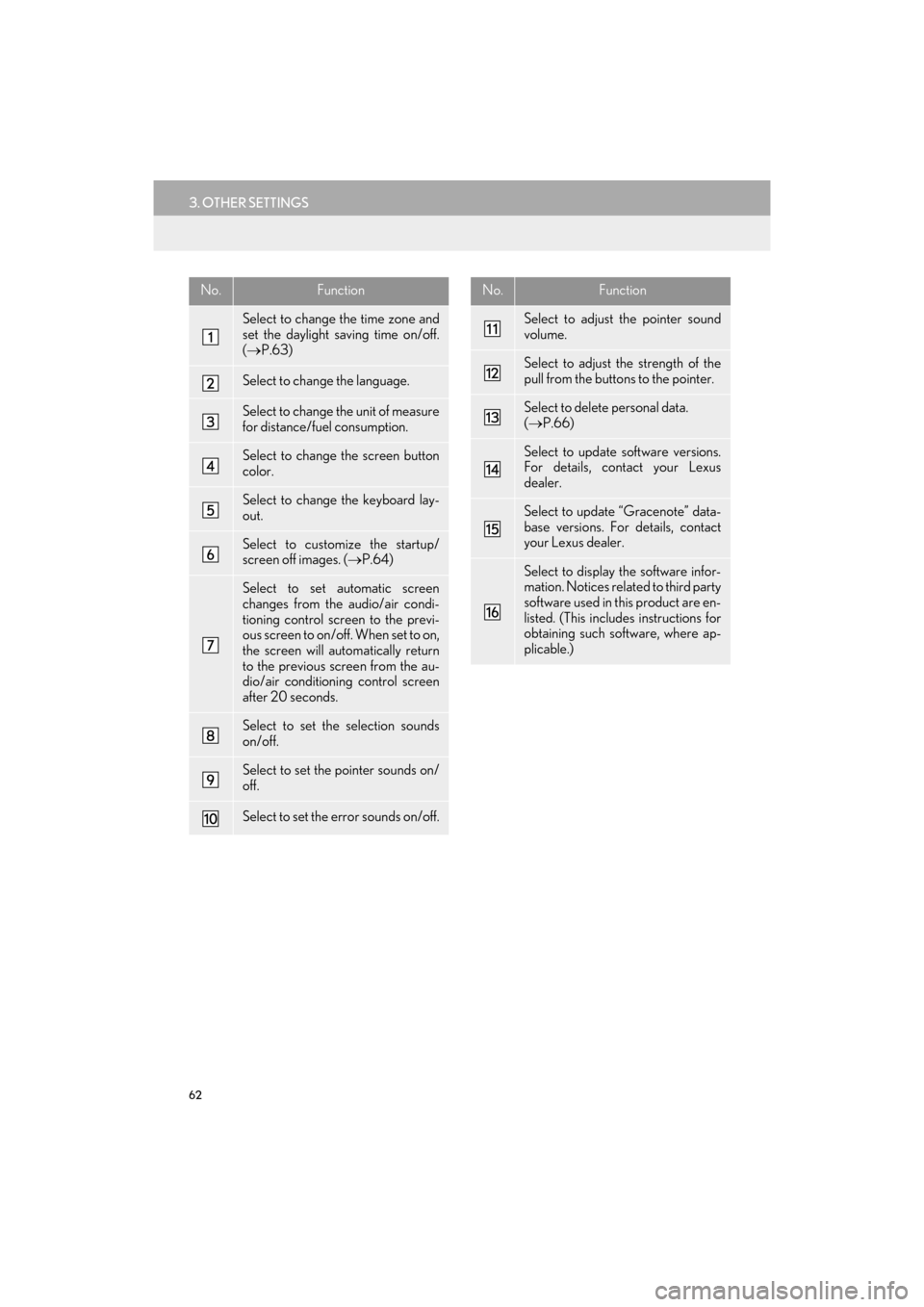
No.Function
Select to change the time zone and
set the daylight saving time on/off.
(→ P.63)
Select to change the language.
Select to change the unit of measure
for distance/fuel consumption.
Select to change the screen button
color.
Select to change the keyboard lay-
out.
Select to customize the startup/
screen off images. ( →P.64)
Select to set automatic screen
changes from the audio/air condi-
tioning control screen to the previ-
ous screen to on/off. When set to on,
the screen will automatically return
to the previous screen from the au-
dio/air conditioning control screen
after 20 seconds.
Select to set the selection sounds
on/off.
Select to set the pointer sounds on/
off.
Select to set the error sounds on/off.
Select to adjust the pointer sound
volume.
Select to adjust the strength of the
pull from the buttons to the pointer.
Select to delete personal data.
(→ P.66)
Select to update software versions.
For details, contact your Lexus
dealer.
Select to update “Gracenote” data-
base versions. For details, contact
your Lexus dealer.
Select to display the software infor-
mation. Notices related to third party
software used in this product are en-
listed. (This includes instructions for
obtaining such software, where ap-
plicable.)
No.Function
ES350_300h_Navi_OM33C79U_(U).book Page 62 Wednesday, June 22, 2016 2:54 PM
Page 77 of 357
3
75
ES350/300h_Navi_OM33C79U_(U)16.06.14 11:50
1
2
3 4
5
6
7
8 9
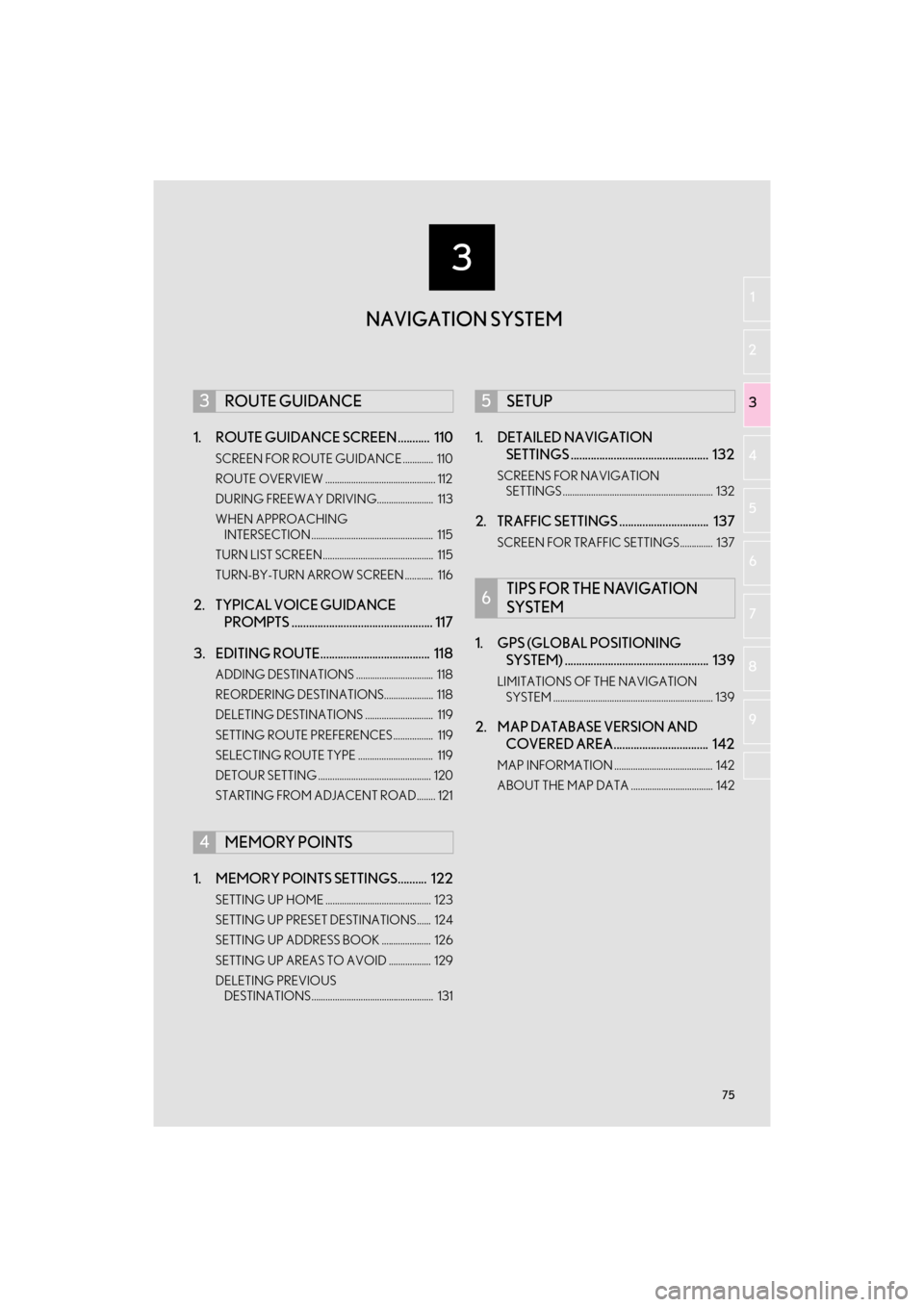
1. ROUTE GUIDANCE SCREEN ........... 110
SCREEN FOR ROUTE GUIDANCE ............. 110
ROUTE OVERVIEW ............................................... 112
DURING FREEWAY DRIVING........................ 113
WHEN APPROACHING INTERSECTION .................................................... 115
TURN LIST SCREEN............................................... 115
TURN-BY-TURN ARROW SCREEN ............ 116
2. TYPICAL VOICE GUIDANCE PROMPTS ................................................. 117
3. EDITING ROUTE...................................... 118
ADDING DESTINATIONS ................................. 118
REORDERING DESTINATIONS..................... 118
DELETING DESTINATIONS ............................. 119
SETTING ROUTE PREFERENCES................. 119
SELECTING ROUTE TYPE ................................ 119
DETOUR SETTING ................................................ 120
STARTING FROM ADJACENT ROAD........ 121
1. MEMORY POINTS SETTINGS.......... 122
SETTING UP HOME ............................................. 123
SETTING UP PRESET DESTINATIONS...... 124
SETTING UP ADDRESS BOOK ..................... 126
SETTING UP AREAS TO AVOID .................. 129
DELETING PREVIOUS DESTINATIONS.................................................... 131
1. DETAILED NAVIGATION SETTINGS ................................................ 132
SCREENS FOR NAVIGATION
SETTINGS ................................................................ 132
2. TRAFFIC SETTINGS ............................... 137
SCREEN FOR TRAFFIC SETTINGS.............. 137
1. GPS (GLOBAL POSITIONING SYSTEM) .................................................. 139
LIMITATIONS OF THE NAVIGATION
SYSTEM .................................................................... 139
2. MAP DATABASE VERSION AND COVERED AREA................................. 142
MAP INFORMATION .......................................... 142
ABOUT THE MAP DATA ................................... 142
3ROUTE GUIDANCE
4MEMORY POINTS
5SETUP
6TIPS FOR THE NAVIGATION
SYSTEM
NAVIGATION SYSTEM
ES350_300h_Navi_OM33C79U_(U).book Page 75 Wednesday, June 22, 2016 2:54 PM
Page 91 of 357
89
1. BASIC OPERATION
ES350/300h_Navi_OM33C79U_(U)16.06.22 14:51
NAVIGATION SYSTEM
3
■STOP RECORDING THE ROUTE
TRACE
1Display the “Map Information” screen.
(→ P.86)
2Select “Route Trace” again.
3A confirmation screen will be displayed.
“Yes”: Select to keep the recorded
route trace.
“No”: Select to erase the recorded
route trace.
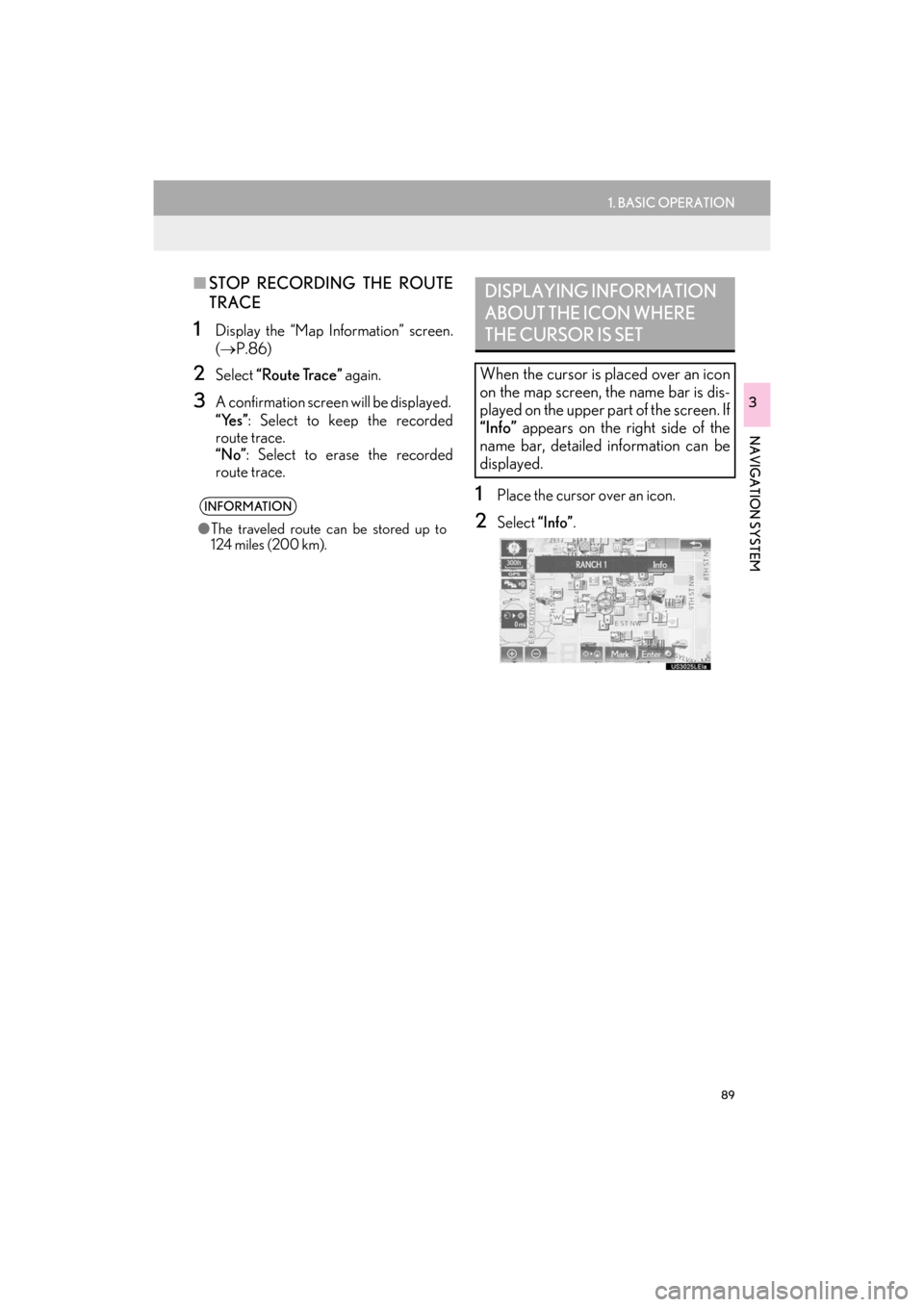
1Place the cursor over an icon.
2Select “Info”.
INFORMATION
●The traveled route can be stored up to
124 miles (200 km).
DISPLAYING INFORMATION
ABOUT THE ICON WHERE
THE CURSOR IS SET
When the cursor is placed over an icon
on the map screen, the name bar is dis-
played on the upper part of the screen. If
“Info” appears on the right side of the
name bar, detailed information can be
displayed.
ES350_300h_Navi_OM33C79U_(U).book Page 89 Wednesday, June 22, 2016 2:54 PM
Page 92 of 357
90
1. BASIC OPERATION
ES350/300h_Navi_OM33C79U_(U)16.06.22 14:51
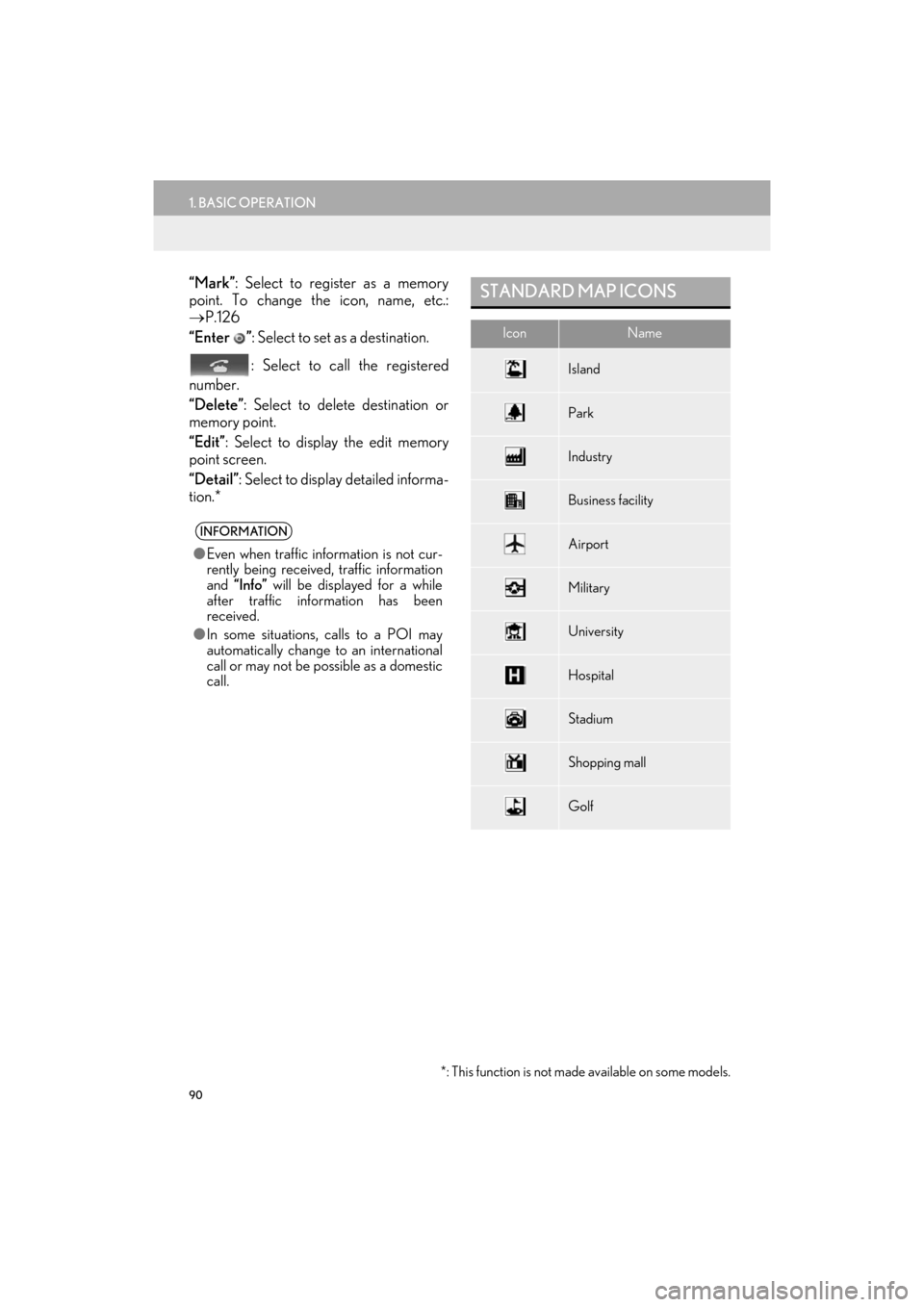
“Mark”: Select to register as a memory
point. To change the icon, name, etc.:
→ P.126
“Enter ” : Select to set as a destination.
: Select to call the registered
number.
“Delete” : Select to delete destination or
memory point.
“Edit” : Select to display the edit memory
point screen.
“Detail” : Select to display detailed informa-
tion.*
INFORMATION
● Even when traffic information is not cur-
rently being received, traffic information
and “Info” will be displayed for a while
after traffic information has been
received.
● In some situations, calls to a POI may
automatically change to an international
call or may not be possible as a domestic
call.
*: This function is not made available on some models.
STANDARD MAP ICONS
IconName
Island
Park
Industry
Business facility
Airport
Military
University
Hospital
Stadium
Shopping mall
Golf
ES350_300h_Navi_OM33C79U_(U).book Page 90 Wednesday, June 22, 2016 2:54 PM
Page 93 of 357
91
1. BASIC OPERATION
ES350/300h_Navi_OM33C79U_(U)16.06.22 14:51
NAVIGATION SYSTEM
3
4. TRAFFIC INFORMATION*
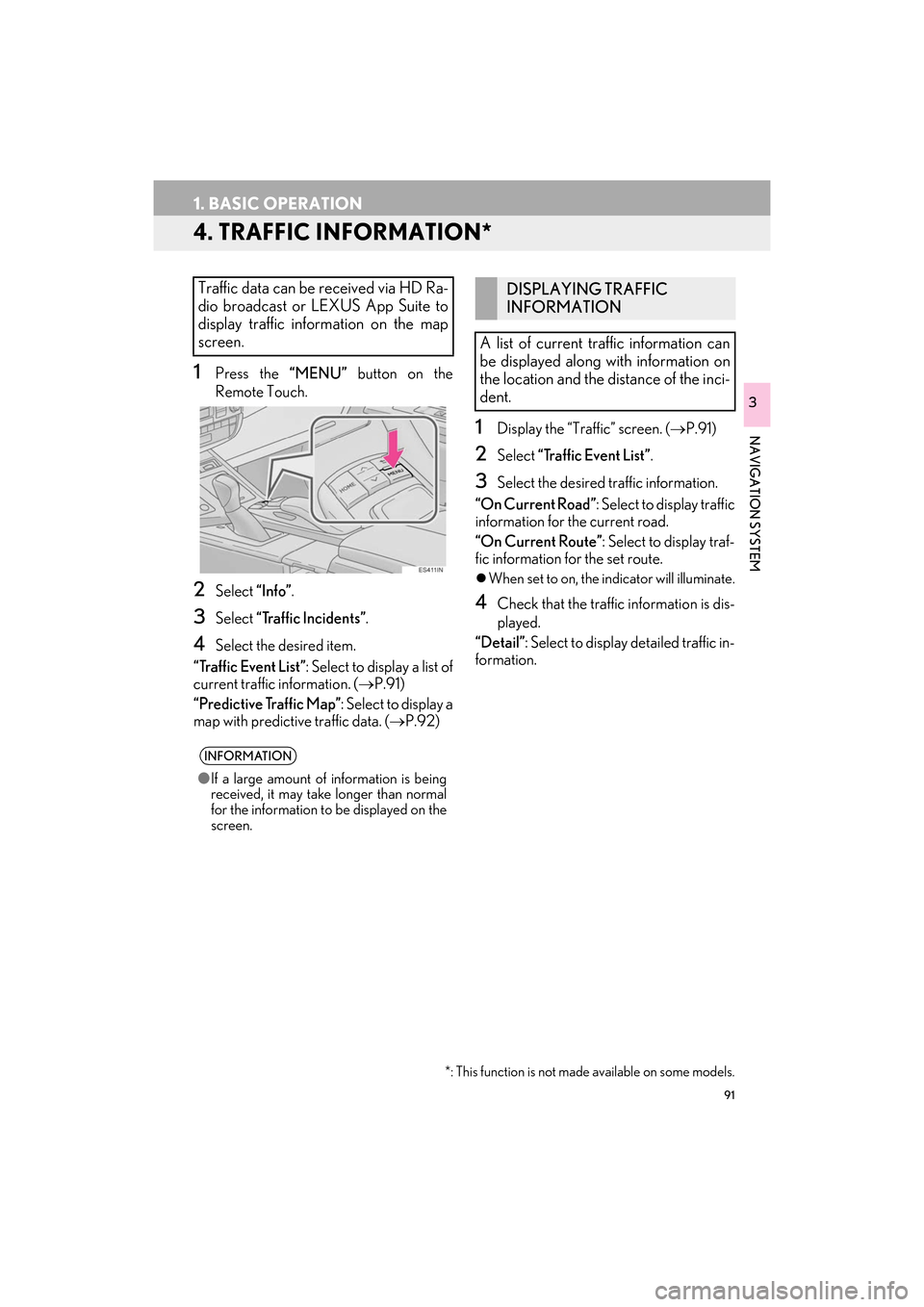
1Press the “MENU” button on the
Remote Touch.
2Select “Info”.
3Select “Traffic Incidents” .
4Select the desired item.
“Traffic Event List” : Select to display a list of
current traffic information. ( →P.91)
“Predictive Traffic Map” : Select to display a
map with predictive traffic data. (→ P.92)
1Display the “Traffic” screen. (→P.91)
2Select “Traffic Event List” .
3Select the desired traffic information.
“On Current Road” : Select to display traffic
information for the current road.
“On Current Route” : Select to display traf-
fic information for the set route.
z When set to on, the indicator will illuminate.
4Check that the traffic information is dis-
played.
“Detail”: Select to display detailed traffic in-
formation.
Traffic data can be received via HD Ra-
dio broadcast or LEXUS App Suite to
display traffic information on the map
screen.
INFORMATION
● If a large amount of information is being
received, it may take longer than normal
for the information to be displayed on the
screen.
*: This function is not made available on some models.
DISPLAYING TRAFFIC
INFORMATION
A list of current traffic information can
be displayed along with information on
the location and the distance of the inci-
dent.
ES350_300h_Navi_OM33C79U_(U).book Page 91 Wednesday, June 22, 2016 2:54 PM
Page 100 of 357

98
2. DESTINATION SEARCH
ES350/300h_Navi_OM33C79U_(U)16.06.22 14:52
1Select “Name”.
2Enter a POI name and select “OK”.
3Select the desired POI.
zWhen entering the name of a specific POI,
and there are 2 or more sites with the same
name, the list screen will be displayed.
Select the desired POI.
■ SELECTING A CITY TO SEARCH
1Select “City”.
2Enter a city name and select “OK”.
“A n y C i t y ” : Select to cancel the city setting.
3Select the desired city name.
4Select the desired POI.
■SELECTING FROM THE CATEGO-
RIES
1Select “Category” .
2Select the desired category.
zIf there is more than 1 detailed item of the
selected category, the detailed list will be
displayed.
“List All Categories” : Select to display all
POI categories.
3Select the desired POI.
SEARCHING BY NAME
No.FunctionPage
Select to search for POI in
the desired city.98
Select to search for POI
from the category list.98
Select to search for POI us-
ing online database.99
INFORMATION
● To search for a facility name using multi-
ple search words, put a space between
each word.
ES350_300h_Navi_OM33C79U_(U).book Page 98 Wednesday, June 22, 2016 2:54 PM
Page 102 of 357

100
2. DESTINATION SEARCH
ES350/300h_Navi_OM33C79U_(U)16.06.22 14:52
3Select the desired POI category.
zIf there is more than 1 detailed item of the
selected category, the detailed list will be
displayed.
“List All Categories” : Select to display all
POI categories.
“Favorite POI Categories” : Select to use
the 6 POIs that have been previously
set.( →P.134)
4Select the desired POI.
“Web Search” : Select to search for POI us-
ing online database. ( →P.99) X
When “Near a City Center in XX*” is se-
lected
1Select “Near a City Center in XX” .
2Enter a city name and select “OK”.
“Last 5 Cities” : Select the city name from
the list of the last 5 cities.
3Select the desired city name.
4Select “OK” when the city center map
screen is displayed.
5Follow the steps from 3 onward in
“SEARCHING BY CATEGORY”.
( → P.99)
*:XX represents the selected search area
name.
1Select “Phone #” .
2Enter a phone number and select “OK”.
zIf there is more than 1 site with the same
number, the list screen will be displayed.
INFORMATION
●The names of POIs located within
approximately 200 miles (320 km) from
the selected search point can be dis-
played.
INFORMATION
●If the navigation system has never been
used, selecting the city name from “Last 5
Cities” will not be available.
SEARCHING BY PHONE
NUMBER
INFORMATION
●If there is no match for the entered phone
number, a list of identical numbers with
different area codes will be displayed.
ES350_300h_Navi_OM33C79U_(U).book Page 100 Wednesday, June 22, 2016 2:54 PM
Page 107 of 357

105
2. DESTINATION SEARCH
ES350/300h_Navi_OM33C79U_(U)16.06.22 14:52
NAVIGATION SYSTEM
3
2. STARTING ROUTE GUIDANCE
1Select “Go” on the confirm destination
screen.
z For details about this screen: →P.1 0 6
2Select “OK” on the entire route map
screen.
z For details about this screen: →P.1 0 6
When the destination is set, the confirm
destination screen will be displayed.
WA R N I N G
●Be sure to obey traffic regulations and
keep road conditions in mind while driv-
ing. If a traffic sign on the road has been
changed, the route guidance may not
indicate such changed information.
INFORMATION
● The route for returning may not be the
same as that for going.
● The route guidance to the destination
may not be the shortest route or a route
without traffic congestion.
● Route guidance may not be available if
there is no road data for the specified
location.
● When setting the de stination on a map
with a scale more than 0.5 mile (800 m),
the map scale changes to 0.5 mile (800
m) automatically. If this occurs, set the
destination again.
● If a destination that is not located on a
road is set, the vehicle will be guided to
the point on a road nearest to the destina-
tion. The road nearest to the selected
point is set as the destination.
ES350_300h_Navi_OM33C79U_(U).book Page 105 Wednesday, June 22, 2016 2:54 PM
Page 114 of 357

112
3. ROUTE GUIDANCE
ES350/300h_Navi_OM33C79U_(U)16.06.22 14:52
1Select the route information bar.
2Check that the list of the distance and
time is displayed.
zBy selecting one of the number buttons, the
desired route information is displayed.
1Select on the map screen.
( → P.78)
2Select “Route Overview” .
3Check that the entire route map is dis-
played.
zFor details about this screen: →P.1 0 5
DISTANCE AND TRAVEL/
ARRIVAL TIME
When driving on the guidance route
with more than 1 destination set, a list of
the distance with estimated travel/arriv-
al time from the current position to each
destination is displayed.ROUTE OVERVIEW
The entire route from the current posi-
tion to the destination can be displayed
during the route guidance.
ES350_300h_Navi_OM33C79U_(U).book Page 112 Wednesday, June 22, 2016 2:54 PM