Disp Lexus GS250 2012 Owner's Manual
[x] Cancel search | Manufacturer: LEXUS, Model Year: 2012, Model line: GS250, Model: Lexus GS250 2012Pages: 914, PDF Size: 53.04 MB
Page 485 of 914
4745-3. Using the audio system
GS350/250_EE (OM30C36E)
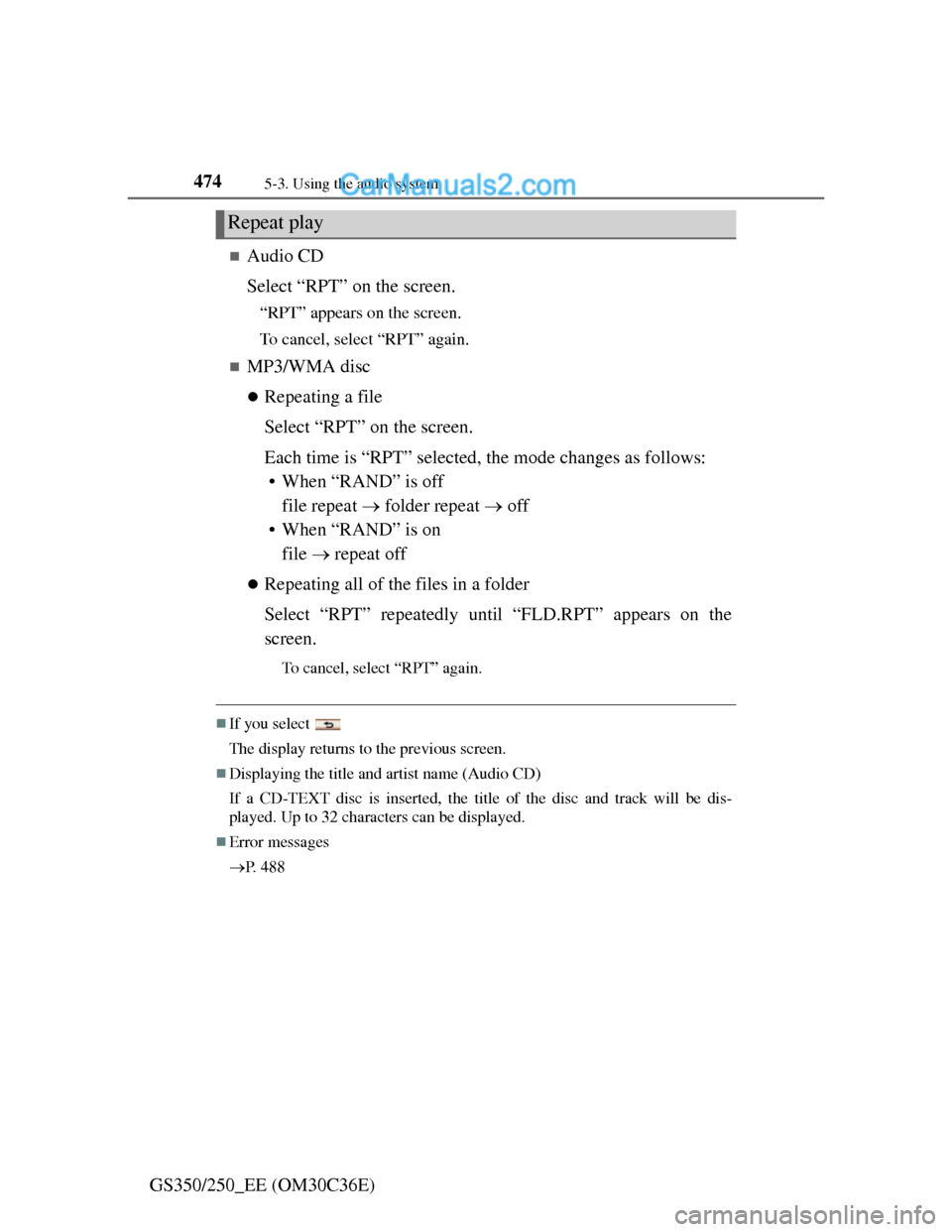
Audio CD
Select “RPT” on the screen.
“RPT” appears on the screen.
To cancel, select “RPT” again.
MP3/WMA disc
Repeating a file
Select “RPT” on the screen.
Each time is “RPT” selected, the mode changes as follows:
• When “RAND” is off
file repeat folder repeat off
• When “RAND” is on
file repeat off
Repeating all of the files in a folder
Select “RPT” repeatedly until “FLD.RPT” appears on the
screen.
To cancel, select “RPT” again.
If you select
The display returns to the previous screen.
Displaying the title and artist name (Audio CD)
If a CD-TEXT disc is inserted, the title of the disc and track will be dis-
played. Up to 32 characters can be displayed.
Error messages
P. 4 8 8
Repeat play
Page 487 of 914
4765-3. Using the audio system
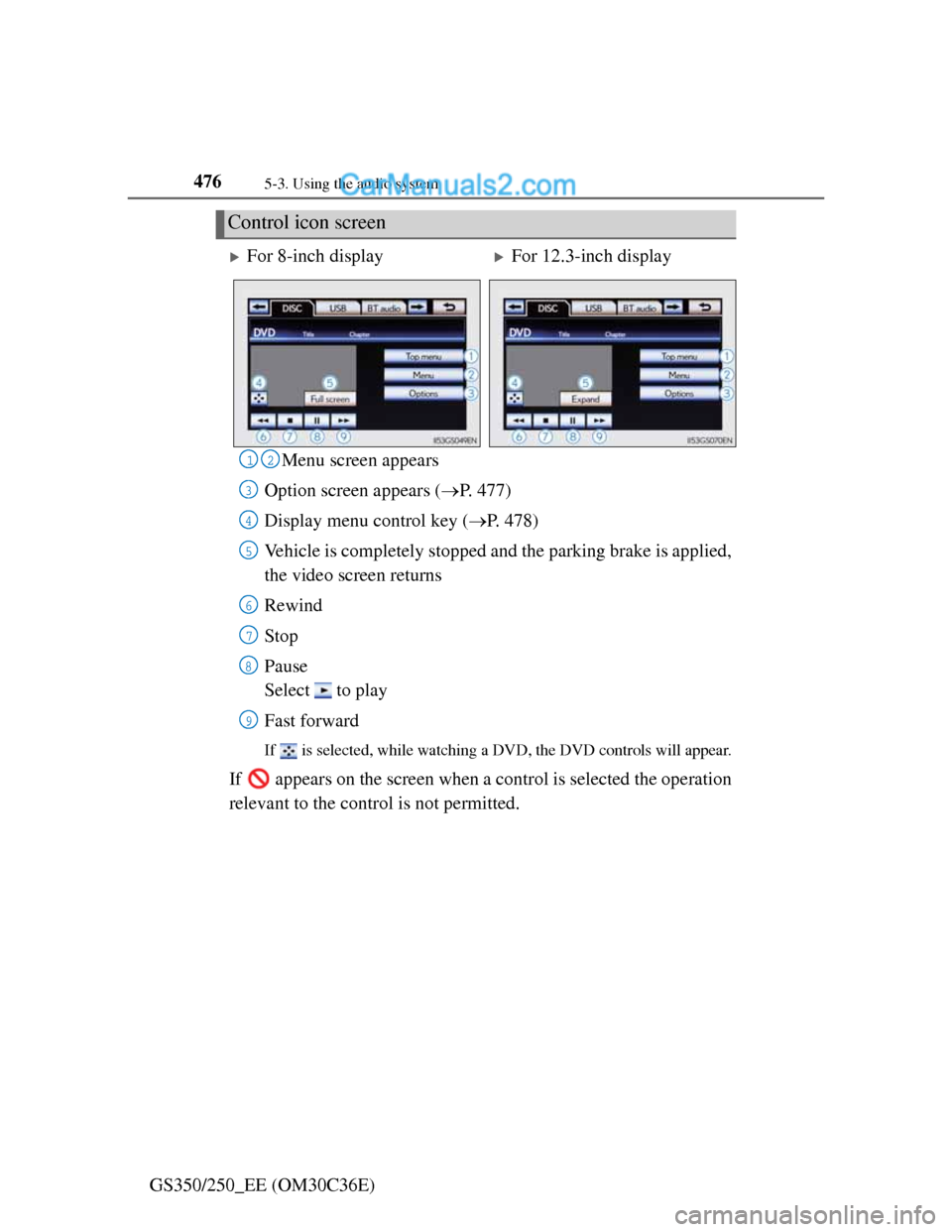
GS350/250_EE (OM30C36E)Menu screen appears
Option screen appears (P. 477)
Display menu control key (P. 478)
Vehicle is completely stopped and the parking brake is applied,
the video screen returns
Rewind
Stop
Pause
Select to play
Fast forward
If is selected, while watching a DVD, the DVD controls will appear.
If appears on the screen when a control is selected the operation
relevant to the control is not permitted.
Control icon screen
For 8-inch displayFor 12.3-inch display
12
3
4
5
6
7
8
9
Page 488 of 914
4775-3. Using the audio system
5
Interior features
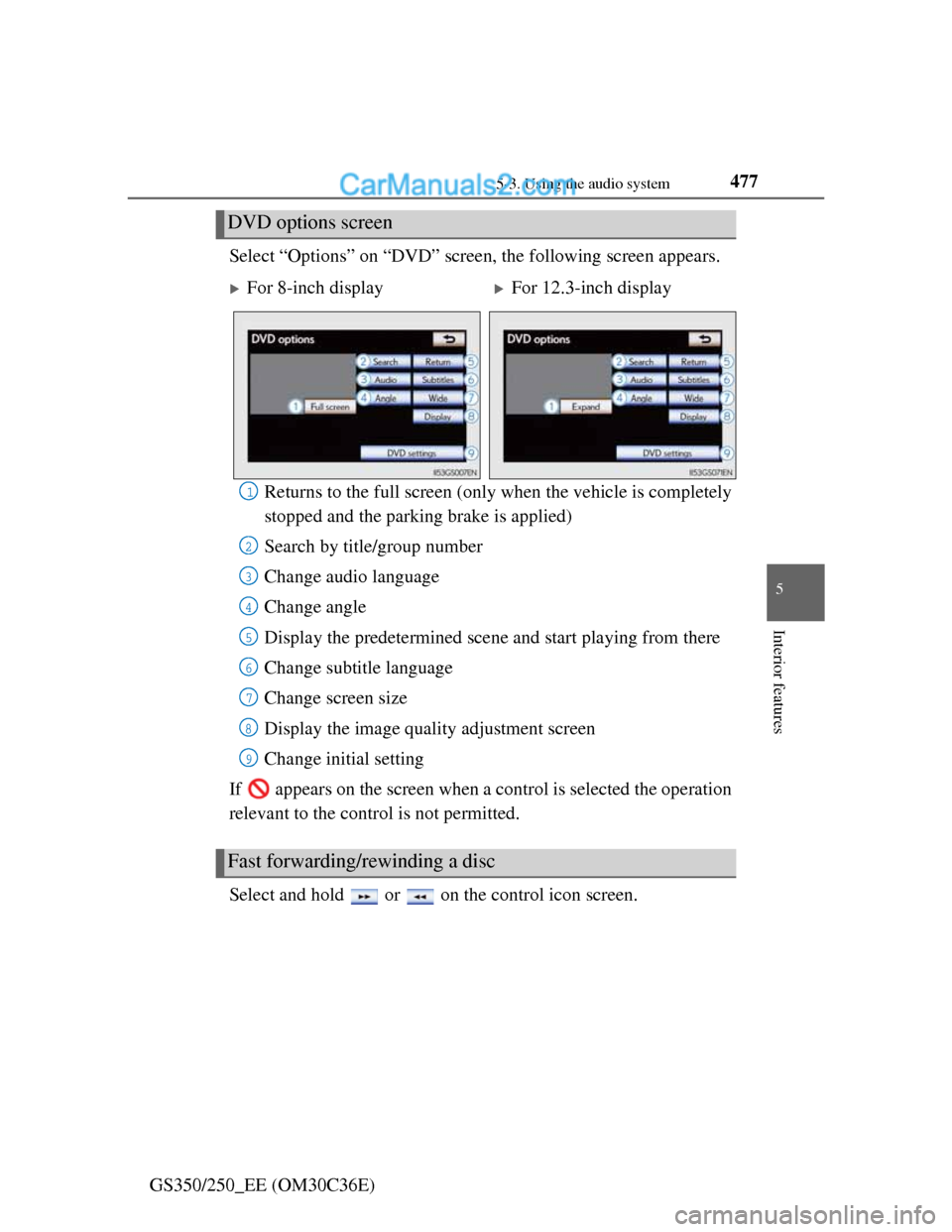
GS350/250_EE (OM30C36E)Select “Options” on “DVD” screen, the following screen appears.
Returns to the full screen (only when the vehicle is completely
stopped and the parking brake is applied)
Search by title/group number
Change audio language
Change angle
Display the predetermined scene and start playing from there
Change subtitle language
Change screen size
Display the image quality adjustment screen
Change initial setting
If appears on the screen when a control is selected the operation
relevant to the control is not permitted.
Select and hold or on the control icon screen.
DVD options screen
For 8-inch displayFor 12.3-inch display
Fast forwarding/rewinding a disc
1
2
3
4
5
6
7
8
9
Page 492 of 914
4815-3. Using the audio system
5
Interior features
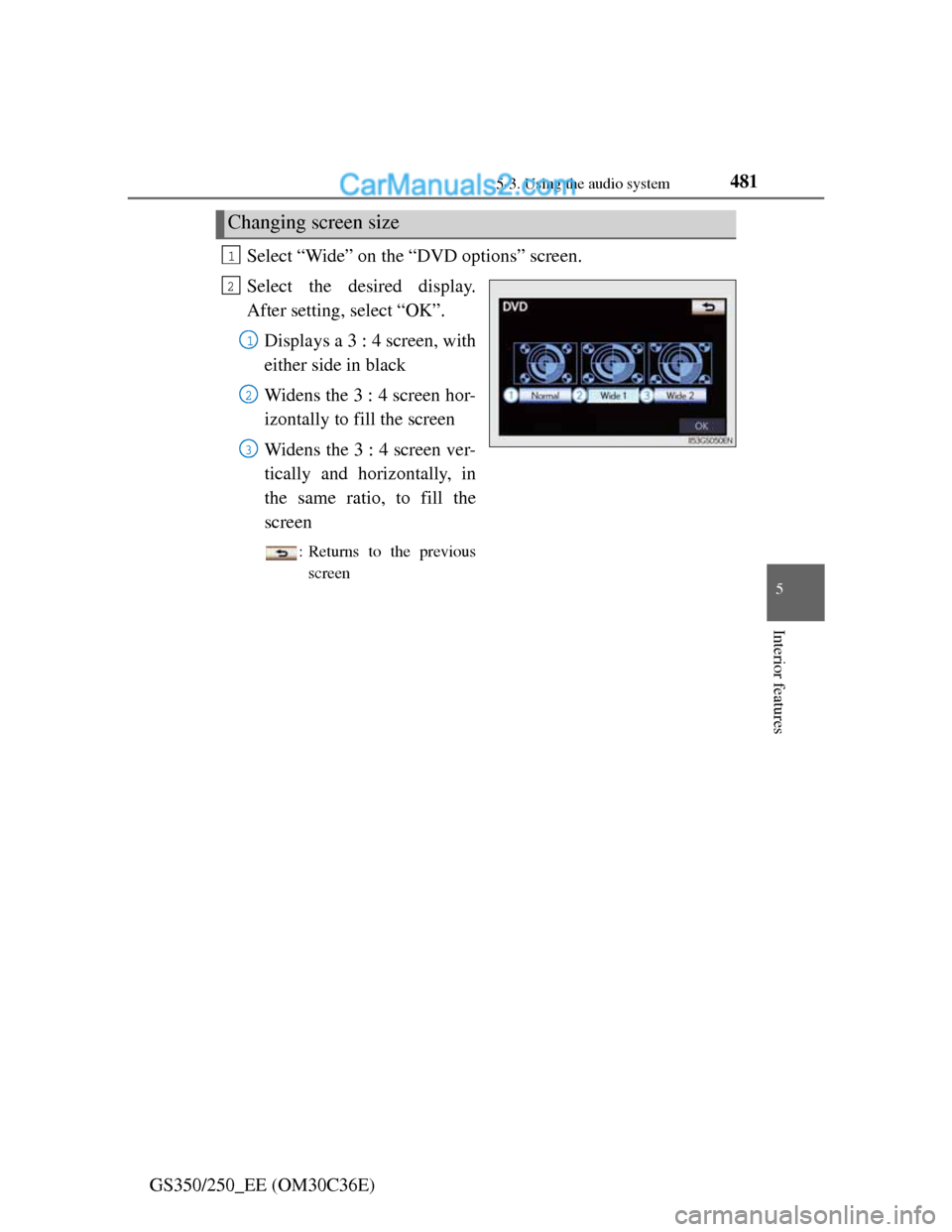
GS350/250_EE (OM30C36E)Select “Wide” on the “DVD options” screen.
Select the desired display.
After setting, select “OK”.
Displays a 3 : 4 screen, with
either side in black
Widens the 3 : 4 screen hor-
izontally to fill the screen
Widens the 3 : 4 screen ver-
tically and horizontally, in
the same ratio, to fill the
screen
: Returns to the previous
screen
Changing screen size
1
2
1
2
3
Page 493 of 914
4825-3. Using the audio system
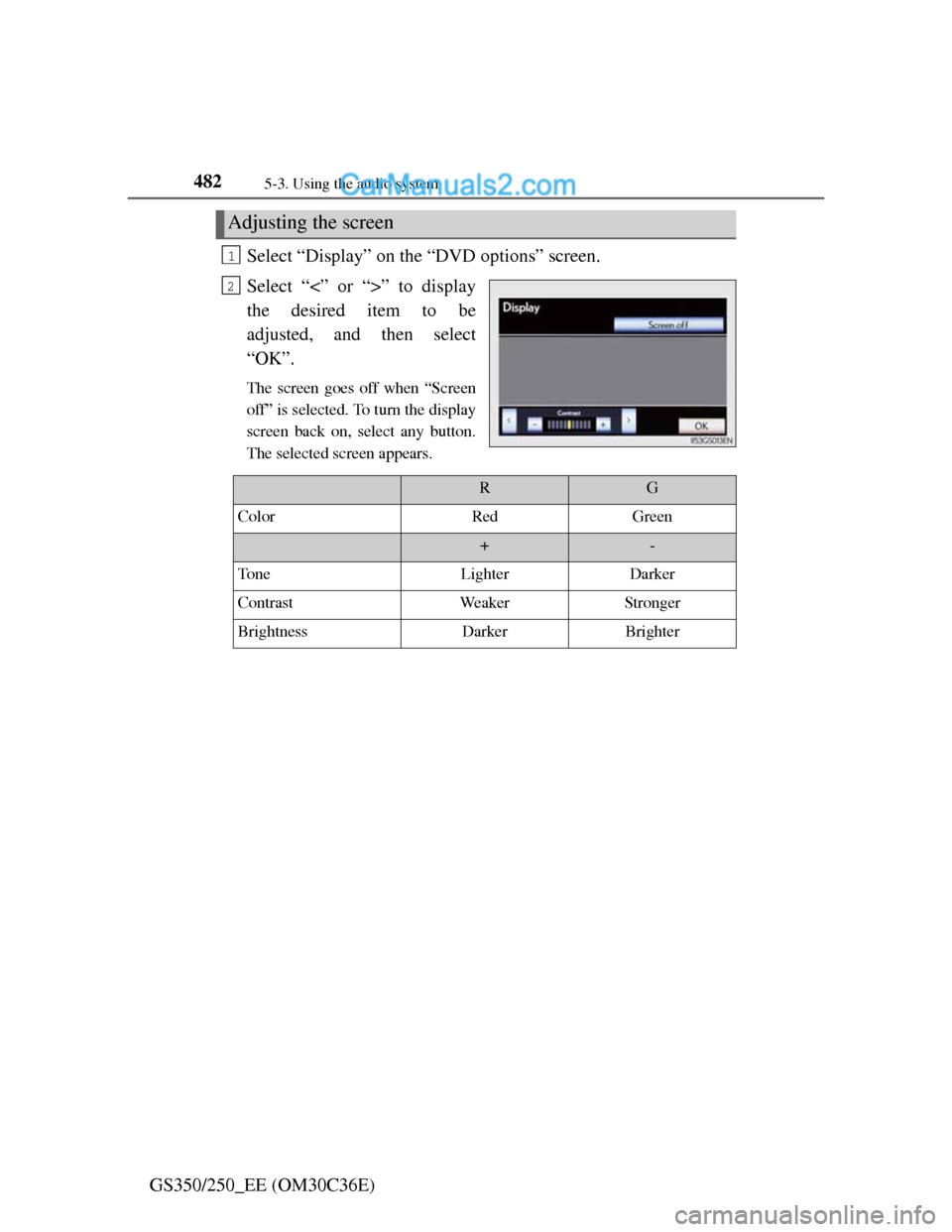
GS350/250_EE (OM30C36E)Select “Display” on the “DVD options” screen.
Select “<” or “>” to display
the desired item to be
adjusted, and then select
“OK”.
The screen goes off when “Screen
off” is selected. To turn the display
screen back on, select any button.
The selected screen appears.
Adjusting the screen
1
2
RG
ColorRedGreen
+-
To n eLighterDarker
ContrastWeakerStronger
BrightnessDarkerBrighter
Page 494 of 914
4835-3. Using the audio system
5
Interior features
GS350/250_EE (OM30C36E)
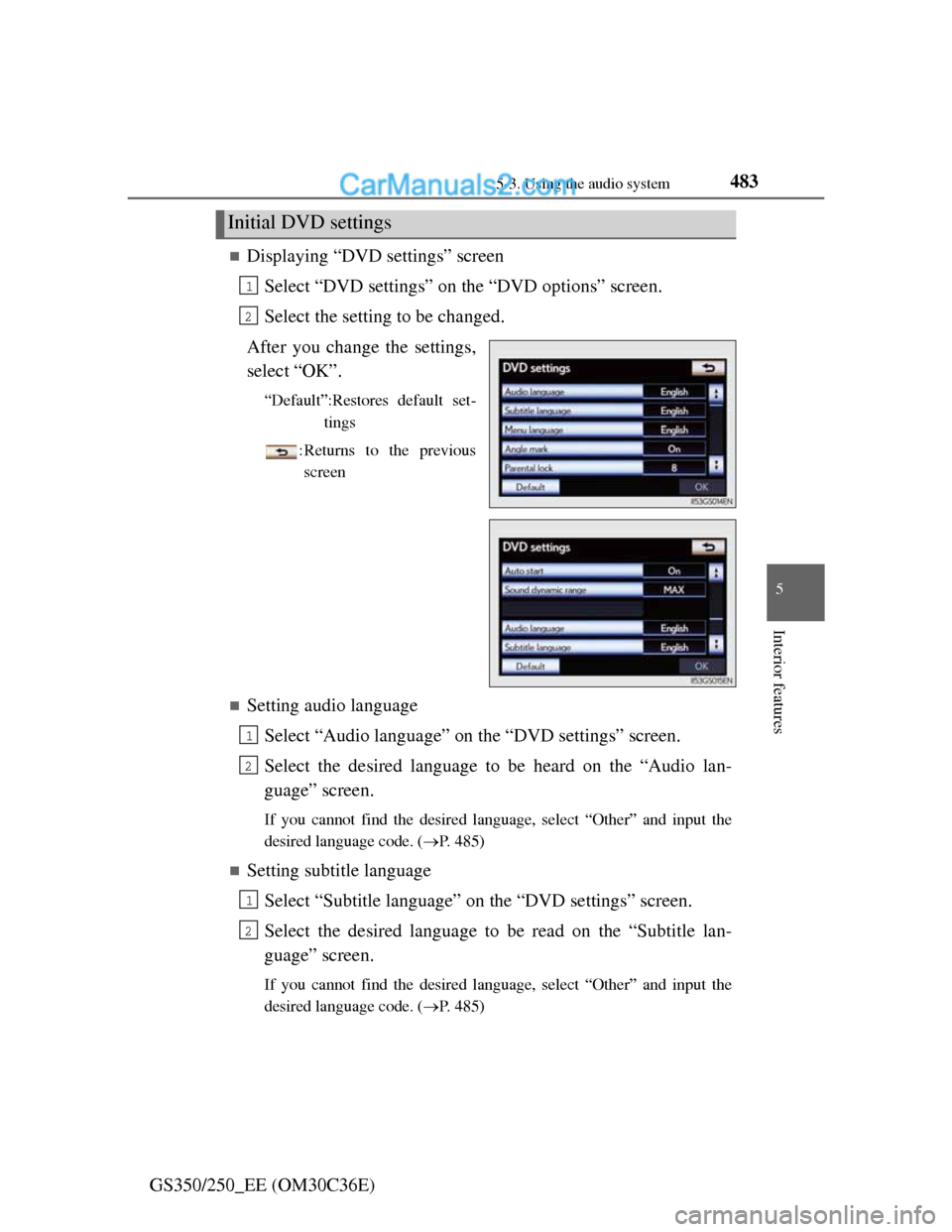
Displaying “DVD settings” screen
Select “DVD settings” on the “DVD options” screen.
Select the setting to be changed.
After you change the settings,
select “OK”.
“Default”:Restores default set-
tings
: Returns to the previous
screen
Setting audio language
Select “Audio language” on the “DVD settings” screen.
Select the desired language to be heard on the “Audio lan-
guage” screen.
If you cannot find the desired language, select “Other” and input the
desired language code. (P. 485)
Setting subtitle language
Select “Subtitle language” on the “DVD settings” screen.
Select the desired language to be read on the “Subtitle lan-
guage” screen.
If you cannot find the desired language, select “Other” and input the
desired language code. (P. 485)
Initial DVD settings
1
2
1
2
1
2
Page 498 of 914
4875-3. Using the audio system
5
Interior features
GS350/250_EE (OM30C36E)
When a rear passenger selects set up menu
Follow the directions on the warning screen that is displayed.
Under the same condition, the rear passenger can cancel the set up operation
from the front seat.
Error messages
If “Region code error” is displayed, check if the region code printed on the
DVD matches the player’s region code.
If a different message is displayed: P. 4 8 8
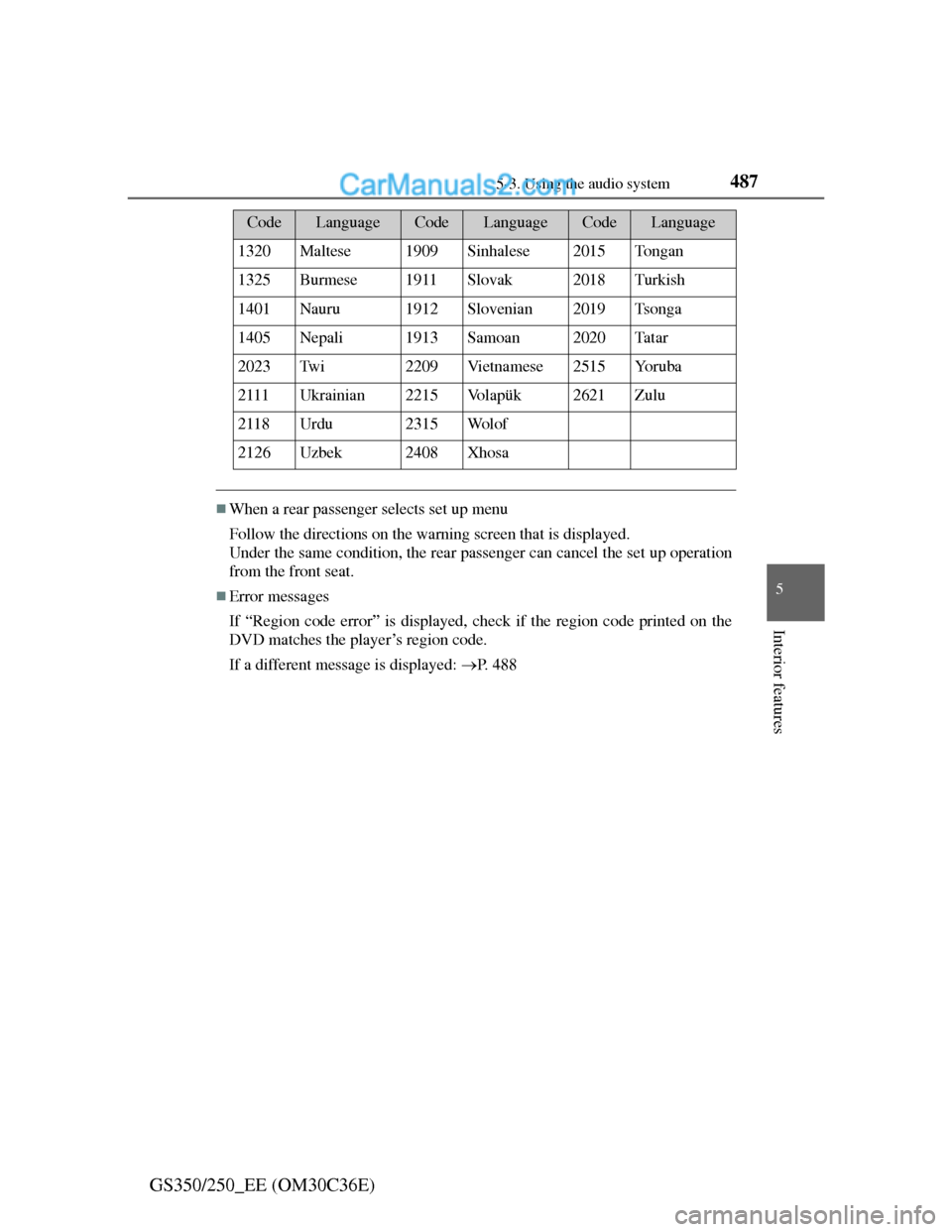
1320Maltese1909Sinhalese2015To n g a n
1325Burmese1911Slovak2018Turkish
1401Nauru1912Slovenian2019Tsonga
1405Nepali1913Samoan2020Ta t a r
2023Tw i2209Vi e t n a m e s e2515Yo r u b a
2111Ukrainian2215Vo l a p ü k2621Zulu
2118Urdu2315Wo l o f
2126Uzbek2408Xhosa
CodeLanguageCodeLanguageCodeLanguage
Page 500 of 914
4895-3. Using the audio system
5
Interior features
GS350/250_EE (OM30C36E)
The DVD player conforms to PAL/NTSC color TV formats.
Region code: Some DVD video discs have a region code indi-
cating the region in which you can use the DVD video disc. If
the DVD video disc is not labeled as “ALL”, “2” or “5”, you
cannot use it on this DVD player. If you attempt to play an
inappropriate DVD video disc on this player, “Region code
error” appears on the screen. Even if the DVD video disc does
not have a region code, you may not be able to use it.
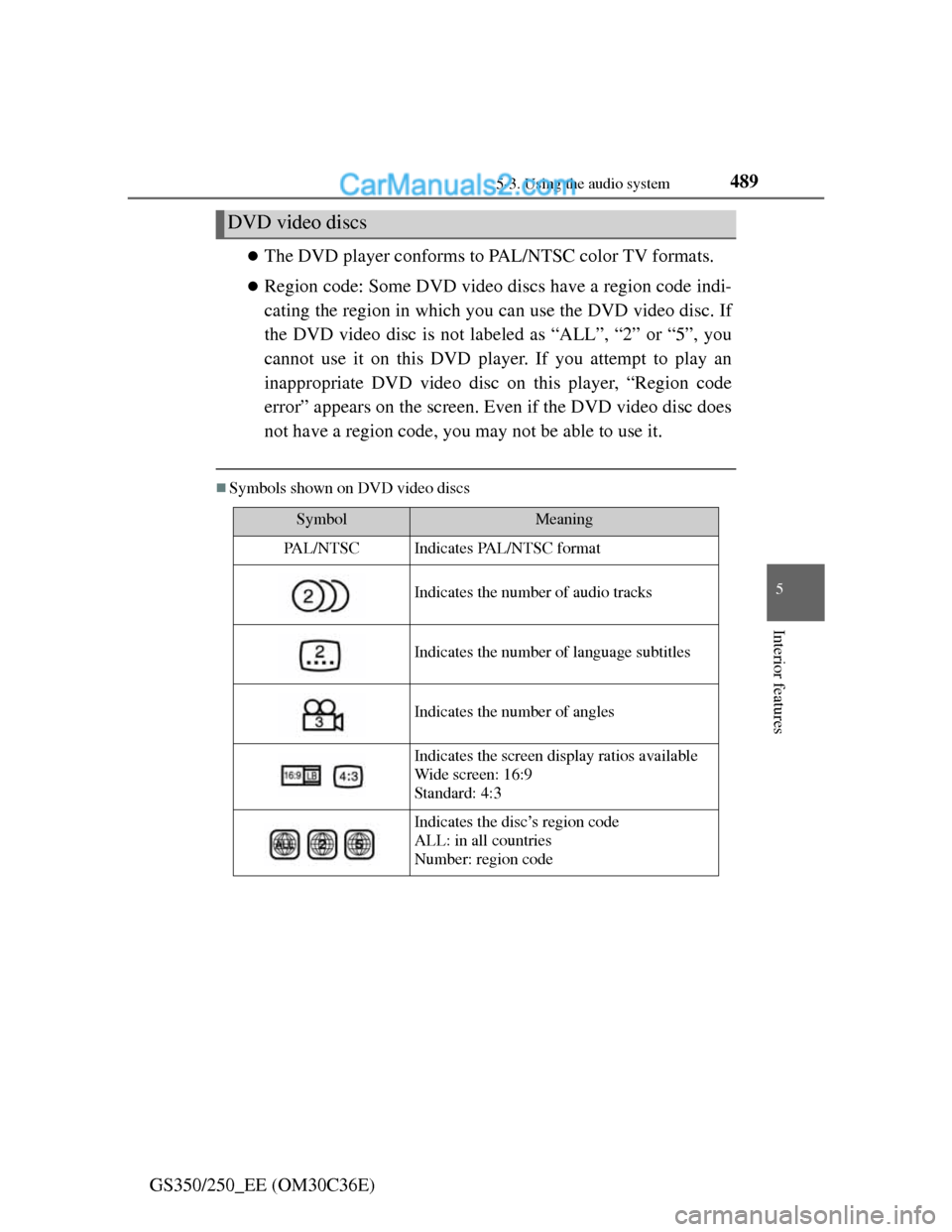
Symbols shown on DVD video discs
DVD video discs
SymbolMeaning
PA L / N T S CIndicates PAL/NTSC format
Indicates the number of audio tracks
Indicates the number of language subtitles
Indicates the number of angles
Indicates the screen display ratios available
Wide screen: 16:9
Standard: 4:3
Indicates the disc’s region code
ALL: in all countries
Number: region code
Page 504 of 914
4935-3. Using the audio system
5
Interior features
GS350/250_EE (OM30C36E)
WMA file compatibility
• Compatible standards
WMA Ver. 7, 8, 9
• Compatible sampling frequencies
32, 44.1, 48 (kHz)
• Compatible bit rates (only compatible with 2-channel playback)
Ver. 7, 8: CBR 48, 64, 80, 96, 128, 160, 192 (kbps)
Ver. 9: CBR 48, 64, 80, 96, 128, 160, 192, 256, 320 (kbps)
Compatible media
Media that can be used for MP3 and WMA playback are CD-Rs and CD-
RW s .
Playback in some instances may not be possible if the CD-R or CD-RW is
not finalized. Playback may not be possible or the audio may jump if the
disc is scratched or marked with fingerprints.
Compatible disc formats
The following disc formats can be used:
• Disc formats:CD-ROM Mode 1 and Mode 2
CD-ROM XA Mode 2, Form 1 and Form 2
• File formats: ISO9660 Level 1, Level 2, (Romeo, Joliet)
MP3 and WMA files written in any format other than those listed above
may not play correctly, and their file names and folder names may not be
displayed correctly.
Items related to standards and limitations are as follows:
• Maximum directory hierarchy: 8 levels (including the root)
• Maximum length of folder names/file names: 32 characters
• Maximum number of folders: 192 (including the root)
• Maximum number of files per disc: 255
Page 510 of 914
4995-3. Using the audio system
5
Interior features
GS350/250_EE (OM30C36E)
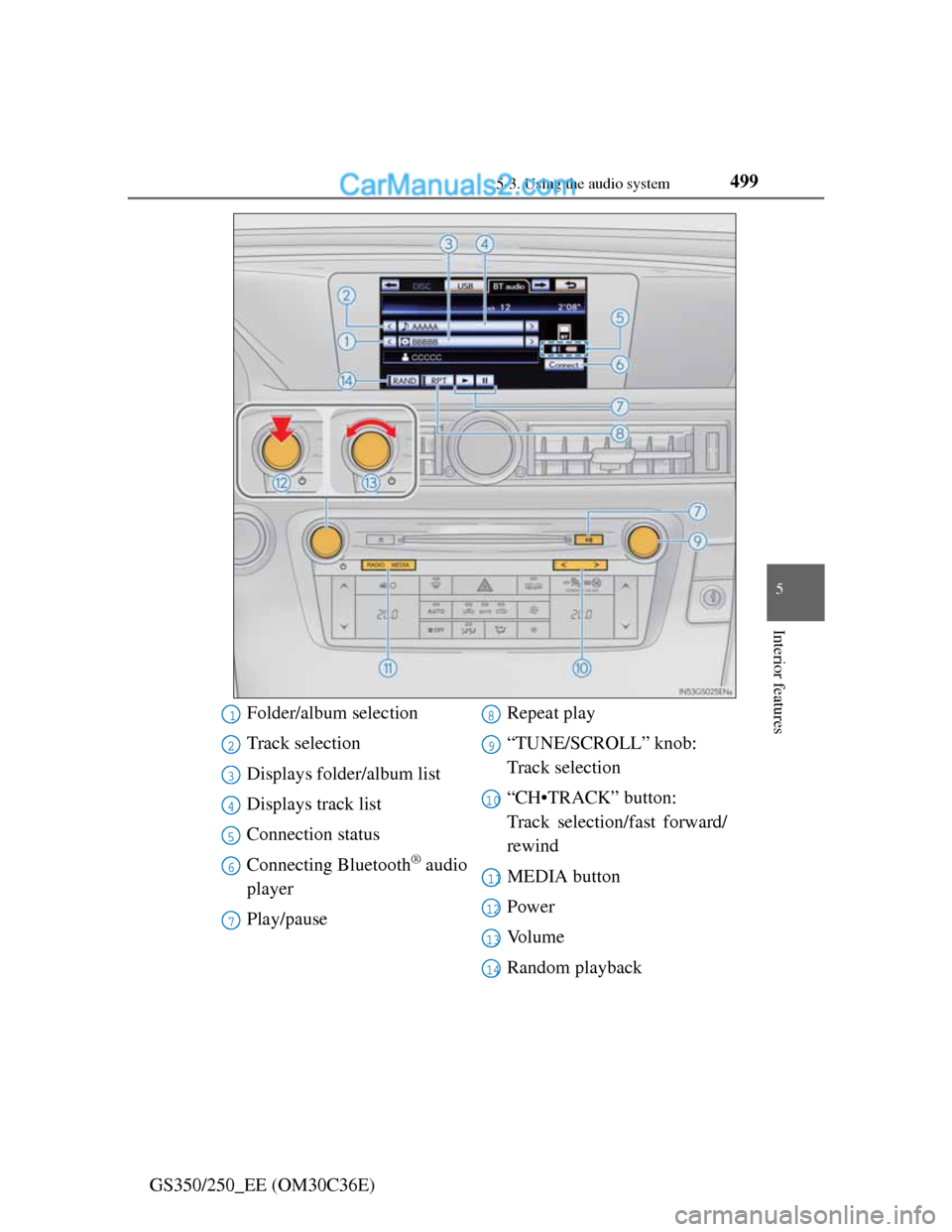
Folder/album selection
Track selection
Displays folder/album list
Displays track list
Connection status
Connecting Bluetooth
® audio
player
Play/pauseRepeat play
“TUNE/SCROLL” knob:
Track selection
“CH•TRACK” button:
Track selection/fast forward/
rewind
MEDIA button
Power
Vo l u m e
Random playback
1
2
3
4
5
6
7
8
9
10
11
12
13
14