change time Lexus GS250 2012 Owner's Guide
[x] Cancel search | Manufacturer: LEXUS, Model Year: 2012, Model line: GS250, Model: Lexus GS250 2012Pages: 914, PDF Size: 53.04 MB
Page 441 of 914
4305-2. Using the air conditioning system and defogger
GS350/250_EE (OM30C36E)
Rear window and outside rear view mirror
defoggers
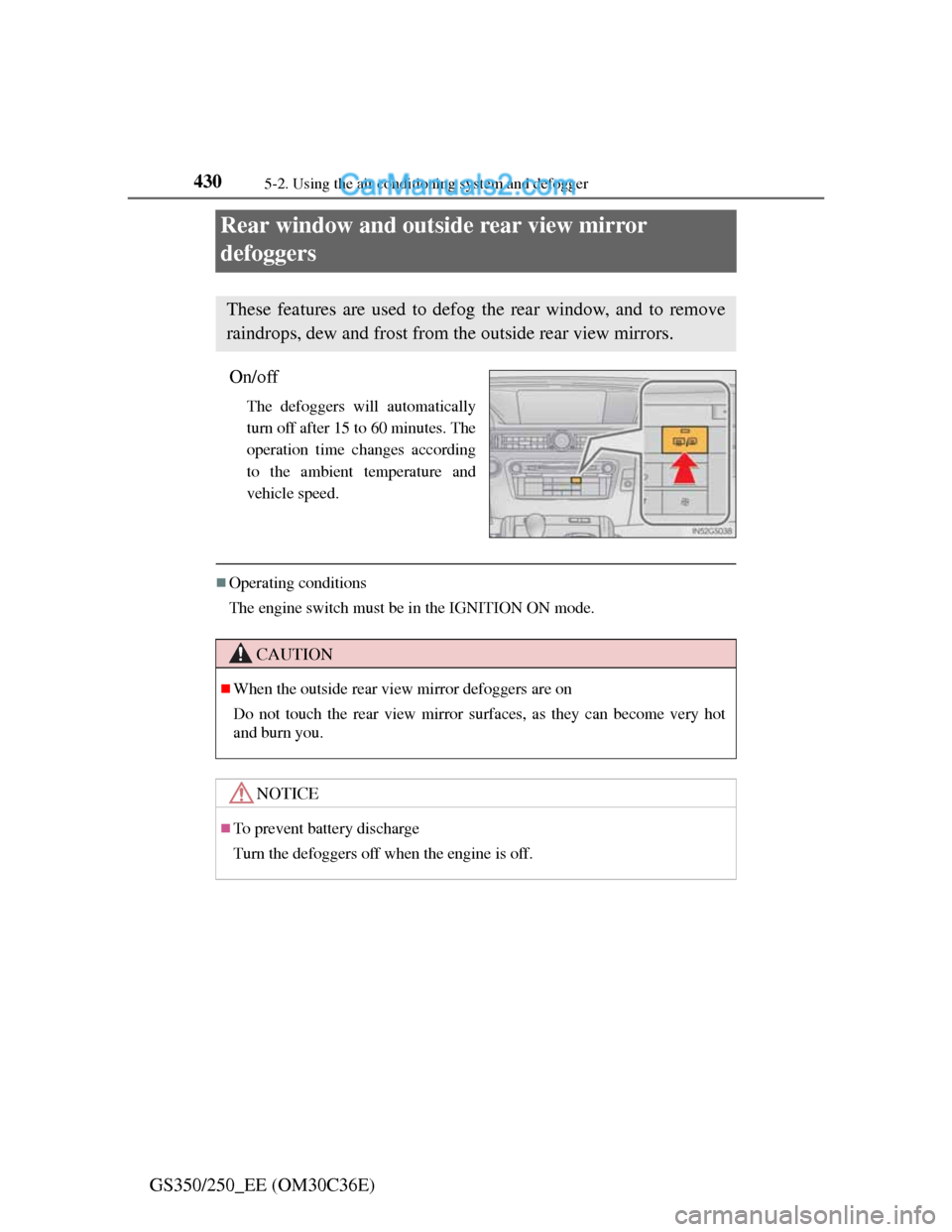
On/off
The defoggers will automatically
turn off after 15 to 60 minutes. The
operation time changes according
to the ambient temperature and
vehicle speed.
Operating conditions
The engine switch must be in the IGNITION ON mode.
These features are used to defog the rear window, and to remove
raindrops, dew and frost from the outside rear view mirrors.
CAUTION
When the outside rear view mirror defoggers are on
Do not touch the rear view mirror surfaces, as they can become very hot
and burn you.
NOTICE
To prevent battery discharge
Turn the defoggers off when the engine is off.
Page 484 of 914
473
5 5-3. Using the audio system
Interior features
GS350/250_EE (OM30C36E)
Audio CD
Select “RAND” on the screen.
“RAND” appears on the screen.
To cancel, select “RAND”
again.
MP3/WMA disc
Playing files from a particular folder in random order
Each time “RAND” is selected, the mode changes as follows:
random (1 folder random) folder random (1 disc random)
off
Playing all the files on a disc in random order
Select “RAND” repeatedly until “FLD.RAND” appears on the
screen.
To cancel, select “RAND” again.
When a file is skipped or the system is inoperative, select “RAND”
to reset.
Random playback
Page 485 of 914
4745-3. Using the audio system
GS350/250_EE (OM30C36E)
Audio CD
Select “RPT” on the screen.
“RPT” appears on the screen.
To cancel, select “RPT” again.
MP3/WMA disc
Repeating a file
Select “RPT” on the screen.
Each time is “RPT” selected, the mode changes as follows:
• When “RAND” is off
file repeat folder repeat off
• When “RAND” is on
file repeat off
Repeating all of the files in a folder
Select “RPT” repeatedly until “FLD.RPT” appears on the
screen.
To cancel, select “RPT” again.
If you select
The display returns to the previous screen.
Displaying the title and artist name (Audio CD)
If a CD-TEXT disc is inserted, the title of the disc and track will be dis-
played. Up to 32 characters can be displayed.
Error messages
P. 4 8 8
Repeat play
Page 490 of 914
4795-3. Using the audio system
5
Interior features
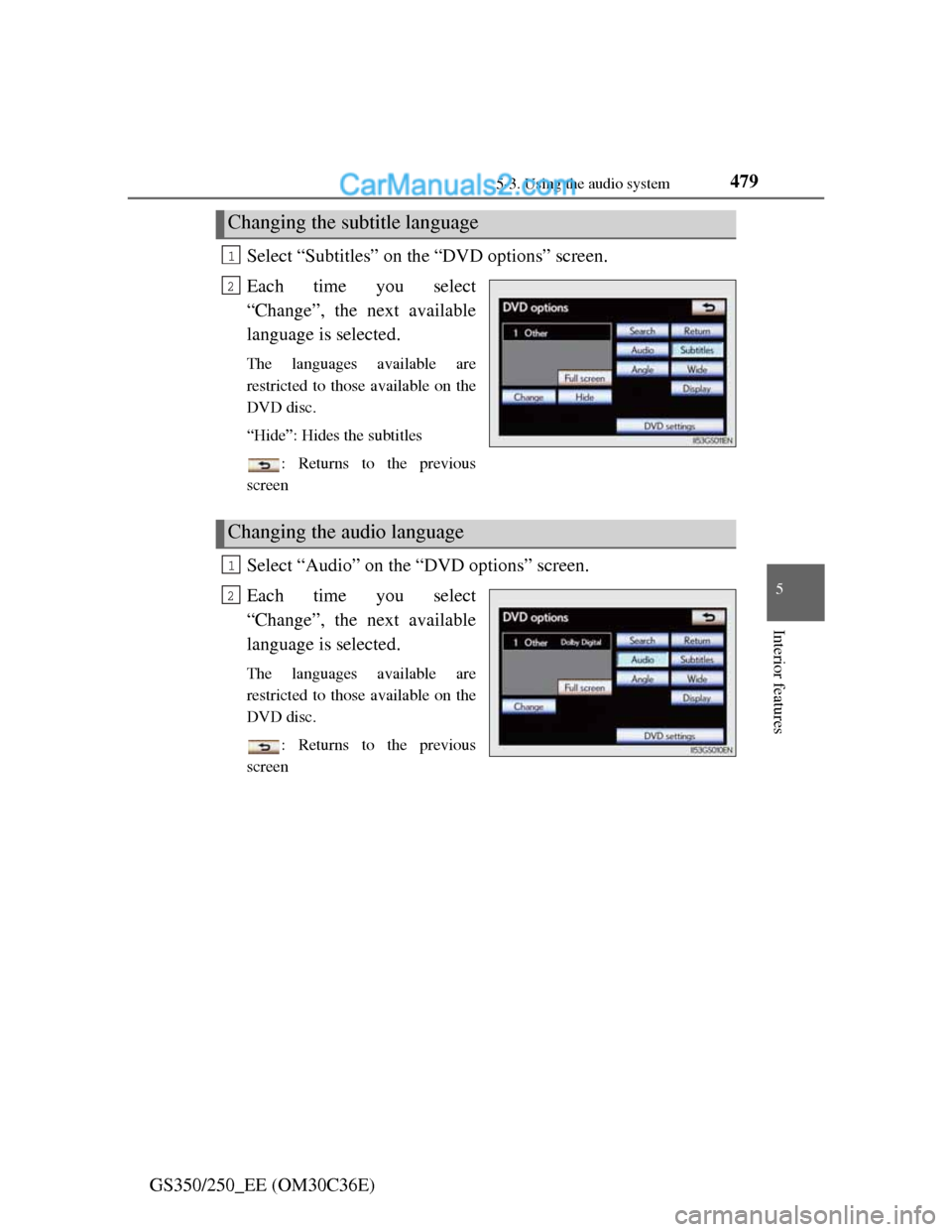
GS350/250_EE (OM30C36E)Select “Subtitles” on the “DVD options” screen.
Each time you select
“Change”, the next available
language is selected.
The languages available are
restricted to those available on the
DVD disc.
“Hide”: Hides the subtitles
: Returns to the previous
screen
Select “Audio” on the “DVD options” screen.
Each time you select
“Change”, the next available
language is selected.
The languages available are
restricted to those available on the
DVD disc.
: Returns to the previous
screen
Changing the subtitle language
1
2
Changing the audio language
1
2
Page 491 of 914
4805-3. Using the audio system
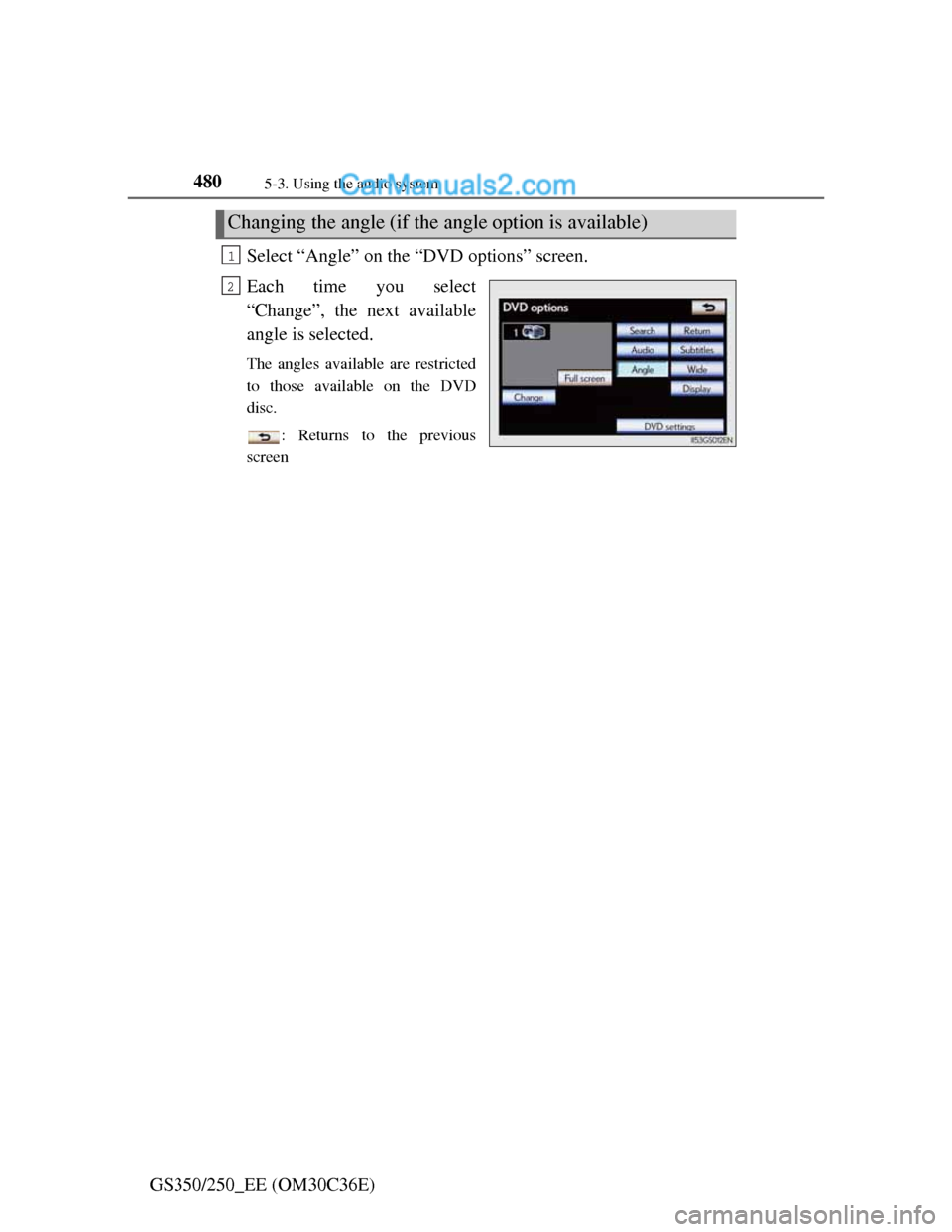
GS350/250_EE (OM30C36E)Select “Angle” on the “DVD options” screen.
Each time you select
“Change”, the next available
angle is selected.
The angles available are restricted
to those available on the DVD
disc.
: Returns to the previous
screen
Changing the angle (if the angle option is available)
1
2
Page 506 of 914
4955-3. Using the audio system
5
Interior features
GS350/250_EE (OM30C36E)
Playback
• To play MP3 files with steady sound quality, we recommend a fixed bit
rate of at least 128 kbps and a sampling frequency of 44.1 kHz.
• CD-R or CD-RW playback may not be possible in some instances,
depending on the characteristics of the disc.
• There is a wide variety of freeware and other encoding software for MP3
and WMA files on the market, and depending on the status of the encod-
ing and the file format, poor sound quality or noise at the start of play-
back may result. In some cases, playback may not be possible at all.
• When files other than MP3 or WMA files are recorded on a disc, it may
take more time to recognize the disc and in some cases, playback may
not be possible at all.
• Microsoft, Windows, and Windows Media are the registered trademarks
of Microsoft Corporation in the U.S. and other countries.
CAUTION
DVD video precaution
Conversational speech on some DVDs is recorded at a low volume to
emphasize the impact of sound effects. If you adjust the volume assuming
that the conversations represent the maximum volume level that the DVD
will play, you may be startled by louder sound effects or startled when you
change to a different audio source.
Loud sounds may have a significant impact on the human body or pose a
driving hazard. Keep this in mind when you adjust the volume.
Page 517 of 914
5065-3. Using the audio system
GS350/250_EE (OM30C36E)
Fast forwarding and rewinding a track
Press and hold “<” or “>” on the “CH•TRACK” button to fast
forward or rewind.
Playing the tracks on the album in random order
Select “RAND” on the screen.
Each time “RAND” is selected, the mode changes as follows:
album random all track random off
Playing tracks from all the albums in random order
Select “RAND” repeatedly until “ALB.RAND” appears on the
screen.
To cancel, select “RAND” again.
Repeating a track
Select “RPT” on the screen.
Each time “RPT” is selected, the mode changes as follows:
track repeat album repeat off
Repeating an album
Select “RPT” repeatedly until “ALB.RPT” appears on the
screen.
To cancel, select “RPT” again.
Random playback
Repeat play
Page 525 of 914

5145-3. Using the audio system
GS350/250_EE (OM30C36E)Select the folder/album name
on the screen.
Select the desired tab and
select the desired folder, artist
or album.
Character screen buttons, “ABC”,
“DEF” etc., allow a direct jump to
list entries that begin with the same
letter as the character button.
Each time the same character
screen button is selected, the list
starting with the subsequent char-
acter is displayed.
, , : Select this screen
button to change between Latin,
Cyrillic and Greek characters.
, : Select to move the list up or
down by 5 folder/artist/album
groups.
“TUNE/SCROLL” knob: Turn the
knob clockwise or counterclock-
wise to quickly scroll up or down
the folder/artist/album list.
, : If appears to the right of
an item name, the complete name
is too long for the screen. Select
to scroll to the end of the name.
Selecting a folder, artist or album
1
2
Page 528 of 914
5175-3. Using the audio system
5
Interior features
GS350/250_EE (OM30C36E)
Playing files/tracks from a particular folder in random order
Select “RAND” on the screen.
Each time “RAND” is selected, the mode changes as follows:
random (1 folder/album random) folder/album random (all
folders/albums random) off
Playing the all folders/albums from a USB memory in random
order
Select “RAND” repeatedly until “FLD.RAND”/“ALB.RAND”
appears on the screen.
To cancel, select “RAND” again.
Repeating a file/track
Select “RPT” on the screen.
Each time “RPT” is selected, the mode changes as follows:
When “RAND” is off
file/track repeat folder/album repeat off
When “RAND” is on
file/track repeat off
Repeating a folder/album
Select “RPT” repeatedly until “FLD.RPT”/“ALB.RPT” appears
on the screen.
To cancel, select “RPT” again.
Available except when random playback is selected
Random playback
Repeat play
Page 529 of 914
5185-3. Using the audio system
GS350/250_EE (OM30C36E)
If you select
The display returns to the previous screen.
USB memory functions
When the USB memory is connected and the audio source is changed to
USB memory mode, the USB memory will start playing the first file in the
first folder. If the same device is removed and reinserted (and the contents
have not been changed), the USB memory will resume playing from the
same point it was last used.
Depending on the USB memory that is connected to the system, certain
functions may not be available. Disconnecting the device and reconnecting
it once again may resolve some malfunctions.
When using a USB memory
You may be unable to use the instrument panel power outlet if the USB mem-
ory is connected to the USB port at the same time.
Error messages for USB memory
“USB Error”: This indicates a problem in the USB memory or its connection.
“No music files found.”:This indicates that no MP3/WMA files are included
in the USB memory.
USB memory
Compatible devices
USB memory that can be used for MP3 and WMA playback.
Compatible device formats
The following device formats can be used:
• USB communication formats: USB2.0 HS (480 Mbps) and FS (12
Mbps)
• File formats: FAT16/32 (Windows)
• Correspondence class: Mass storage class
MP3 and WMA files written in any format other than those listed above
may not play correctly, and their file names and folder names may not be
displayed correctly.
Items related to standards and limitations are as follows:
• Maximum directory hierarchy: 8 levels
• Maximum number of folders in a device: 3000 (including the root)
• Maximum number of files in a device: 9999
• Maximum number of files per folder: 255