phone Lexus GS250 2012 Repair Manual
[x] Cancel search | Manufacturer: LEXUS, Model Year: 2012, Model line: GS250, Model: Lexus GS250 2012Pages: 914, PDF Size: 53.04 MB
Page 596 of 914
5815-4. Using the hands-free phone system (for cellular phone)
5
Interior features
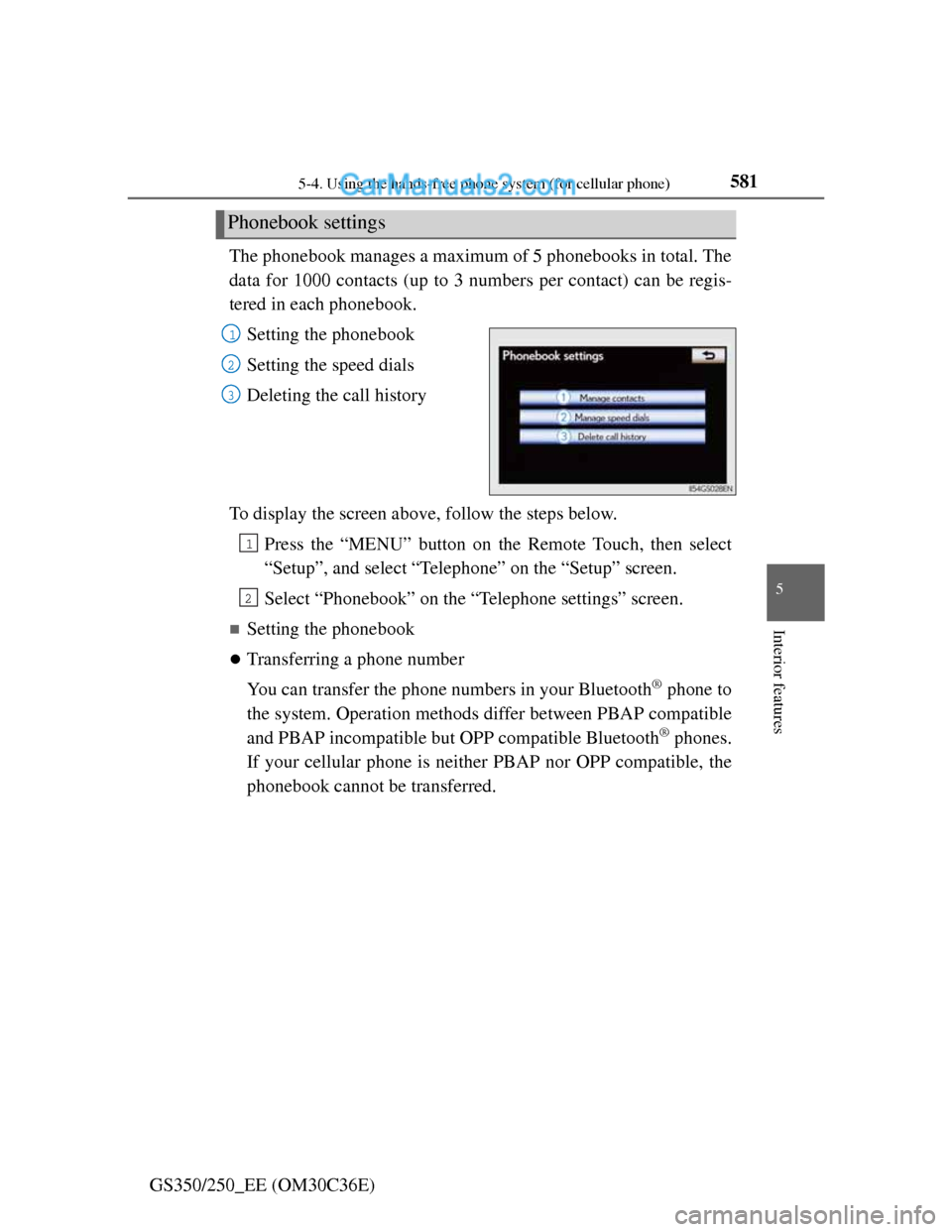
GS350/250_EE (OM30C36E)The phonebook manages a maximum of 5 phonebooks in total. The
data for 1000 contacts (up to 3 numbers per contact) can be regis-
tered in each phonebook.
Setting the phonebook
Setting the speed dials
Deleting the call history
To display the screen above, follow the steps below.
Press the “MENU” button on the Remote Touch, then select
“Setup”, and select “Telephone” on the “Setup” screen.
Select “Phonebook” on the “Telephone settings” screen.
Setting the phonebook
Transferring a phone number
You can transfer the phone numbers in your Bluetooth
® phone to
the system. Operation methods differ between PBAP compatible
and PBAP incompatible but OPP compatible Bluetooth
® phones.
If your cellular phone is neither PBAP nor OPP compatible, the
phonebook cannot be transferred.
Phonebook settings
1
2
3
1
2
Page 597 of 914
5825-4. Using the hands-free phone system (for cellular phone)
GS350/250_EE (OM30C36E)
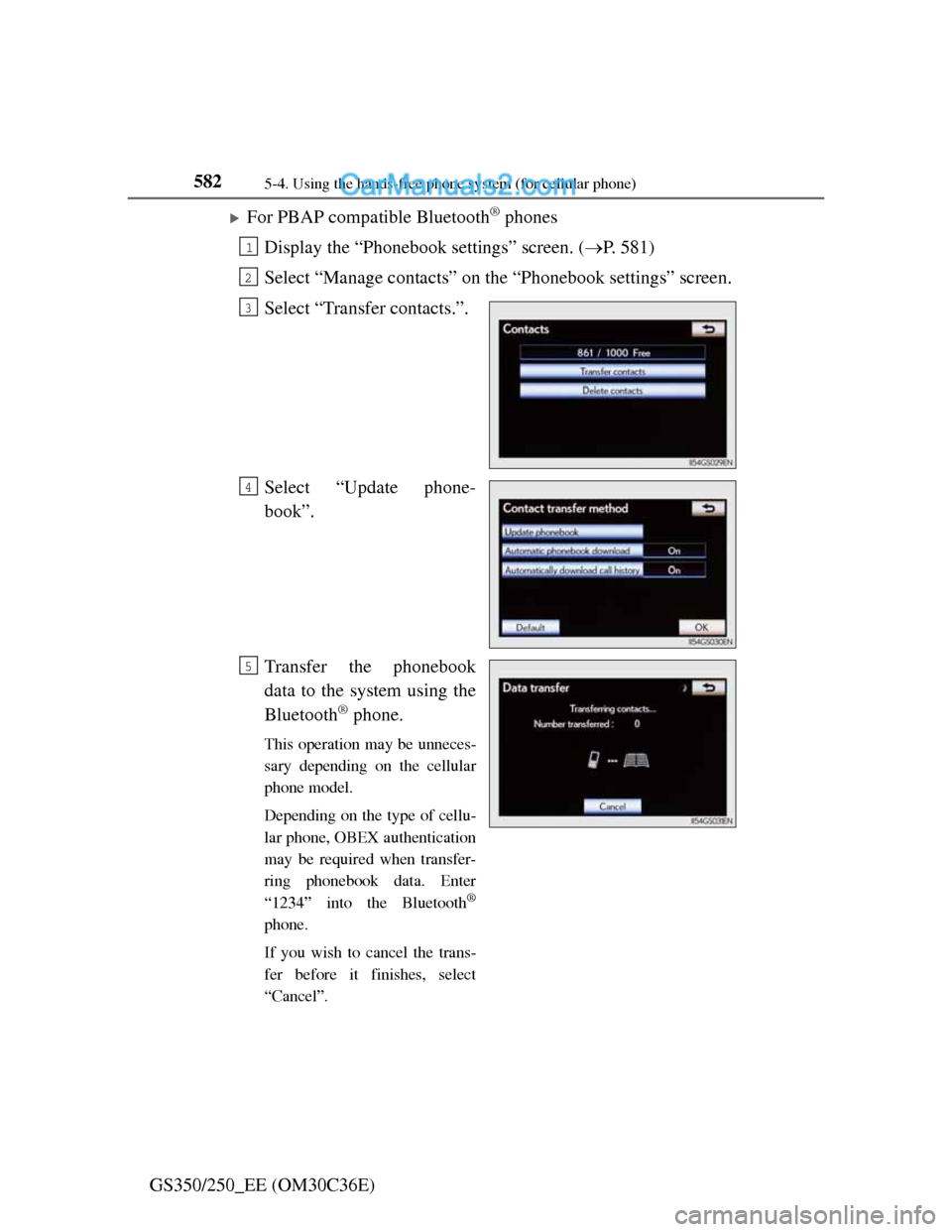
For PBAP compatible Bluetooth® phones
Display the “Phonebook settings” screen. (P. 581)
Select “Manage contacts” on the “Phonebook settings” screen.
Select “Transfer contacts.”.
Select “Update phone-
book”.
Transfer the phonebook
data to the system using the
Bluetooth
® phone.
This operation may be unneces-
sary depending on the cellular
phone model.
Depending on the type of cellu-
lar phone, OBEX authentication
may be required when transfer-
ring phonebook data. Enter
“1234” into the Bluetooth
®
phone.
If you wish to cancel the trans-
fer before it finishes, select
“Cancel”.
1
2
3
4
5
Page 598 of 914
5835-4. Using the hands-free phone system (for cellular phone)
5
Interior features
GS350/250_EE (OM30C36E)
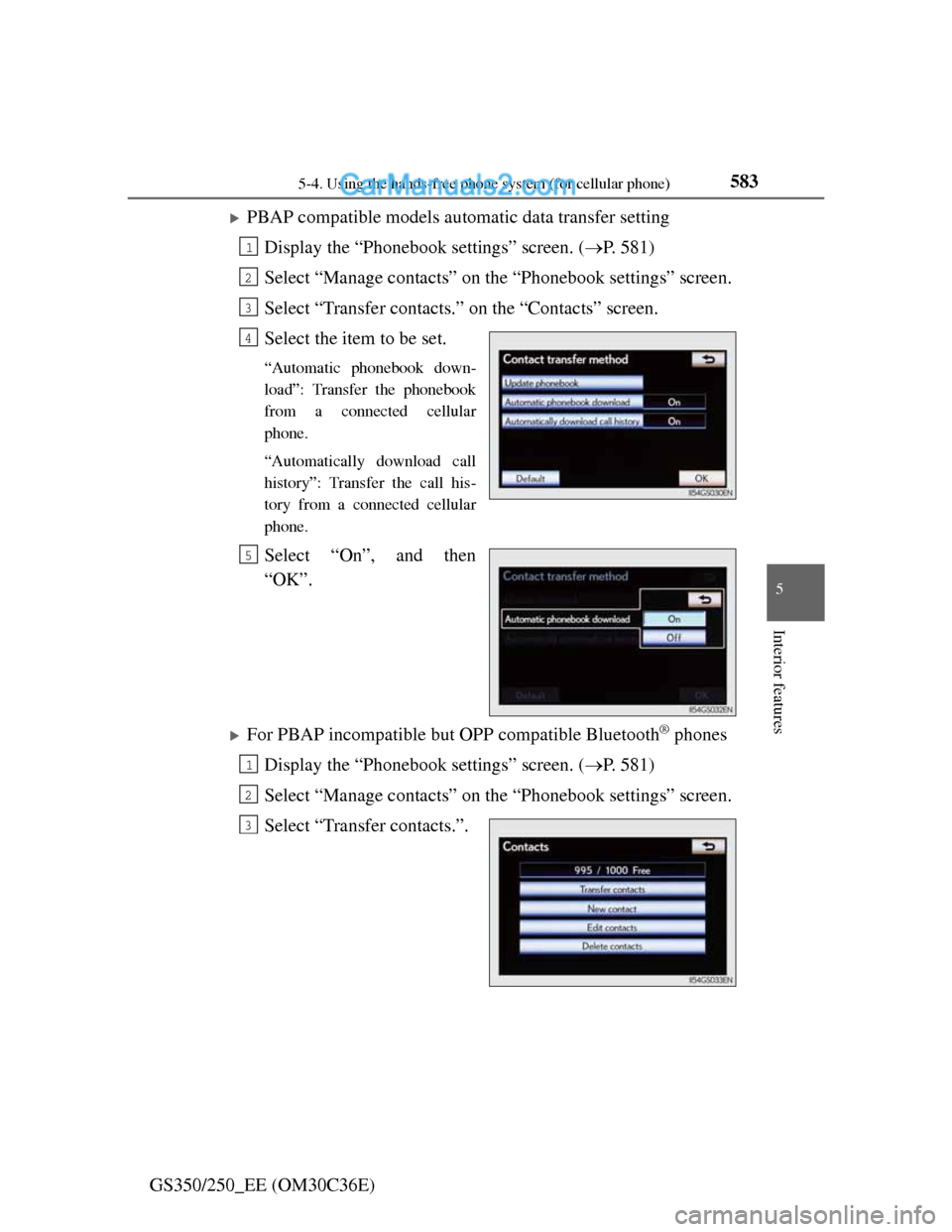
PBAP compatible models automatic data transfer setting
Display the “Phonebook settings” screen. (P. 581)
Select “Manage contacts” on the “Phonebook settings” screen.
Select “Transfer contacts.” on the “Contacts” screen.
Select the item to be set.
“Automatic phonebook down-
load”: Transfer the phonebook
from a connected cellular
phone.
“Automatically download call
history”: Transfer the call his-
tory from a connected cellular
phone.
Select “On”, and then
“OK”.
For PBAP incompatible but OPP compatible Bluetooth® phones
Display the “Phonebook settings” screen. (P. 581)
Select “Manage contacts” on the “Phonebook settings” screen.
Select “Transfer contacts.”.
1
2
3
4
5
1
2
3
Page 599 of 914
5845-4. Using the hands-free phone system (for cellular phone)
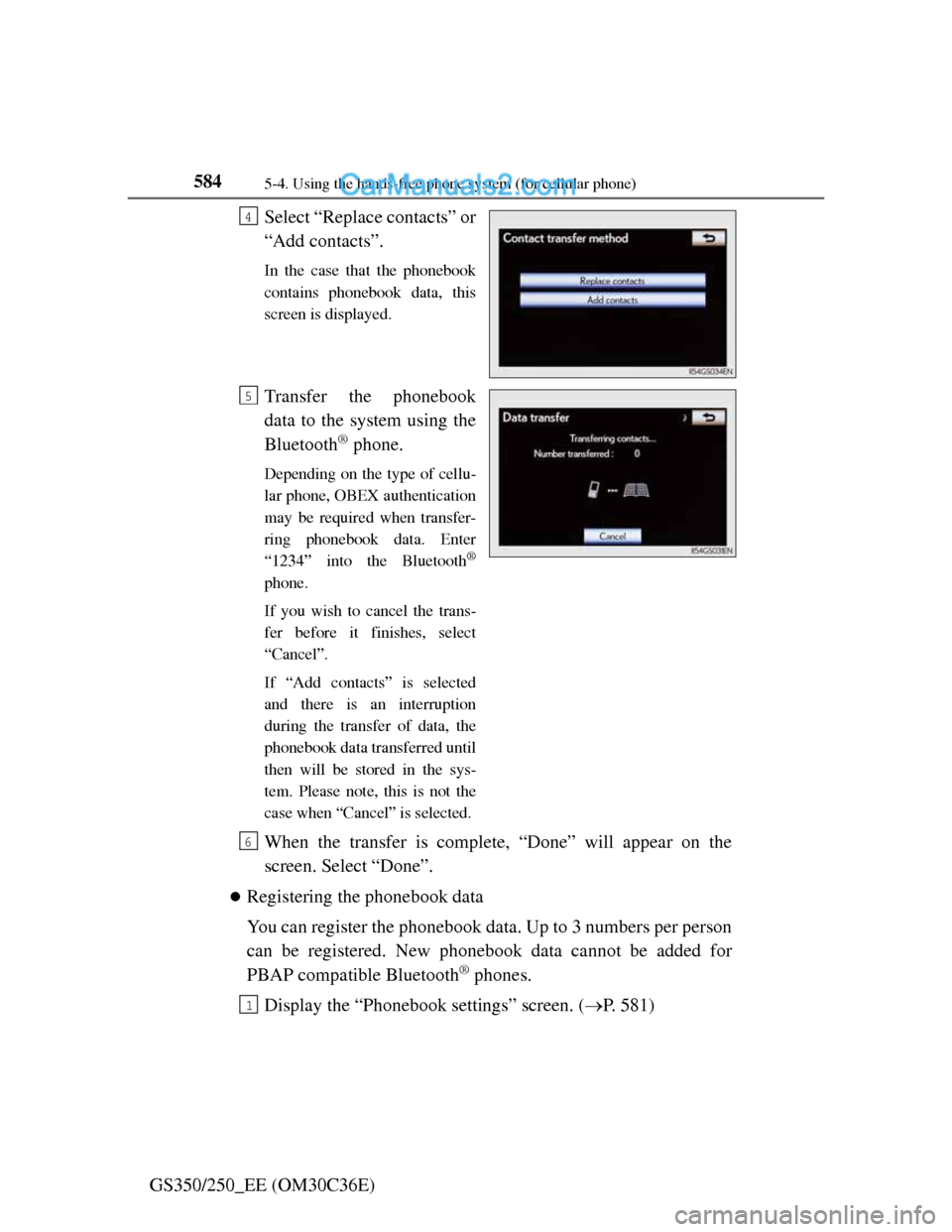
GS350/250_EE (OM30C36E)Select “Replace contacts” or
“Add contacts”.
In the case that the phonebook
contains phonebook data, this
screen is displayed.
Transfer the phonebook
data to the system using the
Bluetooth
® phone.
Depending on the type of cellu-
lar phone, OBEX authentication
may be required when transfer-
ring phonebook data. Enter
“1234” into the Bluetooth
®
phone.
If you wish to cancel the trans-
fer before it finishes, select
“Cancel”.
If “Add contacts” is selected
and there is an interruption
during the transfer of data, the
phonebook data transferred until
then will be stored in the sys-
tem. Please note, this is not the
case when “Cancel” is selected.
When the transfer is complete, “Done” will appear on the
screen. Select “Done”.
Registering the phonebook data
You can register the phonebook data. Up to 3 numbers per person
can be registered. New phonebook data cannot be added for
PBAP compatible Bluetooth
® phones.
Display the “Phonebook settings” screen. (P. 581)
4
5
6
1
Page 600 of 914
5855-4. Using the hands-free phone system (for cellular phone)
5
Interior features
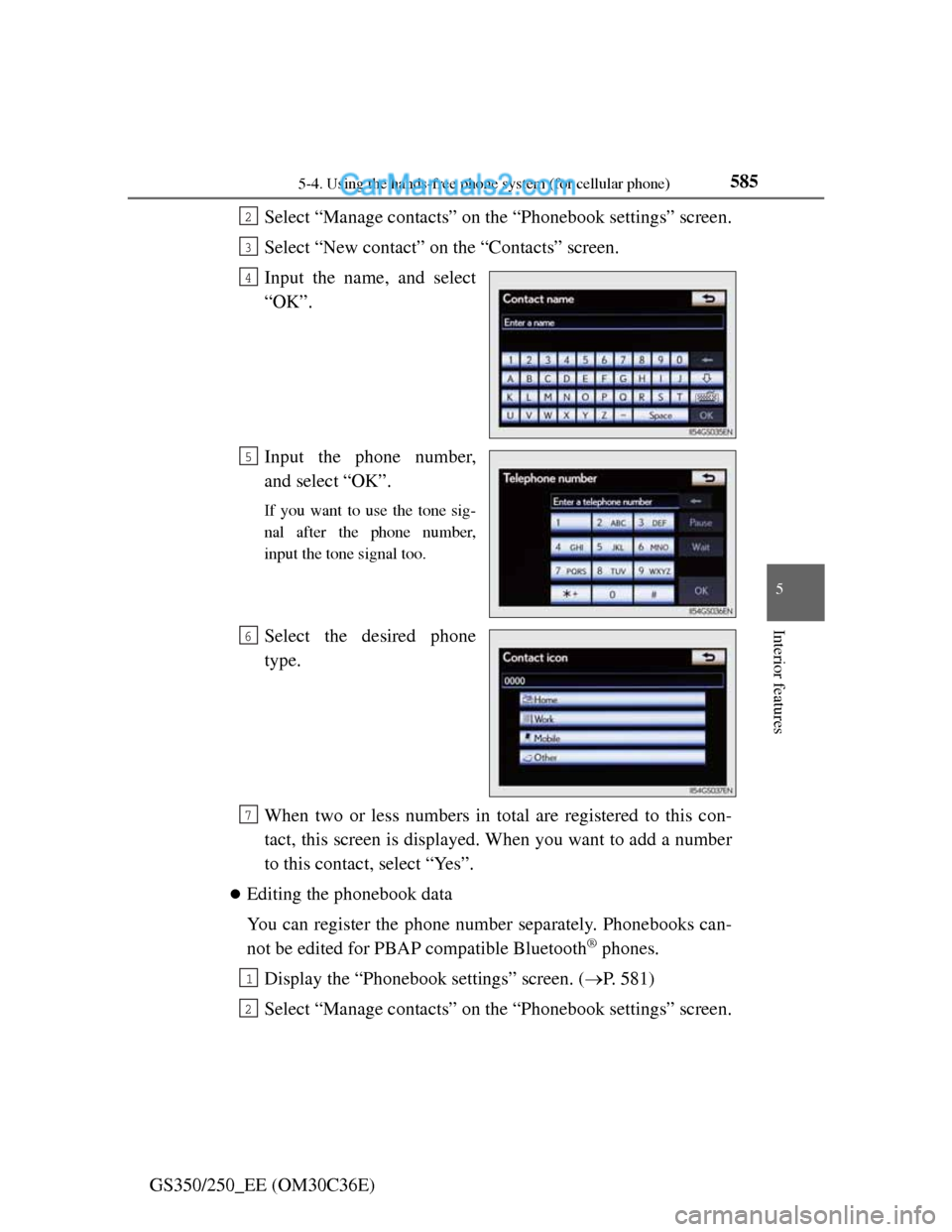
GS350/250_EE (OM30C36E)Select “Manage contacts” on the “Phonebook settings” screen.
Select “New contact” on the “Contacts” screen.
Input the name, and select
“OK”.
Input the phone number,
and select “OK”.
If you want to use the tone sig-
nal after the phone number,
input the tone signal too.
Select the desired phone
type.
When two or less numbers in total are registered to this con-
tact, this screen is displayed. When you want to add a number
to this contact, select “Yes”.
Editing the phonebook data
You can register the phone number separately. Phonebooks can-
not be edited for PBAP compatible Bluetooth
® phones.
Display the “Phonebook settings” screen. (P. 581)
Select “Manage contacts” on the “Phonebook settings” screen.
2
3
4
5
6
7
1
2
Page 601 of 914
5865-4. Using the hands-free phone system (for cellular phone)
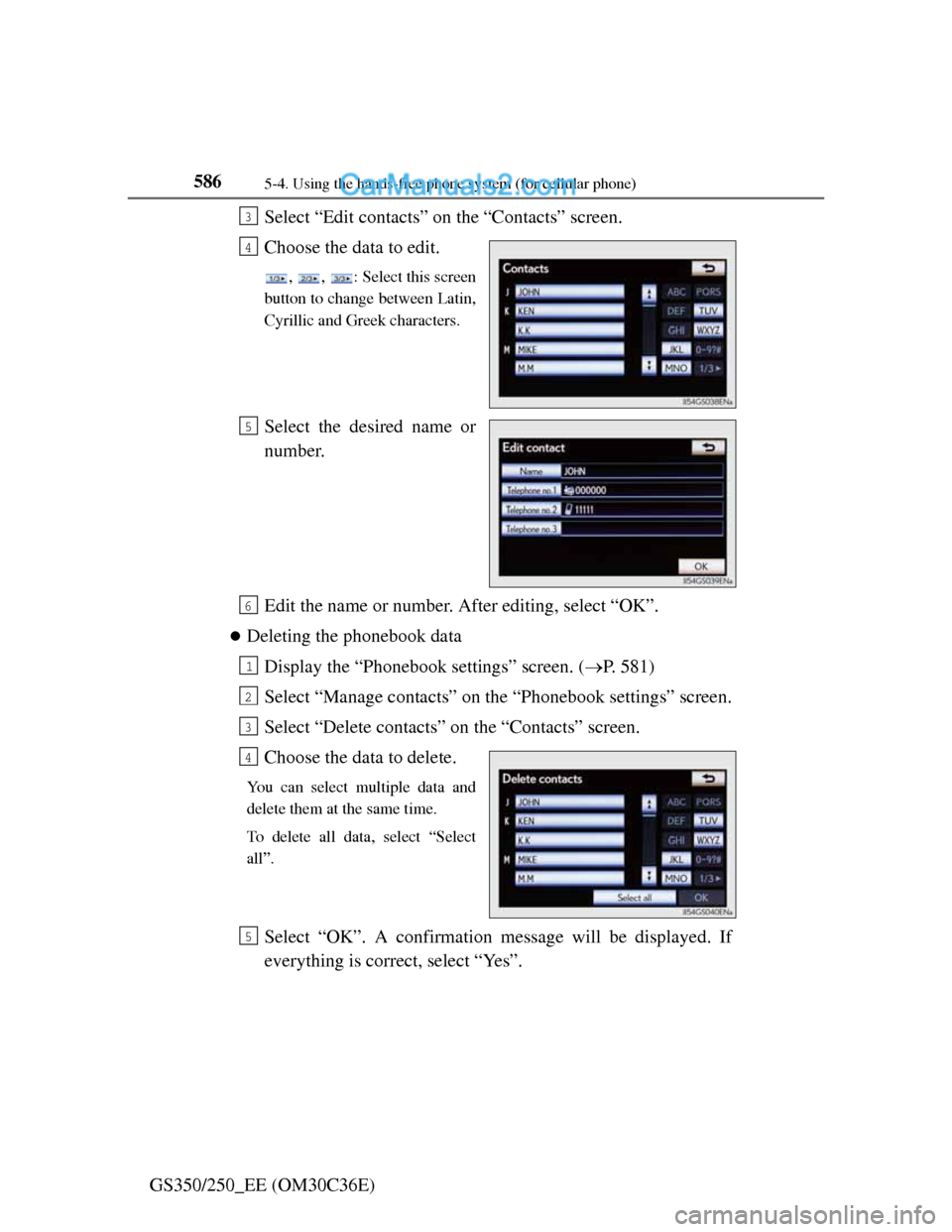
GS350/250_EE (OM30C36E)Select “Edit contacts” on the “Contacts” screen.
Choose the data to edit.
, , : Select this screen
button to change between Latin,
Cyrillic and Greek characters.
Select the desired name or
number.
Edit the name or number. After editing, select “OK”.
Deleting the phonebook data
Display the “Phonebook settings” screen. (P. 581)
Select “Manage contacts” on the “Phonebook settings” screen.
Select “Delete contacts” on the “Contacts” screen.
Choose the data to delete.
You can select multiple data and
delete them at the same time.
To delete all data, select “Select
all”.
Select “OK”. A confirmation message will be displayed. If
everything is correct, select “Yes”.
3
4
5
6
1
2
3
4
5
Page 602 of 914
5875-4. Using the hands-free phone system (for cellular phone)
5
Interior features
GS350/250_EE (OM30C36E)
Phonebook data
Phonebook data is managed for every registered phone. When another phone
is connecting, you cannot read the registered data.
When selling or disposing of the vehicle, delete all your data on the system.
For PBAP compatible phones, delete the phonebook data after setting “Auto-
matic phonebook download” to “Off”. (P. 583)
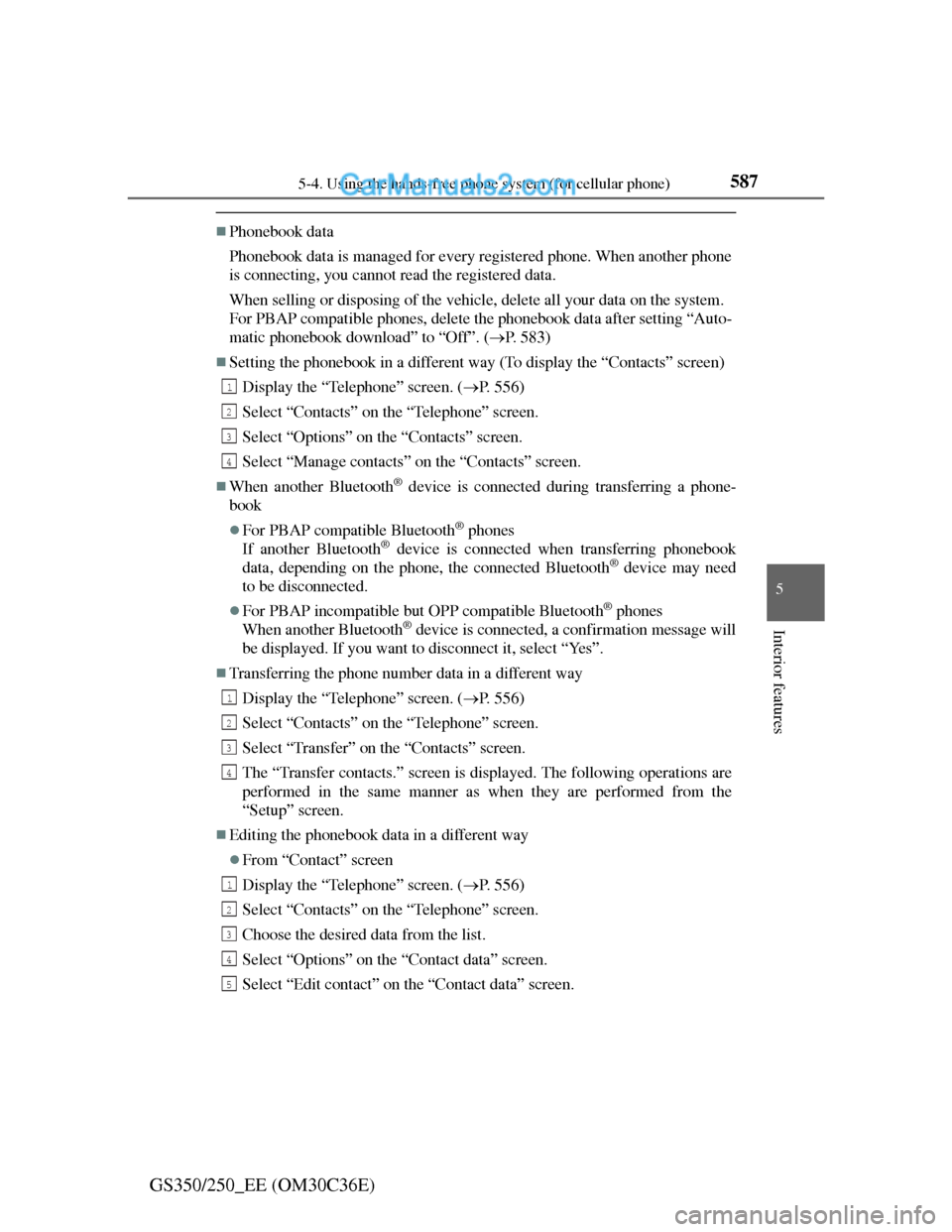
Setting the phonebook in a different way (To display the “Contacts” screen)
Display the “Telephone” screen. (P. 556)
Select “Contacts” on the “Telephone” screen.
Select “Options” on the “Contacts” screen.
Select “Manage contacts” on the “Contacts” screen.
When another Bluetooth® device is connected during transferring a phone-
book
For PBAP compatible Bluetooth® phones
If another Bluetooth® device is connected when transferring phonebook
data, depending on the phone, the connected Bluetooth® device may need
to be disconnected.
For PBAP incompatible but OPP compatible Bluetooth® phones
When another Bluetooth® device is connected, a confirmation message will
be displayed. If you want to disconnect it, select “Yes”.
Transferring the phone number data in a different way
Display the “Telephone” screen. (P. 556)
Select “Contacts” on the “Telephone” screen.
Select “Transfer” on the “Contacts” screen.
The “Transfer contacts.” screen is displayed. The following operations are
performed in the same manner as when they are performed from the
“Setup” screen.
Editing the phonebook data in a different way
From “Contact” screen
Display the “Telephone” screen. (P. 556)
Select “Contacts” on the “Telephone” screen.
Choose the desired data from the list.
Select “Options” on the “Contact data” screen.
Select “Edit contact” on the “Contact data” screen.
1
2
3
4
1
2
3
4
1
2
3
4
5
Page 603 of 914
5885-4. Using the hands-free phone system (for cellular phone)
GS350/250_EE (OM30C36E)
Follow the steps “Editing the phonebook data” from step . (P. 585)
From “Call history” screen
Display the “Telephone” screen. (P. 556)
Select “Call history” on the “Telephone” screen.
Choose the desired data from the list.
Select “Add contact” or “Update contact” on the “Call history” screen.
If you select “Add contact”, follow the steps “Editing the phonebook data”
from step . (P. 585)
If you select “Update contact”, follow the steps “Editing the phonebook
data” from step . (P. 585)
Deleting the phonebook data in a different way (PBAP incompatible but OPP
compatible models)
Display the “Telephone” screen. (P. 556)
Select “Contacts” on the “Telephone” screen.
Choose the desired data from the list.
Select “Options” on the “Contact data” screen.
Select “Delete contact” on the “Contact data” screen.
A confirmation message will be displayed. If everything is correct, select
“Yes”.
When a Bluetooth® phone is deleted.
The phonebook data will be deleted at the same time.
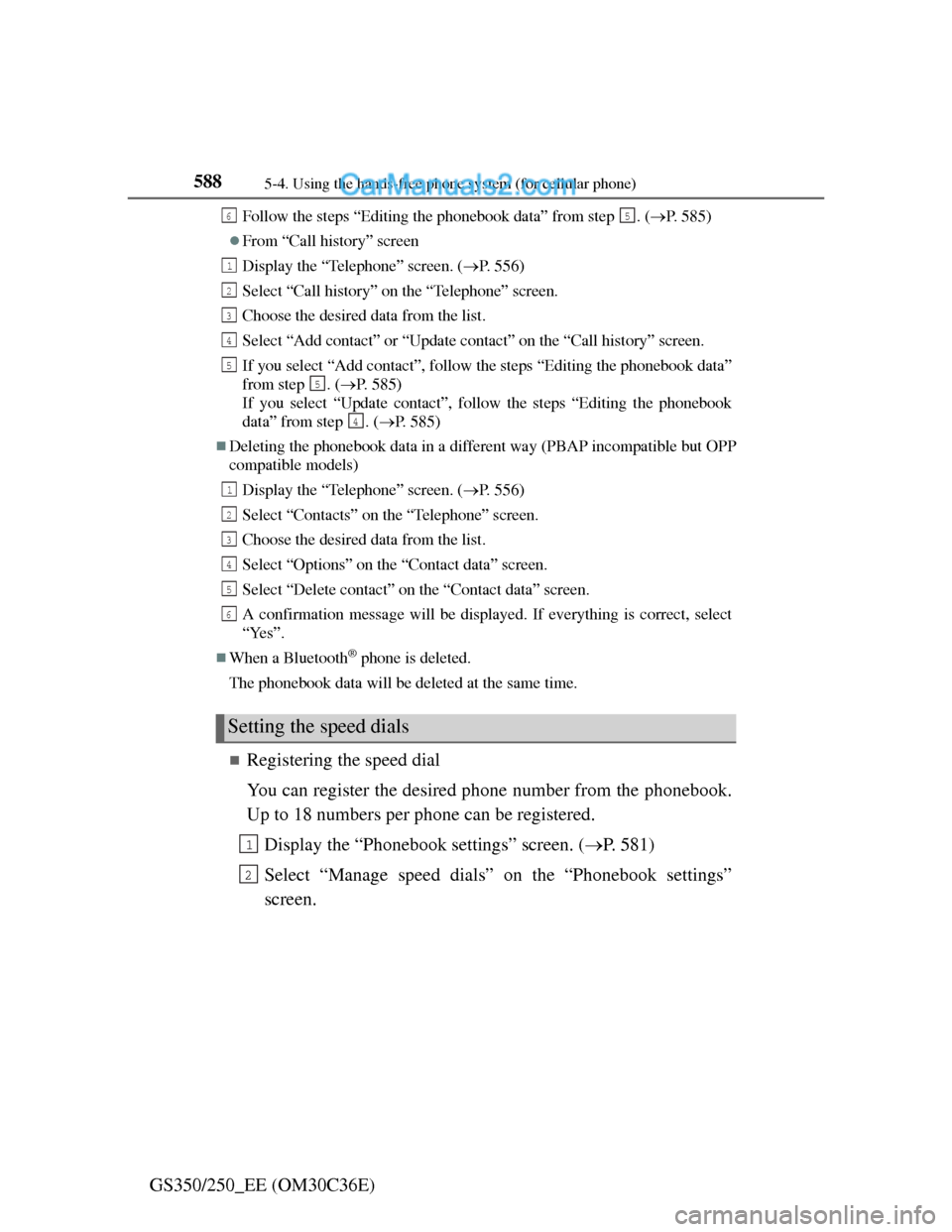
Registering the speed dial
You can register the desired phone number from the phonebook.
Up to 18 numbers per phone can be registered.
Display the “Phonebook settings” screen. (P. 581)
Select “Manage speed dials” on the “Phonebook settings”
screen.
Setting the speed dials
65
1
2
3
4
5
5
4
1
2
3
4
5
6
1
2
Page 604 of 914
5895-4. Using the hands-free phone system (for cellular phone)
5
Interior features
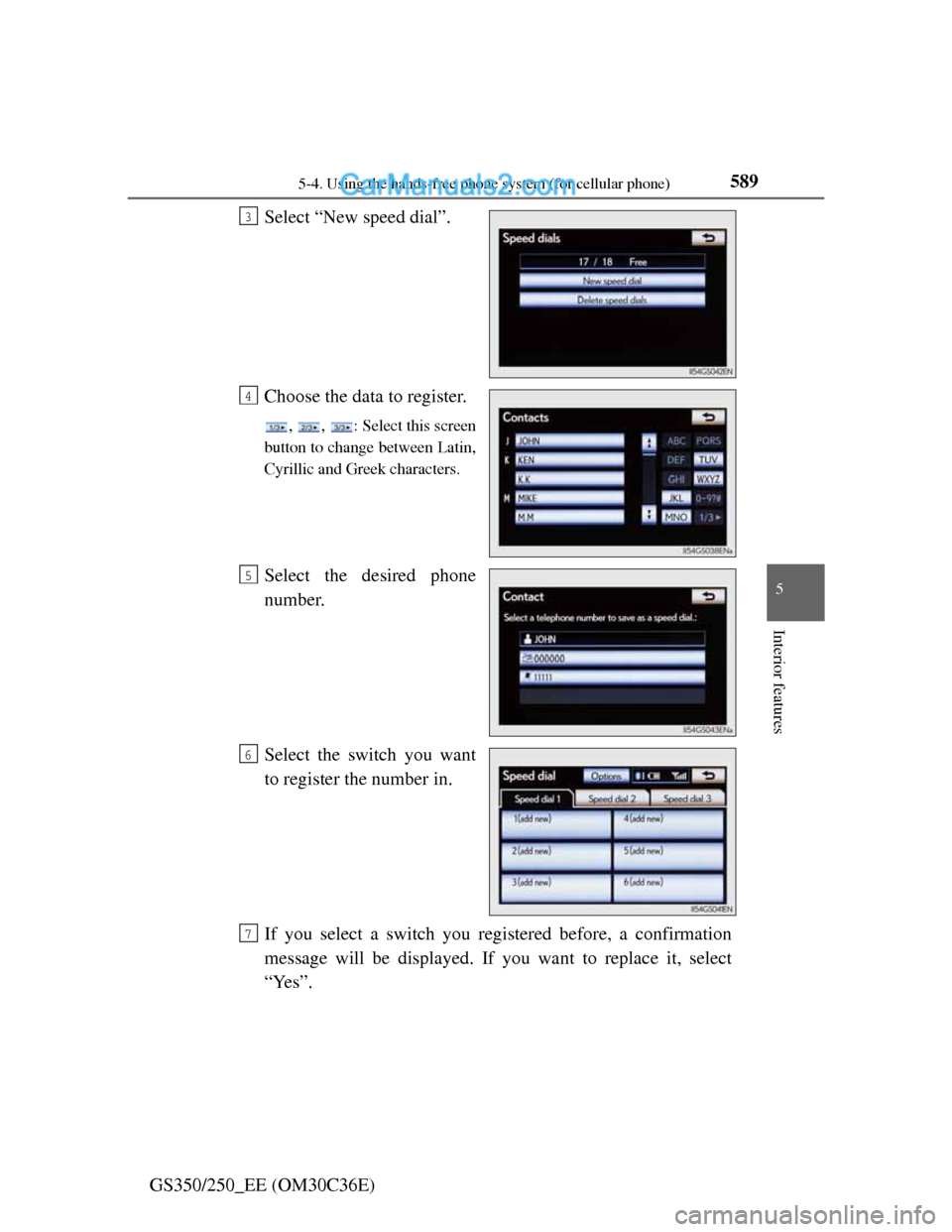
GS350/250_EE (OM30C36E)Select “New speed dial”.
Choose the data to register.
, , : Select this screen
button to change between Latin,
Cyrillic and Greek characters.
Select the desired phone
number.
Select the switch you want
to register the number in.
If you select a switch you registered before, a confirmation
message will be displayed. If you want to replace it, select
“Yes”.
3
4
5
6
7
Page 605 of 914
5905-4. Using the hands-free phone system (for cellular phone)
GS350/250_EE (OM30C36E)
Deleting the speed dial
Display the “Phonebook settings” screen. (P. 581)
Select “Manage speed dials” on the “Phonebook settings”
screen.
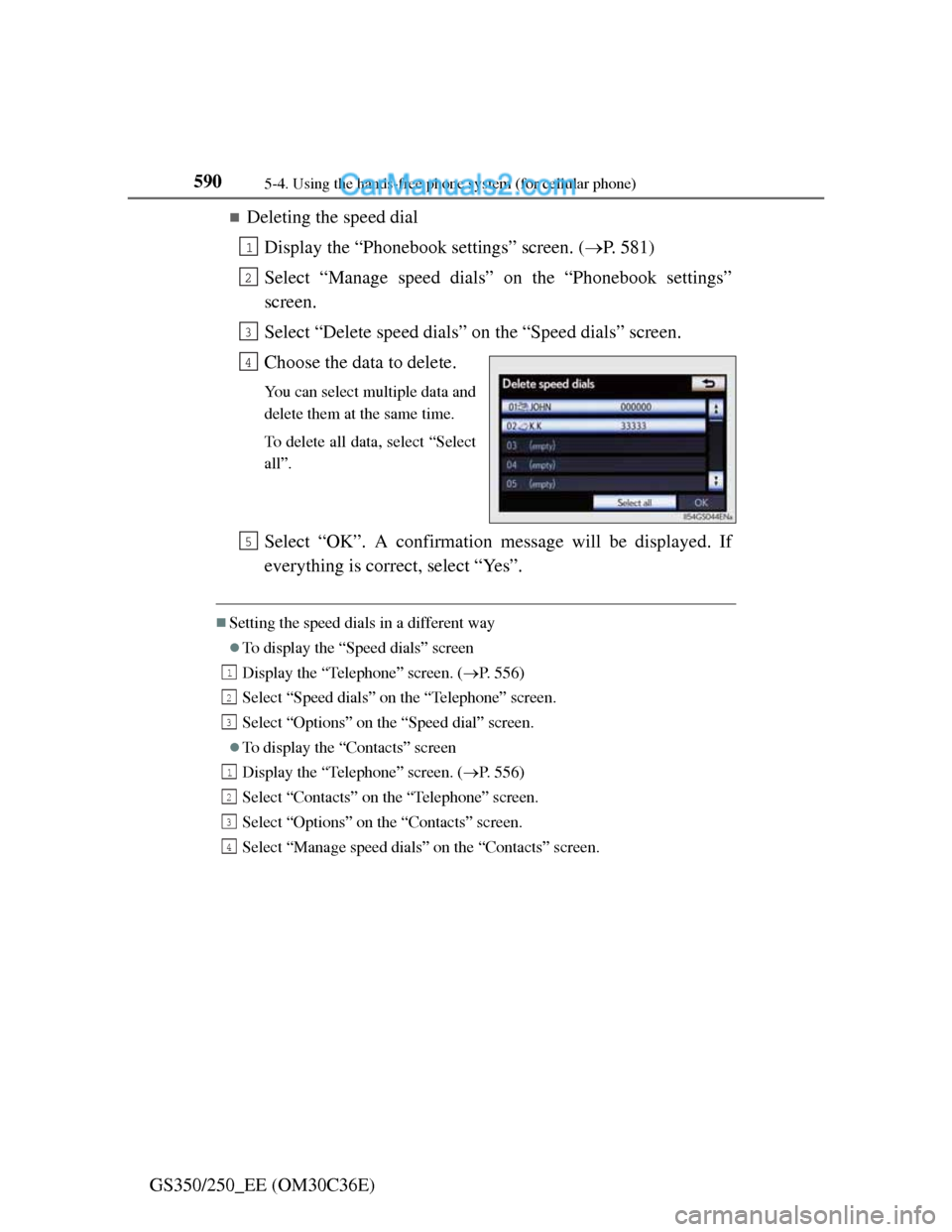
Select “Delete speed dials” on the “Speed dials” screen.
Choose the data to delete.
You can select multiple data and
delete them at the same time.
To delete all data, select “Select
all”.
Select “OK”. A confirmation message will be displayed. If
everything is correct, select “Yes”.
Setting the speed dials in a different way
To display the “Speed dials” screen
Display the “Telephone” screen. (P. 556)
Select “Speed dials” on the “Telephone” screen.
Select “Options” on the “Speed dial” screen.
To display the “Contacts” screen
Display the “Telephone” screen. (P. 556)
Select “Contacts” on the “Telephone” screen.
Select “Options” on the “Contacts” screen.
Select “Manage speed dials” on the “Contacts” screen.
1
2
3
4
5
1
2
3
1
2
3
4