navigation system Lexus GS350 2011 User Guide
[x] Cancel search | Manufacturer: LEXUS, Model Year: 2011, Model line: GS350, Model: Lexus GS350 2011Pages: 654, PDF Size: 11.03 MB
Page 240 of 654
239
3-1. Using the touch screen
3
Interior features
GS_G_U (OM30C11U)
October 28, 2011 5:15 pm
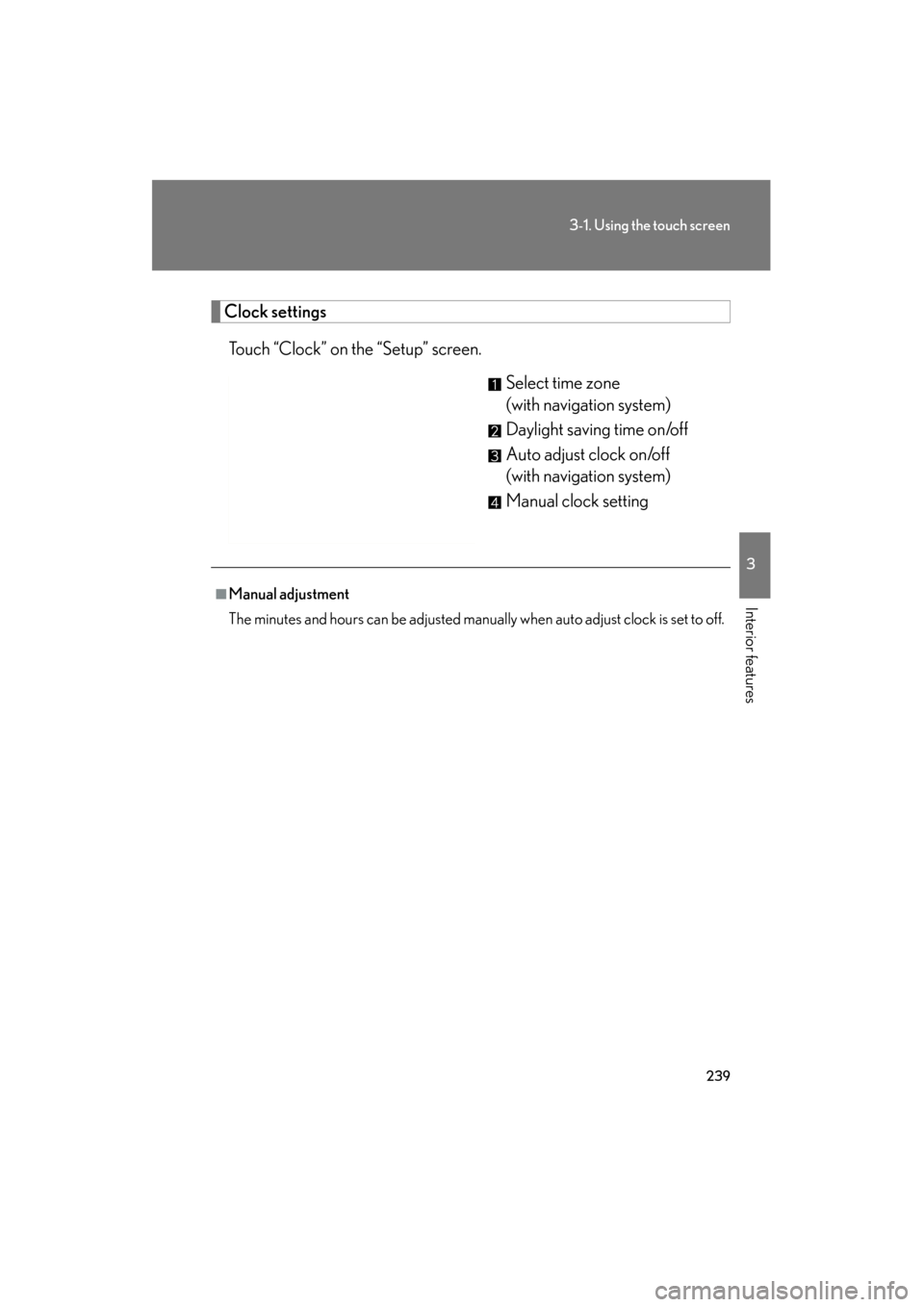
Clock settingsTouch “Clock” on the “Setup” screen. Select time zone
(with navigation system)
Daylight saving time on/off
Auto adjust clock on/off
(with navigation system)
Manual clock setting
■Manual adjustment
The minutes and hours can be adjusted manually when auto adjust clock is set to off.
Page 241 of 654
240
3-1. Using the touch screen
GS_G_U (OM30C11U)
October 28, 2011 5:15 pm
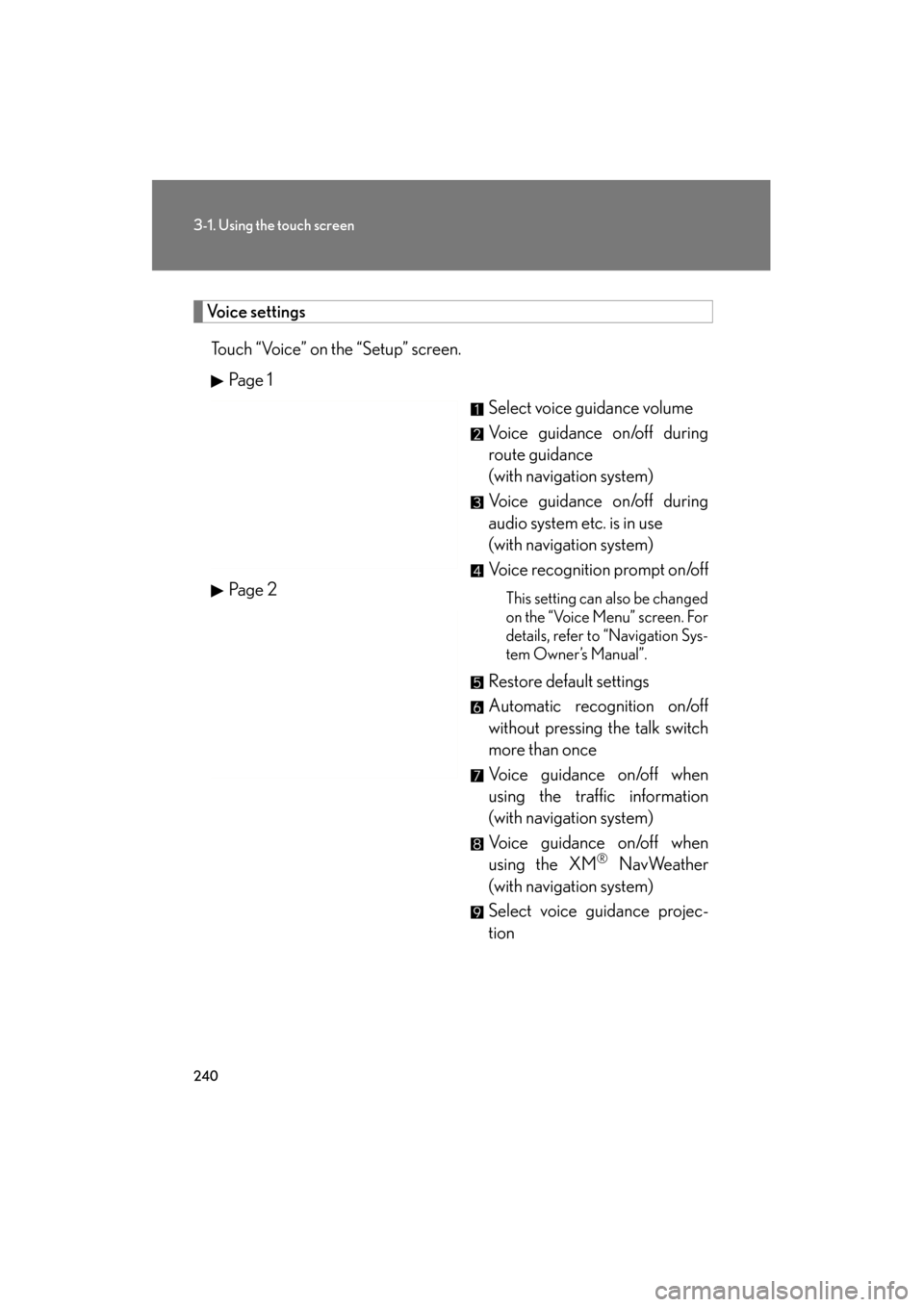
Voice settingsTouch “Voice” on the “Setup” screen. Pa g e 1 Select voice guidance volume
Voice guidance on/off during
route guidance
(with navigation system)
Voice guidance on/off during
audio system etc. is in use
(with navigation system)
Voice recognition prompt on/off
This setting can also be changed
on the “Voice Menu” screen. For
details, refer to “Navigation Sys-
tem Owner’s Manual”.
Restore default settings
Automatic recognition on/off
without pressing the talk switch
more than once
Vo i c e g u i d a n c e o n /o f f w h e n
using the traffic information
(with navigation system)
Vo i c e g u i d a n c e o n /o f f w h e n
using the XM
® NavWeather
(with navigation system)
Select voice guidance projec-
tion
Pa g e 2
Page 246 of 654
245
3-1. Using the touch screen
3
Interior features
GS_G_U (OM30C11U)
October 28, 2011 5:15 pm
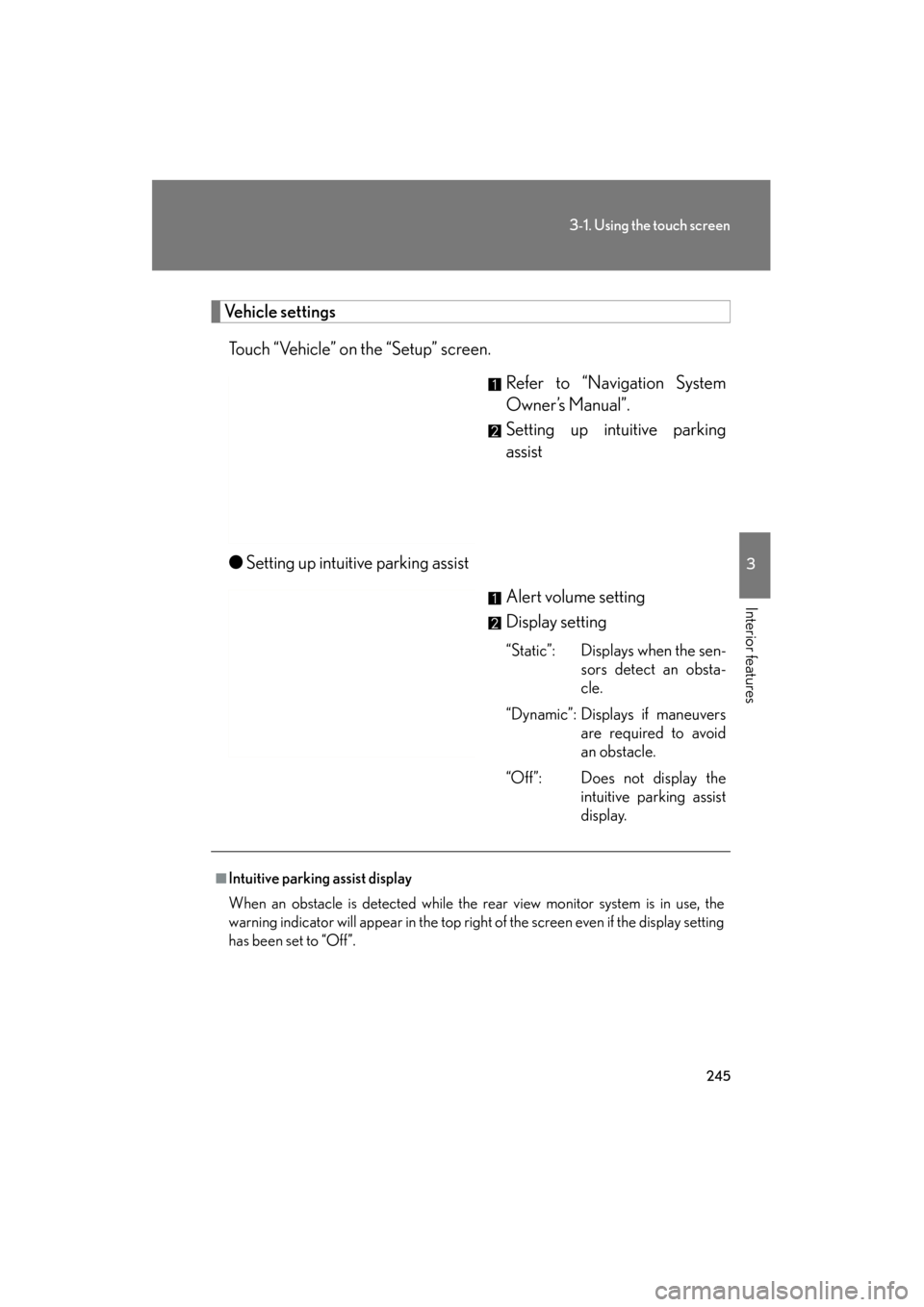
Vehicle settingsTouch “Vehicle” on the “Setup” screen. Refer to “Navigation System
Owner’s Manual”.
Setting up intuitive parking
assist
● Setting up intuitive parking assist
Alert volume setting
Display setting
“Static”: Displays when the sen-sors detect an obsta-
cle.
“Dynamic”: Displays if maneuvers are required to avoid
an obstacle.
“Off”: Does not display the intuitive parking assist
display.
■Intuitive parking assist display
When an obstacle is detected while the rear view monitor system is in use, the
warning indicator will appear in the top right of the screen even if the display setting
has been set to “Off”.
Page 247 of 654
246
GS_G_U (OM30C11U)
May 21, 2010 12:06 pm
3-2. Using the air conditioning system and defogger
Automatic air conditioning system
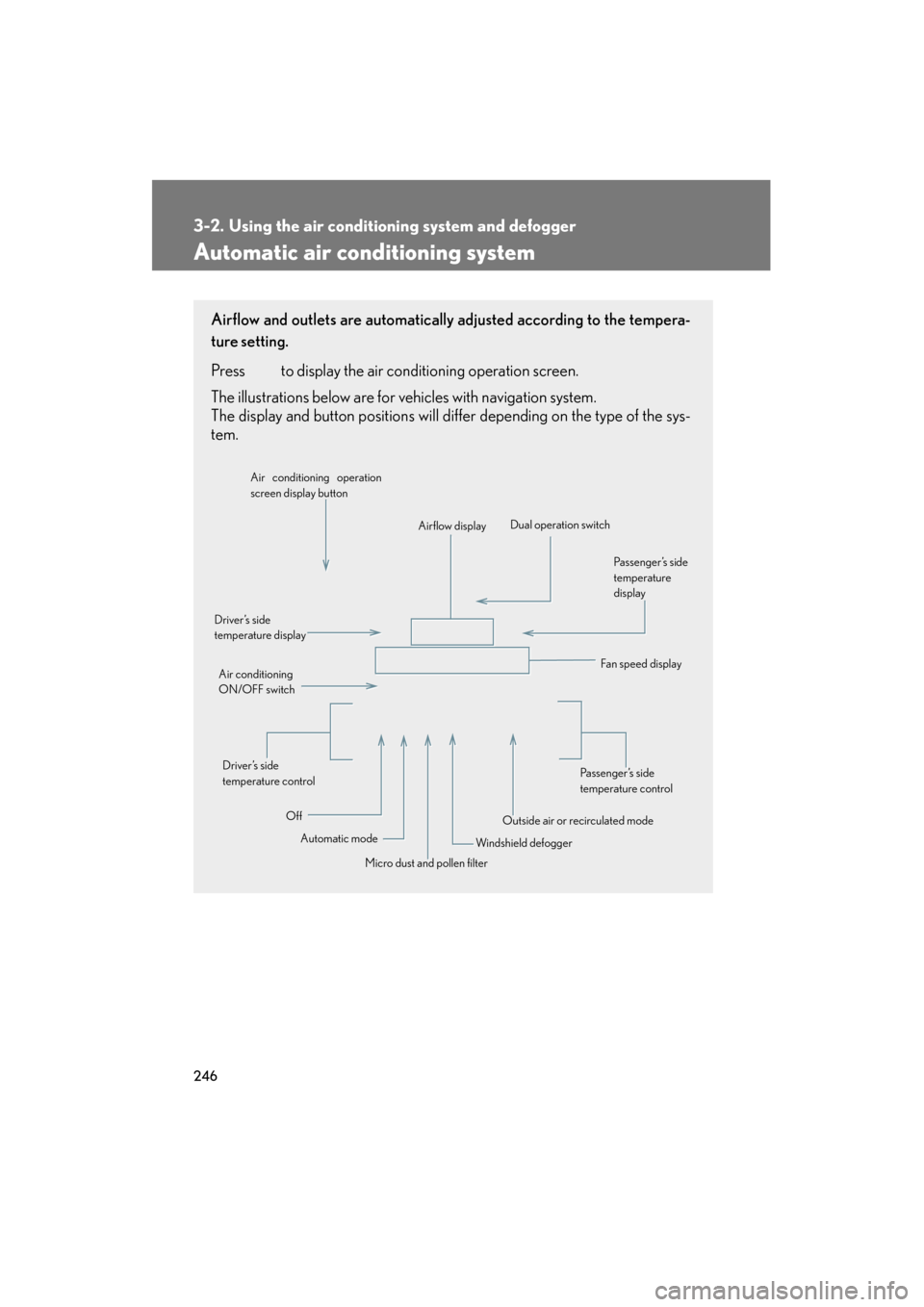
Airflow and outlets are automatically adjusted according to the tempera-
ture setting.
Press
to display the air conditioning operation screen.
The illustrations below are for vehicles with navigation system.
The display and button positions will di ffer depending on the type of the sys-
tem.
Automatic mode
Driver’s side
temperature display
Fan speed display
Off Airflow display
Air conditioning operation
screen display button
Passenger’s side
temperature
display
Micro dust and pollen filter
Driver’s side
temperature control
Air conditioning
ON/OFF switch
Outside air or recirculated mode
Windshield defogger Passenger’s side
temperature control
Dual operation switch
Page 248 of 654
247
3-2. Using the air conditioning system and defogger
3
Interior features
GS_G_U (OM30C11U)
May 21, 2010 12:06 pm
Using the voice command system (with navigation system)
Press the talk switch to operate the
voice command system.
(→“Navigation System Owner’s
Manual”)
Using the automatic mode
Press .The air conditioning system will begin to operate. Air outlets
and fan speed are automatically adjusted according to the
temperature setting.
Press to switch to automatic mode. Automatically switches between outside air and recirculated
air modes.
Press ∧ to increase the temperature and ∨ to decrease the tem-
perature on .
The temperature for the driver and passenger seats can be set sepa-
rately.
STEP1
STEP2
STEP3
Page 258 of 654
257
3
Interior features
GS_G_U (OM30C11U)
October 28, 2011 5:15 pm
3-3. Using the audio system
Audio system type
CD and (optional) DVD player with changer and AM/FM radio.
Press
and touch each tabs to display the audio operation screen.
The illustrations below are for vehicles with navigation system.
The display and button positions will di ffer depending on the type of the sys-
tem.
Page 259 of 654
258
3-3. Using the audio system
GS_G_U (OM30C11U)
October 28, 2011 5:15 pm
Using the voice command system (with navigation system)
Press the talk switch to operate the
voice command system.
(→“Navigation System Owner’s
Manual”)
Ti t l ePa g e
Using the radioP. 2 6 0
Using the CD/DVD playerP. 2 6 9
Playing an audio CDP. 2 7 2
Playing MP3 and WMA discsP. 2 76
Playing DVD video/audioP. 2 8 0
Playing video CDP. 2 9 4
CD/DVD player and DVD video disc informationP. 2 9 7
Listening to Bluetooth® audioP. 3 0 8
Listening to a USB memory/iPodP. 3 1 6
Optimal use of the audio/video systemP. 3 2 6
Using the AUX portP. 3 2 8
Using the steering switchesP. 3 2 9
Page 345 of 654
344
3-4. Using the hands-free system (for cellular phone)
GS_G_U (OM30C11U)
October 28, 2011 5:15 pm
■Dialing from the phonebook
With navigation system
You can dial a number from the phonebook data imported from your
mobile phone. The system has one phonebook for each telephone. Up
to 1000 entries may be stored in each phonebook. ( →P. 360)
Without navigation system
You can dial a number from the phonebook data imported from your
mobile phone. The system has one phonebook for each telephone. Up
to 1000 entries may be stored in total for the phonebooks. ( →P. 360)
Display the “Phone” screen. ( →P. 3 3 8 )
Touch “Contacts” on the “Phone” screen.
Choose the desired data to call
from the list.
If the phonebook is empty, a mes-
sage will be displayed.
If you want to transfer new contacts
from a cellular phone, touch “Yes”.
Choose the number and then
touch or press on the
steering wheel.
STEP1
STEP2
STEP3
STEP4
Page 349 of 654
348
3-4. Using the hands-free system (for cellular phone)
GS_G_U (OM30C11U)
October 28, 2011 5:15 pm
●Calling by name
You can call by giving a voice tag registered in the phonebook. ( →P. 3 74 )
When you select “English” in “Language”, you can call by giving a name
registered in the phonebook.
Press the talk switch.
If you want to check the entire
command list, say “Command list”
to display the “Command List”
screen.
Following the system guidance, wait for the beep and then say
“Phone”.
Following the system guidance, wait for the beep and then say
“Dial by Name”.
Following the system guidance, wait for the beep and then say the
desired name.
Following the system guidance, wait for the beep and then say the
type of number such as “Mobile” or “Home”.
Following the system guidance, wait for the beep and then say
“Dial”. (You can also call by pushing on the steering wheel or
selecting “Dial”.)
■ Calling using POI (Wit h navigation system)
You can make a call using a Point Of Interest.
STEP1
STEP2
STEP3
STEP4
STEP5
STEP6
Page 361 of 654
360
3-4. Using the hands-free system (for cellular phone)
GS_G_U (OM30C11U)
October 28, 2011 5:15 pm
Phonebook settings
With navigation system
The phonebook manages a maximum of 4 phonebooks in total. Up to
1000 person’s data (up to 3 numbers a person) can be registered in each
phonebook.
Without navigation system
The phonebook manages a maximum of 4 phonebooks in total. Up to
1000 person’s data (up to 3 numbers a person) can be registered in total
for the phonebooks.
Setting the phonebook
Speed dials setting
Deleting the call history
Setting the voice tag
To display the screen above, follow the steps below.
Display the “Phone Settings” screen. ( →P. 353)
Touch “Phonebook” on the “Phone Settings” screen.
STEP1
STEP2