display Lexus GS350 2013 Owner's Manual
[x] Cancel search | Manufacturer: LEXUS, Model Year: 2013, Model line: GS350, Model: Lexus GS350 2013Pages: 830, PDF Size: 9.71 MB
Page 344 of 830
GS350_U (OM30C34U)
3435-1. Remote Touch screen
5
Interior features
■When using the microphone
●It is unnecessary to speak directly into the microphone when giving a command.
●Wait for the confirmation beep before speaking a command.
●Voice commands may not be recognized if:
• Spoken too quickly.
• Spoken at a low or high volume.
• The roof or windows are open.
• Passengers are talking while voice commands are spoken.
• The air conditioning speed is set high.
• The air conditioning vents are turned towards the microphone.
●In the following conditions, the system may not recognize the command properly
and using voice commands may not be possible:
• The command is incorrect or unclear. Note that certain words, accents orspeech patterns may be difficult for the system to recognize.
• There is excessive background noise, such as wind noise.
■When searching for a track
●A USB memory or iPod must be connected to enable track searching and play-
back. ( →P. 456, 466)
●When a USB memory or iPod is connected, recognition data is created so tracks
can be searched using voice commands.
●Recognition data is updated under the following conditions:
• When the USB memory or iPod data has changed.
• When the voice recognition language is changed. ( →P. 3 2 0 )
●While the recognition data is being created or being updated, a track search can-
not be performed using a voice command.
●While “Play Music” is displayed in the “Shortcut Menu” screen, say “Play Music” to
display the music screen from which searching for a track using a voice command
can be performed.
●When “Play Music” is dimmed in the “Shortcut Menu” screen, it is not possible to
search for a track using a voice command. In this situation, reduce the amount of
music data in the USB memory or iPod and update the recognition data to enable
searching by voice command.
Page 345 of 830
344
GS350_U (OM30C34U)
5-1. Remote Touch screen
■Natural speech information
●The “Use the Phone” and “Play Music” commands displayed on the “Shortcut
Menu” screen can be operated using natural language speech recognition tech-
nology.
●If the command cannot be recognized completely, the command input screen will
be displayed. (Search results will be shown based on the part of the command that
was recognized.)
■When turning the audio system or air conditioning system on
●Commands relating to operation of the audio/video and air conditioning systems
can only be performed when the audio/video and air conditioning systems are
turned on.
●Expanded voice commands can be recognized when the “Shortcut Menu” screen
is displayed.
■The Gracenote® media database
Music recognition technology and related data are provided by Gracenote
®.
Gracenote is the industry standard in music recognition technology and related
content delivery. For more information visit www.gracenote.com
.
Page 346 of 830
345
GS350_U (OM30C34U)5-2. Using the air conditioning system and defogger
5
Interior features
Front automatic air conditioning system
Air outlets and fan speed are automat ically adjusted according to the
temperature setting.
Vehicles with a navigation system: The air conditioning system can be
displayed and operated on the “Side Display”. For details, refer to the
“Navigation System Owner’s Manual”.
Press the “MENU” button on the Remote Touch, then select “Climate”
to display the air conditioning operation screen.
The display and button positions will di ffer depending on the type of the
system.
Page 349 of 830
348
GS350_U (OM30C34U)
5-2. Using the air conditioning system and defogger
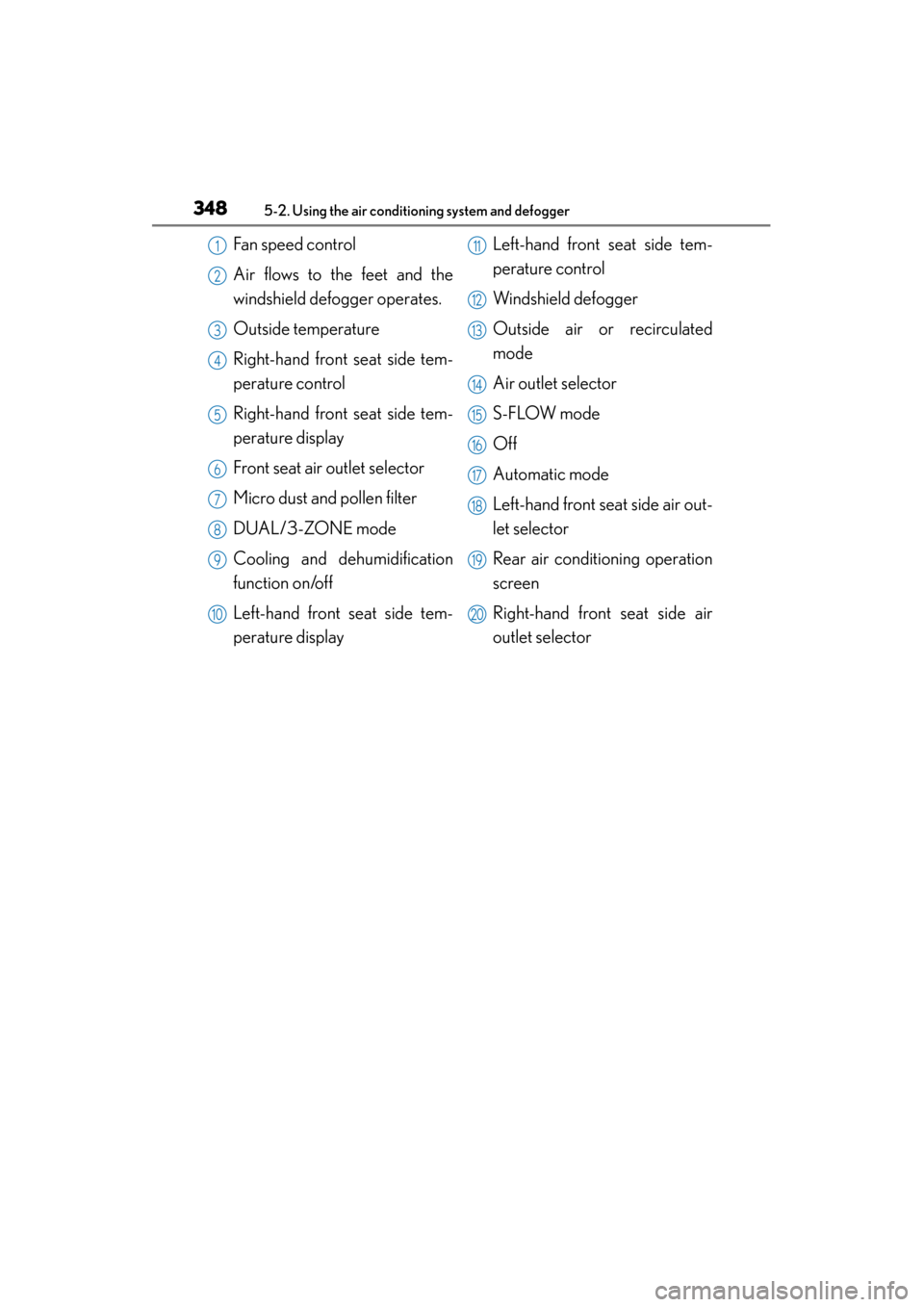
Fan speed control
Air flows to the feet and the
windshield defogger operates.
Outside temperature
Right-hand front seat side tem-
perature control
Right-hand front seat side tem-
perature display
Front seat air outlet selector
Micro dust and pollen filter
DUAL/3-ZONE mode
Cooling and dehumidification
function on/off
Left-hand front seat side tem-
perature displayLeft-hand front seat side tem-
perature control
Windshield defogger
Outside air or recirculated
mode
Air outlet selector
S-FLOW mode
Off
Automatic mode
Left-hand front seat side air out-
let selector
Rear air conditioning operation
screen
Right-hand front seat side air
outlet selector1
2
3
4
5
6
7
8
9
10
11
12
13
14
15
16
17
18
19
20
Page 361 of 830
360
GS350_U (OM30C34U)
5-2. Using the air conditioning system and defogger
Rear air conditioning system∗
∗: If equipped
Air outlets and fan speed are automatically adjusted according to the
temperature setting.
Button lock display
Air outlet mode display
Temperature display
Temperature control Air outlet selector
Off
Automatic mode1
2
3
4
5
6
7
Page 362 of 830
GS350_U (OM30C34U)
3615-2. Using the air conditioning system and defogger
5
Interior features
Press .
The air conditioning system will operate, and air outlets and fan speed will be
adjusted automatically.
“AUTO” will be displayed on the control panel.
Press “∧” on to increase the temperature and “ ∨” to decrease
the temperature.
Using automatic air conditioning system
1
2
Page 365 of 830
364
GS350_U (OM30C34U)
5-2. Using the air conditioning system and defogger
■Button lock function
■Rear control panel illumination off function To prevent inadvertent operation, the buttons
on the rear armrest can be locked. Press until you hear a beep to lock the but-
tons. Pressing again until you hear a
beep will release the lock.
The indicator appears on the display when the
buttons are locked.
Control panel illumination on the rear armrest
can be turned off. Press until you hear a
beep to turn the illumination off. Pressing again until you hear a beep will turn the
illumination on.
NOTICE
■To prevent battery discharge
Do not leave the air conditioning system on longer than necessary when the
engine is off.
Page 368 of 830
367
GS350_U (OM30C34U)5-3. Using the audio system
5
Interior features
Audio system type
CD and DVD player with AM/FM radio
Vehicles with a navigati on system: The audio fun ctions can be displayed
and operated on the “Side Display”. For details, refer to the “Navigation
System Owner’s Manual”.
XUsing the instrument panel
Press the “RADIO” or “MEDIA” button to display the audio control
screen.
XUsing the Remote Touch
Press the “MENU” button on the Remote Touch, select “RADIO” or
“MEDIA” and select each tab to display the audio control screen.
Page 371 of 830
370
GS350_U (OM30C34U)
5-3. Using the audio system
■Using cellular phones
Interference may be heard through the audio system’s speakers if a cellular phone is
being used inside or close to the vehicle while the audio system is operating.
■When using the Remote Touch screen
Dimmed screen buttons cannot be operated.
■Ta b
Select or , located either side of the screen tabs, to display tabs from the pre-
vious or next page.
■About Dolby
Manufactured under license from Dolby Laboratories. Dolby and the double-D sym-
bol are trademarks of Dolby Laboratories.
CAUTION
■For vehicles sold in the U.S.A. and Canada
●Part 15 of the FCC Rules
FCC Warning:
Changes or modifications not expressly approved by the party responsible for
compliance could void the user’s authority to operate the equipment.
●Laser products
• USE OF CONTROL OR ADJUSTMENT OR PERFORMANCE OF PRO- CEDURES OTHER THAN THOSE SPECIFIED HEREIN MAY RESULT IN
HAZARDOUS RADIATION EXPOSURE.
• THE USE OF OPTICAL INSTRUMENTS WITH THIS PRODUCT WILL INCREASE EYE HAZARD.
NOTICE
■To prevent battery discharge
Do not leave the audio system on longer than necessary when the engine is off.
■To avoid damaging the audio system
Take care not to spill drinks or other fluids on the audio system.
Page 374 of 830
GS350_U (OM30C34U)
3735-3. Using the audio system
5
Interior features
© UNIX System Laboratories, Inc. All or some portions of this file are derived from
material licensed to the University of California by American Telephone and
Telegraph Co. or Unix System Laboratories, Inc. and are reproduced herein with the
permission of UNIX System Laboratories, Inc.
Copyright © 1992, 1993 The Regents of the University of California. All rights
reserved.
This software was developed by the Computer Systems Engineering group at
Lawrence Berkeley Laboratory under DARPA contract BG 91-66 and contributed
to Berkeley. All advertising materials mentioning features or use of this software
must display the following acknowledgement: This product includes software
developed by the University of California, Lawrence Berkeley Laboratory.
Copyright © 1992, 1993 The Regents of the University of California. All rights
reserved.
This code is derived from software contributed to Berkeley by Ralph Campbell. This
file is derived from the MIPS RISC Architecture book by Gerry Kane.
Copyright © 1993 The Regents of the University of California. All rights reserved.
Copyright © 1994 The Regents of the University of California. All rights reserved.
This code is derived from software contributed to Berkeley by Andrew Hume of
AT &T B e l l L a b o r a t o r i e s .
Redistribution and use in source and binary forms, with or without modification, are
permitted provided that the following conditions are met:
1. Redistributions of source code must retain the above copyright notice, this list ofconditions and the following disclaimer.
2. Redistributions in binary form must reproduce the above copyright notice, this list of conditions and the following disclaimer in the documentation and/or other
materials provided with the distribution.
3. All advertising materials mentioning features or use of this software must display the following acknowledgement: This product includes software developed by
the University of California, Berkeley and its contributors.
4. Neither the name of the University nor the names of its contributors may be used to endorse or promote products derived from this software without specific prior
written permission.