change time Lexus GS450h 2014 Service Manual
[x] Cancel search | Manufacturer: LEXUS, Model Year: 2014, Model line: GS450h, Model: Lexus GS450h 2014Pages: 890, PDF Size: 40.62 MB
Page 516 of 890
GS450h_OM_OM30D52U_(U)
5155-3. Using the audio system
5
Interior features
■Playing tracks in random order
Select “RAND” on the screen.
Each time “RAND” is selected, the mode changes as follows:
track shuffle → album shuffle → off
■Playing the albums in random order
Select “RAND” repeatedly until “ALB.RAND” appears on the screen.
To cancel, select “RAND” again.
Select “RPT” on the screen.
“RPT” appears on the screen.
To cancel, select “RPT” again.
■If you select
The display returns to the previous screen.
■About iPod
●“Made for iPod” and “Made for iPhone” mean that an electronic accessory has
been designed to connect specifically to iPod, or iPhone, respectively, and has
been certified by the developer to meet Apple performance standards.
●Apple is not responsible for the operation of this device or its compliance with
safety and regulatory standards. Please note that the use of this accessory with
iPod or iPhone may affect wireless performance.
●iPhone, iPod, iPod classic, iPod nano and iPod touch are trademarks of Apple Inc.,
registered in the U.S. and other countries.
Random playback
Repeat play
GS450h_OM_OM30D52U_(U).book Page 515 Monday, July 29, 2013 12:07 PM
Page 517 of 890
516
GS450h_OM_OM30D52U_(U)
5-3. Using the audio system
■iPod cover art
●Depending on the iPod and the songs in the iPod, iPod cover art may be displayed.
This function can be changed to “On” or “Off”. (→P. 5 1 2 )
●It may take time to display iPod cover art, and the iPod may not be operated while
the cover art display is in process.
●Only iPod cover art that is saved in JPEG format can be displayed.
■iPod functions
●When the iPod connected to the system includes iPod video, the system can only
output the sound by selecting “Video” on the “iPod” screen.
●Depending on the iPod, the video sound may not be able to be heard.
●When an iPod is connected and the audio source is changed to iPod mode, the
iPod will resume play from the same point in which it was last used.
●Depending on the iPod that is connected to the system, certain functions may not
be available. If a function is unavailable due to a malfunction (as opposed to a sys-
tem specification), disconnecting the device and reconnecting it once again may
resolve the problem.
■When using an iPod
You maybe unable to use the instrument panel power outlet if the iPod is connected
to the USB port at the same time.
■Battery charge
When an iPod is connected using a genuine iPod cable, the iPod starts charging its
battery.
■Error messages for iPod
“iPod Error”:
This indicates a problem in the iPod or its connection.
“No music files found.”:
This indicates that there is no music data in the iPod.
“Please check the iPod firmware version.”:
This indicates that the software version is not compatible. Perform the iPod firmware
updates and try again.
“iPod authorization failed.”:
This indicates that it failed to authorize the iPod. Please check your iPod.
GS450h_OM_OM30D52U_(U).book Page 516 Monday, July 29, 2013 12:07 PM
Page 525 of 890
524
GS450h_OM_OM30D52U_(U)
5-3. Using the audio system
Press to change the audio source. The audio source as follows
each time the button is pressed. If no discs are inserted in the player, or if
the external device is not connected, that mode will be skipped.
FM → SAT → Apps → DVD player → iPod or USB memory →
Bluetooth® audio player → AUX → AM
Press “ ∧” on to increase the volume and “ ∨” to decrease the vol-
ume.
Press and hold the button to continue increasing or decreasing the volume.
■Select a radio station Press to select a frequency band.
Press “ ∧” or “ ∨” on to seek the frequency.
To scan for receivable stations, press and hold until you hear a beep.
■Select a preset station
Press to select a frequency band.
Press “ ∧” or “ ∨” on to select a preset station.
Changing the audio source
Adjusting the volume
Selecting a radio station
1
2
1
2
GS450h_OM_OM30D52U_(U).book Page 524 Monday, July 29, 2013 12:07 PM
Page 552 of 890
GS450h_OM_OM30D52U_(U)
5515-4. Using the hands-free phone system (for cellular phone)
5
Interior features
■Call history list
●If you make a call to or receive a call from a number registered in the phone book,
the name is displayed in the call history.
●If you make multiple calls to the same number, only the last call made is displayed in
the call history.
●Number-withheld calls are also memorized in the system.
■When driving
The functions “Dialing”, “Dialing from the phonebook”, and “Dialing from history”
(except for call using the 25 most recently called numbers shown by “All” tab) are
unavailable.
■When calling by registered name in the phonebook
●When “Call
book’s voice command recognition cannot be used. Check the Bluetooth® con-
nection and if the contacts have been transferred to the system.
●Short or abbreviated names in the phonebook may not be recognized. Change
names in the phonebook to full names.
●Sometimes a voice recognition result confirmation screen will be displayed. After
confirming the result, say “Yes” or “No”.
●When the system recognizes multiple names from the phonebook, a name candi-
date list will be displayed on the screen. If the desired name is not displayed on the
top of the screen, say the number of the name from the candidate list (number 1 and
number 2) to select a name from the candidate list.
●When a contact has multiple phone numbers registered in the phonebook, a candi-
date list will be displayed. If the desired phone number is not displayed on the top of
the screen, say the number of the desired phone number from the candidate list
(number 1 and number 2) to select a phone number from the candidate list.
GS450h_OM_OM30D52U_(U).book Page 551 Monday, July 29, 2013 12:07 PM
Page 591 of 890
590
GS450h_OM_OM30D52U_(U)
5-4. Using the hands-free phone system (for cellular phone)
■Editing the “Device Name”
If you change a device name, the name registered in your cellular phone is not
changed.
■About “Device Address”
The address peculiar to the system. It cannot be changed. If you have registered two
Bluetooth
® phones with the same device name and you cannot distinguish one from
the other, refer to this address.
■“My Phone Number”:
The phone number of the Bluetooth
® phone is displayed on the screen. Depending
on the type of phone, the phone number may not be displayed.
■“Profiles”:
The compatibility profile of the Bluetooth
® device is displayed on the screen.
■“Connect Portable Player from”:
There are 2 portable player connection settings available; “Vehicle” and “Portable
Player”.
■When you delete a Bluetooth® phone
The phonebook data will be deleted at the same time.
GS450h_OM_OM30D52U_(U).book Page 590 Monday, July 29, 2013 12:07 PM
Page 600 of 890
GS450h_OM_OM30D52U_(U)
5995-5. Using the interior lights
5
Interior features
■Illuminated entry system
The lights automatically turn on/off according to power switch mode, the presence
of the electronic key, whether the doors are locked/unlocked, and whether the doors
are opened/closed.
■To prevent 12-volt battery discharge
If the interior lights remain on when the power switch is turned off, the lights will go
off automatically after 20 minutes.
■Customization
Setting (e.g. the time elapsed before lights turn off) can be changed.
(Customizable features: →P. 8 3 3 )
NOTICE
■To prevent 12-volt battery discharge
Do not leave the lights on longer than necessary when the hybrid system is off.
GS450h_OM_OM30D52U_(U).book Page 599 Monday, July 29, 2013 12:07 PM
Page 624 of 890
GS450h_OM_OM30D52U_(U)
6235-7. Other interior features
5
Interior features
■Button lock function (vehicles with rear control panel)
To prevent inadvertent operation, some buttons on the rear armrest can be locked.
(→ P. 4 0 8 )
■Rear control panel illumination off function (vehicles with rear control panel)
Control panel illumination on the rear armrest can be turned off. ( →P. 4 0 8 )
■Customization
Time elapsed before the reverse operation feature activates can be changed.
(Customizable features: → P. 8 3 3 )
CAUTION
■When the rear sunshade is being operated
Do not place fingers or other objects in the fastener section or in the opening.
They may get caught, causing injury.
NOTICE
■To prevent 12-volt battery discharge
Do not operate the rear sunshade when the hybrid system is off.
■To ensure normal operation of the re ar sunshade and rear door sunshades
Observe the following precautions.
●Do not place excessive load on the motor or other components of the rear sun-
shade.
●Do not place objects where they may hinder opening and closing operations.
●Do not attach items to the rear sunshade and rear door sunshades.
●Keep the opening clean and clear of obstructions.
●Do not operate the rear sunshade cont inuously for long periods of time.
GS450h_OM_OM30D52U_(U).book Page 623 Monday, July 29, 2013 12:07 PM
Page 685 of 890
684
GS450h_OM_OM30D52U_(U)
6-3. Do-it-yourself maintenance
■When initialization of the tire pressure warning system has failed
Initialization can be completed in a few minutes. However, in the following cases, the
settings have not been recorded and the system will not operate properly. If
repeated attempts to record tire inflation pressure settings are unsuccessful, have
the vehicle inspected by your Lexus dealer.
●When operating the tire pressure warning reset switch, the tire pressure warning
light does not blink 3 times.
●After carrying out the initialization procedure, the tire pressure warning light blinks
for 1 minute then stays on after driving for 20 minutes.
■Tire pressure warning system certification
MODEL/FCC IDs:
Tr a n s m i t t e r : PA X P M V C 0 1 0
Initiator: HYQ22AAA
XFor vehicles sold in the U.S.A.
NOTE:
This device complies with Part 15 of the FCC Rules. Operation is subject to the fol-
lowing two conditions: (1) this device may not cause harmful interference, and (2)
this device must accept any interference received, including interference that may
cause undesired operation.
FCC WARNING:
Changes or modifications not expressly approved by the party responsible for com-
pliance could void the user’s authority to operate the equipment.
XFor vehicles sold in Canada
●Transmitter
NOTE:
Operation is subject to the following two conditions: (1) this device may not cause
interference, and (2) this device must accept any interference, including interfer-
ence that may cause undesired operation of the device.
●Initiator
NOTE:
This device complies with Industry Canada licence-exempt RSS standards. Oper-
ation is subject to the following two conditions: (1) this device may not cause inter-
ference, and (2) this device must accept any interference, including interference
that may cause undesired operation of the device.
GS450h_OM_OM30D52U_(U).book Page 684 Monday, July 29, 2013 12:07 PM
Page 796 of 890
7957-2. Steps to take in an emergency
GS450h_OM_OM30D52U_(U)
7
When trouble arises
■Stopping the hybrid system
Shift the shift lever to P and press the power switch as you normally do when stop-
ping the hybrid system.
■Replacing the key battery
As the above procedure is a temporary measure, it is recommended that the elec-
tronic key battery be replaced immediately when the battery is depleted. (→P. 6 9 4 )
■Changing power switch modes
Release the brake pedal and press the power switch in step above.
The hybrid system does not start and modes will be changed each time the switch is
pressed.( →P. 1 9 4 )
■When the electronic key does not work properly
●Make sure that the smart access system with push-button start has not been deac-
tivated in the customization setting. If it is off, turn the function on.
(Customizable features: →P. 8 3 3 )
●Check if battery-saving mode is set. If it is set, cancel the function. ( →P. 129)
3
GS450h_OM_OM30D52U_(U).book Page 795 Monday, July 29, 2013 12:07 PM
Page 834 of 890
833
GS450h_OM_OM30D52U_(U)8-2. Customization
8
Vehicle specifications
Customizable features
■Changing by using the Remote Touch
XVehicles without a navigation system
“Vehicle Settings” screen displayed on the Remote Touch screen.
(→ P. 3 5 8 )
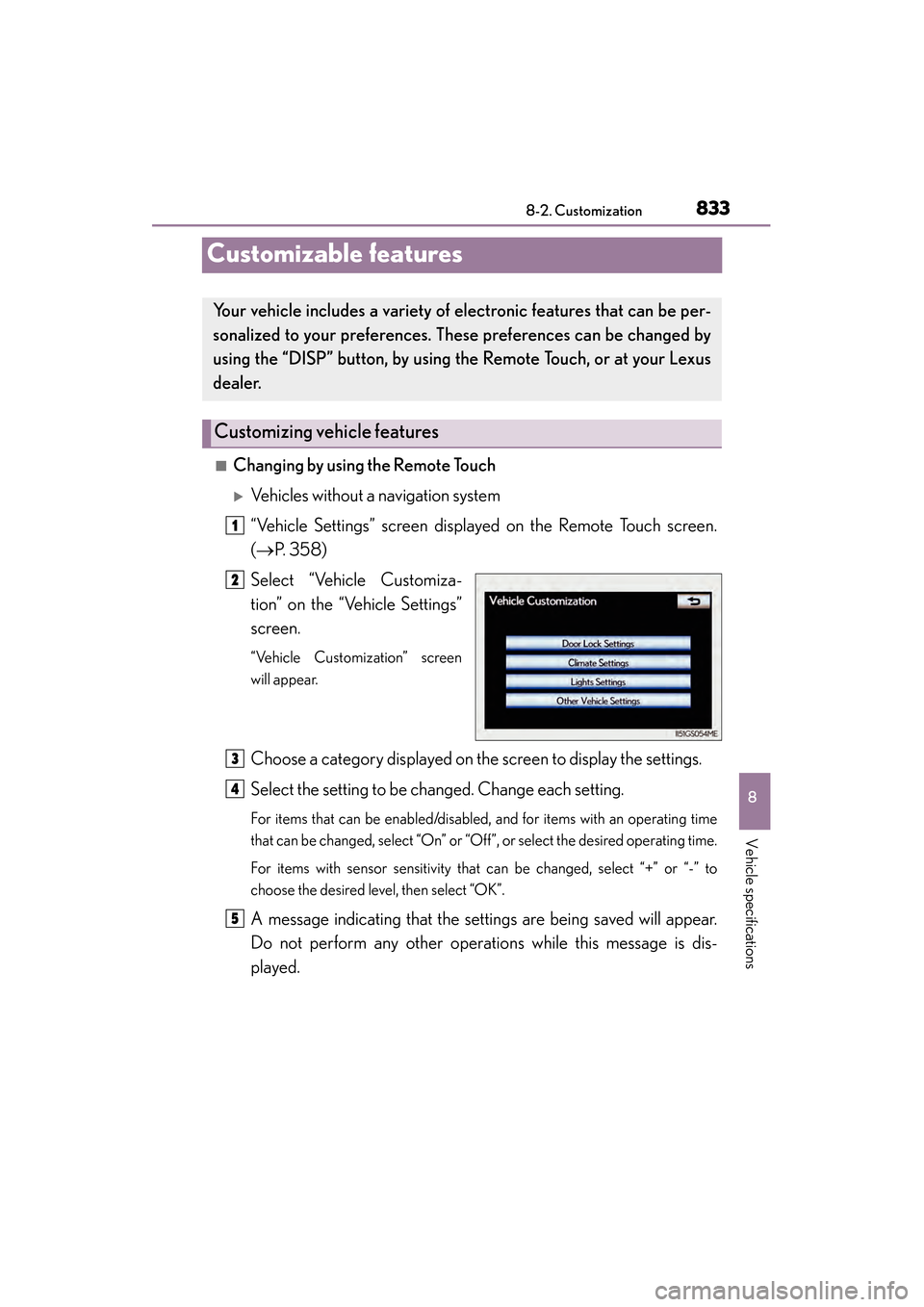
Select “Vehicle Customiza-
tion” on the “Vehicle Settings”
screen.
“Vehicle Customization” screen
will appear.
Choose a category displayed on the screen to display the settings.
Select the setting to be changed. Change each setting.
For items that can be enabled/disabled, and for items with an operating time
that can be changed, select “On” or “Off”, or select the desired operating time.
For items with sensor sensitivity that can be changed, select “+” or “-” to
choose the desired level, then select “OK”.
A message indicating that the settings are being saved will appear.
Do not perform any other operations while this message is dis-
played.
Your vehicle includes a variety of electronic features that can be per-
sonalized to your preferences. These preferences can be changed by
using the “DISP” button, by using th e Remote Touch, or at your Lexus
dealer.
Customizing vehicle features
1
2
3
4
5
GS450h_OM_OM30D52U_(U).book Page 833 Monday, July 29, 2013 12:07 PM