phone Lexus GX460 2018 / LEXUS 2018 GX460 MULTIMEDIA SYSTEM (OM60Q14U) Owner's Guide
[x] Cancel search | Manufacturer: LEXUS, Model Year: 2018, Model line: GX460, Model: Lexus GX460 2018Pages: 186, PDF Size: 2.35 MB
Page 109 of 186
109
6. TIPS FOR OPERATING THE AUDIO/VISUAL SYSTEM
GX460_MM_OM60Q14U_(U)17.05.09 14:47
3
AUDIO/VISUAL SYSTEM
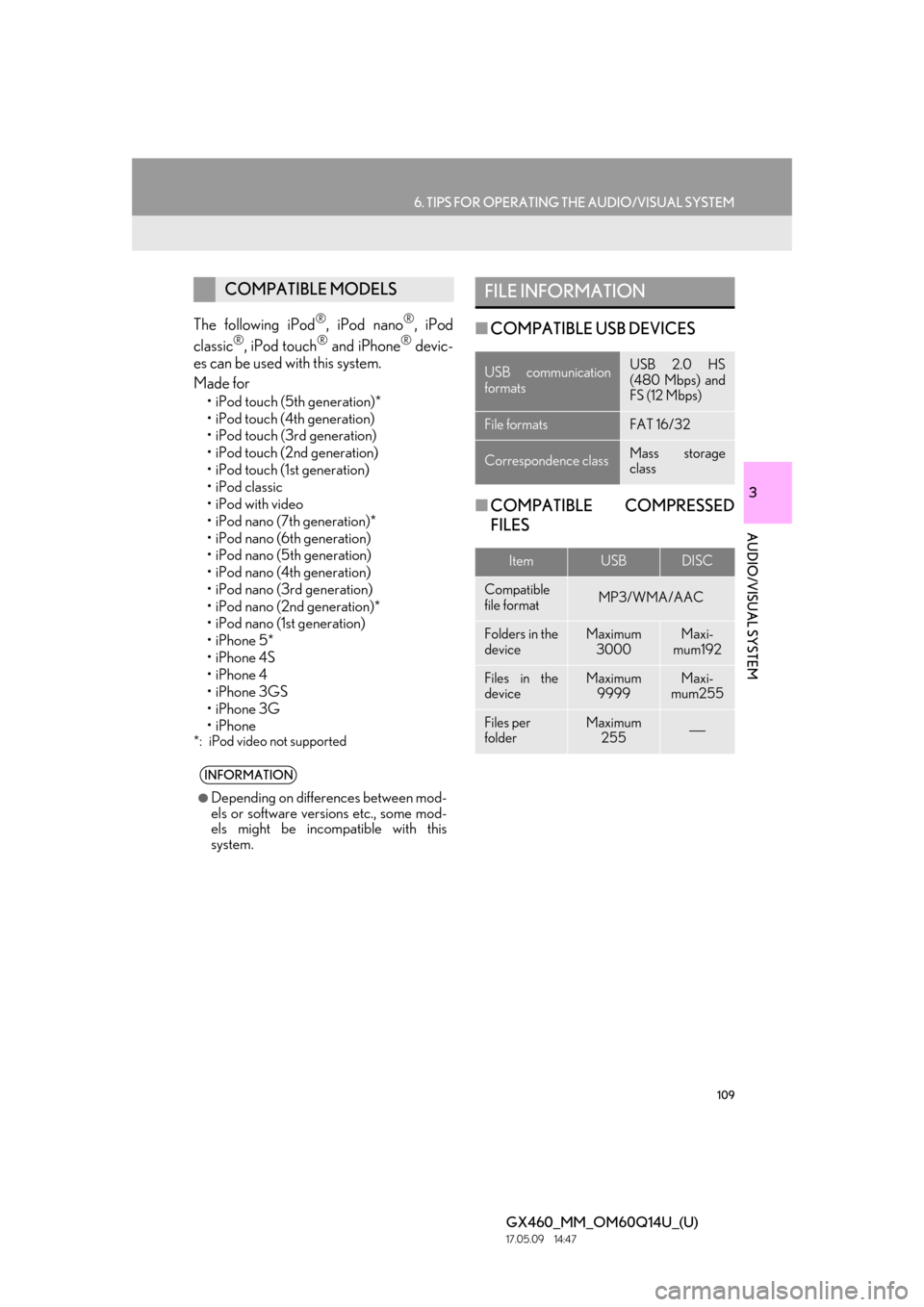
The following iPod®, iPod nano®, iPod
classic®, iPod touch® and iPhone® devic-
es can be used with this system.
Made for
• iPod touch (5th generation)*
• iPod touch (4th generation)
• iPod touch (3rd generation)
• iPod touch (2nd generation)
•iPod touch (1st generation)
• iPod classic
• iPod with video
• iPod nano (7th generation)*
• iPod nano (6th generation)
• iPod nano (5th generation)
• iPod nano (4th generation)
• iPod nano (3rd generation)
• iPod nano (2nd generation)*
• iPod nano (1st generation)
•iPhone 5*
•iPhone 4S
•iPhone 4
•iPhone 3GS
•iPhone 3G
•iPhone
*: iPod video not supported
■ COMPATIBLE USB DEVICES
■ COMPATIBLE COMPRESSED
FILES
COMPATIBLE MODELS
INFORMATION
●Depending on differences between mod-
els or software versions etc., some mod-
els might be incompatible with this
system.
FILE INFORMATION
USB communication
formatsUSB 2.0 HS
(480 Mbps) and
FS (12 Mbps)
File formatsFAT 16/32
Correspondence classMass storage
class
ItemUSBDISC
Compatible
file formatMP3/WMA/AAC
Folders in the
deviceMaximum
3000Maxi-
mum192
Files in the
deviceMaximum 9999Maxi-
mum255
Files per
folderMaximum 255⎯
Page 116 of 186
116
GX460_MM_OM60Q14U_(U)17.06.15 12:38
1. VOICE COMMAND SYSTEM OPERATION
1. VOICE COMMAND SYSTEM
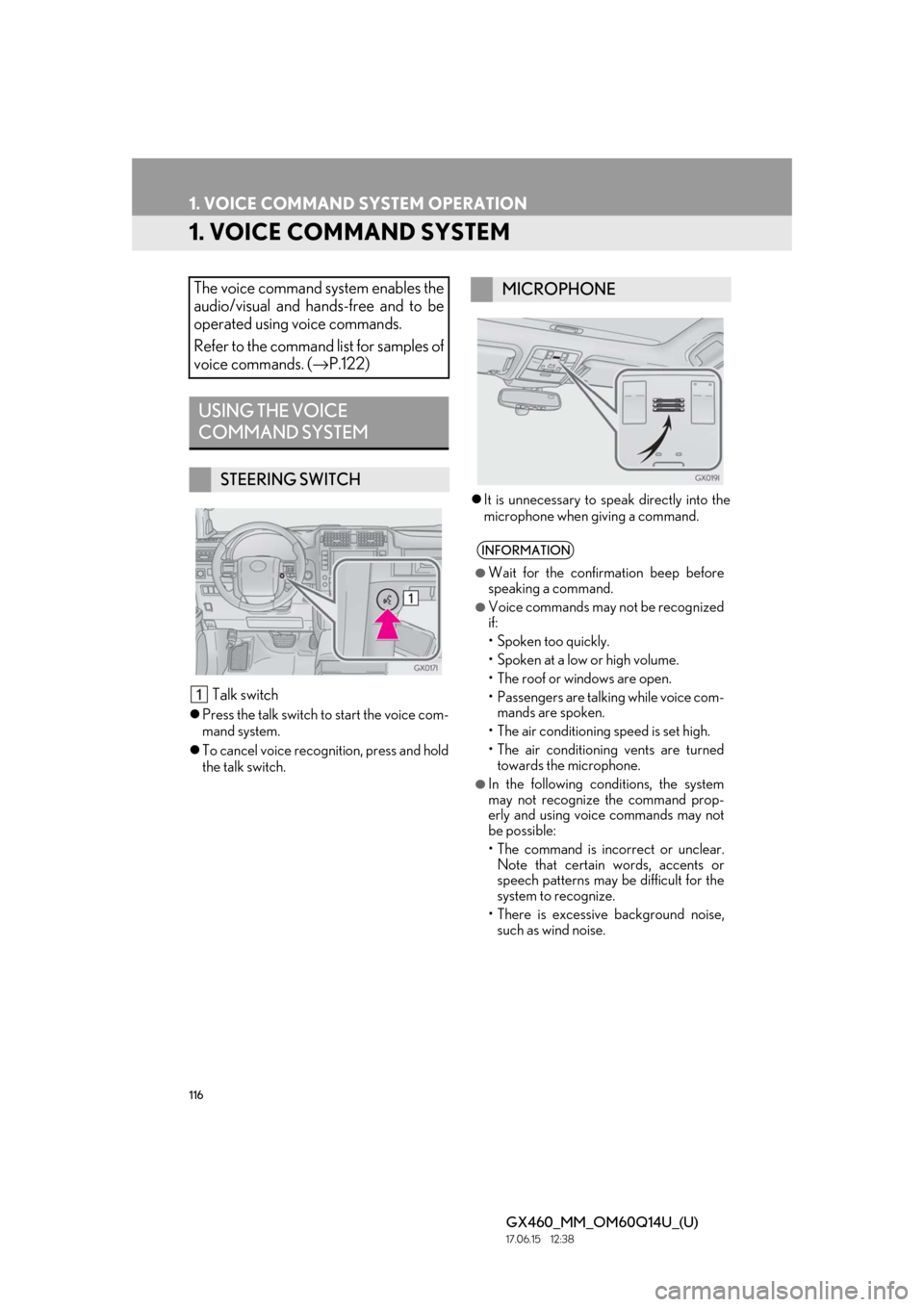
Talk switch
Press the talk switch to start the voice com-
mand system.
To cancel voice recognition, press and hold
the talk switch.
It is unnecessary to speak directly into the
microphone when giving a command.
The voice command system enables the
audio/visual and hands-free and to be
operated using voice commands.
Refer to the command list for samples of
voice commands. ( →P.122)
USING THE VOICE
COMMAND SYSTEM
STEERING SWITCH
MICROPHONE
INFORMATION
●Wait for the confirmation beep before
speaking a command.
●Voice commands may not be recognized
if:
• Spoken too quickly.
• Spoken at a low or high volume.
• The roof or windows are open.
• Passengers are talking while voice com-
mands are spoken.
• The air conditioning speed is set high.
• The air conditioning vents are turned towards the microphone.
●In the following conditions, the system
may not recognize the command prop-
erly and using voice commands may not
be possible:
• The command is incorrect or unclear.Note that certain words, accents or
speech patterns may be difficult for the
system to recognize.
• There is excessive background noise, such as wind noise.
Page 119 of 186
119
1. VOICE COMMAND SYSTEM OPERATION
4
VOICE COMMAND SYSTEM
GX460_MM_OM60Q14U_(U)17.06.15 12:38
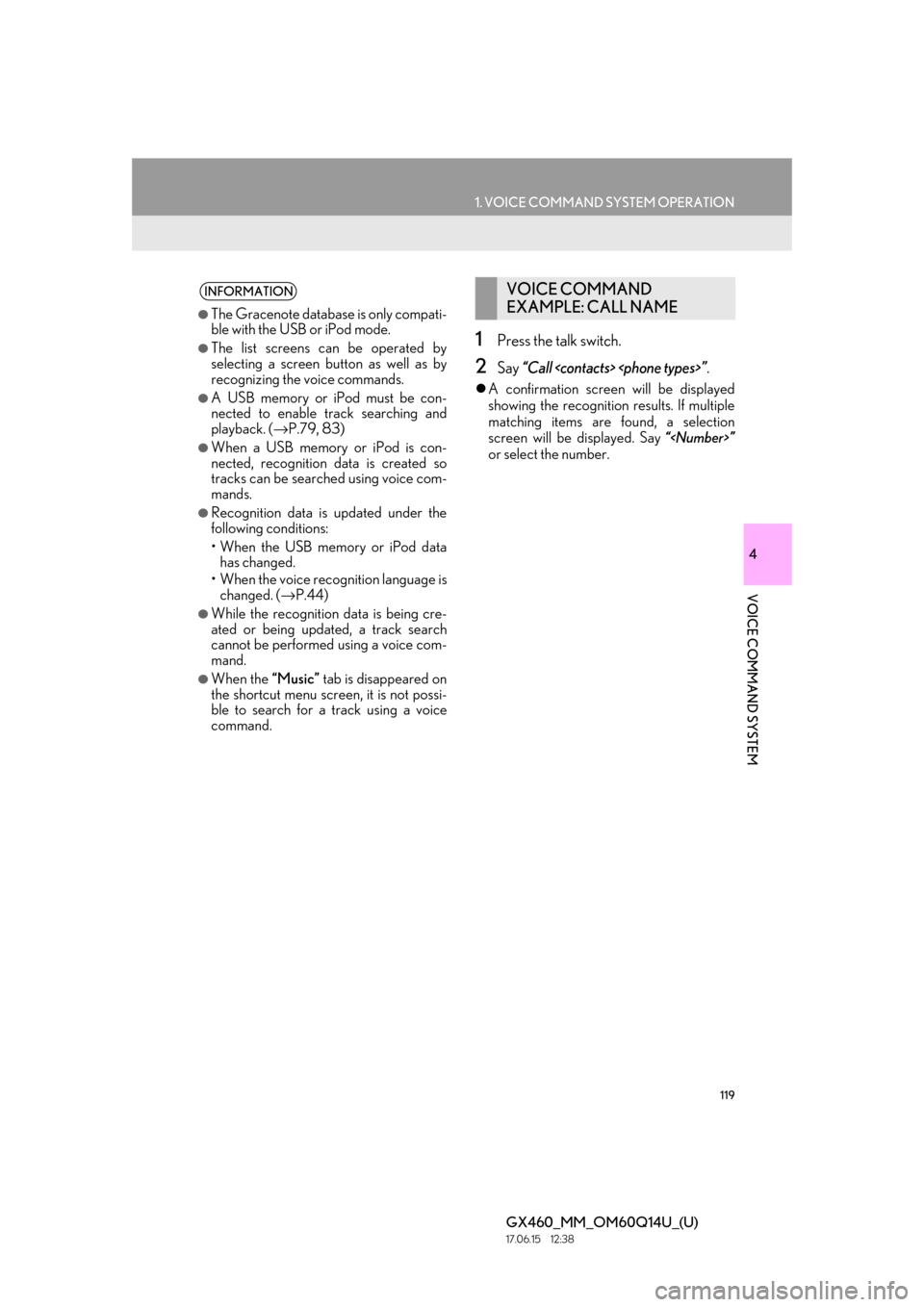
1Press the talk switch.
2Say “Call
A confirmation screen will be displayed
showing the recognition results. If multiple
matching items are found, a selection
screen will be displayed. Say “
or select the number.
INFORMATION
●The Gracenote database is only compati-
ble with the USB or iPod mode.
●The list screens can be operated by
selecting a screen button as well as by
recognizing the voice commands.
●A USB memory or iPod must be con-
nected to enable track searching and
playback. ( →P.79, 83)
●When a USB memory or iPod is con-
nected, recognition data is created so
tracks can be searched using voice com-
mands.
●Recognition data is updated under the
following conditions:
• When the USB memory or iPod data
has changed.
• When the voice recognition language is changed. ( →P.44)
●While the recognition data is being cre-
ated or being updated, a track search
cannot be performed using a voice com-
mand.
●When the “Music” tab is disappeared on
the shortcut menu screen, it is not possi-
ble to search for a track using a voice
command.
VOICE COMMAND
EXAMPLE: CALL NAME
Page 120 of 186
120
1. VOICE COMMAND SYSTEM OPERATION
GX460_MM_OM60Q14U_(U)17.06.15 12:38
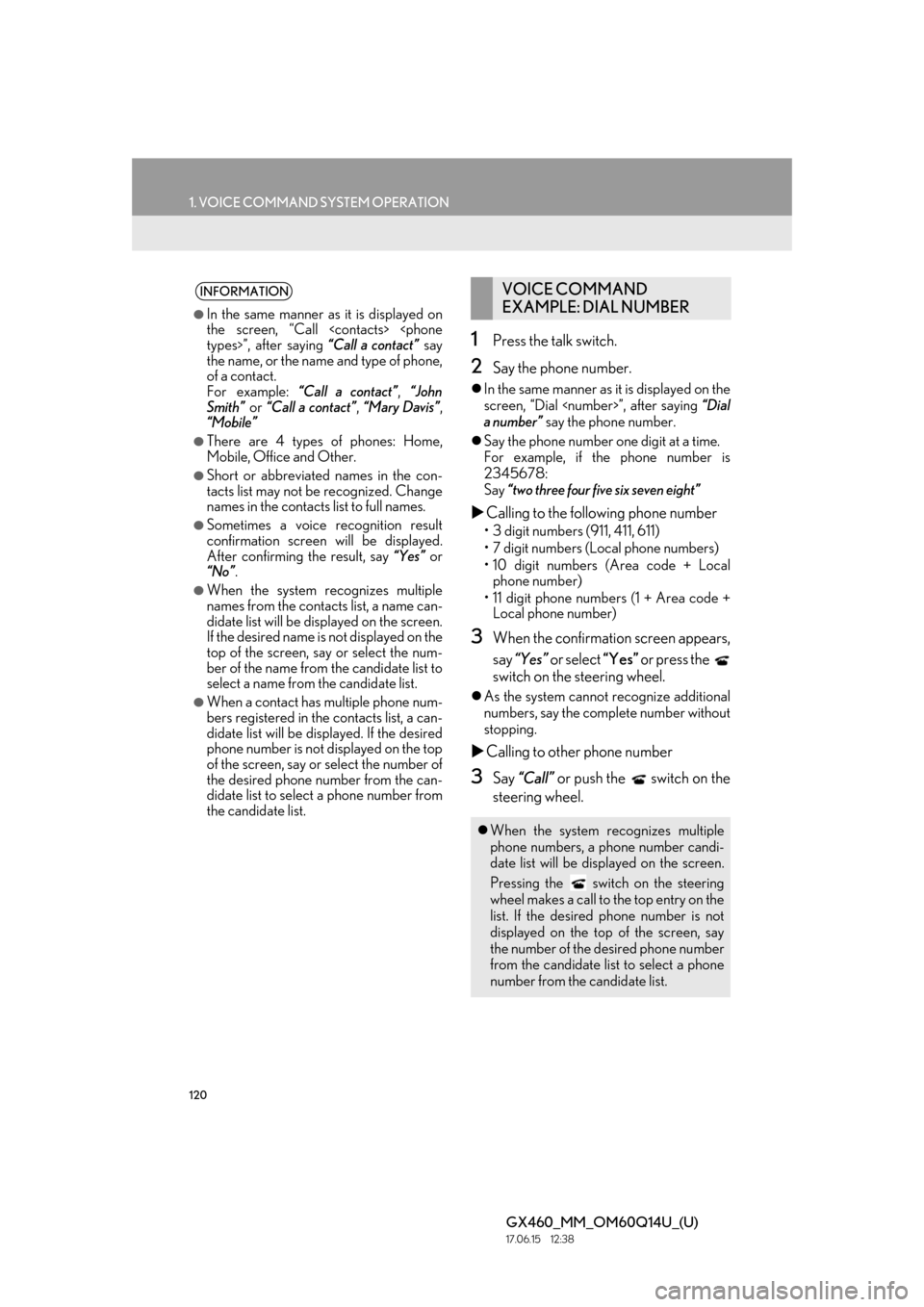
1Press the talk switch.
2Say the phone number.
In the same manner as it is displayed on the
screen, “Dial
a number” say the phone number.
Say the phone number one digit at a time.
For example, if the phone number is
2345678:
Say “two three four five six seven eight”
Calling to the following phone number
• 3 digit numbers (911, 411, 611)
• 7 digit numbers (Local phone numbers)
• 10 digit numbers (Area code + Local
phone number)
• 11 digit phone numbers (1 + Area code + Local phone number)
3When the confirmation screen appears,
say “Yes” or select “Yes” or press the
switch on the steering wheel.
As the system cannot recognize additional
numbers, say the complete number without
stopping.
Calling to other phone number
3Say “Call” or push the switch on the
steering wheel.
INFORMATION
●In the same manner as it is displayed on
the screen, “Call
the name, or the name and type of phone,
of a contact.
For example: “Call a contact” , “John
Smith” or “Call a contact” , “Mary Davis” ,
“Mobile”
●There are 4 types of phones: Home,
Mobile, Office and Other.
●Short or abbreviated names in the con-
tacts list may not be recognized. Change
names in the contacts list to full names.
●Sometimes a voice recognition result
confirmation screen will be displayed.
After confirming the result, say “Yes” or
“No” .
●When the system recognizes multiple
names from the contacts list, a name can-
didate list will be displayed on the screen.
If the desired name is not displayed on the
top of the screen, say or select the num-
ber of the name from the candidate list to
select a name from the candidate list.
●When a contact has multiple phone num-
bers registered in the contacts list, a can-
didate list will be displayed. If the desired
phone number is not displayed on the top
of the screen, say or select the number of
the desired phone number from the can-
didate list to select a phone number from
the candidate list.
VOICE COMMAND
EXAMPLE: DIAL NUMBER
When the system recognizes multiple
phone numbers, a phone number candi-
date list will be disp layed on the screen.
Pressing the
switch on the steering
wheel makes a call to the top entry on the
list. If the desired phone number is not
displayed on the top of the screen, say
the number of the desired phone number
from the candidate list to select a phone
number from the candidate list.
Page 121 of 186
121
1. VOICE COMMAND SYSTEM OPERATION
GX460_MM_OM60Q14U_(U)17.06.15 12:38
4
VOICE COMMAND SYSTEM
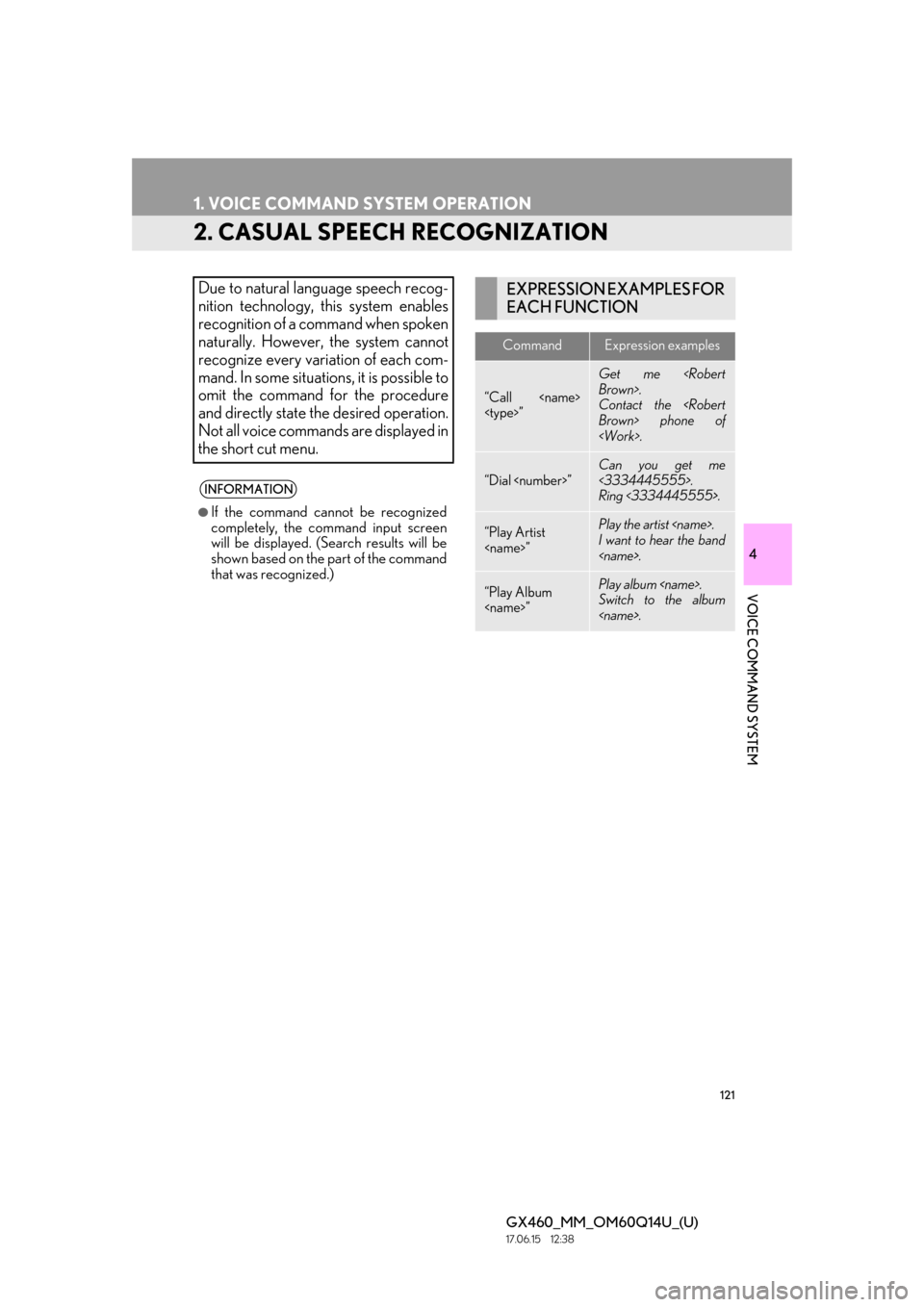
2. CASUAL SPEECH RECOGNIZATION
Due to natural language speech recog-
nition technology, this system enables
recognition of a command when spoken
naturally. However, the system cannot
recognize every variation of each com-
mand. In some situations, it is possible to
omit the command for the procedure
and directly state the desired operation.
Not all voice commands are displayed in
the short cut menu.
INFORMATION
●If the command cannot be recognized
completely, the command input screen
will be displayed. (Search results will be
shown based on the part of the command
that was recognized.)
EXPRESSION EXAMPLES FOR
EACH FUNCTION
CommandExpression examples
“Call
Get me
Contact the
“Dial
Can you get me
<3334445555>.
Ring <3334445555>.
“Play Artist
I want to hear the band
“Play Album
Switch to the album
Page 122 of 186
122
1. VOICE COMMAND SYSTEM OPERATION
GX460_MM_OM60Q14U_(U)17.06.15 12:38
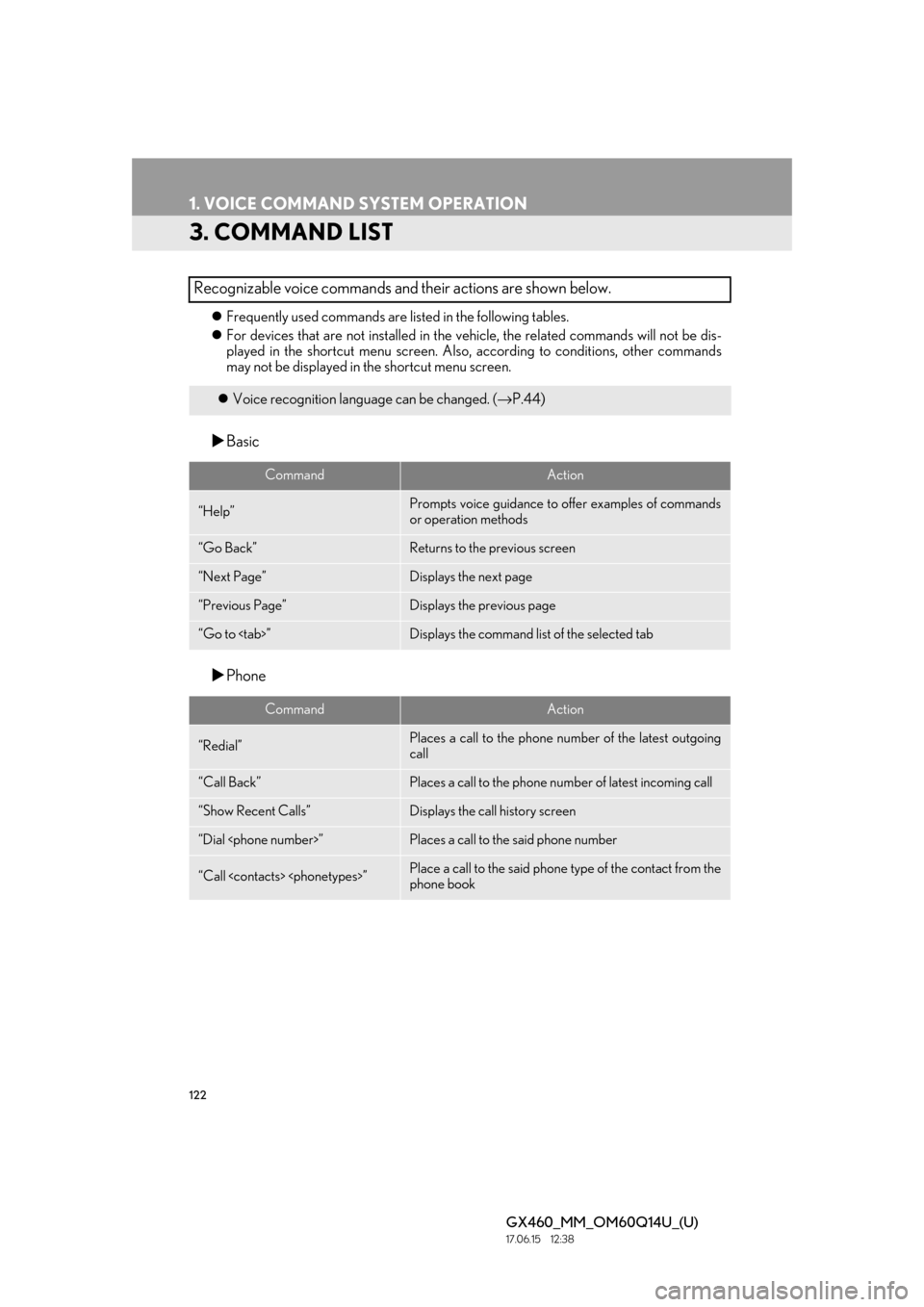
3. COMMAND LIST
Frequently used commands are listed in the following tables.
For devices that are not inst alled in the vehicle, the related commands will not be dis-
played in the shortcut menu screen. Also, according to condit ions, other commands
may not be displayed in the shortcut menu screen.
Basic
Phone
Recognizable voice commands and their actions are shown below.
Voice recognition langua ge can be changed. (→P.44)
CommandAction
“Help”Prompts voice guidance to offer examples of commands
or operation methods
“Go Back”Returns to the previous screen
“Next Page”Displays the next page
“Previous Page”Displays the previous page
“Go to
CommandAction
“Redial”Places a call to the phone numb er of the latest outgoing
call
“Call Back”Places a call to the phone numb er of latest incoming call
“Show Recent Calls”Displays the call history screen
“Dial
“Call
phone book
Page 124 of 186
124
GX460_MM_OM60Q14U_(U)17.06.15 12:38
2. MOBILE ASSISTANT OPERATION
1. MOBILE ASSISTANT
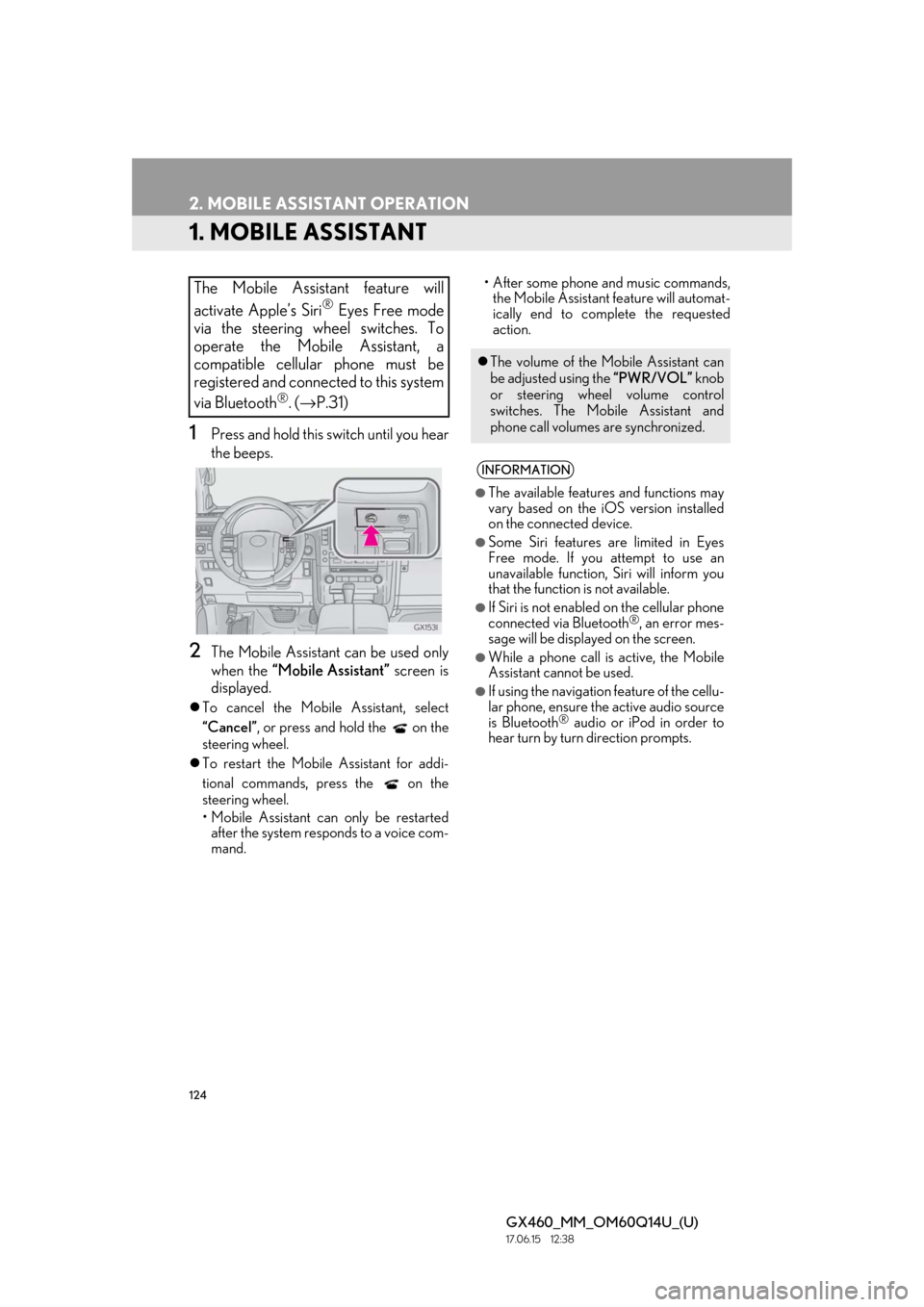
1Press and hold this switch until you hear
the beeps.
2The Mobile Assistant can be used only
when the “Mobile Assistant” screen is
displayed.
To cancel the Mobile Assistant, select
“Cancel”, or press and hold the on the
steering wheel.
To restart the Mobile Assistant for addi-
tional commands, press the on the
steering wheel.
• Mobile Assistant can only be restarted
after the system responds to a voice com-
mand. • After some phone and music commands,
the Mobile Assistant feature will automat-
ically end to complete the requested
action.
The Mobile Assistant feature will
activate Apple’s Siri
® Eyes Free mode
via the steering wheel switches. To
operate the Mobile Assistant, a
compatible cellular phone must be
registered and connected to this system
via Bluetooth
®. ( → P.31)
The volume of the Mo bile Assistant can
be adjusted using the “PWR/VOL” knob
or steering wheel volume control
switches. The Mob ile Assistant and
phone call volumes are synchronized.
INFORMATION
●The available features and functions may
vary based on the iOS version installed
on the connected device.
●Some Siri features are limited in Eyes
Free mode. If you attempt to use an
unavailable function, Siri will inform you
that the function is not available.
●If Siri is not enabled on the cellular phone
connected via Bluetooth®, an error mes-
sage will be displayed on the screen.
●While a phone call is active, the Mobile
Assistant cannot be used.
●If using the navigation feature of the cellu-
lar phone, ensure the active audio source
is Bluetooth
® audio or iPod in order to
hear turn by turn direction prompts.
Page 125 of 186
125
2. MOBILE ASSISTANT OPERATION
4
VOICE COMMAND SYSTEM
GX460_MM_OM60Q14U_(U)17.06.15 12:38
MICROPHONE
It is not necessary to speak directly into
the microphone when using the Mobile
Assistant. (Microphone location:
→ P.116)
INFORMATION
●Wait for the listening beeps before using
the Mobile Assistant.
●The Mobile Assistant may not recognize
commands in the following situations:
• Spoken too quickly.
• Spoken at a low or high volume.
• The roof or windows are open.
• Passengers are talking while the Mobile Assistant is being used.
• The air conditioning speed is set high.
• The air conditioning vents are turned toward the microphone.
Page 131 of 186
6
131
1
2
3 4
5 6
GX460_MM_OM60Q14U_(U)17.05.09 14:47
7
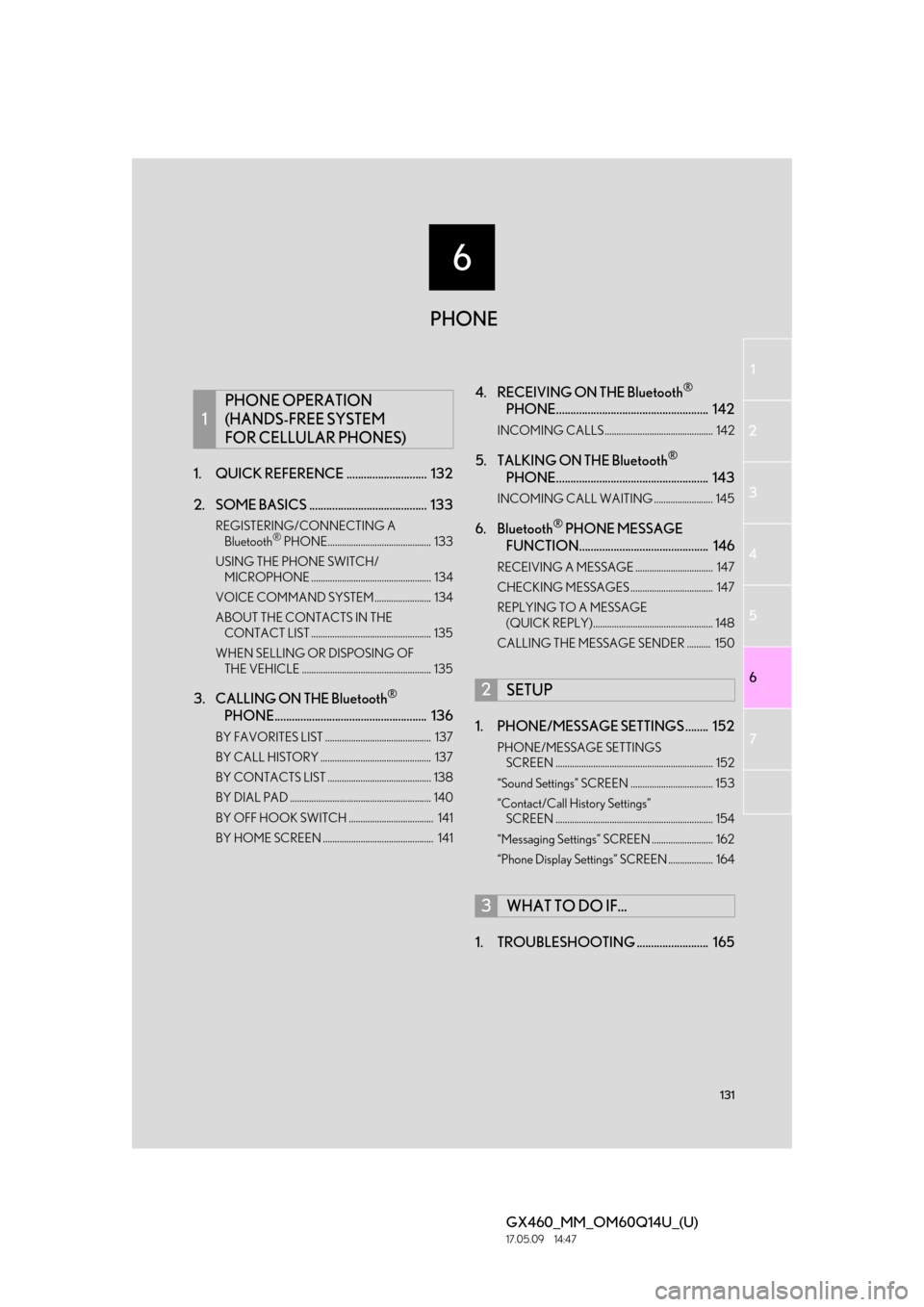
1. QUICK REFERENC E ............................ 132
2. SOME BASICS ......................................... 133
REGISTERING/CONNECTING A Bluetooth® PHONE............................................ 133
USING THE PHONE SWITCH/ MICROPHONE ................................................... 134
VOICE COMMAND SYSTEM........................ 134
ABOUT THE CONTACTS IN THE CONTACT LIST ................................................... 135
WHEN SELLING OR DISPOSING OF THE VEHICLE ....................................................... 135
3. CALLING ON THE Bluetooth®
PHONE..................................................... 136
BY FAVORITES LIST ............................................. 137
BY CALL HISTORY ............................................... 137
BY CONTACTS LIST ............................................ 138
BY DIAL PAD ............................................................ 140
BY OFF HOOK SWITCH .................................... 141
BY HOME SCREEN ............................................... 141
4. RECEIVING ON THE Bluetooth®
PHONE..................................................... 142
INCOMING CALLS .............................................. 142
5. TALKING ON THE Bluetooth®
PHONE..................................................... 143
INCOMING CALL WAITING ......................... 145
6. Bluetooth® PHONE MESSAGE
FUNCTION............................................. 146
RECEIVING A MESSAGE ................................. 147
CHECKING MESSAGES ................................... 147
REPLYING TO A MESSAGE
(QUICK REPLY)................................................... 148
CALLING THE MESSAGE SENDER .......... 150
1. PHONE/MESSAGE SETTINGS ........ 152
PHONE/MESSAGE SETTINGS SCREEN ................................................................... 152
“Sound Settings” SCREEN ................................... 153
“Contact/Call History Settings” SCREEN ................................................................... 154
“Messaging Settings” SCREEN .......................... 162
“Phone Display Settings” SCREEN ................... 164
1. TROUBLESHOOTING ......................... 165
1
PHONE OPERATION
(HANDS-FREE SYSTEM
FOR CELLULAR PHONES)
2SETUP
3WHAT TO DO IF...
PHONE
Page 132 of 186
132
GX460_MM_OM60Q14U_(U)17.06.15 12:38
1. PHONE OPERATION (HANDS-FREE SYSTEM FOR CELLULAR PHONES)
1. QUICK REFERENCE
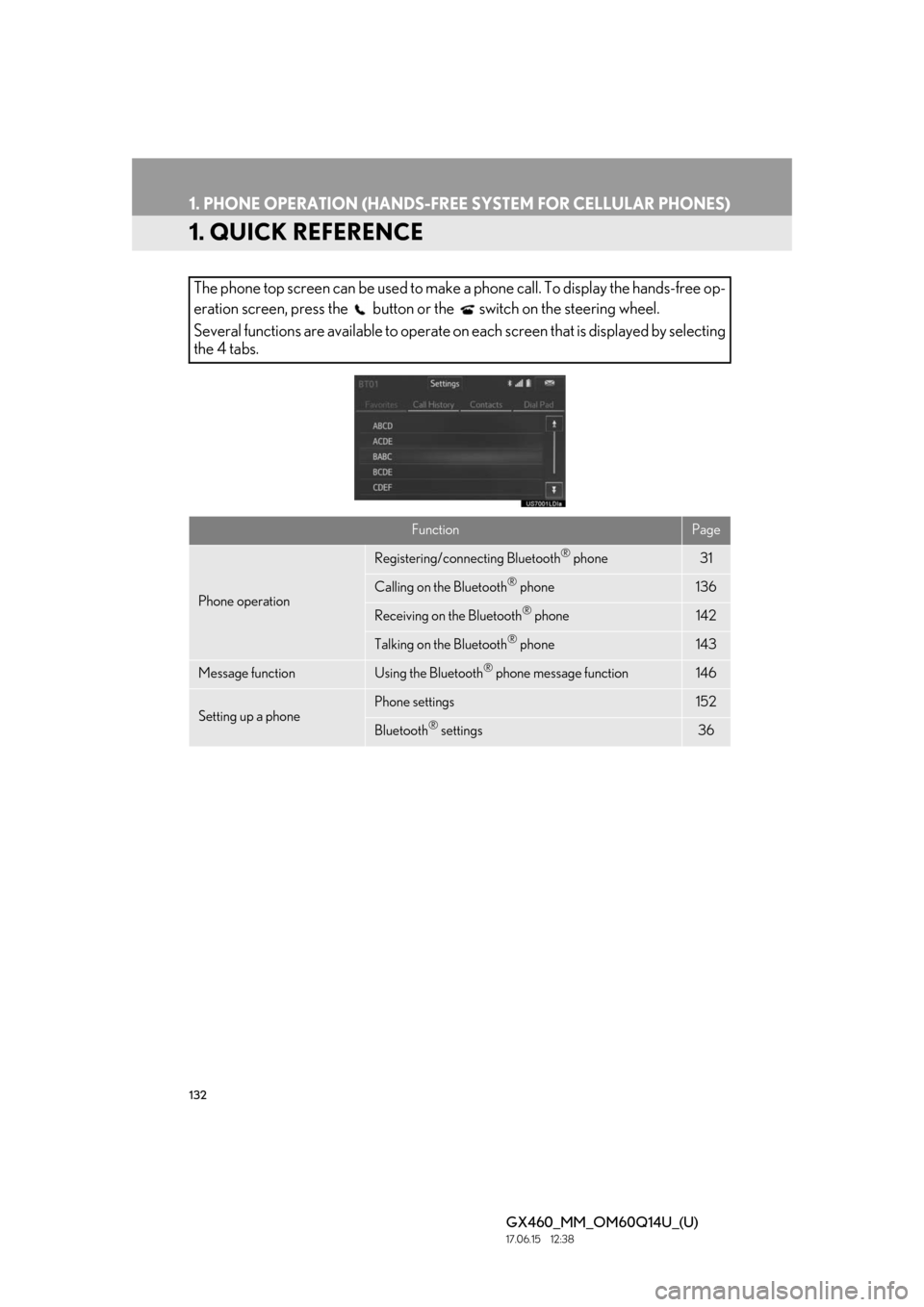
The phone top screen can be used to make a phone call. To display the hands-free op-
eration screen, press the button or the switch on the steering wheel.
Several functions are available to operate on each screen that is displayed by selecting
the 4 tabs.
FunctionPage
Phone operation
Registering/conne cting Bluetooth® phone31
Calling on the Bluetooth® phone136
Receiving on the Bluetooth® phone142
Talking on the Bluetooth® phone143
Message functionUsing the Bluetooth® phone message function146
Setting up a phonePhone settings152
Bluetooth® settings36