phone Lexus GX460 2018 / LEXUS 2018 GX460 MULTIMEDIA SYSTEM (OM60Q14U) Owner's Guide
[x] Cancel search | Manufacturer: LEXUS, Model Year: 2018, Model line: GX460, Model: Lexus GX460 2018Pages: 186, PDF Size: 2.35 MB
Page 133 of 186
133
1. PHONE OPERATION (HANDS-FREE SYSTEM FOR CELLULAR PHONES)
GX460_MM_OM60Q14U_(U)17.06.15 12:38
6
PHONE
2. SOME BASICS
The hands-free system enables calls to
be made and received without having to
take your hands off the steering wheel.
This system supports Bluetooth
®.
Bluetooth
® is a wireless data system
that enables cellular phones to be used
without being connected by a cable or
placed in a cradle.
The operating procedure of the phone is
explained here.
CAUTION
●While driving, do not use a cellular phone
or connect the Bluetooth® phone.
●Your audio unit is fitted with Bluetooth®
antennas. People with implantable car-
diac pacemakers, cardiac resynchroniza-
tion therapy-pacemakers or implantable
cardioverter defibrill ators should main-
tain a reasonable distance between
themselves and the Bluetooth
® antennas.
The radio waves may affect the operation
of such devices.
●Before using Bluetooth® devices, users
of any electrical medical device other
than implantable cardiac pacemakers,
cardiac resynchronization therapy-pace-
makers or implantable cardioverter
defibrillators should consult the manufac-
turer of the device for information about
its operation under th e influence of radio
waves. Radio waves could have unex-
pected effects on the operation of such
medical devices.
NOTICE
●Do not leave your cellular phone in the
vehicle. The temperature inside may rise
to a level that coul d damage the phone.
INFORMATION
●If your cellular phone does not support
Bluetooth®, this system cannot function.
●In the following conditions, the system
may not function:
• The cellular phone is turned off.
• The current position is outside the com-
munication area.
• The cellular phone is not connected.
• The cellular phone has a low battery.
●When using Bluetooth® audio and
hands-free system at the same time, the
following problems may occur:
• The Bluetooth
® connection may be cut.
• Noise may be heard on the Bluetooth
®
audio playback.
REGISTERING/
CONNECTING A Bluetooth®
PHONE
To use the hands-free system for cellular
phones, it is necessary to register a cel-
lular phone with the system. ( →P.31)
Bluetooth® PHONE
CONDITION DISPLAY
The condition of the Bluetooth
® phone
appears on the upper right side of the
screen. ( →P.16)
Page 134 of 186
134
1. PHONE OPERATION (HANDS-FREE SYSTEM FOR CELLULAR PHONES)
GX460_MM_OM60Q14U_(U)17.06.15 12:38
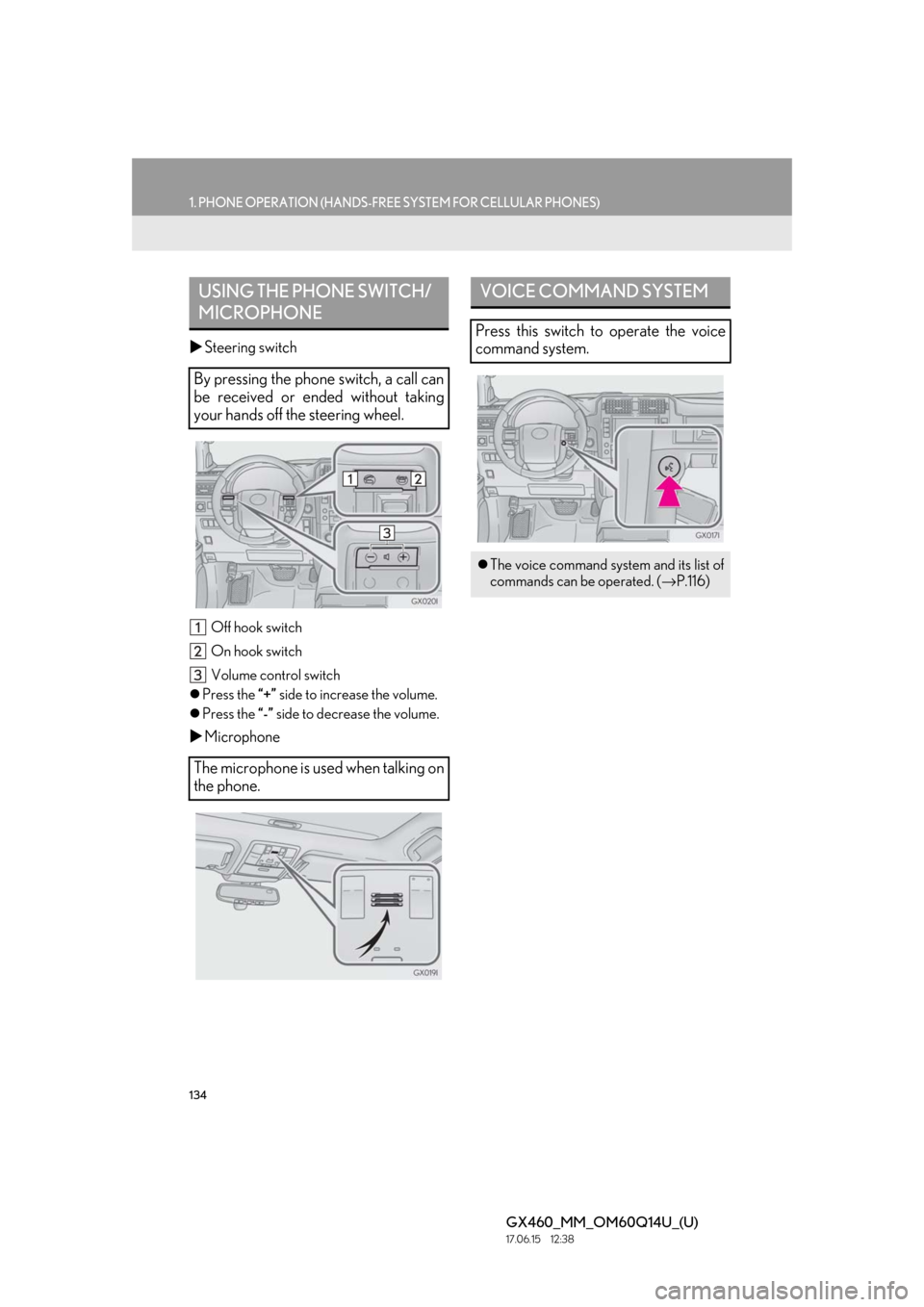
Steering switch
Off hook switch
On hook switch
Volume control switch
Press the “+” side to increase the volume.
Press the “-” side to decrease the volume.
Microphone
USING THE PHONE SWITCH/
MICROPHONE
By pressing the phone switch, a call can
be received or ended without taking
your hands off the steering wheel.
The microphone is used when talking on
the phone.
VOICE COMMAND SYSTEM
Press this switch to operate the voice
command system.
The voice command system and its list of
commands can be operated. ( →P.116)
Page 135 of 186
135
1. PHONE OPERATION (HANDS-FREE SYSTEM FOR CELLULAR PHONES)
6
PHONE
GX460_MM_OM60Q14U_(U)17.06.15 12:38
The following data is stored for every regis-
tered phone. When an other phone is con-
nected, the following registered data
cannot be read:
• Contact data
•Call history data
•Favorites data
• Image data
• All phone settings
• Message settings
The following data in the system can be ini-
tialized:
• Contact data
•Call history data
•Favorites data
• Image data
• All phone settings
• Message settings
INFORMATION
●The other party’s voice will be heard from
the front speakers. The audio/visual sys-
tem will be muted during phone calls or
when hands-free voice commands are
used.
●Talk alternately with the other party on
the phone. If both parties speak at the
same time, the other party may not hear
what has been said. (This is not a malfunc-
tion.)
●Keep call volume down. Otherwise, the
other party’s voice may be audible out-
side the vehicle and voice echo may
increase. When talking on the phone,
speak clearly towards the microphone.
●The other party may not hear you clearly
when:
• Driving on an unpaved road. (Making
excessive traffic noise.)
• Driving at high speeds.
• The roof or windows are open.
• The air conditioning vents are pointed
towards the microphone.
• The sound of the air conditioning fan is loud.
•There is a negative effect on sound quality due to the phone and/or network
being used.
ABOUT THE CONTACTS IN
THE CONTACT LIST
INFORMATION
●When a phone’s registration is deleted,
the above-mentioned data is also
deleted.
WHEN SELLING OR
DISPOSING OF THE VEHICLE
A lot of personal data is registered when
the hands-free system is used. When
selling or disposing of the vehicle, initial-
ize the data.
(→P.48)
INFORMATION
●Once initialized, the data and settings will
be erased. Pay much attention when ini-
tializing the data.
Page 136 of 186
136
1. PHONE OPERATION (HANDS-FREE SYSTEM FOR CELLULAR PHONES)
GX460_MM_OM60Q14U_(U)17.06.15 12:38
3. CALLING ON THE Bluetooth® PHONE
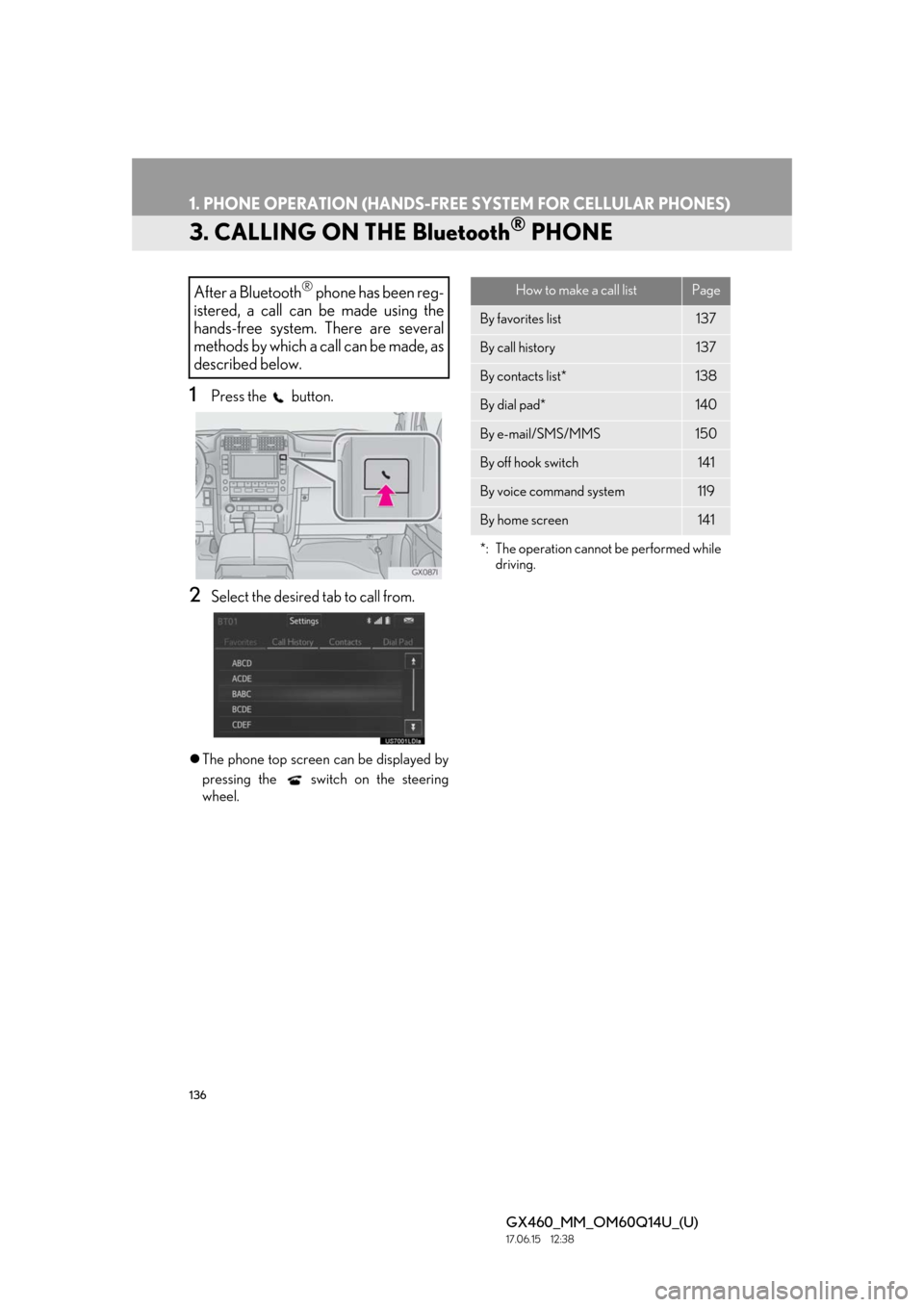
1Press the button.
2Select the desired tab to call from.
The phone top screen can be displayed by
pressing the
switch on the steering
wheel.
After a Bluetooth® phone has been reg-
istered, a call can be made using the
hands-free system. There are several
methods by which a call can be made, as
described below.How to make a call listPage
By favorites list137
By call history137
By contacts list*138
By dial pad*140
By e-mail/SMS/MMS150
By off hook switch141
By voice command system119
By home screen141
*: The operation cannot be performed while driving.
Page 137 of 186
137
1. PHONE OPERATION (HANDS-FREE SYSTEM FOR CELLULAR PHONES)
6
PHONE
GX460_MM_OM60Q14U_(U)17.06.15 12:38
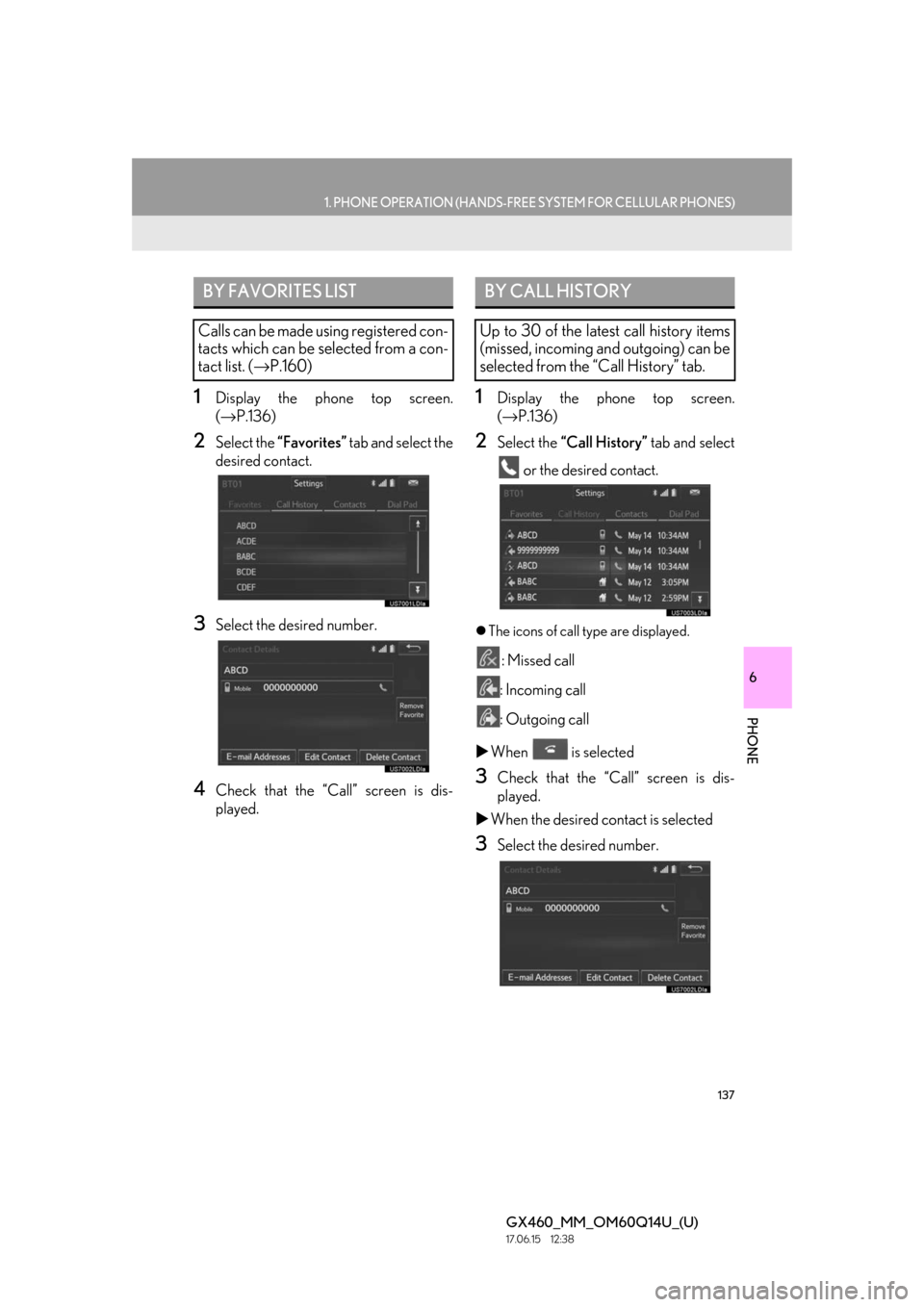
1Display the phone top screen.
(→ P.136)
2Select the “Favorites” tab and select the
desired contact.
3Select the desired number.
4Check that the “Call” screen is dis-
played.
1Display the phone top screen.
(→ P.136)
2Select the “Call History” tab and select
or the desired contact.
The icons of call type are displayed.
: Missed call
: Incoming call
: Outgoing call
When is selected
3Check that the “Call” screen is dis-
played.
When the desired contact is selected
3Select the desired number.
BY FAVORITES LIST
Calls can be made using registered con-
tacts which can be selected from a con-
tact list. ( →P.160)
BY CALL HISTORY
Up to 30 of the latest call history items
(missed, incoming and outgoing) can be
selected from the “Call History” tab.
Page 138 of 186
138
1. PHONE OPERATION (HANDS-FREE SYSTEM FOR CELLULAR PHONES)
GX460_MM_OM60Q14U_(U)17.06.15 12:38
4Check that the “Call” screen is dis-
played.
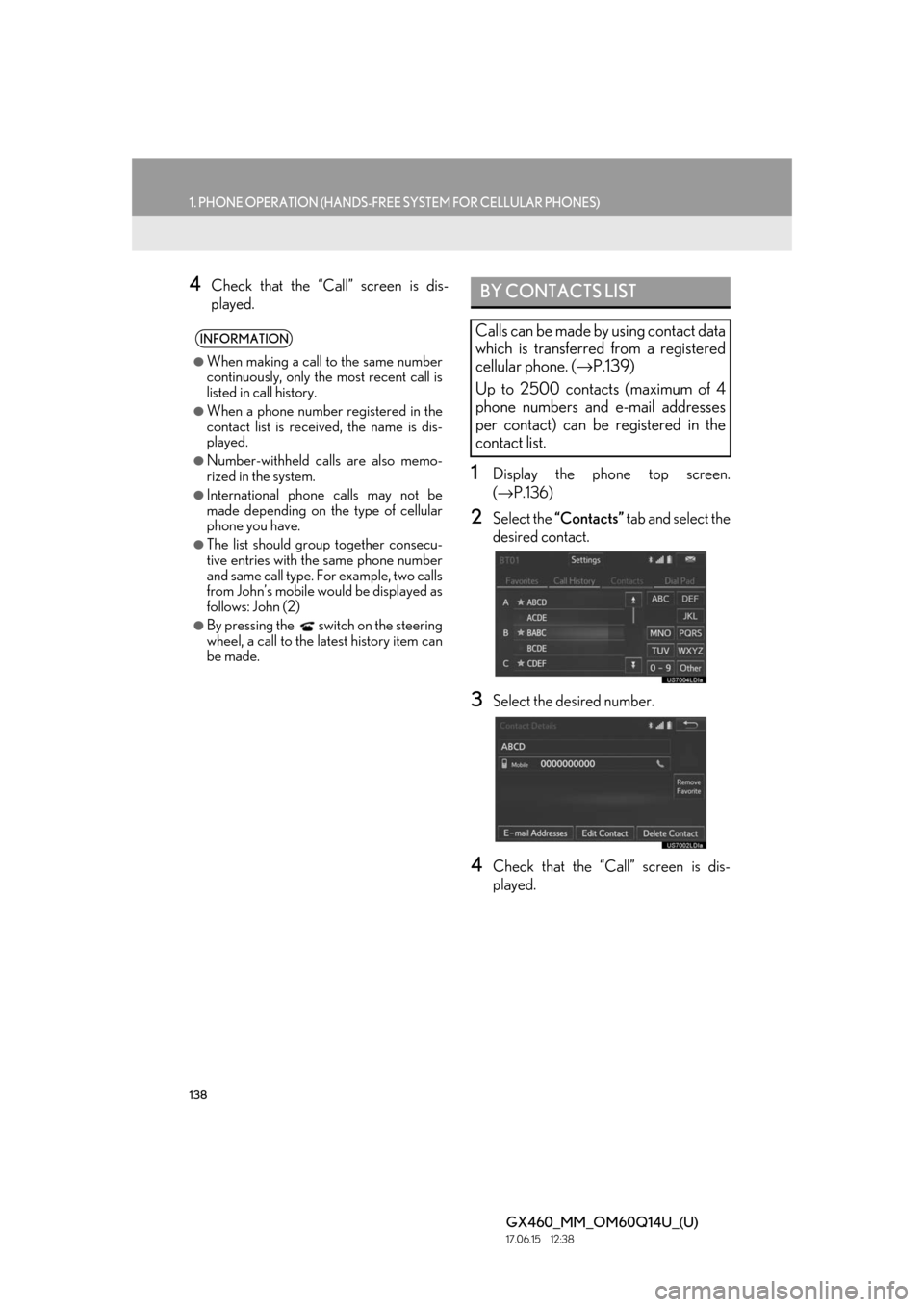
1Display the phone top screen.
(→ P.136)
2Select the “Contacts” tab and select the
desired contact.
3Select the desired number.
4Check that the “Cal l” screen is dis-
played.
INFORMATION
●When making a call to the same number
continuously, only the most recent call is
listed in call history.
●When a phone number registered in the
contact list is received, the name is dis-
played.
●Number-withheld calls are also memo-
rized in the system.
●International phone calls may not be
made depending on the type of cellular
phone you have.
●The list should group together consecu-
tive entries with the same phone number
and same call type. For example, two calls
from John’s mobile would be displayed as
follows: John (2)
●By pressing the switch on the steering
wheel, a call to the la test history item can
be made.
BY CONTACTS LIST
Calls can be made by using contact data
which is transferred from a registered
cellular phone. ( →P.139)
Up to 2500 contacts (maximum of 4
phone numbers and e-mail addresses
per contact) can be registered in the
contact list.
Page 139 of 186
139
1. PHONE OPERATION (HANDS-FREE SYSTEM FOR CELLULAR PHONES)
6
PHONE
GX460_MM_OM60Q14U_(U)17.06.15 12:38
■FOR PBAP COMPATIBLE
Bluetooth
® PHONES
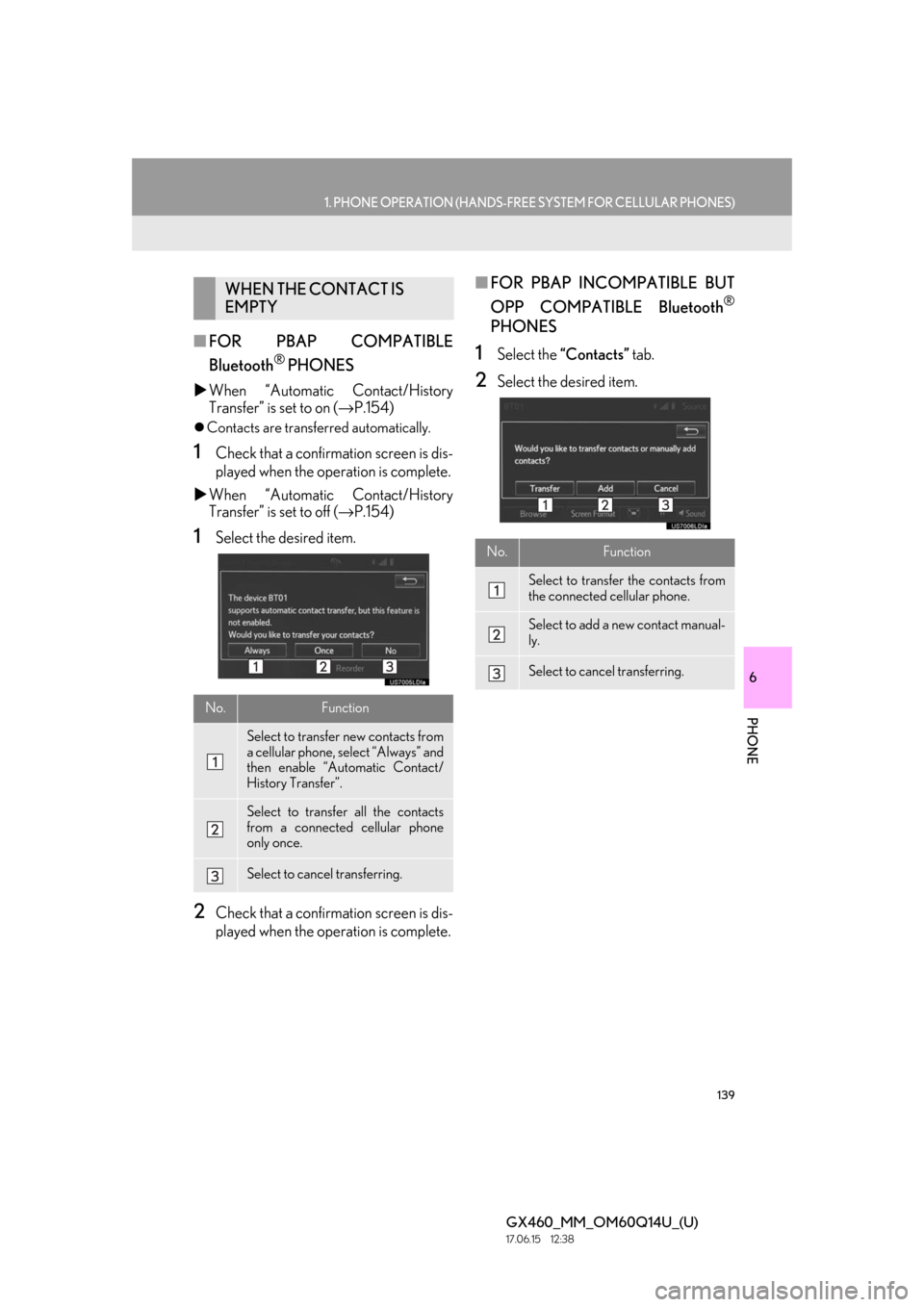
When “Automatic Contact/History
Transfer” is set to on ( →P.154)
Contacts are transferred automatically.
1Check that a confirma tion screen is dis-
played when the operation is complete.
When “Automatic Contact/History
Transfer” is set to off ( →P.154)
1Select the desired item.
2Check that a confirma tion screen is dis-
played when the operation is complete.
■ FOR PBAP INCOMPATIBLE BUT
OPP COMPATIBLE Bluetooth
®
PHONES
1Select the “Contacts” tab.
2Select the desired item.
WHEN THE CONTACT IS
EMPTY
No.Function
Select to transfer new contacts from
a cellular phone, select “Always” and
then enable “Automatic Contact/
History Transfer”.
Select to transfer all the contacts
from a connected cellular phone
only once.
Select to cancel transferring.
No.Function
Select to transfe r the contacts from
the connected cellular phone.
Select to add a new contact manual-
ly.
Select to cancel transferring.
Page 140 of 186
140
1. PHONE OPERATION (HANDS-FREE SYSTEM FOR CELLULAR PHONES)
GX460_MM_OM60Q14U_(U)17.06.15 12:38
When “Transfer” is selected
3Follow the steps in “FOR PBAP IN-
COMPATIBLE BUT OPP COMPATI-
BLE Bluetooth
® PHONES” from
“STEP 2”. ( →P.156)
When “Add” is selected
3Follow the steps in “REGISTERING A
NEW CONTACT TO THE CON-
TACT LIST” from “STEP 2”. ( →P.157)
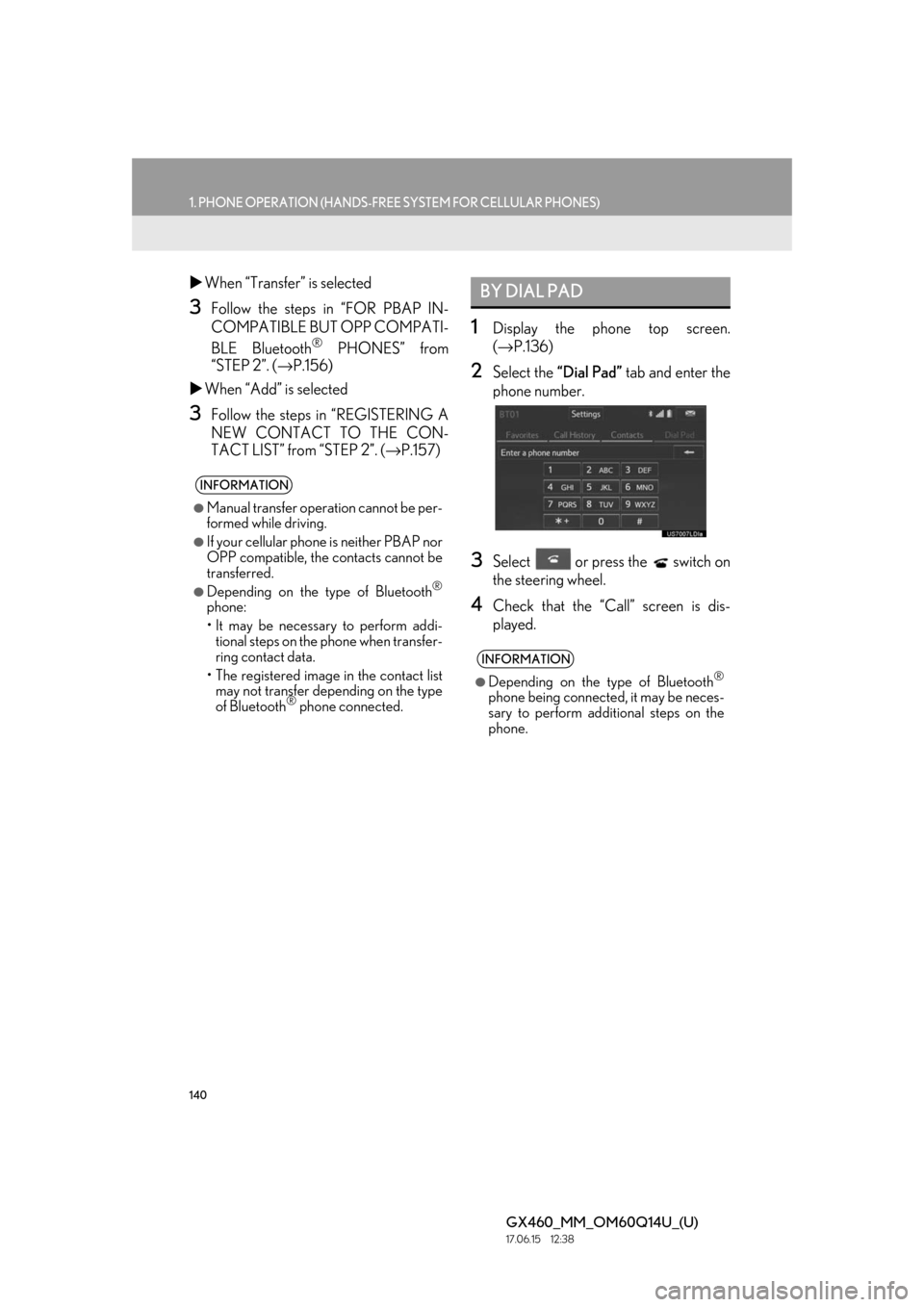
1Display the phone top screen.
(→ P.136)
2Select the “Dial Pad” tab and enter the
phone number.
3Select or press the switch on
the steering wheel.
4Check that the “Cal l” screen is dis-
played.
INFORMATION
●Manual transfer operation cannot be per-
formed while driving.
●If your cellular phone is neither PBAP nor
OPP compatible, the contacts cannot be
transferred.
●Depending on the type of Bluetooth®
phone:
• It may be necessary to perform addi- tional steps on the phone when transfer-
ring contact data.
• The registered image in the contact list may not transfer depending on the type
of Bluetooth
® phone connected.
BY DIAL PAD
INFORMATION
●Depending on the type of Bluetooth®
phone being connected, it may be neces-
sary to perform additional steps on the
phone.
Page 141 of 186
141
1. PHONE OPERATION (HANDS-FREE SYSTEM FOR CELLULAR PHONES)
6
PHONE
GX460_MM_OM60Q14U_(U)17.06.15 12:38
1Press the switch on the steering
wheel to display the phone top screen.
2Press the switch on the steering
wheel to display the “Call History”
screen.
3Press the switch on the steering
wheel to call the latest history item.
4Check that the “Call” screen is dis-
played.
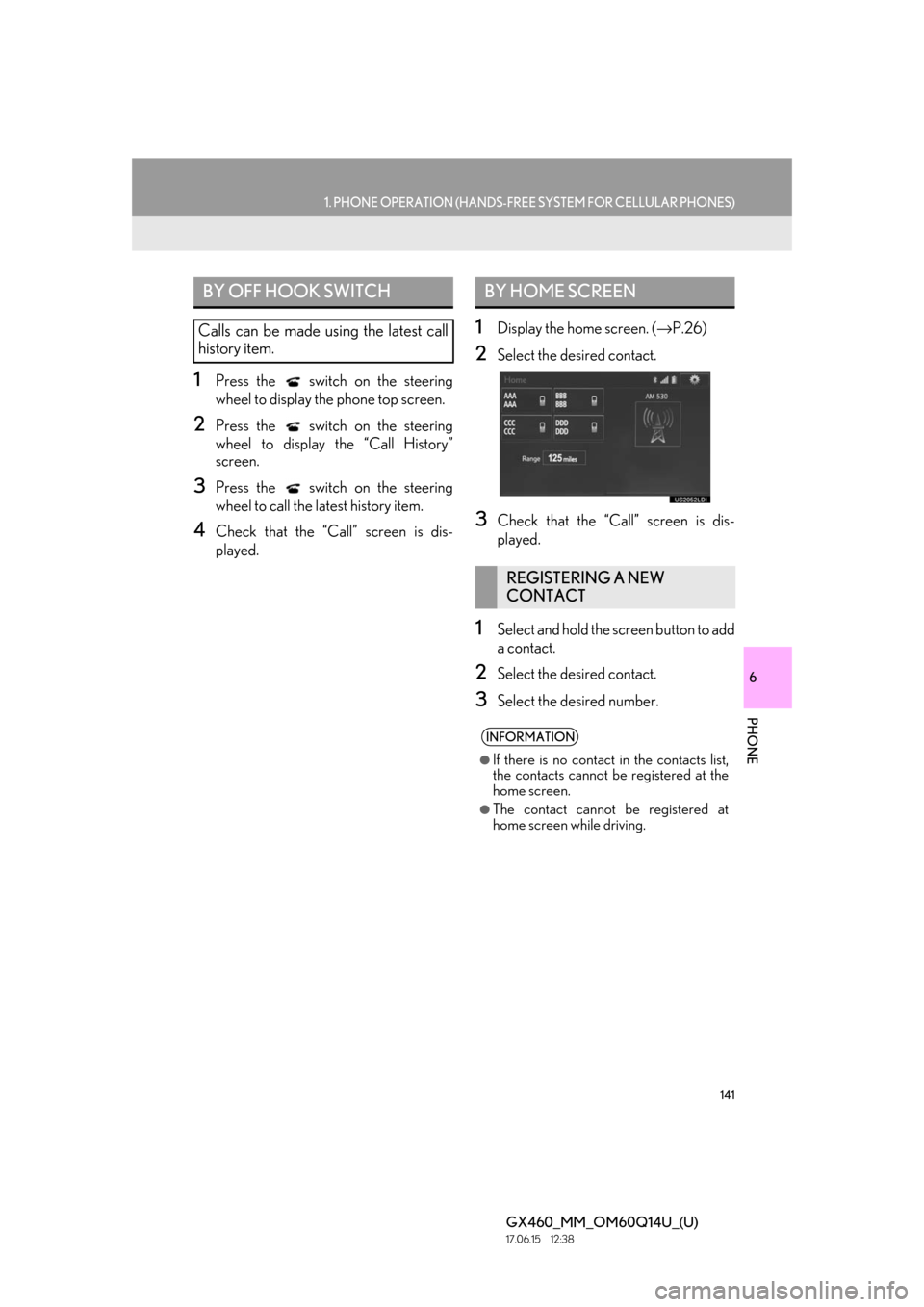
1Display the home screen. (→P.26)
2Select the desired contact.
3Check that the “Call” screen is dis-
played.
1Select and hold the screen button to add
a contact.
2Select the desired contact.
3Select the desired number.
BY OFF HOOK SWITCH
Calls can be made using the latest call
history item.
BY HOME SCREEN
REGISTERING A NEW
CONTACT
INFORMATION
●If there is no contact in the contacts list,
the contacts cannot be registered at the
home screen.
●The contact cannot be registered at
home screen while driving.
Page 142 of 186
142
1. PHONE OPERATION (HANDS-FREE SYSTEM FOR CELLULAR PHONES)
GX460_MM_OM60Q14U_(U)17.06.15 12:38
4. RECEIVING ON THE Bluetooth® PHONE
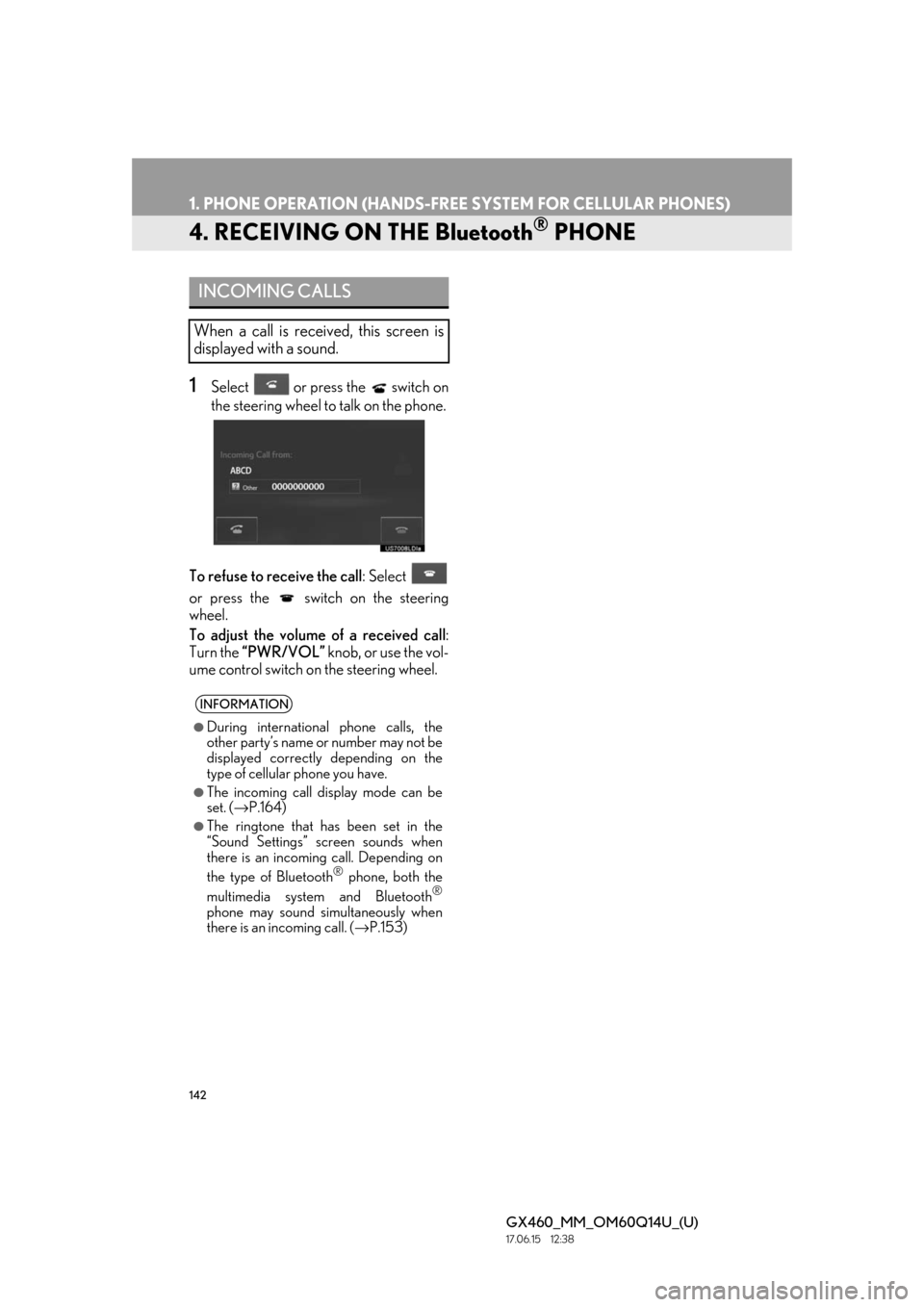
1Select or press the switch on
the steering wheel to talk on the phone.
To refuse to receive the call : Select
or press the switch on the steering
wheel.
To adjust the volume of a received call :
Turn the “PWR/VOL” knob, or use the vol-
ume control switch on the steering wheel.
INCOMING CALLS
When a call is received, this screen is
displayed with a sound.
INFORMATION
●During international phone calls, the
other party’s name or number may not be
displayed correctly depending on the
type of cellular phone you have.
●The incoming call display mode can be
set. ( →P.164)
●The ringtone that has been set in the
“Sound Settings” screen sounds when
there is an incoming call. Depending on
the type of Bluetooth
® phone, both the
multimedia system and Bluetooth®
phone may sound simultaneously when
there is an incoming call. ( →P.153)