steering Lexus IS200t 2015 Workshop Manual
[x] Cancel search | Manufacturer: LEXUS, Model Year: 2015, Model line: IS200t, Model: Lexus IS200t 2015Pages: 612, PDF Size: 132.21 MB
Page 313 of 612
313
5
Lexus DisplayAudio system
IS200t_EE(OM53D19E)
5-6. Using an external device
Listening to an iPod ................... 347
Using USB memory device .......................................... 350
Using the AUX port..................355
5-7. Connecting Bluetooth
®
Steps for using Bluetooth®
devices.........................................356
Registering a Bluetooth
®
device .......................................... 358
Selecting a Bluetooth
®
device ...........................................359
Connecting a Bluetooth
®
audio player .............................. 360
Connecting a Bluetooth
®
phone ............................................ 361
Displaying a Bluetooth
®
device details ............................ 362
Detailed Bluetooth
®
settings.........................................363
5-8. Bluetooth
® Audio
Listening to Bluetooth
®
Audio............................................364 5-9. Bluetooth
® Phone
Using a Bluetooth
®
Phone........................................... 366
Making a call................................368
Receiving a call ............................. 371
Speaking on the phone ............372
Using a Bluetooth
®
phone messages....................... 374
Using the steering wheel switches........................................377
Bluetooth
® phone
settings ........................................ 378
5-10. Phonebook Contact settings ........................ 380
Messaging setting......................383
5-11. Bluetooth
®
Bluetooth®...................................384
5-12. Other function “Information” screen .................389
MirrorLink ................................390
USB photo .................................... 392
Speech command system ...... 394
Page 320 of 612
3205-1. Basic Operations
IS200t_EE(OM53D19E)
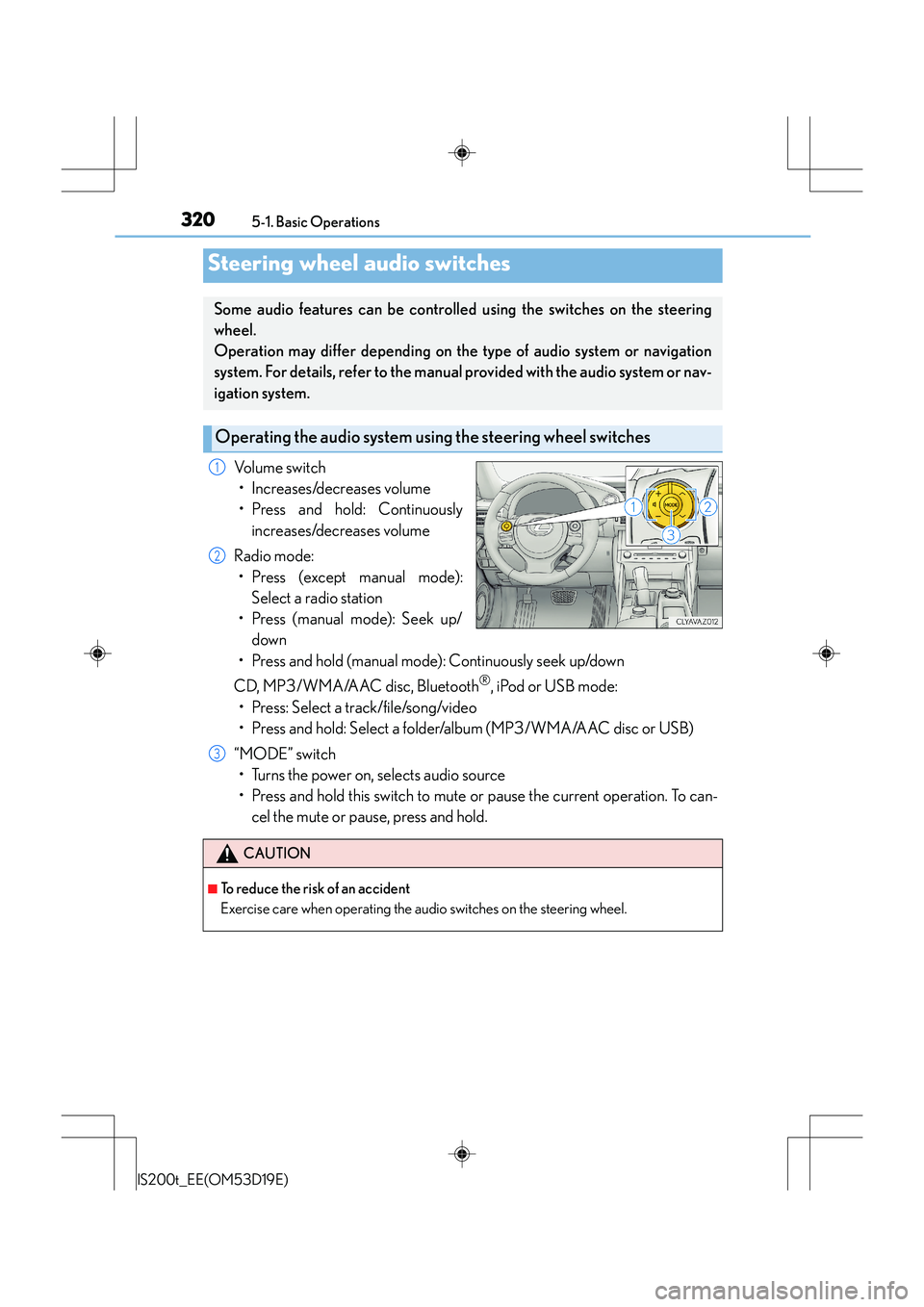
Volume switch• Increases/decreases volume
• Press and hold: Continuously increases/decreases volume
Radio mode: • Press (except manual mode): Select a radio station
• Press (manual mode): Seek up/ down
• Press and hold (manual mode): Continuously seek up/down
CD, MP3/WMA/AAC disc, Bluetooth
®, iPod or USB mode:
• Press: Select a track/file/song/video
• Press and hold: Select a folder/album (MP3/WMA/AAC disc or USB)
“MODE” switch • Turns the power on, selects audio source
• Press and hold this switch to mute or pause the current operation. To can- cel the mute or pause, press and hold.
Steering wheel audio switches
Some audio features can be controlled using the switches on the steering
wheel.
Operation may differ depending on the type of audio system or navigation
system. For details, refer to the manual provided with the audio system or nav-
igation system.
Operating the audio system us ing the steering wheel switches
1
2
CAUTION
■To reduce the risk of an accident
Exercise care when operating the audio switches on the steering wheel.
3
Page 329 of 612
329
5
Lexus Display Audio system
IS200t_EE(OM53D19E)5-3. Using the audio system
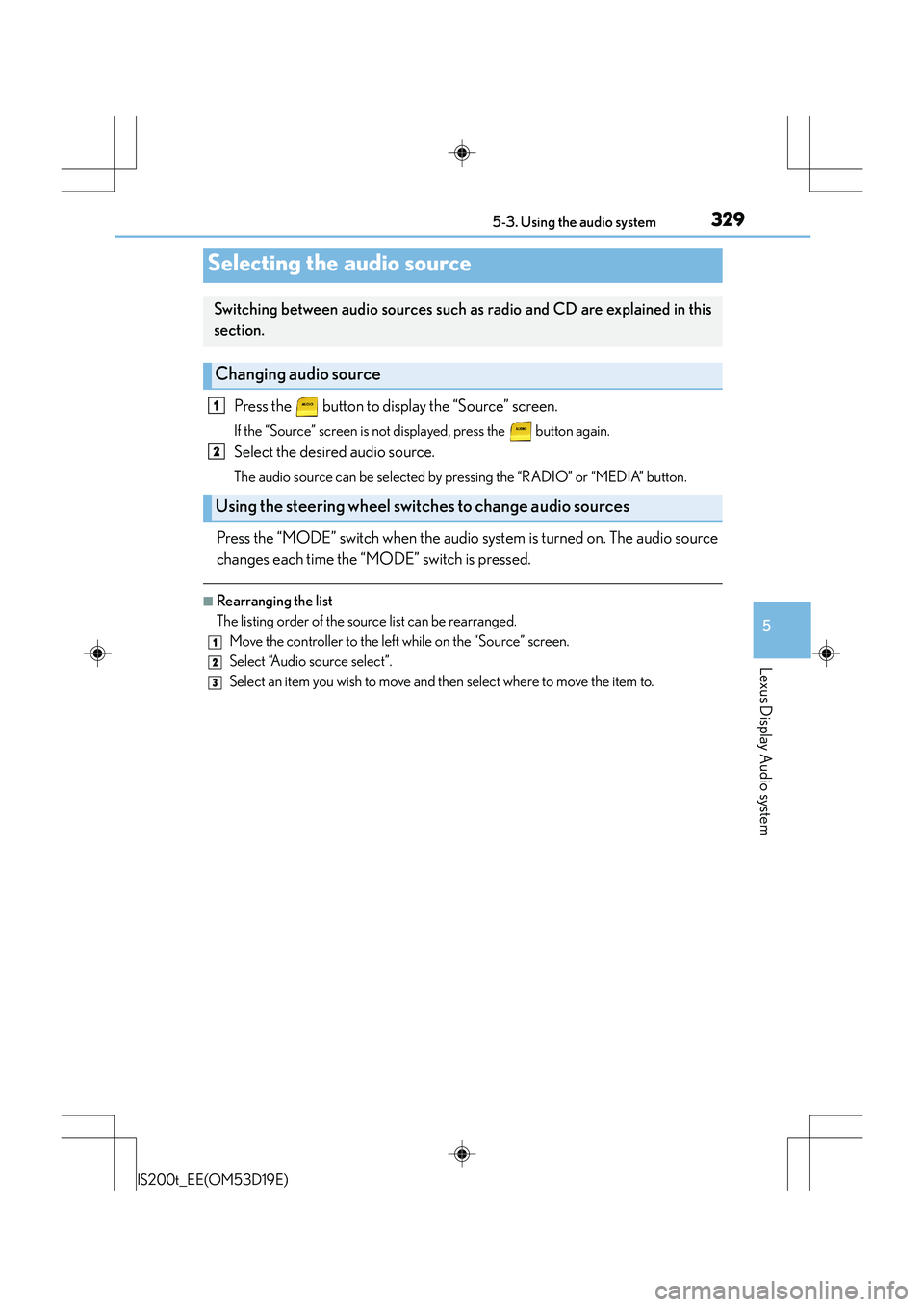
Press the button to display the “Source” screen.
If the “Source” screen is not displayed, press the button again.
Select the desired audio source.
The audio source can be selected by pressing the “RADIO” or “MEDIA” button.
Press the “MODE” switch when the audio system is turned on. The audio source
changes each time the “MODE” switch is pressed.
■Rearranging the list
The listing order of the source list can be rearranged.
Move the controller to the left while on the “Source” screen.
Select “Audio source select”.
Select an item you wish to move and th en select where to move the item to.
Selecting the audio source
Switching between audio sources such as radio and CD are explained in this
section.
Changing audio source
Using the steering wheel switches to change audio sources
1
2
1
2
3
Page 366 of 612
366
IS200t_EE(OM53D19E)5-9. Bluetooth
® Phone
Before making a phone call, check the connection status, battery charge, call
area and signal strength. (
→P. 3 6 7 )
If a Bluetooth
® device cannot be connected, check the connection status. If the
device is not connected, either register or reconnect it. (
→P. 3 5 9 , 3 6 1 )
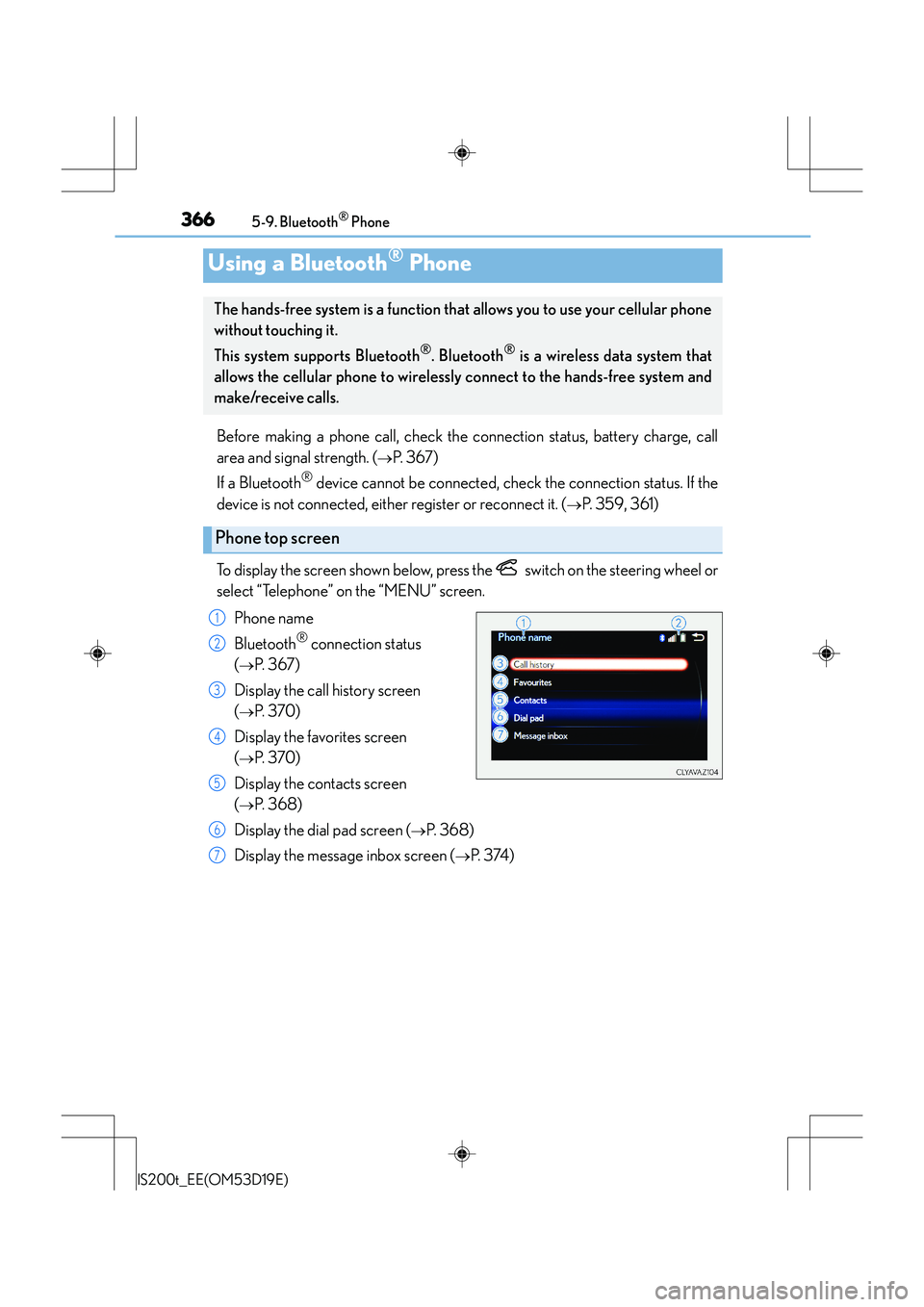
To display the screen shown below, press the switch on the steering wheel or
select “Telephone” on the “MENU” screen. Phone name
Bluetooth
® connection status
(
→P. 3 6 7 )
Display the call history screen
(
→P. 3 7 0 )
Display the favorites screen
(
→P. 3 7 0 )
Display the contacts screen
(
→P. 3 6 8 )
Display the dial pad screen (
→P. 368)
Display the message inbox screen (
→P. 3 74 )
Using a Bluetooth® Phone
The hands-free system is a function that allows you to use your cellular phone
without touching it.
This system supports Bluetooth
®. Bluetooth® is a wireless data system that
allows the cellular phone to wirelessly connect to the hands-free system and
make/receive calls.
Phone top screen
1
2
3
4
5
6
7
Page 368 of 612
3685-9. Bluetooth® Phone
IS200t_EE(OM53D19E)
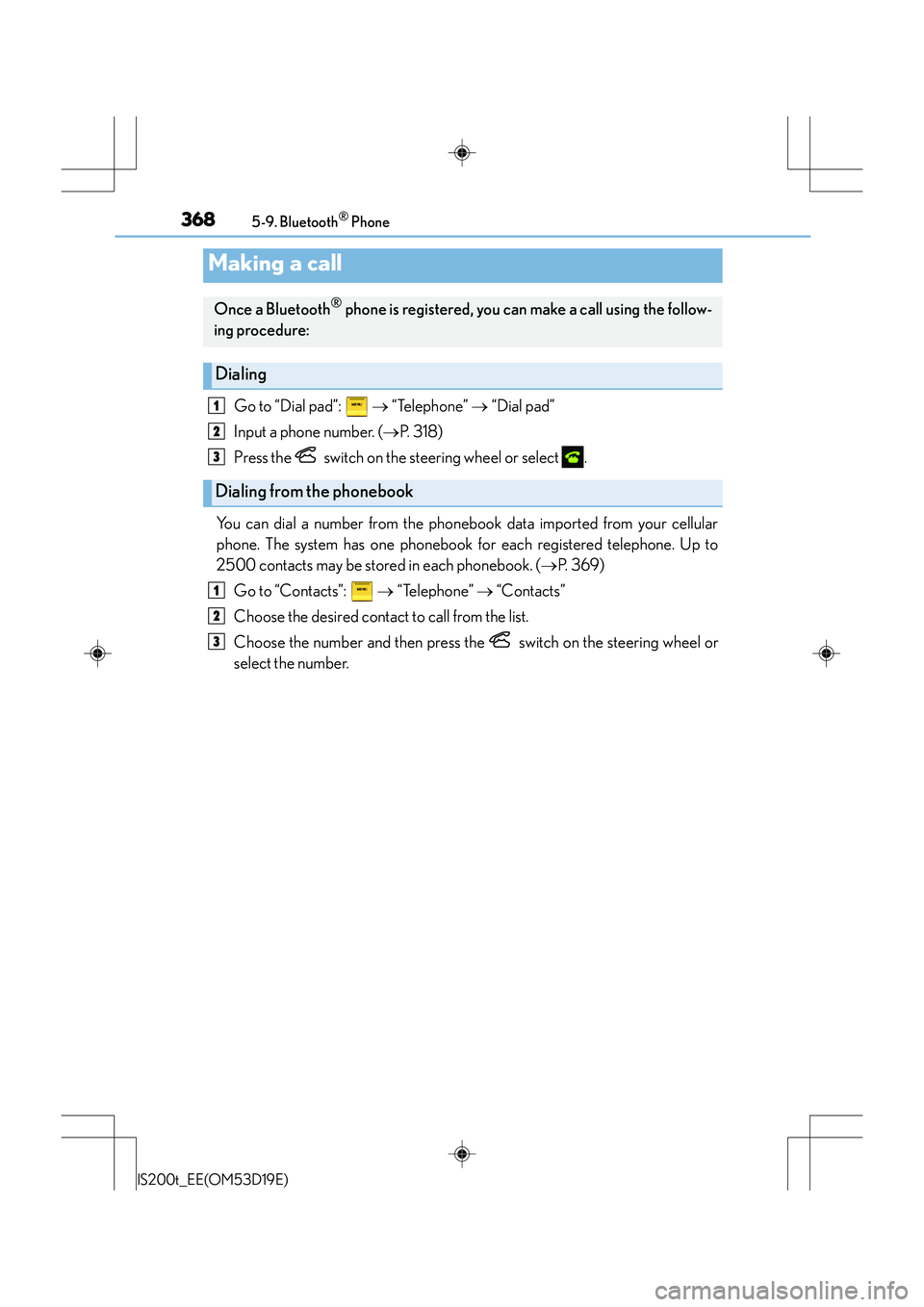
Go to “Dial pad”: → “Telephone” → “Dial pad”
Input a phone number. ( →P. 3 1 8 )
Press the switch on the steering wheel or select .
You can dial a number from the phoneb ook data imported from your cellular
phone. The system has one phonebook for each registered telephone. Up to
2500 contacts may be stored in each phonebook. ( →P. 3 6 9 )
Go to “Contacts”: → “Telephone” → “Contacts”
Choose the desired contact to call from the list.
Choose the number and then press the switch on the steering wheel or
select the number.
Making a call
Once a Bluetooth® phone is registered, you can make a call using the follow-
ing procedure:
Dialing
Dialing from the phonebook
1
2
3
1
2
3
Page 369 of 612
3695-9. Bluetooth® Phone
5
Lexus Display Audio system
IS200t_EE(OM53D19E)
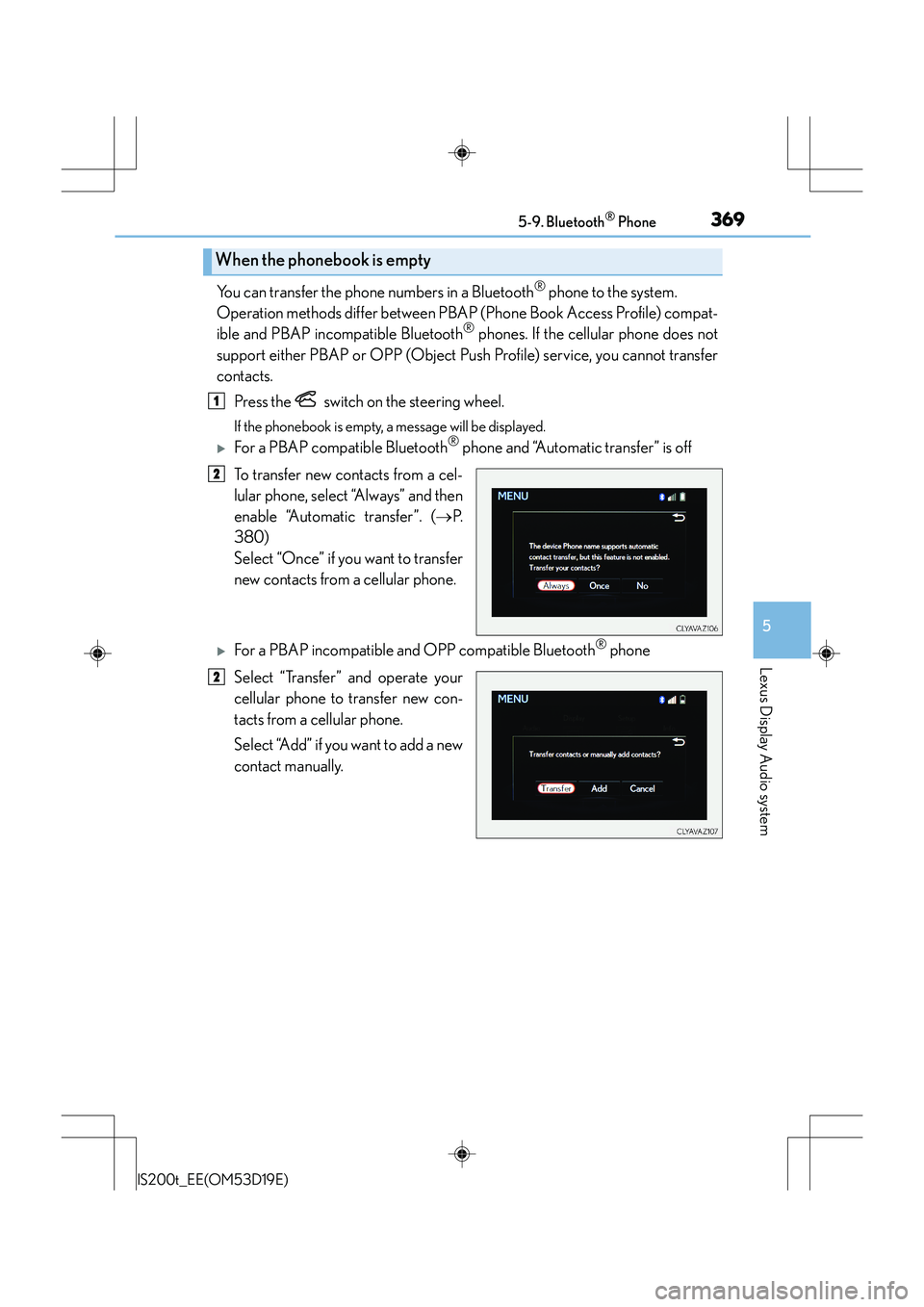
You can transfer the phone numbers in a Bluetooth® phone to the system.
Operation methods differ between PBAP (Phone Book Access Profile) compat-
ible and PBAP incompatible Bluetooth
® phones. If the cellular phone does not
support either PBAP or OPP (Object Push Profile) service, you cannot transfer
contacts.
Press the switch on the steering wheel.
If the phonebook is empty, a message will be displayed.
XFor a PBAP compatible Bluetooth® phone and “Automatic transfer” is off
To transfer new contacts from a cel-
lular phone, select “Always” and then
enable “Automatic transfer”. ( →P.
380)
Select “Once” if you want to transfer
new contacts from a cellular phone.
XFor a PBAP incompatible and OPP compatible Bluetooth® phone
Select “Transfer” and operate your
cellular phone to transfer new con-
tacts from a cellular phone.
Select “Add” if you want to add a new
contact manually.
When the phonebook is empty
1
2
2
Page 370 of 612
3705-9. Bluetooth® Phone
IS200t_EE(OM53D19E)
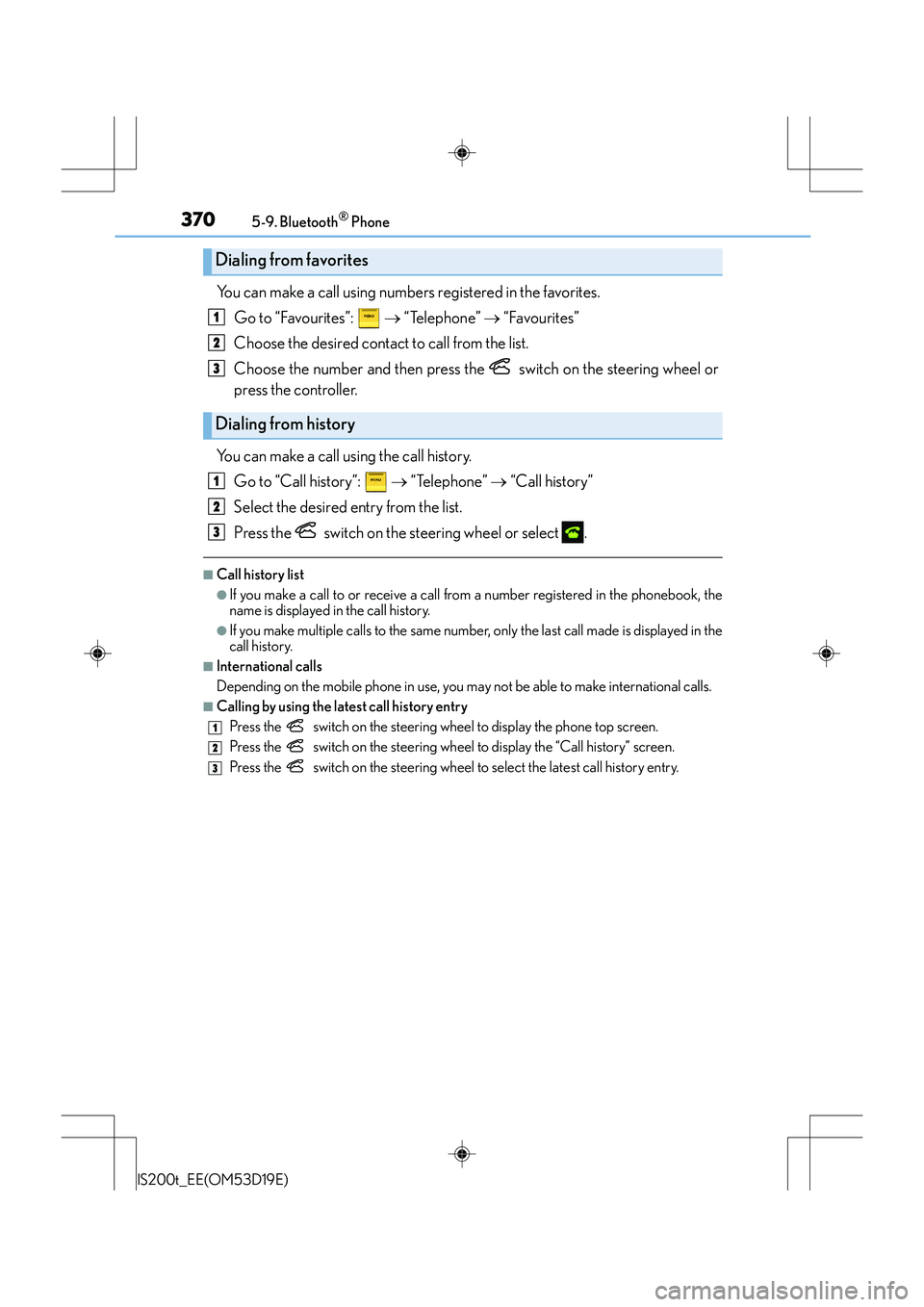
You can make a call using numbers registered in the favorites.Go to “Favourites”: → “Telephone” → “Favourites”
Choose the desired contact to call from the list.
Choose the number and then press the switch on the steering wheel or
press the controller.
You can make a call using the call history. Go to “Call history”: → “Telephone” → “Call history”
Select the desired entry from the list.
Press the switch on the steering wheel or select .
■Call history list
●If you make a call to or receive a call from a number registered in the phonebook, the
name is displayed in the call history.
●If you make multiple calls to the same number , only the last call made is displayed in the
call history.
■International calls
Depending on the mobile phone in use, you ma y not be able to make international calls.
■Calling by using the latest call history entry
Press the
switch on the steering wheel to display the phone top screen.
Press the
switch on the steering wheel to di splay the “Call history” screen.
Press the
switch on the steering wheel to se lect the latest call history entry.
Dialing from favorites
Dialing from history
1
2
3
1
2
3
1
2
3
Page 371 of 612
3715-9. Bluetooth® Phone
5
Lexus Display Audio system
IS200t_EE(OM53D19E)
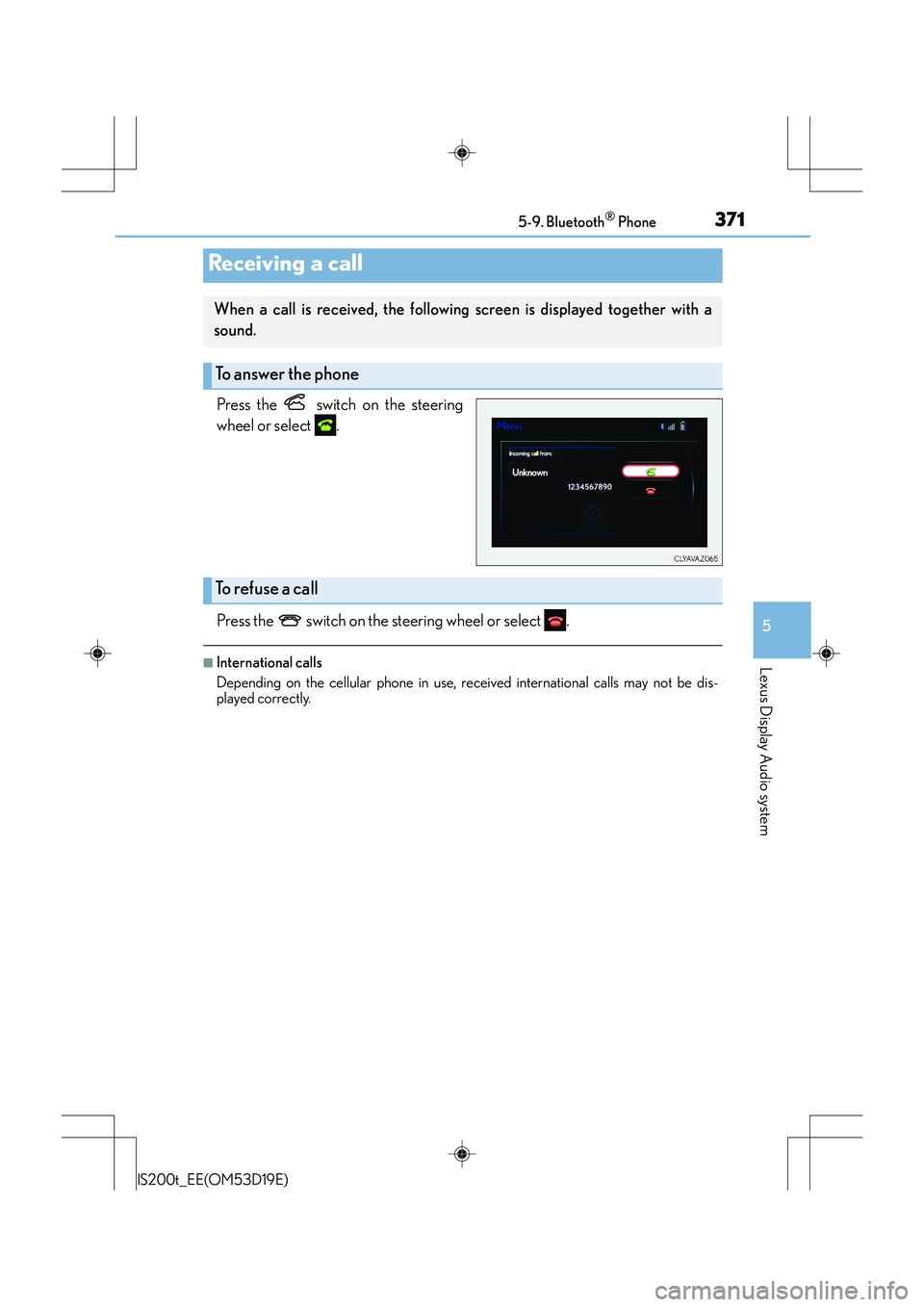
Press the switch on the steering
wheel or select .
Press the switch on the steering wheel or select .
■International calls
Depending on the cellular phone in use, received international calls may not be dis-
played correctly.
Receiving a call
When a call is received, the following screen is displayed together with a
sound.
To answer the phone
To refuse a call
Page 372 of 612
3725-9. Bluetooth® Phone
IS200t_EE(OM53D19E)
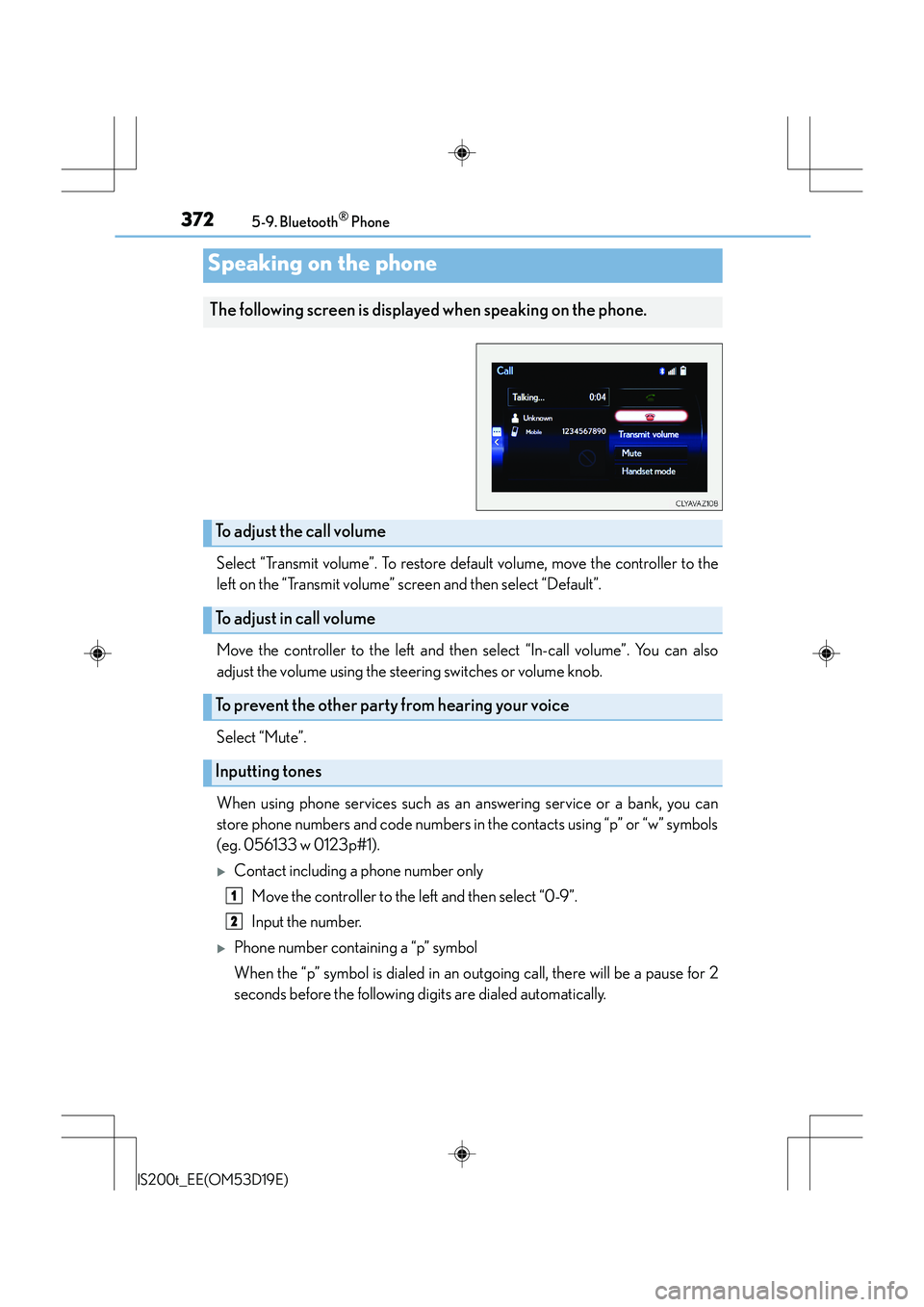
Select “Transmit volume”. To restore default volume, move the controller to the
left on the “Transmit volume” screen and then select “Default”.
Move the controller to the left and then select “In-call volume”. You can also
adjust the volume using the steering switches or volume knob.
Select “Mute”.
When using phone services such as an answering service or a bank, you can
store phone numbers and code numbers in the contacts using “p” or “w” symbols
(eg. 056133 w 0123p#1).
XContact including a phone number onlyMove the controller to the left and then select “0-9”.
Input the number.
XPhone number containing a “p” symbol
When the “p” symbol is dialed in an outgoing call, there will be a pause for 2
seconds before the following digits are dialed automatically.
Speaking on the phone
The following screen is displayed when speaking on the phone.
To adjust the call volume
To adjust in call volume
To prevent the other party from hearing your voice
Inputting tones
1
2
Page 373 of 612
3735-9. Bluetooth® Phone
5
Lexus Display Audio system
IS200t_EE(OM53D19E)
XPhone number containing a “w” symbol
When the “w” symbol is dialed in an outgoing call, you need to go to the
“Release tones” screen to dial the following digits. Move the controller to the
left and then select “Release tones”.
Select “Handset mode” to change from a hands-free call to a cellular phone call
or vice versa.
Press the switch on the steering wheel or select .
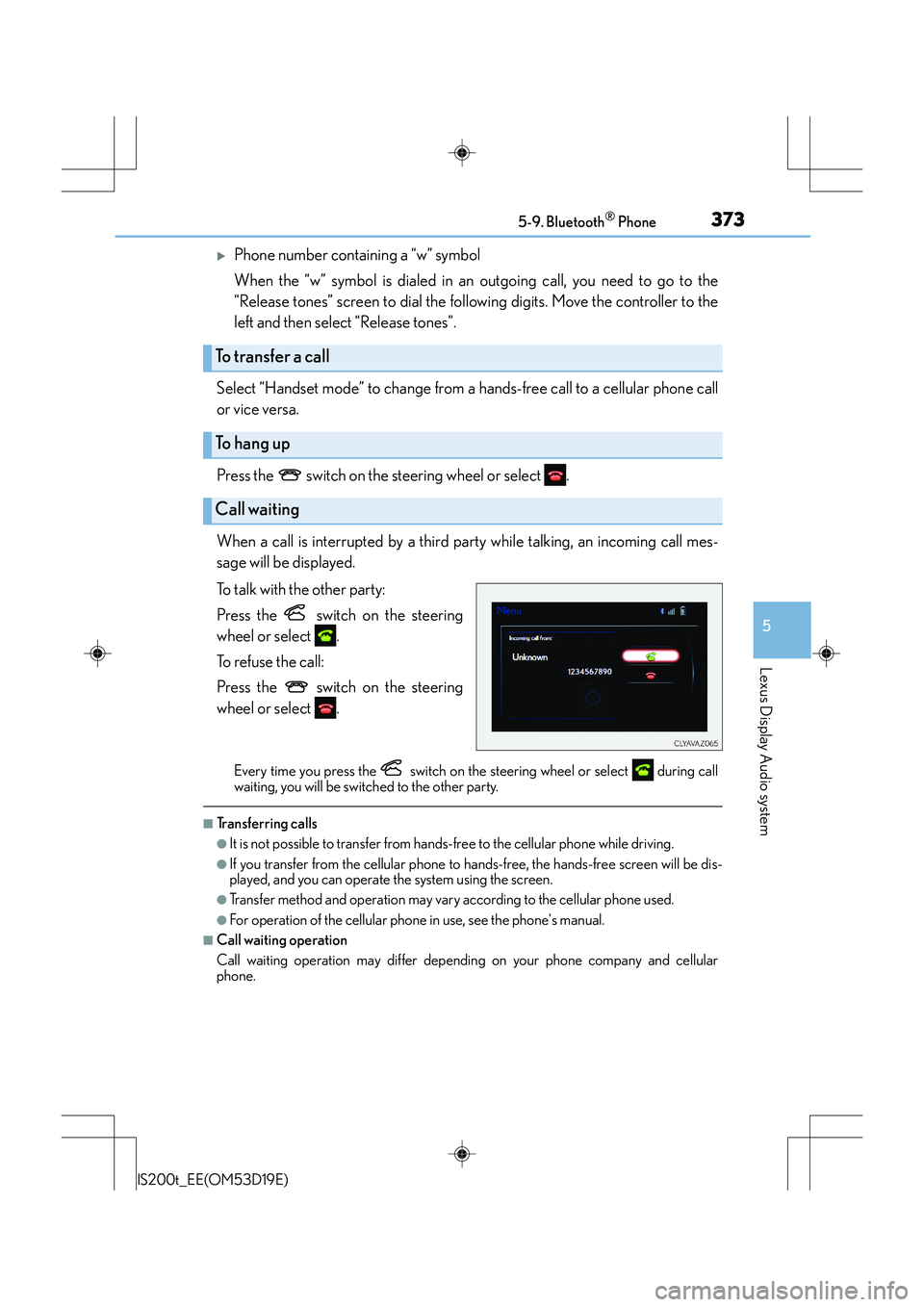
When a call is interrupted by a third party while talking, an incoming call mes-
sage will be displayed.
To talk with the other party:
Press the switch on the steering
wheel or select .
To refuse the call:
Press the switch on the steering
wheel or select .
Every time you press the switch on the steering wheel or select during call
waiting, you will be switched to the other party.
■Tr a n s f e r r i n g c a l l s
●It is not possible to transfer from hand s-free to the cellular phone while driving.
●If you transfer from the cellular phone to ha nds-free, the hands-free screen will be dis-
played, and you can operate the system using the screen.
●Transfer method and operation may vary according to the cellular phone used.
●For operation of the cellular phone in use, see the phone's manual.
■Call waiting operation
Call waiting operation may differ depending on your phone company and cellular
phone.
To transfer a call
To h a n g u p
Call waiting