display Lexus IS300h 2016 Owner's Manual
[x] Cancel search | Manufacturer: LEXUS, Model Year: 2016, Model line: IS300h, Model: Lexus IS300h 2016Pages: 628, PDF Size: 137.89 MB
Page 397 of 628
3975-10. Phonebook
5
Lexus Display Audio system
IS300h_EE(OM53D56E)
Go to “Messaging settings”: → “Setup” → “Telephone” → “Messaging set-
tings”
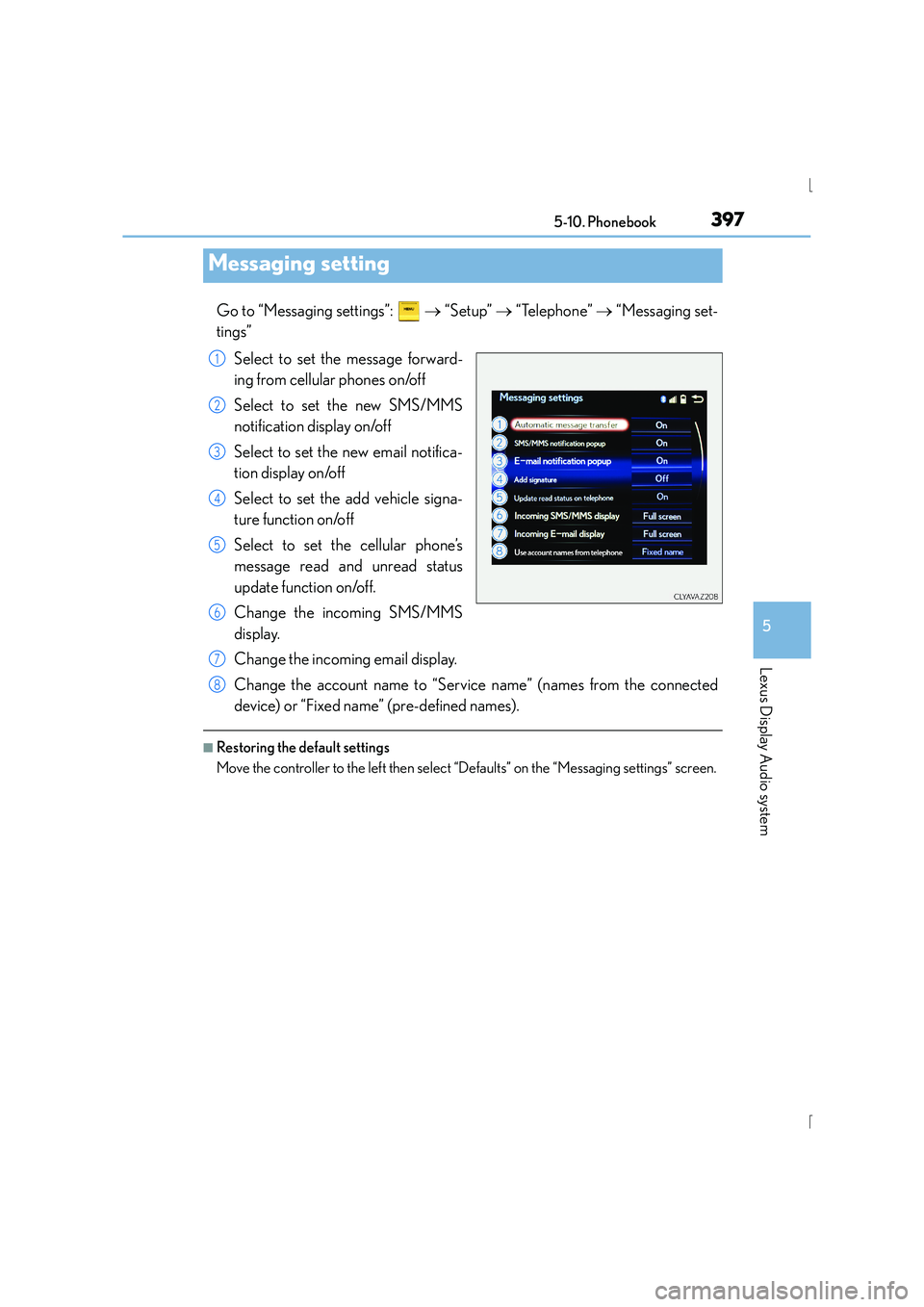
Select to set the message forward-
ing from cellular phones on/off
Select to set the new SMS/MMS
notification display on/off
Select to set the new email notifica-
tion display on/off
Select to set the add vehicle signa-
ture function on/off
Select to set the cellular phone’s
message read and unread status
update function on/off.
Change the incoming SMS/MMS
display.
Change the incoming email display.
Change the account name to “Service name” (names from the connected
device) or “Fixed name” (pre-defined names).
■Restoring the default settings
Move the controller to the left then select “Defaults” on the “Messaging settings” screen.
Messaging setting
1
2
3
4
5
6
7
8
Page 399 of 628
3995-11. Bluetooth®
5
Lexus Display Audio system
IS300h_EE(OM53D56E)
■Bluetooth® antenna
The antenna is built into the display.
If the portable audio player is behind the seat or in the glove box or console box, or is
touching or covered by metal objects, the connection status may deteriorate.
If the cellular phone is behind the seat or in the console box, or touching or covered by
metal objects, the connection status may deteriorate.
■Battery charge/signal status
●This display may not correspond exactly with the portable audio player or cellular
phone itself.
●This system does not have a charging function.
●The portable audio player or cellular phon e battery will be depleted quickly when the
device is connected to Bluetooth®.
■When using the Bluetooth® audio and hands-free system at the same time
The following problems may occur.
●The Bluetooth® audio connection may be interrupted.
●Noise may be heard during Bluetooth® audio playback.
■About the contact in this system
The following data is stored for every regi stered cellular phone. When another phone is
connecting, you cannot read the registered data.
●Contact data
●Call history
●Favorite
When removing a Bluetooth® phone from the system, the above-mentioned data is also
deleted.
■About Bluetooth®
Bluetooth® is a registered trademark of
Bluetooth SIG, Inc.
The Bluetooth
® word mark and logos are
owned by the Bluetooth SIG, Inc. and any use of
such marks by FUJITSU TEN LIMITED is under
license. Other trademarks and trade names are
those of their respective owners.
Page 401 of 628
4015-11. Bluetooth®
5
Lexus Display Audio system
IS300h_EE(OM53D56E)
■Certification
Page 403 of 628
403
5
Lexus Display Audio system
IS300h_EE(OM53D56E)5-12. Other function
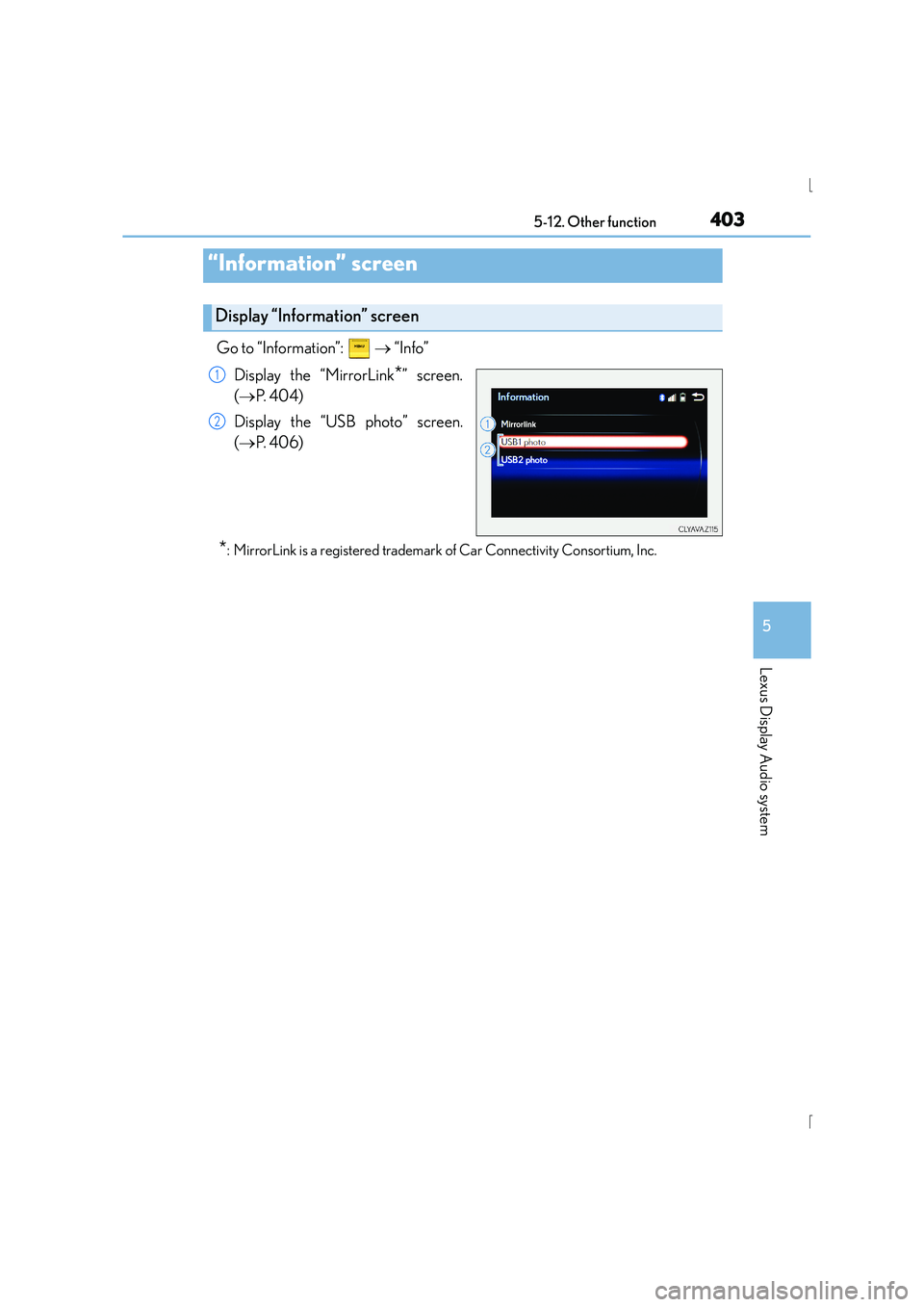
Go to “Information”:
→ “Info”
Display the “MirrorLink
*” screen.
( → P. 4 0 4 )
Display the “USB photo” screen.
( → P. 4 0 6 )
*: MirrorLink is a registered trademark of Car Connectivity Consortium, Inc.
“Information” screen
Display “Information” screen
1
2
Page 404 of 628
4045-12. Other function
IS300h_EE(OM53D56E)
→P. 335
Go to “MirrorLink
*”: → “Info” → “MirrorLink*”
Select the desired application on the application list screen.
■MirrorLink screen
Follow the specific operation procedures for the smartphone application.
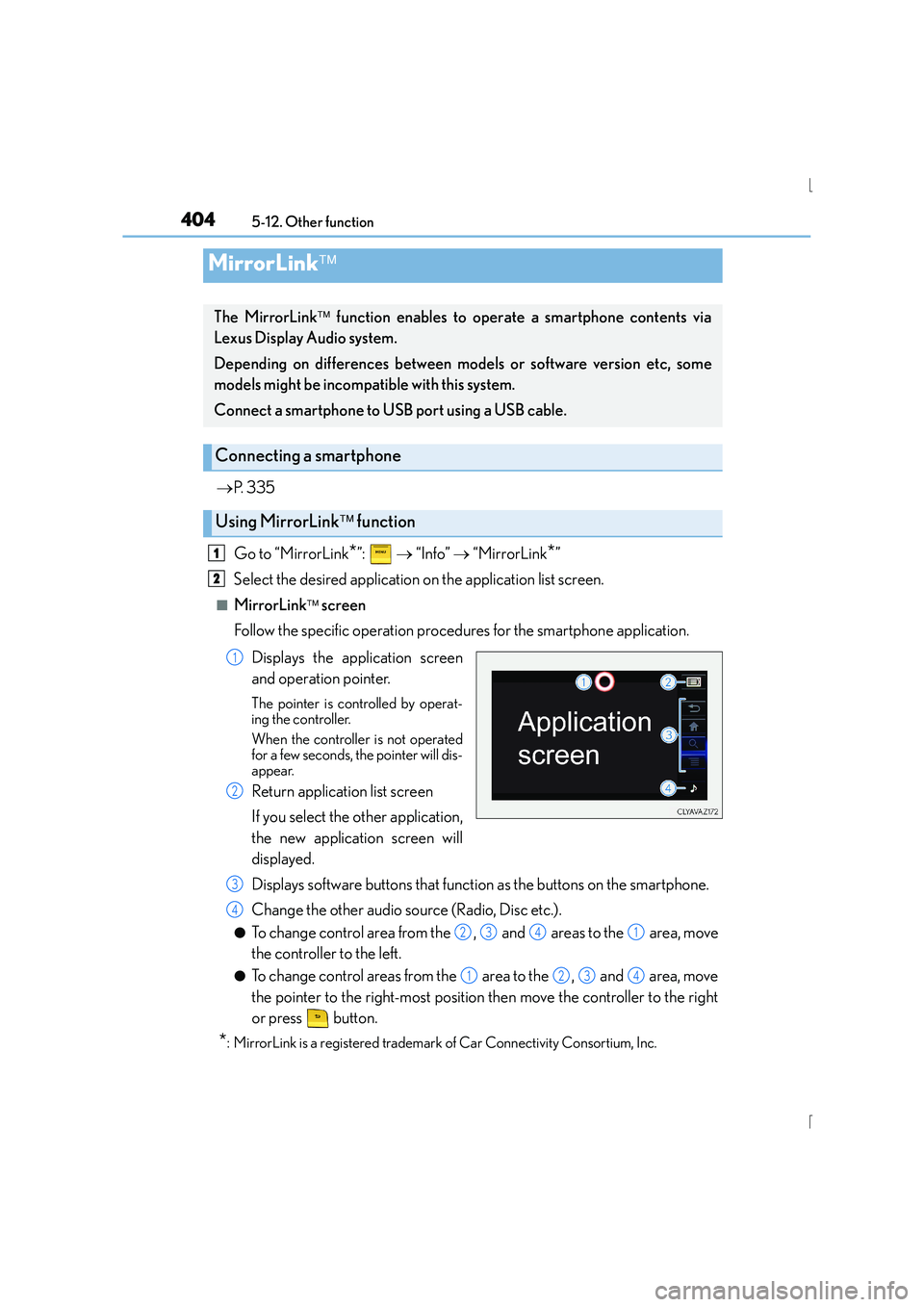
Displays the application screen
and operation pointer.
The pointer is controlled by operat-
ing the controller.
When the controller is not operated
for a few seconds, the pointer will dis-
appear.
Return application list screen
If you select the other application,
the new application screen will
displayed.
Displays software buttons that function as the buttons on the smartphone.
Change the other audio source (Radio, Disc etc.).
●To change control area from the , and areas to the area, move
the controller to the left.
●To change control areas from the area to the , and area, move
the pointer to the right-most position then move the controller to the right
or press button.
*: MirrorLink is a registered trademark of Car Connectivity Consortium, Inc.
MirrorLink
The MirrorLink function enables to operate a smartphone contents via
Lexus Display Audio system.
Depending on differences between models or software version etc, some
models might be incompatible with this system.
Connect a smartphone to USB port using a USB cable.
Connecting a smartphone
Using MirrorLink function
1
2
1
2
3
4
2341
1234
Page 405 of 628
4055-12. Other function
5
Lexus Display Audio system
IS300h_EE(OM53D56E)
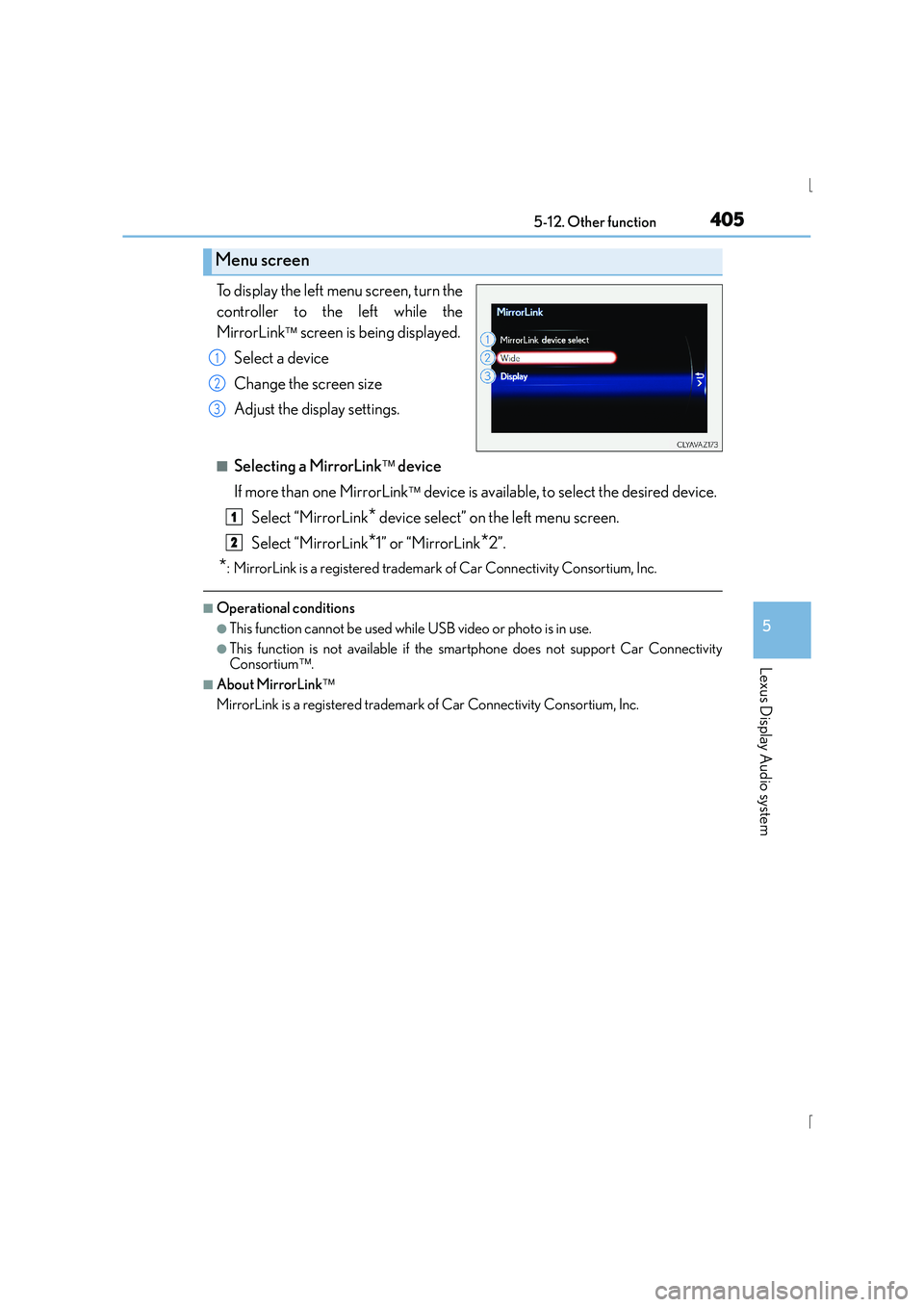
To display the left menu screen, turn the
controller to the left while the
MirrorLink
screen is being displayed.
Select a device
Change the screen size
Adjust the display settings.
■Selecting a MirrorLink device
If more than one MirrorLink
device is available, to select the desired device.
Select “MirrorLink
* device select” on the left menu screen.
Select “MirrorLink
*1” or “MirrorLink*2”.
*: MirrorLink is a registered trademark of Car Connectivity Consortium, Inc.
■Operational conditions
●This function cannot be used while USB video or photo is in use.
●This function is not available if the smartphone does not support Car Connectivity
Consortium.
■About MirrorLink
MirrorLink is a registered trademark of Car Connectivity Consortium, Inc.
Menu screen
1
2
3
1
2
Page 406 of 628
4065-12. Other function
IS300h_EE(OM53D56E)
Go to “USB photo”: → “Info” → “USB1 photo” or “USB2 photo”
→ P. 335
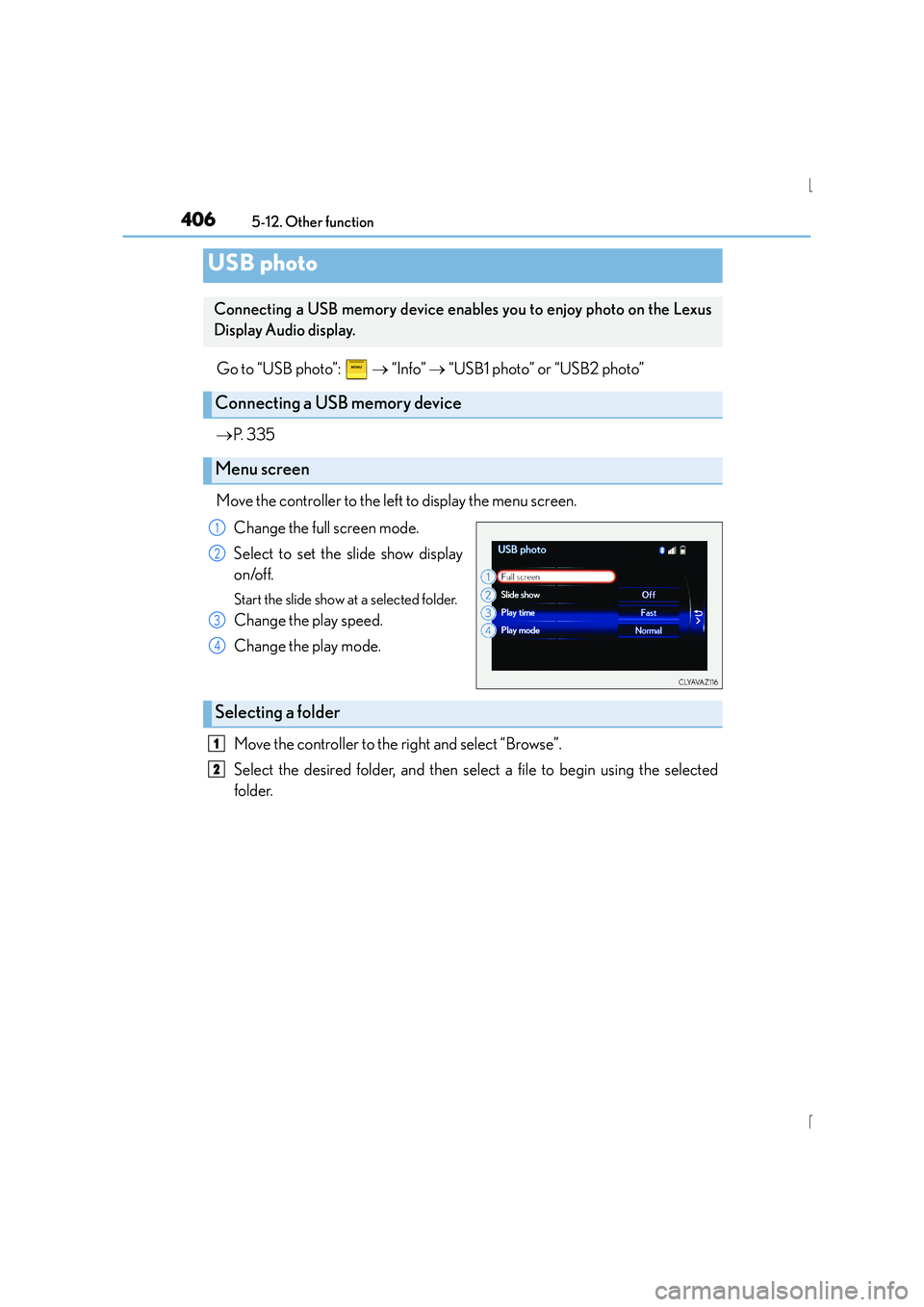
Move the controller to the left to display the menu screen. Change the full screen mode.
Select to set the slide show display
on/off.
Start the slide show at a selected folder.
Change the play speed.
Change the play mode.
Move the controller to the right and select “Browse”.
Select the desired folder, and then select a file to begin using the selected
folder.
USB photo
Connecting a USB memory device enables you to enjoy photo on the Lexus
Display Audio display.
Connecting a USB memory device
Menu screen
1
2
3
4
Selecting a folder
1
2
Page 407 of 628
4075-12. Other function
5
Lexus Display Audio system
IS300h_EE(OM53D56E)
■USB memory functions
→P. 3 6 5
■USB memory
●Compatible devices
USB memory device that can be used for JPEG display.
●Compatible device formats
The following device format can be used:
• USB communication format: USB2.0 FS (480 Mbps)
• File system format: FAT16/32 (Windows)
• Correspondence class: Mass storage class
●JPEG file compatibility
• Compatible image size: Maximum 10 MB
• Compatible pixel size: Maximum 10,000,000 pixels
NOTICE
■If the console box lid cannot be fully closed
→P. 3 6 8
■To prevent damage to the USB memory device or its terminals
→P. 3 6 8
Page 408 of 628
4085-12. Other function
IS300h_EE(OM53D56E)
You can register desired contacts to enable the speech command system. Up to
50 contacts per phone can be registered.Go to “Voice tags”: → “Setup” → “Telephone” → “Contact/call history
settings” → “Voice tag” → “New” or “Edit”
Select the desired contact.
Move the controller to the left and then select “REC”.
Say the registered voice.
To play the registered voice, select “Play”.
■Deleting a voice tag Display the “Voice tags” screen.
Select “Delete” and then the desired contact.
Move the controller to the left and then select “Delete”.
Press the talk switch.
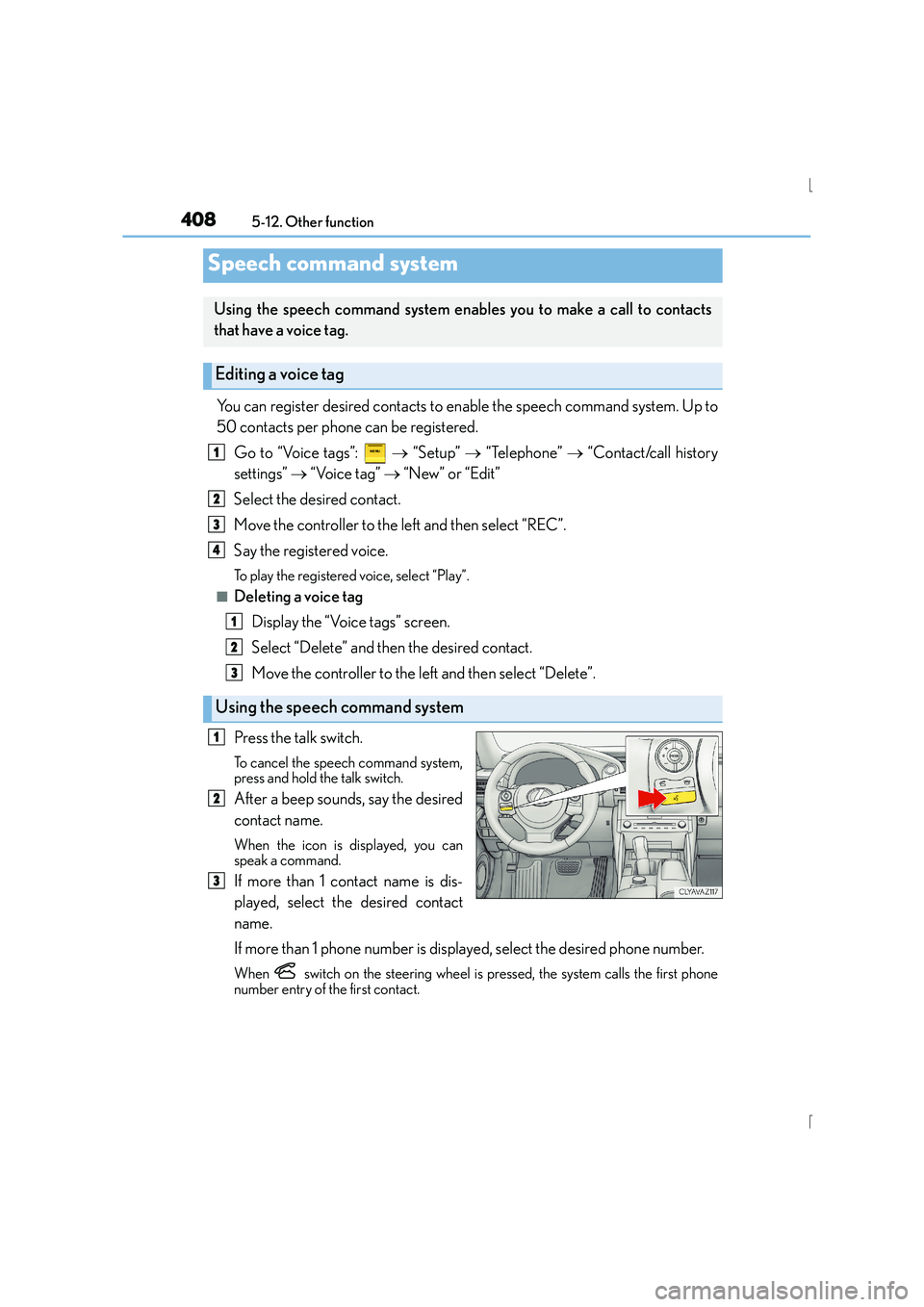
To cancel the speech command system,
press and hold the talk switch.
After a beep sounds, say the desired
contact name.
When the icon is displayed, you can
speak a command.
If more than 1 contact name is dis-
played, select the desired contact
name.
If more than 1 phone number is displayed, select the desired phone number.
When switch on the steering wheel is pressed, the system calls the first phone
number entry of the first contact.
Speech command system
Using the speech command system enab les you to make a call to contacts
that have a voice tag.
Editing a voice tag
Using the speech command system
1
2
3
4
1
2
3
1
2
3
Page 409 of 628
4095-12. Other function
5
Lexus Display Audio system
IS300h_EE(OM53D56E)
■Microphone
→P. 3 8 1
■Speech commands may not be recognized if:
●Spoken too quickly
●Spoken at a low or high volume
●Passengers are talking while speech commands are spoken