display Lexus IS300h 2017 Owner's Manual
[x] Cancel search | Manufacturer: LEXUS, Model Year: 2017, Model line: IS300h, Model: Lexus IS300h 2017Pages: 692, PDF Size: 163.7 MB
Page 388 of 692
3885-3. Using the audio system
IS300h_EE(OM53D89E)
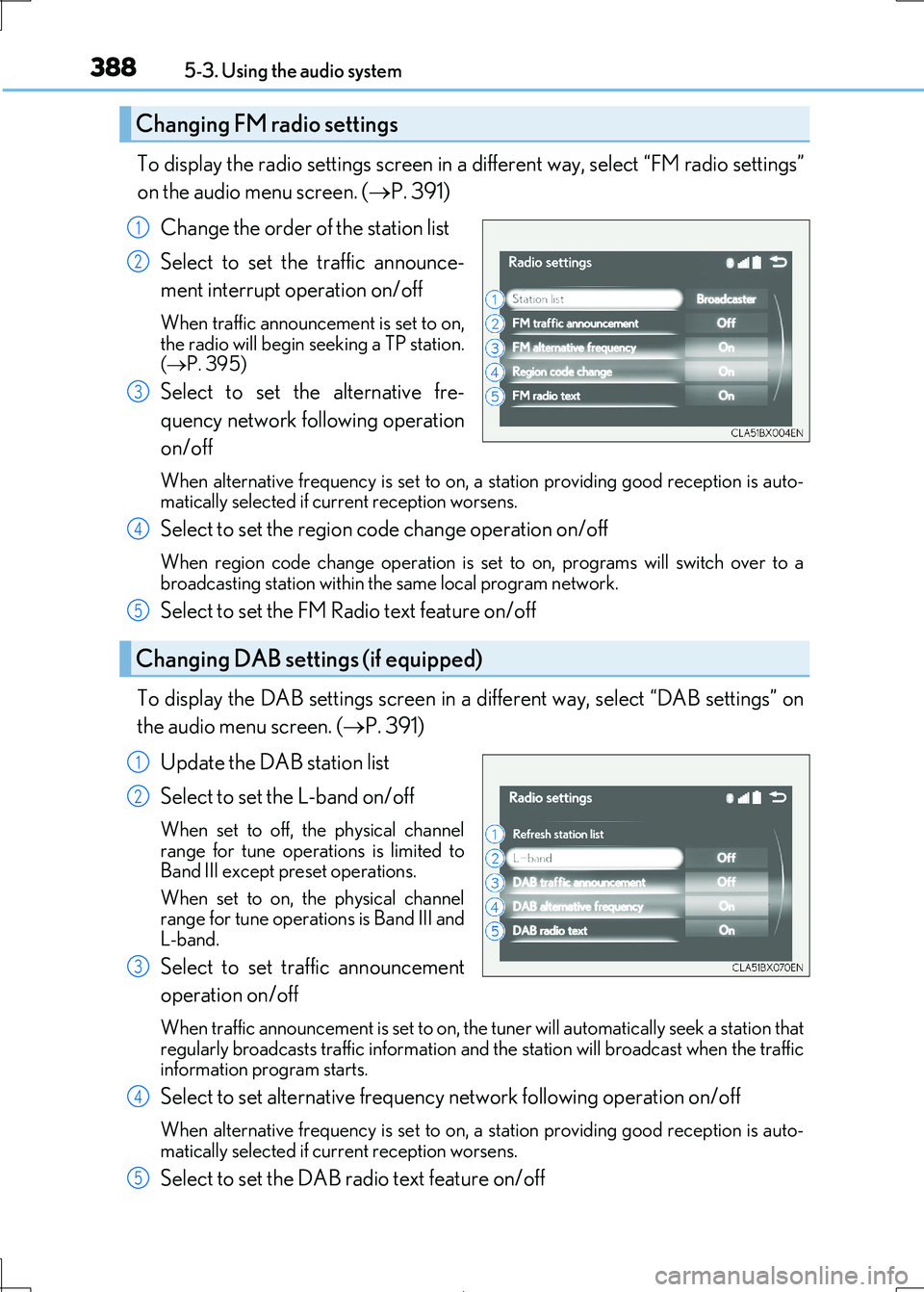
To display the radio settings screen in a different way, select “FM radio settings”
on the audio menu screen. ( P. 391)
Change the order of the station list
Select to set the traffic announce-
ment interrupt operation on/off
When traffic announcement is set to on, the radio will begin seeking a TP station.
( P. 395)
Select to set the alternative fre-
quency network fo llowing operation
on/off
When alternative frequency is set to on, a station providing good reception is auto- matically selected if current reception worsens.
Select to set the region co de change operation on/off
When region code change operation is set to on, programs will switch over to a
broadcasting station within th e same local program network.
Select to set the FM Radio text feature on/off
To display the DAB settings screen in a different way, select “DAB settings” on
the audio menu screen. ( P. 391)
Update the DAB station list
Select to set the L-band on/off
When set to off, the physical channel range for tune operations is limited to
Band III except preset operations.
When set to on, the physical channel range for tune operations is Band III and
L-band.
Select to set traffic announcement
operation on/off
When traffic announcement is set to on, the tuner will automatically seek a station that regularly broadcasts traffic information and the station will broadcast when the traffic
information program starts.
Select to set alternative frequenc y network following operation on/off
When alternative frequency is set to on, a station providing good reception is auto- matically selected if current reception worsens.
Select to set the DAB radio text feature on/off
Changing FM radio settings
1
2
3
Changing DAB settings (if equipped)
4
5
1
2
3
4
5
Page 389 of 692
3895-3. Using the audio system
5
Lexus Display Audio system
IS300h_EE(OM53D89E)
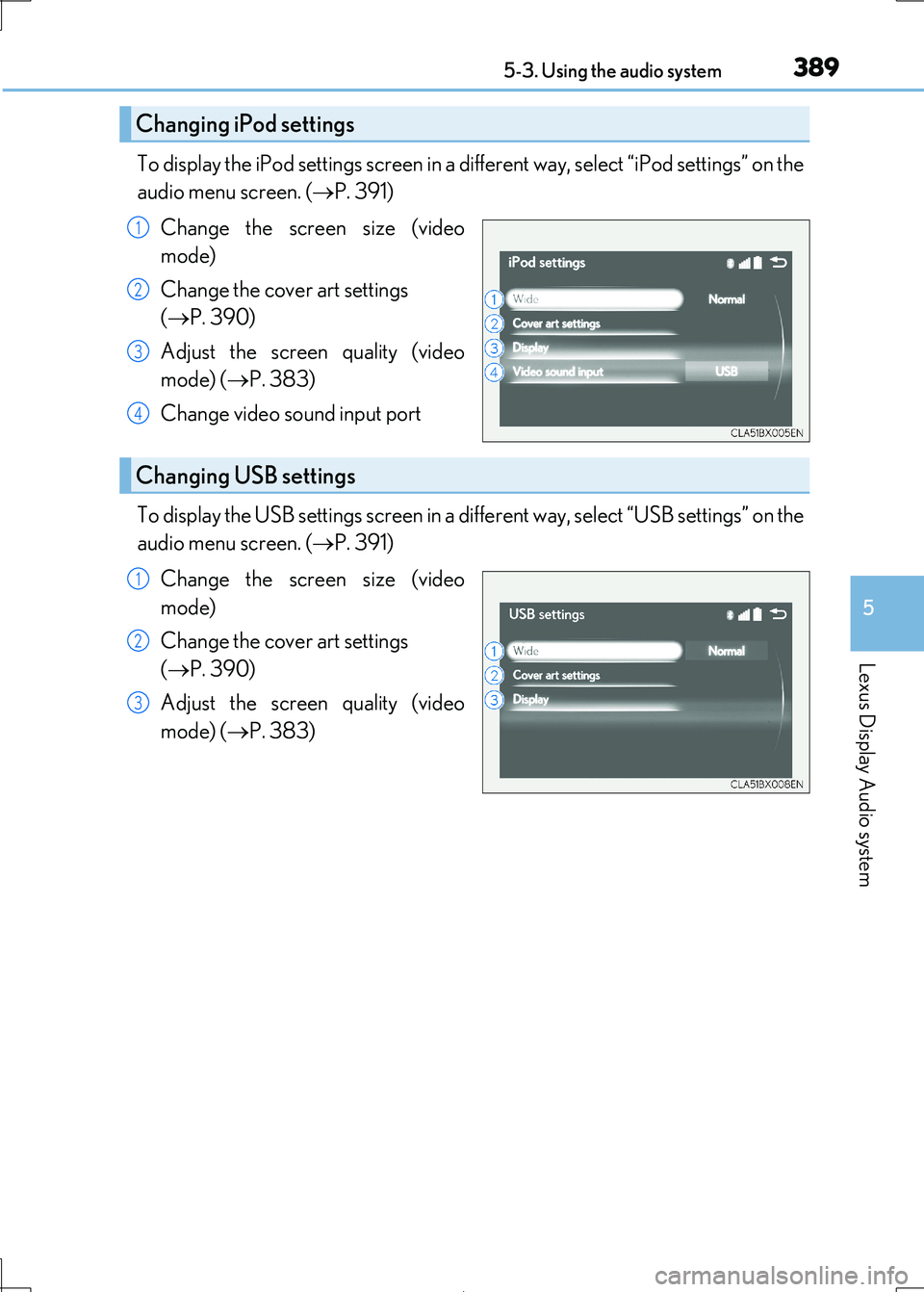
To display the iPod settings screen in a different way, select “iPod settings” on the
audio menu screen. ( P. 391)
Change the screen size (video
mode)
Change the cover art settings
( P. 390)
Adjust the screen quality (video
mode) ( P. 383)
Change video sound input port
To display the USB settings screen in a di fferent way, select “USB settings” on the
audio menu screen. ( P. 391)
Change the screen size (video
mode)
Change the cover art settings
( P. 390)
Adjust the screen quality (video
mode) ( P. 383)
Changing iPod settings
1
2
3
4
Changing USB settings
1
2
3
Page 390 of 692
3905-3. Using the audio system
IS300h_EE(OM53D89E)
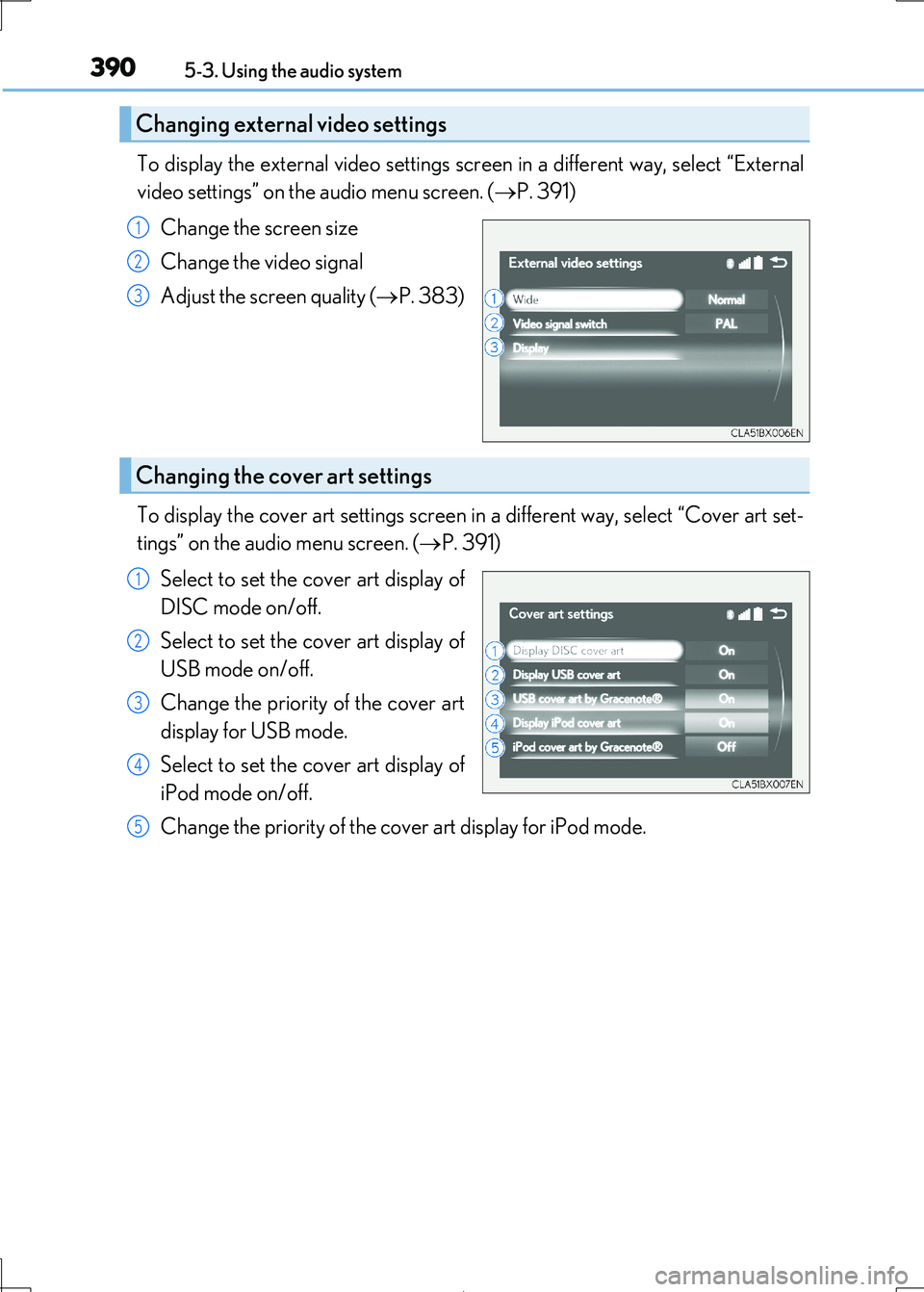
To display the external video settings screen in a different way, select “External
video settings” on the audio menu screen. ( P. 391)
Change the screen size
Change the video signal
Adjust the screen quality ( P. 383)
To display the cover art settings screen in a different way, select “Cover art set-
tings” on the audio menu screen. ( P. 391)
Select to set the cover art display of
DISC mode on/off.
Select to set the cover art display of
USB mode on/off.
Change the priority of the cover art
display for USB mode.
Select to set the cover art display of
iPod mode on/off.
Change the priority of the co ver art display for iPod mode.
Changing external video settings
1
2
3
Changing the cover art settings
1
2
3
4
5
Page 391 of 692
3915-3. Using the audio system
5
Lexus Display Audio system
IS300h_EE(OM53D89E)
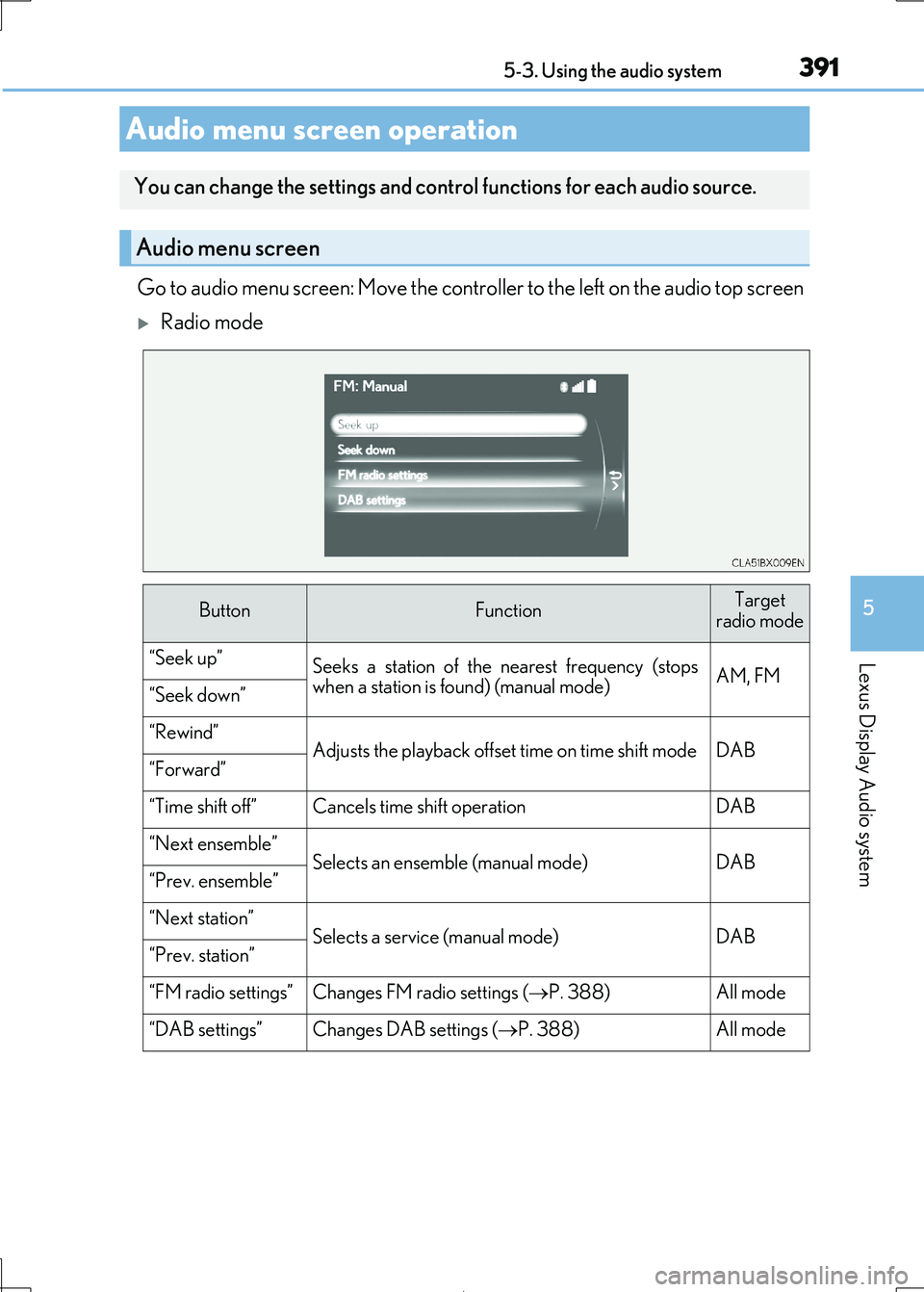
Go to audio menu screen: Move the controller to the left on the audio top screen
Radio mode
Audio menu screen operation
You can change the settings and control functions for each audio source.
Audio menu screen
ButtonFunctionTarget radio mode
“Seek up”Seeks a station of the nearest frequency (stops
when a station is found) (manual mode)AM, FM“Seek down”
“Rewind”Adjusts the playback offset time on time shift modeDAB“Forward”
“Time shift off”Cancels time shift operationDAB
“Next ensemble”Selects an ensemble (manual mode)DAB“Prev. ensemble”
“Next station”Selects a service (manual mode)DAB“Prev. station”
“FM radio settings”Changes FM radio settings (P. 388)All mode
“DAB settings”Changes DAB settings (P. 388)All mode
Page 393 of 692
3935-3. Using the audio system
5
Lexus Display Audio system
IS300h_EE(OM53D89E)
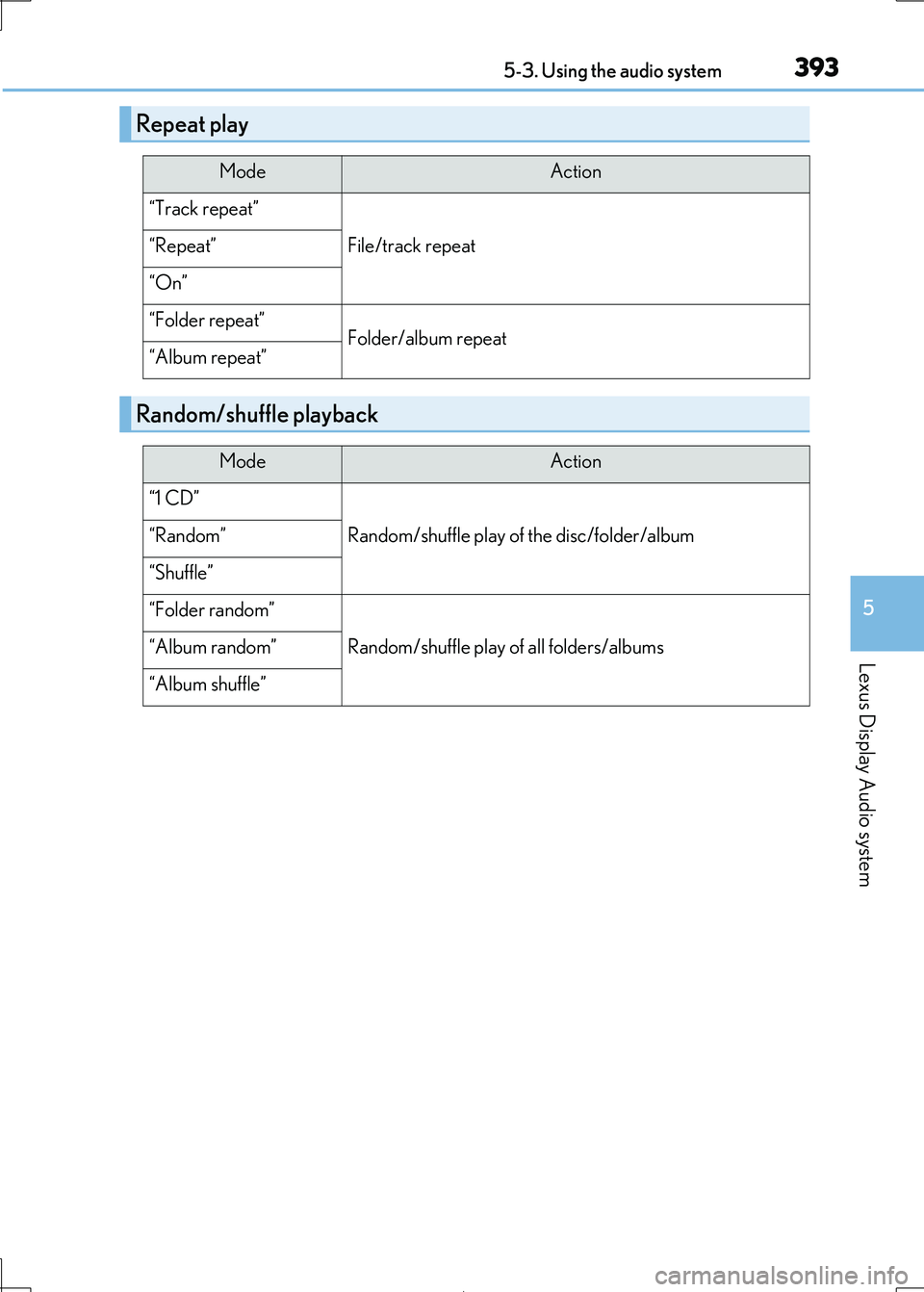
Repeat play
ModeAction
“Track repeat”
File/track repeat“Repeat”
“On”
“Folder repeat”Folder/album repeat“Album repeat”
Random/shuffle playback
ModeAction
“1 CD”
Random/shuffle play of the disc/folder/album“Random”
“Shuffle”
“Folder random”
Random/shuffle play of all folders/albums“Album random”
“Album shuffle”
Page 394 of 692
394
IS300h_EE(OM53D89E)
5-4. Using the radio
Pressing the “RADIO” button displays th e radio top screen from any screen of
the selected source.
■Menu screen
P. 391
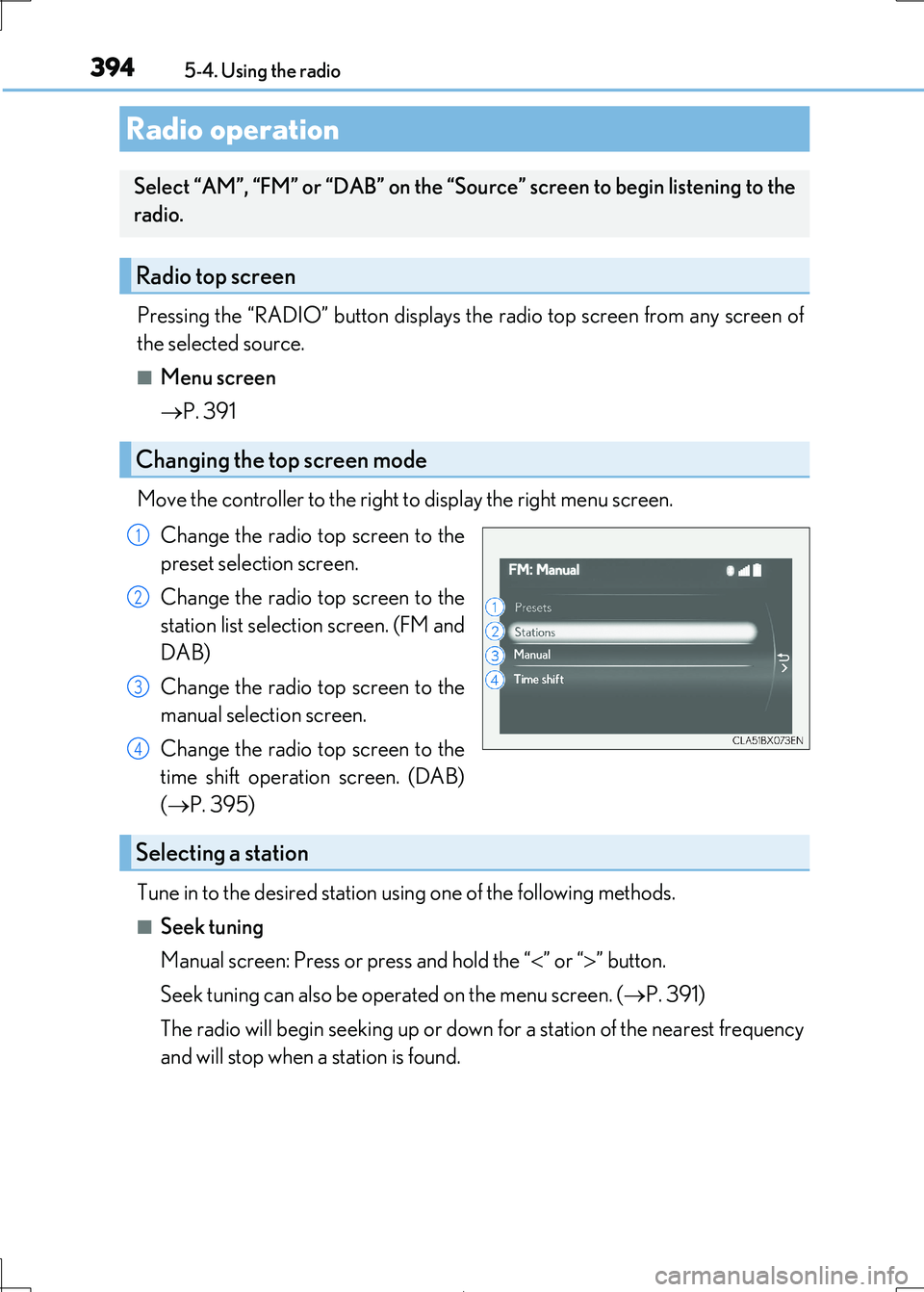
Move the controller to the right to display the right menu screen.
Change the radio top screen to the
preset selection screen.
Change the radio top screen to the
station list selection screen. (FM and
DAB)
Change the radio top screen to the
manual selection screen.
Change the radio top screen to the
time shift operation screen. (DAB)
( P. 395)
Tune in to the desired station us ing one of the following methods.
■Seek tuning
Manual screen: Press or press and hold the “ ” or “” button.
Seek tuning can also be operated on the menu screen. ( P. 391)
The radio will begin seeking up or down for a station of the nearest frequency
and will stop when a station is found.
Radio operation
Select “AM”, “FM” or “DAB” on the “Sourc e” screen to begin listening to the
radio.
Radio top screen
Changing the top screen mode
1
2
3
4
Selecting a station
Page 395 of 692
3955-4. Using the radio
5
Lexus Display Audio system
IS300h_EE(OM53D89E)
■Manual tuning (manual screen)
Turn the “TUNE•SCROLL” knob or turn the controller.
■Station list (preset or station list screen)
Select the desired station by pressi ng the “<” or “>” button, turn the
“TUNE•SCROLL” knob, or turnin g and pressing the controller.
Radio stations can be preset.
Search for desired stations.
Turn the controller to sele ct one of the stations and then press the controller
until you hear a beep while on the preset selection screen.
The broadcast you are currently listening to can be re-listened to at any time.
Move the controller to the righ t and then select “Time shift”.
Turn the “TUNE•SCROLL” knob to set the desired offset.
An offset playback time can also be set on the menu screen. (P. 391)
To cancel the time shift operation while in time shift mode, move the controller to the
left and select “Time shift off” . If the time shift display is left showing “-0’ 00”” for 6
seconds without any operation, the ti me shift operation will be canceled.
■Reception sensitivity
●Maintaining perfect radio reception at all times is difficult due to the continually chang- ing position of the antenna, di fferences in signal strength and surrounding objects, such
as trains, transmitters, etc.
●The radio antenna is mounted inside the rear window. To maintain clear radio reception, do not attach metallic window tinting or other metallic objects to the antenna wire
mounted inside the rear window.
■Traffic announcement operation
When traffic announcement is set to on, “TP” will appear on the screen and the radio will
begin seeking a TP station. If the radio seek s out a TP station, a pop-up massage is dis-
played. To listen the program, select “Continue”. When the program ends, the initial
operation will resume.
Setting station presets (preset screen)
Time shift operation (DAB) (if equipped)
1
2
1
2
Page 396 of 692
396
IS300h_EE(OM53D89E)
5-5. Playing an audio CD and MP3/WMA/AAC discs
Pressing the “MEDIA” button displays the audio disc top screen from any screen
of the selected source.
■Menu screen
P. 391
■Selecting a track/file
Press the “<” or “>” button, turn th e “TUNE•SCROLL” knob to select the
desired track/file number.
To fast-forward or rewi nd, press and hold the “” or “” button.
■Selecting the track by the list (CD)
Move the controller to the right and then select the desired track.
■Selecting a folder (MP3/WMA/AAC disc)
Move the controller to the ri ght and then select “Folders”.
Select the desired folder. Then select a file to begin using the selected
folder.
■Selecting a file by the selected folder (MP3/WMA/AAC disc)
Move the controller to the right and then select “Files”.
Select the desired file.
CD player operation
Insert a disc, press the “MEDIA” butto n or select “DISC” on the “Source”
screen with a disc inserted to begin listening to a disc.
Audio disc top screen
1
2
1
2
Page 397 of 692

3975-5. Playing an audio CD and MP3/WMA/AAC discs
5
Lexus Display Audio system
IS300h_EE(OM53D89E)
■Error messages
If the following error message s appear on the screen, refer to the table and take the
appropriate measures. If the pr oblem is not rectified, take the vehicle to any authorized Lexus retailer or Lexus authorized re pairer, or any reliable repairer.
■Discs that can be used
Discs with the marks sh own below can be used. Playback may not be possible depending on recording format or disc features, or due to
scratches, dirt or deterioration.
CDs with copy-protection features may not play correctly.
■Music disc player protection feature
To protect the internal components, playback is automatically stopped when a problem is
detected.
■If a disc is left inside the Mu sic disc player or in the ejected position for extended peri- ods
Disc may be damaged and may not play properly.
■Lens cleaners
Do not use lens cleaners. Doing so may damage the Music disc player.
■MP3, WMA and AAC files
MP3 (MPEG Audio LAYER3) is a stan dard audio compression format.
Files can be compressed to approximately 1/10 of their original size by using MP3 com-
pression.
WMA (Windows Media Audio) is a Microsoft audio compression format.
This format compresses audio data to a si ze smaller than that of the MP3 format.
AAC is short for Advanced Audio Coding an d refers to an audio compression technol-
ogy standard used wi th MPEG2 and MPEG4.
MP3, WMA and AAC file and media/ formats compatibility are limited.
MessageCauseCorrection procedures
“Check disc”
• The disc is dirty or dam-
aged.
• The disc is inserted upside down.
• The disc is not playable
with the player.
•Clean the disc.
• Insert the disc correctly. •Confirm the disc is play-
able with the player.
“DISC error”There is a malfunction within the system.Eject the disc.
“No music files found.”No playable data is
included on the disc.Eject the disc.
Page 398 of 692
3985-5. Playing an audio CD and MP3/WMA/AAC discs
IS300h_EE(OM53D89E)
●MP3 file compatibility
• Compatible standards MP3 (MPEG1 LAYER3, MPEG2 LSF LAYER3)
• Compatible sampling frequencies
MPEG1 LAYER3: 32, 44.1, 48 (kHz) MPEG2 LSF LAYER3: 16, 22.05, 24 (kHz)
• Compatible bit rates (compatible with VBR)
MPEG1 LAYER3: 32-320 (kbps) MPEG2 LSF LAYER3: 8-160 (kbps)
• Compatible channel modes: stereo, jo int stereo, dual channel and monaural
●WMA file compatibility
• Compatible standards
WMA Ver. 7, 8, 9 (only compatible with Windows Media Audio Standard) • Compatible sampling frequencies
32, 44.1, 48 (kHz)
• Compatible bit rates (only compatible with 2-channel playback) Ver. 7, 8: CBR 48-192 (kbps)
Ver. 9: CBR 48-320 (kbps)
●AAC file compatibility
• Compatible standards
MPEG4/AAC-LC • Compatible sampling frequencies
11.025/12/16/22.05/24/32/44.1/48 (kHz)
• Compatible bit rates 16-320 (kbps)
• Compatible channel modes: 1 ch and 2 ch
●Compatible media
Media that can be used for MP3, WMA and AAC playback are CD-Rs and CD-
RWs.
Playback in some instances may not be po ssible if the CD-R or CD-RW is not final- ized. Playback may not be possible or the audio may jump if the disc is scratched or
marked with fingerprints.
●Compatible disc formats
The following disc formats can be used.
• Disc formats: CD-ROM Mode 1 and Mode 2
CD-ROM XA Mode 2, Form 1 and Form 2 • File formats: ISO9660 Level 1, Level 2, (Romeo, Joliet)
UDF (2.01 or lower)
MP3, WMA and AAC files writ ten in any format other than those listed above may not play correctly, and their file names an d folder names may not be displayed cor-
rectly.
Items related to standards an d limitations are as follows.
• Maximum directory hierarchy: 8 levels (including the root)
• Maximum length of folder na mes/file names: 32 characters
• Maximum number of folders: 192 (including the root) • Maximum number of files per disc: 255