display Lexus IS300h 2017 Owner's Manual
[x] Cancel search | Manufacturer: LEXUS, Model Year: 2017, Model line: IS300h, Model: Lexus IS300h 2017Pages: 692, PDF Size: 163.7 MB
Page 374 of 692

3745-1. Basic Operations
IS300h_EE(OM53D89E)
Volume switch
• Increases/decreases volume
• Press and hold: Continuously
increases/decreases volume
Radio mode:
• Press (except manual mode):
Select a radio station
• Press (manual mode): Seek up/
down
• Press and hold (manual mode): Continuously seek up/down
CD, MP3/WMA/AAC disc, Bluetooth®, iPod or USB mode:
• Press: Select a track/file/song/video
• Press and hold: Select a folder/a lbum (MP3/WMA/AAC disc or USB)
“MODE” switch
• Turns the power on, selects audio source
• Press and hold this switch to mute or pause the current operation. To can-
cel the mute or pause, press and hold.
Steering wheel audio switches
Some audio features can be controlled using the switches on the steering
wheel.
Operation may differ depending on the ty pe of audio system or 10.3-inch dis-
play. For details, refer to the manual pr ovided with the audio system or 10.3-
inch display.
Depending on the type of audio source , certain functions may not be avail-
able.
Operating the audio system using the steering wheel switches
1
2
WARNING
■To reduce the risk of an accident
Exercise care when operating the audio switches on the steering wheel.
3
Page 375 of 692
3755-1. Basic Operations
5
Lexus Display Audio system
IS300h_EE(OM53D89E)
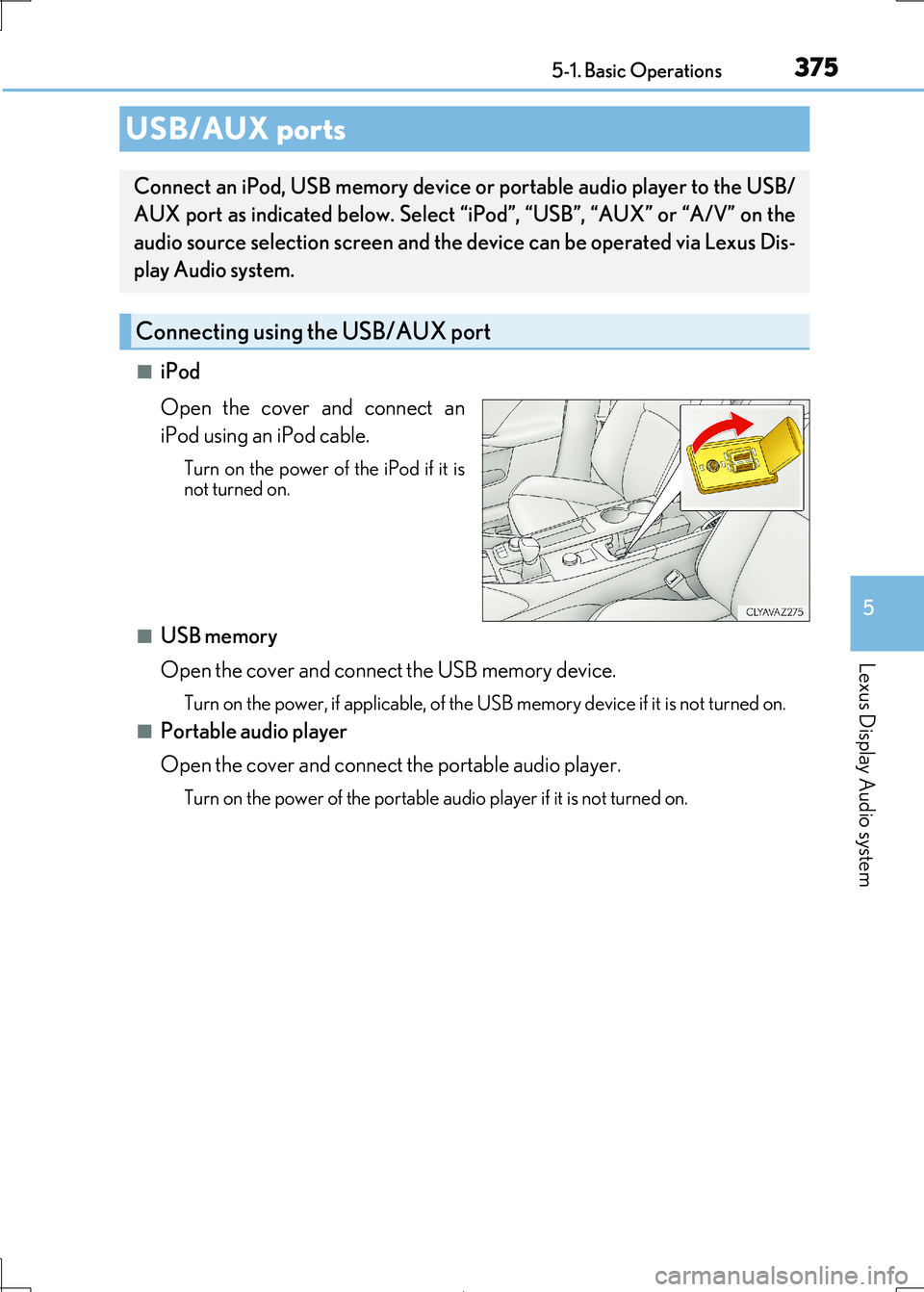
■iPod
Open the cover and connect an
iPod using an iPod cable.
Turn on the power of the iPod if it is not turned on.
■USB memory
Open the cover and connec t the USB memory device.
Turn on the power, if applicable, of the USB memory device if it is not turned on.
■Portable audio player
Open the cover and connect the portable audio player.
Turn on the power of the portable audio player if it is not turned on.
USB/AUX ports
Connect an iPod, USB memory device or portable audio player to the USB/
AUX port as indicated below. Select “iPod”, “USB”, “AUX” or “A/V” on the
audio source selection screen and the device can be operated via Lexus Dis-
play Audio system.
Connecting using the USB/AUX port
Page 377 of 692
3775-1. Basic Operations
5
Lexus Display Audio system
IS300h_EE(OM53D89E)
■When using a 4-pole AUX cable
If a 4-pole AUX cable with a different layout is used, audio and/or video may not be out-
put properly.
WARNING
■While driving
Do not connect a device or operate the device controls.
Failure to do so may lead to an accident.
NOTICE
■To prevent damage to the device or its terminals
Depending on the size and shape of the devi ce that is connected to the system, the
console box may not close fully. In this case , do not forcibly close the console box as
this may damage the devi ce or the terminal, etc.
Page 378 of 692

378
IS300h_EE(OM53D89E)
5-2. Setup
Go to “Setup”: “MENU” button “Setup”
Change the settings for operation
sounds, screen animation, etc.
( P. 379)
Adjust the settings for voice guid-
ance volume. ( P. 382)
Change the settings for registering,
removing, connecting and discon-
necting Bluetooth® devices.
( P. 413)
Change the settings for FM radio,
iPod, etc. ( P. 387)
Change the settings for vehicle cus-
tomization. ( P. 657)
Change the settings for phone
sound, phonebook, etc. ( P. 433)
Setup menu
The Lexus Display Audio system can be adjusted to the desired settings.
Display “Setup” screen
1
2
3
4
5
6
Page 379 of 692
3795-2. Setup
5
Lexus Display Audio system
IS300h_EE(OM53D89E)
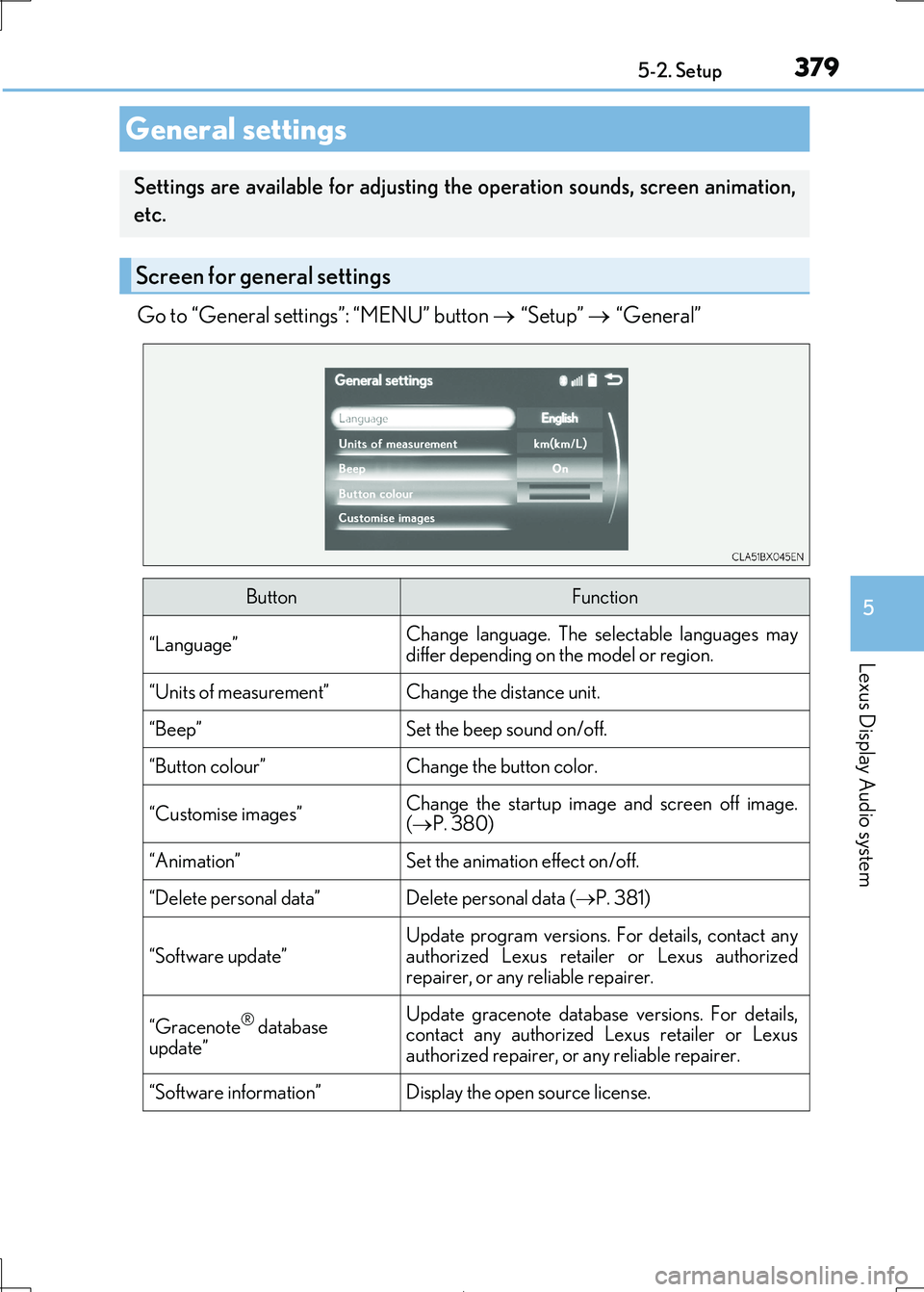
Go to “General settings”: “MENU” button “Setup” “General”
General settings
Settings are available for adjusting the operation sounds, screen animation,
etc.
Screen for general settings
ButtonFunction
“Language”Change language. The se lectable languages may differ depending on the model or region.
“Units of measurement”Change the distance unit.
“Beep”Set the beep sound on/off.
“Button colour”Change the button color.
“Customise images”Change the startup image and screen off image.
( P. 380)
“Animation”Set the animation effect on/off.
“Delete personal data”Delete personal data (P. 381)
“Software update”
Update program versions. For details, contact any
authorized Lexus retailer or Lexus authorized
repairer, or any re liable repairer.
“Gracenote® database
update”
Update gracenote database versions. For details, contact any authorized Lexus retailer or Lexus
authorized repairer, or any reliable repairer.
“Software information”Display the open source license.
Page 381 of 692

3815-2. Setup
5
Lexus Display Audio system
IS300h_EE(OM53D89E)
■USB memory
When saving the images to a USB memory de vice, name the folder that the images are
saved to “Image”.
●Compatible device formats
The following device format can be used:
• The image’s file fo rmat must be JPEG • USB communication format: USB2.0 FS (480 Mbps)
• File system format: FAT16/32 (Windows)
• Correspondence class: Mass storage class
●JPEG file compatibility
Compatible image size: Maximum 10 MB
Go to “Delete personal data”: “MENU” button “Setup” “General”
“Delete personal data”
Select “Delete”.
Check carefully beforehand, as data cannot be retrieved once deleted.
The following personal data will be deleted or changed to its default settings.
• Phonebook data
• Voice tag
• Call history data •Favorite data
•Bluetooth® devices data
• Phone sound settings
• Detailed Bluetooth® settings • Audio/video setting
• Customized image data
• FM info setting • Software update history
• Software update detail information
• Phone display setting • Contact/call history setting
• Messaging setting
NOTICE
■To prevent damage to the USB me mory device or its terminals
P. 410
Deleting personal data
1
2
Page 383 of 692
3835-2. Setup
5
Lexus Display Audio system
IS300h_EE(OM53D89E)
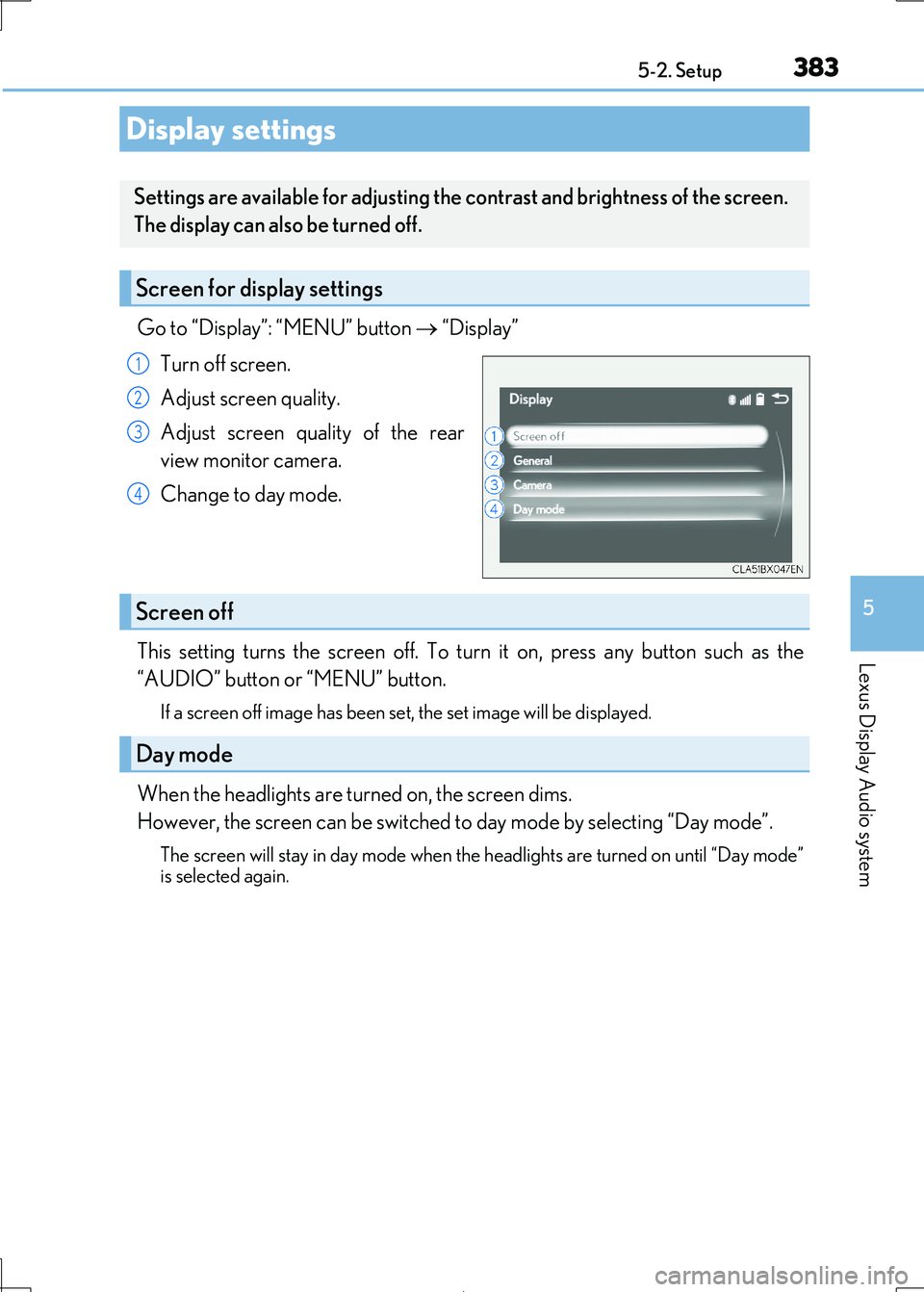
Go to “Display”: “MENU” button “Display”
Turn off screen.
Adjust screen quality.
Adjust screen quality of the rear
view monitor camera.
Change to day mode.
This setting turns the screen off. To tu rn it on, press any button such as the
“AUDIO” button or “MENU” button.
If a screen off image has been se t, the set image will be displayed.
When the headlights are turned on, the screen dims.
However, the screen can be switched to day mode by selecting “Day mode”.
The screen will stay in day mode when the headlights are turned on until “Day mode”
is selected again.
Display settings
Settings are available for adjusting the contrast and brightness of the screen.
The display can also be turned off.
Screen for display settings
1
2
3
4
Screen off
Day mode
Page 384 of 692

3845-2. Setup
IS300h_EE(OM53D89E)
Select “General” or “Camera” on the “Display” screen or select “Display” on
audio menu screen. ( P. 391)
Adjust the display as desired by turnin g the controller clockwise (+) or coun-
terclockwise (-).
To select “Contrast”, “Brightness”, “Colour” or “Tone”, move the controller to the left.
(“Colour” and “Tone” are available when “D isplay” on the audio settings screen for each audio source is selected.)
■Changing the sample image (when “General” is selected)
Move the controller to the right an d select the desired sample image.
Adjusting the screen contrast/brightness/color/tone
1
2
Page 385 of 692
385
5
Lexus Display Audio system
IS300h_EE(OM53D89E)
5-3. Using the audio system
Press the “AUDIO” button to display the “Source” screen.
If the “Source” screen is not displayed, press the button again.
Select the desired audio source.
The audio source can be selected by pressing the “RADIO” or “MEDIA” button.
Press the “MODE” switch when the audio system is turned on. The audio source
changes each time the “MODE” switch is pressed.
■Rearranging the list
The listing order of the sour ce list can be rearranged.
Move the controller to the left while on the “Source” screen.
Select “Audio source select”.
Select an item you wish to move and th en select where to move the item to.
Selecting the audio source
Switching between audio sources, such as the radio and CD, is explained in
this section.
Changing audio source
Using the steering wheel switches to change audio sources
1
2
1
2
3
Page 387 of 692
3875-3. Using the audio system
5
Lexus Display Audio system
IS300h_EE(OM53D89E)
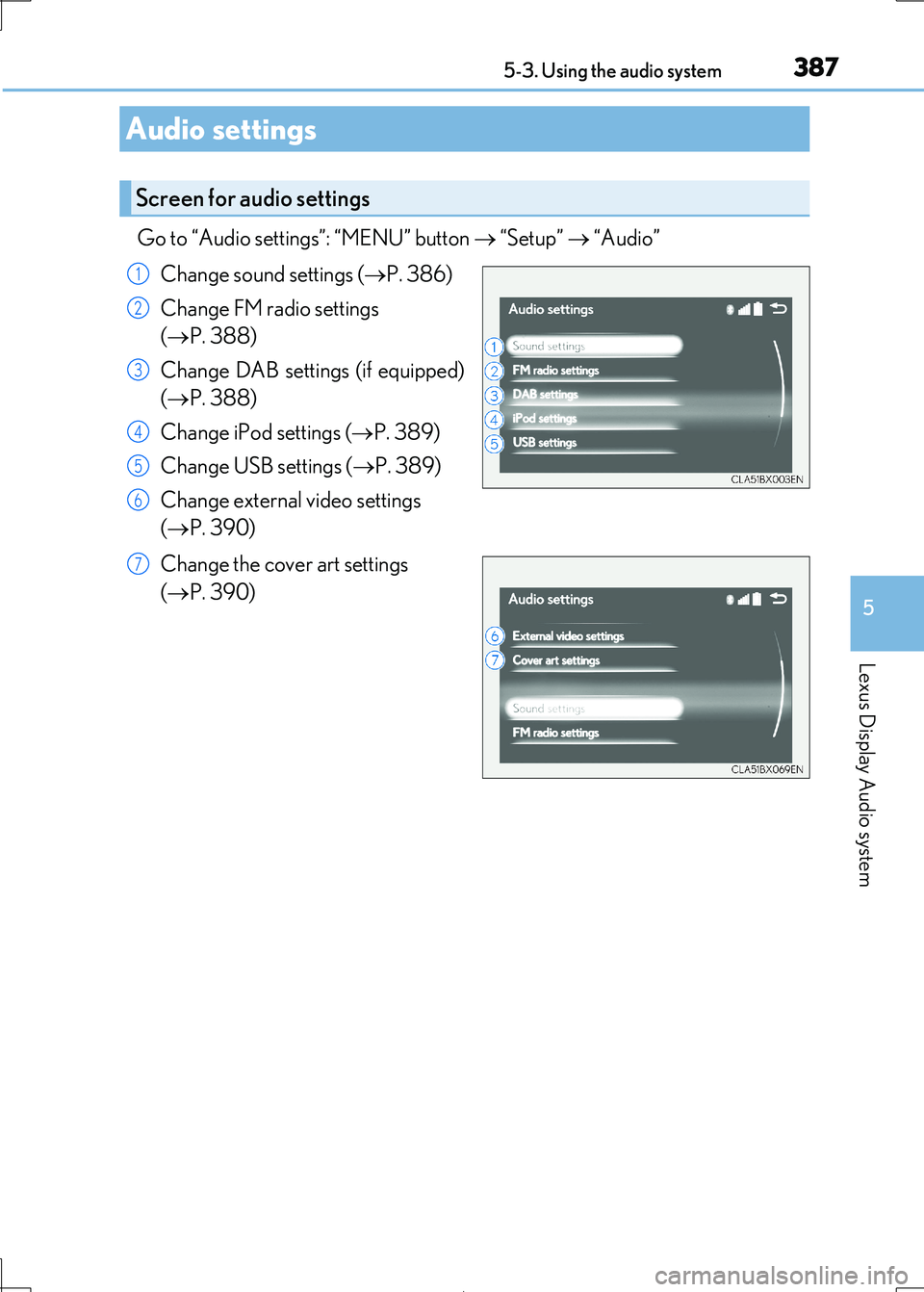
Go to “Audio settings”: “MENU” button “Setup” “Audio”
Change sound settings ( P. 386)
Change FM radio settings
( P. 388)
Change DAB settings (if equipped)
( P. 388)
Change iPod settings ( P. 389)
Change USB settings ( P. 389)
Change external video settings
( P. 390)
Change the cover art settings
( P. 390)
Audio settings
Screen for audio settings
1
2
3
4
5
6
7