audio Lexus IS300h 2017 Manual Online
[x] Cancel search | Manufacturer: LEXUS, Model Year: 2017, Model line: IS300h, Model: Lexus IS300h 2017Pages: 692, PDF Size: 163.7 MB
Page 423 of 692
4235-9. Bluetooth® Phone
5
Lexus Display Audio system
IS300h_EE(OM53D89E)
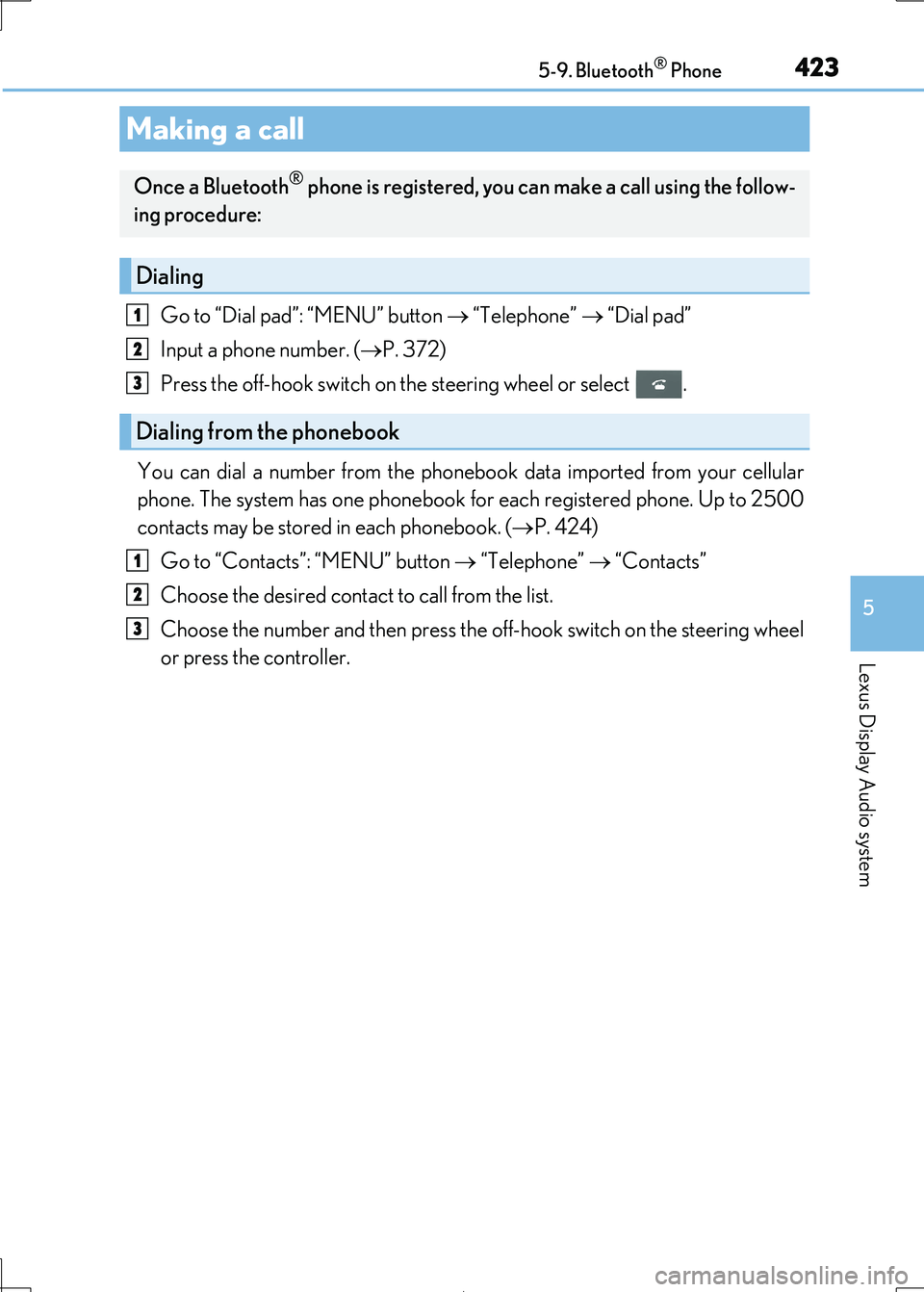
Go to “Dial pad”: “MENU” button “Telephone” “Dial pad”
Input a phone number. ( P. 372)
Press the off-hook switch on the steering wheel or select .
You can dial a number from the phonebook data imported from your cellular
phone. The system has one phonebook fo r each registered phone. Up to 2500
contacts may be stored in each phonebook. (P. 424)
Go to “Contacts”: “MENU” button “Telephone” “Contacts”
Choose the desired contact to call from the list.
Choose the number and then press the off-hook switch on the steering wheel
or press the controller.
Making a call
Once a Bluetooth® phone is registered, you can make a call using the follow-
ing procedure:
Dialing
Dialing from the phonebook
1
2
3
1
2
3
Page 425 of 692

4255-9. Bluetooth® Phone
5
Lexus Display Audio system
IS300h_EE(OM53D89E)
You can make a call using numbers registered in the favorites.
Go to “Favourites”: “MENU” button “Telephone” “Favourites”
Choose the desired contact to call from the list.
Choose the number and then press the off-hook switch on the steering wheel
or press the controller.
You can make a call using the call history.
Go to “Call history”: “MENU” button “Telephone” “Call history”
Select the desired entry from the list.
Press the off-hook switch on the steering wheel or select .
■Call history list
●If you make a call to or receive a call from a number registered in the phonebook, the name is displayed in the call history.
●If you make multiple calls to the same number , only the last call made is displayed in the
call history.
■International calls
Depending on the mobile phone in use, you may not be able to make international calls.
■Calling by using the latest call history entry
Press the off-hook switch on the steering wheel to display the phone top screen.
Press the switch again to disp lay the “Call history” screen.
Press the switch again to select the latest call history entry.
Dialing from favorites
Dialing from history
1
2
3
1
2
3
1
2
3
Page 427 of 692

4275-9. Bluetooth® Phone
5
Lexus Display Audio system
IS300h_EE(OM53D89E)
Select “Transmit volume”. To restore
default volume, move the controller to
the left on the “Transmit volume” screen
and then select “Default”.
Move the controller to the left and then select “In-call volume”. You can also
adjust the volume using the “POWER•VOL UME” knob or the steering switches.
Select “Mute”.
When using phone services such as an answering service or a bank, you can
store phone numbers and code numbers in the contacts using “p” or “w” symbols
(eg. 056133 w 0123p#1).
Contact including a phone number only
Move the controller to the left and then select “0-9”.
Input the number.
Phone number containing a “p” symbol
When the “p” symbol is dial ed in an outgoing call, there will be a pause for 2 sec-
onds before the following digits are dialed automatically.
Phone number containing a “w” symbol
When the “w” symbol is dialed in an outgoing call, you need to go to the “Release
tones” screen to dial the following digits. Move the controller to the left and then
select “Release tones”.
Speaking on the phone
The following screen is displa yed when speaking on the phone.
To adjust the transmit volume
To adjust in call volume
To prevent the other party from hearing your voice
Inputting tones
1
2
Page 429 of 692

4295-9. Bluetooth® Phone
5
Lexus Display Audio system
IS300h_EE(OM53D89E)
Go to “Message inbox”: “MENU” button “Telephone” “Message inbox”
Select a message.
Moving the controller to the left while on th e “Message inbox” screen displays the set-
ting screen. ( P. 438)
Move the controller to the right while on the “Message inbox” screen and then select
an account to display a messag e list for the selected account.
Selecting “Next” or “Previous” displays the next or previous message.
If a message is too long, select “Read more” to display the full text.
■Option menu
Move the controller to the left while on the message screen.
Select a prepared message and
send a reply message.
Call a sender.
If more than one phone number is
registered for a sender, a phone number selection screen will be dis-
played.
Call a phone number written in a
message.
Select “Mark unread” to mark E-mail th at has been read as unread. Select
“Mark read” to mark E-mail that has not been read as read.
Using a Bluetooth® phone messages
Once a MAP-profile compatible Bluetooth® phone is registered, you can
check the E-mail/SMS/MMS and reply to a message using the following pro-
cedures:
Checking messages
Message screen
1
2
1
2
3
4
Page 431 of 692

4315-9. Bluetooth® Phone
5
Lexus Display Audio system
IS300h_EE(OM53D89E)
This function is available when the “E-mail notification popup” or “SMS/MMS
notification popup” are set to on. ( P. 438)
“Incoming E-mail display” or “Incoming SMS/MMS display” are set to “Drop-
down”
When E-mail/SMS/MMS are received, the incoming message is displayed on
the upper side of the screen with a sound.
“Incoming E-mail display” or “Incoming SMS/MMS display” are set to “Full
screen”
When E-mail/SMS/MMS are received, th e incoming message screen is dis-
played with a sound and it can be operated on the screen.
Check the message.
Refuse to check the message.
Call to receive the message sender’s
phone number.
Receiving a message popup function
1
2
3
Page 433 of 692

4335-9. Bluetooth® Phone
5
Lexus Display Audio system
IS300h_EE(OM53D89E)
Go to “Telephone settings”: “MENU” button “Setup” “Telephone”
Register and connect a Bluetooth®
device. ( P. 414)
Adjust the call volume. ( P. 433)
Change the contact/call history set-
tings. ( P. 435)
Change the messaging settings.
( P. 438)
Change the phone display settings. ( P. 434)
Change the ring tone type
Adjust the ring tone volume
Change incoming SMS/MMS tone
type
Adjust the incoming SMS/MMS
tone volume
Change the incoming e-mail tone
type
Adjust the incoming e-mail tone vol-
ume
Adjust in call tone volume
Bluetooth® phone settings
You can adjust the hands-free sy stem to your desired settings.
“Telephone settings” screen
1
2
3
4
Sound settings
5
1
2
3
4
5
6
7
Page 435 of 692

435
5
Lexus Display Audio system
IS300h_EE(OM53D89E)
5-10. Phonebook
Go to “Contact/call history settings”: “MENU” button “Setup” “Telephone”
“Contact/call history settings”
Select to set the automatic phone-
book download on/off
With this setting on, phonebook data will be automatically transferred.
Depending on the cellular phone, call
history will be also transferred.
Update phonebook (PBAP incom-
patible Bluetooth® phones, or com-
patible phones with “Automatic
transfer” off)
Change the sort contacts mode
Add a favorite ( P. 437)
Delete a favorite ( P. 437)
Select to set the display of contact
images on/off
Delete call history. (PBAP incom-
patible Bluetooth® phones, or com-
patible phones with “Automatic
transfer” off)
Add a new contact (PBAP incom-
patible Bluetooth® phones, or com-
patible phones with “Automatic
transfer” off)
Input the name, phone number and
phone number type to add a new con- tact.
Contact settings
Individual phonebooks from up to 5 ph ones can be registered to the system.
The data for 2500 contacts (up to 4 numbers per contact) can be registered
into the system’s phonebook.
“Contact/call history settings” screen
1
2
3
4
5
6
7
8
Page 437 of 692

4375-10. Phonebook
5
Lexus Display Audio system
IS300h_EE(OM53D89E)
You can register the desired contact from the phonebook. Up to 15 contacts per
phone can be registered.
Go to “Add favourit e”: “MENU” button “Setup” “Telephone” “Con-
tact/call history settings” “Add favourite”
Choose the contact to register.
Go to “Remove favourite”: “MENU” button “Setup” “Telephone”
“Contact/call history settings” “Remove favourite”
Select the desired contacts.
You can select all contacts by selecting “Select all”.
Move the controller to the left and select “Remove”.
Go to “Delete contacts”: “MENU” button “Setup” “Telephone”
“Contact/call history settings” “Delete contacts”
Select the desired contacts.
You can select all contacts by selecting “Select all”.
Move the controller to the left and select “Delete”.
■Phonebook data
Phonebook data is managed separately for every registered phone. When one phone is
connected, you cannot read the registered data of the other phones.
■When transferring contacts
Transfer contacts while the hybrid system is operating.
If the cellular phone is OPP or PBAP compatible, you may need to input “1234” on the
cellular phone for OB EX certification.
■When you have selected “Replace contacts” or “Add contact” to transfer contacts
If the cellular phone does not support OPP service, you cannot use these functions. You
can transfer the phonebook data only by operating your phone.
■Transferring contacts while Bluetooth® audio is playing
Bluetooth® audio will disconnect. It will reconnect automatically when data transfer fin-
ishes. It may not reconn ect depending on the phone which is connected.
Registering favorites
Removing favorites
Deleting the contacts data
1
2
1
2
3
1
2
3
Page 439 of 692

439
5
Lexus Display Audio system
IS300h_EE(OM53D89E)
5-11. Bluetooth®
If there is a problem with the hands-free system or a Bluetooth® device, first
check the table below.
When using the hands-free system with a Bluetooth® device
When registering/connecting a cellular phone
What to do if... (Troubleshooting)
The hands-free system or Bluetooth® device does not work.
The Bluetooth® version of the connected cellular phone may be older than the speci-
fied version. Use a cellular phone with Bluetooth® version 2.0 or higher (recommended: Ver.
3.0 with EDR or higher). ( P. 444)
A cellular phone cannot be registered.
An incorrect passcode was entered on the cellular phone.
Enter the correct passcode on the cellular phone.
The registration operation has not been completed on the cellular phone side. Complete the registration operation on the cellular phone (approve registration
on the phone).
Old registration information remains on ei ther this system or the cellular phone.
Delete the existing registration information from both this system and the cellu-
lar phone, then register the cellular phon e you wish to connect to this system. ( P. 414)
A Bluetooth® connection cannot be made.
Another Bluetooth® device is already connected.
Manually connect the cellular phone you wish to use to this system. (P. 417)
Bluetooth® function is not enabled on the cellular phone.
Enable the Bluetooth® function on the cellular phone.
“Check your telephone.” message is displayed.
Bluetooth® function is not enabled on the cellular phone. Enable the Bluetooth® function on the cellular phone.
Old registration information remains on either this system or the cellular phone.
Delete the existing registration information from both this system and the cellu-
lar phone, then register the cellular phon e you wish to connect to this system. ( P. 414)
Page 441 of 692

4415-11. Bluetooth®
5
Lexus Display Audio system
IS300h_EE(OM53D89E)
In other situations
Even though all conceivable measures have been taken, the symptom status does not
change.
The cellular phone is not close enough to this system. Bring the cellular phone closer to this system.
The cellular phone is the most likely cause of the symptom.
Turn the cellular phone off, remove and reinstall the battery pack, and then
restart the cellular phone. Enable the cellular phone’s Bluetooth® connection.
Stop the cellular phone’s security software and close all applications.
Before using an application installed on the cellular phone, carefully check its source and how its operation might affect this system.