wheel LEXUS LX570 2016 Manual PDF
[x] Cancel search | Manufacturer: LEXUS, Model Year: 2016, Model line: LX570, Model: LEXUS LX570 2016Pages: 632, PDF Size: 8.94 MB
Page 328 of 632
328
LX570_OM_OM60N01U_(U)4-5. Using the driving support systems
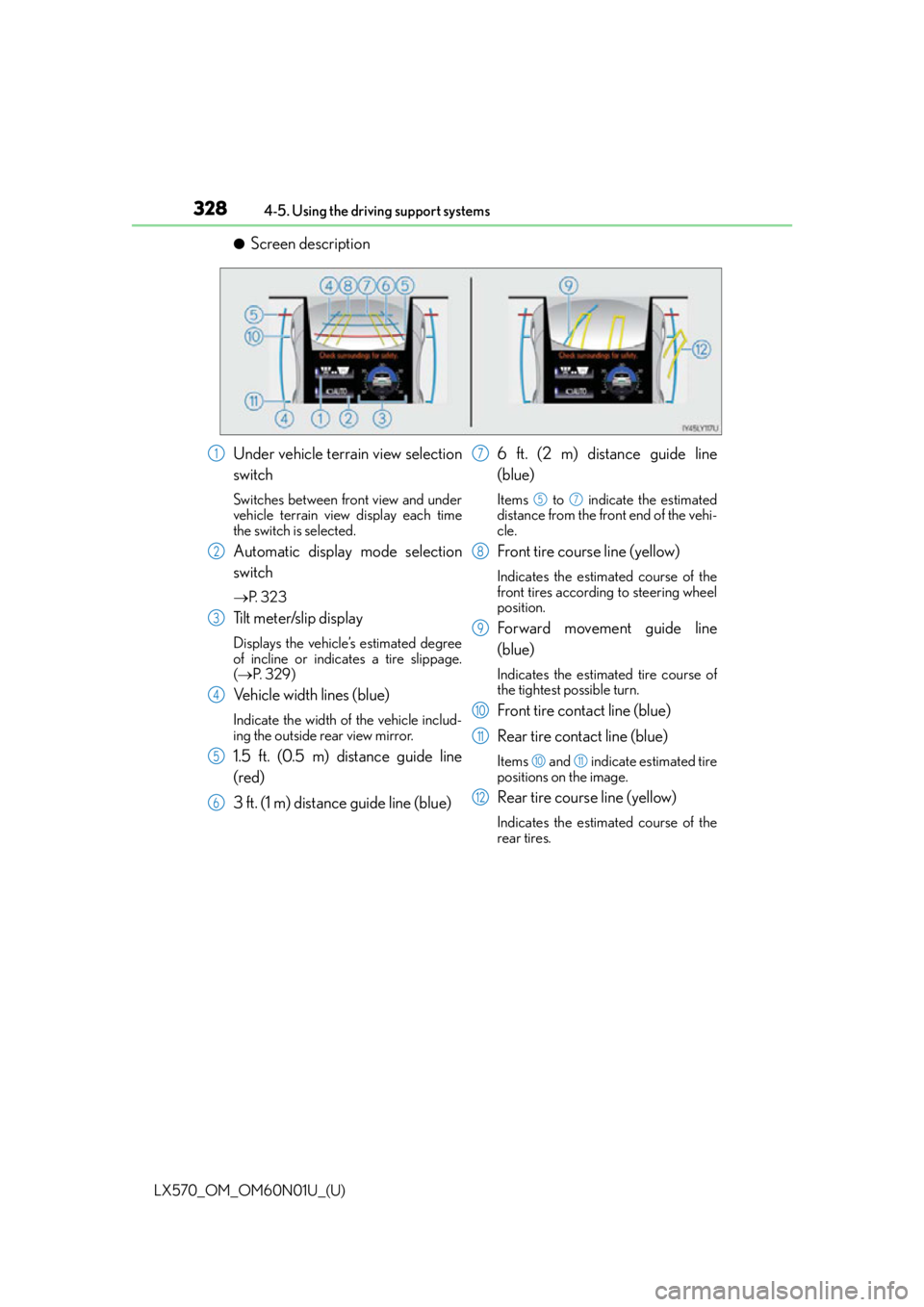
●Screen description
Under vehicle terrain view selection
switch
Switches between front view and under
vehicle terrain view display each time
the switch is selected.
Automatic display mode selection
switch
P. 3 2 3
Tilt meter/slip display
Displays the vehicle’s estimated degree
of incline or indicates a tire slippage.
( P. 3 2 9 )
Vehicle width lines (blue)
Indicate the width of the vehicle includ-
ing the outside rear view mirror.
1.5 ft. (0.5 m) distance guide line
(red)
3 ft. (1 m) distance guide line (blue) 6 ft. (2 m) distance guide line
(blue)
Items to indicate the estimated
distance from the front end of the vehi-
cle.
Front tire course line (yellow)
Indicates the estimated course of the
front tires according to steering wheel
position.
Forward movement guide line
(blue)
Indicates the estimated tire course of
the tightest possible turn.
Front tire contact line (blue)
Rear tire contact line (blue)
Items and indicate estimated tire
positions on the image.
Rear tire course line (yellow)
Indicates the estimated course of the
rear tires.
1
2
3
4
5
6
7
57
8
9
10
11
1011
12
Page 329 of 632
LX570_OM_OM60N01U_(U)
3294-5. Using the driving support systems
4
Driving
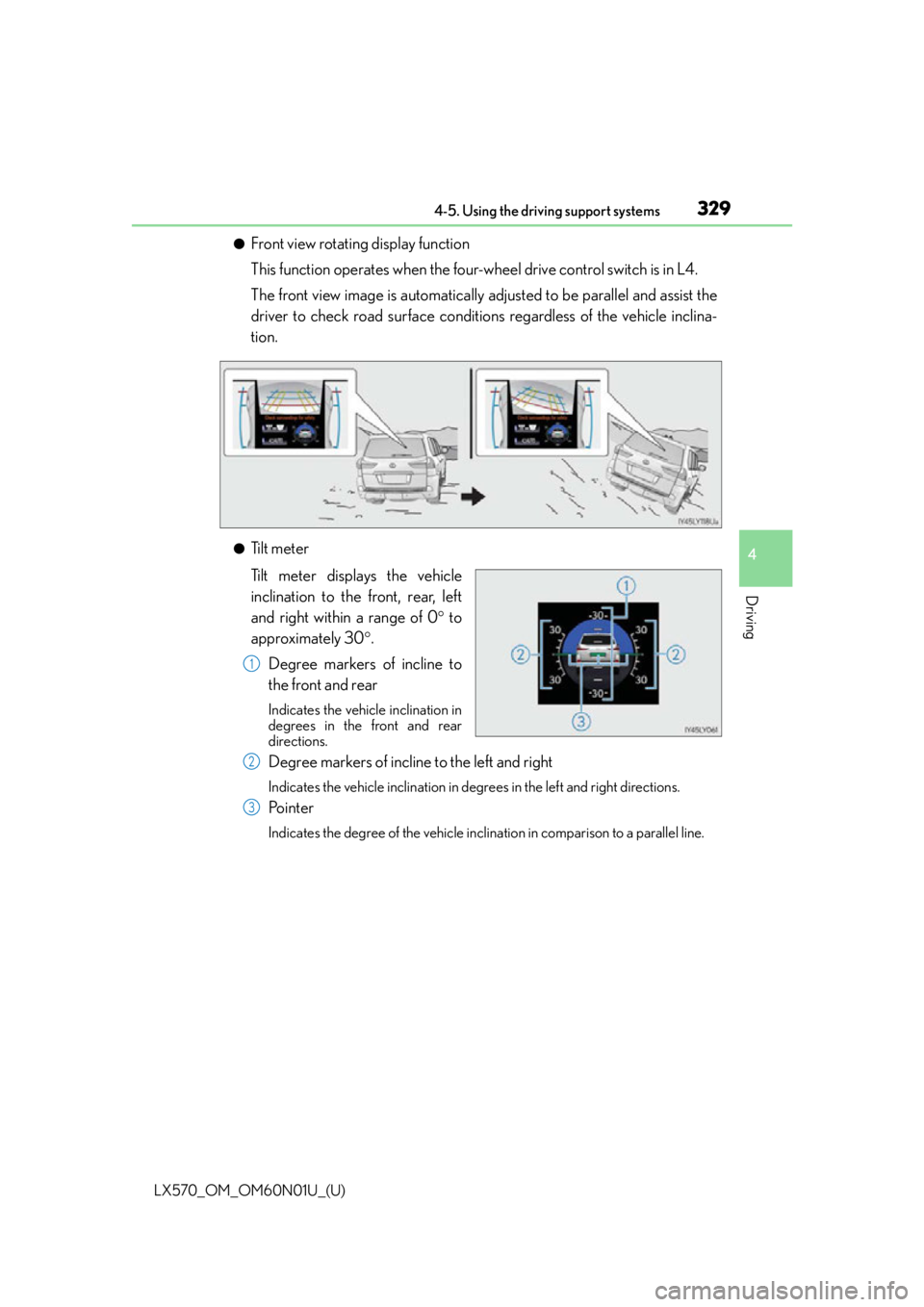
●Front view rotating display function
This function operates when the four-wheel drive control switch is in L4.
The front view image is automatically adjusted to be parallel and assist the
driver to check road surface conditio ns regardless of the vehicle inclina-
tion.
●Tilt meter
Tilt meter displays the vehicle
inclination to the front, rear, left
and right within a range of 0 to
approximately 30 .
Degree markers of incline to
the front and rear
Indicates the vehicle inclination in
degrees in the front and rear
directions.
Degree markers of incline to the left and right
Indicates the vehicle inclin ation in degrees in the left and right directions.
Po i n t e r
Indicates the degree of the vehicle inc lination in comparison to a parallel line.
1
2
3
Page 332 of 632

332
LX570_OM_OM60N01U_(U)4-5. Using the driving support systems
■Under vehicle terrain view & dual side view
●The screen can be displayed when the shift lever is in D or N.
●While the under vehicle terrain view is displayed, if the vehicle speed reaches or
exceeds approximately 3 mph (5 km/h), the screen automatically returns to the front
view display.
●In the following situations, the under vehicle terrain view selection switch cannot be
operated.
• The vehicle is not completely stopped
• After the engine starts, a fixed distance or more has not been driven
• After the four-wheel drive control switch is shifted to L4, a fixed distance or more
has not been driven
●In the following situations, the system may no t operate normally, or it may not be possi-
ble to switch to the under vehicle terrain view.
• The road is covered with snow
• It is nighttime and the road has no illumination
• Dirt or foreign matter is adhering to the camera lens
• There is water in front of the vehicle ( a r i v e r, p u d d l e , s e a w a t e r, e t c . )
WA R N I N G
■Guide lines
The tire position indicator lines and vehicle position indicator lines may differ from
actual vehicle positions depending on the number of passengers, cargo weight, road
grade, road surface conditions, brightness of the surrounding environment, etc. Always
drive the vehicle while confirming the safety of your surroundings.
■Under vehicle terrain view display
The image displayed is one that was previously taken at a point approximately 10 ft.
(3 m) behind the current vehicle position. In cases such as when objects move after the
image is taken, the image displayed on the screen may differ from the actual state.
Page 335 of 632
LX570_OM_OM60N01U_(U)
3354-5. Using the driving support systems
4
Driving
■Panoramic view & wide front view
The image looking down at the vehicle from above and the image from the
front camera are displayed simultaneously and assist the driver to check con-
ditions in front, and to the right and left, of the vehicle at intersections or T-
junctions with poor visibility.
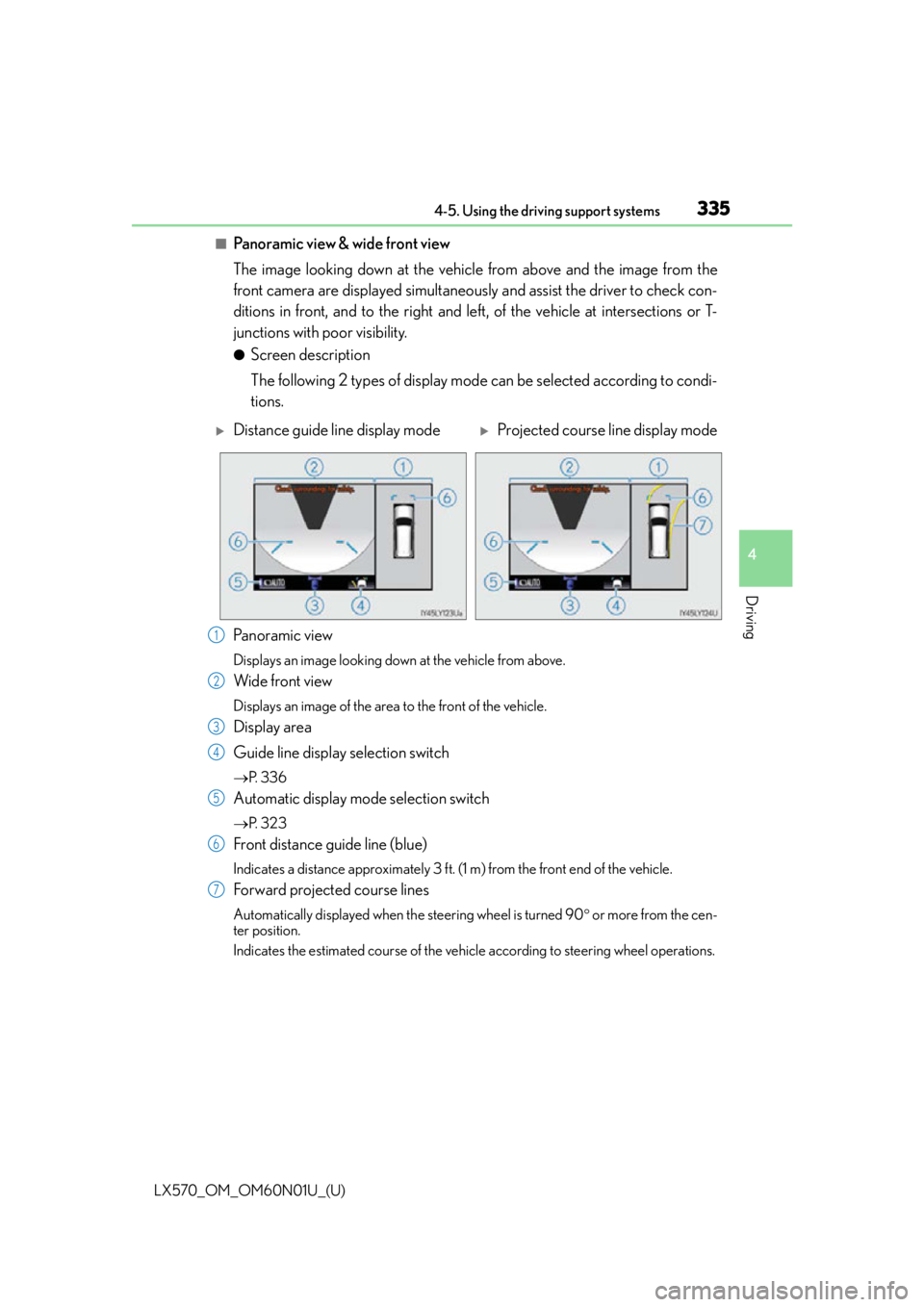
●Screen description
The following 2 types of display mode can be selected according to condi-
tions.
Pa n o r a m i c v i ew
Displays an image looking down at the vehicle from above.
Wide front view
Displays an image of the area to the front of the vehicle.
Display area
Guide line display selection switch
P. 3 3 6
Automatic display mode selection switch
P. 3 2 3
Front distance guide line (blue)
Indicates a distance approximately 3 ft. (1 m) from the front end of the vehicle.
Forward projected course lines
Automatically displayed when th e steering wheel is turned 90 or more from the cen-
ter position.
Indicates the estimated course of the vehicl e according to steering wheel operations.
Distance guide line display modeProjected course line display mode
1
2
3
4
5
6
7
Page 338 of 632

338
LX570_OM_OM60N01U_(U)4-5. Using the driving support systems
●Using the vehicle width lines
The relative distance of obstacles from the vehicle width lines can be con-
firmed.
Example 1: When there is an obstacle in front of the vehicle
Operate the steering wheel so that the vehicle width line and
the obstacle do not overlap.
Example 2: When parking on the shoulder Approach the shoulder, but do not allow the vehicle width
line to overlap the curb or other obstacles.
After confirming the distance to the shoulder of the road,
maneuvering the vehicle so that the vehicle width line and
the curb or other obstacle are parallel allows the vehicle to
be parked evenly.
Page 341 of 632

LX570_OM_OM60N01U_(U)
3414-5. Using the driving support systems
4
Driving
●Switching modes
The display mode switches and the icon display changes each time the
guide line display selection switch is selected.• Projected course line display mode: Projected course lines that change according to steering wheel opera-
tions are displayed.
• Parking assist guide line display mode: Inverted steering wheel operations (p arking assist guide line) are dis-
played. Use this mode if you are used to how the vehicle handles (if you
can park without needing the course line display).
• Distance guide line display mode: Only distance guide lines are displa yed. Use this mode when guide lines
are not needed.
●Guide lines
The panoramic view & rear view screen is explained here as an example.
Selected modeProjected course
line display modeParking assist guide line display modeDistance guide line display mode
Icon display
Projected course line display modeParking assist guide line display
mode
Page 342 of 632
342
LX570_OM_OM60N01U_(U)4-5. Using the driving support systems
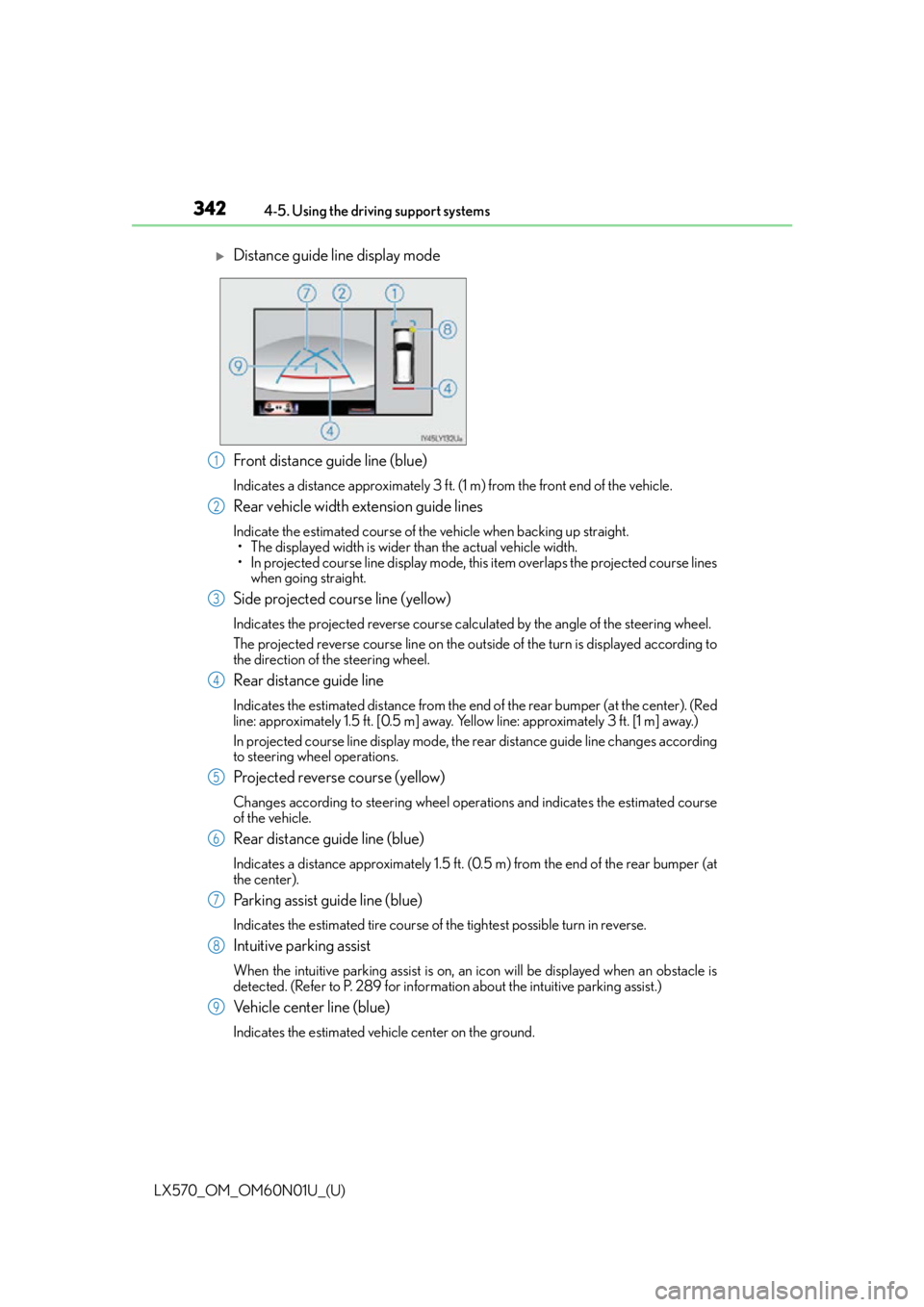
Front distance guide line (blue)
Indicates a distance approximately 3 ft. (1 m) from the front end of the vehicle.
Rear vehicle width extension guide lines
Indicate the estimated course of the vehicle when backing up straight.
• The displayed width is wider than the actual vehicle width.
• In projected course line display mode, this item overlaps the projected course lines
when going straight.
Side projected course line (yellow)
Indicates the projected reverse course calculated by the angle of the steering wheel.
The projected reverse course line on the outs ide of the turn is displayed according to
the direction of the steering wheel.
Rear distance guide line
Indicates the estimated distance from the end of the rear bumper (at the center). (Red
line: approximately 1.5 ft. [0.5 m] away. Yellow line: approximately 3 ft. [1 m] away.)
In projected course line display mode, the re ar distance guide line changes according
to steering wheel operations.
Projected reverse course (yellow)
Changes according to steering wheel operations and indicates the estimated course
of the vehicle.
Rear distance guide line (blue)
Indicates a distance approximately 1.5 ft. (0.5 m) from the end of the rear bumper (at
the center).
Parking assist guide line (blue)
Indicates the estimated tire course of the tightest possible turn in reverse.
Intuitive parking assist
When the intuitive parking assist is on, an icon will be displayed when an obstacle is
detected. (Refer to P. 289 for informat ion about the intuitive parking assist.)
Vehicle center line (blue)
Indicates the estimated vehicle center on the ground.
Distance guide line display mode
1
2
3
4
5
6
7
8
9
Page 343 of 632

LX570_OM_OM60N01U_(U)
3434-5. Using the driving support systems
4
Driving
●Parking operation (using the estimated curse line)
When parking in a space which is in the reverse direction to the space
described in the procedure below, the steering directions will be reversed.Shift the shift lever to the R position.
Turn the steering wheel so that
the estimated course lines are
within the parking space, and
back up slowly.Parking space
Estimated course lines
When the rear position of the
vehicle has entered the parking
space, turn the steering wheel so
that the vehicle width extension
guide lines are within the left and
right dividing lines of the parking
space. Vehicle width extension guide
line
1
2
1
2
3
3
Page 344 of 632

344
LX570_OM_OM60N01U_(U)4-5. Using the driving support systems
Once the vehicle width extension guide lines and the parking space lines
are parallel, straighten the steering wheel and back up slowly until the vehi-
cle has completely entered the parking space.
Stop the vehicle in an appropri
ate place, and finish parking.
●Parking operation (using the parking assist guide line)
When parking in a space which is in the reverse direction to the space
described in the procedure below, the steering directions will be reversed.
Shift the shift lever to the R position.
Back up until the parking assist
guide line meets the edge of the
left-hand dividing line of the park-
ing space.Parking assist guide line
Parking space dividing line
Turn the steering wheel all the way to the right, and back up slowly.
Once the vehicle is parallel with the parking space, straighten the steering
wheel and back up slowly until the vehicle has completely entered the
parking space.
Stop the vehicle in an appropri ate place, and finish parking.
4
5
1
2
1
2
3
4
5
Page 345 of 632

LX570_OM_OM60N01U_(U)
3454-5. Using the driving support systems
4
Driving
■Panoramic view & rear view/wide rear view
The screen can be displayed when the shift lever is in R.
■Guide lines
If the back door is not closed, guide lines will not be displaye d. If the guide lines do not
display even when the back door is closed , have the vehicle inspected at your Lexus
dealer.
WA R N I N G
■Guide lines
The tire position indicator lines and vehicle position indicator lines may differ from
actual vehicle positions depending on the number of passengers, cargo weight, road
grade, road surface conditions, brightness of the surrounding environment, etc. Always
drive the vehicle while confirming the safety of your surroundings.
■When using panoramic view & rear view or wide rear view
●If the vehicle width extension guide lines and projected course lines are not aligned
with the steering wheel in the center position , drive straight on a road without as little
traffic and as few bends or curves as poss ible for approximately 5 minutes or more. If
the symptom is not resolved, have the vehicle inspected by your Lexus dealer.
●Rear vehicle width extension guide lines ar e displayed wider than the actual vehicle
width. When backing up, always confirm the safety of your surroundings and the area
to the rear of the vehicle.