ECO LEXUS NX300H 2016 Owners Manual
[x] Cancel search | Manufacturer: LEXUS, Model Year: 2016, Model line: NX300H, Model: LEXUS NX300H 2016Pages: 680, PDF Size: 10.23 MB
Page 347 of 680
3475-2. Setup
5
Lexus Display Audio system
NX300h_OM_USA_OM78082U
Setup menu
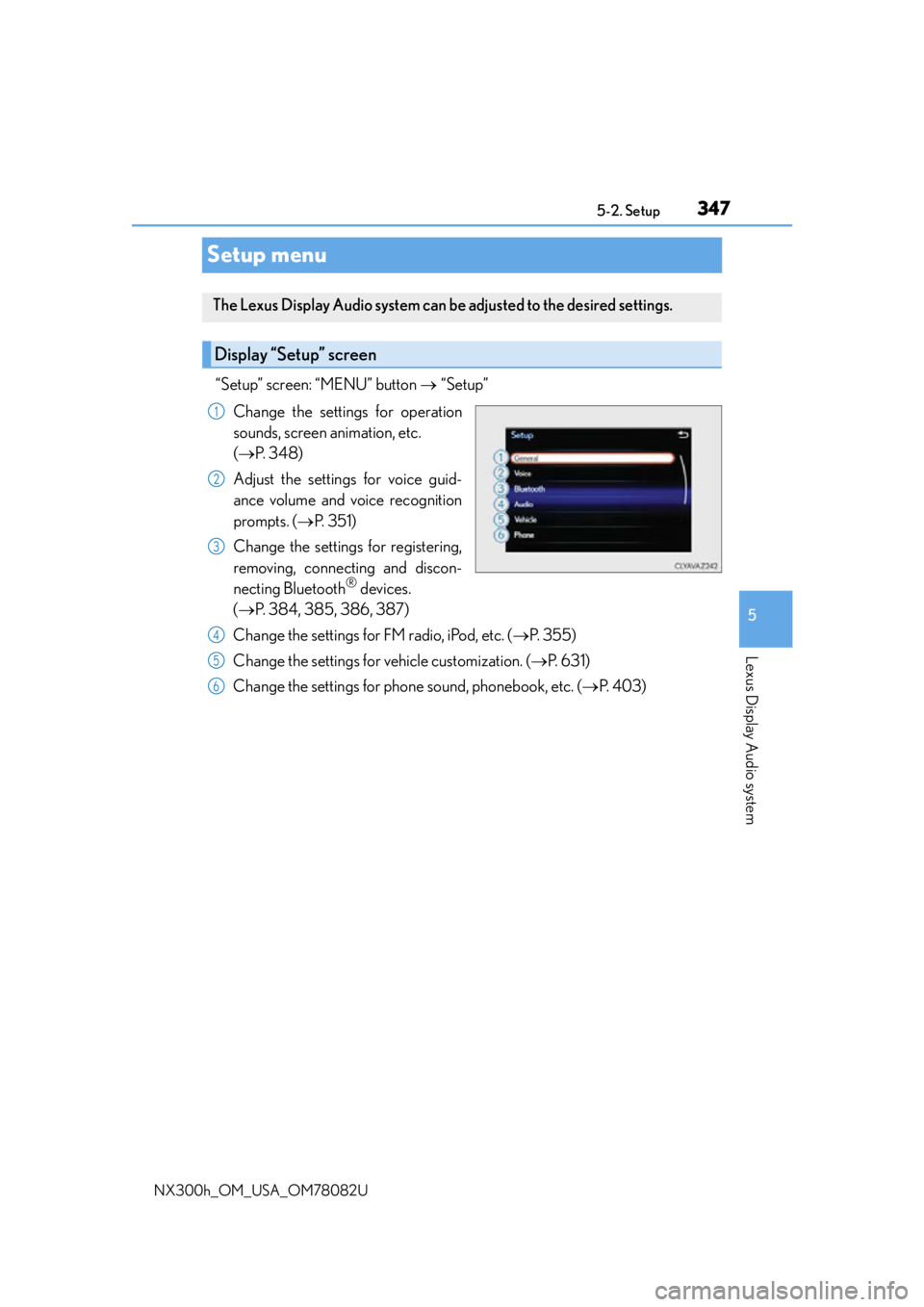
“Setup” screen: “MENU” button “Setup”
Change the settings for operation
sounds, screen animation, etc.
( P. 3 4 8 )
Adjust the settings for voice guid-
ance volume and voice recognition
prompts. ( P. 3 5 1 )
Change the settings for registering,
removing, connecting and discon-
necting Bluetooth
® devices.
( P. 384, 385, 386, 387)
Change the settings for FM radio, iPod, etc. ( P. 3 5 5 )
Change the settings for vehicle customization. ( P. 6 3 1 )
Change the settings for phone sound, phonebook, etc. ( P. 4 0 3 )
The Lexus Display Audio system can be adjusted to the desired settings.
Display “Setup” screen
1
2
3
4
5
6
Page 349 of 680
3495-2. Setup
5
Lexus Display Audio system
NX300h_OM_USA_OM78082U
Go to “Customize Images”: “MENU” button “Setup” “General”
“Customize Images”
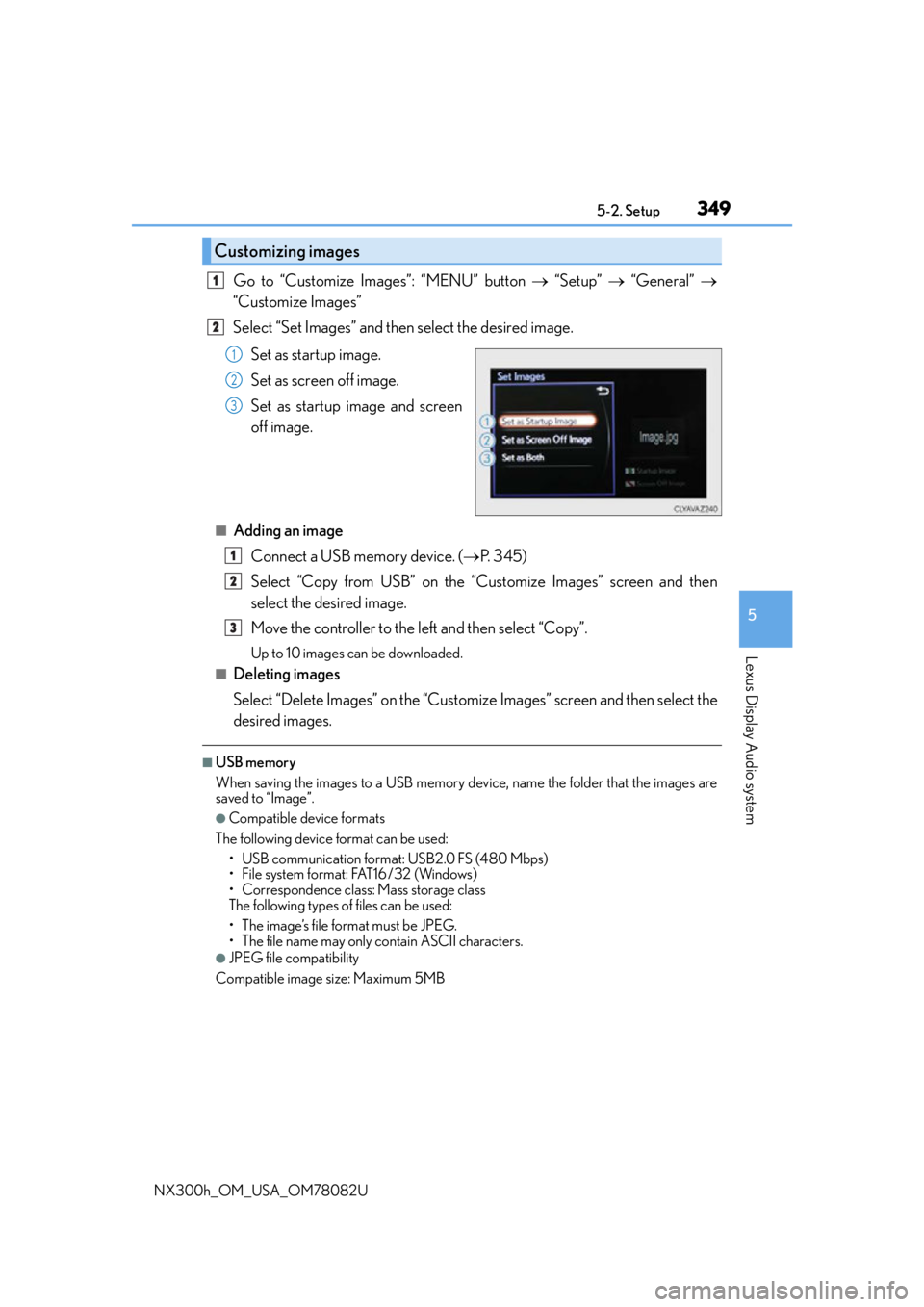
Select “Set Images” and then select the desired image.
Set as startup image.
Set as screen off image.
Set as startup image and screen
off image.
■Adding an imageConnect a USB memory device. ( P. 3 4 5 )
Select “Copy from USB” on the “Customize Images” screen and then
select the desired image.
Move the controller to the left and then select “Copy”.
Up to 10 images can be downloaded.
■Deleting images
Select “Delete Images” on the “Customize Images” screen and then select the
desired images.
■USB memory
When saving the images to a USB memory device, name the folder that the images are
saved to “Image”.
●Compatible device formats
The following device format can be used: • USB communication format: USB2.0 FS (480 Mbps)
• File system format: FAT16/32 (Windows)
• Correspondence class: Mass storage class
The following types of files can be used:
• The image’s file format must be JPEG.
• The file name may only contain ASCII characters.
●JPEG file compatibility
Compatible image size: Maximum 5MB
Customizing images
1
2
1
2
3
1
2
3
Page 350 of 680

3505-2. Setup
NX300h_OM_USA_OM78082U
“MENU” button “Setup” “General” “Delete Personal Data”
Select “Delete”.
Check carefully beforehand, as data cannot be retrieved once deleted.
The following personal data will be deleted or changed to its default settings.
• Phonebook data
• Call history data
•Favorite data
•Bluetooth
® devices data
• Phone sound settings
• Detailed Bluetooth
® settings
• Audio/video setting
• Preset switch data
•Last used radio station
• Customized image data
•FM info setting
• iPod tagging information
• Software update history
• Software update detail information
•Phone disp lay setting
• Contact/call history setting
• Messaging setting
• Traffic information map
• Weather information
• Phonebook data for voice recognition
• Music data for voice recognition
NOTICE
■To prevent damage to the USB memory device or its terminals
P. 3 8 0
Deleting personal data
1
2
Page 351 of 680
3515-2. Setup
5
Lexus Display Audio system
NX300h_OM_USA_OM78082U
Voice settings
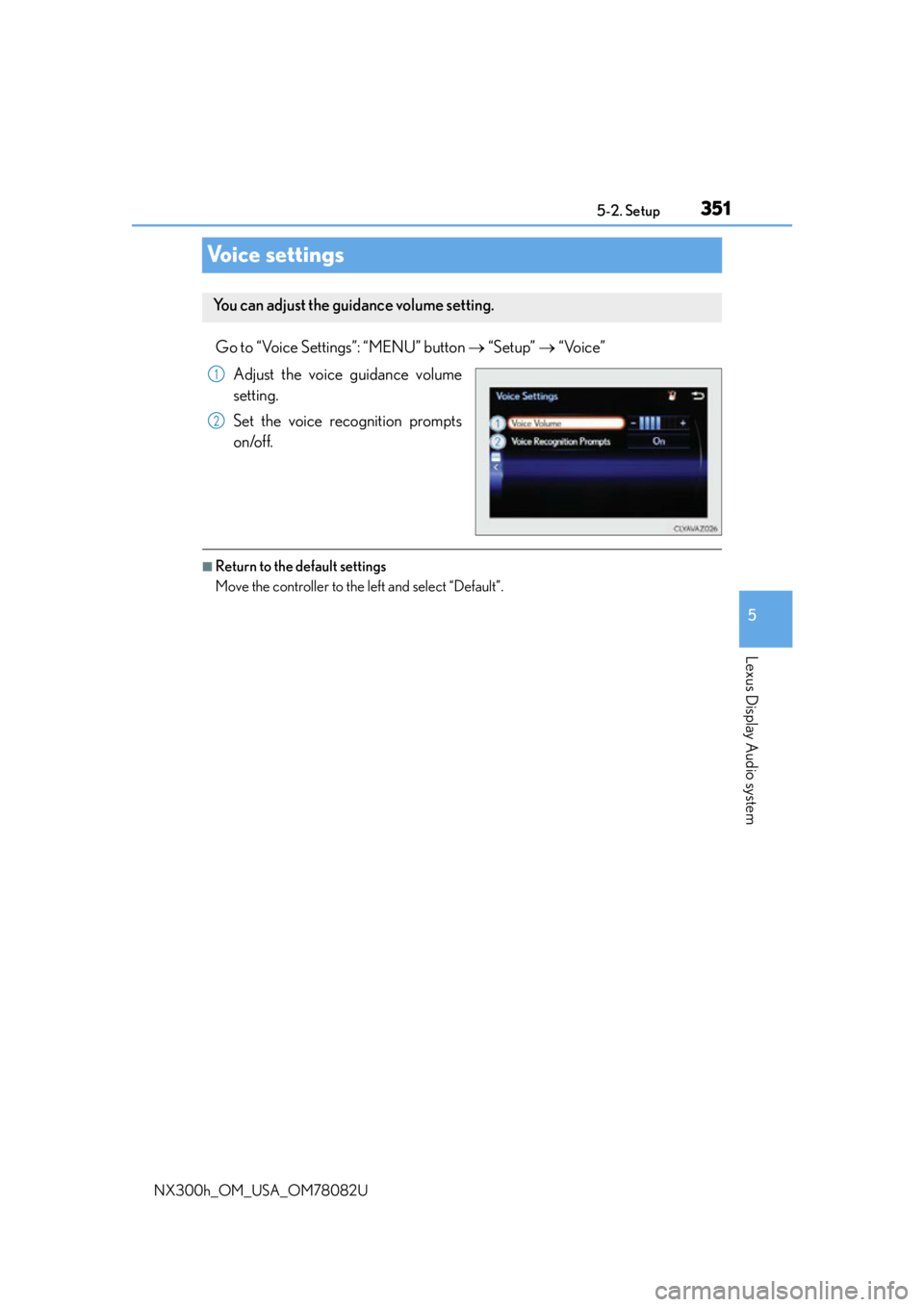
Go to “Voice Settings”: “MENU” button “Setup” “Voice”
Adjust the voice guidance volume
setting.
Set the voice recognition prompts
on/off.
■Return to the default settings
Move the controller to the left and select “Default”.
You can adjust the guidance volume setting.
1
2
Page 364 of 680
3645-4. Using the radio
NX300h_OM_USA_OM78082U
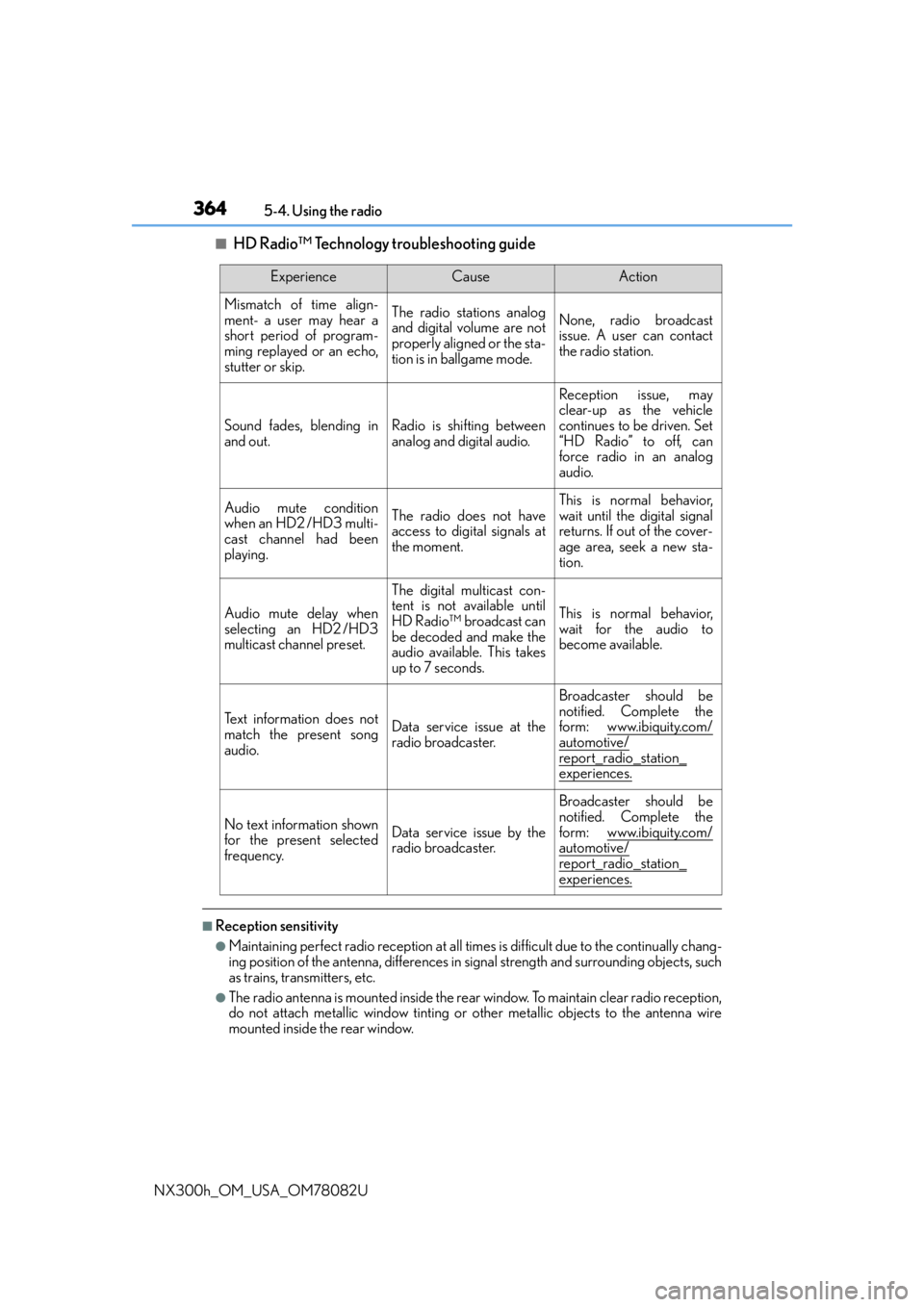
■HD Radio™ Technology troubleshooting guide
■Reception sensitivity
●Maintaining perfect radio recept ion at all times is difficult due to the continually chang-
ing position of the antenna, differences in signal strength and surrounding objects, such
as trains, transmitters, etc.
●The radio antenna is mounted inside the rear window. To maintain clear radio reception,
do not attach metallic window tinting or other metallic objects to the antenna wire
mounted inside the rear window.
ExperienceCauseAction
Mismatch of time align-
ment- a user may hear a
short period of program-
ming replayed or an echo,
stutter or skip.The radio stations analog
and digital volume are not
properly aligned or the sta-
tion is in ballgame mode.None, radio broadcast
issue. A user can contact
the radio station.
Sound fades, blending in
and out.Radio is shifting between
analog and digital audio.
Reception issue, may
clear-up as the vehicle
continues to be driven. Set
“HD Radio” to off, can
force radio in an analog
audio.
Audio mute condition
when an HD2 /HD3 multi-
cast channel had been
playing.The radio does not have
access to digital signals at
the moment.
This is normal behavior,
wait until the digital signal
returns. If out of the cover-
age area, seek a new sta-
tion.
Audio mute delay when
selecting an HD2 /HD3
multicast channel preset.
The digital multicast con-
tent is not available until
HD Radio™ broadcast can
be decoded and make the
audio available. This takes
up to 7 seconds.
This is normal behavior,
wait for the audio to
become available.
Te x t i n f o r m a t i o n d o e s n o t
match the present song
audio.Data service issue at the
radio broadcaster.
Broadcaster should be
notified. Complete the
form: www.ibiquity.com/
automotive/
report_radio_station_
experiences.
No text information shown
for the present selected
frequency.Data service issue by the
radio broadcaster.
Broadcaster should be
notified. Complete the
form: www.ibiquity.com/
automotive/report_radio_station_
experiences.
Page 366 of 680
3665-4. Using the radio
NX300h_OM_USA_OM78082U It is prohibited to copy, decompile, disassemble, reverse engineer, hack, manipulate, or
otherwise make available any technology or software incorporated in receivers compat-
ible with the XM Satellite Ra
dio System or that support the XM website, the Online Ser-
vice or any of its content. Furthermore, the AMBE
® voice compression software
included in this product is protected by intellectual property rights including patent
rights, copyrights, and trade secrets of Digital Voice Systems, Inc.
Note: this applies to XM receivers only and not XM Ready devices.
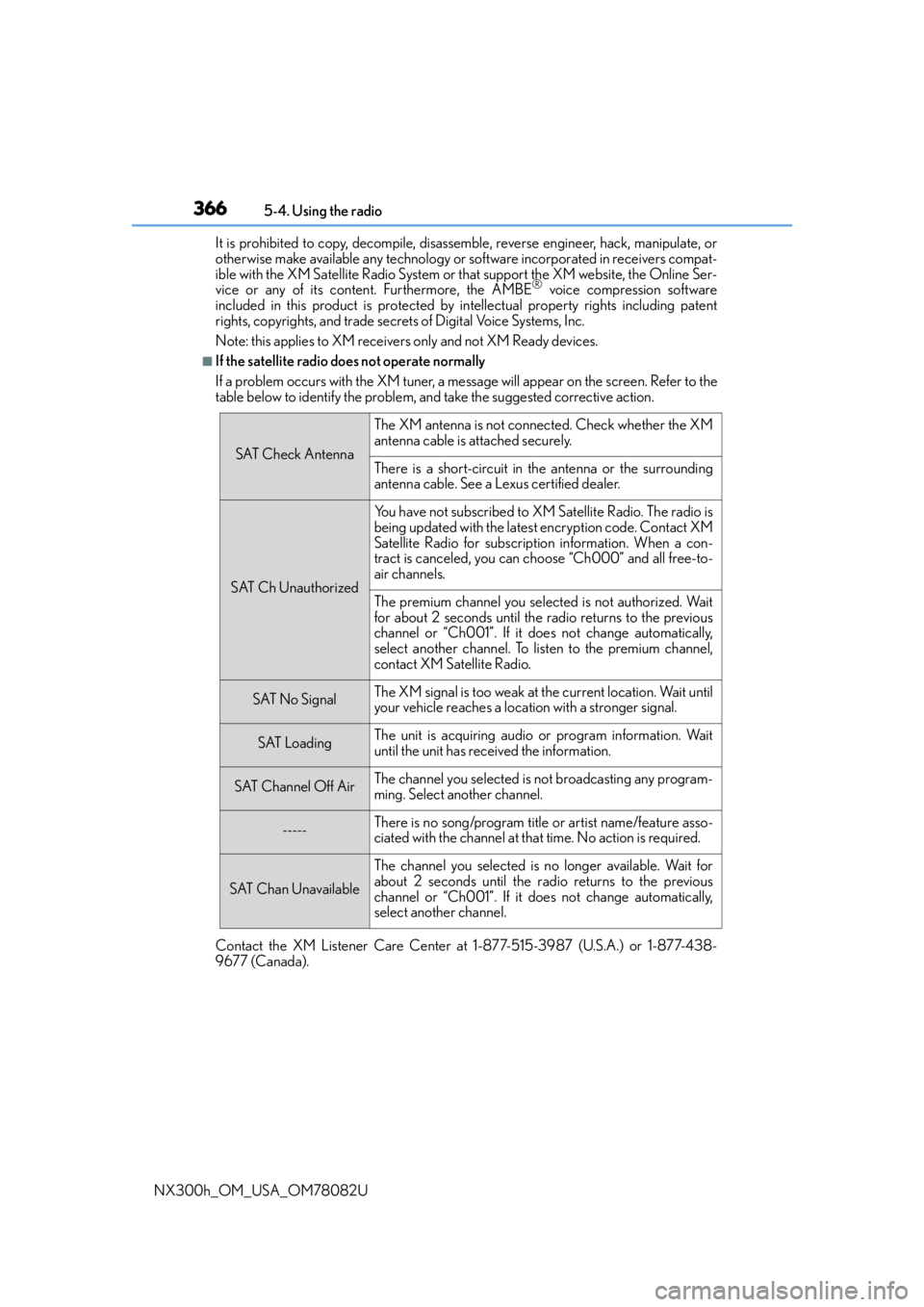
■If the satellite radio does not operate normally
If a problem occurs with the XM tuner, a me ssage will appear on the screen. Refer to the
table below to identify the problem, and take the suggested corrective action.
Contact the XM Listener Care Center at 1-877-515-3987 (U.S.A.) or 1-877-438-
9677 (Canada).
SAT Check Antenna
The XM antenna is not connected. Check whether the XM
antenna cable is attached securely.
There is a short-circuit in the antenna or the surrounding
antenna cable. See a Lexus certified dealer.
SAT Ch Unauthorized
Yo u h a v e n o t s u b s c r i b e d t o X M Satellite Radio. The radio is
being updated with the latest encryption code. Contact XM
Satellite Radio for subscription information. When a con-
tract is canceled, you can choose “Ch000” and all free-to-
air channels.
The premium channel you select ed is not authorized. Wait
for about 2 seconds until the radio returns to the previous
channel or “Ch001”. If it does not change automatically,
select another channel. To listen to the premium channel,
contact XM Satellite Radio.
SAT No SignalThe XM signal is too weak at the current location. Wait until
your vehicle reaches a location with a stronger signal.
SAT LoadingThe unit is acquiring audio or program information. Wait
until the unit has received the information.
SAT Channel Off AirThe channel you selected is not broadcasting any program-
ming. Select another channel.
-----There is no song/program title or artist name/feature asso-
ciated with the channel at that time. No action is required.
SAT Chan Unavailable
The channel you selected is no longer available. Wait for
about 2 seconds until the radio returns to the previous
channel or “Ch001”. If it does not change automatically,
select another channel.
Page 368 of 680
3685-5. Playing an audio CD and MP3/WMA/AAC discs
NX300h_OM_USA_OM78082U
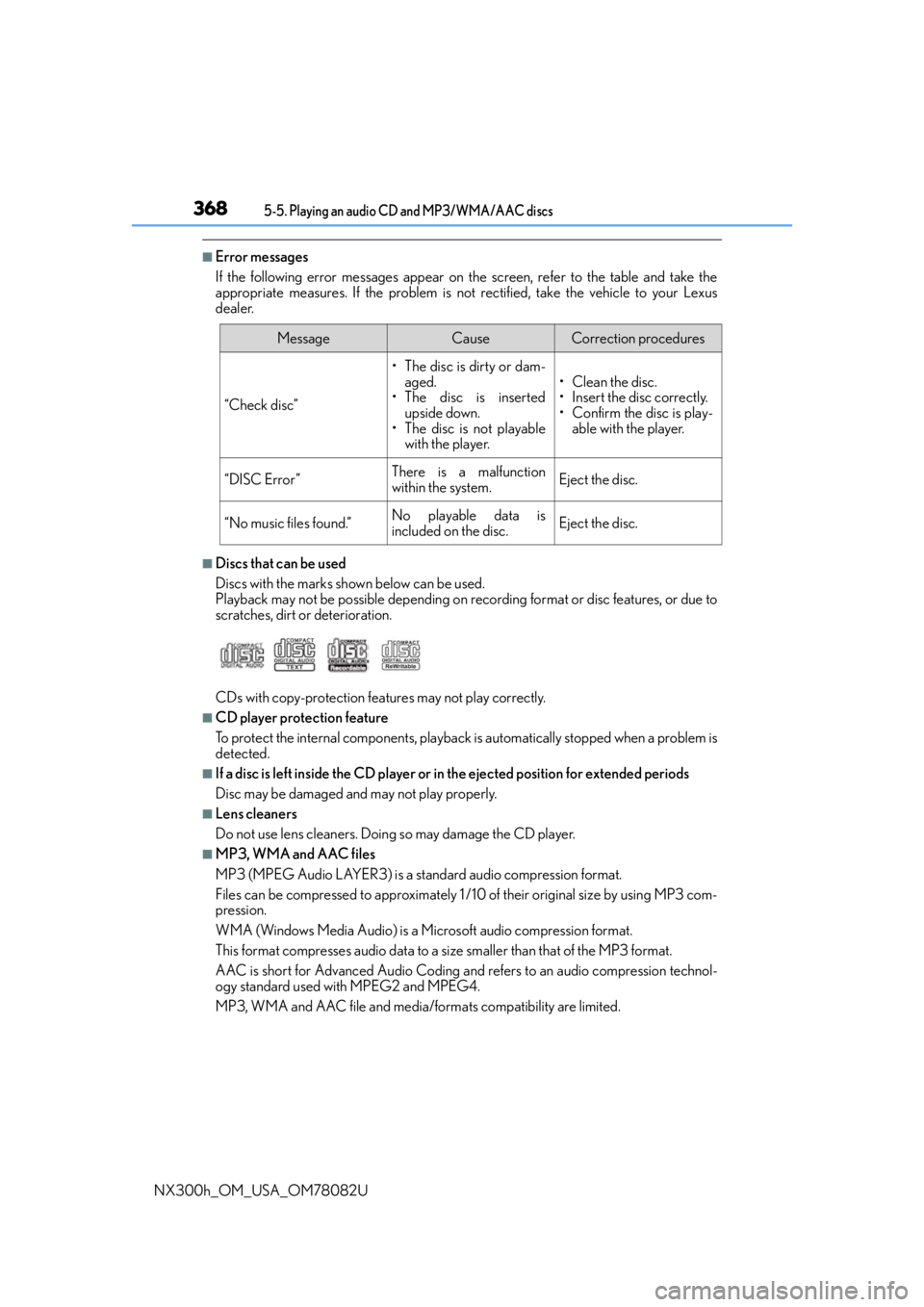
■Error messages
If the following error messages appear on the screen, refer to the table and take the
appropriate measures. If the problem is not rectified, take the vehicle to your Lexus
dealer.
■Discs that can be used
Discs with the marks sh own below can be used.
Playback may not be possible depending on recording format or disc features, or due to
scratches, dirt or deterioration.
CDs with copy-protection feat ures may not play correctly.
■CD player protection feature
To protect the internal components, playback is automatically stopped when a problem is
detected.
■If a disc is left inside the CD player or in the ejected position for extended periods
Disc may be damaged and may not play properly.
■Lens cleaners
Do not use lens cleaners. Doing so may damage the CD player.
■MP3, WMA and AAC files
MP3 (MPEG Audio LAYER3) is a standard audio compression format.
Files can be compressed to approximately 1 /10 of their original size by using MP3 com-
pression.
WMA (Windows Media Audio) is a Microsoft audio compression format.
This format compresses audio data to a size smaller than that of the MP3 format.
AAC is short for Advanced Audio Coding and refers to an audio compression technol-
ogy standard used with MPEG2 and MPEG4.
MP3, WMA and AAC file and media/formats compatibility are limited.
MessageCauseCorrection procedures
“Check disc”
• The disc is dirty or dam- aged.
• The disc is inserted upside down.
• The disc is not playable with the player.
•Clean the disc.
• Insert the disc correctly.
• Confirm the disc is play- able with the player.
“DISC Error”There is a malfunction
within the system.Eject the disc.
“No music files found.”No playable data is
included on the disc.Eject the disc.
Page 370 of 680

3705-5. Playing an audio CD and MP3/WMA/AAC discs
NX300h_OM_USA_OM78082U
●File names
The only files that can be recognized as MP3/WMA/AAC and played are those with
the extension .mp3, .wma or .m4a.
●Discs containing multi-session recordings
As the audio system is compatible with multi session discs, it is possible to play discs
that contain MP3, WMA and AAC files. Howeve r, only the first session can be played.
●ID3, WMA and AAC tags
ID3 tags can be added to MP3 files, making it possible to record the track title, artist
name, etc.
The system is compatible with ID3 Ver. 1.0, 1.1, and Ver. 2.2, 2.3 ID3 tags. (The number
of characters is based on ID3 Ver. 1.0 and 1.1.)
WMA tags can be added to WMA files, making it possible to record the track title and
artist name in the same way as with ID3 tags.
AAC tags can be added to AAC files, making it possible to record the track title and
artist name in the same way as with ID3 tags.
●MP3, WMA and AAC playback
When a disc containing MP3, WMA or AAC f iles is inserted, all files on the disc are
first checked. Once the file check is fi nished, the first MP3, WMA or AAC file is
played. To make the file check finish more quickly, we recommend you do not write any
files to the disc other than MP3, WMA or AAC files or create any unnecessary fold-
ers.
Discs that contain a mixture of music data and MP3, WMA or AAC format data can-
not be played.
●Extensions
If the file extensions .mp3, .wma and .m4a are used for files other than MP3, WMA
and AAC files, they may be mistakenly recognized and played as MP3, WMA and
AAC files. This may result in large amount s of interference and damage to the speak-
ers.
●Playback
• To play MP3 files with steady sound quality, we recommend a fixed bit rate of at least 128 kbps and a sampling frequency of 44.1 kHz.
• CD-R or CD-RW playback may not be possible in some instances, depending on the characteristics of the disc.
• There is a wide variety of freeware and other encoding software for MP3, WMA and AAC files on the market, and depending on the status of the encoding and the
file format, poor sound qualit y or noise at the start of playback may result. In some
cases, playback may not be possible at all.
• When files other than MP3, WMA or AAC files are recorded on a disc, it may take more time to recognize the disc and in some cases, playback may not be possible at
all.
• Microsoft, Windows, and Windows Medi a are the registered trademarks of
Microsoft Corporation in the U.S.A. and other countries.
Page 371 of 680

3715-5. Playing an audio CD and MP3/WMA/AAC discs
5
Lexus Display Audio system
NX300h_OM_USA_OM78082U
■The Gracenote® media database
●Music recognition technology and rela ted data are provided by Gracenote®.
Gracenote is the industry standard in music recognition technology and related
content delivery. For more information visit www.gracenote.com
.
●CD and music-related data from Graceno te, Inc., copyright © 2000 to present
Gracenote. Gracenote Software, copyrigh t © 2000 to present Gracenote. One
or more patents owned by Gracenote appl y to this product and service. See the
Gracenote website for a non-exhaustive list of applicable Gracenote patents.
Gracenote, CDDB, MusicID, MediaVOCS, the Gracenote logo and logotype,
and the “Powered by Gracenote” logo are either registered trademarks or trade-
marks of Gracenote in the United States and/or other countries.
Page 373 of 680
3735-5. Playing an audio CD and MP3/WMA/AAC discs
5
Lexus Display Audio system
NX300h_OM_USA_OM78082U
NOTICE
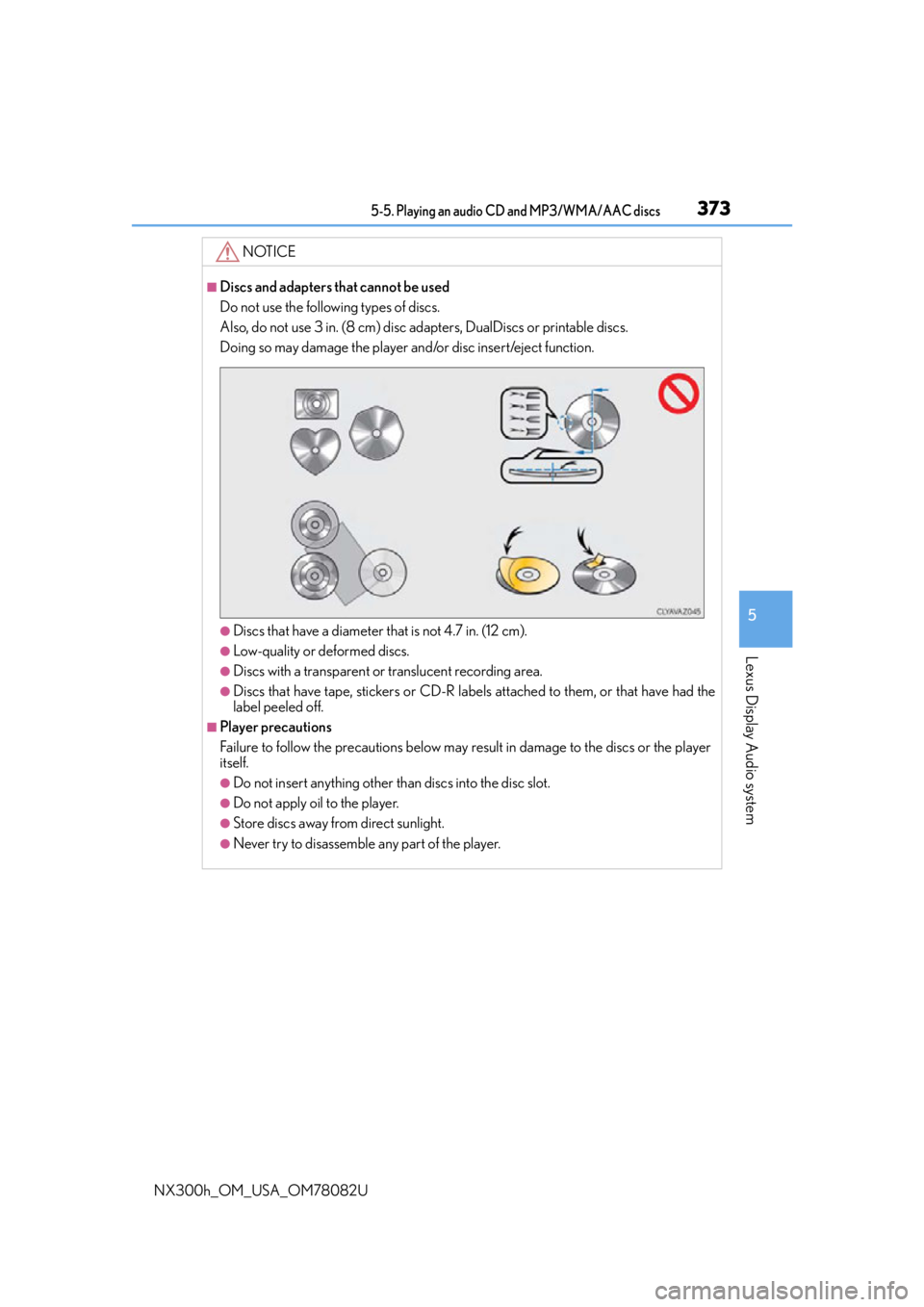
■Discs and adapters that cannot be used
Do not use the following types of discs.
Also, do not use 3 in. (8 cm) disc ad apters, DualDiscs or printable discs.
Doing so may damage the player and/or disc insert/eject function.
●Discs that have a diameter that is not 4.7 in. (12 cm).
●Low-quality or deformed discs.
●Discs with a transparent or translucent recording area.
●Discs that have tape, stickers or CD-R labels attached to them, or that have had the
label peeled off.
■Player precautions
Failure to follow the precautions below may result in damage to the discs or the player
itself.
●Do not insert anything other th an discs into the disc slot.
●Do not apply oil to the player.
●Store discs away from direct sunlight.
●Never try to disassemble any part of the player.