ECO LEXUS NX300H 2016 Owners Manual
[x] Cancel search | Manufacturer: LEXUS, Model Year: 2016, Model line: NX300H, Model: LEXUS NX300H 2016Pages: 680, PDF Size: 10.23 MB
Page 375 of 680
3755-6. Using an external device
5
Lexus Display Audio system
NX300h_OM_USA_OM78082U
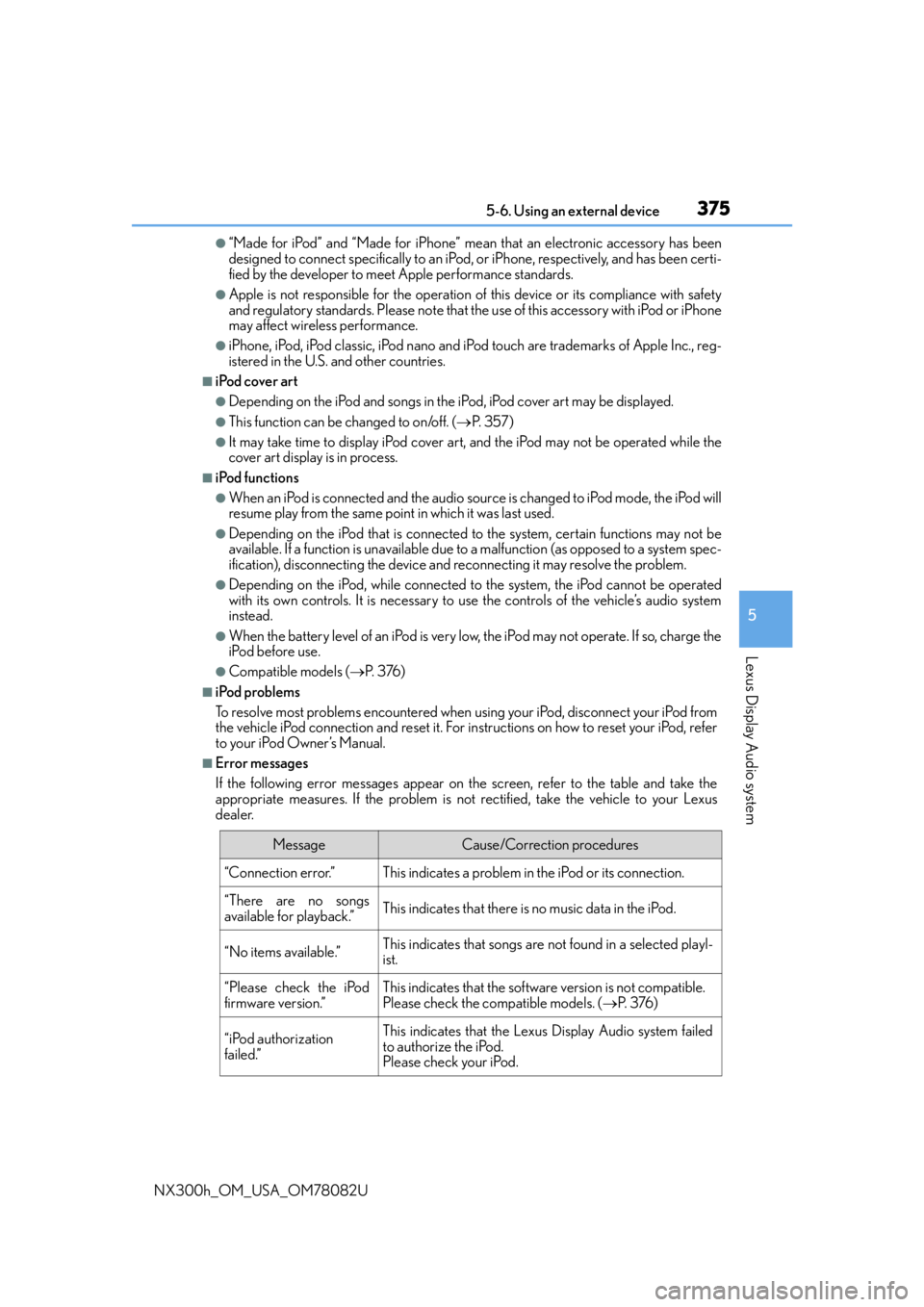
●“Made for iPod” and “Made for iPhone” mean that an electronic accessory has been
designed to connect specifically to an iPod , or iPhone, respectively, and has been certi-
fied by the developer to meet Apple performance standards.
●Apple is not responsible for the operation of this device or its compliance with safety
and regulatory standards. Please note that th e use of this accessory with iPod or iPhone
may affect wireless performance.
●iPhone, iPod, iPod classic, iPod nano and iPod touch are trademarks of Apple Inc., reg-
istered in the U.S. and other countries.
■iPod cover art
●Depending on the iPod and songs in the iPod, iPod cover art may be displayed.
●This function can be changed to on/off. (P. 3 5 7 )
●It may take time to display iPod cover art, and the iPod may not be operated while the
cover art display is in process.
■iPod functions
●When an iPod is connected and the audio sour ce is changed to iPod mode, the iPod will
resume play from the same poin t in which it was last used.
●Depending on the iPod that is connected to the system, certain functions may not be
available. If a function is unavailable due to a malfunction (as opposed to a system spec-
ification), disconnecting the device and reconnecting it may resolve the problem.
●Depending on the iPod, while connected to the system, the iPod cannot be operated
with its own controls. It is necessary to use the controls of the vehicle’s audio system
instead.
●When the battery level of an iPod is very low, the iPod may not operate. If so, charge the
iPod before use.
●Compatible models (P. 3 76 )
■iPod problems
To resolve most problems encountered when using your iPod, disconnect your iPod from
the vehicle iPod connection and reset it. For in structions on how to reset your iPod, refer
to your iPod Owner’s Manual.
■Error messages
If the following error messages appear on the screen, refer to the table and take the
appropriate measures. If the pr oblem is not rectified, take the vehicle to your Lexus
dealer.
MessageCause/Correction procedures
“Connection error.”This indicates a problem in the iPod or its connection.
“There are no songs
available for playback.”This indicates that there is no music data in the iPod.
“No items available.”This indicates that songs are not found in a selected playl-
ist.
“Please check the iPod
firmware version.”This indicates that the software version is not compatible.
Please check the co mpatible models. (P. 3 76 )
“iPod authorization
failed.”This indicates that the Lexus Display Audio system failed
to authorize the iPod.
Please check your iPod.
Page 376 of 680
3765-6. Using an external device
NX300h_OM_USA_OM78082U
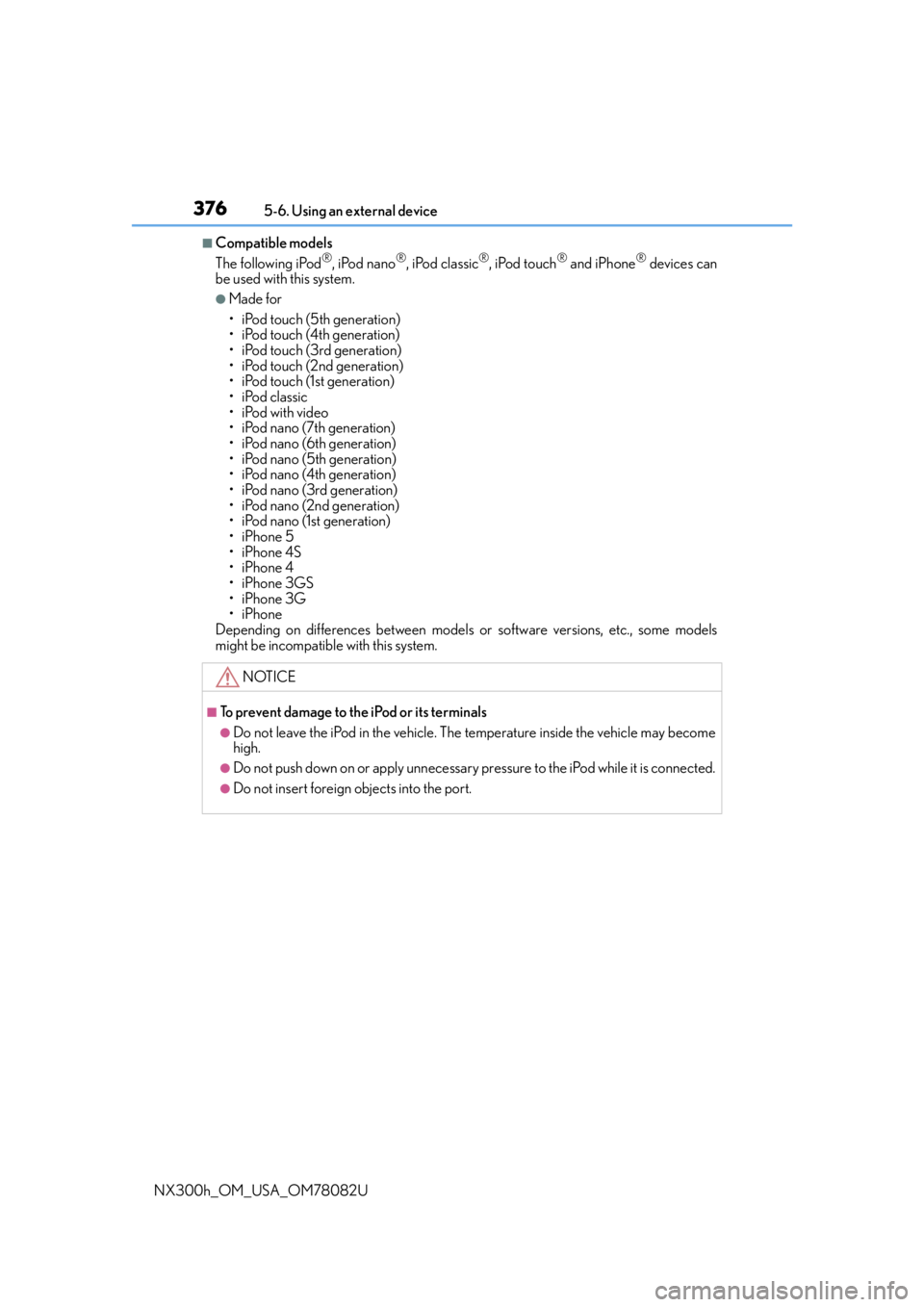
■Compatible models
The following iPod®, iPod nano®, iPod classic®, iPod touch® and iPhone® devices can
be used with this system.
●Made for
• iPod touch (5th generation)
• iPod touch (4th generation)
• iPod touch (3rd generation)
• iPod touch (2nd generation)
•iPod touch (1st generation)
•iPod classic
•iPod with video
• iPod nano (7th generation)
• iPod nano (6th generation)
• iPod nano (5th generation)
• iPod nano (4th generation)
• iPod nano (3rd generation)
• iPod nano (2nd generation)
• iPod nano (1st generation)
•iPhone 5
•iPhone 4S
•iPhone 4
•iPhone 3GS
•iPhone 3G
•iPhone
Depending on differences between models or software versions, etc., some models
might be incompatible with this system.
NOTICE
■To prevent damage to the iPod or its terminals
●Do not leave the iPod in the vehicle. The temperature inside the vehicle may become
high.
●Do not push down on or apply unnecessary pr essure to the iPod while it is connected.
●Do not insert foreign objects into the port.
Page 378 of 680
3785-6. Using an external device
NX300h_OM_USA_OM78082U
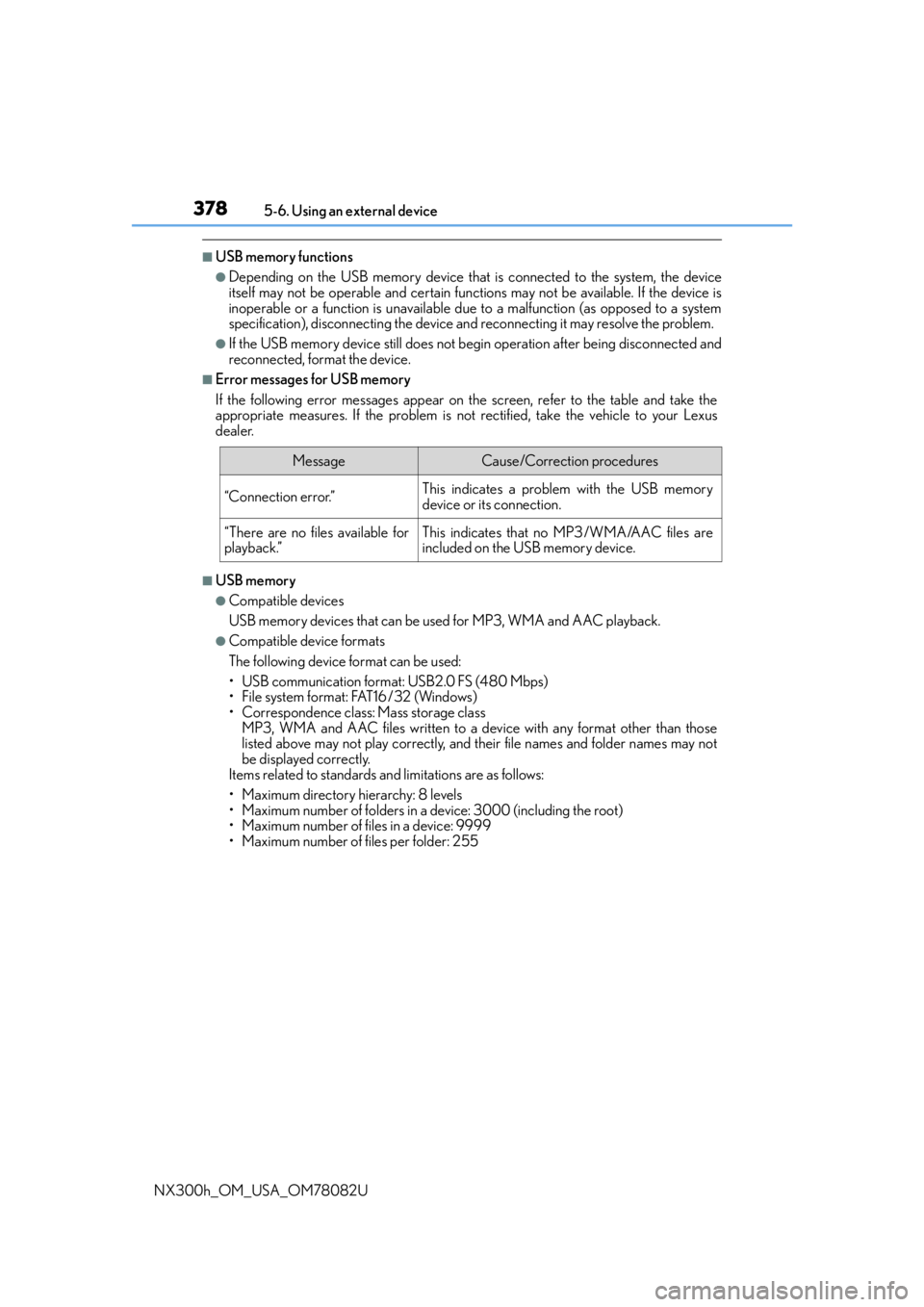
■USB memory functions
●Depending on the USB memory device that is connected to the system, the device
itself may not be operable and certain functions may not be available. If the device is
inoperable or a function is unavailable due to a malfunction (as opposed to a system
specification), disco nnecting the device and reconnect ing it may resolve the problem.
●If the USB memory device still does not be gin operation after being disconnected and
reconnected, format the device.
■Error messages for USB memory
If the following error messages appear on the screen, refer to the table and take the
appropriate measures. If the pr oblem is not rectified, take the vehicle to your Lexus
dealer.
■USB memory
●Compatible devices
USB memory devices that can be used for MP3, WMA and AAC playback.
●Compatible device formats
The following device format can be used:
• USB communication format: USB2.0 FS (480 Mbps)
• File system format: FAT16/32 (Windows)
• Correspondence class: Mass storage class MP3, WMA and AAC files written to a device with any format other than those
listed above may not play correctly, and their file names and folder names may not
be displayed correctly.
Items related to standards and limitations are as follows:
• Maximum directory hierarchy: 8 levels
• Maximum number of folders in a device: 3000 (including the root)
• Maximum number of files in a device: 9999
• Maximum number of files per folder: 255
MessageCause/Correction procedures
“Connection error.”This indicates a problem with the USB memory
device or its connection.
“There are no files available for
playback.”This indicates that no MP3/WMA/AAC files are
included on the USB memory device.
Page 379 of 680

3795-6. Using an external device
5
Lexus Display Audio system
NX300h_OM_USA_OM78082U
●MP3, WMA and AAC files
MP3 (MPEG Audio LAYER 3) is a standard audio compression format.
Files can be compressed to approximately 1 /10 of their original size using MP3 com-
pression.
WMA (Windows Media Audio) is a Microsoft audio compression format. This format
compresses audio data to a size smaller than that of the MP3 format.
AAC is short for Advanced Audio Coding and refers to an audio compression technol-
ogy standard used with MPEG2 and MPEG4.
MP3, WMA and AAC file and media/formats compatibility are limited.
●MP3 file compatibility
• Compatible standards MP3 (MPEG1 AUDIO LAYERIII, MPEG2 AUDIO LAYERIII)
• Compatible sampling frequencies MPEG1 AUDIO LAYERIII: 32, 44.1, 48 (kHz)
MPEG2 AUDIO LAYERIII: 16, 22.05, 24 (kHz)
• Compatible bit rates (compatible with VBR) MPEG1 AUDIO LAYERIII: 32-320 (kbps)
MPEG2 AUDIO LAYERIII: 8-160 (kbps)
• Compatible channel modes: stereo, joint stereo, dual channel and monaural
●WMA file compatibility
• Compatible standards WMA Ver. 7, 8, 9 (only compatible with Window Media Audio Standard)
• Compatible sampling frequencies
32, 44.1, 48 (kHz)
• Compatible bit rates (only compat ible with 2-channel playback)
Ver. 7, 8: CBR 48-192 (kbps)
Ver. 9: CBR 48-320 (kbps)
●AAC file compatibility
• Compatible standards
MPEG4 /AAC-LC
• Compatible sampling frequencies
11.025/12 /16/22.05/24 /32 /44.1 /48 (kHz)
• Compatible bit rates 16-320 (kbps)
• Compatible channel modes: 1 ch and 2 ch
●File names
The only files that can be recognized as MP3/WMA/AAC and played are those with
the extension .mp3, .wma or .m4a.
●ID3, WMA and AAC tags
ID3 tags can be added to MP3 files, making it possible to record the track title, artist
name, etc.
The system is compatible with ID3 Ver. 1.0, 1.1, and Ver. 2.2, 2.3 ID3 tags. (The number
of characters is based on ID3 Ver. 1.0 and 1.1.)
WMA tags can be added to WMA files, making it possible to record the track title and
artist name in the same way as with ID3 tags.
AAC tags can be added to AAC files, making it possible to record the track title and
artist name in the same way as with ID3 tags.
Page 380 of 680
3805-6. Using an external device
NX300h_OM_USA_OM78082U
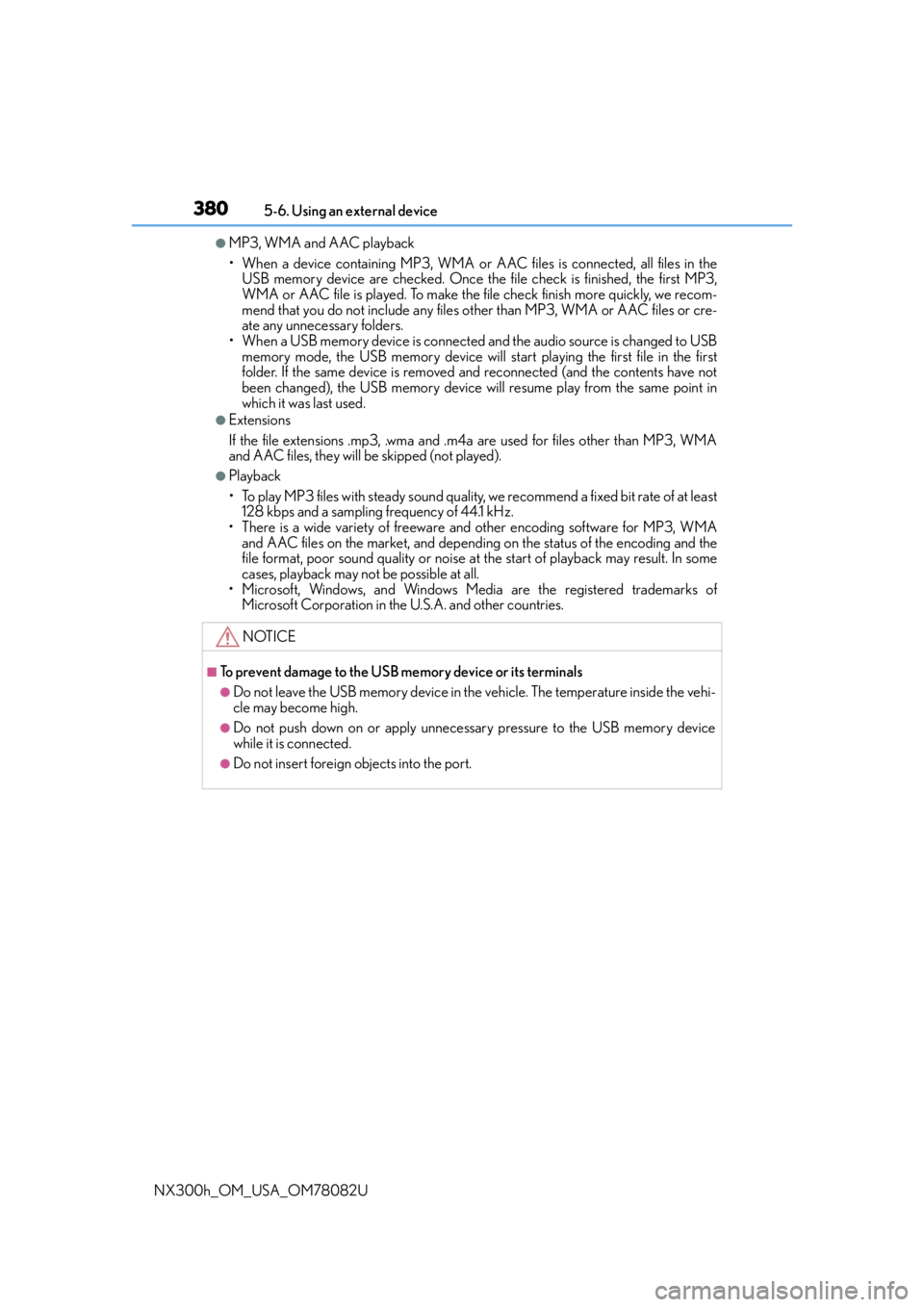
●MP3, WMA and AAC playback
• When a device containing MP3, WMA or AAC files is connected, all files in the
USB memory device are checked. Once the file check is finished, the first MP3,
WMA or AAC file is played. To make the file check finish more quickly, we recom-
mend that you do not include any files ot her than MP3, WMA or AAC files or cre-
ate any unnecessary folders.
• When a USB memory device is connected and the audio source is changed to USB memory mode, the USB memory device will start playing the first file in the first
folder. If the same device is removed and reconnected (and the contents have not
been changed), the USB memory device will resume play from the same point in
which it was last used.
●Extensions
If the file extensions .mp3, .wma and .m4a are used for files other than MP3, WMA
and AAC files, they will be skipped (not played).
●Playback
• To play MP3 files with steady sound quality, we recommend a fixed bit rate of at least
128 kbps and a sampling frequency of 44.1 kHz.
• There is a wide variety of freeware and other encoding software for MP3, WMA and AAC files on the market, and depending on the status of the encoding and the
file format, poor sound qualit y or noise at the start of playback may result. In some
cases, playback may not be possible at all.
• Microsoft, Windows, and Windows Medi a are the registered trademarks of
Microsoft Corporation in the U.S.A. and other countries.
NOTICE
■To prevent damage to the USB memory device or its terminals
●Do not leave the USB memory device in the vehicle. The temperature inside the vehi-
cle may become high.
●Do not push down on or apply unnecessary pressure to the USB memory device
while it is connected.
●Do not insert foreign objects into the port.
Page 381 of 680
3815-6. Using an external device
5
Lexus Display Audio system
NX300h_OM_USA_OM78082U
Using the AUX port
P. 3 4 5
Pressing the “MEDIA” button displays the top screen from any screen of the
selected source.
■Menu screen
P. 3 5 8
■Operating portable players connected to the audio system
Volume can be adjusted using the vehicle’s audio controls. All other adjustments must be
made on the portable player itself.
■When using a portable player connected to the power outlet
Noise may occur during playback. Use the power source of the portable player.
To use the AUX port, connect a portable player, press the “MEDIA” button or
select “AUX” or “A/V” on the “Source” screen.
Connecting a portable player
Top screen
NOTICE
■To prevent damage to the portable player or its terminal
●Do not leave portable player in the vehicl e. The temperature inside the vehicle may
become high.
●Do not push down on or apply unnecessary pressure to the portable player while it is
connected.
●Do not insert foreign objects into the port.
Page 387 of 680
3875-7. Connecting Bluetooth®
5
Lexus Display Audio system
NX300h_OM_USA_OM78082U
Connecting a Bluetooth® phone
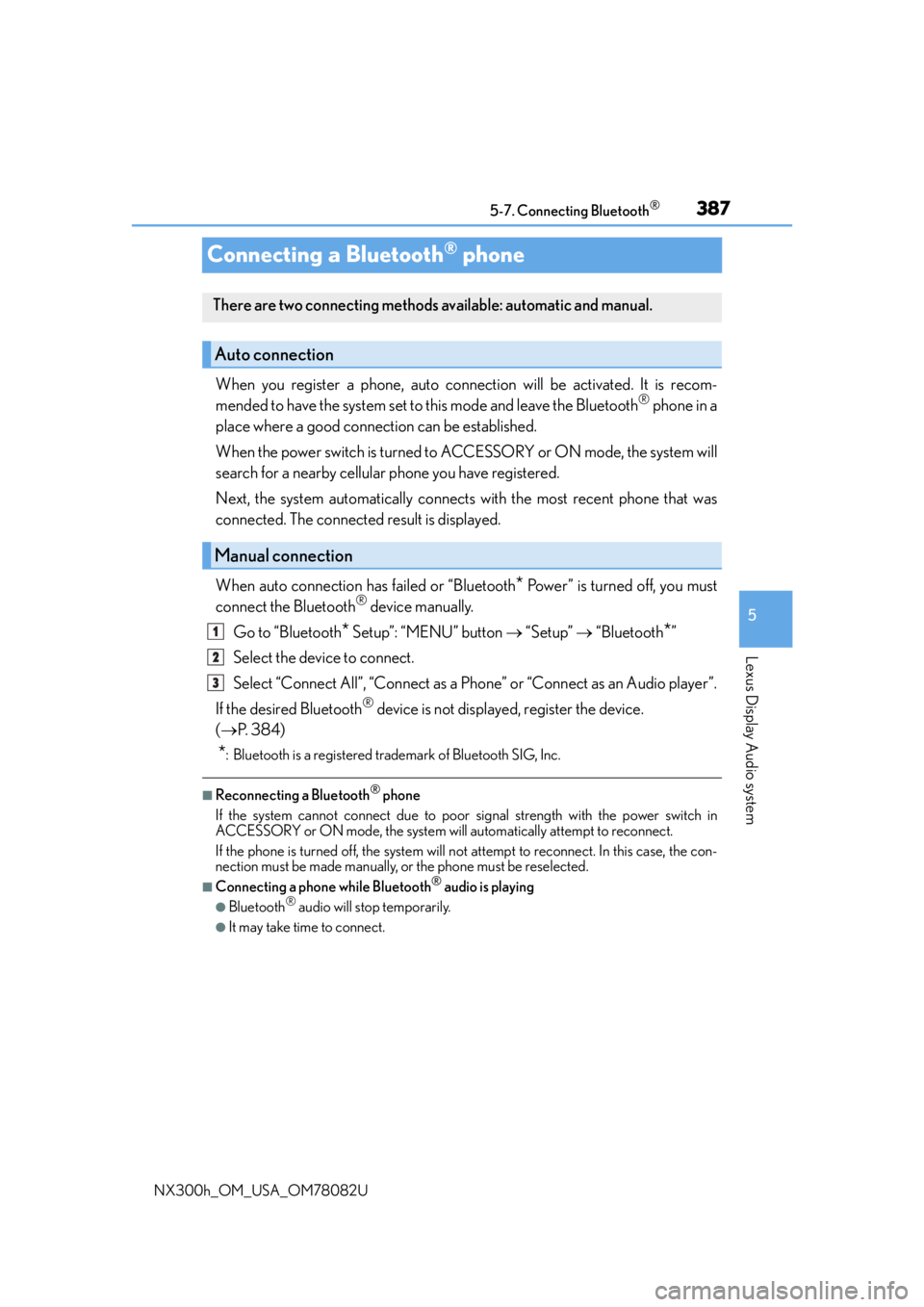
When you register a phone, auto connection will be activated. It is recom-
mended to have the system set to this mode and leave the Bluetooth® phone in a
place where a good connection can be established.
When the power switch is turned to ACCESSORY or ON mode, the system will
search for a nearby cellular phone you have registered.
Next, the system automatically connects with the most recent phone that was
connected. The connected result is displayed.
When auto connection has failed or “Bluetooth
* Power” is turned off, you must
connect the Bluetooth® device manually.
Go to “Bluetooth
* Setup”: “MENU” button “Setup” “Bluetooth*”
Select the device to connect.
Select “Connect All”, “Connect as a Ph one” or “Connect as an Audio player”.
If the desired Bluetooth
® device is not displayed, register the device.
( P. 3 8 4 )
*: Bluetooth is a registered trademark of Bluetooth SIG, Inc.
■Reconnecting a Bluetooth® phone
If the system cannot connect due to poor signal strength with the power switch in
ACCESSORY or ON mode, the system will automatically attempt to reconnect.
If the phone is turned off, the system will not attempt to reconnect. In this case, the con-
nection must be made manually, or the phone must be reselected.
■Connecting a phone while Bluetooth® audio is playing
●Bluetooth® audio will stop temporarily.
●It may take time to connect.
There are two connecting methods av ailable: automatic and manual.
Auto connection
Manual connection
1
2
3
Page 390 of 680
3905-8. Bluetooth® Audio
NX300h_OM_USA_OM78082U
Listening to Bluetooth® Audio
When a Bluetooth® device cannot be connected, check the connection status
on the “Bluetooth
* Audio” screen. If the device is not connected, either register
or reconnect the device. ( P. 3 8 4 , 3 8 6 )
*: Bluetooth is a registered trademark of Bluetooth SIG, Inc.
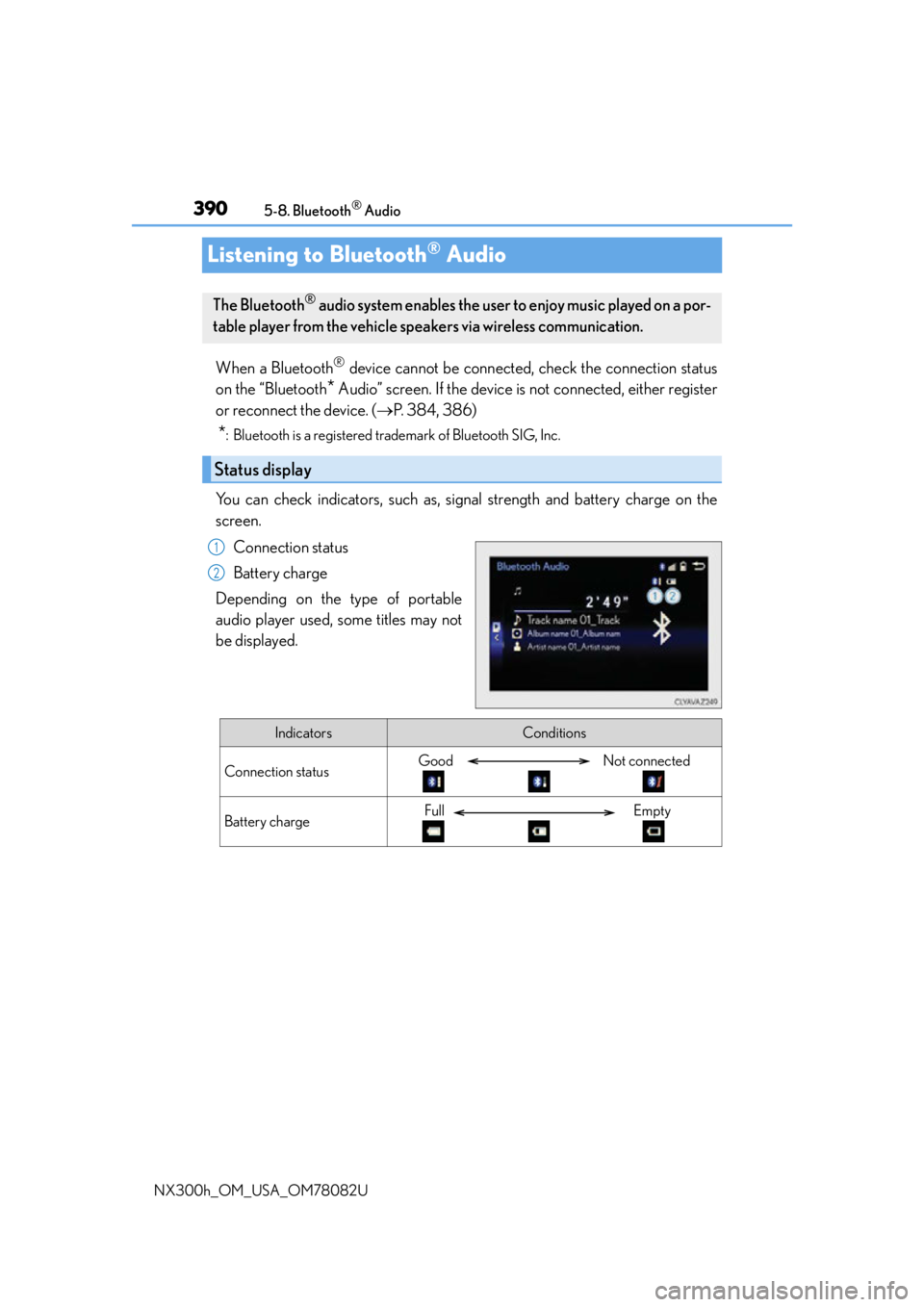
You can check indicators, such as, signal strength and battery charge on the
screen.
Connection status
Battery charge
Depending on the type of portable
audio player used, some titles may not
be displayed.
The Bluetooth® audio system enables the user to enjoy music played on a por-
table player from the vehicle speakers via wireless communication.
Status display
1
2
IndicatorsConditions
Connection statusGood Not connected
Battery chargeFull Empty
Page 392 of 680
3925-9. Bluetooth® Phone
NX300h_OM_USA_OM78082U
Using a Bluetooth® Phone
Before making a phone call, check the connection status, battery charge, call
area and signal strength. (
P. 393)
If a Bluetooth
® device cannot be connected, chec k the connection status. If the
device is not connected, either register or reconnect it. (
P. 384, 387)
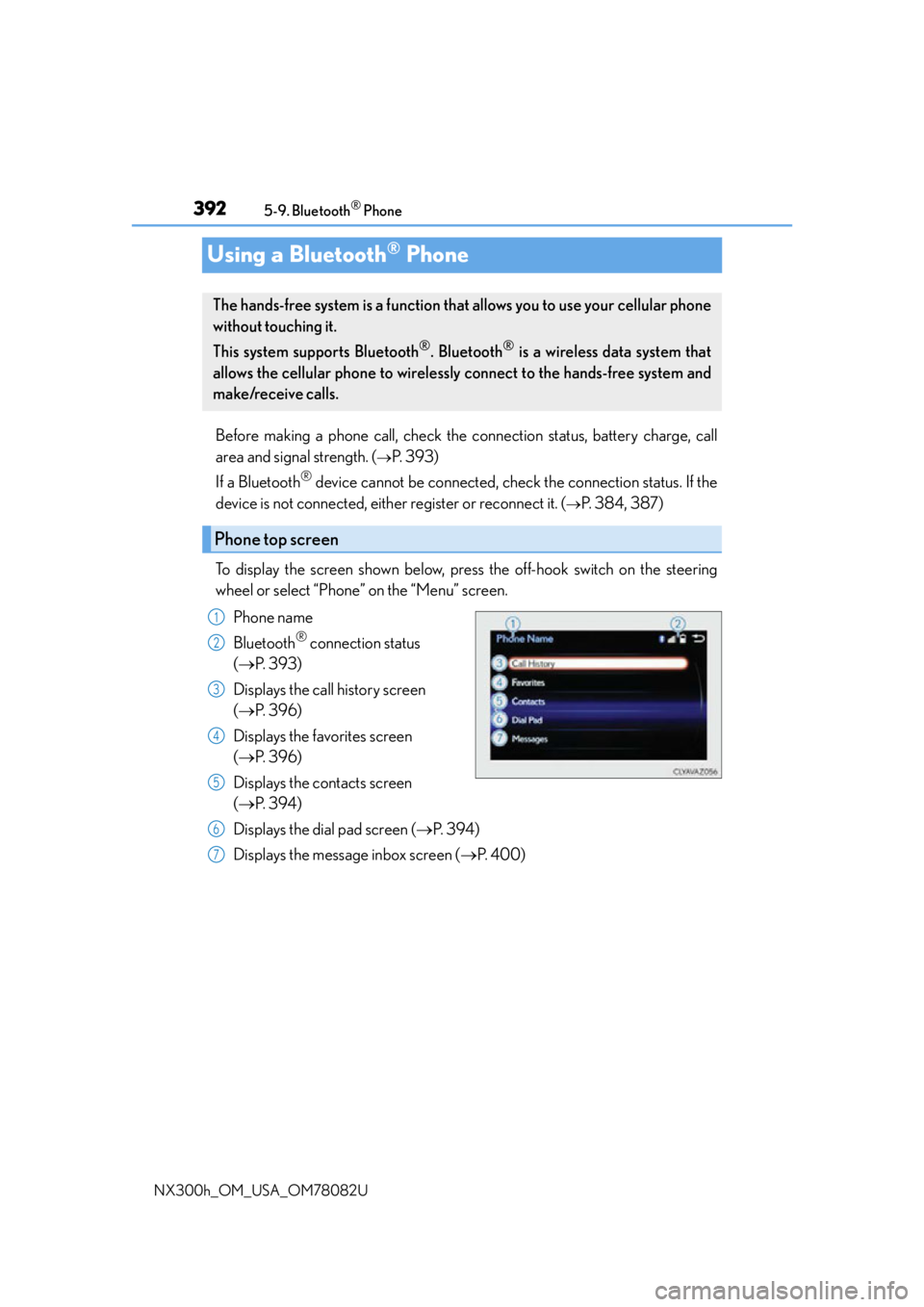
To display the screen shown below, press the off-hook switch on the steering
wheel or select “Phone” on the “Menu” screen. Phone name
Bluetooth
® connection status
( P. 393)
Displays the call history screen
( P. 3 9 6 )
Displays the favorites screen
( P. 3 9 6 )
Displays the contacts screen
( P. 3 9 4 )
Displays the dial pad screen ( P. 3 9 4 )
Displays the message inbox screen ( P. 400)
The hands-free system is a function that allows you to use your cellular phone
without touching it.
This system supports Bluetooth
®. Bluetooth® is a wireless data system that
allows the cellular phone to wirelessly connect to the hands-free system and
make/receive calls.
Phone top screen
1
2
3
4
5
6
7
Page 398 of 680
3985-9. Bluetooth® Phone
NX300h_OM_USA_OM78082U
Speaking on the phone
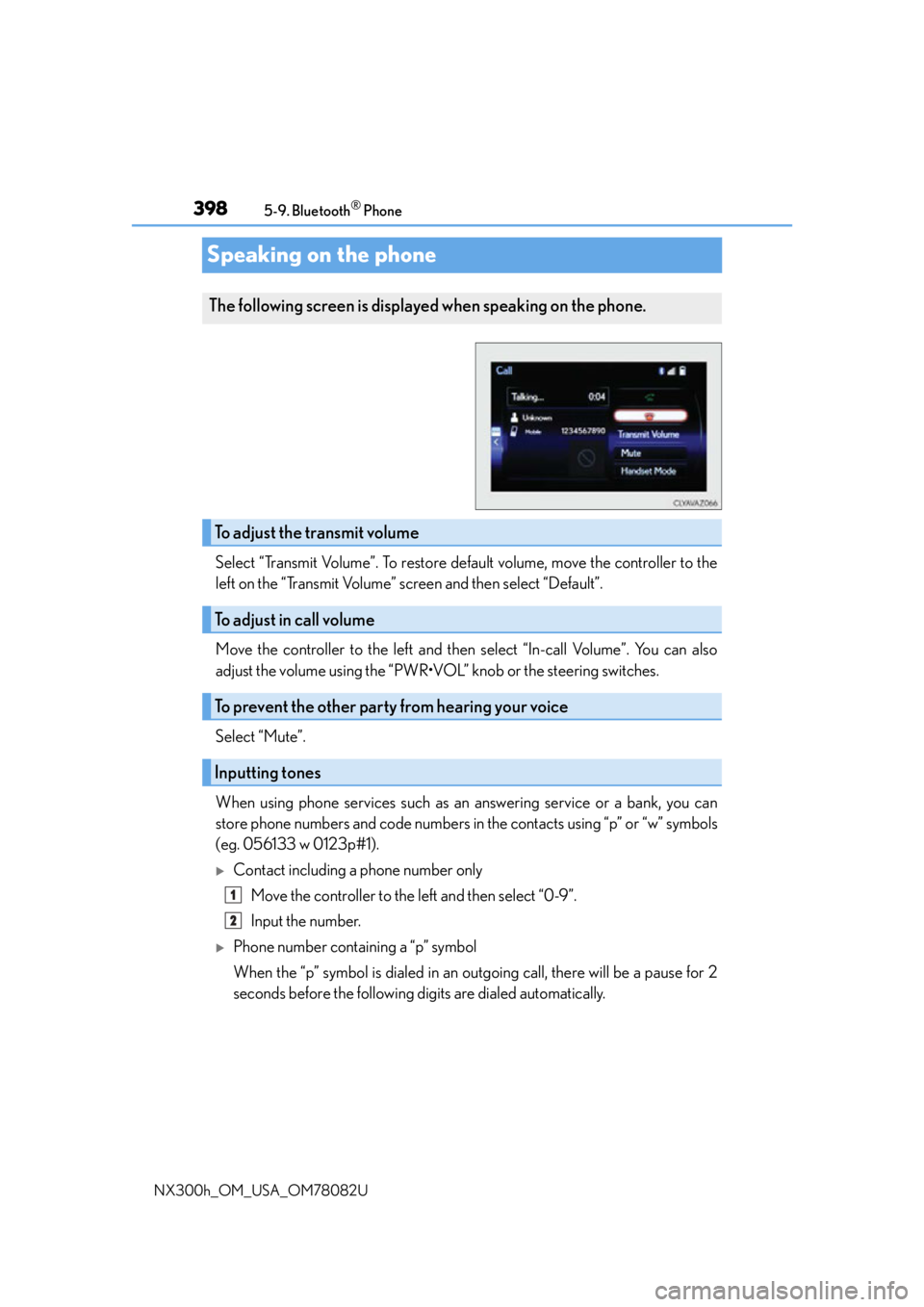
Select “Transmit Volume”. To restore default volume, move the controller to the
left on the “Transmit Volume” screen and then select “Default”.
Move the controller to the left and then select “In-call Volume”. You can also
adjust the volume using the “PWR•VOL” knob or the steering switches.
Select “Mute”.
When using phone services such as an answering service or a bank, you can
store phone numbers and code numbers in the contacts using “p” or “w” symbols
(eg. 056133 w 0123p#1).
Contact including a phone number only
Move the controller to the left and then select “0-9”.
Input the number.
Phone number containing a “p” symbol
When the “p” symbol is dialed in an ou tgoing call, there will be a pause for 2
seconds before the following digits are dialed automatically.
The following screen is displayed when speaking on the phone.
To adjust the transmit volume
To adjust in call volume
To prevent the other party from hearing your voice
Inputting tones
1
2