lock LEXUS RX350 2015 Owners Manual
[x] Cancel search | Manufacturer: LEXUS, Model Year: 2015, Model line: RX350, Model: LEXUS RX350 2015Pages: 886, PDF Size: 11 MB
Page 412 of 886
4123-3. Using the Lexus Display Audio system
Using the AUX port
■
Operating portable audio devices connected to the audio system
The volume can be adjusted using the vehicle’s audio controls. All other adjust-
ments must be made on the portable audio device itself.
■
When using a portable audio devi ce connected to the power outlet
Noise may occur during playback. Use the power source of the portable audio
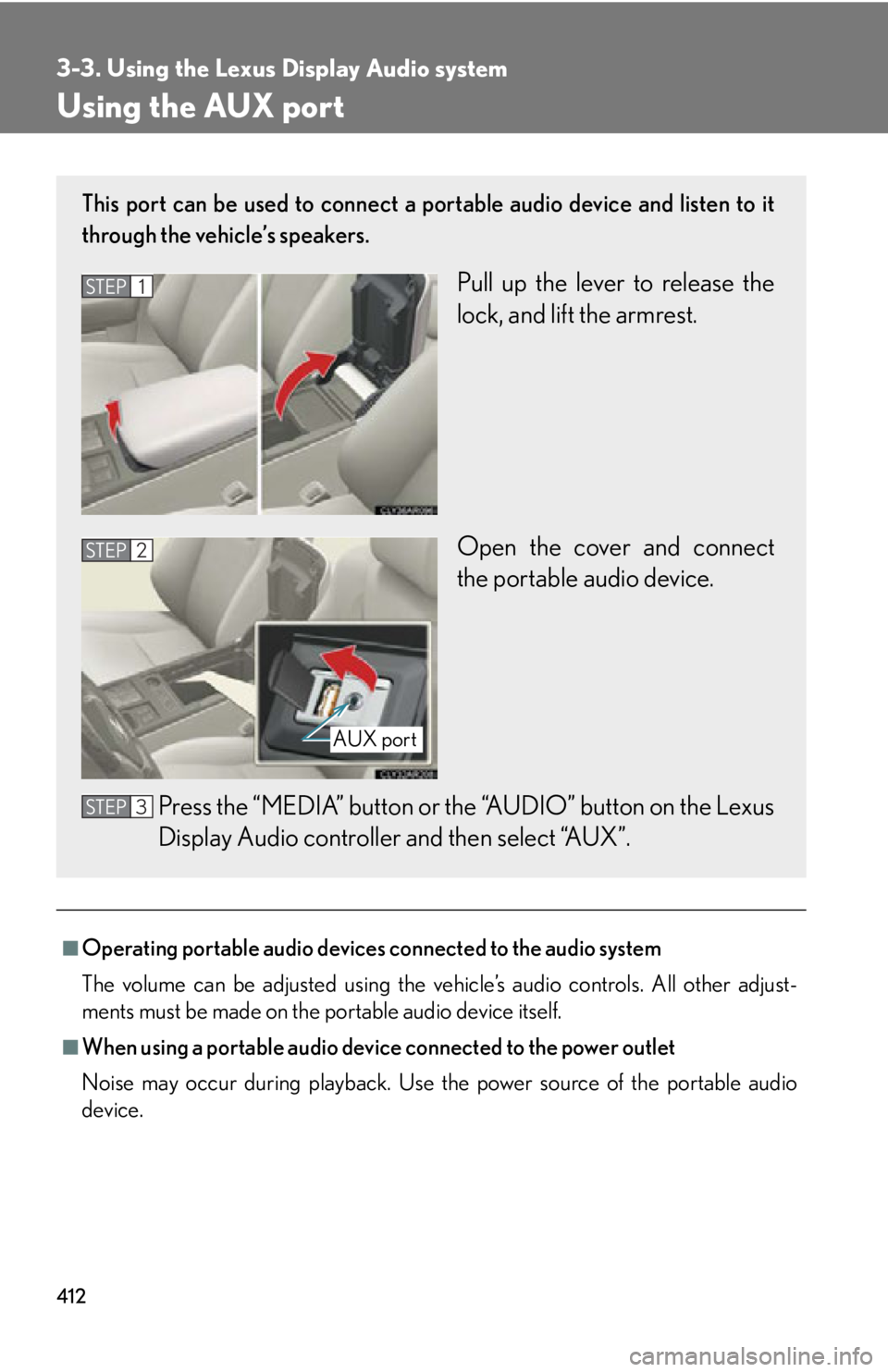
device.This port can be used to connect a po rtable audio device and listen to it
through the vehicle’s speakers.
Pull up the lever to release the
lock, and lift the armrest.
Open the cover and connect
the portable audio device.
Press the “MEDIA” button or th e “AUDIO” button on the Lexus
Display Audio controller and then select “AUX”.STEP 1
STEP 2
AUX port
STEP 3
Page 510 of 886

5103-4. Using the audio system
Operating an iPod Connecting an iPod enables you to enjoy music from the vehicle speakers.
■ Connecting an iPod
Pull up the lever to release the
lock, and lift the armrest.
Open the cover and connect an
iPod using an iPod cable. Turn on the power of the iPod if it
is not turned on.STEP 1
STEP 2
Page 520 of 886
5203-4. Using the audio system
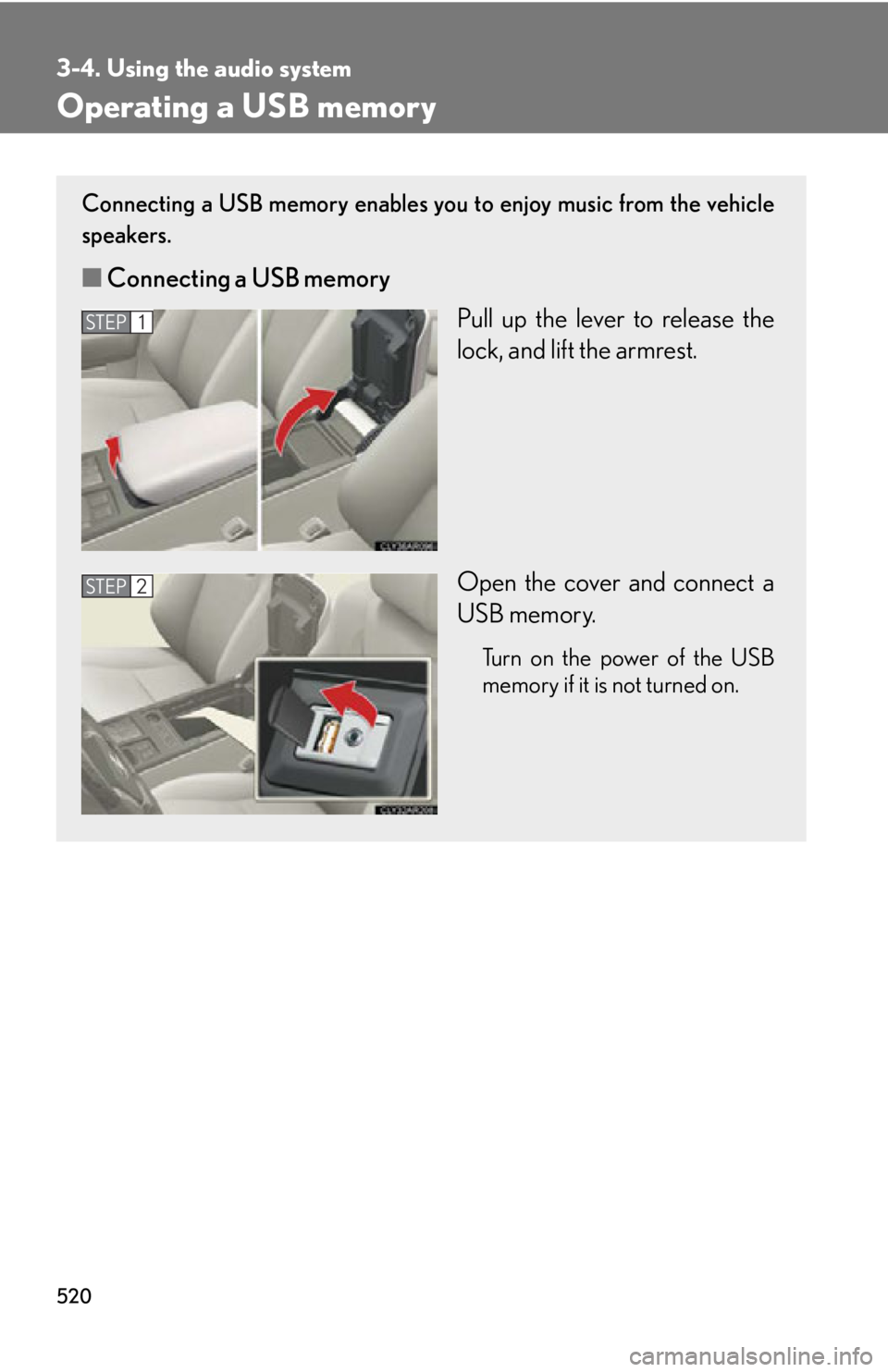
Operating a USB memory Connecting a USB memory enables you to enjoy music from the vehicle
speakers.
■ Connecting a USB memory
Pull up the lever to release the
lock, and lift the armrest.
Open the cover and connect a
USB memory. Turn on the power of the USB
memory if it is not turned on.STEP 1
STEP 2
Page 553 of 886
5533-4. Using the audio system
3
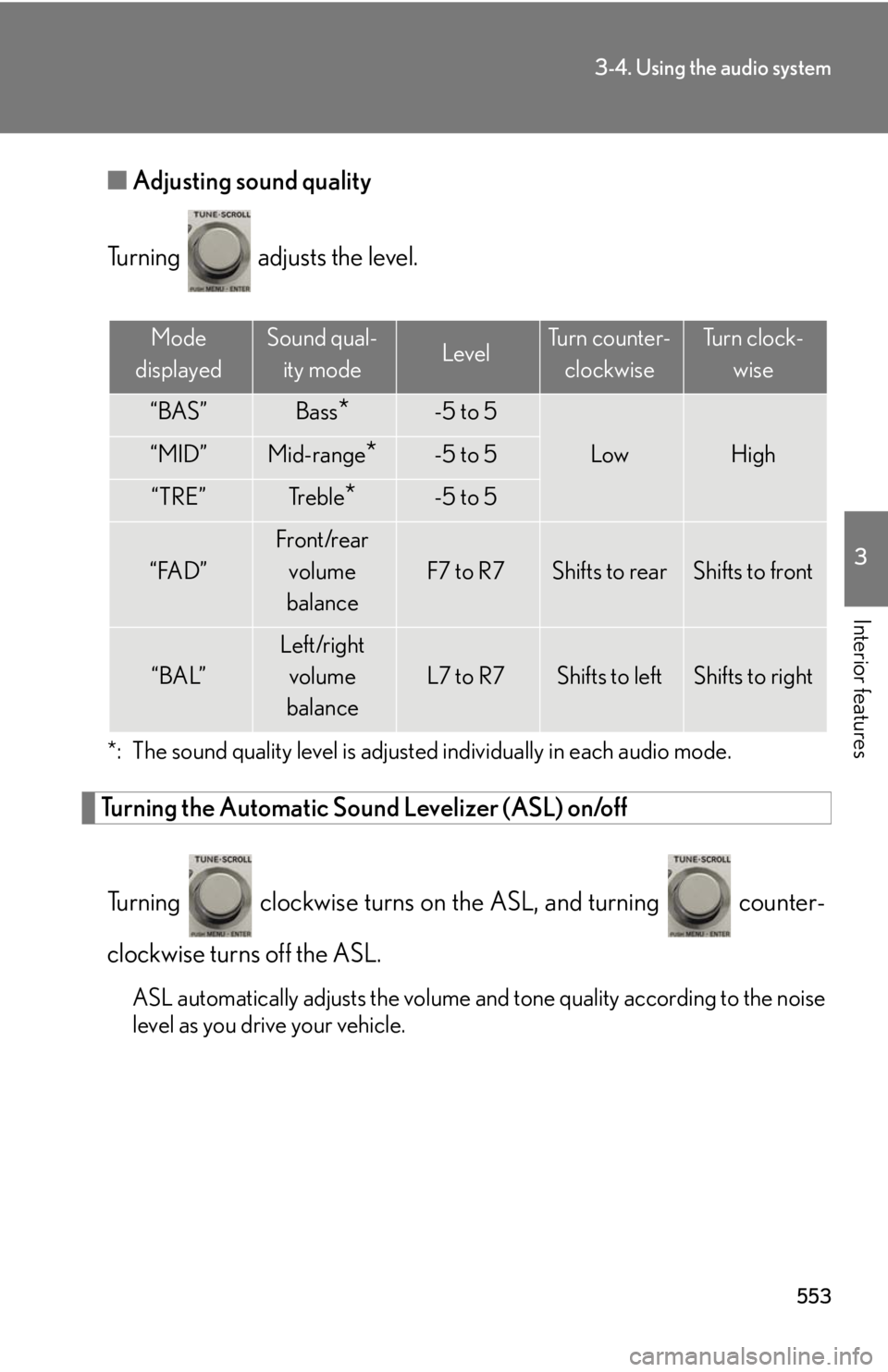
Interior features ■ Adjusting sound quality
Turning adjusts the level.
*: The sound quality level is adjusted individually in each audio mode.
Turning the Automatic Sound Levelizer (ASL) on/off
Turning clockwise turns on the ASL, and turning counter-
clockwise turns off the ASL.
ASL automatically adjusts the volume an d tone quality according to the noise
level as you drive your vehicle. Mode
displayed Sound qual-
ity mode Level Turn counter-
clockwise Tu r n c l o c k -
wise
“BAS” Bass
* -5 to 5
Low High“MID” Mid-range
* -5 to 5
“TRE” Tr e b l e
* -5 to 5
“FAD” Front/rear
volume
balance F7 to R7 Shifts to rear Shifts to front
“BAL” Left/right
volume
balance L7 to R7 Shifts to left Shifts to right
Page 554 of 886
5543-4. Using the audio system
Using the AUX port
■
Operating portable audio devices connected to the audio system
The volume can be adjusted using the vehicle's audio controls. All other adjust-
ments must be made on the portable audio device itself.■
When using a portable audio devi ce connected to the power outlet
Noise may occur during playback. Use the power source of the portable audio
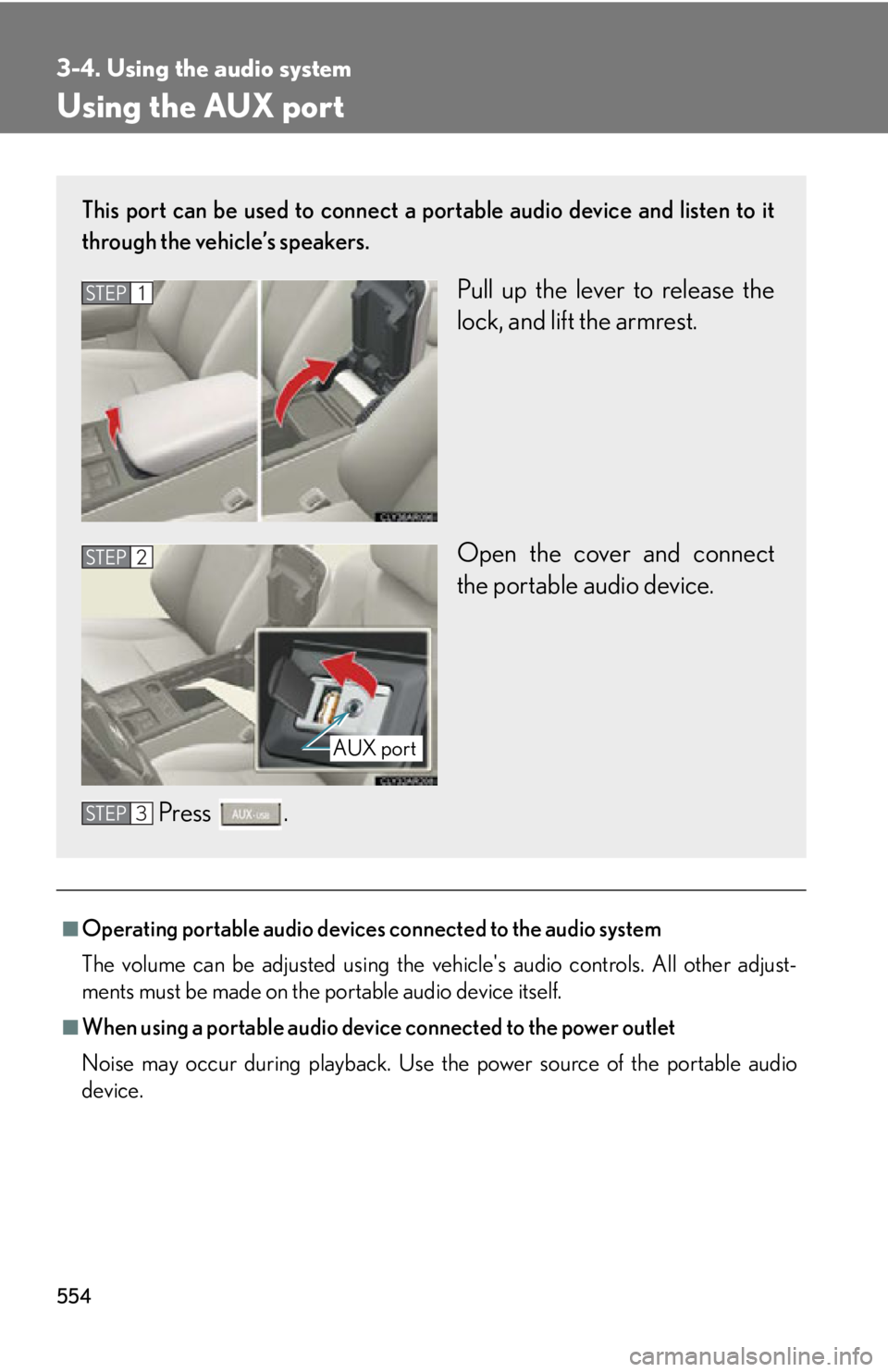
device.This port can be used to connect a po rtable audio device and listen to it
through the vehicle’s speakers.
Pull up the lever to release the
lock, and lift the armrest.
Open the cover and connect
the portable audio device.
Press .STEP 1
STEP 2
AUX port
STEP 3
Page 570 of 886
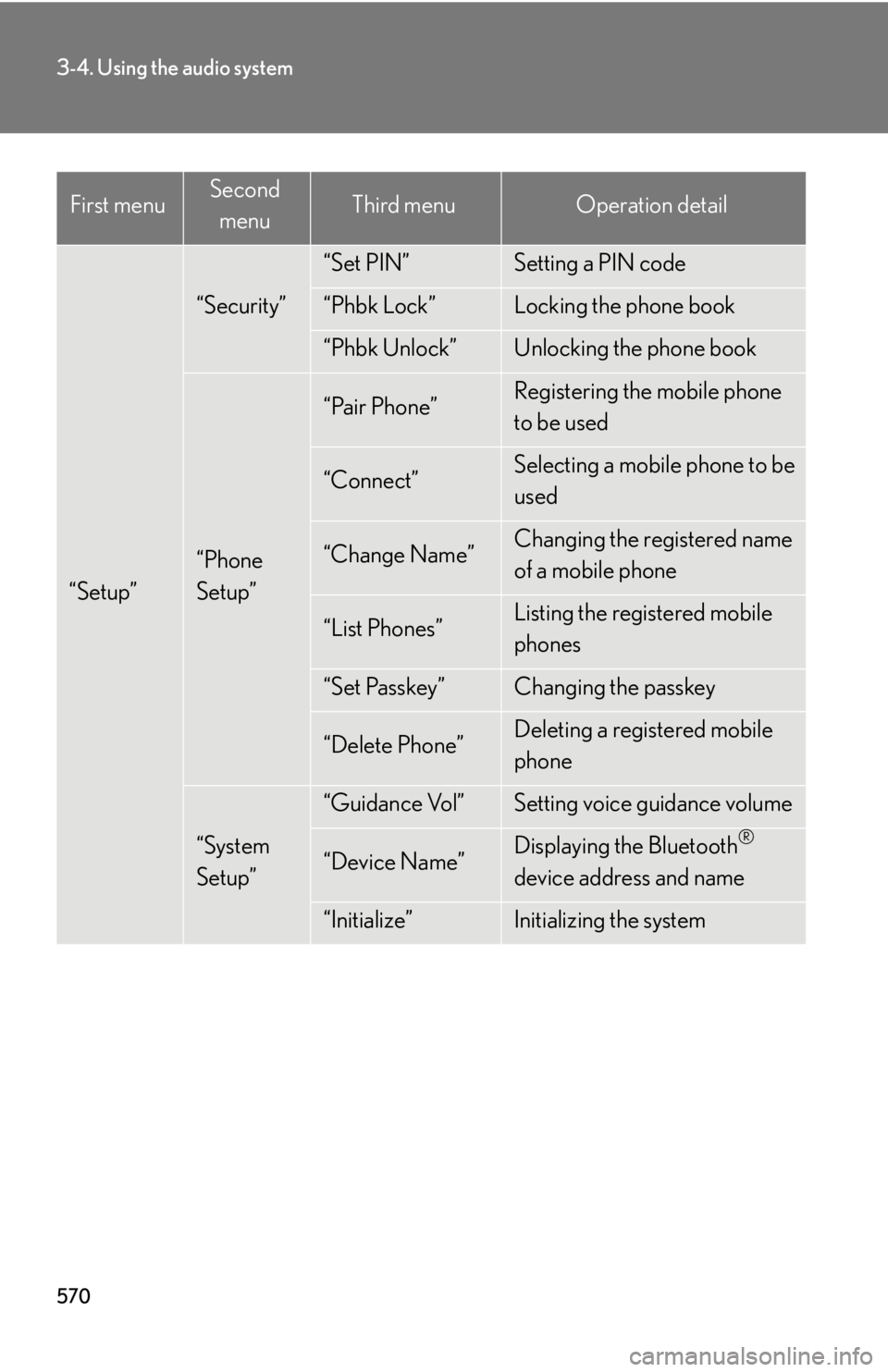
5703-4. Using the audio system
“Setup” “Security” “Set PIN” Setting a PIN code
“Phbk Lock” Locking the phone book
“Phbk Unlock” Unlocking the phone book
“Phone
Setup” “Pair Phone” Registering the mobile phone
to be used
“Connect” Selecting a mobile phone to be
used
“Change Name” Changing the registered name
of a mobile phone
“List Phones” Listing the registered mobile
phones
“Set Passkey” Changing the passkey
“Delete Phone” Deleting a registered mobile
phone
“System
Setup” “Guidance Vol” Setting voice guidance volume
“Device Name” Displaying the Bluetooth ®
device address and name
“Initialize” Initializing the systemFirst menu Second
menu Third menu Operation detail
Page 571 of 886
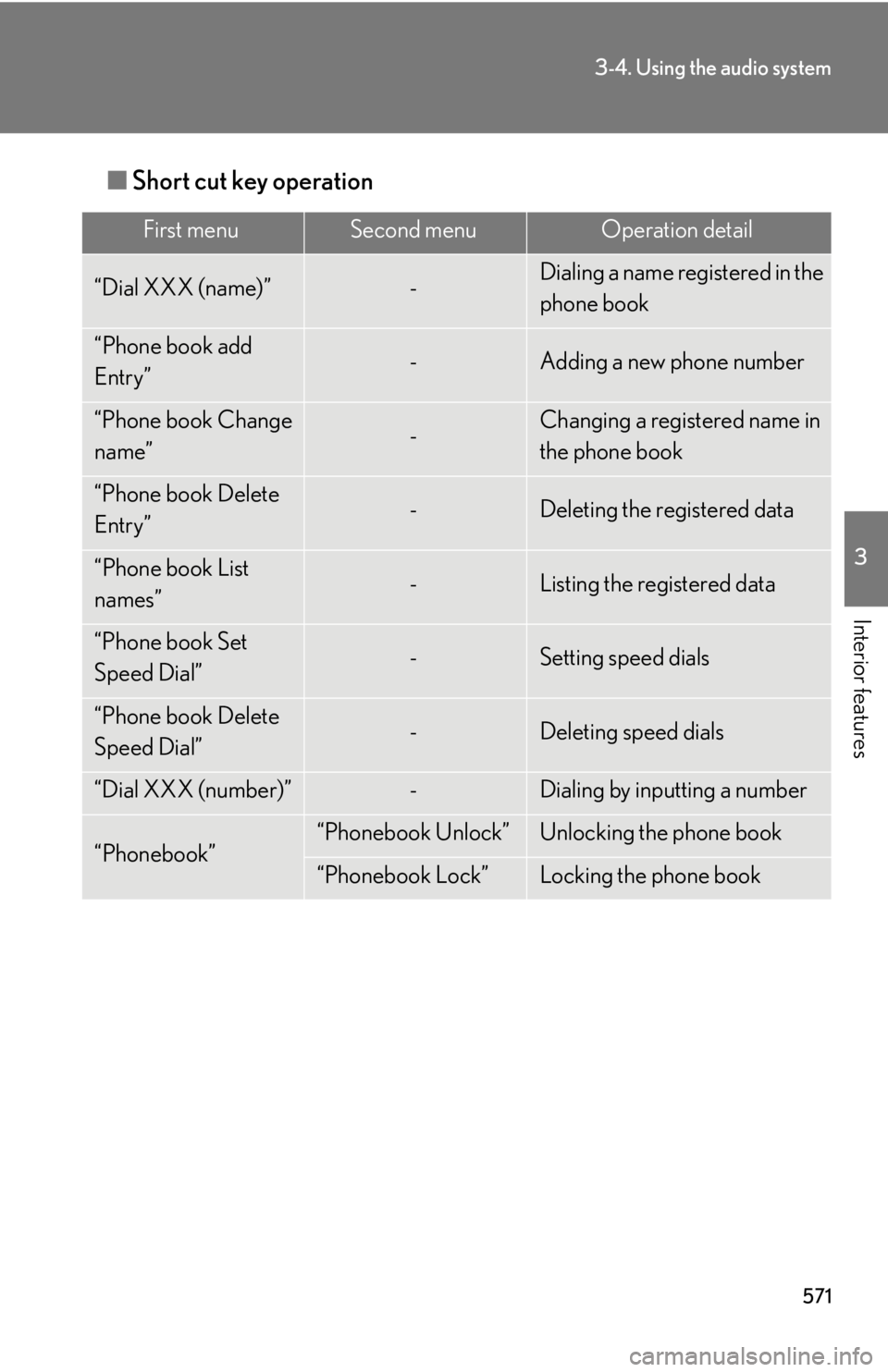
5713-4. Using the audio system
3
Interior features ■ Short cut key operation First menu Second menu Operation detail
“Dial XXX (name)” - Dialing a name registered in the
phone book
“Phone book add
Entry” - Adding a new phone number
“Phone book Change
name” - Changing a registered name in
the phone book
“Phone book Delete
Entry” - Deleting the registered data
“Phone book List
names” - Listing the registered data
“Phone book Set
Speed Dial” - Setting speed dials
“Phone book Delete
Speed Dial” - Deleting speed dials
“Dial XXX (number)” - Dialing by inputting a number
“Phonebook” “Phonebook Unlock” Unlocking the phone book
“Phonebook Lock” Locking the phone book
Page 584 of 886
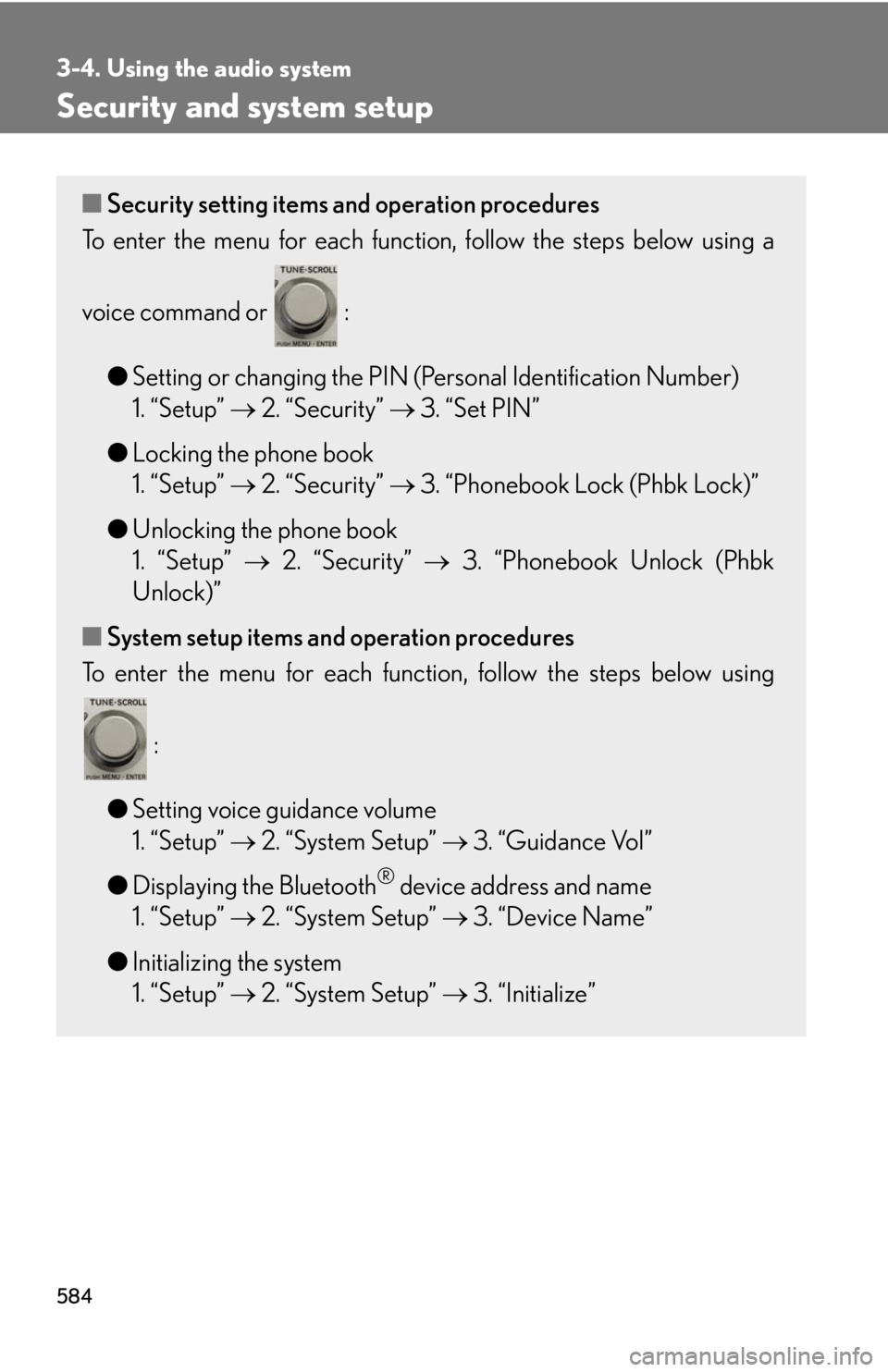
5843-4. Using the audio system
Security and system setup ■ Security setting items and operation procedures
To enter the menu for each function , follow the steps below using a
voice command or :
● Setting or changing the PIN (Personal Identification Number)
1. “Setup” 2. “Security” 3. “Set PIN”
● Locking the phone book
1. “Setup” 2. “Security” 3. “Phonebook Lock (Phbk Lock)”
● Unlocking the phone book
1. “Setup” 2. “Security” 3. “Phonebook Unlock (Phbk
Unlock)”
■ System setup items and operation procedures
To enter the menu for each function, follow the steps below using
:
● Setting voice guidance volume
1. “Setup” 2. “System Setup” 3. “Guidance Vol”
● Displaying the Bluetooth ®
device address and name
1. “Setup” 2. “System Setup” 3. “Device Name”
● Initializing the system
1. “Setup” 2. “System Setup” 3. “Initialize”
Page 585 of 886
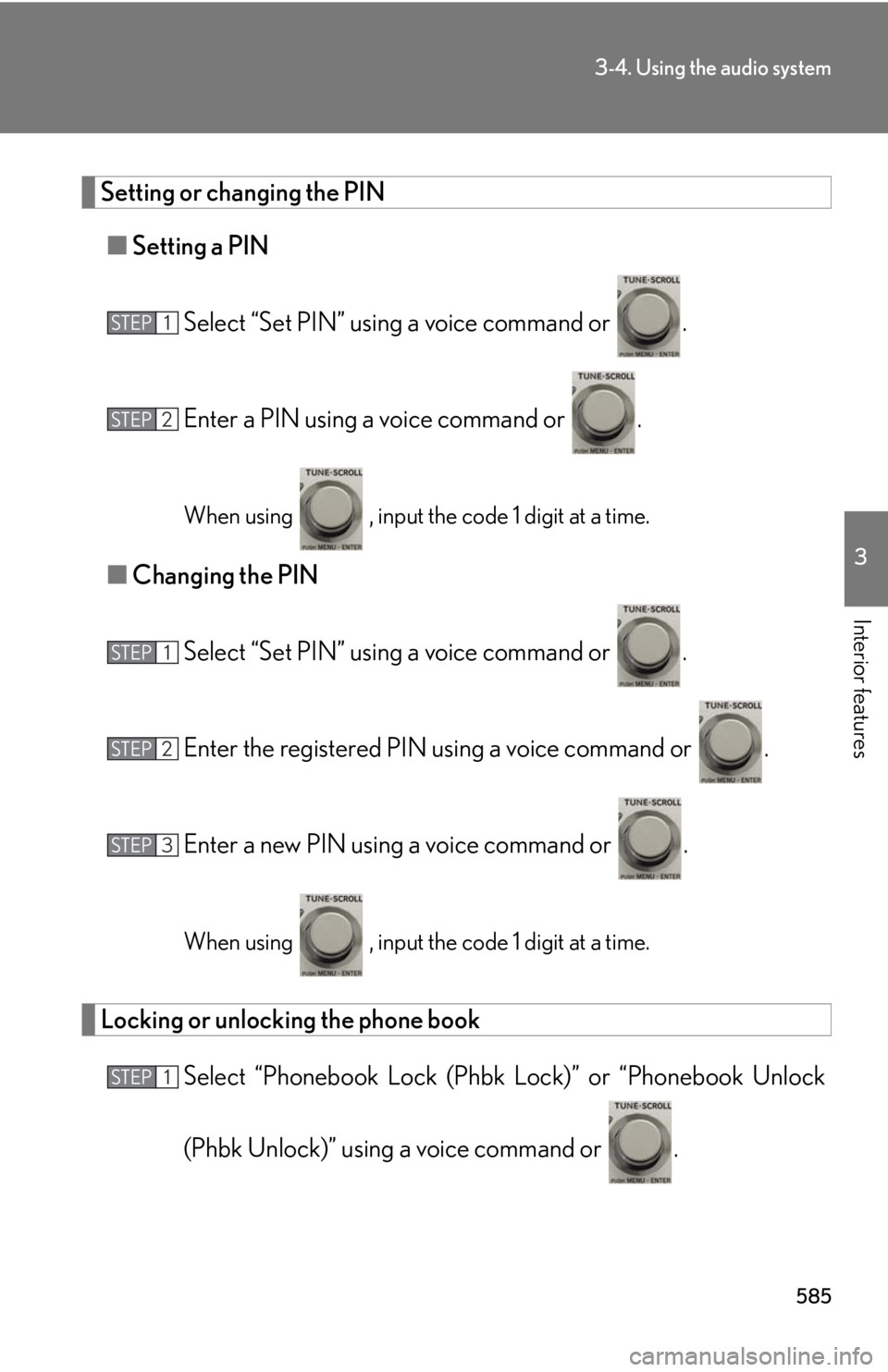
5853-4. Using the audio system
3
Interior features Setting or changing the PIN
■ Setting a PIN
Select “Set PIN” using a voice command or .
Enter a PIN using a voice command or .
When using , input the code 1 digit at a time.
■ Changing the PIN
Select “Set PIN” using a voice command or .
Enter the registered PIN using a voice command or .
Enter a new PIN using a voice command or .
When using , input the code 1 digit at a time.
Locking or unlocking the phone book
Select “Phonebook Lock (Phbk Lock)” or “Phonebook Unlock
(Phbk Unlock)” using a voice command or .STEP 1
STEP 2
STEP 1
STEP 2
STEP 3
STEP 1
Page 586 of 886
5863-4. Using the audio system
Input the PIN by either of the following methods and select “Con-
firm” using a voice command or :
a. Press the talk switch and say the registered PIN.
b. Input a new PIN using .
Setting voice guidance volume
Select “Guidance Vol” using .
Change the voice guidance volume.
To decrease the volume: Turn counterclockwise.
To increase the volume: Turn clockwise.
Displaying the Bluetooth ®
device address and name
Select “Device Name” using .
Turn to display the Bluetooth ®
device address and name.
Select “Go Back” using to return to “System Setup”.STEP 2
STEP 1
STEP 2
STEP 1
STEP 2
STEP 3