change time LEXUS RX350 2015 Owner's Manual
[x] Cancel search | Manufacturer: LEXUS, Model Year: 2015, Model line: RX350, Model: LEXUS RX350 2015Pages: 886, PDF Size: 11 MB
Page 376 of 886
3763-3. Using the Lexus Display Audio system
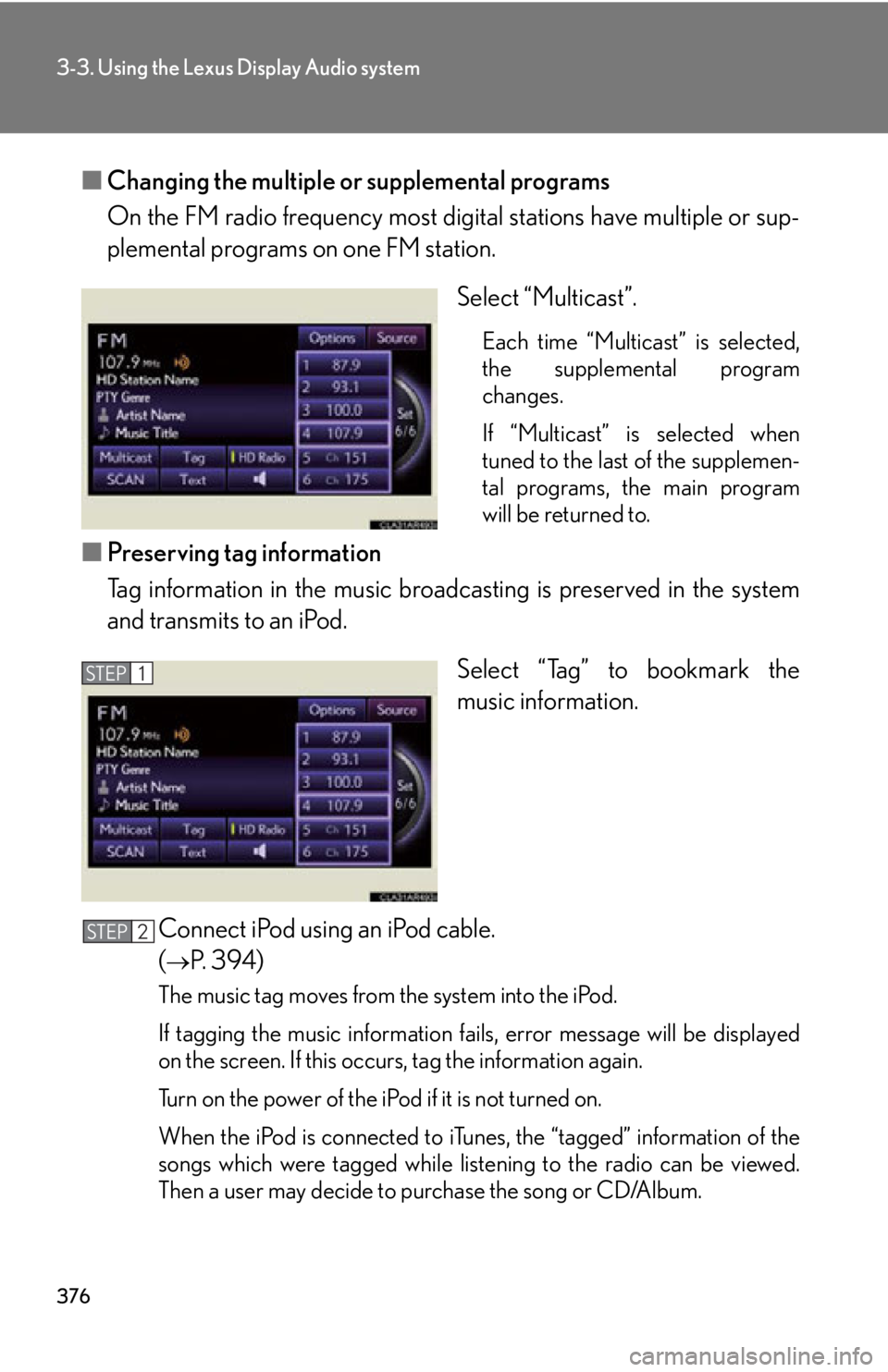
■ Changing the multiple or supplemental programs
On the FM radio frequency most digi tal stations have multiple or sup-
plemental programs on one FM station.
Select “Multicast”. Each time “Multicast” is selected,
the supplemental program
changes.
If “Multicast” is selected when
tuned to the last of the supplemen-
tal programs, the main program
will be returned to.
■ Preserving tag information
Tag information in the music broadcasting is preserved in the system
and transmits to an iPod.
Select “Tag” to bookmark the
music information.
Connect iPod using an iPod cable.
(
P. 394)
The music tag moves from the system into the iPod.
If tagging the music information fails, error message will be displayed
on the screen. If this occurs, tag the information again.
Turn on the power of the iPod if it is not turned on.
When the iPod is connected to iTun es, the “tagged” information of the
songs which were tagged while listening to the radio can be viewed.
Then a user may decide to purchase the song or CD/Album.STEP 1
STEP 2
Page 382 of 886
3823-3. Using the Lexus Display Audio system
Contact the XM ®
Listener Care Center at 1-877-515-3987 (U.S.A.) or 1-877-
438-9677 (Canada).■
Certifications for XM ®
Satellite Radio
This device complies with RSS-310 of Indu stry Canada. Operation is subject to the
condition that this device does not cause harmful interference.
Cet appareil est conforme au CNR-310 d’Industrie Canada. Son exploitation est
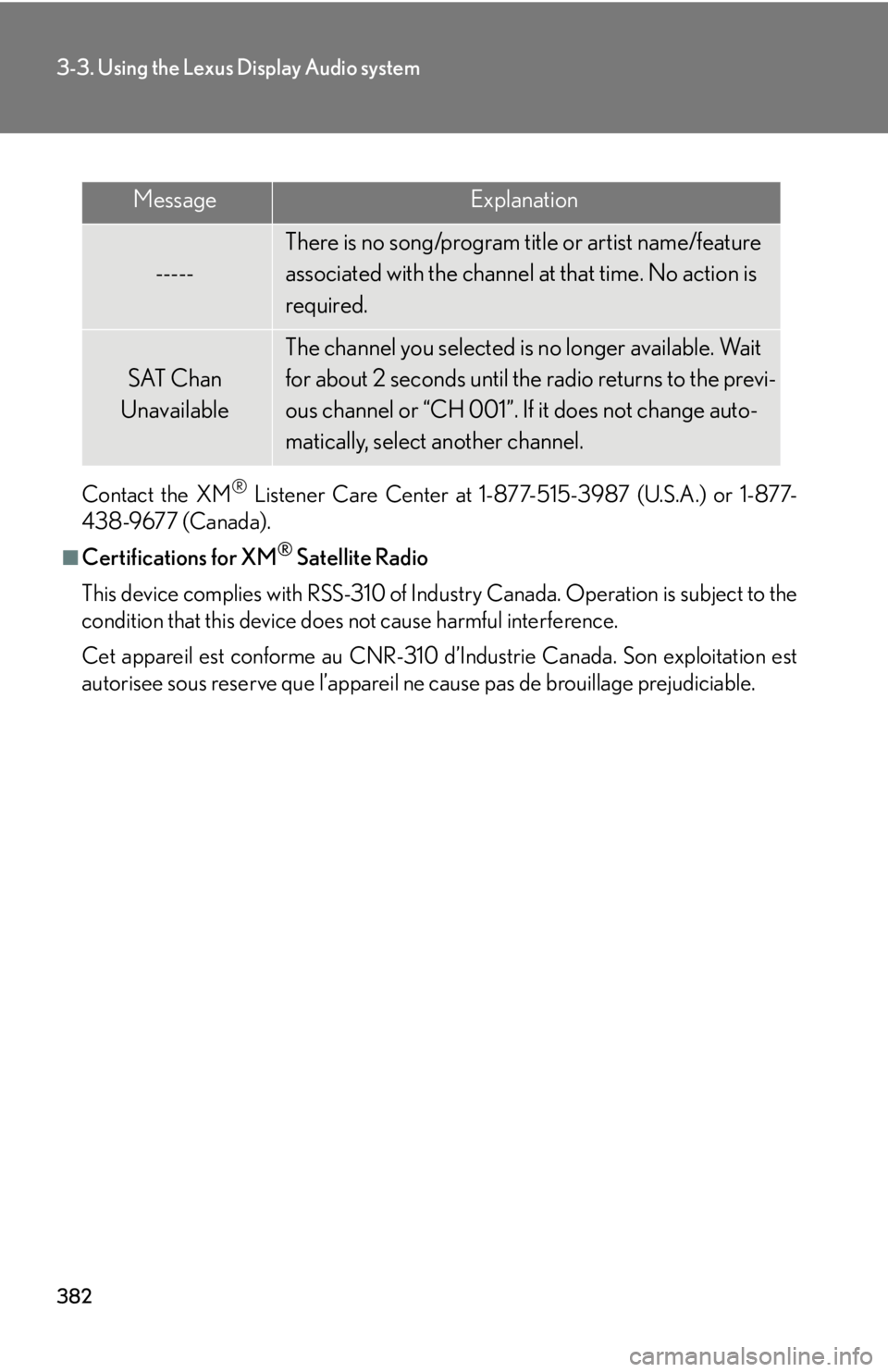
autorisee sous reserve que l’appareil ne cause pas de brouillage prejudiciable.Message Explanation
----- There is no song/program title or artist name/feature
associated with the channel at that time. No action is
required.
SAT Chan
Unavailable The channel you selected is no longer available. Wait
for about 2 seconds until the radio returns to the previ-
ous channel or “CH 001”. If it does not change auto-
matically, select another channel.
Page 387 of 886
3873-3. Using the Lexus Display Audio system
3
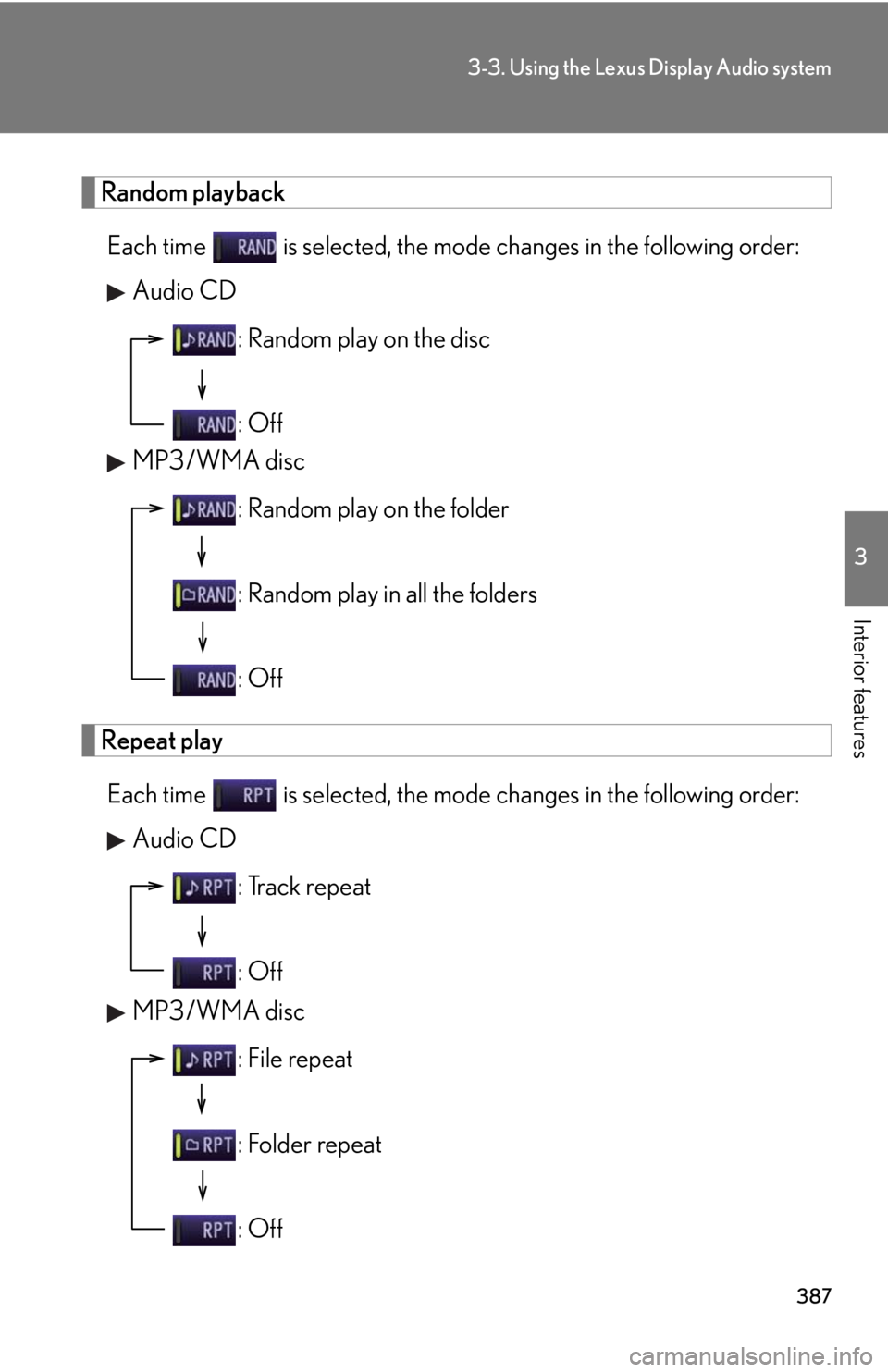
Interior features Random playback
Each time is selected, the mode changes in the following order:
Audio CD
MP3/WMA disc
Repeat play
Each time is selected, the mode changes in the following order:
Audio CD
MP3/WMA disc : Random play on the disc
: Off
: Random play on the folder
: Random play in all the folders
: Off
: Track repeat
: Off
: File repeat
: Folder repeat
: Off
Page 398 of 886
3983-3. Using the Lexus Display Audio system
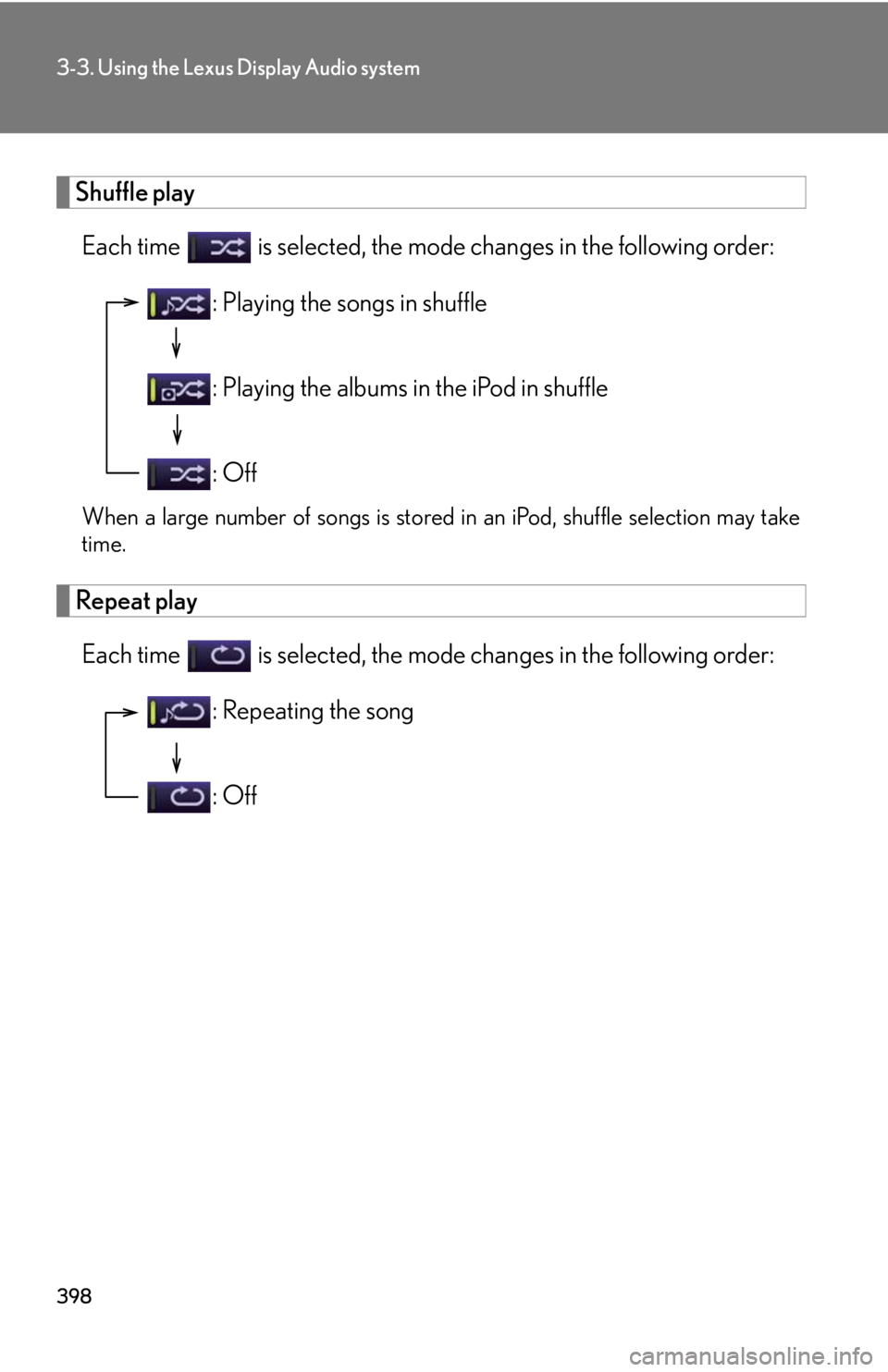
Shuffle play
Each time is selected, the mode changes in the following order:
When a large number of songs is stored in an iPod, shuffle selection may take
time.
Repeat play
Each time is selected, the mode changes in the following order: : Playing the songs in shuffle
: Playing the albums in the iPod in shuffle
: Off
: Repeating the song
: Off
Page 399 of 886
3993-3. Using the Lexus Display Audio system
3
Interior features ■
About iPod
●
“Made for iPod” and “Made for iPhone” mean that an electronic accessory has
been designed to connect specifically to iPod, or iPhone, respectively, and has
been certified by the developer to meet Apple performance standards.●
Apple is not responsible for the operation of this device or its compliance with
safety and regulatory standards. Please note that the use of this accessory with
iPod or iPhone may affect wireless performance.●
iPhone, iPod, iPod classic, iPod nano and iPod touch are trademarks of Apple
Inc., registered in the U.S. and other countries.■
iPod cover art ●
Depending on the iPod and songs in the iPod, iPod cover art may be displayed.●
This function can be changed to “On” or “Off”. ( P. 3 3 8 )●
It may take time to disp lay iPod cover art, and the iPod may not be operated
while the cover art display is in process.●
Only iPod cover art that is saved in a JPEG format can be displayed.■
iPod functions ●
When an iPod is connected and the audio source is changed to iPod mode, the
iPod will resume play from the same point in which it was last used.●
Depending on the iPod that is connecte d to the system, certain functions may
not be available. If a function is unavailable due to a malfunction (as opposed to
a system specification), disconnecting the device and reconnecting it once
again may resolve the problem.
●
While connected to the system, the iPod cannot be operated with its own con-
trols. It is necessary to use the controls of the vehicle’s audio system instead.
●
When the battery level of an iPod is very low, the iPod may not operate. If so,
charge the iPod before use.
●
Supported models ( P. 4 0 0 )
Page 406 of 886
4063-3. Using the Lexus Display Audio system
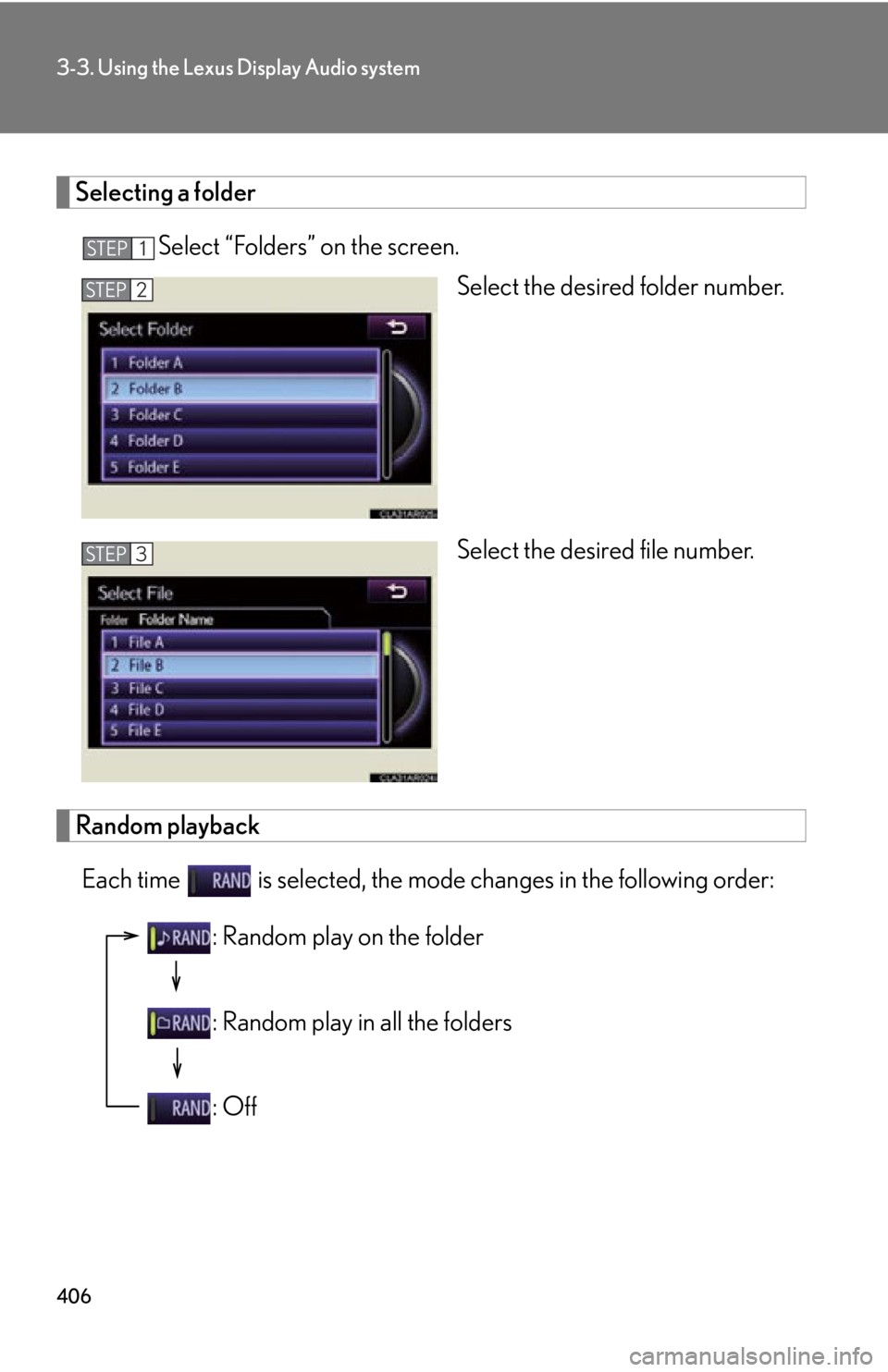
Selecting a folder
Select “Folders” on the screen.
Select the desired folder number.
Select the desired file number.
Random playback
Each time is selected, the mode changes in the following order: STEP 1
STEP 2
STEP 3
: Random play on the folder
: Random play in all the folders
: Off
Page 407 of 886
4073-3. Using the Lexus Display Audio system
3
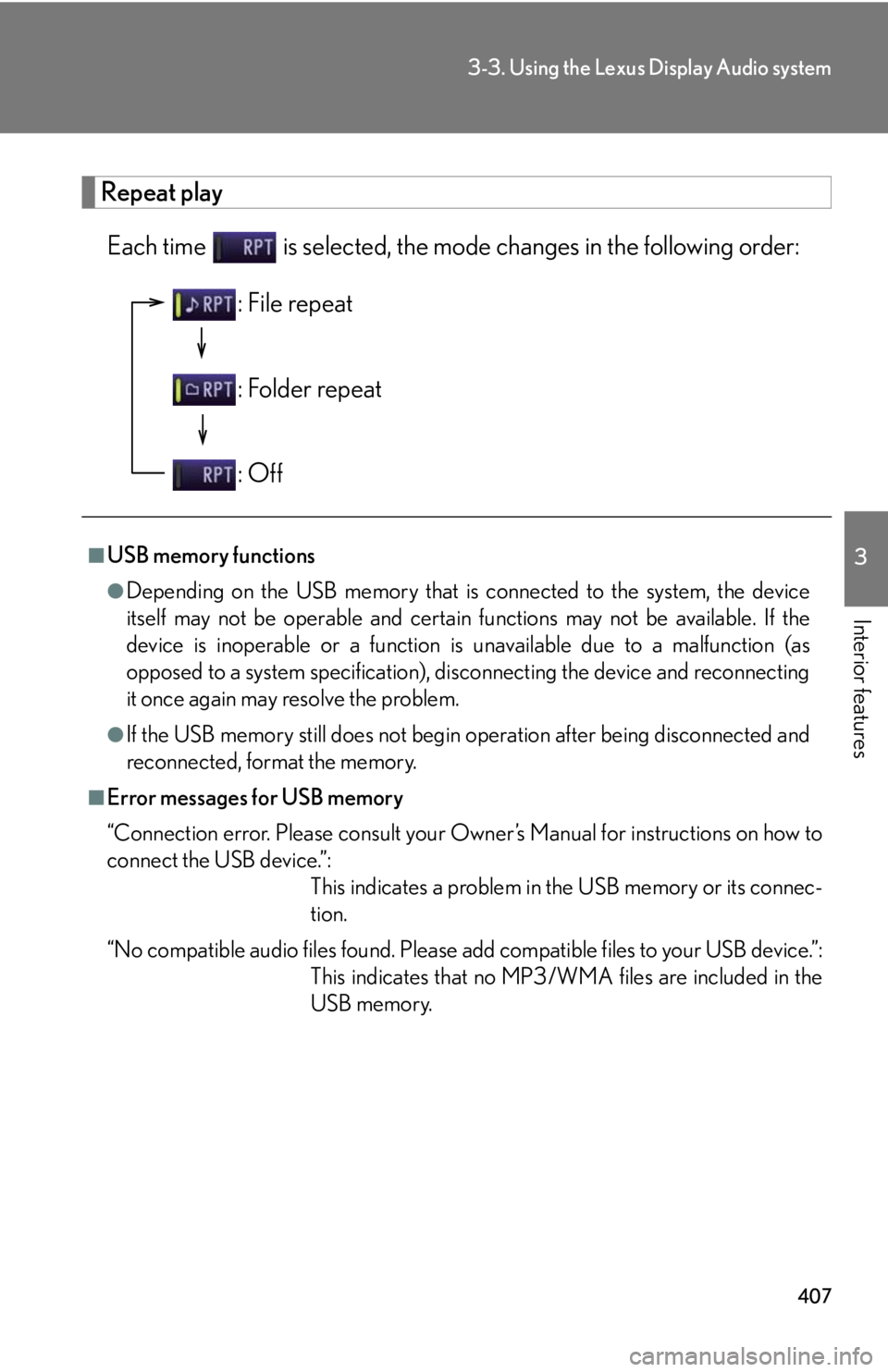
Interior features Repeat play
Each time is selected, the mode changes in the following order:
■
USB memory functions ●
Depending on the USB memory that is connected to the system, the device
itself may not be operable and certain functions may not be available. If the
device is inoperable or a function is unavailable due to a malfunction (as
opposed to a system specification), di sconnecting the device and reconnecting
it once again may resolve the problem.●
If the USB memory still does not begin operation after being disconnected and
reconnected, format the memory.■
Error messages for USB memory
“Connection error. Please consult your Ow ner’s Manual for instructions on how to
connect the USB device.”:
This indicates a problem in the USB memory or its connec-
tion.
“No compatible audio files found. Please add compatible files to your USB device.”:
This indicates that no MP3/WMA files are included in the
USB memory.: File repeat
: Folder repeat
: Off
Page 422 of 886
4223-3. Using the Lexus Display Audio system
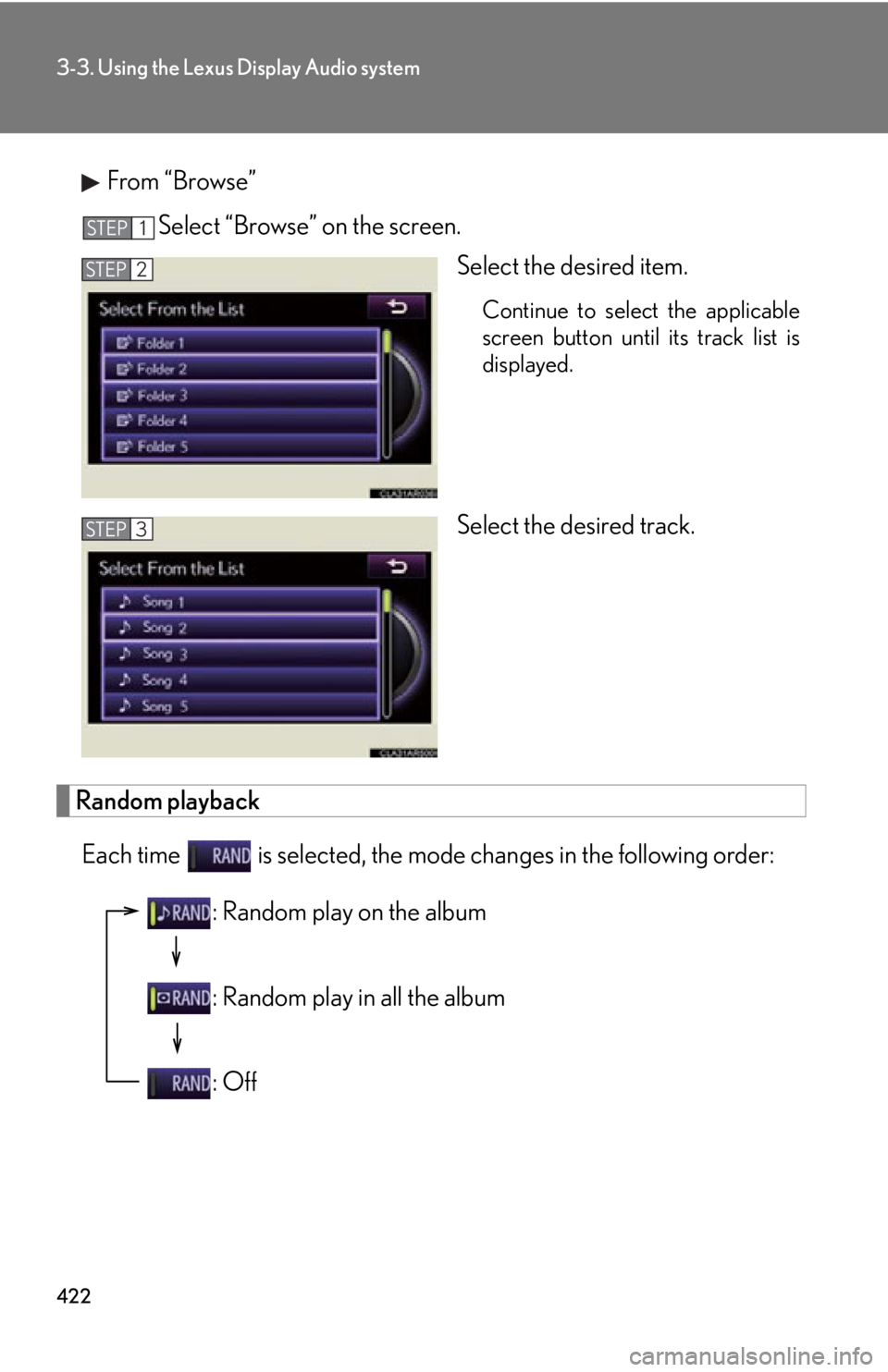
From “Browse”
Select “Browse” on the screen.
Select the desired item. Continue to select the applicable
screen button until its track list is
displayed.
Select the desired track.
Random playback
Each time is selected, the mode changes in the following order: STEP 1
STEP 2
STEP 3
: Random play on the album
: Random play in all the album
: Off
Page 423 of 886
4233-3. Using the Lexus Display Audio system
3
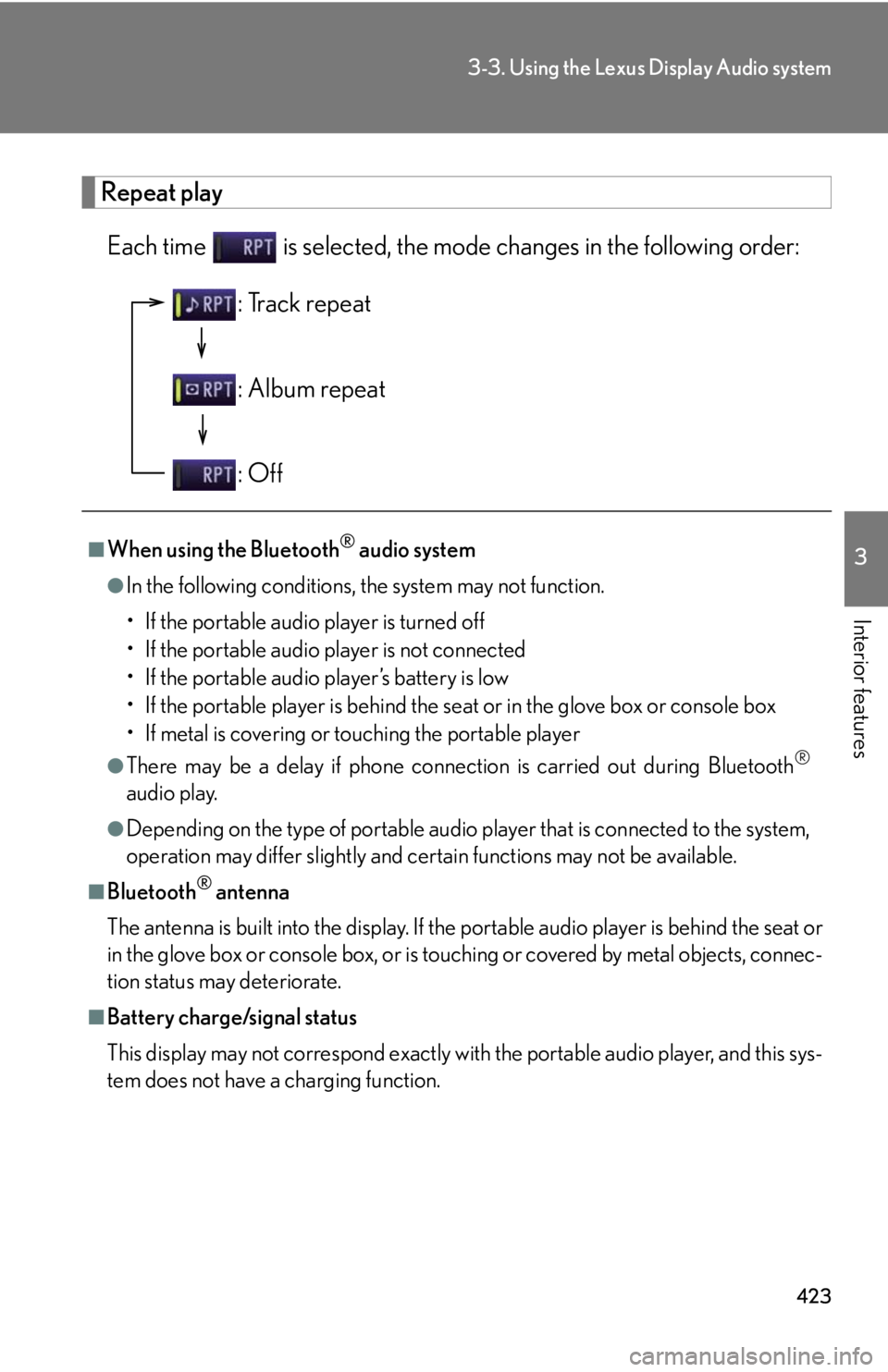
Interior features Repeat play
Each time is selected, the mode changes in the following order:
■
When using the Bluetooth ®
audio system●
In the following conditions, the system may not function.
• If the portable audio player is turned off
• If the portable audio player is not connected
• If the portable audio player’s battery is low
• If the portable player is behind the se at or in the glove box or console box
• If metal is covering or touching the portable player●
There may be a delay if phone connecti on is carried out during Bluetooth ®
audio play.●
Depending on the type of portable audio player that is connected to the system,
operation may differ slightly and ce rtain functions may not be available.■
Bluetooth ®
antenna
The antenna is built into the display. If the portable audio player is behind the seat or
in the glove box or console box, or is touching or covered by metal objects, connec-
tion status may deteriorate.■
Battery charge/signal status
This display may not correspond exactly with the portable audio player, and this sys-
tem does not have a charging function. : Track repeat
: Album repeat
: Off
Page 431 of 886
4313-3. Using the Lexus Display Audio system
3
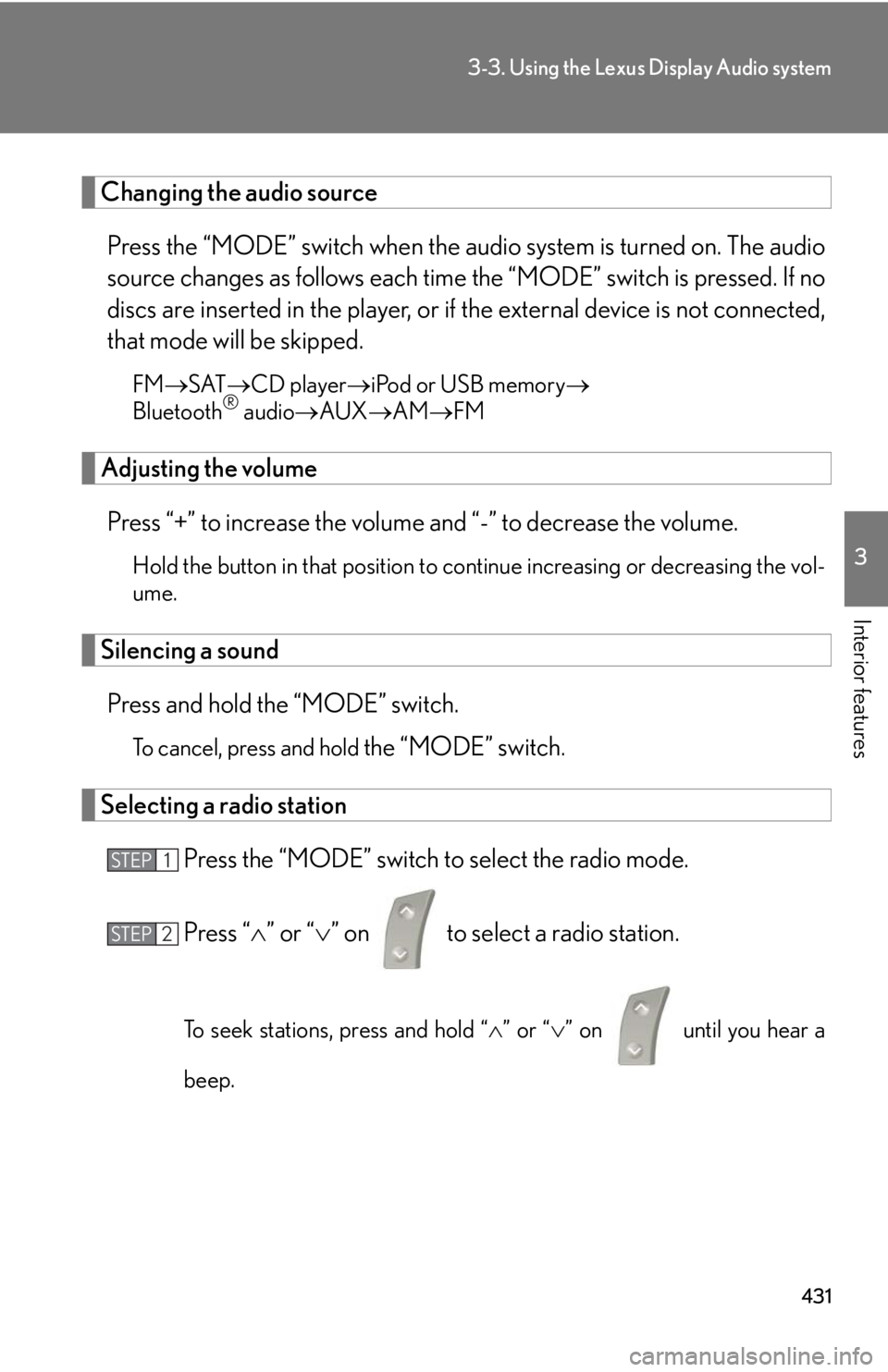
Interior features Changing the audio source
Press the “MODE” switch when the audio system is turned on. The audio
source changes as follows each time the “MODE” switch is pressed. If no
discs are inserted in the player, or if the external device is not connected,
that mode will be skipped. FM SAT CD player iPod or USB memory
Bluetooth ®
audio AUX AM FM
Adjusting the volume
Press “+” to increase the volume and “-” to decrease the volume. Hold the button in that position to continue increasing or decreasing the vol-
ume.
Silencing a sound
Press and hold the “MODE” switch. To cancel, press and hold
the “MODE” switch .
Selecting a radio station
Press the “MODE” switch to select the radio mode.
Press “ ” or “ ” on to select a radio station.
To seek stations, press and hold “ ” or “ ” on
until you hear a
beep.STEP 1
STEP 2