change time LEXUS RX350 2015 Owner's Guide
[x] Cancel search | Manufacturer: LEXUS, Model Year: 2015, Model line: RX350, Model: LEXUS RX350 2015Pages: 886, PDF Size: 11 MB
Page 453 of 886
4533-3. Using the Lexus Display Audio system
3
Interior features ■
Vo i c e g u i d a n c e f u n c t i o n ●
Voice guidance for the voice recognition system can be skipped by pressing the
talk switch.●
When “Voice Prompts (on/off)” is selected, voice recognition will be tempo-
rarily suspended. Press the talk switch again.●
Voice guidance can be canceled by setting voice prompts to off. Use this setting
when it is desirable to say a command immediately after pressing the talk
switch.■
Using voice command ●
Using voice command “Call
• In the same manner as it is displayed on the screen, “Call
phone, of a contact.
For example: “Call”, “John Smith” or “Call”, “Mary Davis”, “at”, “Mobile”
• There are 4 types of phones: Home, Mobile, Work and Other.
• Short or abbreviated names in the phonebook may not be recognized.
Change names in the phonebook to full names.
• Sometimes a voice recognition result confirmation screen will be displayed.
After confirming the result, say “Yes” or “No”.
• When the system recognizes multip le names from the phonebook, a name
candidate list will be displayed on the screen. If the desire d name is not dis-
played on the top of the screen, say the number of the name from the candi-
date list (number 1 or number 2) to select a name from the candidate list.
• When a contact has multiple phone numbers registered in the phonebook, a
candidate list will be displayed. If th e desired phone number is not displayed
on the top of the screen, say the number of the desired phone number from
the candidate list (number 1 or number 2) to select a phone number from the
candidate list.
Page 486 of 886
4863-4. Using the audio system
RBDS (Radio Broadcast Data System)
This feature allows your radio to receive station identification information
and program information (classical, ja zz, etc.) from radio stations which
broadcast this information.
■ Receiving RBDS broadcasts
Press “ ” or “ ” on during FM reception.The type of program changes each time the button is pressed.
● “ROCK”
● “EASYLIS” (Easy listening)
● “CLS/JAZZ” (Classical music and Jazz)
● “R & B” (Rhythm and Blues)
● “INFORM” (Information)
● “RELIGION”
● “MISC” (Miscellaneous)
● “ALERT” (Emergency messages)If the system receives no RBDS stations, “NO PTY” appears on the dis-
play.
Press , or “ ” or “ ” on
.The radio seeks or scans for stations of the relevant program type.STEP 1
STEP 2
Page 487 of 886
4873-4. Using the audio system
3
Interior features ■ Displaying radio station names
Press .
■ Displaying radio text messages
Press twice.
A text message is displayed when “MSG” is shown on the screen. If the text continues past the end of the display, is displayed. Press and
hold until you hear a beep.
XM ®
Satellite Radio (type A)
■ Receiving XM ®
Satellite Radio
Press .
The display changes as follows each time the button is pressed:
“SAT1” “SAT2” “SAT3”
Turn to select the desired channel in all the categories or
press “ ” or “ ” on to select the desired channel in
the current category.
■ Setting XM ®
Satellite Radio channel presets
Select the desired channel. Pr ess and hold the button (from
to
) the channel is to be set to until you hear a beep.
■ Changing the channel category
Press “ ” or “ ” on .STEP 1
STEP 2
Page 488 of 886
4883-4. Using the audio system
■ Scanning the XM ®
Satellite Radio channels
● Scanning the channels in the current category
Press .
When the desired channel is reached, press the button
again.
● Scanning the preset channels
Press and hold until you hear a beep.
When the desired channel is reached, press the button
again.
■ Displaying text information
Press . The display will show up to 10 characters.
The display changes as follows each time the button is pressed:
● CH NAME
● TITLE (SONG/PROGRAM TITLE)
● NAME (ARTIST NAME/FEATURE)
● CH NUMBER STEP 1
STEP 2
STEP 1
STEP 2
Page 491 of 886
4913-4. Using the audio system
3
Interior features Contact the XM ®
Listener Care Center at 1-877-515-3987 (U.S.A.) or 1-877-
438-9677 (Canada).■
Certifications for XM ®
Satellite Radio
This device complies with RSS-310 of Indu stry Canada. Operation is subject to the
condition that this device does not cause harmful interference.
Cet appareil est conforme au CNR-310 d’Industrie Canada. Son exploitation est
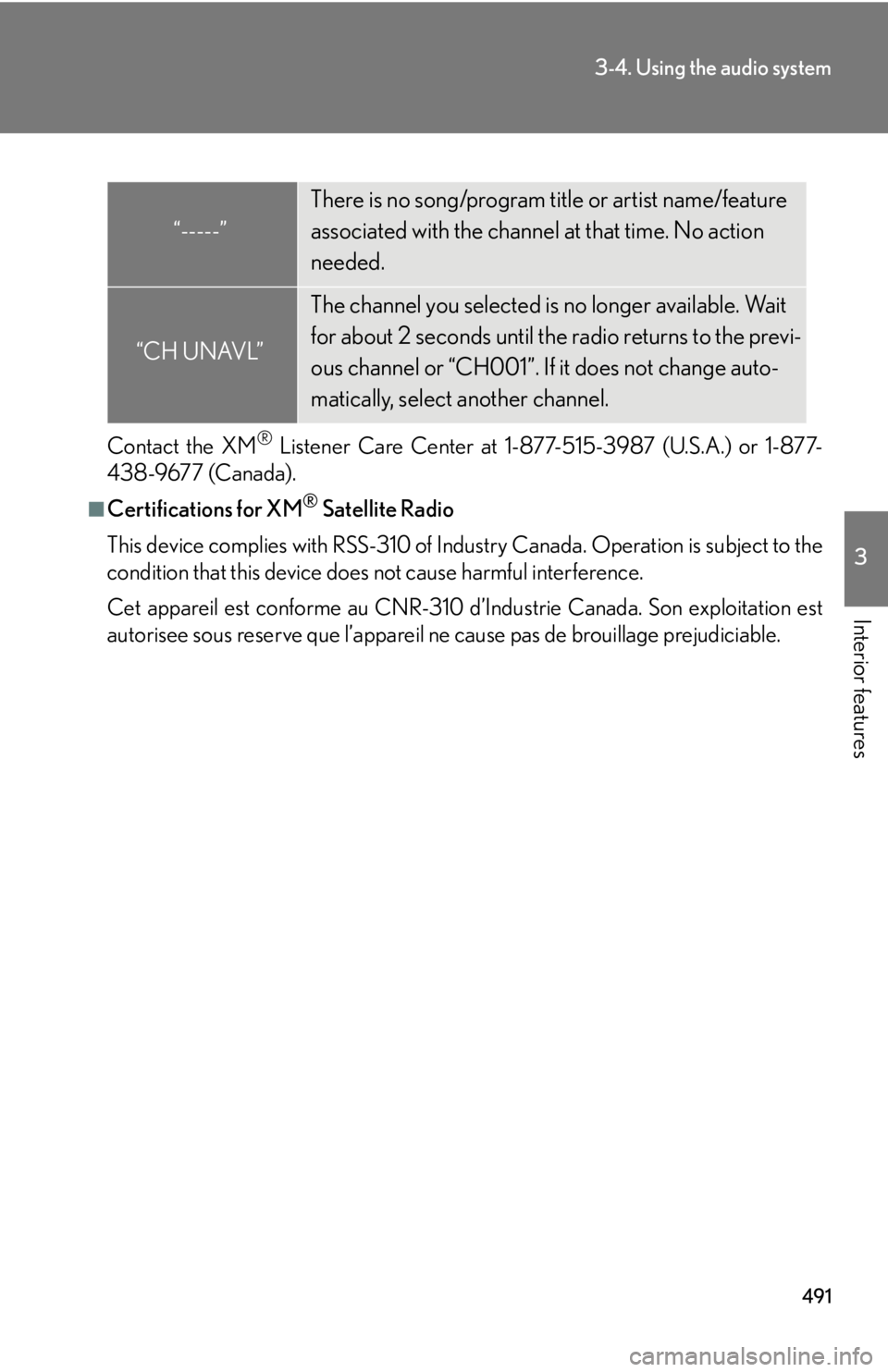
autorisee sous reserve que l’appareil ne cause pas de brouillage prejudiciable.“-----” There is no song/program title or artist name/feature
associated with the channel at that time. No action
needed.
“CH UNAVL” The channel you selected is no longer available. Wait
for about 2 seconds until the radio returns to the previ-
ous channel or “CH001”. If it does not change auto-
matically, select another channel.
Page 497 of 886
4973-4. Using the audio system
3
Interior features Repeat play
■ Repeating a track
Press . To cancel, press again.
■ Repeating all of the tracks on a CD
Press and hold until you hear a beep. To cancel, press again.
Switching the display
Press . Each time the button is pressed, the display changes in the following order:
Elapsed time CD title Track title■
CD player protection feature
To protect the internal components, play back is automatically stopped when a
problem is detected.■
Display
Up to 12 characters can be displayed at a time.
If there are 13 or more characters, pr essing and holding until you hear a
beep enables to display the remaining characters.
A maximum of 24 characters can be displayed.
If is pressed until you hear a beep again or has not been operated for more
than 6 seconds, the display will return to the first 12 characters.
Depending on the contents recorded, the characters may not be displayed prop-
erly or may not be displayed at all.
Page 505 of 886
5053-4. Using the audio system
3
Interior features Repeat play
■ Repeating a file
Press . To cancel, press again.
■ Repeating all the files in a folder
Press and hold until you hear a beep. To cancel, press
again.
Switching the display
Press . Each time the button is pressed, the display changes in the following order:
Folder no./File no./Elapsed time Folder name File name Album title
(MP3 only) Track title Artist name
Page 515 of 886
5153-4. Using the audio system
3
Interior features Selecting songs
Turn or press “ ” or “ ” on to select the desired
song.
Playing and pausing songs
To play or pause a song, press .
Fast-forwarding and reversing songs
To fast-forward or reverse, press and hold “ ” or “ ” on
until you hear a beep.
Shuffle playback
■ Playing songs from one playlist or album in random order
Press . To cancel, press again.
■ Playing songs from all the playlists or albums in random order
Press and hold until you hear a beep.
To cancel, press again.
Repeat play
Press .
To cancel, press again.
Switching the display
Press .
Each time the button is pressed, the display changes in the following order:
Elapsed time Album title Tr a c k t i t l e Artist name
Page 524 of 886
5243-4. Using the audio system
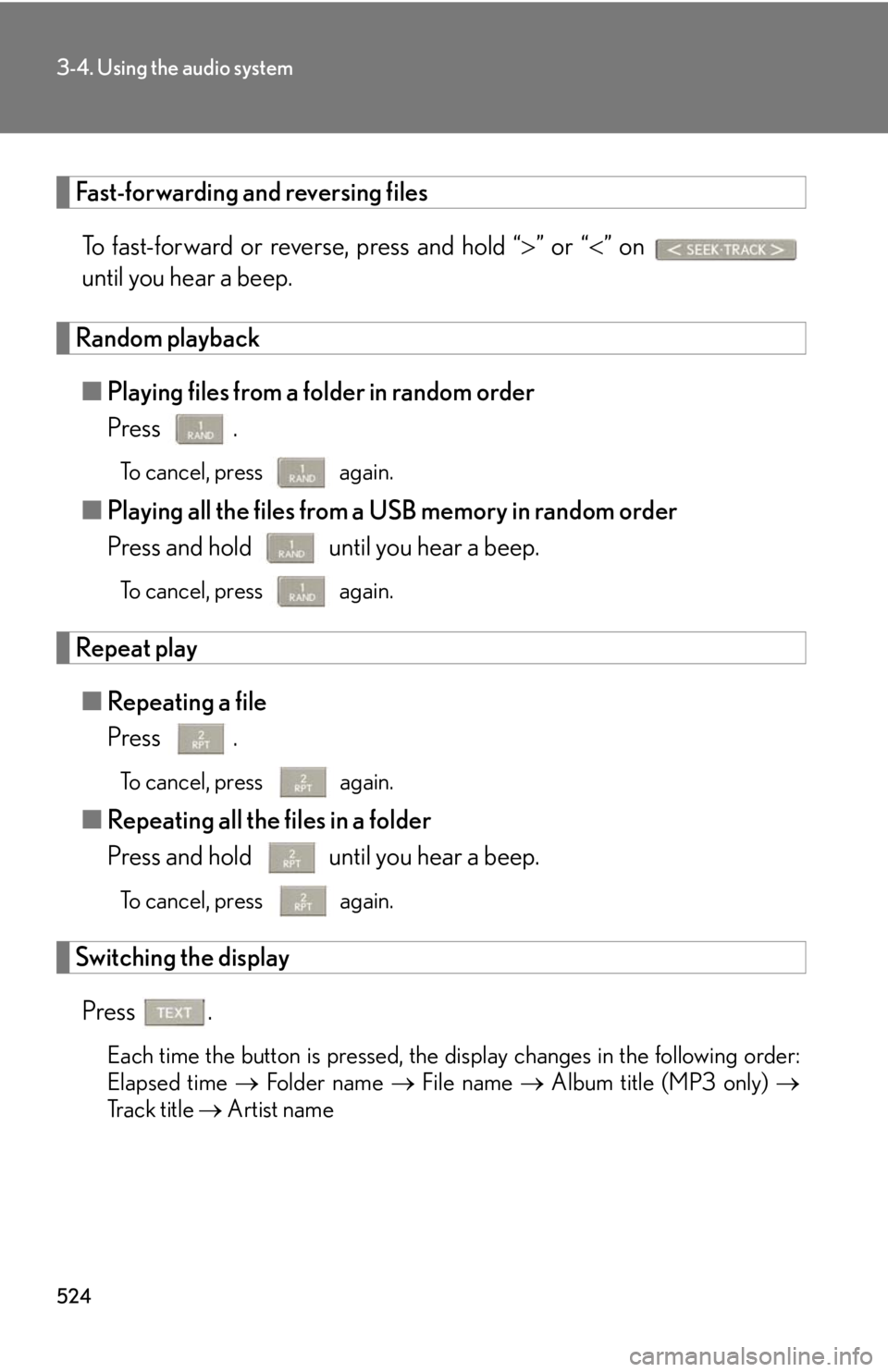
Fast-forwarding and reversing files
To fast-forward or reverse, press and hold “ ” or “ ” on
until you hear a beep.
Random playback
■ Playing files from a folder in random order
Press . To cancel, press again.
■ Playing all the files from a USB memory in random order
Press and hold until you hear a beep. To cancel, press again.
Repeat play
■ Repeating a file
Press . To cancel, press
again.
■ Repeating all the files in a folder
Press and hold until you hear a beep.
To cancel, press
again.
Switching the display
Press .
Each time the button is pressed, the display changes in the following order:
Elapsed time Folder name File name Album title (MP3 only)
Track title Artist name
Page 538 of 886
5383-4. Using the audio system
Guidance for registration completion is heard.
If the portable pl ayer has a Bluetooth ®
phone, the phone can be regis-
tered at the same time. A voice guidance instruction to register a
Bluetooth ®
phone is heard.
Select “Yes” or “No” using a voice command or .
(Bluetooth ®
phone P. 562)
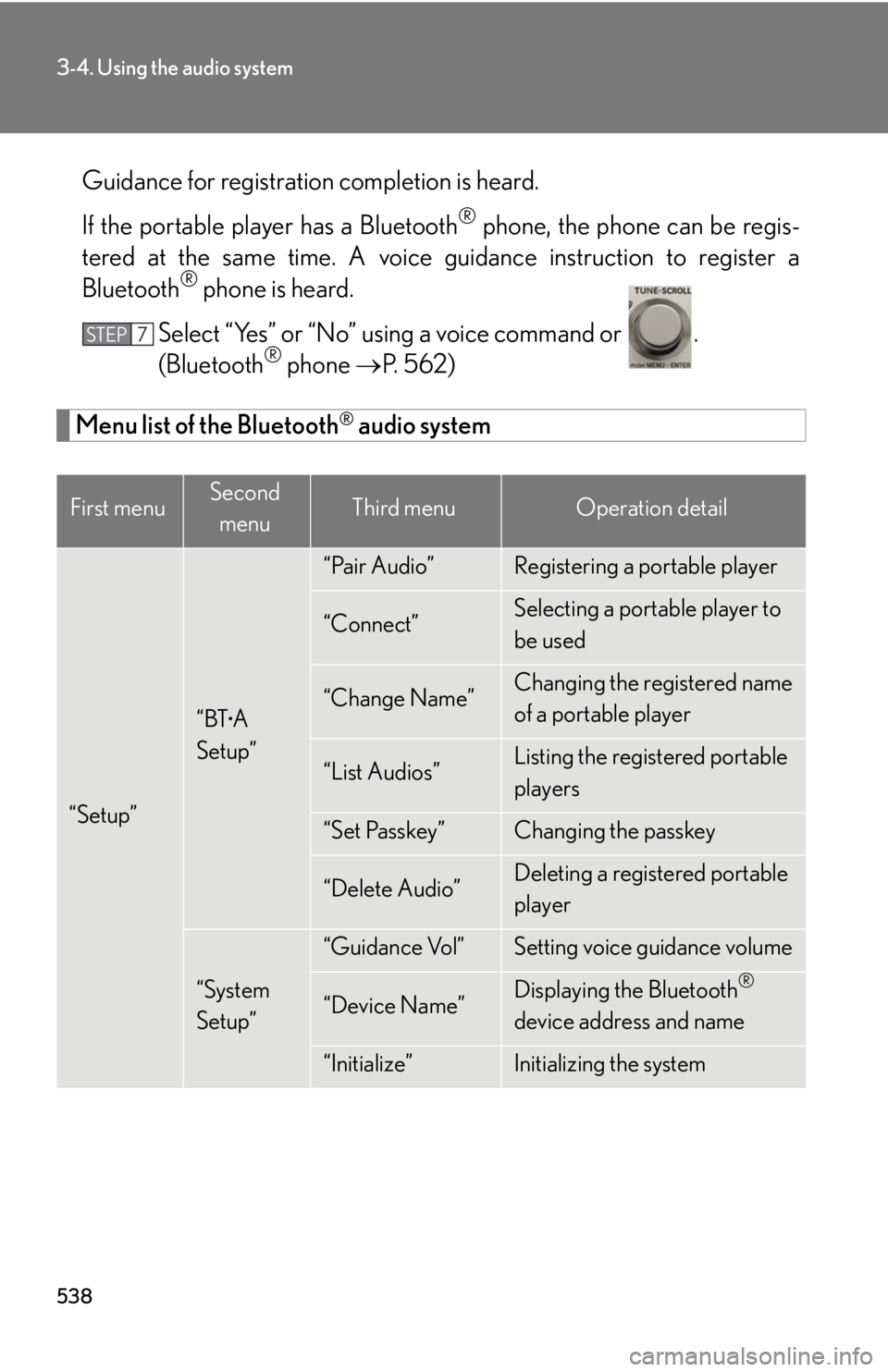
Menu list of the Bluetooth ®
audio system
First menu Second
menu Third menu Operation detail
“Setup” “BT •
A
Setup” “Pair Audio” Registering a portable player
“Connect” Selecting a portable player to
be used
“Change Name” Changing the registered name
of a portable player
“List Audios” Listing the registered portable
players
“Set Passkey” Changing the passkey
“Delete Audio” Deleting a registered portable
player
“System
Setup” “Guidance Vol” Setting voice guidance volume
“Device Name” Displaying the Bluetooth ®
device address and name
“Initialize” Initializing the systemSTEP 7