radio LEXUS RX350 2016 User Guide
[x] Cancel search | Manufacturer: LEXUS, Model Year: 2016, Model line: RX350, Model: LEXUS RX350 2016Pages: 748, PDF Size: 12.36 MB
Page 265 of 748
2654-5. Using the driving support systems
4
Driving
RX350_U_OM48E90U WA R N I N G ■
To avoid malfunction of the radar sensor
Observe the following precautions.
Otherwise, the radar sensor may not operate properly, possibly leading to an accident
resulting in death or serious injury. ●
Keep the radar sensor and front gr ille emblem clean at all times.
●
Do not attach accessories, stickers (inclu ding transparent stickers) or other items to
the radar sensor, front grille emblem or surrounding area. ●
Do not subject the radar sensor or su rrounding area to a strong impact.
If the radar sensor, front grille, or front bumper has been subjected to a strong impact,
have the vehicle inspected by your Lexus dealer. ●
Do not disassemble the radar sensor. ●
Do not modify or paint the radar sensor, front grille emblem or surrounding area. ●
If the radar sensor, front grille, or front bumper needs to be removed and installed, or
replaced, contact your Lexus dealer. ●
The radar sensor complies with relevant radio wave regulations, as shown by the label
attached to the sensor. Do not remove the label. Additionally, disassembly or modifi-
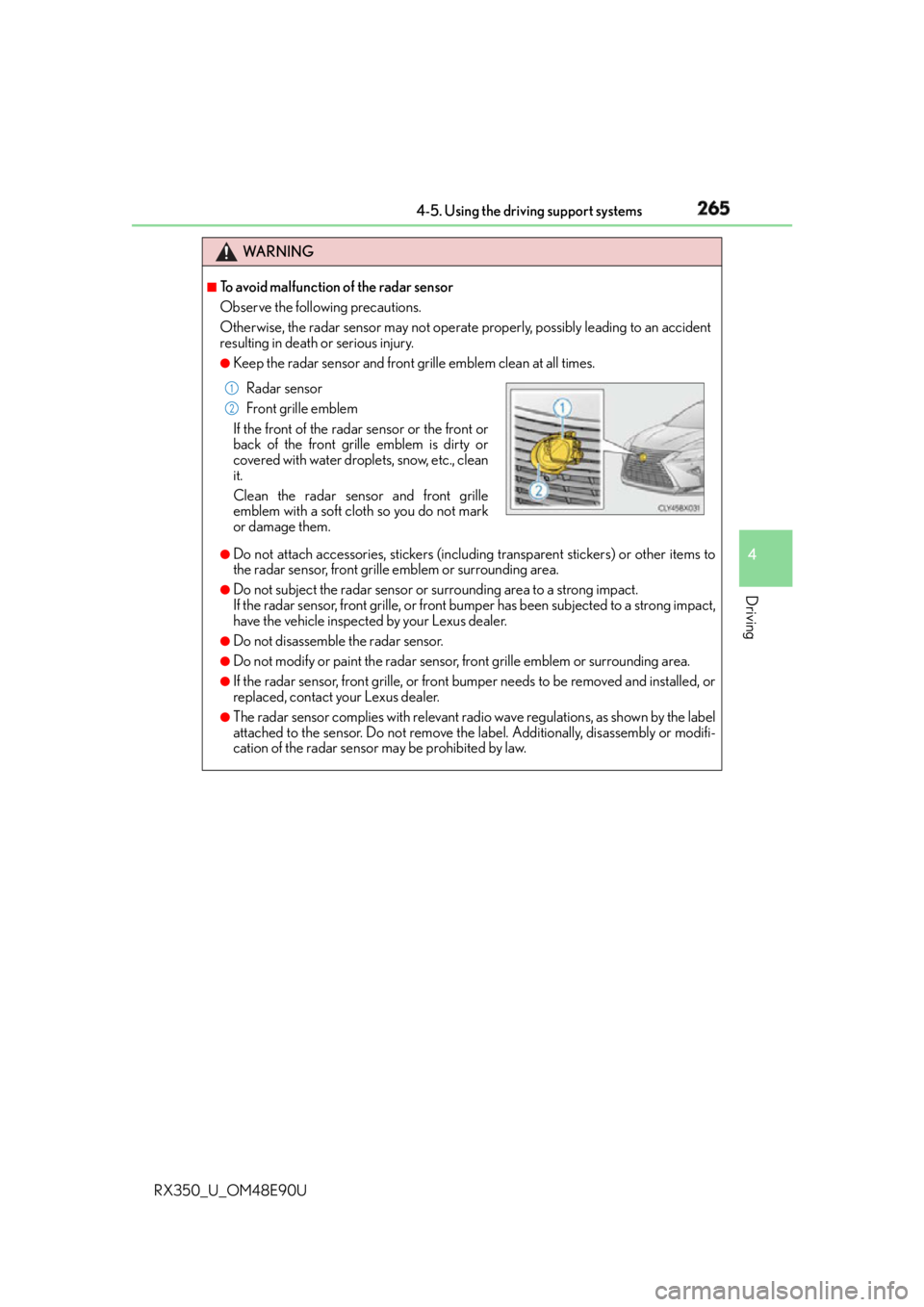
cation of the radar sensor may be prohibited by law. Radar sensor
Front grille emblem
If the front of the radar sensor or the front or
back of the front grille emblem is dirty or
covered with water droplets, snow, etc., clean
it.
Clean the radar sensor and front grille
emblem with a soft cloth so you do not mark
or damage them. 1
2
Page 279 of 748
2794-5. Using the driving support systems
4
Driving
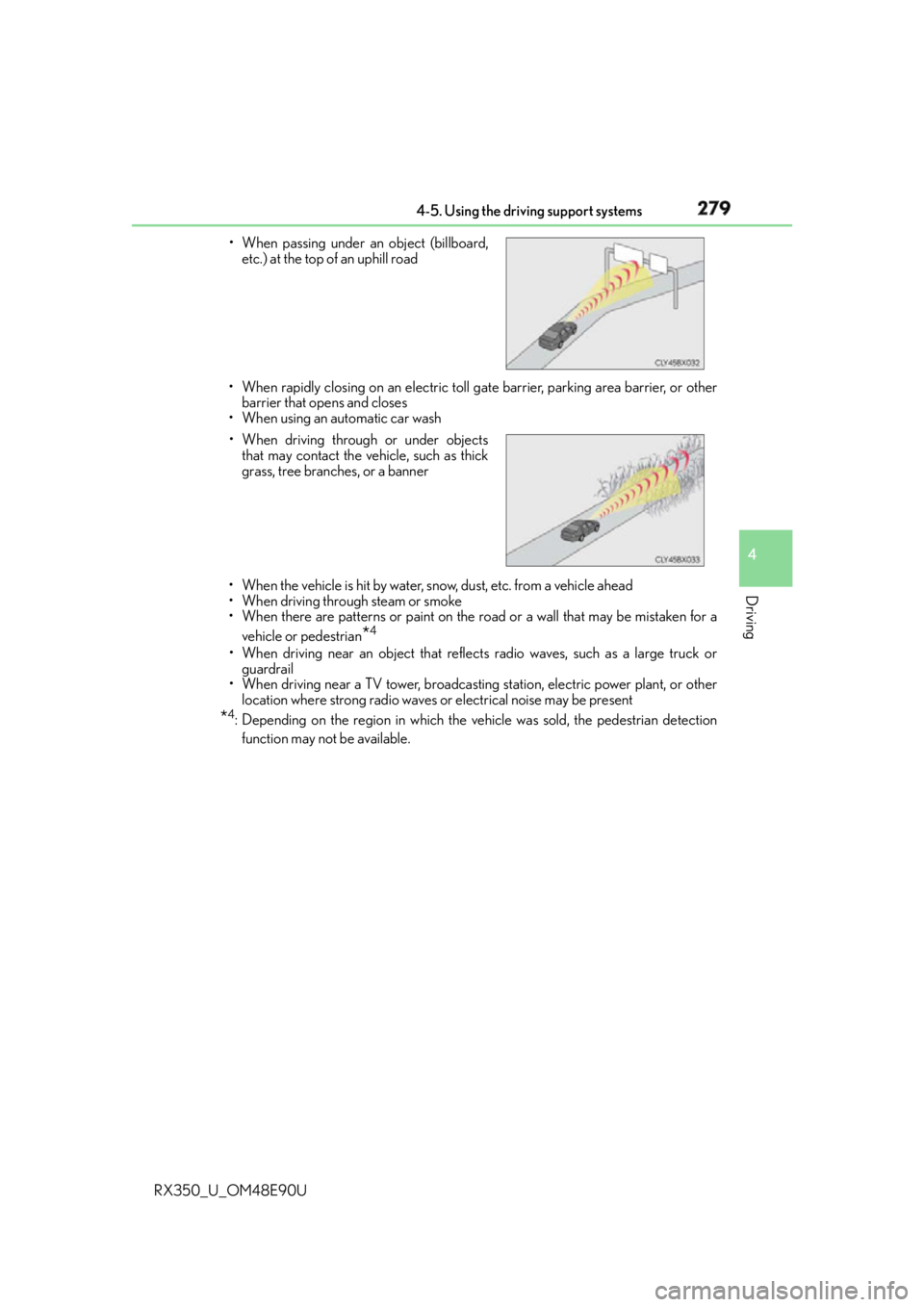
RX350_U_OM48E90U • When rapidly closing on an electric toll gate barrier, parking area barrier, or other
barrier that opens and closes
• When using an automatic car wash
• When the vehicle is hit by water, snow, dust, etc. from a vehicle ahead
• When driving through steam or smoke
• When there are patterns or paint on the road or a wall that may be mistaken for a
vehicle or pedestrian
* 4
• When driving near an object that reflects radio waves, such as a large truck or
guardrail
• When driving near a TV tower, broadcasting station, electric power plant, or other
location where strong radio waves or electrical noise may be present
* 4
: Depending on the region in which the ve hicle was sold, the pedestrian detection
function may not be available.• When passing under an object (billboard,
etc.) at the top of an uphill road
• When driving through or under objects
that may contact the vehicle, such as thick
grass, tree branches, or a banner
Page 388 of 748

388
RX350_U_OM48E90U 5-1. Basic Operations
Lexus Display Audio
system ..........................................390
Steering wheel audio
switches....................................... 396
Mobile Assistant......................... 397
USB/AUX ports ......................... 399
5-2. Setup
Setup menu .................................. 402
General settings ......................... 403
Voice settings ..............................406
Display settings ........................... 407
5-3. Using the audio system
Selecting the audio
source ......................................... 408
Optimal use of the audio
system ..........................................409
Audio settings............................... 410
Audio menu screen
operation ..................................... 413
5-4. Using the radio
Radio operation ............................4165 Lexus Display
Audio system
Page 390 of 748
390
RX350_U_OM48E90U 5-1. Basic Operations
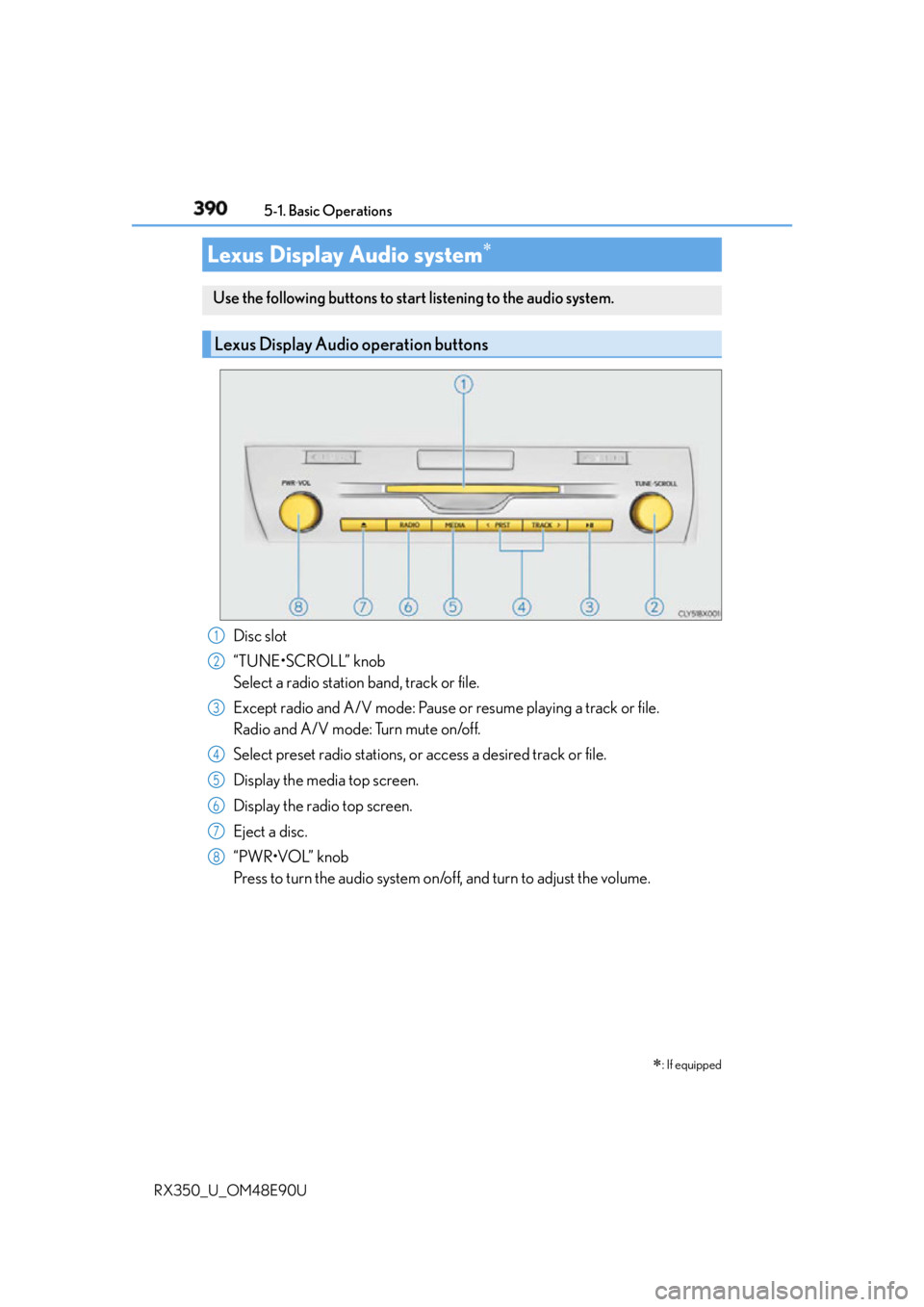
Disc slot
“TUNE•SCROLL” knob
Select a radio station band, track or file.
Except radio and A/V mode: Pause or resume playing a track or file.
Radio and A/V mode: Turn mute on/off.
Select preset radio stations, or access a desired track or file.
Display the media top screen.
Display the radio top screen.
Eject a disc.
“PWR•VOL” knob
Press to turn the audio system on/o ff, and turn to adjust the volume.Lexus Display Audio system
: If equippedUse the following buttons to start listening to the audio system.
Lexus Display Audio operation buttons
1
2
3
4
5
6
7
8
Page 391 of 748
3915-1. Basic Operations
5
Lexus Display Audio system
RX350_U_OM48E90U ■
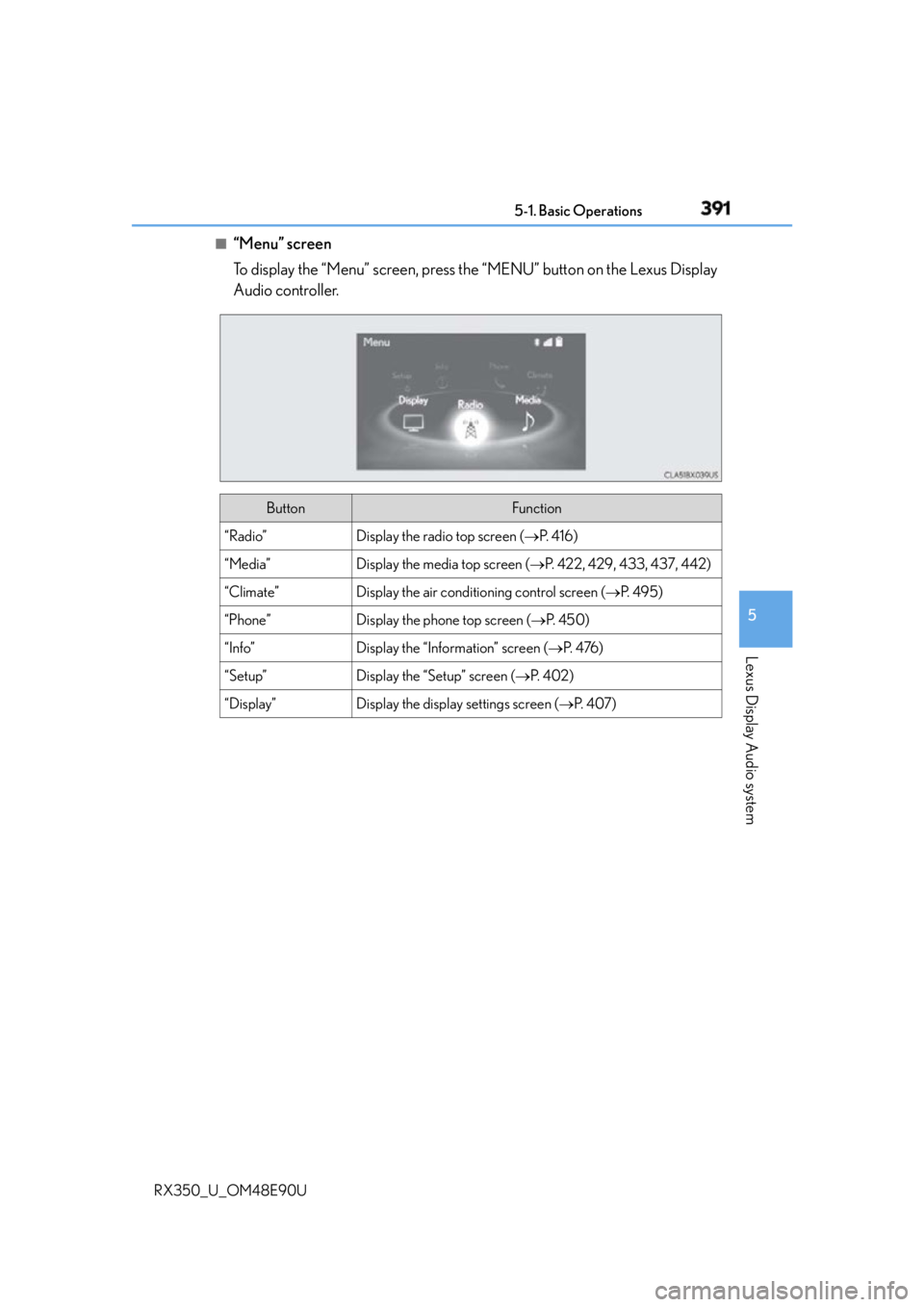
“Menu” screen
To display the “Menu” screen, press th e “MENU” button on the Lexus Display
Audio controller.
Button Function
“Radio” Display the radio top screen ( P. 4 1 6 )
“Media” Display the media top screen ( P. 422, 429, 433, 437, 442)
“Climate” Display the air conditioning control screen ( P. 4 9 5 )
“Phone” Display the phone top screen ( P. 4 5 0 )
“Info” Display the “Information” screen ( P. 4 76 )
“Setup” Display the “Setup” screen ( P. 4 0 2 )
“Display” Display the display settings screen ( P. 4 0 7 )
Page 396 of 748
396 5-1. Basic Operations
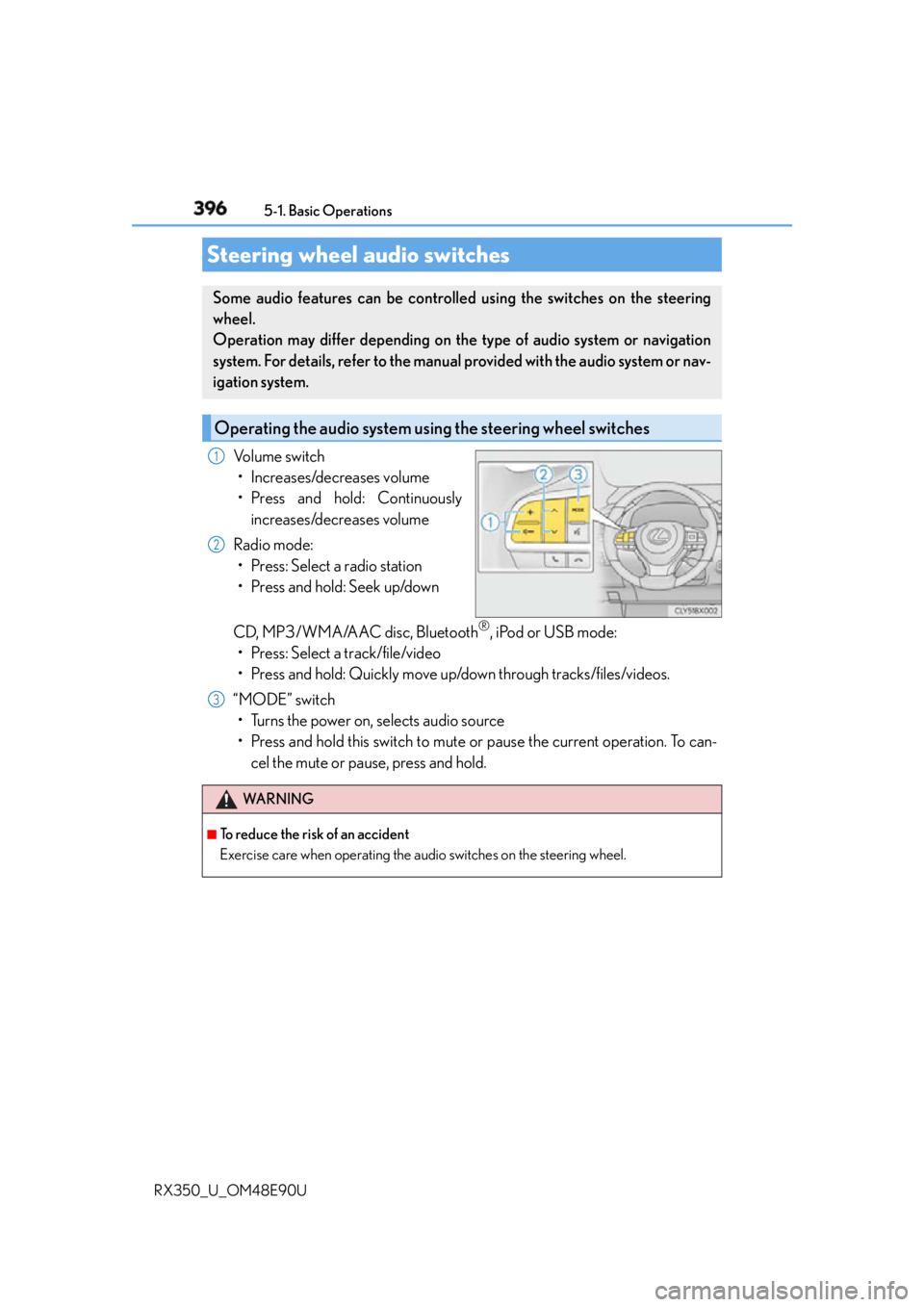
RX350_U_OM48E90U Volume switch
• Increases/decreases volume
• Press and hold: Continuously
increases/decreases volume
Radio mode:
• Press: Select a radio station
• Press and hold: Seek up/down
CD, MP3/WMA/AAC disc, Bluetooth ®
, iPod or USB mode:
• Press: Select a track/file/video
• Press and hold: Quickly move up/down through tracks/files/videos.
“MODE” switch
• Turns the power on, selects audio source
• Press and hold this switch to mute or pause the current operation. To can-
cel the mute or pause, press and hold.Steering wheel audio switches Some audio features can be controlled using the switches on the steering
wheel.
Operation may differ depending on th e type of audio system or navigation
system. For details, refer to the manual provided with the audio system or nav-
igation system.
Operating the audio system us ing the steering wheel switches1
2
WA R N I N G ■
To reduce the risk of an accident
Exercise care when operating the audio switches on the steering wheel. 3
Page 402 of 748
402
RX350_U_OM48E90U 5-2. Setup
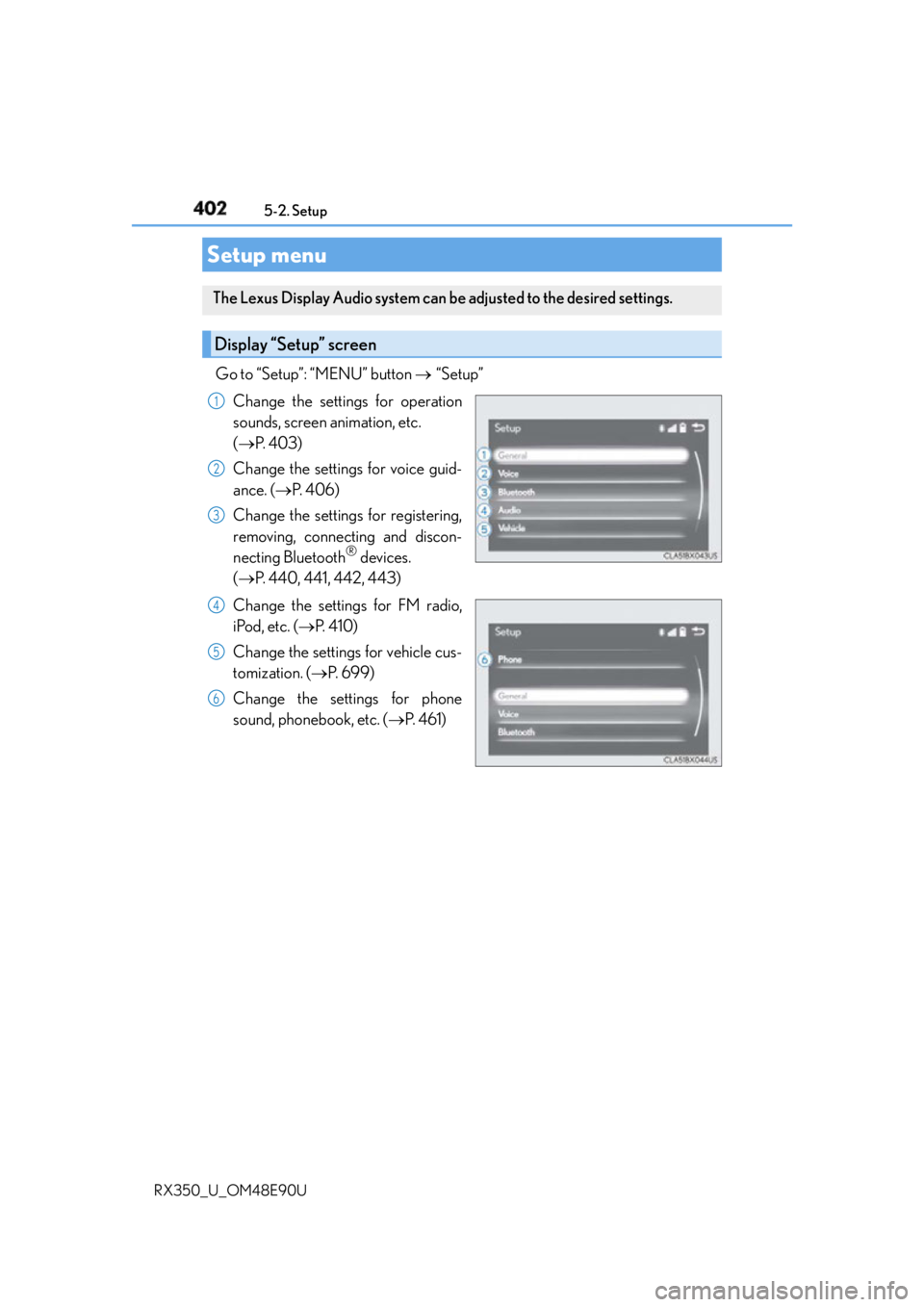
Go to “Setup”: “MENU” button “Setup”
Change the settings for operation
sounds, screen animation, etc.
( P. 4 0 3 )
Change the settings for voice guid-
ance. ( P. 4 0 6 )
Change the settings for registering,
removing, connecting and discon-
necting Bluetooth ®
devices.
( P. 440, 441, 442, 443)
Change the settings for FM radio,
iPod, etc. ( P. 4 1 0 )
Change the settings for vehicle cus-
tomization. ( P. 699)
Change the settings for phone
sound, phonebook, etc. ( P. 4 6 1 )Setup menu The Lexus Display Audio system can be adjusted to the desired settings.
Display “Setup” screen 1
2
3
4
5
6
Page 408 of 748
408
RX350_U_OM48E90U 5-3. Using the audio system
Press the “AUDIO” button to display the “Source” screen. If the “Source” screen is not displayed, press the button again.
Select the desired audio source. The audio source can be selected by pressing the “RADIO” or “MEDIA” button.
Press the “MODE” switch when the audio system is turned on. The audio source
changes each time the “MODE” switch is pressed. ■
Rearranging the list
The listing order of the sour ce list can be rearranged.
Move the controller to the left while on the “Source” screen.
Select “Audio Source Select”.
Select an item you wish to move and th en select where to move the item to.Selecting the audio source Switching between audio sources, such as the radio and CD, is explained in
this section.
Changing audio source
Using the steering wheel switches to change audio sources 1
2
1
2
3
Page 410 of 748
410 5-3. Using the audio system
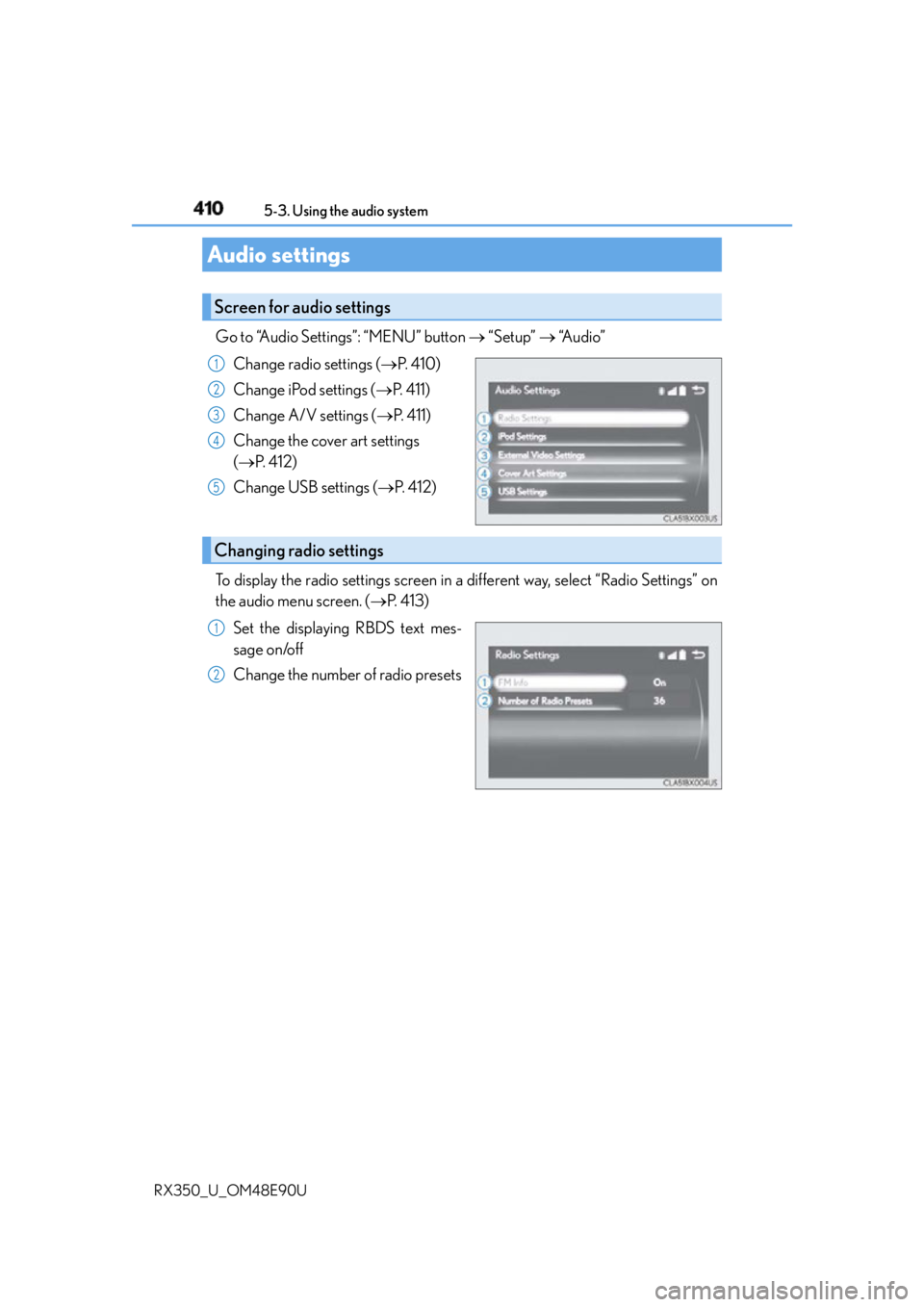
RX350_U_OM48E90U Go to “Audio Settings”: “MENU” button “Setup” “Audio”
Change radio settings ( P. 4 1 0 )
Change iPod settings ( P. 4 1 1 )
Change A/V settings ( P. 411)
Change the cover art settings
( P. 4 1 2 )
Change USB settings ( P. 4 1 2 )
To display the radio settings screen in a different way, select “Radio Settings” on
the audio menu screen. ( P. 4 1 3 )
Set the displaying RBDS text mes-
sage on/off
Change the number of radio presetsAudio settings Screen for audio settings 1
2
3
4
5
Changing radio settings 1
2
Page 413 of 748
4135-3. Using the audio system
5
Lexus Display Audio system
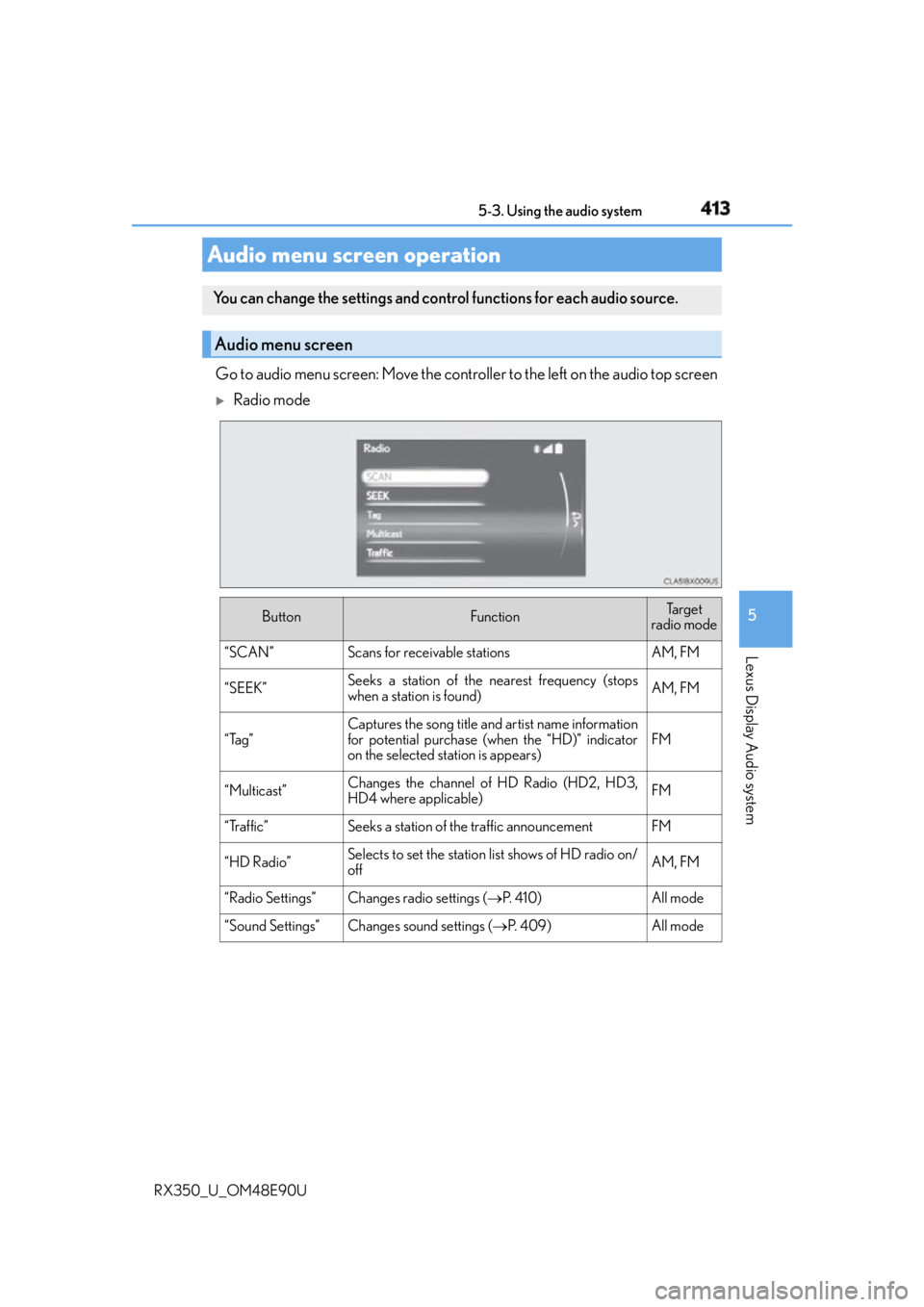
RX350_U_OM48E90U Go to audio menu screen: Move the controller to the left on the audio top screen
Radio mode
Audio menu screen operation You can change the settings and contro l functions for each audio source.
Audio menu screen
Button Function Ta r g e t
radio mode
“SCAN” Scans for receivable stations AM, FM
“SEEK” Seeks a station of the nearest frequency (stops
when a station is found) AM, FM
“Tag” Captures the song title and artist name information
for potential purchase (when the “HD)” indicator
on the selected station is appears) FM
“Multicast” Changes the channel of HD Radio (HD2, HD3,
HD4 where applicable) FM
“Traffic” Seeks a station of the traffic announcement FM
“HD Radio” Selects to set the station li st shows of HD radio on/
off AM, FM
“Radio Settings” Changes radio settings ( P. 4 1 0 ) All mode
“Sound Settings” Changes sound settings ( P. 4 0 9 ) All mode