display LEXUS RX450H 2019 Owners Manual
[x] Cancel search | Manufacturer: LEXUS, Model Year: 2019, Model line: RX450H, Model: LEXUS RX450H 2019Pages: 792, PDF Size: 13.48 MB
Page 413 of 792
4135-2. Setup
5
Lexus Display Audio system
RX450h_RX450hL_U
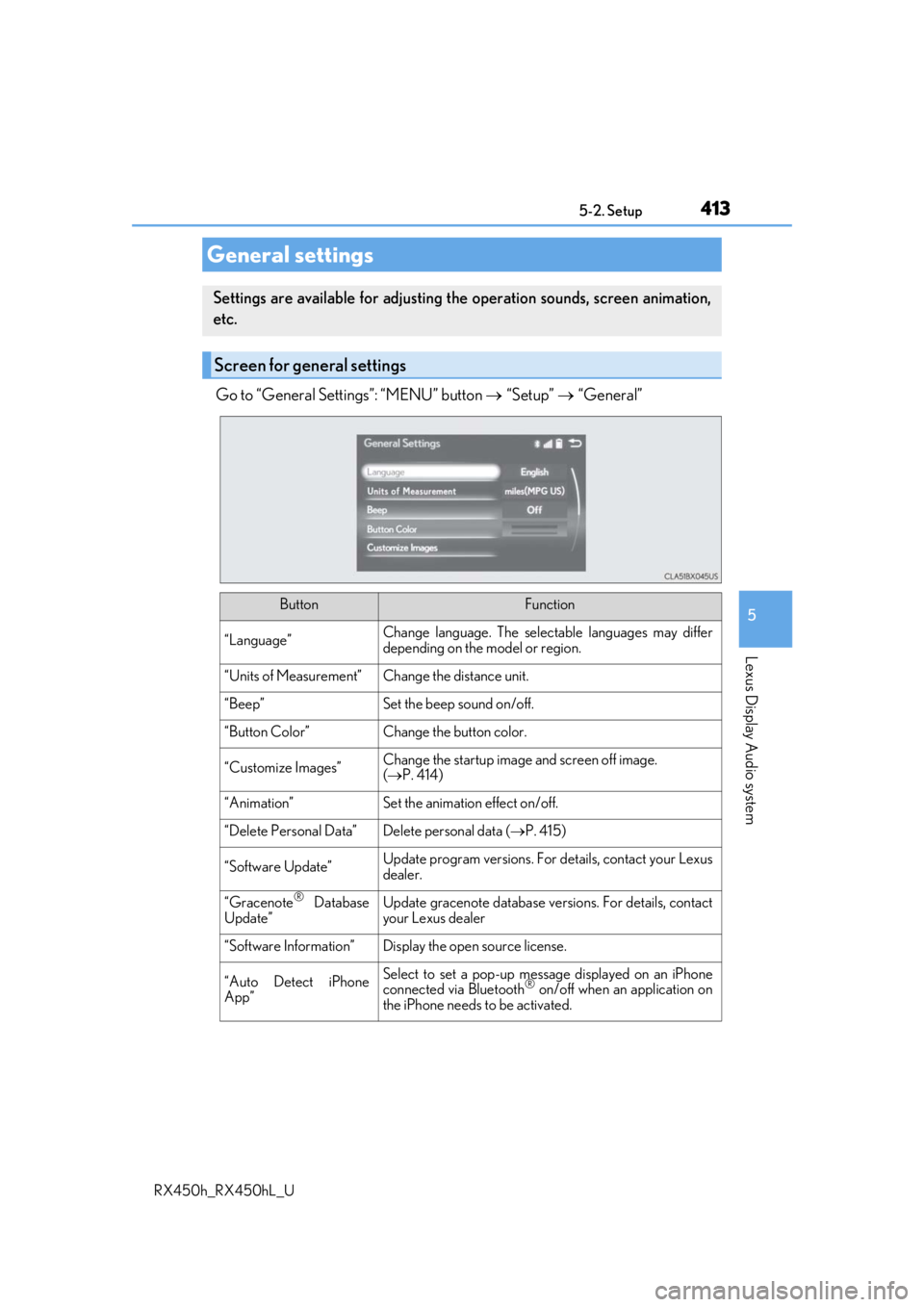
Go to “General Settings”: “MENU” button “Setup” “General”
General settings
Settings are available for adjusting th e operation sounds, screen animation,
etc.
Screen for general settings
ButtonFunction
“Language”Change language. The select able languages may differ
depending on the model or region.
“Units of Measurement”Change the distance unit.
“Beep”Set the beep sound on/off.
“Button Color”Change the button color.
“Customize Images”Change the startup image and screen off image.
( P. 414)
“Animation”Set the animation effect on/off.
“Delete Personal Data”Delete personal data ( P. 415)
“Software Update”Update program versions. For details, contact your Lexus
dealer.
“Gracenote® Database
Update”Update gracenote database versions. For details, contact
your Lexus dealer
“Software Information”Display the open source license.
“Auto Detect iPhone
App”Select to set a pop-up message displayed on an iPhone
connected via Bluetooth® on/off when an application on
the iPhone needs to be activated.
Page 415 of 792
4155-2. Setup
5
Lexus Display Audio system
RX450h_RX450hL_U
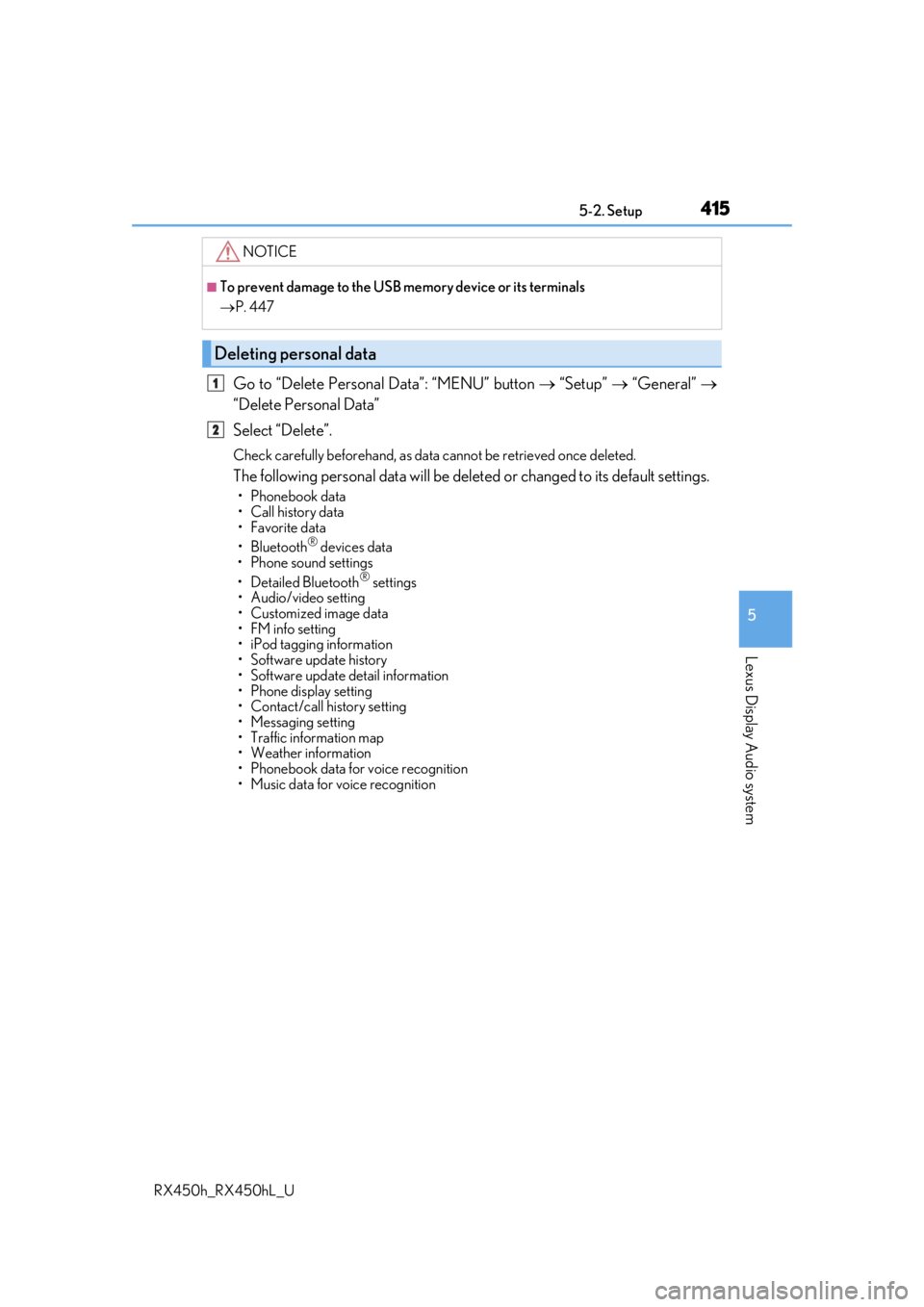
Go to “Delete Personal Data”: “MENU” button “Setup” “General”
“Delete Personal Data”
Select “Delete”.
Check carefully beforeha nd, as data cannot be retrieved once deleted.
The following personal data will be dele ted or changed to its default settings.
• Phonebook data
• Call history data
•Favorite data
•Bluetooth
® devices data
• Phone sound settings
• Detailed Bluetooth
® settings
• Audio/video setting
• Customized image data
•FM info setting
• iPod tagging information
• Software update history
• Software update detail information
• Phone display setting
• Contact/call history setting
• Messaging setting
• Traffic information map
• Weather information
• Phonebook data for voice recognition
• Music data for voice recognition
NOTICE
■To prevent damage to the USB me mory device or its terminals
P. 447
Deleting personal data
1
2
Page 417 of 792
4175-2. Setup
5
Lexus Display Audio system
RX450h_RX450hL_U
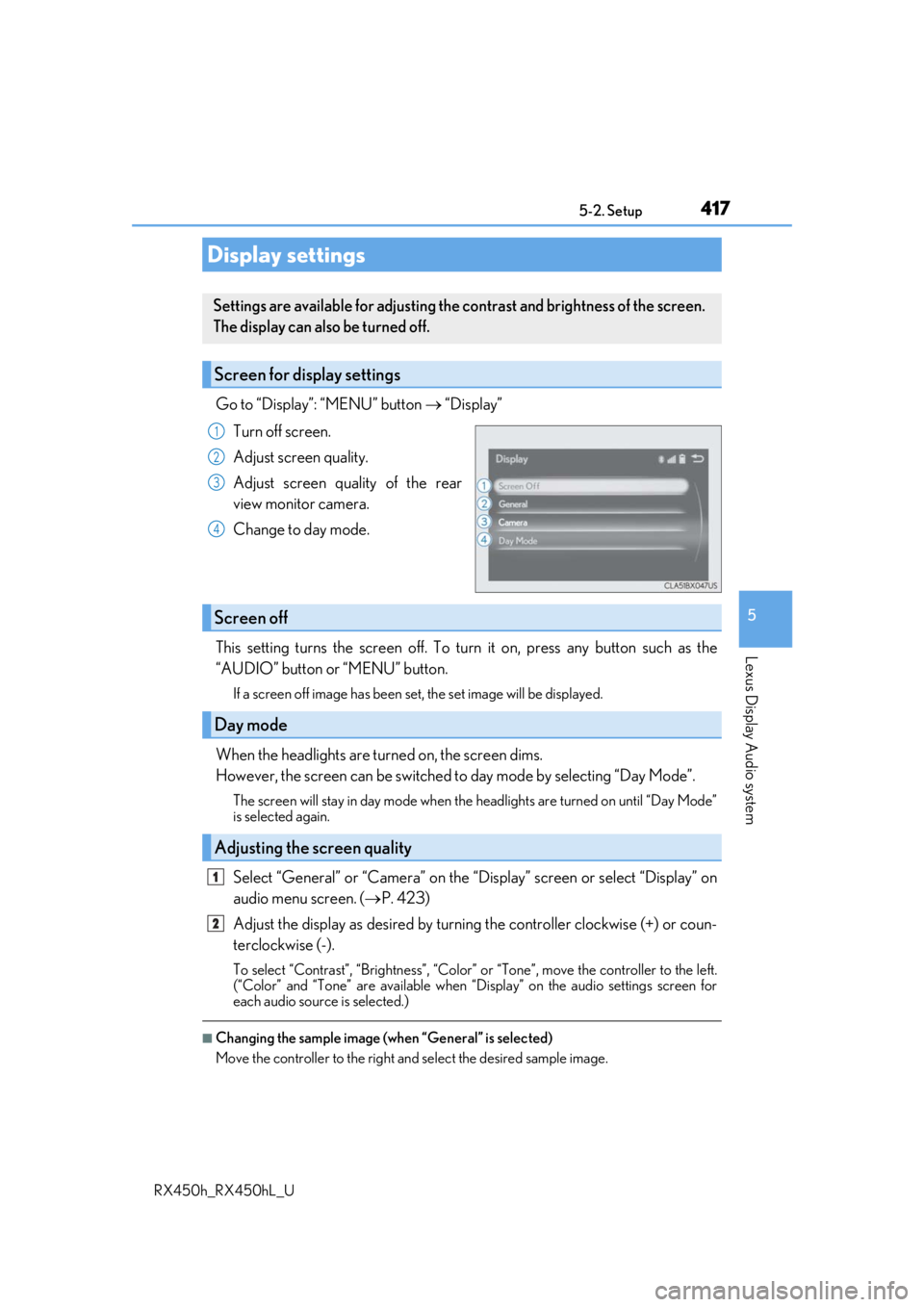
Go to “Display”: “MENU” button “Display”
Turn off screen.
Adjust screen quality.
Adjust screen quality of the rear
view monitor camera.
Change to day mode.
This setting turns the screen off. To tu rn it on, press any button such as the
“AUDIO” button or “MENU” button.
If a screen off image has been se t, the set image will be displayed.
When the headlights are turned on, the screen dims.
However, the screen can be switched to day mode by selecting “Day Mode”.
The screen will stay in day mode when the headlights are turned on until “Day Mode”
is selected again.
Select “General” or “Camera” on the “D isplay” screen or select “Display” on
audio menu screen. ( P. 423)
Adjust the display as desired by turning the controller clockwise (+) or coun-
terclockwise (-).
To select “Contrast”, “Brightness”, “Color” or “Tone”, move the controller to the left.
(“Color” and “Tone” are available when “Display” on the audio settings screen for
each audio source is selected.)
■Changing the sample image (when “General” is selected)
Move the controller to the right and select the desired sample image.
Display settings
Settings are available for adjusting the contrast and brightness of the screen.
The display can also be turned off.
Screen for display settings
1
2
3
4
Screen off
Day mode
Adjusting the screen quality
1
2
Page 418 of 792
418
RX450h_RX450hL_U5-3. Using the audio system
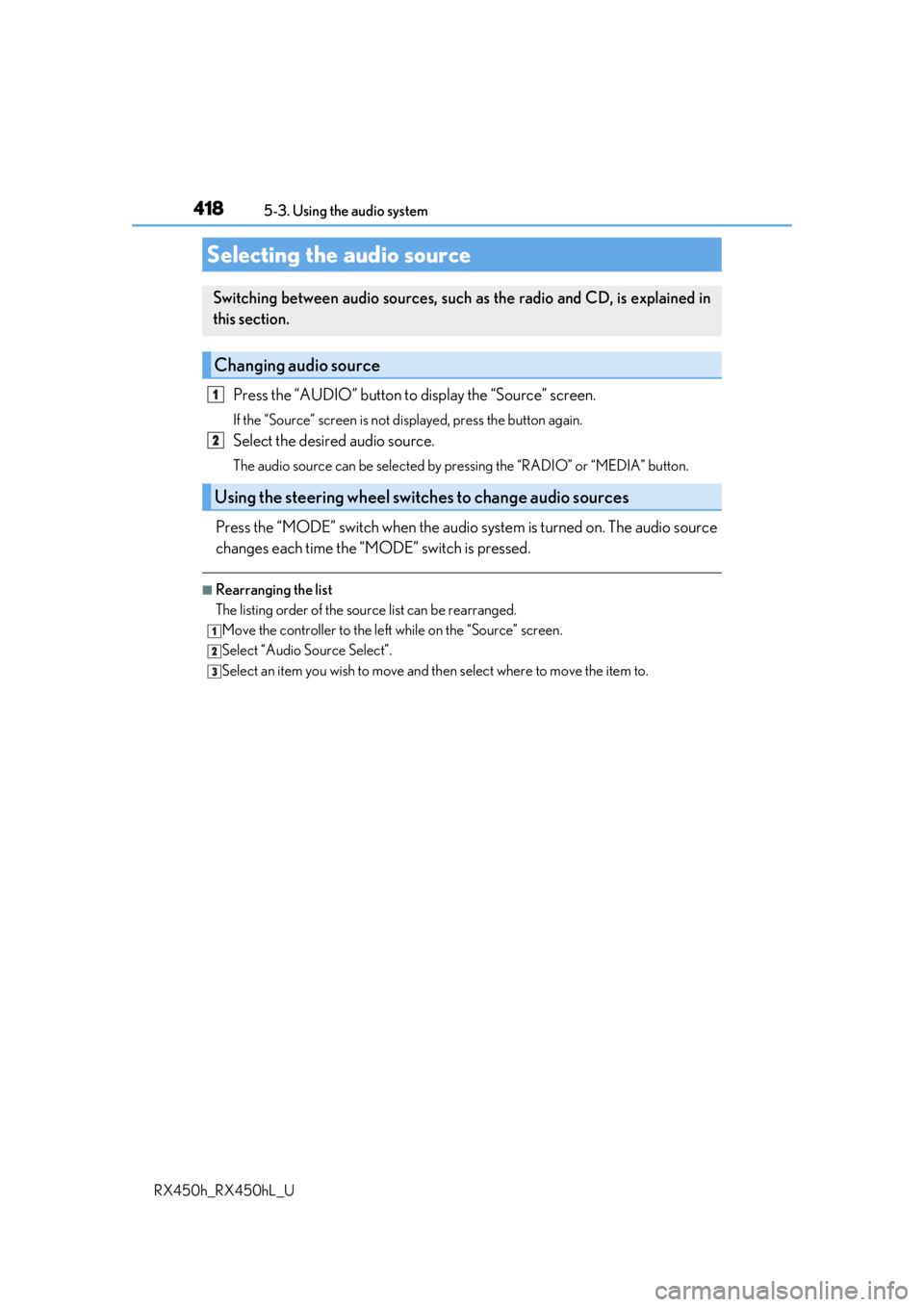
Press the “AUDIO” button to
display the “Source” screen.
If the “Source” screen is not displayed, press the button again.
Select the desired audio source.
The audio source can be selected by pressing the “RADIO” or “MEDIA” button.
Press the “MODE” switch when the audio system is turned on. The audio source
changes each time the “MODE” switch is pressed.
■Rearranging the list
The listing order of the sour ce list can be rearranged.
Move the controller to the left while on the “Source” screen.
Select “Audio Source Select”.
Select an item you wish to move and th en select where to move the item to.
Selecting the audio source
Switching between audio sources, such as the radio and CD, is explained in
this section.
Changing audio source
Using the steering wheel switches to change audio sources
1
2
1
2
3
Page 419 of 792
4195-3. Using the audio system
5
Lexus Display Audio system
RX450h_RX450hL_U
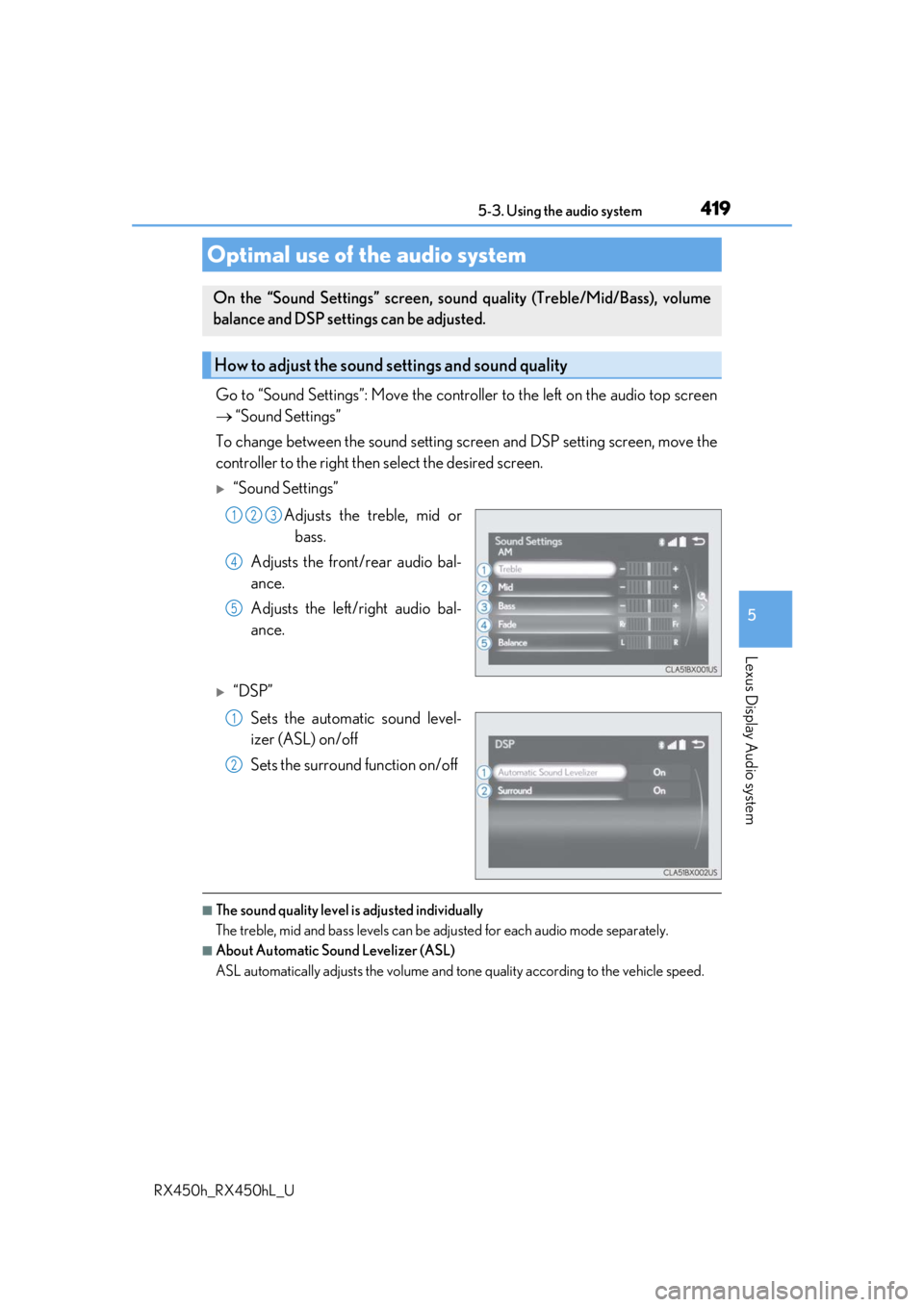
Go to “Sound Settings”: Move the controller to the left on the audio top screen
“Sound Settings”
To change between the sound setting screen and DSP setting screen, move the
controller to the right then select the desired screen.
“Sound Settings”
Adjusts the treble, mid orbass.
Adjusts the front/rear audio bal-
ance.
Adjusts the left/right audio bal-
ance.
“DSP”
Sets the automatic sound level-
izer (ASL) on/off
Sets the surround function on/off
■The sound quality level is adjusted individually
The treble, mid and bass levels can be adjusted for each audio mode separately.
■About Automatic Sound Levelizer (ASL)
ASL automatically adjusts the volume and to ne quality according to the vehicle speed.
Optimal use of the audio system
On the “Sound Settings” screen, sound quality (Treble/Mid/Bass), volume
balance and DSP settings can be adjusted.
How to adjust the sound settings and sound quality
123
4
5
1
2
Page 420 of 792
4205-3. Using the audio system
RX450h_RX450hL_U
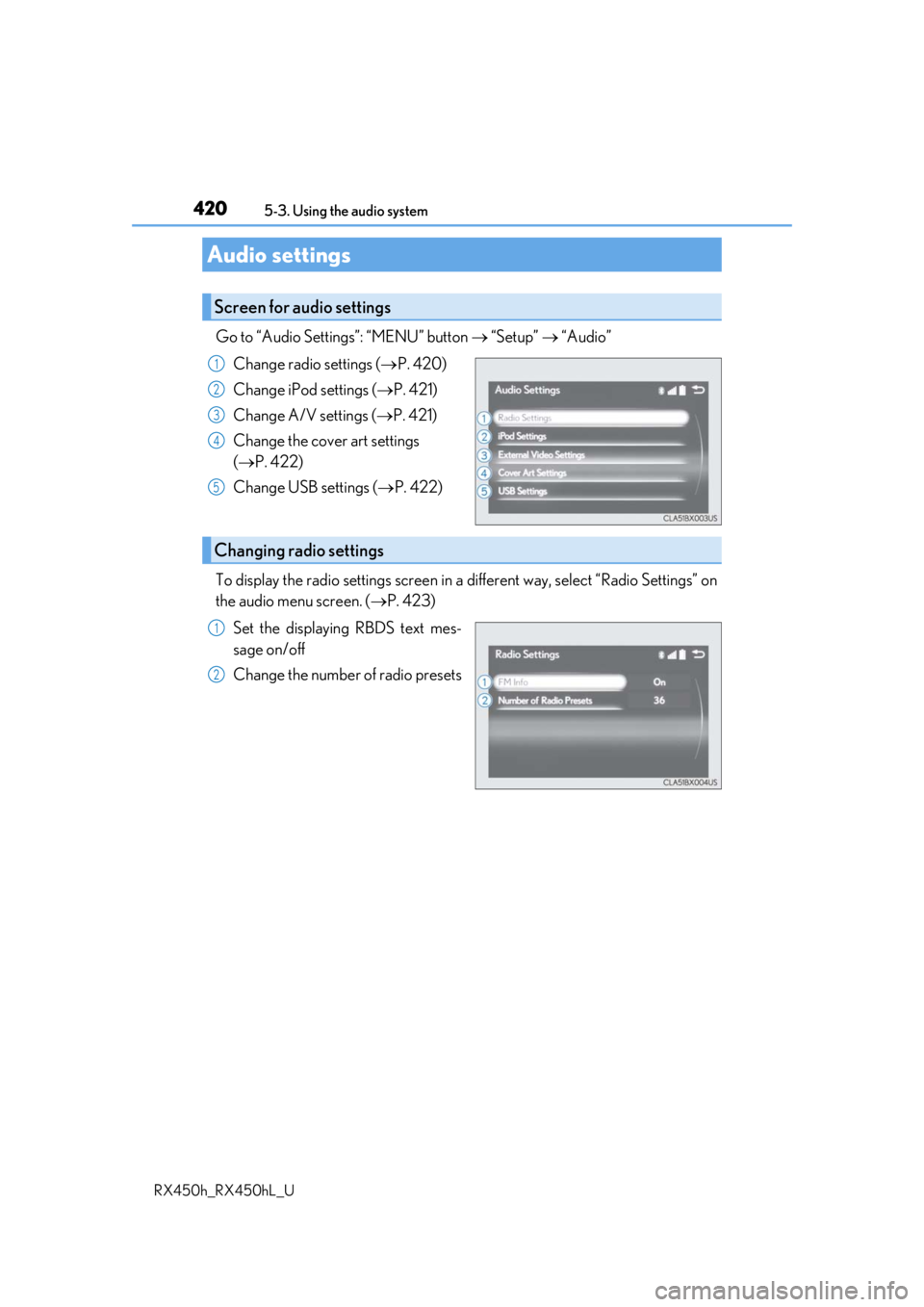
Go to “Audio Settings”: “MENU” button “Setup” “Audio”
Change radio settings ( P. 420)
Change iPod settings ( P. 421)
Change A/V settings ( P. 421)
Change the cover art settings
( P. 422)
Change USB settings ( P. 422)
To display the radio settings screen in a different way, select “Radio Settings” on
the audio menu screen. ( P. 423)
Set the displaying RBDS text mes-
sage on/off
Change the number of radio presets
Audio settings
Screen for audio settings
1
2
3
4
5
Changing radio settings
1
2
Page 421 of 792
4215-3. Using the audio system
5
Lexus Display Audio system
RX450h_RX450hL_U
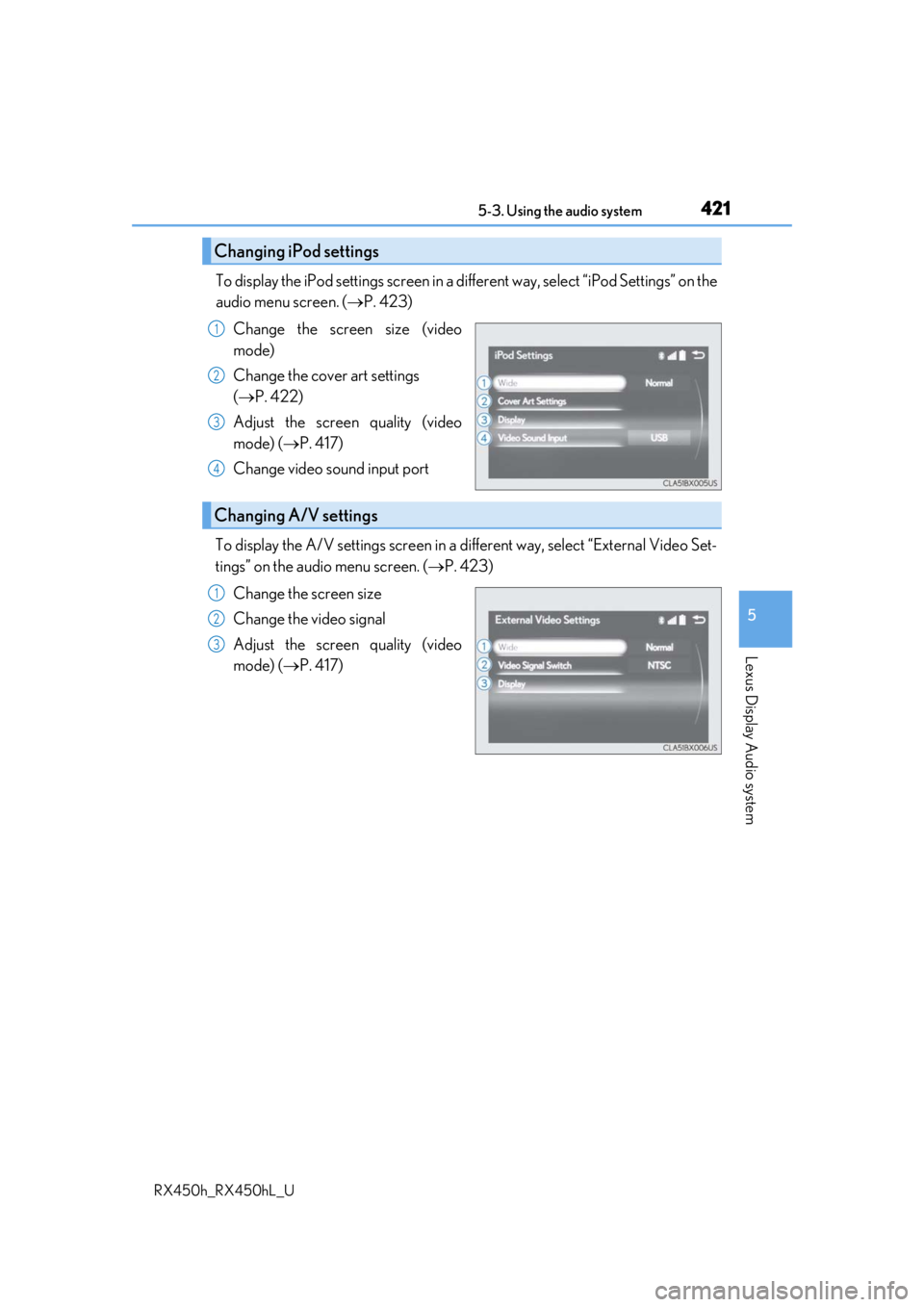
To display the iPod settings screen in a different way, select “iPod Settings” on the
audio menu screen. ( P. 423)
Change the screen size (video
mode)
Change the cover art settings
( P. 422)
Adjust the screen quality (video
mode) ( P. 417)
Change video sound input port
To display the A/V settings screen in a different way, select “External Video Set-
tings” on the audio menu screen. ( P. 423)
Change the screen size
Change the video signal
Adjust the screen quality (video
mode) ( P. 417)
Changing iPod settings
1
2
3
4
Changing A/V settings
1
2
3
Page 422 of 792
4225-3. Using the audio system
RX450h_RX450hL_U
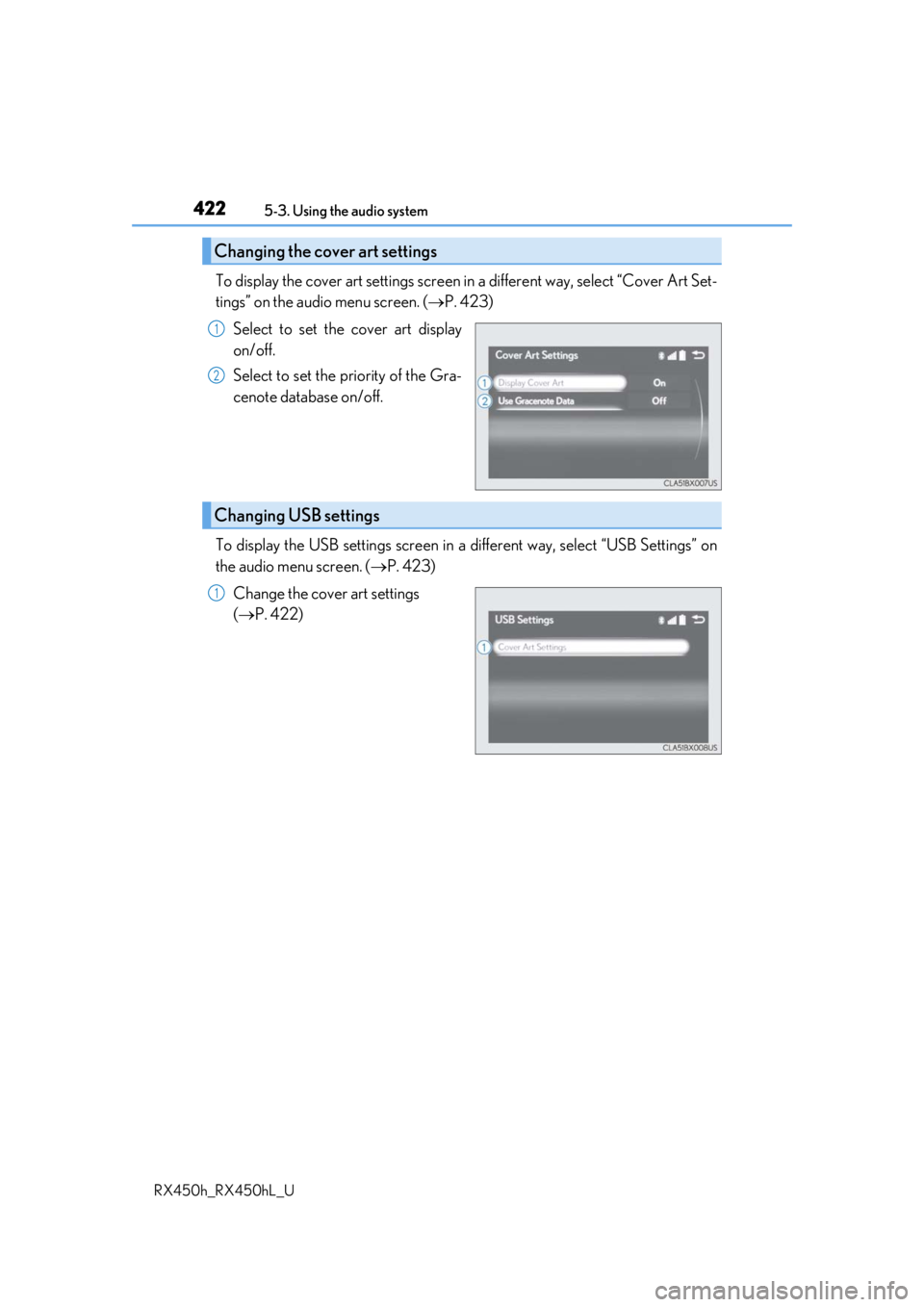
To display the cover art settings screen in a different way, select “Cover Art Set-
tings” on the audio menu screen. ( P. 423)
Select to set the cover art display
on/off.
Select to set the priority of the Gra-
cenote database on/off.
To display the USB settings screen in a different way, select “USB Settings” on
the audio menu screen. ( P. 423)
Change the cover art settings
( P. 422)
Changing the cover art settings
1
2
Changing USB settings
1
Page 423 of 792
4235-3. Using the audio system
5
Lexus Display Audio system
RX450h_RX450hL_U
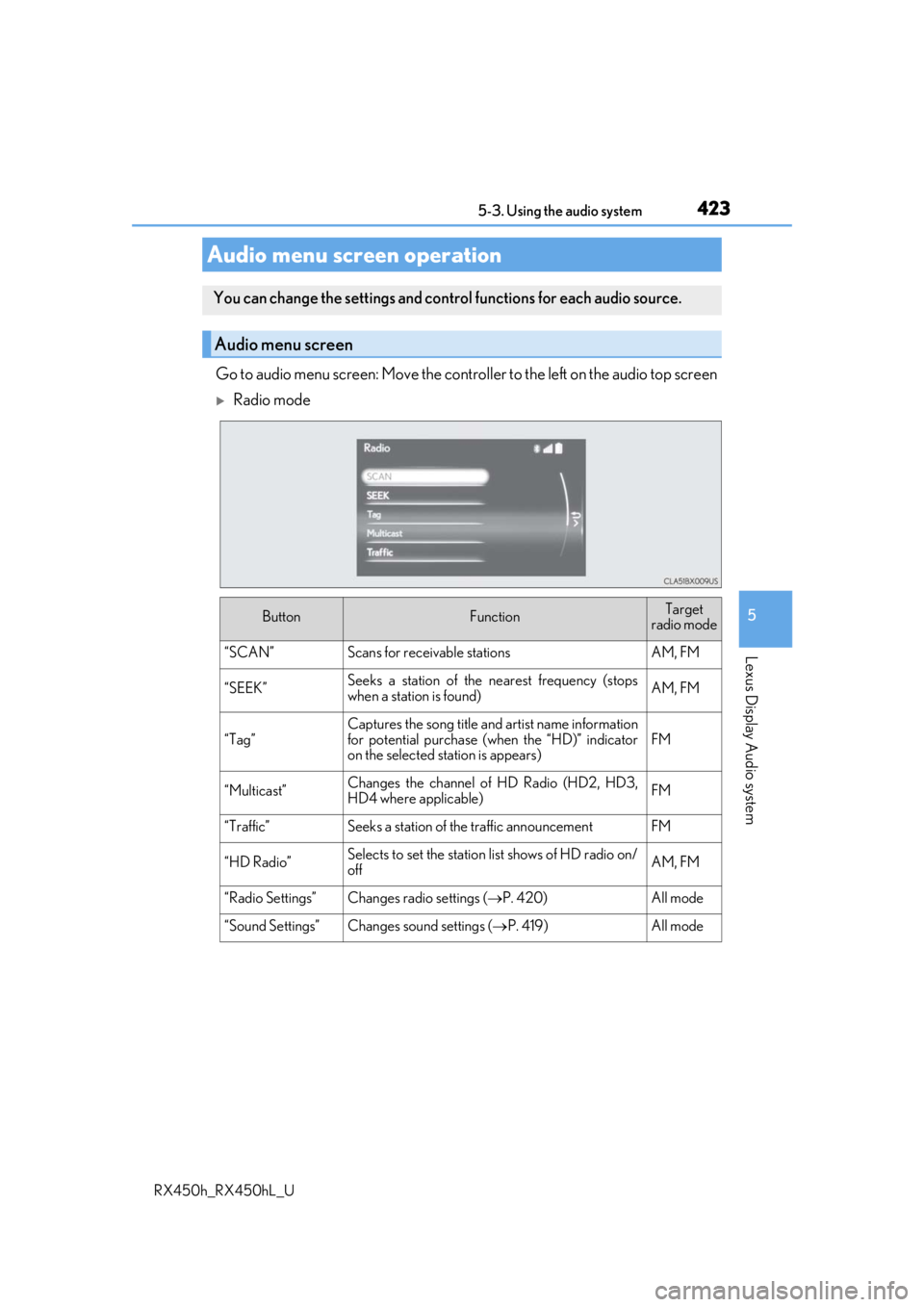
Go to audio menu screen: Move the controller to the left on the audio top screen
Radio mode
Audio menu screen operation
You can change the settings and control functions for each audio source.
Audio menu screen
ButtonFunctionTarget
radio mode
“SCAN”Scans for receivable stationsAM, FM
“SEEK”Seeks a station of the nearest frequency (stops
when a station is found)AM, FM
“Tag”
Captures the song title and artist name information
for potential purchase (when the “HD)” indicator
on the selected st ation is appears)
FM
“Multicast”Changes the channel of HD Radio (HD2, HD3,
HD4 where applicable)FM
“Traffic”Seeks a station of th e traffic announcementFM
“HD Radio”Selects to set the station list shows of HD radio on/
offAM, FM
“Radio Settings”Changes radio settings ( P. 420)All mode
“Sound Settings”Changes sound settings (P. 419)All mode
Page 425 of 792
4255-3. Using the audio system
5
Lexus Display Audio system
RX450h_RX450hL_U
“Sound Settings”Changes sound settings (P. 419)All media
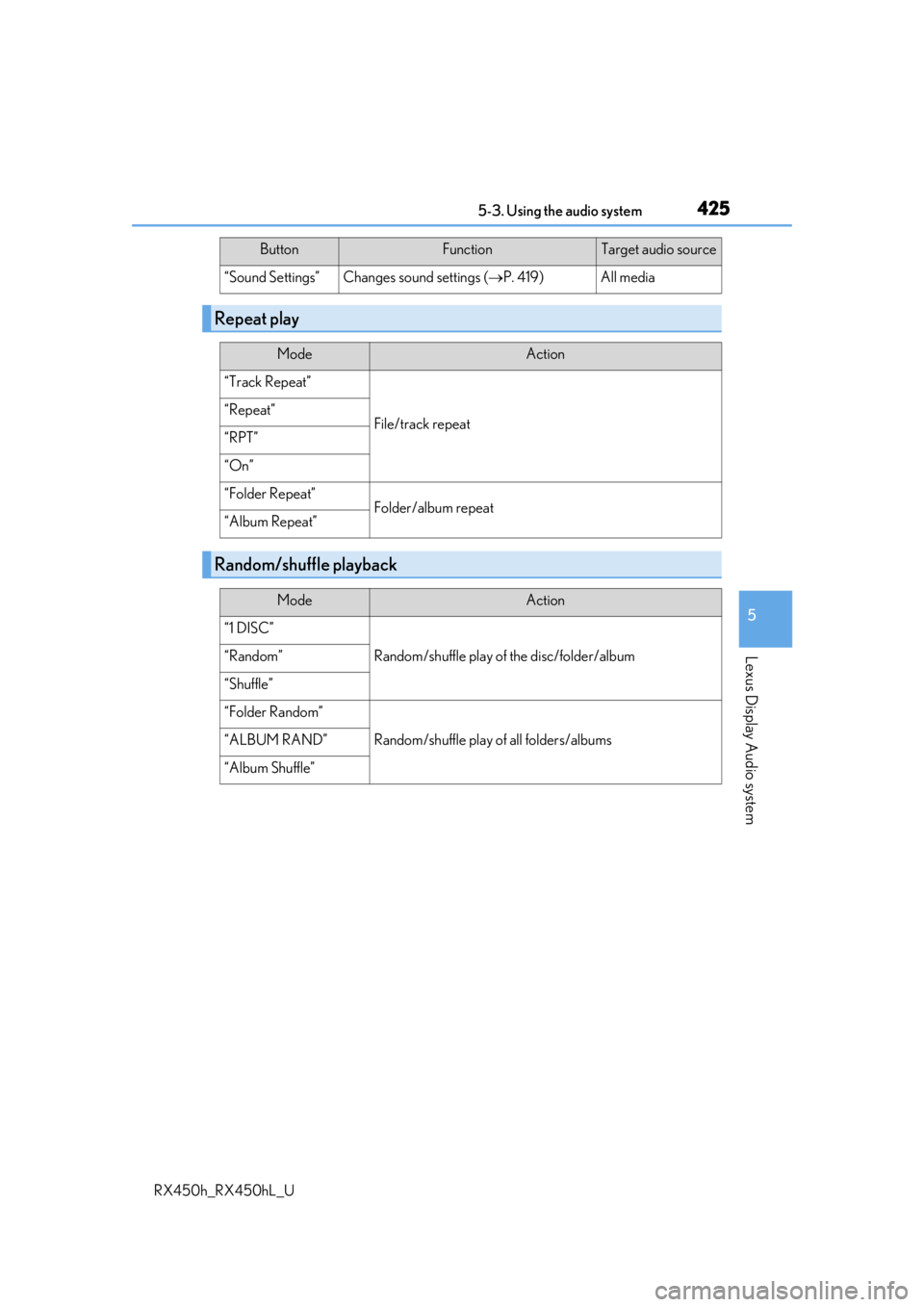
Repeat play
ModeAction
“Track Repeat”
File/track repeat“Repeat”
“RPT”
“On”
“Folder Repeat”Folder/album repeat“Album Repeat”
Random/shuffle playback
ModeAction
“1 DISC”
Random/shuffle play of the disc/folder/album“Random”
“Shuffle”
“Folder Random”
Random/shuffle play of all folders/albums“ALBUM RAND”
“Album Shuffle”
ButtonFunctionTarget audio source