display LEXUS RX450H 2019 Owners Manual
[x] Cancel search | Manufacturer: LEXUS, Model Year: 2019, Model line: RX450H, Model: LEXUS RX450H 2019Pages: 792, PDF Size: 13.48 MB
Page 426 of 792
426
RX450h_RX450hL_U5-4. Using the radio
Pressing the “RADIO” button displays the radio top screen from any screen of
the selected source.
■Menu screen
P. 423
Tune in to the desired station using one of the following methods.
■Seek tuning
Press and hold then release the “ PRST” or “TRACK ” button.
Seek tuning can also be operated on the menu screen. ( P. 423)
The radio will begin seeking up or down for a station of the nearest frequency
and will stop when a station is found.
■Manual tuning
Turn the “TUNE•SCROLL” knob.
■Preset stations
Select the desired preset station by pressing the “ PRST” or “TRACK ” but-
ton, or turning and pressing the controller.
■Station list
Move the controller to the right and selecting “Station List”.
AM radio: Selectin g a desired station.
FM radio: Selecting a desired type of station and selecting a desired st\
a-
tion.
To refreshing the station list, select “Refresh”. Select “Source” on the refresh
screen, can be change to the othe r audio source while refreshing.
Radio operation
Select “AM”, “FM” or “SAT” on the audi o source selection screen to begin lis-
tening to the radio.
Radio top screen
Selecting a station (AM or FM radio)
1
2
Page 427 of 792
4275-4. Using the radio
5
Lexus Display Audio system
RX450h_RX450hL_U
When “HD Radio” is set to “On”, available stations with HD Radio channels are
marked with “HD)”.In AM or FM mode, select a station marked with “HD)”.
Turn the “TUNE•SCROLL” knob to select an HD Radio channel.
HD Radio channels can also be selected by selecting “Mul ticast” on the menu screen.
( P. 423)
Select in to the desired channel using one of the following methods.
■Turning up/down the channel
Press and hold the “ PRST” or “TRACK ” button or turn the
“TUNE•SCROLL” knob.
■Preset channels
Select the desired preset channel by pressing the “ PRST” or “TRACK ”
button or controller.
■Channel list
Move the controller to the right and selecting “Select a SAT Category”.
Selecting a desired category of cha nnel and selecting a desired channel.
Search for desired stations or channel.
Select and hold one of the pr eset until you hear a beep.
■Display the song information
Move the controller to the right and selecting “Text”.
■Display the Additional information (HD radio)
Move the controller to the right and selecting “Additional Information”.
Selecting an HD Radio channel
Selecting a channel (XM Satellite Radio)
Setting presets
Display the text message
1
2
1
2
1
2
Page 428 of 792
4285-4. Using the radio
RX450h_RX450hL_U
HD Radio™ Technology is the digital evolution of analog AM/FM radio. Your
radio product has a special receiver which allows it to receive digital broadcasts
(where available) in addition to the analog broadcasts it already receives.
Digital broadcasts have better sound qua lity than analog broadcasts as digital
broadcasts provide free, crystal clear audio with no static or distortion. For more
information, and a guide to available radio stations and programming, refer to
www.hdradio.com
.
“HD Radio features included in Lexus radios:
Digital Sound - HD Radio broadcasts deliver crystal-clear, digital audio quality to
listeners.
HD2/HD3 Channels - FM stations can prov ide additional digital only audio pro-
gramming with expanded content and format choices on HD2/HD3 channels.
PSD - Program Service Data (PSD) gives you on-screen information such as art-
ist name and song title.
iTunes Tagging - Listeners can tag (store) songs they like for later review and pur-
chase through iTunes.
Artist Experience - Images related to the broadcast are displayed on the radio
screen, such as album cover art and station logos.”
HD Radio™ Technology
HD Radio Technology manufactured under license from iBiquity Digital Corpora-
tion. U.S. and Foreign Patents. HD Radio™ and the HD, HD Radio, and “Arc” logos
are proprietary trademarks of iBiquity Digital Corp.
Page 429 of 792
4295-4. Using the radio
5
Lexus Display Audio system
RX450h_RX450hL_U
■HD Radio™ Technology troubleshooting guide
■Reception sensitivity
●Maintaining perfect radio reception at all times is difficult due to the continually chang-
ing position of the antenna, differences in si gnal strength and surrounding objects, such
as trains, transmitters, etc.
●The radio antenna is mounted inside the rear window. To maintain clear radio reception,
do not attach metallic window tinting or other metallic objects to the antenna wire
mounted inside the rear window.
ExperienceCauseAction
Mismatch of time align-
ment- a user may hear a
short period of program-
ming replayed or an echo,
stutter or skip.The radio stations analog
and digital volume are not
properly aligned or the sta-
tion is in ballgame mode.None, radio broadcast
issue. A user can contact
the radio station.
Sound fades, blending in
and out.Radio is shifting between
analog and digital audio.
Reception issue, may
clear-up as the vehicle
continues to be driven. Set
“HD Radio” to off, can
force radio in an analog
audio.
Audio mute condition
when an HD2/HD3 multi-
cast channel had been
playing.The radio does not have
access to digital signals at
the moment.
This is normal behavior,
wait until the digital signal
returns. If out of the cover-
age area, seek a new sta-
tion.
Audio mute delay when
selecting an HD2/HD3
multicast channel preset.
The digital multicast con-
tent is not available until
HD Radio™ broadcast can
be decoded and make the
audio available. This takes
up to 7 seconds.
This is normal behavior,
wait for the audio to
become available.
Text information does not
match the present song
audio.Data service issue at the
radio broadcaster.
Broadcaster should be
notified. Complete the
form: www.ibiquity.com/
automotive/
report_radio_station_
experiences.
No text information shown
for the present selected
frequency.Data service issue by the
radio broadcaster.
Broadcaster should be
notified. Complete the
form: www.ibiquity.com/
automotive/report_radio_station_
experiences.
Page 431 of 792
4315-4. Using the radio
5
Lexus Display Audio system
RX450h_RX450hL_U
Page 433 of 792
433
5
Lexus Display Audio system
RX450h_RX450hL_U5-5. Playing an audio CD and MP3/WMA/AAC discs
Pressing the “MEDIA” button displays the
CD top screen from any screen of the
selected source.
■Menu screen
P. 423
■Selecting a track/file
Press the “ PRST” or “TRACK ” button or turn the “TUNE•SCROLL” knob
to select the desired track/file number.
To fast-forward or rewind, press and hold the “ PRST” or “TRACK ” button.
■Selecting the track by the list (CD)
Move the controller to the right an d then select the desired track.
■Selecting a folder (MP3/WMA/AAC disc)
Move the controller to the ri ght and then select “Folders”.
Select the desired folder. Then select a file to begin using the selected
folder.
■Selecting a file by the selected folder (MP3/WMA/AAC disc)
Move the controller to the right and then select “Files”.
Select the desired file.
CD player operation
Insert a disc, press the “MEDIA” butto n or select “DISC” on the “Source”
screen with a disc inserted to begin listening to a CD.
CD top screen
1
2
1
2
Page 435 of 792

4355-5. Playing an audio CD and MP3/WMA/AAC discs
5
Lexus Display Audio system
RX450h_RX450hL_U
●MP3 file compatibility
• Compatible standards MP3 (MPEG1 LAYER3, MPEG2 LSF LAYER3)
• Compatible sampling frequencies MPEG1 LAYER3: 32, 44.1, 48 (kHz)
MPEG2 LSF LAYER3: 16, 22.05, 24 (kHz)
• Compatible bit rates (compatible with VBR) MPEG1 LAYER3: 32-320 (kbps)
MPEG2 LSF LAYER3: 8-160 (kbps)
• Compatible channel modes: stereo, jo int stereo, dual channel and monaural
●WMA file compatibility
• Compatible standards
WMA Ver. 7, 8, 9 (only compatible with Window Media Audio Standard)
• Compatible sampling frequencies
32, 44.1, 48 (kHz)
• Compatible bit rates (only compatible with 2-channel playback) Ver. 7, 8: CBR 48-192 (kbps)
Ver. 9: CBR 48-320 (kbps)
●AAC file compatibility
• Compatible standards
MPEG4/AAC-LC
• Compatible sampling frequencies
11.025/12/16/22.05/24/32/44.1/48 (kHz)
• Compatible bit rates 16-320 (kbps)
• Compatible channel modes: 1 ch and 2 ch
●Compatible media
Media that can be used for MP3, WMA and AAC playback are CD-Rs and CD-RWs.
Playback in some instances may not be possible if the CD-R or CD-RW is not final-
ized. Playback may not be possible or the audio may jump if the disc is scratched or
marked with fingerprints.
●Compatible disc formats
The following disc formats can be used.
• Disc formats: CD-ROM Mode 1 and Mode 2 CD-ROM XA Mode 2, Form 1 and Form 2
• File formats: ISO9660 Level 1, Level 2, (Romeo, Joliet)
UDF (2.01 or lower)
MP3, WMA and AAC files written in any fo rmat other than those listed above may
not play correctly, and their file names an d folder names may not be displayed cor-
rectly.
Items related to standards an d limitations are as follows.
• Maximum directory hierarchy: 8 levels (including the root)
• Maximum length of folder na mes/file names: 32 characters
• Maximum number of folders: 192 (including the root)
• Maximum number of files per disc: 255
Page 437 of 792

4375-5. Playing an audio CD and MP3/WMA/AAC discs
5
Lexus Display Audio system
RX450h_RX450hL_U
Page 439 of 792
4395-5. Playing an audio CD and MP3/WMA/AAC discs
5
Lexus Display Audio system
RX450h_RX450hL_U
NOTICE
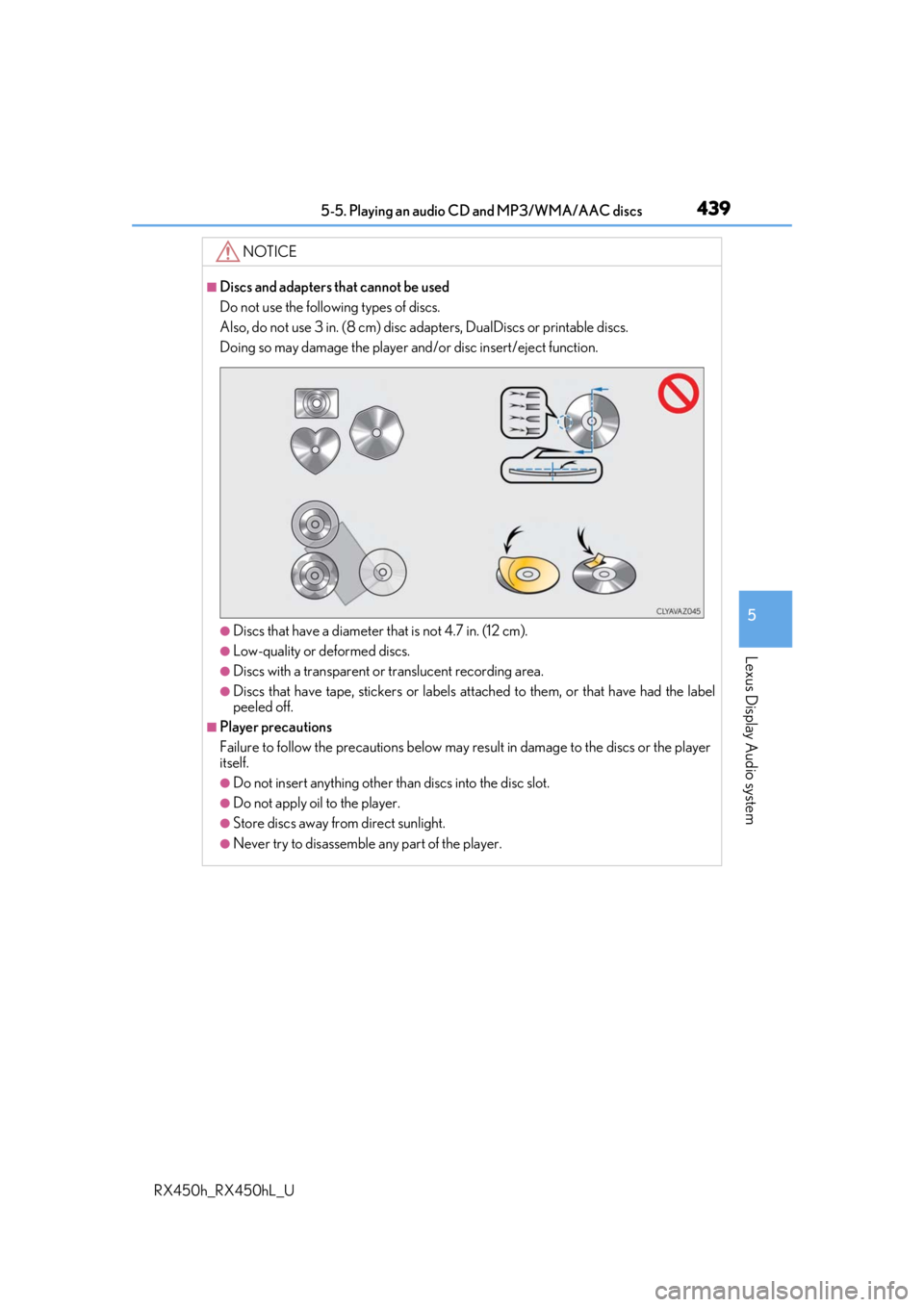
■Discs and adapters that cannot be used
Do not use the following types of discs.
Also, do not use 3 in. (8 cm) disc adapters, DualDiscs or printable discs.
Doing so may damage the player and/or disc insert/eject function.
●Discs that have a diameter that is not 4.7 in. (12 cm).
●Low-quality or deformed discs.
●Discs with a transparent or translucent recording area.
●Discs that have tape, stickers or labels attached to them, or that have had the label
peeled off.
■Player precautions
Failure to follow the precautions below may re sult in damage to the discs or the player
itself.
●Do not insert anything other than discs into the disc slot.
●Do not apply oil to the player.
●Store discs away from direct sunlight.
●Never try to disassemble any part of the player.
Page 440 of 792
440
RX450h_RX450hL_U5-6. Using an external device
P. 409
Pressing the “MEDIA” button displays the iPod top screen from any screen of the
selected source.
■Menu screen
P. 423
■Selecting a song
Press the “ PRST” or “TRACK ” button or turn the “TUNE•SCROLL” knob
to select the desired song number.
To fast-forward or rewind, press and hold the “ PRST” or “TRACK ” button.
■Selecting a play mode
Move the controller to the ri ght and then select “Browse”.
Select the desired play mode, and then select a song to begin using the
selected play mode.
■Displaying the now playing list
Move the controller to the right an d then select “Now Playing List”.
Listening to an iPod
Connecting an iPod enables you to enjoy music from the vehicle speakers.
Press the “MEDIA” button or select “i Pod” on the audio source selection
screen.
Connecting an iPod
iPod top screen
1
2