turn LEXUS RX450H 2019 Owners Manual
[x] Cancel search | Manufacturer: LEXUS, Model Year: 2019, Model line: RX450H, Model: LEXUS RX450H 2019Pages: 792, PDF Size: 13.48 MB
Page 440 of 792
440
RX450h_RX450hL_U5-6. Using an external device
P. 409
Pressing the “MEDIA” button displays the iPod top screen from any screen of the
selected source.
■Menu screen
P. 423
■Selecting a song
Press the “ PRST” or “TRACK ” button or turn the “TUNE•SCROLL” knob
to select the desired song number.
To fast-forward or rewind, press and hold the “ PRST” or “TRACK ” button.
■Selecting a play mode
Move the controller to the ri ght and then select “Browse”.
Select the desired play mode, and then select a song to begin using the
selected play mode.
■Displaying the now playing list
Move the controller to the right an d then select “Now Playing List”.
Listening to an iPod
Connecting an iPod enables you to enjoy music from the vehicle speakers.
Press the “MEDIA” button or select “i Pod” on the audio source selection
screen.
Connecting an iPod
iPod top screen
1
2
Page 444 of 792
4445-6. Using an external device
RX450h_RX450hL_U
P. 409
Pressing the “MEDIA” button displays the USB top screen from any screen of the
selected source.
■Menu screen
P. 423
■Selecting a file
Press the “ PRST” or “TRACK ” button or turn the “TUNE•SCROLL” knob
to select the desired file number.
To fast-forward or rewind, press and hold the “ PRST” or “TRACK ” button.
■Selecting a play mode
Move the controller to the right and select “Browse”.
Select the desired play mode, then sele ct a file to begin the selected play
mode.
■Displaying the now playing list
Move the controller to the right and select “Now Playing List”.
Using USB memory device
Connecting a USB memory device enables you to enjoy music from the vehi-
cle speakers.
Select “USB” or “USB2” on the audio source selection screen.
Connecting a USB memory device
USB top screen
1
2
Page 451 of 792
4515-7. Connecting Bluetooth®
5
Lexus Display Audio system
RX450h_RX450hL_U
Turn the Bluetooth® connection setting of your device set to on.
Go to “Bluetooth
* Setup”: “MENU” button “Setup” “Bluetooth*”
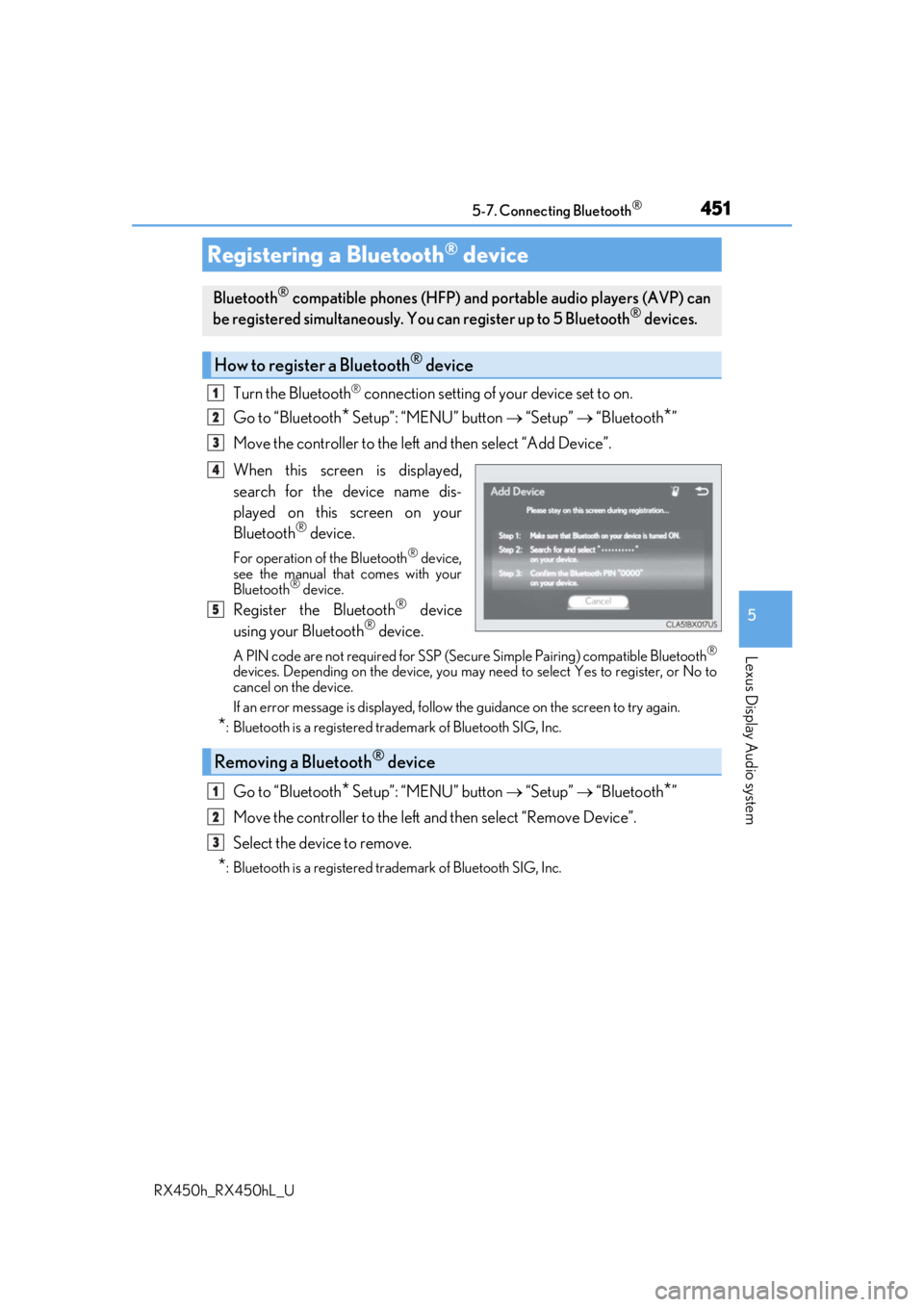
Move the controller to the left and then select “Add Device”.
When this screen is displayed,
search for the device name dis-
played on this screen on your
Bluetooth
® device.
For operation of the Bluetooth® device,
see the manual that comes with your
Bluetooth
® device.
Register the Bluetooth® device
using your Bluetooth® device.
A PIN code are not required for SSP (Secur e Simple Pairing) compatible Bluetooth®
devices. Depending on the device, you may need to select Yes to register, or No to
cancel on the device.
If an error message is displayed, follow the guidance on the screen to try again.
*: Bluetooth is a registered trademark of Bluetooth SIG, Inc.
Go to “Bluetooth* Setup”: “MENU” button “Setup” “Bluetooth*”
Move the controller to the left and then select “Remove Device”.
Select the device to remove.
*: Bluetooth is a registered trademark of Bluetooth SIG, Inc.
Registering a Bluetooth® device
Bluetooth® compatible phones (HFP) and portable audio players (AVP) can
be registered simultaneously. You can register up to 5 Bluetooth® devices.
How to register a Bluetooth® device
1
2
3
4
5
Removing a Bluetooth® device
1
2
3
Page 453 of 792
4535-7. Connecting Bluetooth®
5
Lexus Display Audio system
RX450h_RX450hL_U
When a registered Bluetooth® audio player is in standby for a connection, it will
automatically connect to the system when the power switch is turned to ACCES-
SORY or ON mode.
When automatic connection priority is set to on and there is more than one reg-
istered Bluetooth
® audio player available, the system will automatically connect
to the Bluetooth® audio player with the highest priority. ( P. 456)
Operate the portable player and connect it to the Bluetooth
® audio system.
Go to “Bluetooth
*1 Setup”: “MENU” button “Setup” “Bluetooth*1”
Select the device to connect.
Select “Connect XX
*2” or “Connect as an Audio Player”.
If the desired Bluetooth
® device is not displayed, register the device.
( P. 451)
*1: Bluetooth is a registered trademark of Bluetooth SIG, Inc.
*2: XX represents the selected device name.
Connecting a Bluetooth® audio player
There are 2 portable audio player conne ction settings available: connecting
from the vehicle and connectin g from the portable player.
Connecting method is set to “Vehicle”
Connecting method is set to “Device”
1
2
3
Page 454 of 792
4545-7. Connecting Bluetooth®
RX450h_RX450hL_U
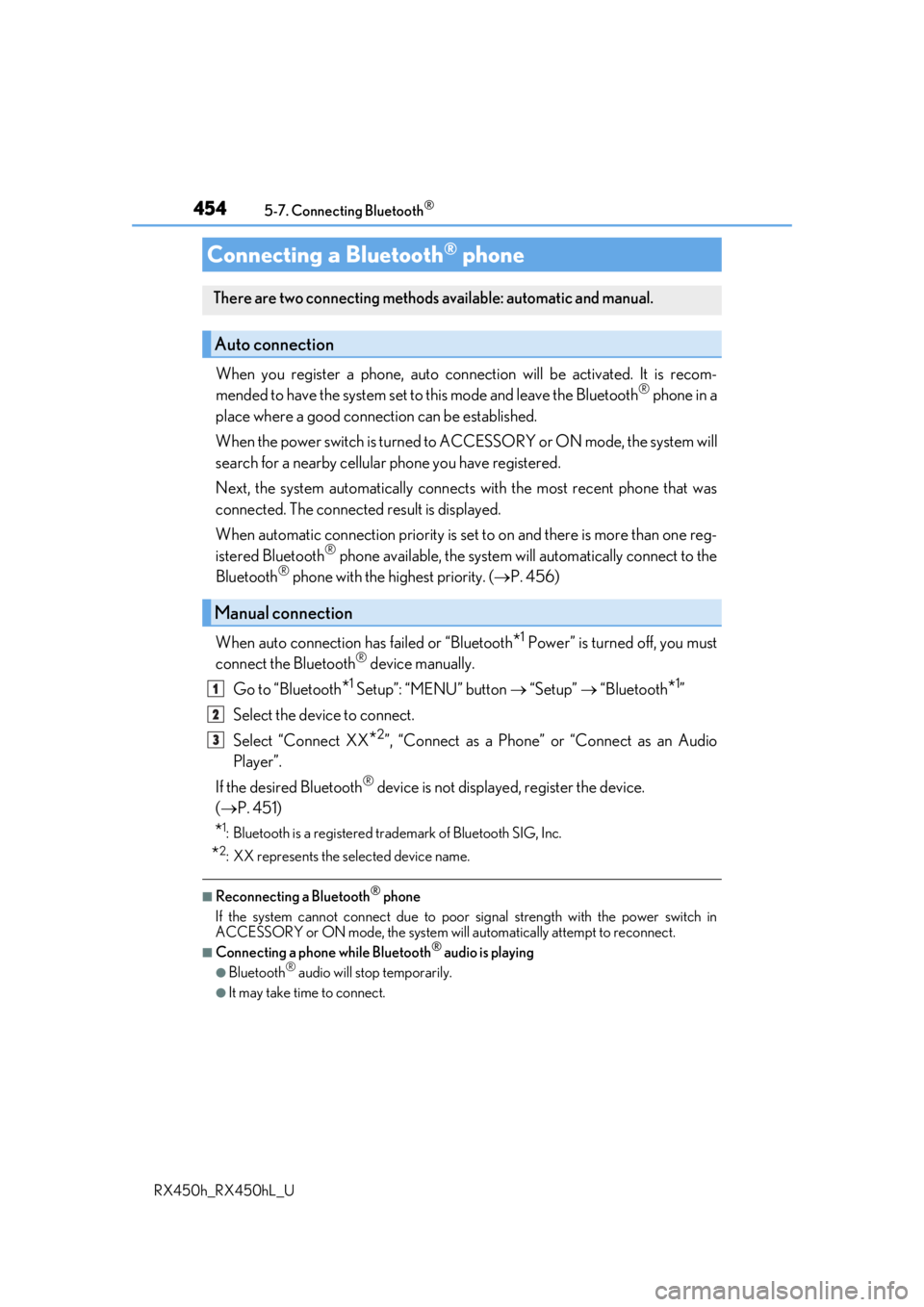
When you register a phone, auto connection will be activated. It is recom-
mended to have the system set to this mode and leave the Bluetooth® phone in a
place where a good connection can be established.
When the power switch is turned to ACCESSORY or ON mode, the system will
search for a nearby cellular phone you have registered.
Next, the system automatically connects with the most recent phone that was
connected. The connected result is displayed.
When automatic connection priority is set to on and there is more than one reg-
istered Bluetooth
® phone available, the system will automatically connect to the
Bluetooth® phone with the highest priority. ( P. 456)
When auto connection has failed or “Bluetooth
*1 Power” is turned off, you must
connect the Bluetooth® device manually.
Go to “Bluetooth
*1 Setup”: “MENU” button “Setup” “Bluetooth*1”
Select the device to connect.
Select “Connect XX
*2”, “Connect as a Phone” or “Connect as an Audio
Player”.
If the desired Bluetooth
® device is not displayed, register the device.
( P. 451)
*1: Bluetooth is a registered trademark of Bluetooth SIG, Inc.
*2: XX represents the selected device name.
■Reconnecting a Bluetooth® phone
If the system cannot connect due to poor signal strength with the power switch in
ACCESSORY or ON mode, the system will automatically attempt to reconnect.
■Connecting a phone while Bluetooth® audio is playing
●Bluetooth® audio will stop temporarily.
●It may take time to connect.
Connecting a Bluetooth® phone
There are two connecting methods available: automatic and manual.
Auto connection
Manual connection
1
2
3
Page 460 of 792

4605-8. Bluetooth® Audio
RX450h_RX450hL_U
Pressing the “MEDIA” button displays the Bluetooth® audio top screen from any
screen of the selected source.
■Menu screen
P. 423
■Selecting a song
Press the “ PRST” or “TRACK ” button or turn the “TUNE•SCROLL” knob
to select the desired song number.
To fast-forward or reverse, press and hold the “ PRST” or “TRACK ” button.
■Selecting a play mode
Move the controller to the ri ght and then select “Browse”.
Select the desired play mode, and then select a song to begin using the
selected play mode.
■Displaying the now playing list
Move the controller to the right an d then select “Now Playing List”.
Bluetooth® audio top screen
1
2
Page 470 of 792
4705-9. Bluetooth® Phone
RX450h_RX450hL_U
Move the controller to the left while on the message screen.
Select “Quick Message” to display the “Quick Message” screen.
Select the desired message and then select “Send”.
■Editing a quick message Move the controller to the left while on the message screen.
Select “Quick Message” and move the cursor to the desired message.
Move the controller to the left and select “Edit”.
To return to the default message after editing, select “Default”.
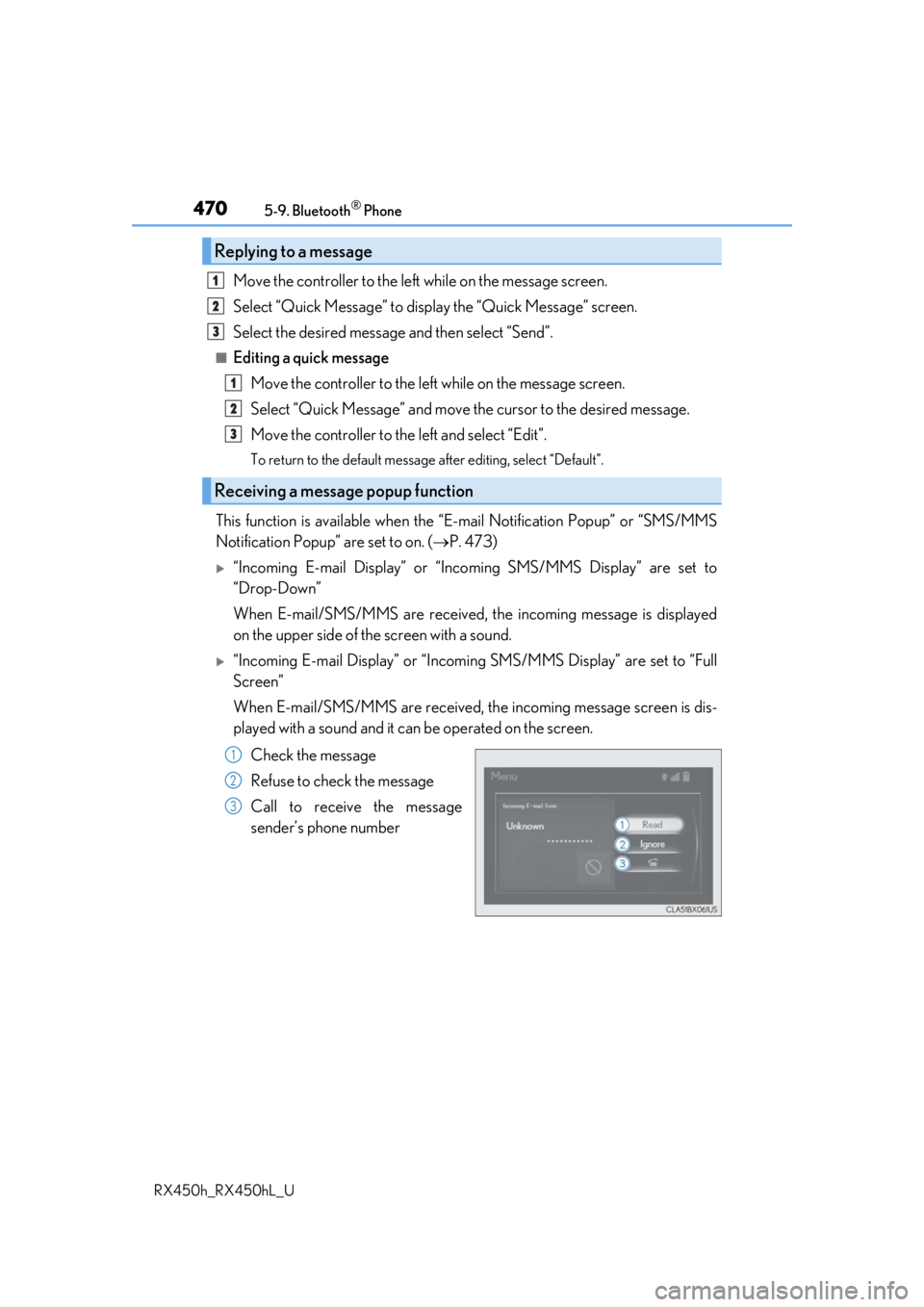
This function is available when the “E-mail Notification Popup” or\
“SMS/MMS
Notification Popup” are set to on. ( P. 473)
“Incoming E-mail Display” or “Inco ming SMS/MMS Display” are set to
“Drop-Down”
When E-mail/SMS/MMS are received, the incoming message is displayed
on the upper side of the screen with a sound.
“Incoming E-mail Display” or “Incoming SMS/MMS Display” are set to “Full
Screen”
When E-mail/SMS/MMS are received, th e incoming message screen is dis-
played with a sound and it can be operated on the screen.
Check the message
Refuse to check the message
Call to receive the message
sender’s phone number
Replying to a message
Receiving a message popup function
1
2
3
1
2
3
1
2
3
Page 471 of 792
4715-9. Bluetooth® Phone
5
Lexus Display Audio system
RX450h_RX450hL_U
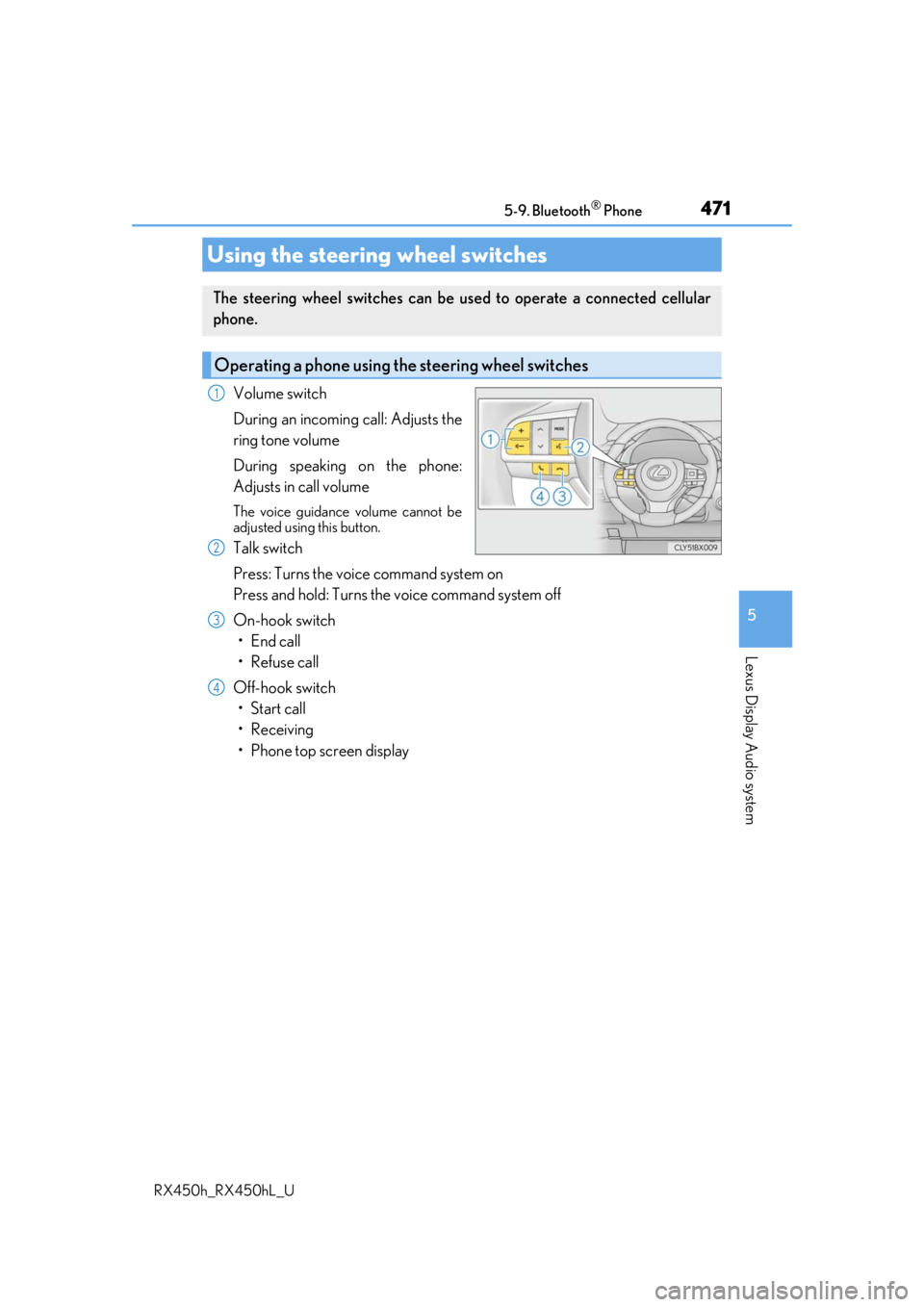
Volume switch
During an incoming call: Adjusts the
ring tone volume
During speaking on the phone:
Adjusts in call volume
The voice guidance volume cannot be
adjusted using this button.
Talk switch
Press: Turns the voice command system on
Press and hold: Turns the voice command system off
On-hook switch• End call
•Refuse call
Off-hook switch • Start call
• Receiving
• Phone top screen display
Using the steering wheel switches
The steering wheel switches can be used to operate a connected cellular
phone.
Operating a phone using the steering wheel switches
1
2
3
4
Page 473 of 792
4735-9. Bluetooth® Phone
5
Lexus Display Audio system
RX450h_RX450hL_U
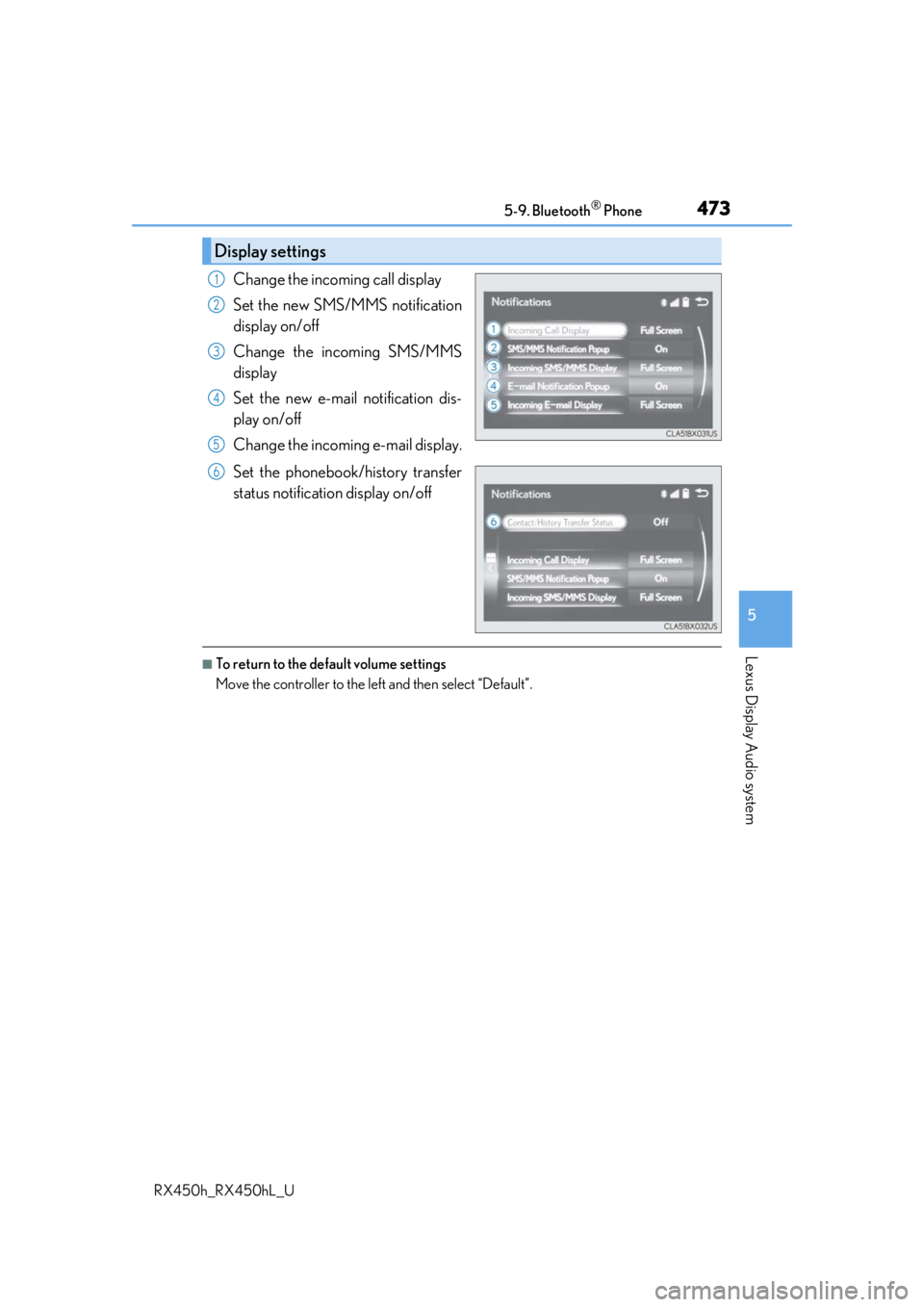
Change the incoming call display
Set the new SMS/MMS notification
display on/off
Change the incoming SMS/MMS
display
Set the new e-mail notification dis-
play on/off
Change the incoming e-mail display.
Set the phonebook/history transfer
status notification display on/off
■To return to the default volume settings
Move the controller to the left and then select “Default”.
Display settings
1
2
3
4
5
6
Page 475 of 792
4755-10. Phonebook
5
Lexus Display Audio system
RX450h_RX450hL_U
■Return to the default settings
Move the controller to the left and select “Default”.
You can transfer the phone numbers in your Bluetooth® phone to the system.
Operation methods differ between PBAP compatible and PBAP incompatible
Bluetooth
® phones. If your cellular phone does not support either PBAP or
OPP services, you canno t transfer contacts.
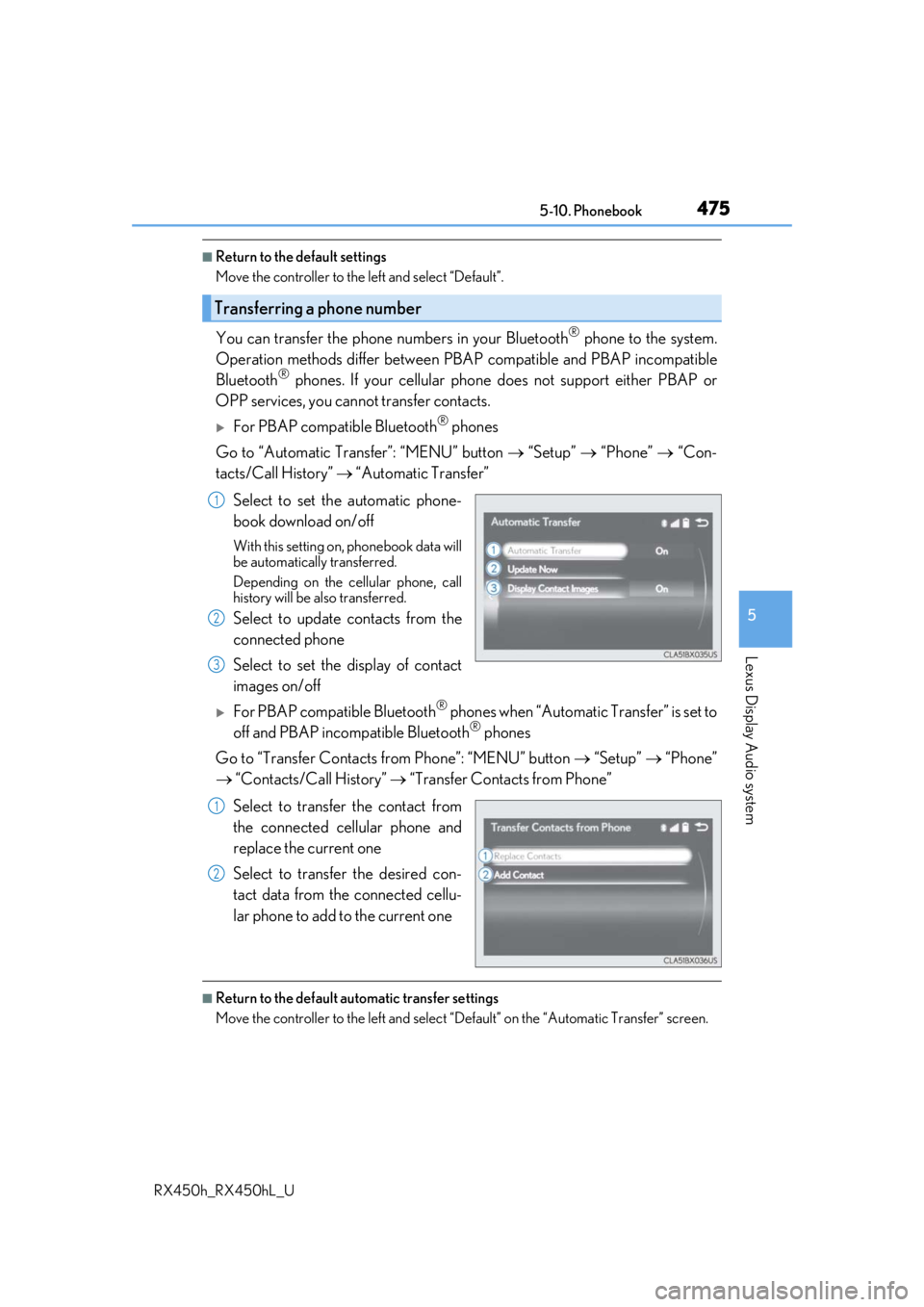
For PBAP compatible Bluetooth® phones
Go to “Automatic Transfer”: “MENU” button “Setup” “Phone” “Con-
tacts/Call History” “Automatic Transfer”
Select to set the automatic phone-
book download on/off
With this setting on, phonebook data will
be automatically transferred.
Depending on the cellular phone, call
history will be also transferred.
Select to update contacts from the
connected phone
Select to set the display of contact
images on/off
For PBAP compatible Bluetooth® phones when “Automatic Transfer” is set to
off and PBAP incompatible Bluetooth® phones
Go to “Transfer Contacts from Phone”: “MENU” button “Setup” “Phone”
“Contacts/Call History” “Transfer Contacts from Phone”
Select to transfer the contact from
the connected cellular phone and
replace the current one
Select to transfer the desired con-
tact data from the connected cellu-
lar phone to add to the current one
■Return to the default automatic transfer settings
Move the controller to the left and select “D efault” on the “Automatic Transfer” screen.
Transferring a phone number
1
2
3
1
2