center LEXUS UX250H 2019 Owner's Guide
[x] Cancel search | Manufacturer: LEXUS, Model Year: 2019, Model line: UX250H, Model: LEXUS UX250H 2019Pages: 476, PDF Size: 10.51 MB
Page 212 of 476
2124-5. Using the driving support systems
ft. (3 m) or more.
• No system malfunctions are detected. ( P.213)
●Lane centering function
This function operates when all of the fol-
lowing conditions are met.
• LTA is turned on.
• Setting for “Steering Assist” and “Lane
Center” in of th e multi-information
display are set to “On”. ( P.87)
• This function recognizes white (yellow) lane lines or the position of a preceding
vehicle (except when the preceding vehi-
cle is small, such as a motorcycle).
• The dynamic radar cruise control with full-speed range is operating in vehicle-
to-vehicle distance control mode.
• Width of traffic lane is approximately 10 to 13 ft. (3 to 4 m).
• Turn signal lever is not operated.
• Vehicle is not being driven around a
sharp curve.
• No system malfunctions are detected.
( P.213)
• Vehicle does not acc elerate or deceler-
ate by a fixed amount or more.
• Steering wheel is not operated with a steering force level su itable for changing
lanes.
• ABS, VSC, TRAC and PCS are not oper- ating.
• TRAC or VSC is not turned off.
• Hands off steering wheel warning is not
displayed. ( P.212)
• The vehicle is being driven in the center
of a lane.
• Steering assist function is not operating.
■Temporary cancelation of functions
●When operation conditions are no longer
met, a function may be temporarily can-
celed. However, when the operation con-
ditions are met again, operation of the
function is automa tically restored.
( P.211)
●If the operation conditions ( P.211) are
no longer met while the lane centering
function is operating, the steering wheel
may vibrate and the buzzer may sound to
indicate that the function has been tem-
porarily canceled. However, if the “Steer-
ing wheel vibration” customization setting is set to “On”, the system will notify
the driver by vibrating the steering wheel
instead of sounding the buzzer.
■Steering assist function/lane centering
function
●Depending on the vehicle speed, lane
departure situation, road conditions, etc.,
the driver may not feel the function is
operating or the function may not oper-
ate at all.
●The steering control of the function is
overridden by the driver’s steering wheel
operation.
●Do not attempt to test the operation of
the steering assist function.
■Lane departure alert function
●The warning buzzer may be difficult to
hear due to external noise, audio play-
back, etc. Also, it may be difficult to feel
steering wheel vibrations due to the road
conditions, etc.
●If the edge of the course* is not clear or
straight, the lane departure alert function
may not operate.
●Vehicles with Blind Spot Monitor: It may
not be possible for the system to deter-
mine if there is a danger of a collision with
a vehicle in an adjacent lane.
●Do not attempt to test the operation of
the lane departure alert function.
*: Boundary between asphalt and the side
of the road, such as grass, soil, or a curb
■Hands off steering wheel warning
In the following situations, a warning mes-
sage urging the driver to hold the steering
wheel and the symbol sh own in the illustra-
tion are displayed on the multi-information
display to warn the driver. The warning
stops when the system determines that the
driver holds the steering wheel. Always
keep your hands on the steering wheel
when using this system , regardless of warn-
ings.
Page 232 of 476
2324-5. Using the driving support systems
3Press or to select and
then press “OK”.
Each time the switch is pressed, the volume
level will change between 1, 2, and 3.
■Muting a buzzer temporarily
A mute button will be displayed on the
multi-information display when an
object or pedestrian is detected. To
mute the buzzer, press “OK”.
The buzzers for the intuitive parking
assist and RCTA function will be muted
simultaneously.
Mute will be canceled automatically in
the following situations:
When the shift lever is changed.
When there is a malfunction in a
sensor or the system is temporarily
unavailable.
When the operating function is dis-
abled manually.
When the power switch is turned
off.
*: If equipped
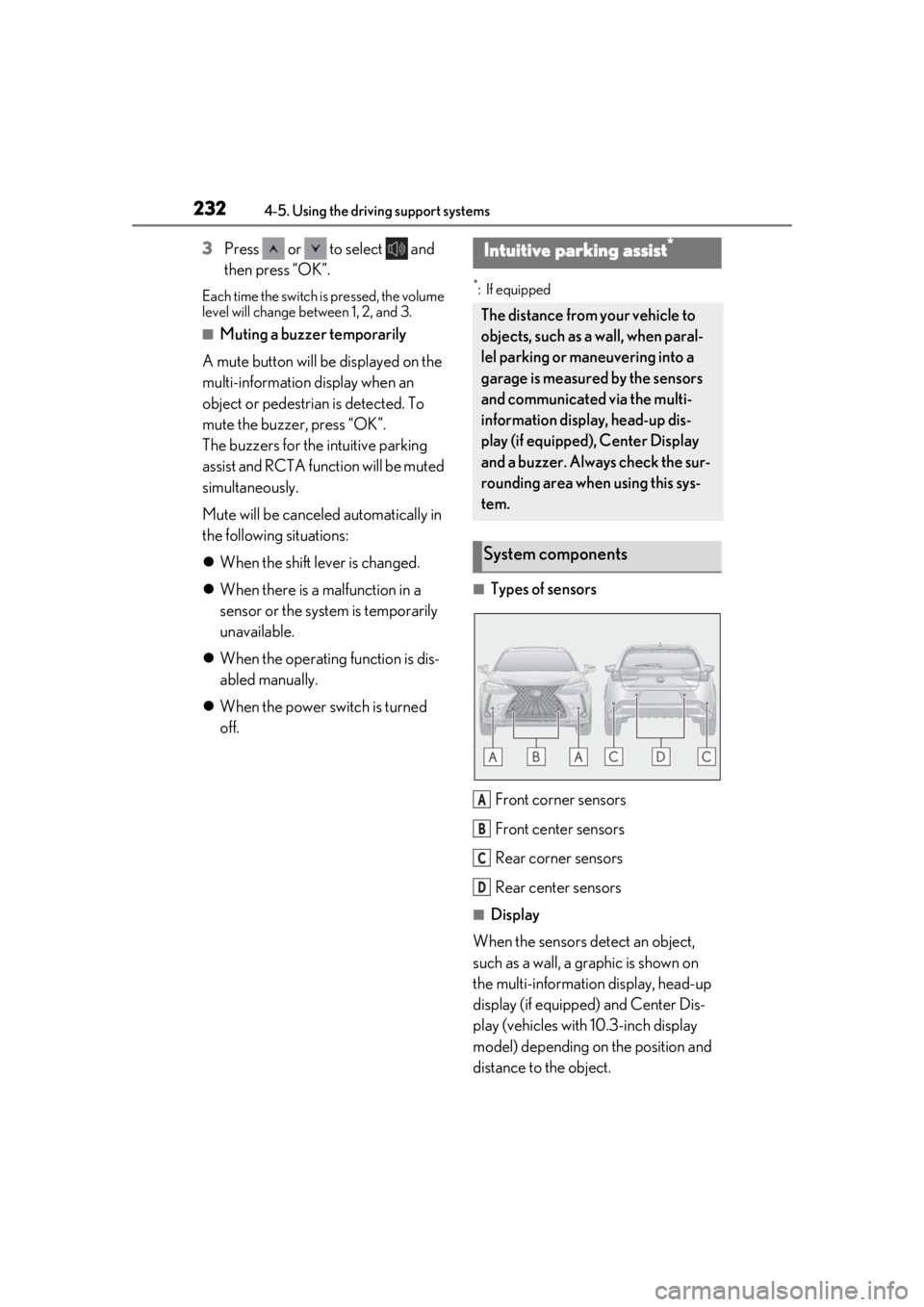
■Types of sensors
Front corner sensors
Front center sensors
Rear corner sensors
Rear center sensors
■Display
When the sensors detect an object,
such as a wall, a graphic is shown on
the multi-information display, head-up
display (if equipped) and Center Dis-
play (vehicles with 10.3-inch display
model) depending on the position and
distance to the object.
Intuitive parking assist*
The distance from your vehicle to
objects, such as a wall, when paral-
lel parking or maneuvering into a
garage is measured by the sensors
and communicated via the multi-
information display, head-up dis-
play (if equipped), Center Display
and a buzzer. Always check the sur-
rounding area when using this sys-
tem.
System components
A
B
C
D
Page 233 of 476
2334-5. Using the driving support systems
4
Driving
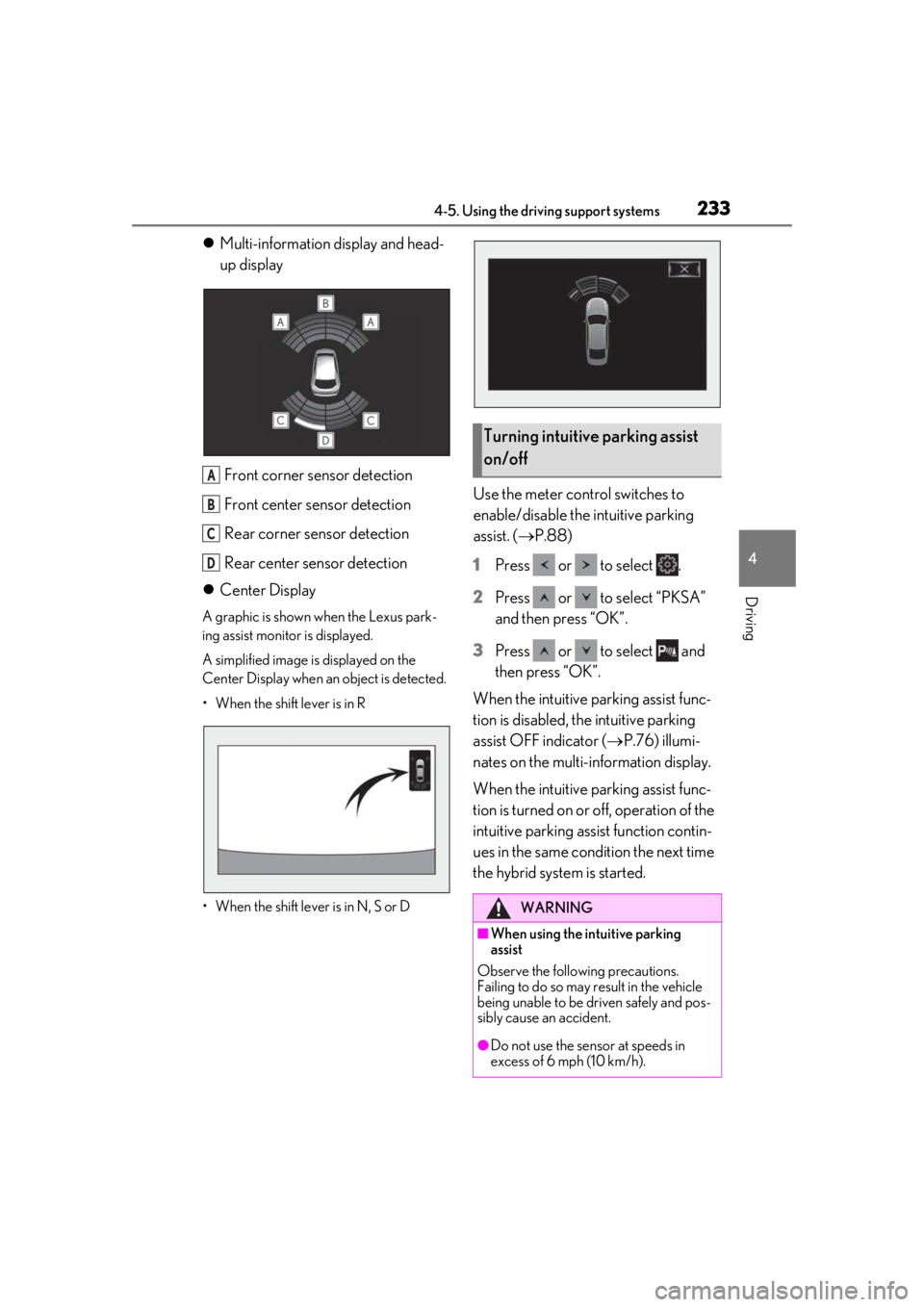
Multi-information display and head-
up display
Front corner sensor detection
Front center sensor detection
Rear corner sensor detection
Rear center sensor detection
Center Display
A graphic is shown when the Lexus park-
ing assist monitor is displayed.
A simplified image is displayed on the
Center Display when an object is detected.
• When the shift lever is in R
• When the shift lever is in N, S or D
Use the meter control switches to
enable/disable the intuitive parking
assist. ( P.88)
1
Press or to select .
2
Press or to select “PKSA”
and then press “OK”.
3
Press or to select and
then press “OK”.
When the intuitive parking assist func-
tion is disabled, th e intuitive parking
assist OFF indicator ( P.76) illumi-
nates on the multi-information display.
When the intuitive parking assist func-
tion is turned on or off, operation of the
intuitive parking assist function contin-
ues in the same condition the next time
the hybrid system is started.
A
B
C
D
Turning intuitive parking assist
on/off
WARNING
■When using the intuitive parking
assist
Observe the following precautions.
Failing to do so may result in the vehicle
being unable to be driven safely and pos-
sibly cause an accident.
●Do not use the sensor at speeds in
excess of 6 mph (10 km/h).
Page 236 of 476
2364-5. Using the driving support systems
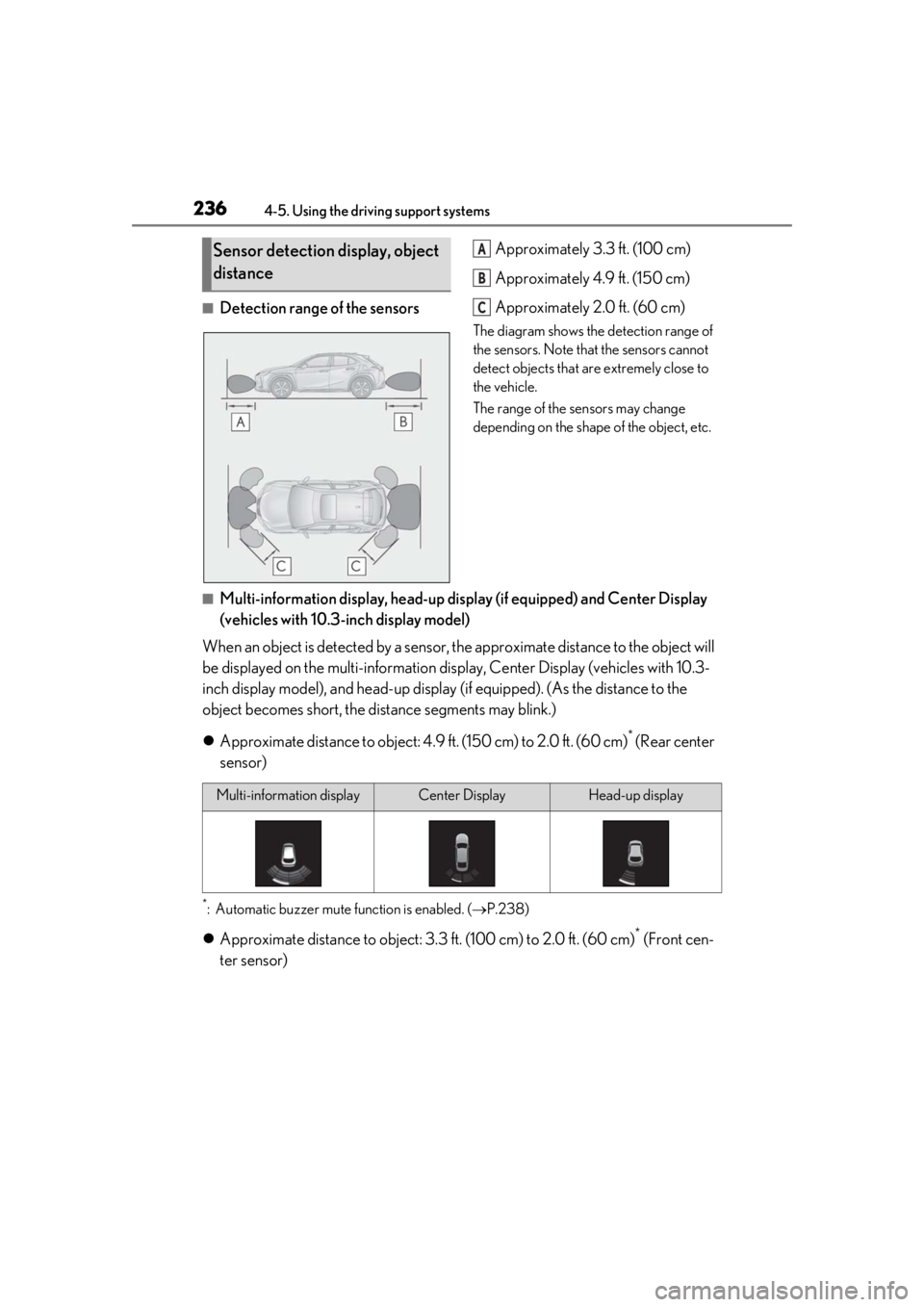
■Detection range of the sensorsApproximately 3.3 ft. (100 cm)
Approximately 4.9 ft. (150 cm)
Approximately 2.0 ft. (60 cm)
The diagram shows the detection range of
the sensors. Note that the sensors cannot
detect objects that are extremely close to
the vehicle.
The range of the sensors may change
depending on the shape of the object, etc.
■Multi-information display, head-up display (if equipped) and Center Display
(vehicles with 10.3-inch display model)
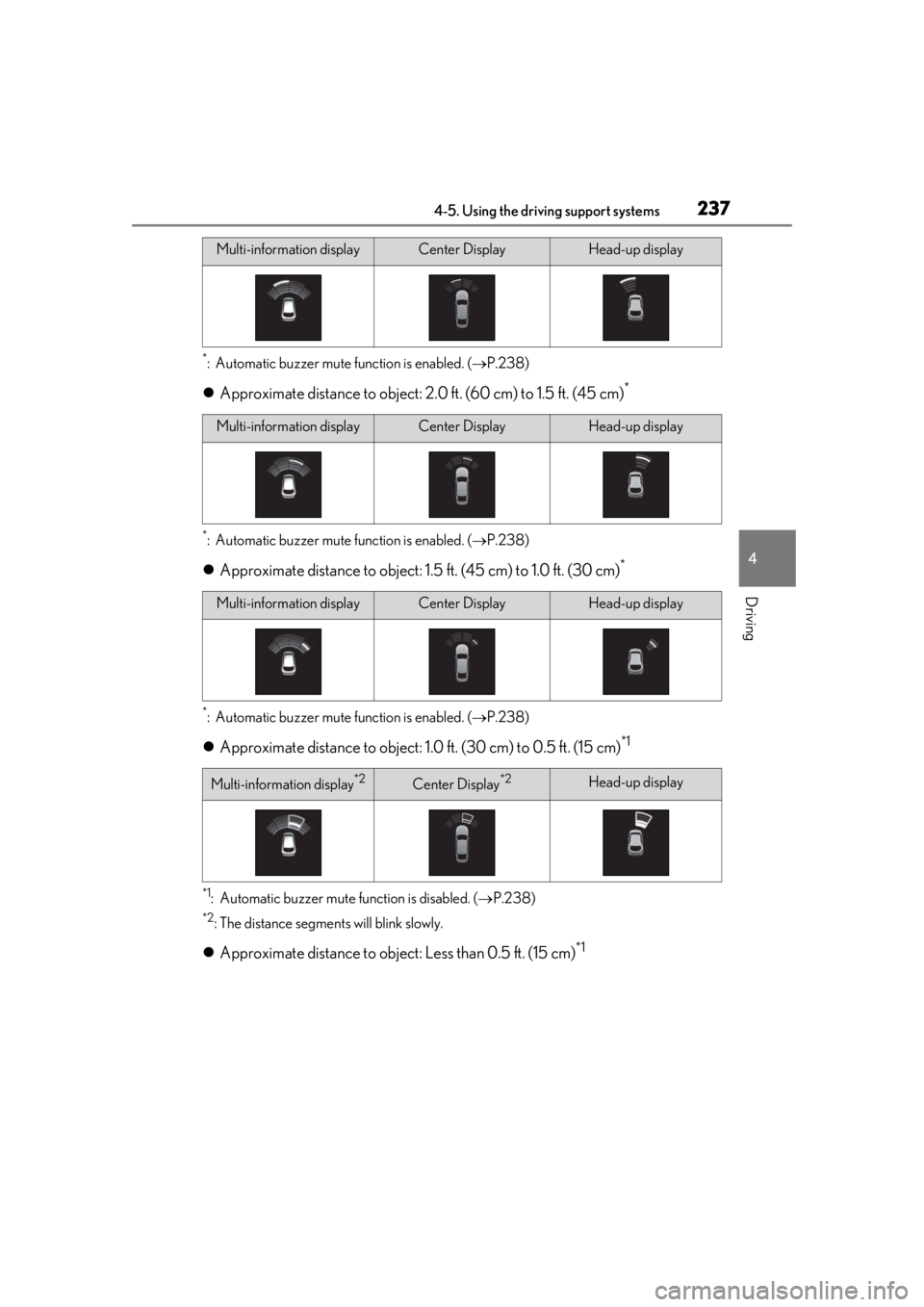
When an object is detected by a sensor, the approximate distance to the object will
be displayed on the multi-information disp lay, Center Display (vehicles with 10.3-
inch display model), and head-up display (if equipped). (As the distance to the
object becomes short, the distance segments may blink.)
Approximate distance to object: 4. 9 ft. (150 cm) to 2.0 ft. (60 cm)
* (Rear center
sensor)
*: Automatic buzzer mute function is enabled. ( P.238)
Approximate distance to object: 3. 3 ft. (100 cm) to 2.0 ft. (60 cm)* (Front cen-
ter sensor)
Sensor detection display, object
distanceA
B
C
Multi-information displayCenter DisplayHead-up display
Page 237 of 476
2374-5. Using the driving support systems
4
Driving
*: Automatic buzzer mute function is enabled. (P.238)
Approximate distance to object: 2. 0 ft. (60 cm) to 1.5 ft. (45 cm)*
*: Automatic buzzer mute function is enabled. ( P.238)
Approximate distance to object: 1. 5 ft. (45 cm) to 1.0 ft. (30 cm)*
*: Automatic buzzer mute function is enabled. ( P.238)
Approximate distance to object: 1. 0 ft. (30 cm) to 0.5 ft. (15 cm)*1
*1: Automatic buzzer mute function is disabled. ( P.238)
*2: The distance segments will blink slowly.
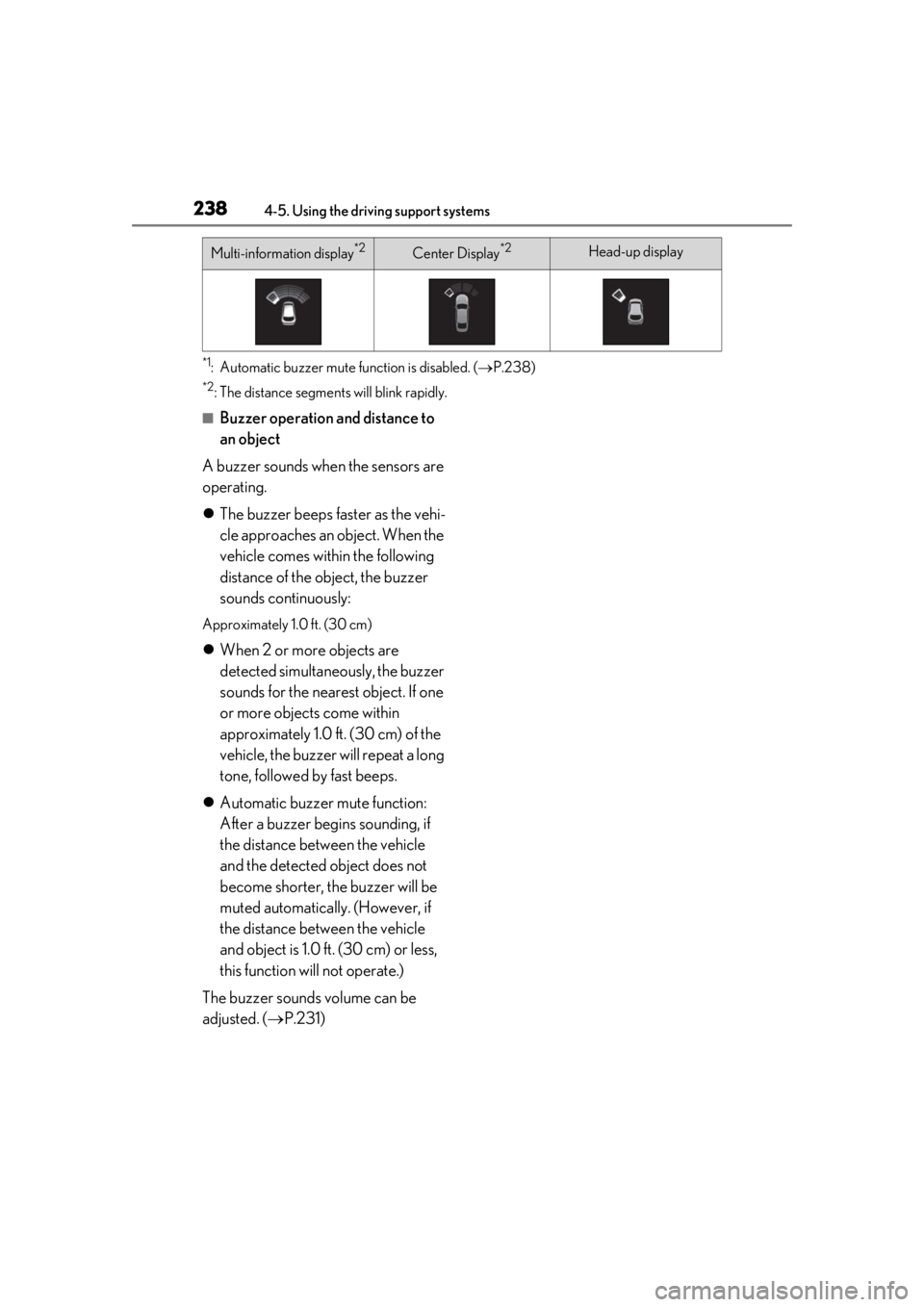
Approximate distance to object: Less than 0.5 ft. (15 cm)*1
Multi-information displayCenter DisplayHead-up display
Multi-information displayCenter DisplayHead-up display
Multi-information displayCenter DisplayHead-up display
Multi-information display*2Center Display*2Head-up display
Page 238 of 476
2384-5. Using the driving support systems
*1: Automatic buzzer mute function is disabled. (P.238)
*2: The distance segmen ts will blink rapidly.
■Buzzer operation and distance to
an object
A buzzer sounds when the sensors are
operating.
The buzzer beeps faster as the vehi-
cle approaches an object. When the
vehicle comes within the following
distance of the object, the buzzer
sounds continuously:
Approximately 1.0 ft. (30 cm)
When 2 or more objects are
detected simultaneously, the buzzer
sounds for the nearest object. If one
or more objects come within
approximately 1.0 ft. (30 cm) of the
vehicle, the buzzer will repeat a long
tone, followed by fast beeps.
Automatic buzzer mute function:
After a buzzer begins sounding, if
the distance between the vehicle
and the detected object does not
become shorter, the buzzer will be
muted automatically. (However, if
the distance between the vehicle
and object is 1.0 ft. (30 cm) or less,
this function will not operate.)
The buzzer sounds volume can be
adjusted. ( P.231)
Multi-information display*2Center Display*2Head-up display
Page 239 of 476
2394-5. Using the driving support systems
4
Driving
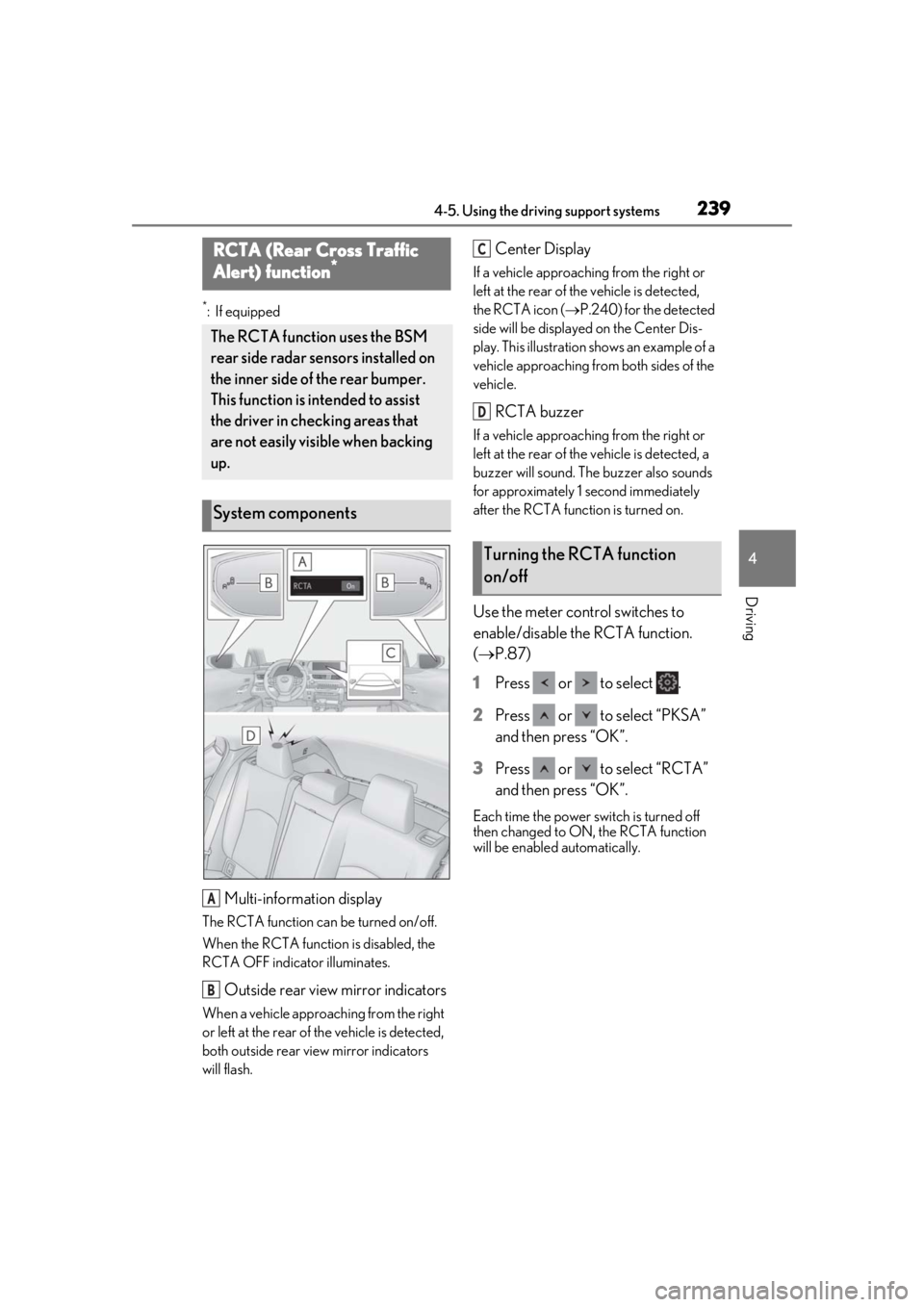
*:If equipped
Multi-information display
The RCTA function can be turned on/off.
When the RCTA function is disabled, the
RCTA OFF indicator illuminates.
Outside rear view mirror indicators
When a vehicle approaching from the right
or left at the rear of the vehicle is detected,
both outside rear view mirror indicators
will flash.
Center Display
If a vehicle approaching from the right or
left at the rear of the vehicle is detected,
the RCTA icon ( P.240) for th e detected
side will be displayed on the Center Dis-
play. This illustration shows an example of a
vehicle approaching from both sides of the
vehicle.
RCTA buzzer
If a vehicle approaching from the right or
left at the rear of th e vehicle is detected, a
buzzer will sound. The buzzer also sounds
for approximately 1 second immediately
after the RCTA function is turned on.
Use the meter control switches to
enable/disable the RCTA function.
( P.87)
1 Press or to select .
2 Press or to select “PKSA”
and then press “OK”.
3 Press or to select “RCTA”
and then press “OK”.
Each time the power switch is turned off
then changed to ON, the RCTA function
will be enabled automatically.
RCTA (Rear Cross Traffic
Alert) function*
The RCTA function uses the BSM
rear side radar sensors installed on
the inner side of the rear bumper.
This function is intended to assist
the driver in checking areas that
are not easily visible when backing
up.
System components
A
B
Turning the RCTA function
on/off
C
D
Page 240 of 476
2404-5. Using the driving support systems
■Outside rear view mirror indicator visi-
bility
In strong sunlight, the outside rear view mir-
ror indicator may be difficult to see.
■Hearing the RCTA buzzer
The RCTA buzzer may be difficult to hear
over loud noises, such as if the audio system
volume is high.
■When “Rear Cross Traffic Alert
Unavailable” is shown on the multi-
information display
Ice, water, snow, mud, etc., may be attached
to the rear bumper around the sensors.
( P.228) Remove the ice, snow, mud, etc.,
attached to the rear bumper around the
sensors to return the function to normal.
Additionally, the function may not operate
normally when used in extremely hot or
cold environments.
■Rear side radar sensors
P.228
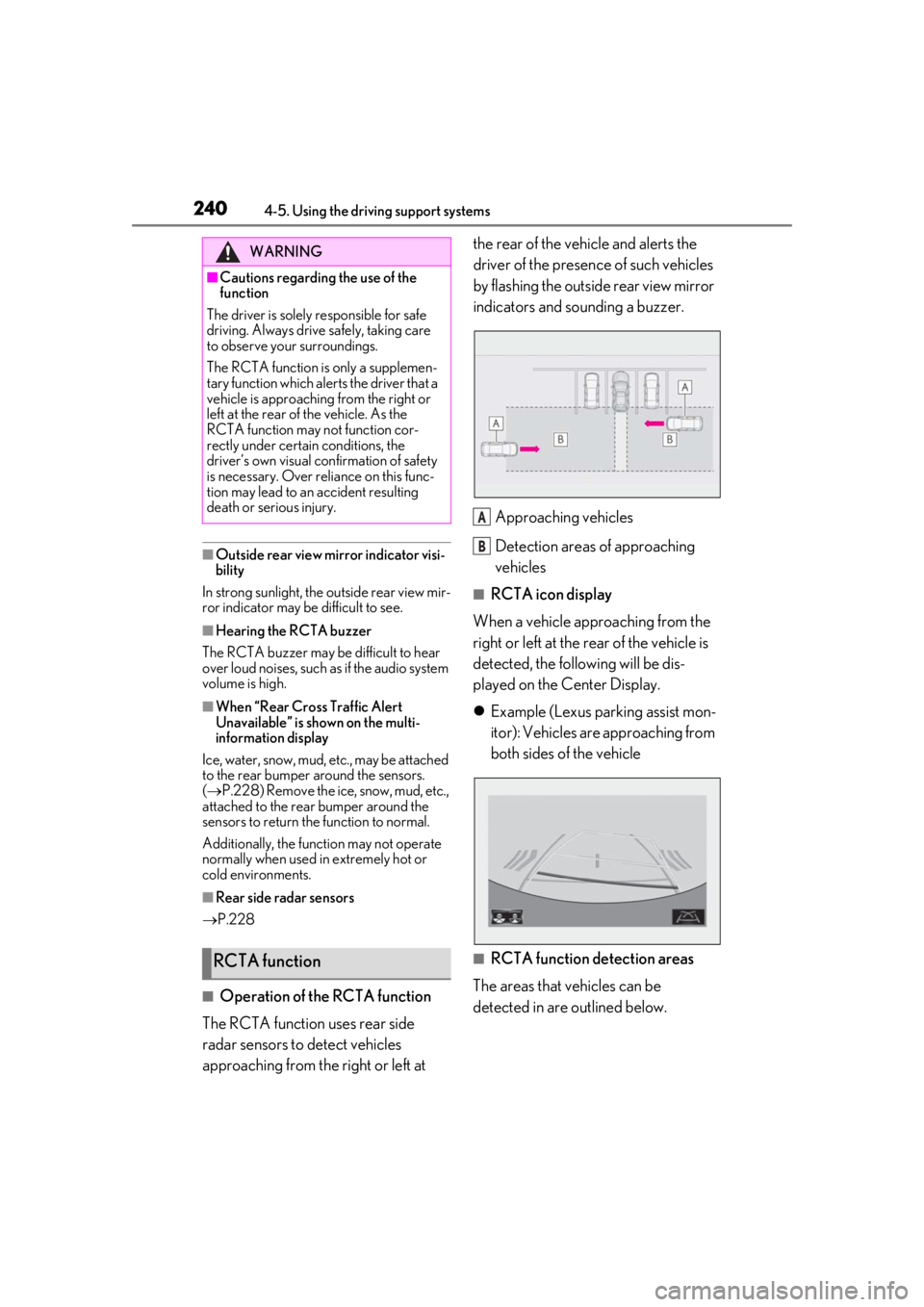
■Operation of the RCTA function
The RCTA function uses rear side
radar sensors to detect vehicles
approaching from the right or left at the rear of the vehicle and alerts the
driver of the presence of such vehicles
by flashing the outside rear view mirror
indicators and sounding a buzzer.
Approaching vehicles
Detection areas of approaching
vehicles
■RCTA icon display
When a vehicle approaching from the
right or left at the rear of the vehicle is
detected, the following will be dis-
played on the Center Display.
Example (Lexus parking assist mon-
itor): Vehicles are approaching from
both sides of the vehicle
■RCTA function detection areas
The areas that vehicles can be
detected in are outlined below.
WARNING
■Cautions regarding the use of the
function
The driver is solely responsible for safe
driving. Always driv e safely, taking care
to observe your surroundings.
The RCTA function is only a supplemen-
tary function which alerts the driver that a
vehicle is approaching from the right or
left at the rear of the vehicle. As the
RCTA function may not function cor-
rectly under certain conditions, the
driver’s own visual confirmation of safety
is necessary. Over reli ance on this func-
tion may lead to an accident resulting
death or serious injury.
RCTA function
A
B
Page 244 of 476
2444-5. Using the driving support systems
The Parking Support Brake can be
enabled/disabled on the multi-informa-
tion display. All of the Parking Support
Brake functions (static objects and rear
crossing vehicles) are enabled/dis-
abled simultaneously.
Use the meter control switches to
enable/disable the parking support
brake. (P.87)
1
Press or to select .
2
Press or to select and
then press “OK”.
When the Parking Support Brake is dis- abled, the PKSB OFF indicator (
P.76)
illuminates on the multi-information dis-
play.
When the Parking Support Brake is turned
on or off, operation of the Parking Support
Brake continues in the same condition the
next time the hybrid system is started.
If the hybrid system output restriction con-
trol or brake control operates, a buzzer will
sound and a message wi ll be displayed on
the Center Display and multi-information
display, to alert the driver. On vehicles with
head-up display, the head-up display will
display the same message as the multi-
information display.
Depending on the situat ion, hybrid system
output restriction control will operate to
either limit acceleration or restrict output
as much as possible.
Hybrid system output restriction
control is operating (acceleration
restriction)
Acceleration greater than a certain
amount is restricted by the system.
Multi-information display: “Object
Detected Acceleration Reduced”
PKSB OFF indicator: Not illuminated
Buzzer: Does not sound
Hybrid system output restriction
control is operating (output
restricted as much as possible)
The system has determined that stronger-
than-normal brake operation is necessary.
Multi-information display: “BRAKE!”
PKSB OFF indicator: Not illuminated
Buzzer: Short beep
WARNING
●The driver is solely responsible for safe
driving. Always drive carefully, taking
care to observe your surroundings.
The Parking Support Brake system is
designed to provide support to lessen
the severity of collisions. However, it
may not operate in some situations.
●The Parking Support Brake system is
not designed to stop the vehicle com-
pletely. Additionally, even if the system
has stopped the vehicl e, it is necessary
to depress the brake pedal immedi-
ately as brake control will be canceled
after approximately 2 seconds.
NOTICE
■If “Parking Support Brake Unavail-
able” is displayed on the multi-infor-
mation display and the PKSB OFF
indicator is flashing
If this message is displayed immediately
after the power switch is changed to ON,
operate the vehicle carefully, paying
attention to your surroundings.
Enabling/Disabling the Parking
Support Brake
Displays and buzzers for hybrid
system output restriction con-
trol and brake control
Page 266 of 476
2664-6. Driving tips
Specific design characteristics give
it a higher center of gravity than
ordinary passenger cars. This vehi-
cle design feature causes this type
of vehicle to be more likely to roll-
over. Utility vehicles have a signifi-
cantly higher rollover rate than
other types of vehicles.
An advantage of the higher ground
clearance is a better view of the
road allowing you to anticipate
problems.
It is not designed for cornering at
the same speeds as ordinary pas-
senger cars any more than low-
slung sports cars designed to per-
form satisfactorily under off-road
conditions. Therefore, sharp turns at
excessive speeds may cause roll-
over.
Your vehicle is not designed to be
driven off-road. However, in the event
that off-road driving cannot be
avoided, please observe the following
precautions to help avoid the areas
prohibited to vehicles.
Utility vehicle precautions
This vehicle belongs to the utility
vehicle class, which has higher
ground clearance and narrower
tread in relation to the height of its
center of gravity.
Utility vehicle feature
WARNING
■Utility vehicle precautions
Always observe the following precau-
tions to minimize the risk of death or seri-
ous injury or damage to your vehicle:
●In a rollover crash, an unbelted person
is significantly more likely to die than a
person wearing a seat belt. Therefore,
the driver and all passengers should
always fasten their seat belts.
●Avoid sharp turns or abrupt maneu-
vers, if at all possible.
Failure to operate this vehicle correctly
may result in loss of control or vehicle
rollover causing death or serious
injury.
●Loading cargo on the roof luggage
carrier will make the center of the
vehicle gravity higher. Avoid high
speeds, sudden starts, sharp turns,
sudden braking or abrupt maneuvers,
otherwise it may result in loss of con-
trol or vehicle rollover due to failure to
operate this vehicle correctly.
●Always slow down in gusty crosswinds.
Because of its profile and higher cen-
ter of gravity, your vehicle is more sen-
sitive to side winds than an ordinary
passenger car. Slowing down will allow
you to have better control.
●Do not drive horizontally across steep
slopes. Driving straight up or straight
down is preferred. Your vehicle (or any
similar off-road vehicle) can tip over
sideways much more easily than for-
ward or backward.
Off-road driving