audio LINCOLN AVIATOR 2004 User Guide
[x] Cancel search | Manufacturer: LINCOLN, Model Year: 2004, Model line: AVIATOR, Model: LINCOLN AVIATOR 2004Pages: 336, PDF Size: 3.69 MB
Page 29 of 336
To play a previously loaded CD:
1. Ensure that the vehicle ignition is on.
2. Press AUDIO.
3. Press CD to select a CD which is already loaded. (NO CD will appear
in the display if there are no CDs loaded into the system). Use the
controls (1±6) to select the desired CD.
4. CD will begin to play.
To load CDs:
1. Press CD OPEN CLOSE at the
bottom of the screen to load a CD.
(The screen will open).
2. Press LOAD and select the desired slot. Or, press and hold LOAD to
auto load all available slots. The slot indicator lights blink rate will
increase when the system is ready to accept a disc. Push CD OPEN
CLOSE to close the screen. Once closed, the CD will begin to play.
3. Use the touch controls to advance tracks, scan, pause, etc.
To use the Navigation system:
1. Ensure that the vehicle ignition is on, and the navigation DVD is
loaded into the navigation DVD player.
Refer toLoading the map DVDorNavigation system Ð DVD location
in the Index for your vehicle's navigation DVD location.
2. Press DEST. The warning screen will appear. After reading, press
AGREE. The screen will show a map with your current location. Press
DEST again.
Entertainment Systems
29
Page 30 of 336
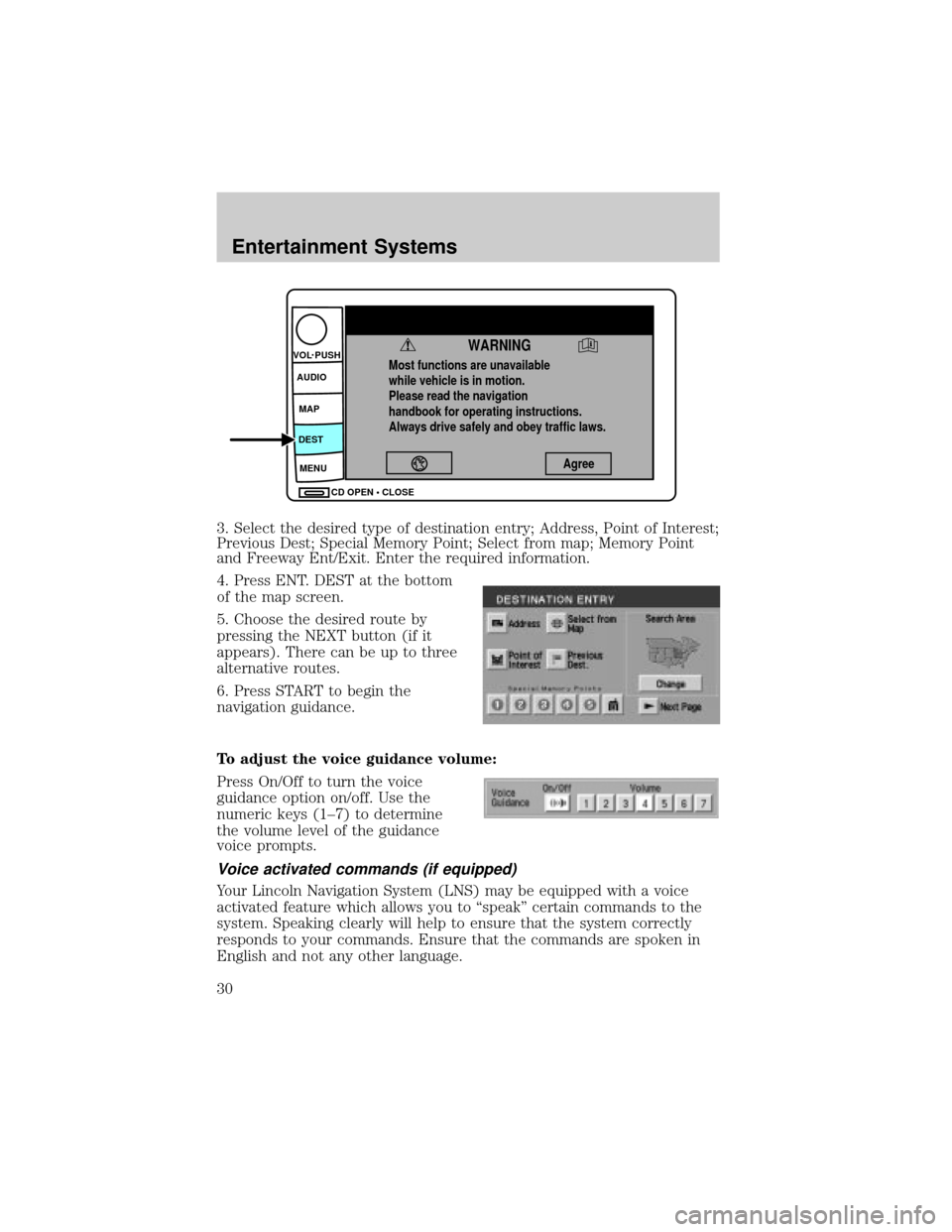
3. Select the desired type of destination entry; Address, Point of Interest;
Previous Dest; Special Memory Point; Select from map; Memory Point
and Freeway Ent/Exit. Enter the required information.
4. Press ENT. DEST at the bottom
of the map screen.
5. Choose the desired route by
pressing the NEXT button (if it
appears). There can be up to three
alternative routes.
6. Press START to begin the
navigation guidance.
To adjust the voice guidance volume:
Press On/Off to turn the voice
guidance option on/off. Use the
numeric keys (1±7) to determine
the volume level of the guidance
voice prompts.
Voice activated commands (if equipped)
Your Lincoln Navigation System (LNS) may be equipped with a voice
activated feature which allows you to ªspeakº certain commands to the
system. Speaking clearly will help to ensure that the system correctly
responds to your commands. Ensure that the commands are spoken in
English and not any other language.
Most functions are unavailable
while vehicle is in motion.
Please read the navigation
handbook for operating instructions.
Always drive safely and obey traffic laws.
WARNING
Agree
CD OPEN • CLOSE MENU DESTMAP AUDIO VOL PUSH
Entertainment Systems
30
Page 31 of 336
Press and hold VOICE briefly (on your steering wheel controls) until the
voice icon
appears on the Navigation display to use the Navigation
voice command. Press RPT (repeat) to hear the previous command
repeated from the navigation system.
The voice activated command feature will not operate if a map DVD is
not inserted into the navigation DVD unit.
At any time, you may say these commands to change modes:
²Radio²Audio on
²AM²Audio off
²FM1²Power off
²FM2²CD Changer (if equipped)
²CD²DVD (if equipped)
²Power on
During normal radio operation, you may say:
²Seek up²Seek down
Disc operation commands you may say when using a rear seat DVD (if
equipped):
²Track up²Track down
²Previous track²Disc up
²Disc down²Next disc
²Previous disc
During CDDJ or in-dash CD play, you may say:
²Track up²Track down
²Previous track²Disc up
²Next disc²Disc down
²Previous disc
To change the screen display, you may say the following commands:
²Screen off²Screen day mode
²Day mode on²Screen night mode
²Night mode on²Screen auto mode
²Auto mode on
Entertainment Systems
31
Page 34 of 336
²Change to arrow guidance²Change to arrow guide
²Turn list guidance²Turn list guide
²Change to turn list guidance²Change to turn list guide
²Entire route map²Entire route
²Route overview²Reroute
²Detour²Detour entire route
Navigation help commands you may speak at any time:
²Help²Map
²Destination²Guidance
²Radio²Disc
²Map help²Destination help
²Guidance help²Radio help
²Disc help
Audio mode
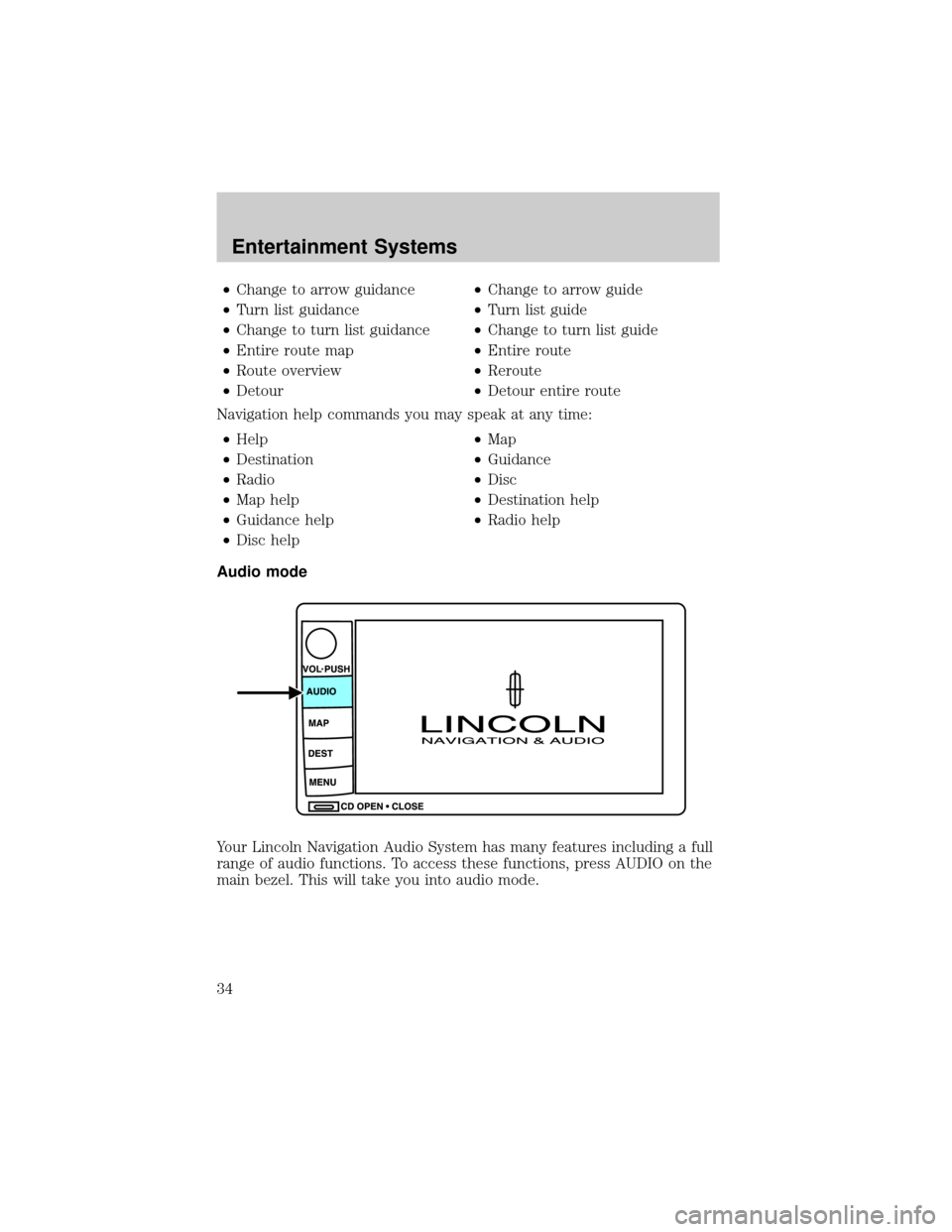
Your Lincoln Navigation Audio System has many features including a full
range of audio functions. To access these functions, press AUDIO on the
main bezel. This will take you into audio mode.
Entertainment Systems
34
Page 35 of 336
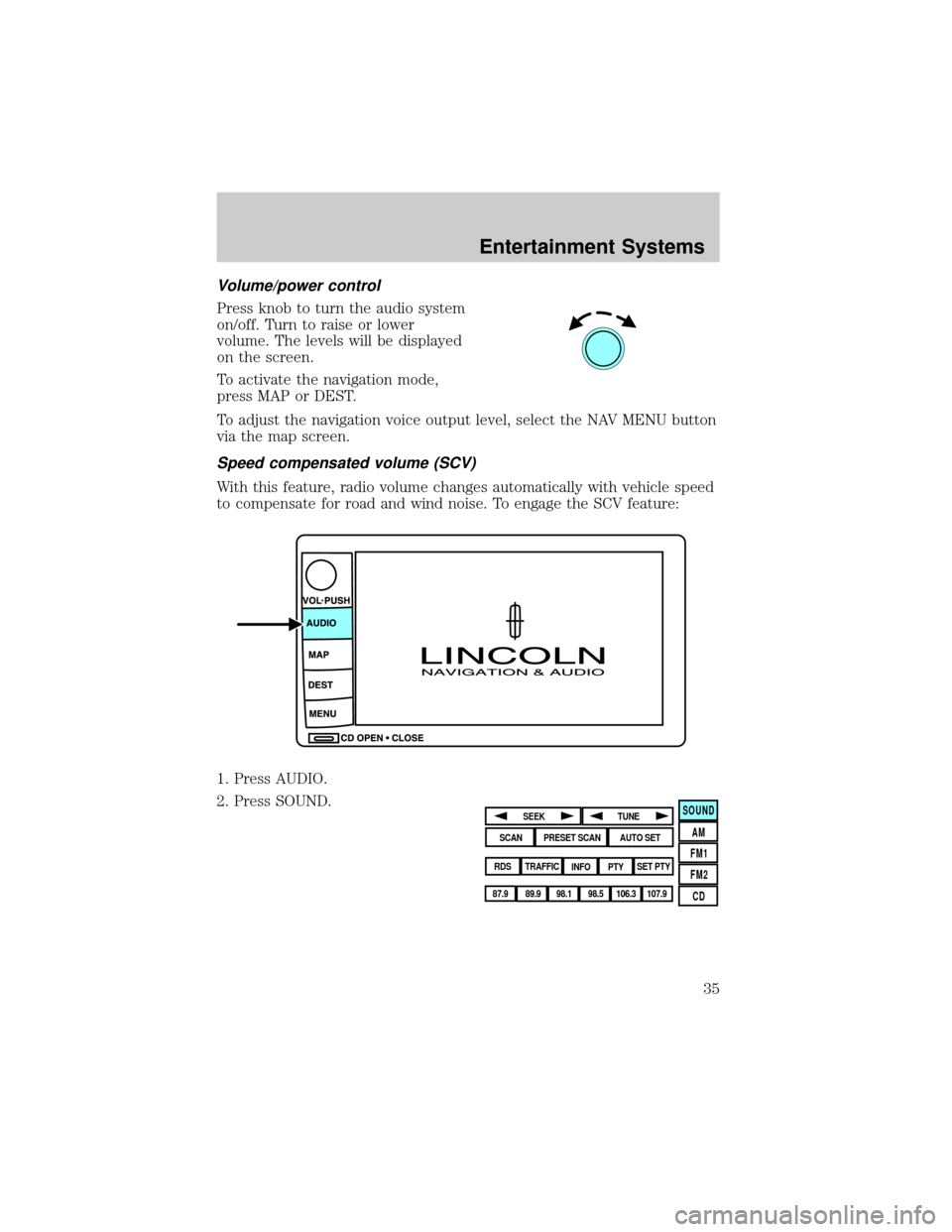
Volume/power control
Press knob to turn the audio system
on/off. Turn to raise or lower
volume. The levels will be displayed
on the screen.
To activate the navigation mode,
press MAP or DEST.
To adjust the navigation voice output level, select the NAV MENU button
via the map screen.
Speed compensated volume (SCV)
With this feature, radio volume changes automatically with vehicle speed
to compensate for road and wind noise. To engage the SCV feature:
1. Press AUDIO.
2. Press SOUND.
SOUND
AM
FM1
FM2
CDSEEK
TUNE
PRESET SCANAUTO SET
SCAN
RDS
TRAFFIC
INFO PTYSET PTY
87.9
89.9 98.1
98.5 106.3 107.9
Entertainment Systems
35
Page 36 of 336
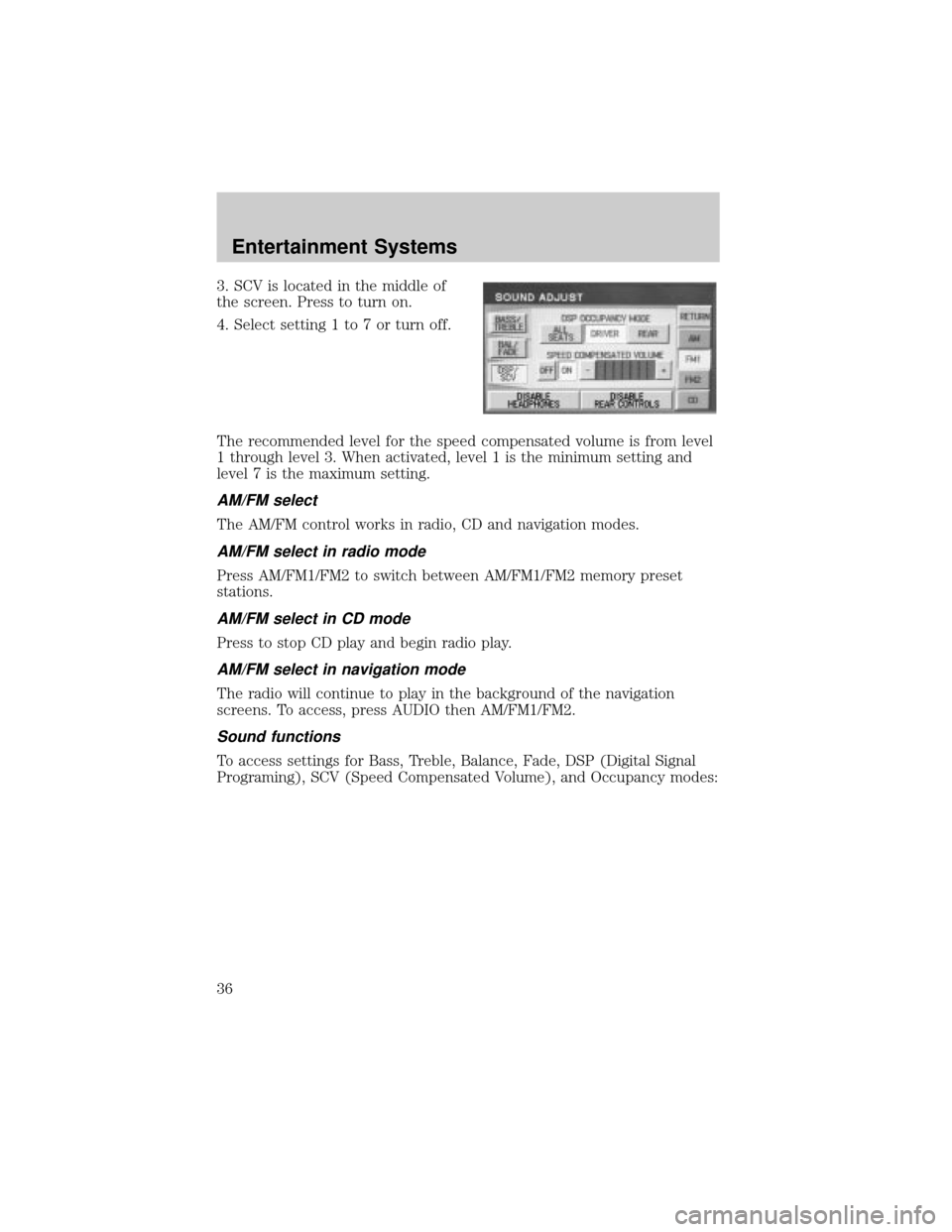
3. SCV is located in the middle of
the screen. Press to turn on.
4. Select setting 1 to 7 or turn off.
The recommended level for the speed compensated volume is from level
1 through level 3. When activated, level 1 is the minimum setting and
level 7 is the maximum setting.
AM/FM select
The AM/FM control works in radio, CD and navigation modes.
AM/FM select in radio mode
Press AM/FM1/FM2 to switch between AM/FM1/FM2 memory preset
stations.
AM/FM select in CD mode
Press to stop CD play and begin radio play.
AM/FM select in navigation mode
The radio will continue to play in the background of the navigation
screens. To access, press AUDIO then AM/FM1/FM2.
Sound functions
To access settings for Bass, Treble, Balance, Fade, DSP (Digital Signal
Programing), SCV (Speed Compensated Volume), and Occupancy modes:
Entertainment Systems
36
Page 37 of 336
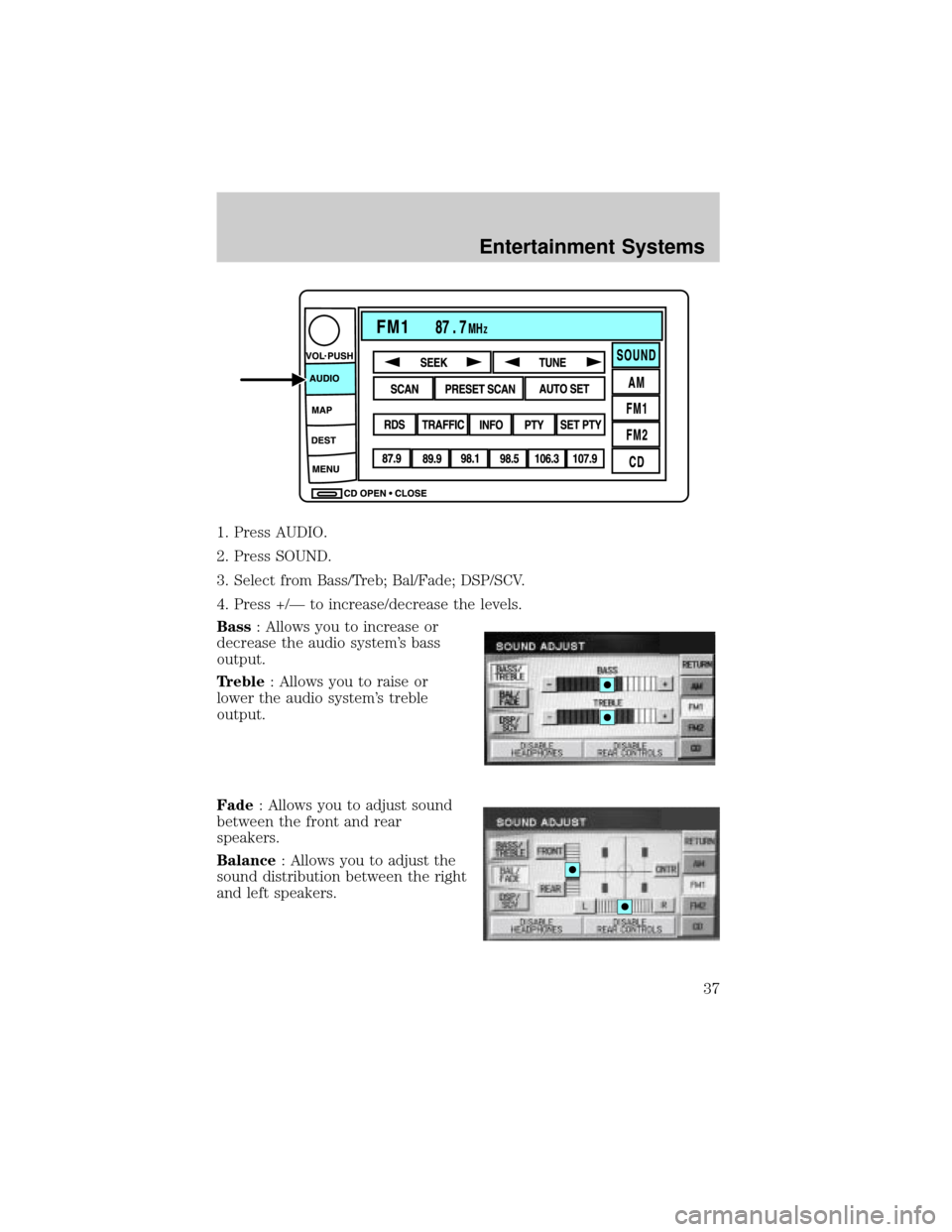
1. Press AUDIO.
2. Press SOUND.
3. Select from Bass/Treb; Bal/Fade; DSP/SCV.
4. Press +/Ð to increase/decrease the levels.
Bass: Allows you to increase or
decrease the audio system's bass
output.
Treble: Allows you to raise or
lower the audio system's treble
output.
Fade: Allows you to adjust sound
between the front and rear
speakers.
Balance: Allows you to adjust the
sound distribution between the right
and left speakers.
Entertainment Systems
37
Page 39 of 336
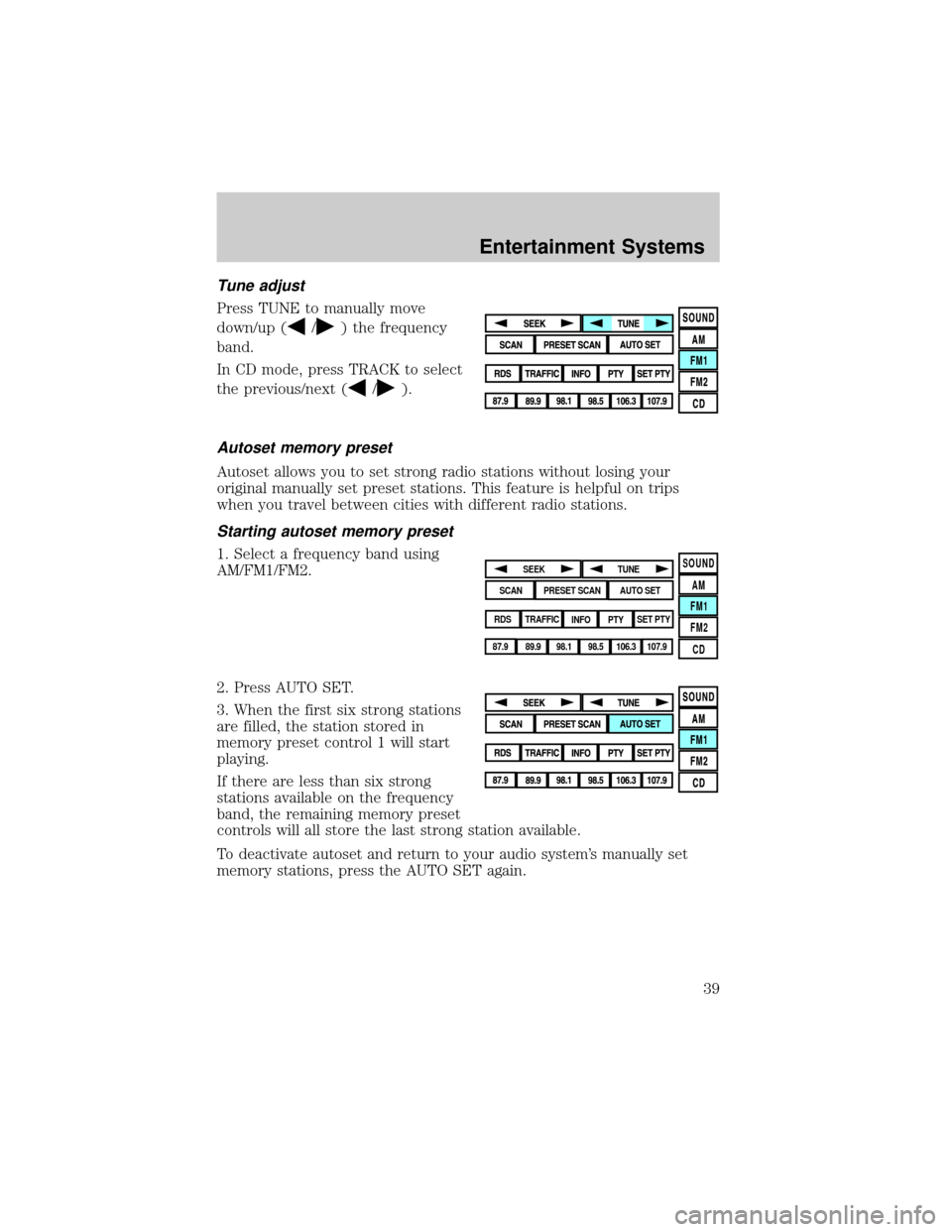
Tune adjust
Press TUNE to manually move
down/up (
/) the frequency
band.
In CD mode, press TRACK to select
the previous/next (
/).
Autoset memory preset
Autoset allows you to set strong radio stations without losing your
original manually set preset stations. This feature is helpful on trips
when you travel between cities with different radio stations.
Starting autoset memory preset
1. Select a frequency band using
AM/FM1/FM2.
2. Press AUTO SET.
3. When the first six strong stations
are filled, the station stored in
memory preset control 1 will start
playing.
If there are less than six strong
stations available on the frequency
band, the remaining memory preset
controls will all store the last strong station available.
To deactivate autoset and return to your audio system's manually set
memory stations, press the AUTO SET again.SOUND
AM
FM1
FM2
CDSEEK
TUNE
PRESET SCANAUTO SET
SCAN
RDS
TRAFFIC
INFO PTYSET PTY
87.9
89.9 98.1
98.5 106.3 107.9
Entertainment Systems
39
Page 40 of 336
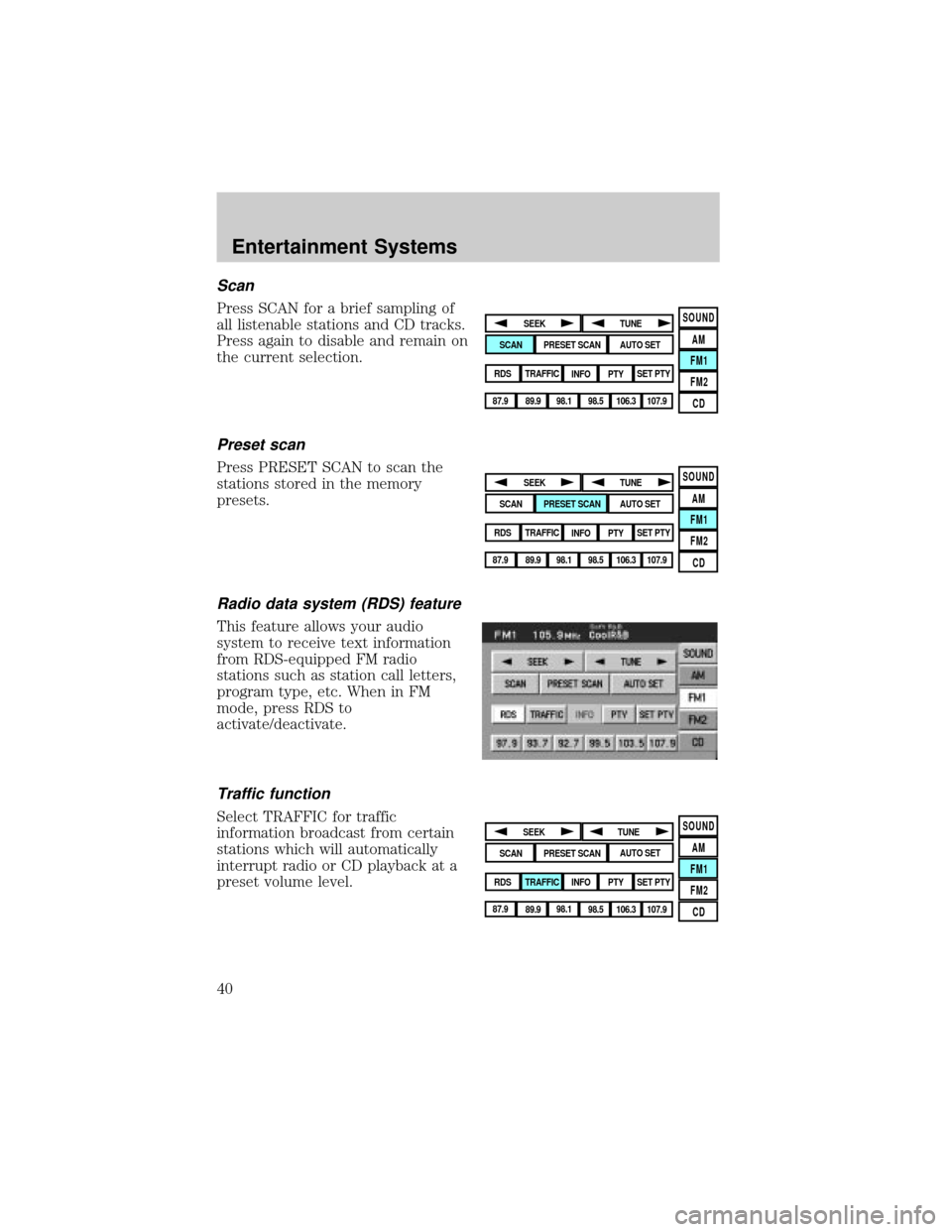
Scan
Press SCAN for a brief sampling of
all listenable stations and CD tracks.
Press again to disable and remain on
the current selection.
Preset scan
Press PRESET SCAN to scan the
stations stored in the memory
presets.
Radio data system (RDS) feature
This feature allows your audio
system to receive text information
from RDS-equipped FM radio
stations such as station call letters,
program type, etc. When in FM
mode, press RDS to
activate/deactivate.
Traffic function
Select TRAFFIC for traffic
information broadcast from certain
stations which will automatically
interrupt radio or CD playback at a
preset volume level.
SOUND
AM
FM1
FM2
CDSEEK
TUNE
PRESET SCANAUTO SET
SCAN
RDS
TRAFFIC
INFO PTYSET PTY
87.9
89.9 98.1
98.5 106.3 107.9
SOUND
AM
FM1
FM2
CDSEEK
TUNE
PRESET SCANAUTO SET
SCAN
RDS
TRAFFIC
INFO PTYSET PTY
87.9
89.9 98.1
98.5 106.3 107.9
SOUND
AM
FM1
FM2
CDSEEK
TUNE
PRESET SCANAUTO SET
SCAN
RDS
TRAFFIC
INFO PTYSET PTY
87.9
89.9 98.1
98.5 106.3 107.9
Entertainment Systems
40
Page 42 of 336
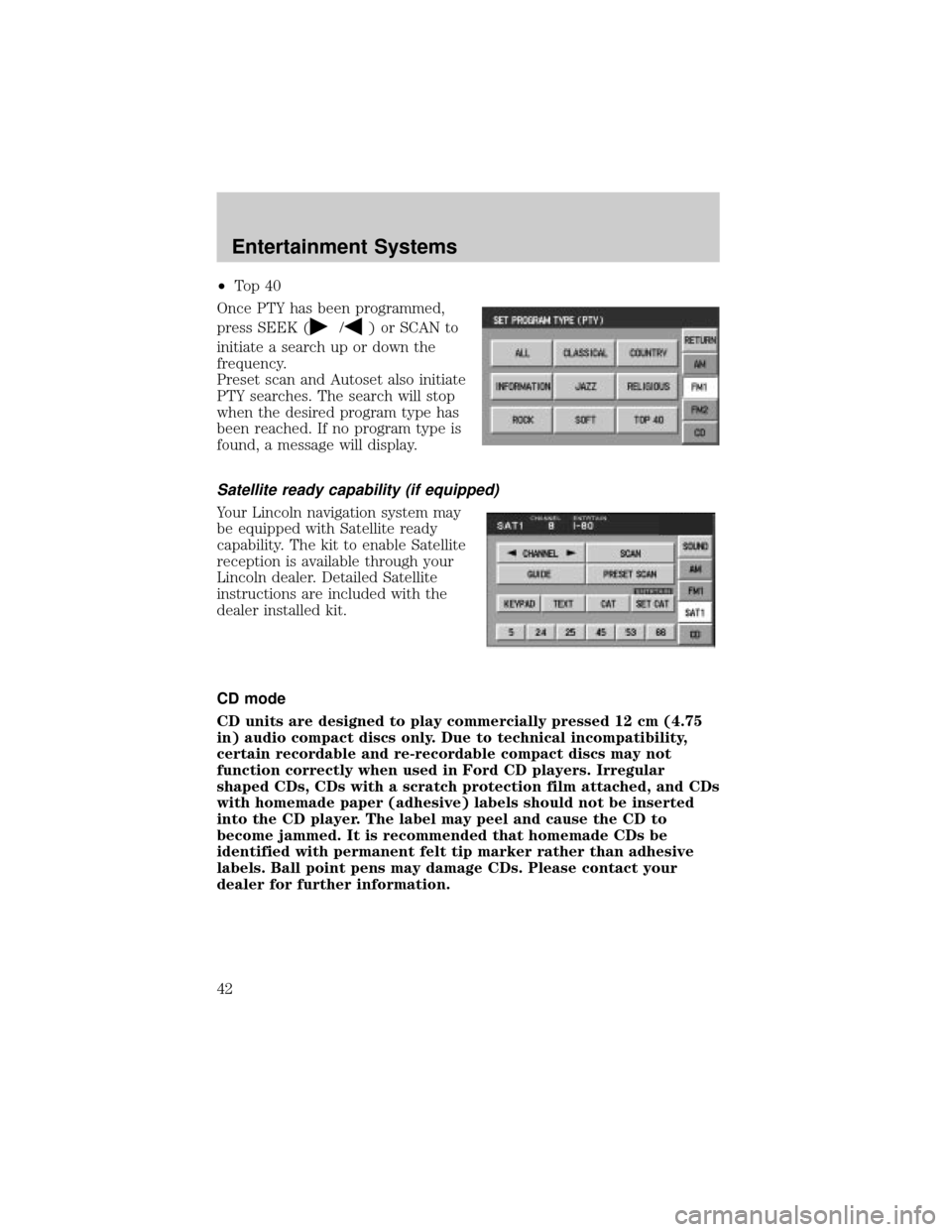
²To p 4 0
Once PTY has been programmed,
press SEEK (
/) or SCAN to
initiate a search up or down the
frequency.
Preset scan and Autoset also initiate
PTY searches. The search will stop
when the desired program type has
been reached. If no program type is
found, a message will display.
Satellite ready capability (if equipped)
Your Lincoln navigation system may
be equipped with Satellite ready
capability. The kit to enable Satellite
reception is available through your
Lincoln dealer. Detailed Satellite
instructions are included with the
dealer installed kit.
CD mode
CD units are designed to play commercially pressed 12 cm (4.75
in) audio compact discs only. Due to technical incompatibility,
certain recordable and re-recordable compact discs may not
function correctly when used in Ford CD players. Irregular
shaped CDs, CDs with a scratch protection film attached, and CDs
with homemade paper (adhesive) labels should not be inserted
into the CD player. The label may peel and cause the CD to
become jammed. It is recommended that homemade CDs be
identified with permanent felt tip marker rather than adhesive
labels. Ball point pens may damage CDs. Please contact your
dealer for further information.
Entertainment Systems
42