audio LINCOLN AVIATOR 2004 Owner's Manual
[x] Cancel search | Manufacturer: LINCOLN, Model Year: 2004, Model line: AVIATOR, Model: LINCOLN AVIATOR 2004Pages: 336, PDF Size: 3.69 MB
Page 43 of 336
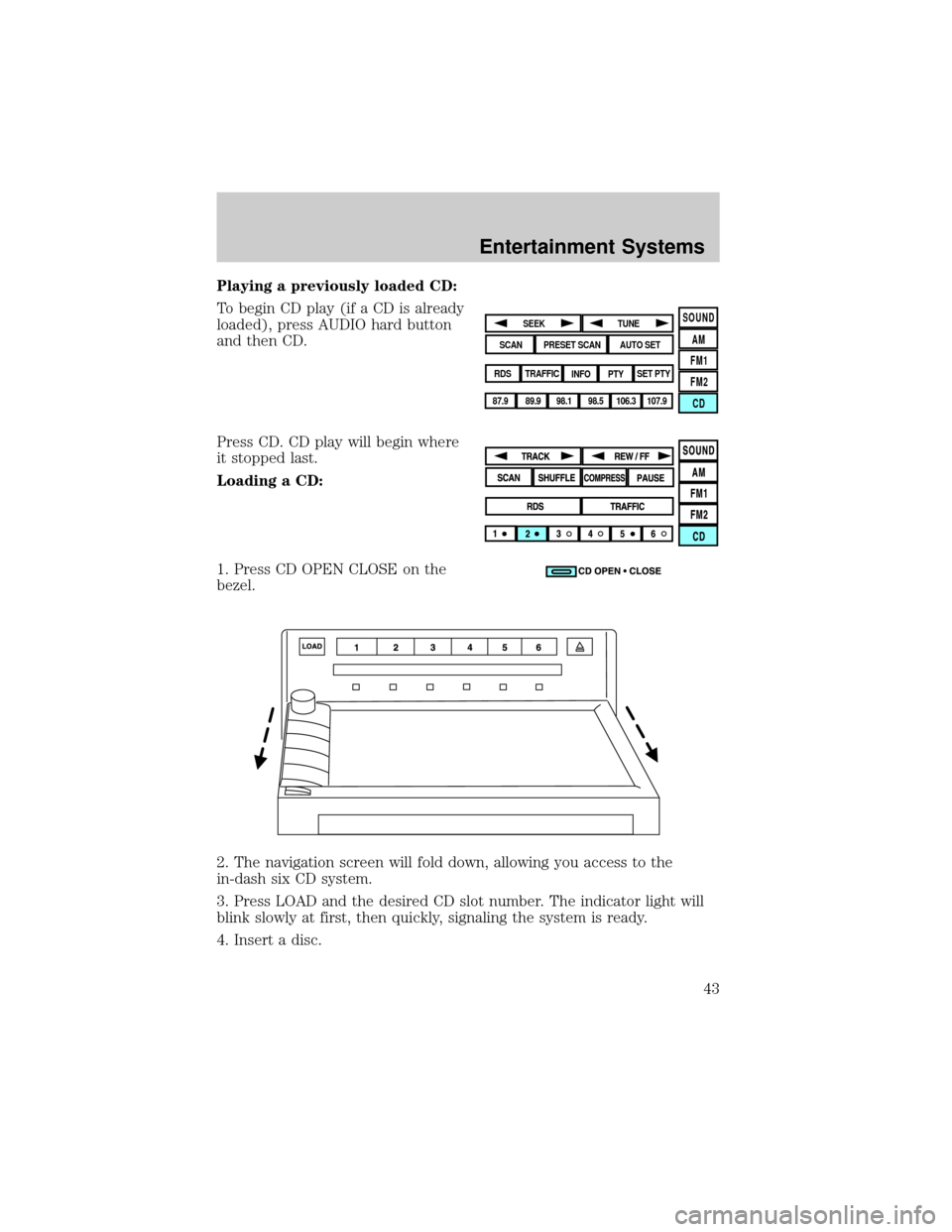
Playing a previously loaded CD:
To begin CD play (if a CD is already
loaded), press AUDIO hard button
and then CD.
Press CD. CD play will begin where
it stopped last.
Loading a CD:
1. Press CD OPEN CLOSE on the
bezel.
2. The navigation screen will fold down, allowing you access to the
in-dash six CD system.
3. Press LOAD and the desired CD slot number. The indicator light will
blink slowly at first, then quickly, signaling the system is ready.
4. Insert a disc.
SOUND
AM
FM1
FM2
CDSEEK
TUNE
PRESET SCANAUTO SET
SCAN
RDS
TRAFFIC
INFO PTYSET PTY
87.9
89.9 98.1
98.5 106.3 107.9
Entertainment Systems
43
Page 73 of 336
DVD interaction (if equipped)
Your vehicle may be equipped with a DVD player. Your Lincoln
Navigation System (LNS) will interact with your DVD player, providing
you access and messages to the status of the system.
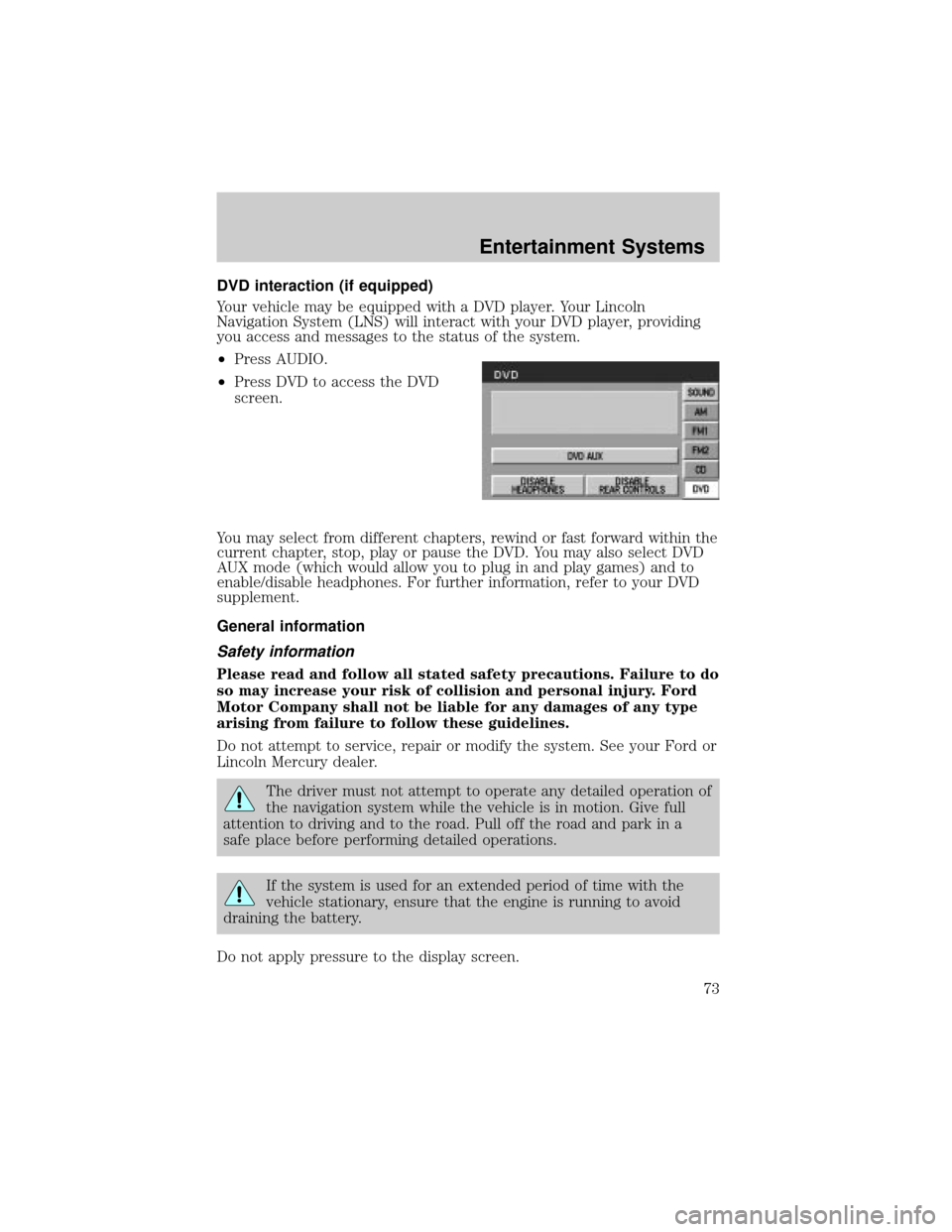
²Press AUDIO.
²Press DVD to access the DVD
screen.
You may select from different chapters, rewind or fast forward within the
current chapter, stop, play or pause the DVD. You may also select DVD
AUX mode (which would allow you to plug in and play games) and to
enable/disable headphones. For further information, refer to your DVD
supplement.
General information
Safety information
Please read and follow all stated safety precautions. Failure to do
so may increase your risk of collision and personal injury. Ford
Motor Company shall not be liable for any damages of any type
arising from failure to follow these guidelines.
Do not attempt to service, repair or modify the system. See your Ford or
Lincoln Mercury dealer.
The driver must not attempt to operate any detailed operation of
the navigation system while the vehicle is in motion. Give full
attention to driving and to the road. Pull off the road and park in a
safe place before performing detailed operations.
If the system is used for an extended period of time with the
vehicle stationary, ensure that the engine is running to avoid
draining the battery.
Do not apply pressure to the display screen.
Entertainment Systems
73
Page 77 of 336

Loading the map DVD
²Your navigation DVD unit is located in the jack compartment.
²Ensure that the vehicle ignition is ON.
²If a DVD is already loaded in the Navigation unit, push the eject
button.
²Load the DVD with the printed side up. Do not allow moisture or
foreign objects to enter the slot.
The navigation system utilizes a database stored in a special format on a
DVD. It is recommended always to use the latest update of this map
DVD.
²The navigation system will only work with DVDs specifically intended
for your navigation system.
²Always store the map DVDs in their protective cases when not in use.
Ordering additional map DVDs
If you wish to order a replacement or additional map, please call
1±888±NAV-MAPS (1±888±628±6277) or to log onto www.navtech.com.
Latest map DVDs
The map content is constantly changing due to new roads, traffic
restrictions, etc. . Therefore, it is not always possible to exactly match
the DVD map with the current roadways. For best results, always use the
latest version of the map DVD. Map information is regularly updated, but
all areas are not necessarily covered to the same level of detail. Some
areas, in particular private roads, may not be included on the database.
To help with accuracy, always use the latest DVD version for navigation.
Customer service
If you need help operating your navigation/audio system, want to report
a map database error or want to obtain a map DVD, please call 1 (888)
628±6277 (NAV-MAPS) or log onto www.navtech.com.
Entertainment Systems
77
Page 111 of 336
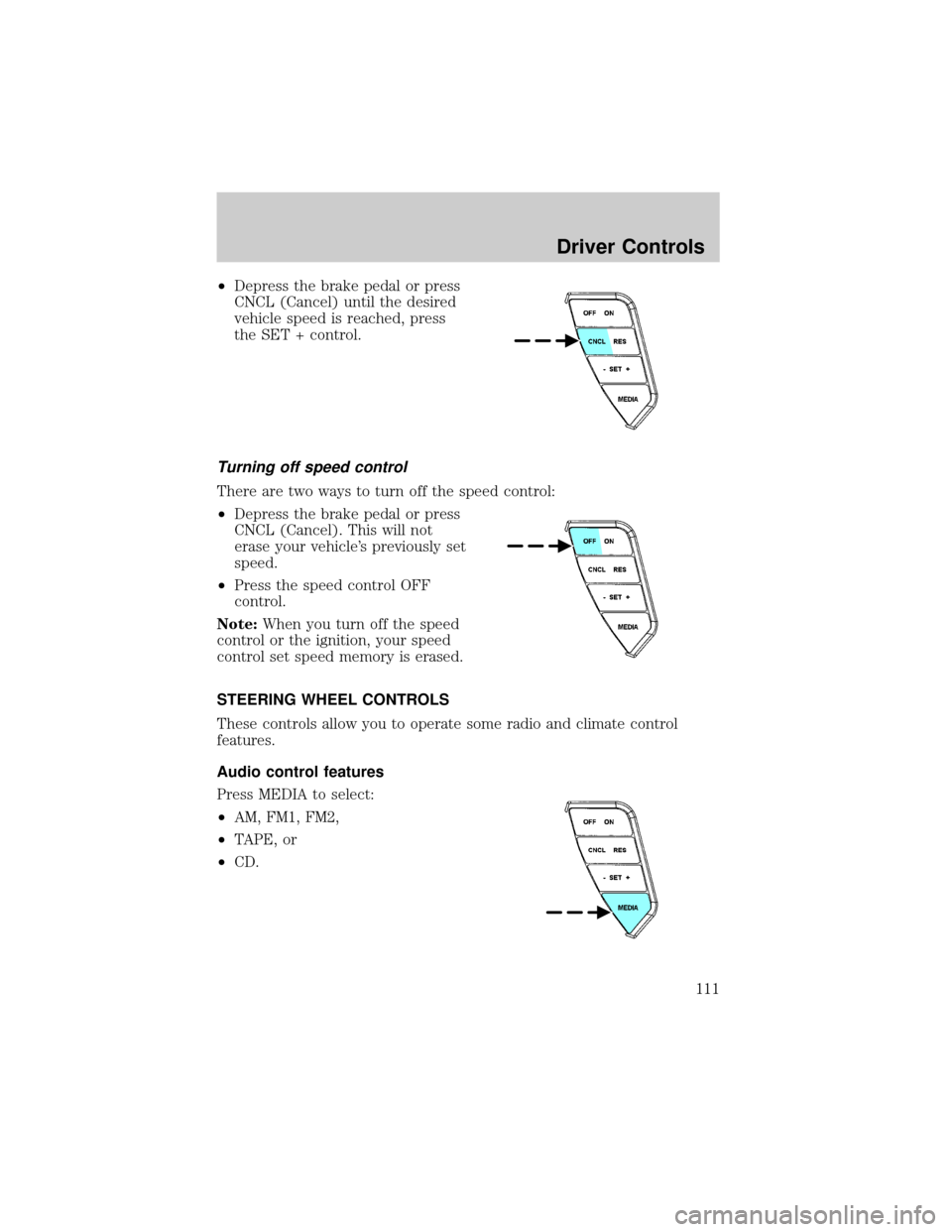
²Depress the brake pedal or press
CNCL (Cancel) until the desired
vehicle speed is reached, press
the SET + control.
Turning off speed control
There are two ways to turn off the speed control:
²Depress the brake pedal or press
CNCL (Cancel). This will not
erase your vehicle's previously set
speed.
²Press the speed control OFF
control.
Note:When you turn off the speed
control or the ignition, your speed
control set speed memory is erased.
STEERING WHEEL CONTROLS
These controls allow you to operate some radio and climate control
features.
Audio control features
Press MEDIA to select:
²AM, FM1, FM2,
²TAPE, or
²CD.
Driver Controls
111
Page 113 of 336
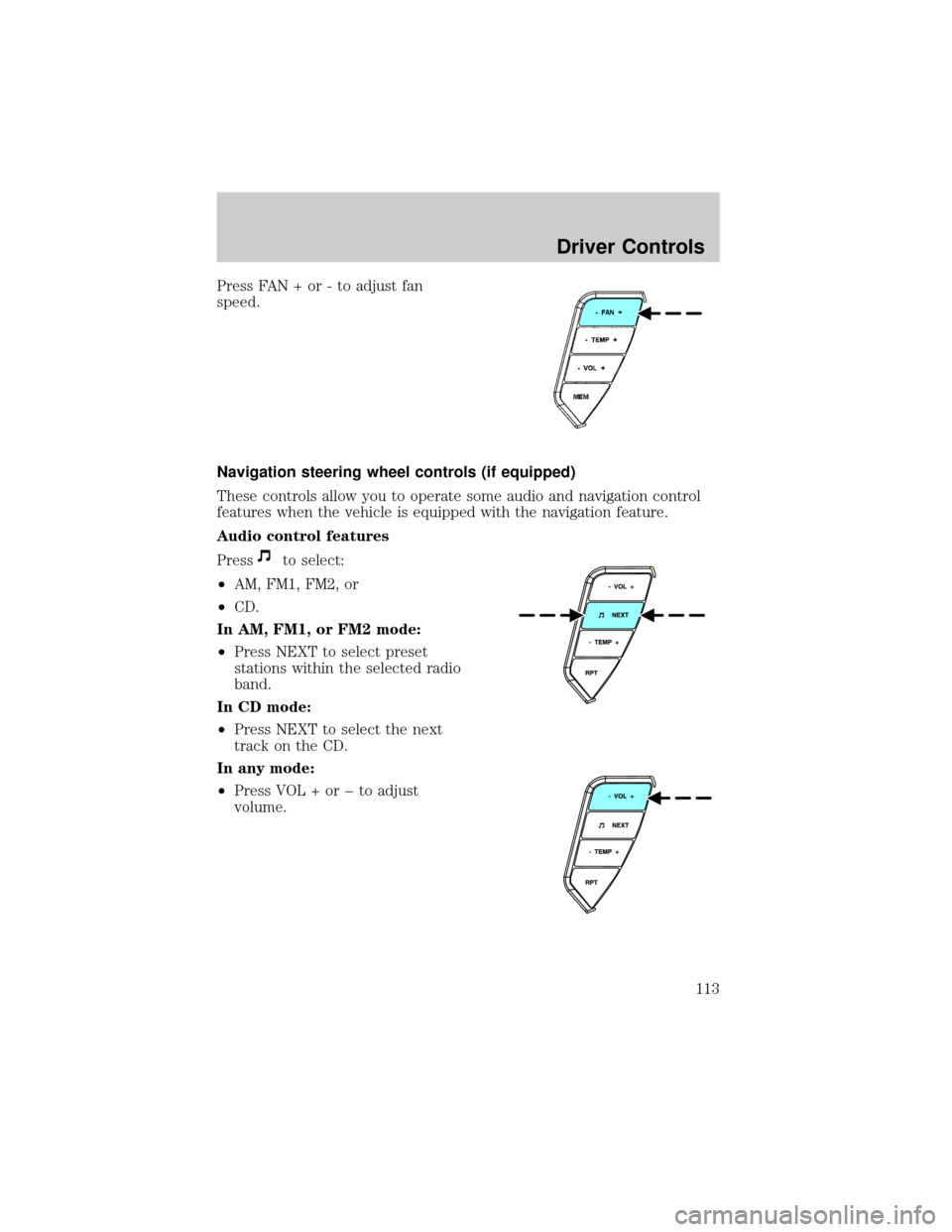
Press FAN + or - to adjust fan
speed.
Navigation steering wheel controls (if equipped)
These controls allow you to operate some audio and navigation control
features when the vehicle is equipped with the navigation feature.
Audio control features
Press
to select:
²AM, FM1, FM2, or
²CD.
In AM, FM1, or FM2 mode:
²Press NEXT to select preset
stations within the selected radio
band.
In CD mode:
²Press NEXT to select the next
track on the CD.
In any mode:
²Press VOL + or þ to adjust
volume.
Driver Controls
113
Page 324 of 336

A
ABS (see Brakes) .....................197
Accessory delay ........................105
AdvanceTrac ..............................199
Air bag supplemental restraint
system ................................174, 178
and child safety seats ............176
description ......................174, 178
disposal ....................................181
driver air bag ..................176, 179
indicator light .........................180
operation .........................176, 179
passenger air bag ...........176, 179
side air bag ..............................178
Air cleaner filter .......................311
All Wheel Drive (AWD),
driving off road .........................211
Ambulance packages ....................7
Antifreeze
(see Engine coolant) ................281
Anti-lock brake system
(see Brakes) ......................197±198
Anti-theft system ......................149
arming the system ..................150
disarming a triggered
system .....................................151
Audio system (see Radio) ...16, 21
Automatic transmission
driving an automatic
overdrive .................................206
fluid, adding ............................296
fluid, checking ........................296
fluid, refill capacities ..............312
fluid, specification ..................316
Auxiliary power point ...............101
Axle
lubricant specifications ..314, 316refill capacities ........................312
B
Battery .......................................279
acid, treating emergencies .....279
jumping a disabled battery ....251
maintenance-free ....................279
replacement, specifications ...311
servicing ..................................279
BeltMinder .................................170
Brakes ........................................196
anti-lock ...........................197±198
anti-lock brake system (ABS)
warning light ...........................198
fluid, checking and adding ....296
fluid, refill capacities ..............312
fluid, specifications .........314, 316
lubricant specifications ..314, 316
parking ....................................198
shift interlock ..........................204
Bulbs ............................................88
C
Calculating load ........................224
Capacities for refilling fluids ....312
Cargo cover ...............................135
Cassette tape player ...................21
CD-single premium .....................16
Cell phone use ..........................131
Certification Label ....................318
Changing a tire .........................243
Child safety restraints ..............182
child safety belts ....................182
Child safety seats ......................184
attaching with tether straps ..188
in front seat ............................186
in rear seat ..............................186
Index
Index
324