ECU LINCOLN AVIATOR 2020 Owner's Guide
[x] Cancel search | Manufacturer: LINCOLN, Model Year: 2020, Model line: AVIATOR, Model: LINCOLN AVIATOR 2020Pages: 609, PDF Size: 5.4 MB
Page 376 of 609
Electrical Accessory Installation
To make sure the battery management
system works correctly, do not connect an
electrical device ground connection directly
to the battery negative post. This can cause
inaccurate measurements of the battery
condition and potential incorrect system
operation.
Note:
If you add electrical accessories or
components to the vehicle, it may adversely
affect battery performance and durability.
This may also affect the performance of
other electrical systems in the vehicle.
Remove and Reinstall the Battery
To disconnect or remove the battery, do the
following:
1. Apply the parking brake and switch the ignition off.
2. Switch all electrical equipment off, for example lights and radio.
3. Wait a minimum of two minutes before disconnecting the battery. Note:
The engine management system has
a power hold function and remains powered
for a period of time after you switch the
ignition off. This is to allow diagnostic and
adaptive tables to be stored. Disconnecting
the battery without waiting can cause
damage not covered by the vehicle
Warranty.
4. Disconnect the negative battery cable terminal.
5. Disconnect the positive battery cable terminal.
6. Remove the battery securing clamp.
7. Remove the battery.
8. To install, reverse the removal procedure.
Note: Before reconnecting the battery, make
sure the ignition remains switched off.
Note: Make sure the battery cable terminals
are fully tightened. If you disconnect or replace the vehicle
battery, you must reset the following
features:
•
Window bounce-back. See Power
Windows (page 116).
• Clock Settings.
• Pre-set radio stations.
Battery Disposal Make sure that you dispose of old
batteries in an environmentally
friendly way. Seek advice from
your local authority about recycling old
batteries.
ADJUSTING THE HEADLAMPS
Vertical Aim Adjustment
If your vehicle has been involved in a crash,
have the aim of the headlamp beam checked
by an authorized dealer.
373
Aviator (CTV) Canada/United States of America, enUSA, Edition date: 201902, Third-Printing- MaintenanceE107998
Page 416 of 609
•
Winter weather driving capability.
• Wet weather driving capability.
• All-wheel driving capability.
3. Full-size dissimilar spare without label
on wheel.
When driving with the full-size dissimilar
spare wheel and tire assembly, do not:
• Exceed
70 mph (113 km/h).
• Use more than one dissimilar spare
wheel and tire assembly at a time.
• Use commercial car washing equipment.
• Use snow chains on the end of the
vehicle with the dissimilar spare wheel
and tire assembly.
The usage of a full-size dissimilar spare
wheel and tire assembly can lead to
impairment of the following:
• Handling, stability and braking
performance.
• Comfort and noise.
• Ground clearance and parking at curbs.
• Winter weather driving capability. •
Wet weather driving capability.
• All-wheel driving capability.
When driving with the full-size dissimilar
spare wheel and tire assembly additional
caution should be given to:
• Towing a trailer.
• Driving vehicles equipped with a camper
body.
• Driving vehicles with a load on the cargo
rack.
Drive cautiously when using a full-size
dissimilar spare wheel and tire assembly and
seek service as soon as possible.
Tire Change Procedure WARNING:
The jack supplied with
this vehicle is only intended for changing
wheels. Do not use the vehicle jack other
than when you are changing a wheel in an
emergency. WARNING:
Check that the vehicle
jack is not damaged or deformed and the
thread is lubricated and clean. WARNING:
When one of the front
wheels is off the ground, the transmission
alone will not prevent the vehicle from
moving or slipping off the jack, even if the
transmission is in park (P). WARNING:
To help prevent your
vehicle from moving when changing a
wheel, shift the transmission into park (P),
set the parking brake and use an
appropriate block or wheel chock to
secure the wheel diagonally opposite to
the wheel being changed. For example,
when changing the front left wheel, place
an appropriate block or wheel chock on
the right rear wheel.
413
Aviator (CTV) Canada/United States of America, enUSA, Edition date: 201902, Third-Printing- Wheels and Tires
Page 418 of 609
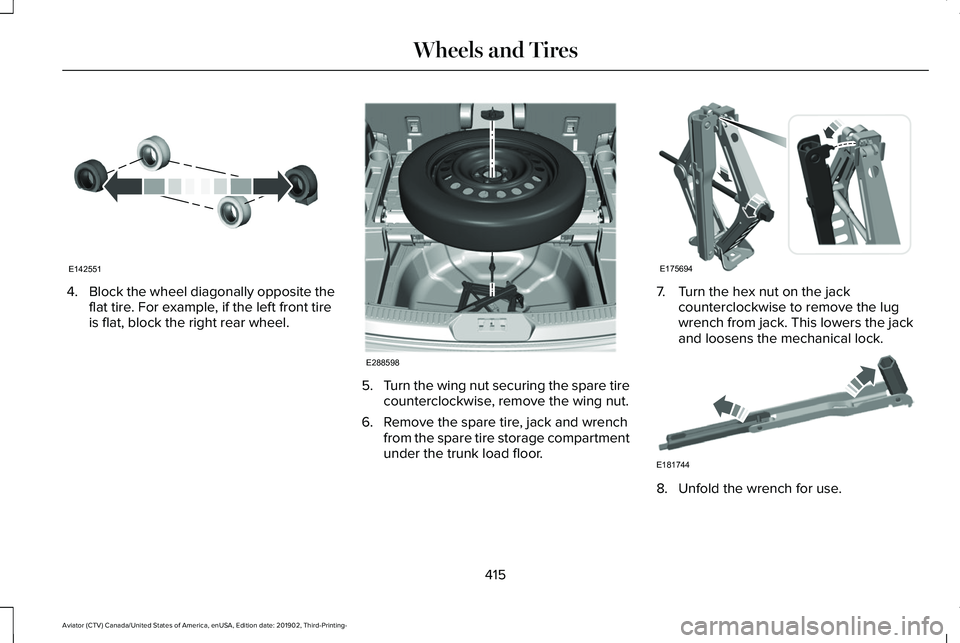
4.
Block the wheel diagonally opposite the
flat tire. For example, if the left front tire
is flat, block the right rear wheel. 5.
Turn the wing nut securing the spare tire
counterclockwise, remove the wing nut.
6. Remove the spare tire, jack and wrench from the spare tire storage compartment
under the trunk load floor. 7. Turn the hex nut on the jack
counterclockwise to remove the lug
wrench from jack. This lowers the jack
and loosens the mechanical lock. 8. Unfold the wrench for use.
415
Aviator (CTV) Canada/United States of America, enUSA, Edition date: 201902, Third-Printing- Wheels and TiresE142551 E288598 E175694 E181744
Page 421 of 609
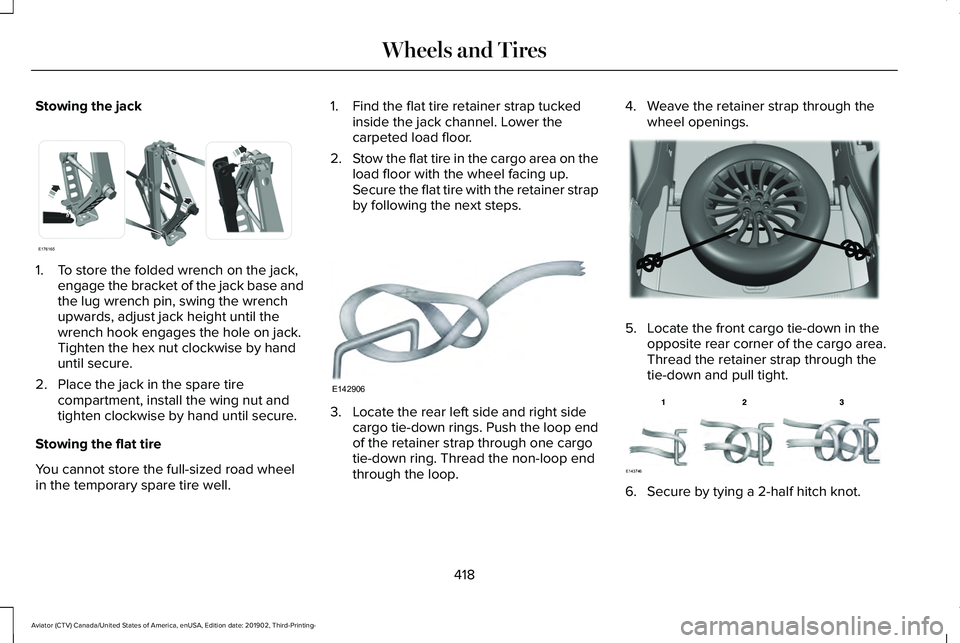
Stowing the jack
1. To store the folded wrench on the jack,
engage the bracket of the jack base and
the lug wrench pin, swing the wrench
upwards, adjust jack height until the
wrench hook engages the hole on jack.
Tighten the hex nut clockwise by hand
until secure.
2. Place the jack in the spare tire compartment, install the wing nut and
tighten clockwise by hand until secure.
Stowing the flat tire
You cannot store the full-sized road wheel
in the temporary spare tire well. 1. Find the flat tire retainer strap tucked
inside the jack channel. Lower the
carpeted load floor.
2. Stow the flat tire in the cargo area on the
load floor with the wheel facing up.
Secure the flat tire with the retainer strap
by following the next steps. 3. Locate the rear left side and right side
cargo tie-down rings. Push the loop end
of the retainer strap through one cargo
tie-down ring. Thread the non-loop end
through the loop. 4. Weave the retainer strap through the
wheel openings. 5. Locate the front cargo tie-down in the
opposite rear corner of the cargo area.
Thread the retainer strap through the
tie-down and pull tight. 6. Secure by tying a 2-half hitch knot.
418
Aviator (CTV) Canada/United States of America, enUSA, Edition date: 201902, Third-Printing- Wheels and TiresE176165 E142906 E294325 E143746
Page 422 of 609

TECHNICAL SPECIFICATIONS
Wheel Lug Nut Torque Specifications
WARNING: When you install a wheel, always remove any corrosion, dirt or foreign m\
aterials present on the mounting surfaces of the
wheel or the surface of the wheel hub, brake drum or brake disc that contacts the wheel. Make sure to secure any fasteners that attach
the rotor to the hub so they do not interfere with the mounting surfaces\
of the wheel. Installing wheels without correct metal-to-metal contact
at the wheel mounting surfaces can cause the wheel nuts to loosen and th\
e wheel to come off while your vehicle is in motion, resulting in
loss of vehicle control, personal injury or death. lb.ft (Nm)
*
Bolt size
150 lb.ft (204 Nm)
M14 x 1.5
* Torque specifications are for nut and bolt threads free of dirt and rust.\
Use only our recommended replacement fasteners.
Retighten the lug nuts to the specified torque within 100 miles (160 kil\
ometers) after any wheel disturbance (such as tire rotation, changing \
a
flat tire, wheel removal).
419
Aviator (CTV) Canada/United States of America, enUSA, Edition date: 201902, Third-Printing- Wheels and Tires
Page 442 of 609
CONNECTED VEHICLE
REQUIREMENTS
Connected service and related feature
functionality requires a compatible vehicle
network.
Some remote features require a subscription.
For additional information, see the Lincoln
Way app. Some restrictions, third party terms
and message or data rates may apply.
CONNECTED VEHICLE
LIMITATIONS
Evolving technology, evolving cellular
networks or evolving regulations could affect
functionality and availability, or continued
provision of some features. These changes
could even stop some features from
functioning.
CONNECTING THE VEHICLE TO A
MOBILE NETWORK
What Is the Modem The modem allows access to a
range of features built into your
vehicle.
Enabling and Disabling the Modem
1. Select Settings.
2. Select
Lincoln Connect.
3. Select
Connectivity Settings.
4. Switch connectivity features on or off.
Connecting Lincoln Way to the Modem
1. Make sure that the modem is enabled using the vehicle settings menu.
2. Open the Lincoln way app on your device
and log in. 3. Add your vehicle or select your vehicle
if already added.
4. Select the option for vehicle details.
5. Select the option to activate your vehicle.
6. Make sure that the name on the screen matches the name shown in your Lincoln
Way account.
7. Confirm that your Lincoln Way account is connected to the modem.
CONNECTING THE VEHICLE TO A
WI-FI NETWORK
1. Press Settings.
2. Press
Wi-Fi.
3. Switch
System Wi-Fi on.
4. Press
View Available Networks.
5. Select an available Wi-Fi network.
Note: Enter the network password to
connect to a secure network.
439
Aviator (CTV) Canada/United States of America, enUSA, Edition date: 201902, Third-Printing- Connected Vehicle
Page 446 of 609
CREATING A VEHICLE WI-FI
HOTSPOT
You can create a Wi-Fi hotspot in your
vehicle and allow devices to connect to it for
access to the Internet.
Select the settings option on the
feature bar.
1. Press Lincoln Connect.
2. Press
Vehicle Hotspot.
Note: The vehicle hotspot default setting is
on.
3. Press
Settings.
4. Press
Wi-Fi visibility.
Note: The Wi-Fi Visibility default setting is
on.
Finding the Wi-Fi Hotspot Name and
Password Select the settings option on the
feature bar.
1. Press
Lincoln Connect. 2. Press
Vehicle Hotspot.
3. Press
Settings.
Note: The SSID is the hotspot name.
4. Press
View Password.
Connecting a Device to the Wi-Fi
Hotspot
1. On your device, switch Wi-Fi on and select the hotspot from the list of
available Wi-Fi networks.
2. When prompted, enter the password.
Purchasing a Data Plan
1. Connect a device to the hotspot.
Note: The vehicle network carrier’ s portal
opens on your device.
2. If the portal does not open on your device, open a website and it redirects
to the vehicle network carrier’ s portal.
Note: Secure websites do not redirect.
3. Follow the instructions on the carrier portal to purchase a plan. Note:
If you have an active plan, the system
does not redirect to the vehicle network
carrier’ s portal when you connect a device.
Visit the vehicle network carrier’ s website to
purchase more data.
Note: If data usage information is available
in the vehicle hotspot menu, it is
approximate.
Note: If you carry out a master reset, the
system does not remove your vehicle from
your vehicle network carrier’ s account. To
remove your vehicle from the account,
contact your vehicle network carrier.
Note: The vehicle network carrier provides
Vehicle Hotspot services, subject to your
vehicle network carrier agreement, coverage
and availability.
CHANGING THE VEHICLE WI-FI
HOTSPOT NAME OR PASSWORD Select the settings option on the
feature bar.
1. Press
Lincoln Connect.
443
Aviator (CTV) Canada/United States of America, enUSA, Edition date: 201902, Third-Printing- Vehicle Wi-Fi HotspotE280315 E280315 E280315
Page 506 of 609

Possible Cause and Resolution
Symptom
–Incorrect device settings.
•Make sure that your device does not have an auto-install program or active \
security
settings.
• Check that your device is not set only to charge.
– Device lock screen enabled.
•Unlock your device before connecting it.
The system does not recognize my device. –Device limitation.
•Do not leave your device in your vehicle during very hot or very cold we\
ather condi-
tions.
– Cable connection issue.
•Correctly connect the cable to your device and the vehicle USB port.
– Incompatible cable.
•Use the cable recommended by the manufacturer of your device.
The system does not understand the name of
a track or artist. –
Device limitation. Bluetooth does not support voice commands.
•Connect your device to a USB port.
• If you have an iOS device, press and hold the voice control button on the steering
wheel to use Siri to play specific tracks.
503
Aviator (CTV) Canada/United States of America, enUSA, Edition date: 201902, Third-Printing- SYNC™ 3
Page 523 of 609
Transferable Coverage
If you sell your vehicle before your Lincoln
Protect extended service plan coverage
expires, you can transfer any remaining
coverage to the new owner. Which should
give you and your potential buyer a little
more peace of mind.
Less Cost to Properly Maintain Your Vehicle
Lincoln Protect extended service plan also
offers a Premium Maintenance Plan that
covers all scheduled maintenance, and
selected wear items. The coverage is
prepaid, so you never have to worry about
the cost of your vehicle
’s maintenance.
Covered maintenance includes:
• Windshield wiper blades.
• Spark plugs.
• The clutch disc (if equipped).
• Brake pads and linings.
• Shock absorbers and struts.
• Engine cooling hoses, clamps and
o-rings. •
Engine belts.
• Diesel exhaust fluid replenishment (if
equipped).
Interest Free Finance Options
Just a 10% down payment will provide you
with an affordable, no interest, no fee
payment program allowing you all the
security and benefits Lincoln Protect
extended service plan has to offer while
paying over time. You are pre-approved with
no credit check or hassles. To learn more,
call our Lincoln Protect extended service
plan specialists at 800-367-3377.
Complete the information below and mail to:
Lincoln Protect Extended Service Plan
P.O. Box 321067
Detroit, MI 48232 Lincoln Protect (CANADA ONLY)
You can get more protection for your vehicle
by purchasing a Lincoln Protect extended
service plan. Lincoln Protect extended
service plan is the only service contract
backed by Lincoln Motor Company of
Canada, Limited. Depending on the plan you
purchase, Lincoln Protect extended service
plan provides benefits such as:
•
Rental reimbursement.
• Coverage for certain maintenance and
wear items.
• Protection against repair costs after your
New Vehicle Limited Warranty Coverage
expires.
• Roadside Assistance benefits.
520
Aviator (CTV) Canada/United States of America, enUSA, Edition date: 201902, Third-Printing- Lincoln Protect
Page 573 of 609
(b) use your own personal judgment while
driving. If you feel that a route suggested by
the TeleNav Software instructs you to
perform an unsafe or illegal maneuver,
places you in an unsafe situation, or directs
you into an area that you consider to be
unsafe, do not follow such instructions;
(c) do not input destinations, or otherwise
manipulate the TeleNav Software, unless
your vehicle is stationary and parked;
(d) do not use the TeleNav Software for any
illegal, unauthorized, unintended, unsafe,
hazardous, or unlawful purposes, or in any
manner inconsistent with this Agreement;
(e) arrange all GPS and wireless devices and
cables necessary for use of the TeleNav
Software in a secure manner in your vehicle
so that they will not interfere with your
driving and will not prevent the operation of
any safety device (such as an airbag).
You agree to indemnify and hold TeleNav
harmless against all claims resulting from any
dangerous or otherwise inappropriate use
of the TeleNav Software in any moving
vehicle, including as a result of your failure
to comply with the directions above.
2. Account Information
You agree: (a) when registering the TeleNav
Software, to provide TeleNav with true,
accurate, current, and complete information
about yourself, and (b) to inform TeleNav
promptly of any changes to such information,
and to keep it true, accurate, current and
complete.
3. Software License
•
Subject to your compliance with the
terms of this Agreement, TeleNav hereby
grants to you a personal, non-exclusive,
non-transferable license (except as
expressly permitted below in connection
with your permanent transfer of the
TeleNav Software license), without the
right to sublicense, to use the TeleNav
Software (in object code form only) in
order to access and use the TeleNav
Software. This license shall terminate
upon any termination or expiration of this
Agreement. You agree that you will use
the TeleNav Software only for your
personal business or leisure purposes,
and not to provide commercial navigation
services to other parties. 3.1 License Limitations
•
(a) reverse engineer, decompile,
disassemble, translate, modify, alter or
otherwise change the TeleNav Software
or any part thereof; (b) attempt to derive
the source code, audio library or
structure of the TeleNav Software without
the prior express written consent of
TeleNav;
(c) remove from the TeleNav
Software, or alter, any of TeleNav's or its
suppliers' trademarks, trade names,
logos, patent or copyright notices, or
other notices or markings;
(d) distribute,
sublicense or otherwise transfer the
TeleNav Software to others, except as
part of your permanent transfer of the
TeleNav Software; or (e) use the TeleNav
Software in any manner that
I. infringes the intellectual property or
proprietary rights, rights of publicity or
privacy or other rights of any party,
ii. violates any law, statute, ordinance or
regulation, including but not limited to laws
and regulations related to spamming, privacy,
consumer and child protection, obscenity or
defamation, or
570
Aviator (CTV) Canada/United States of America, enUSA, Edition date: 201902, Third-Printing- Appendices