close LINCOLN AVIATOR 2020 Repair Manual
[x] Cancel search | Manufacturer: LINCOLN, Model Year: 2020, Model line: AVIATOR, Model: LINCOLN AVIATOR 2020Pages: 609, PDF Size: 5.4 MB
Page 260 of 609
Using Active Park Assist
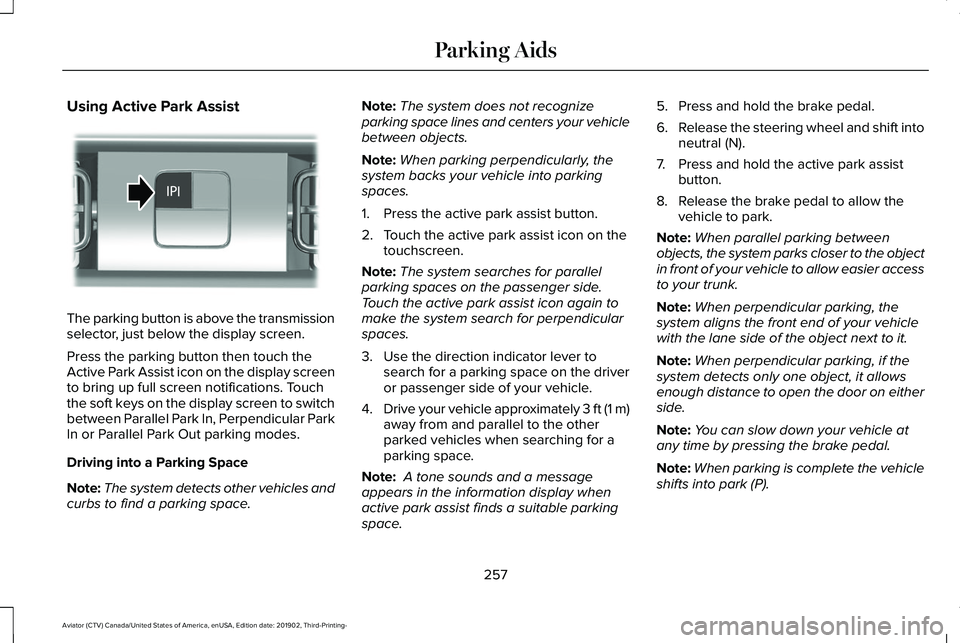
The parking button is above the transmission
selector, just below the display screen.
Press the parking button then touch the
Active Park Assist icon on the display screen
to bring up full screen notifications. Touch
the soft keys on the display screen to switch
between Parallel Park In, Perpendicular Park
In or Parallel Park Out parking modes.
Driving into a Parking Space
Note:
The system detects other vehicles and
curbs to find a parking space. Note:
The system does not recognize
parking space lines and centers your vehicle
between objects.
Note: When parking perpendicularly, the
system backs your vehicle into parking
spaces.
1. Press the active park assist button.
2. Touch the active park assist icon on the touchscreen.
Note: The system searches for parallel
parking spaces on the passenger side.
Touch the active park assist icon again to
make the system search for perpendicular
spaces.
3. Use the direction indicator lever to search for a parking space on the driver
or passenger side of your vehicle.
4. Drive your vehicle approximately 3 ft (1 m)
away from and parallel to the other
parked vehicles when searching for a
parking space.
Note: A tone sounds and a message
appears in the information display when
active park assist finds a suitable parking
space. 5. Press and hold the brake pedal.
6.
Release the steering wheel and shift into
neutral (N).
7. Press and hold the active park assist button.
8. Release the brake pedal to allow the vehicle to park.
Note: When parallel parking between
objects, the system parks closer to the object
in front of your vehicle to allow easier access
to your trunk.
Note: When perpendicular parking, the
system aligns the front end of your vehicle
with the lane side of the object next to it.
Note: When perpendicular parking, if the
system detects only one object, it allows
enough distance to open the door on either
side.
Note: You can slow down your vehicle at
any time by pressing the brake pedal.
Note: When parking is complete the vehicle
shifts into park (P).
257
Aviator (CTV) Canada/United States of America, enUSA, Edition date: 201902, Third-Printing- Parking AidsE301112
Page 264 of 609
REAR VIEW CAMERA
WARNING: The rear view camera
system is a reverse aid supplement device
that still requires the driver to use it in
conjunction with the interior and exterior
mirrors for maximum coverage. WARNING:
Objects that are close to
either corner of the bumper or under the
bumper, might not be seen on the screen
due to the limited coverage of the camera
system. WARNING:
Reverse your vehicle
slowly. Failure to follow this instruction
could result in the loss of control of your
vehicle, personal injury or death. WARNING:
Use caution when the
rear cargo door is ajar. If the rear cargo
door is ajar, the camera will be out of
position and the video image could be
incorrect. All guide lines disappear when
the rear cargo door is ajar. Failure to follow
this instruction could result in personal
injury. WARNING:
Use caution when turning
camera features on or off when the
transmission is not in park (P). Make sure
your vehicle is not moving.
Note: Some vehicles may not come
equipped with guidelines.
The rear view camera system provides a
video image of the area behind your vehicle.
During operation, lines appear in the display
which represent your vehicle ’s path and
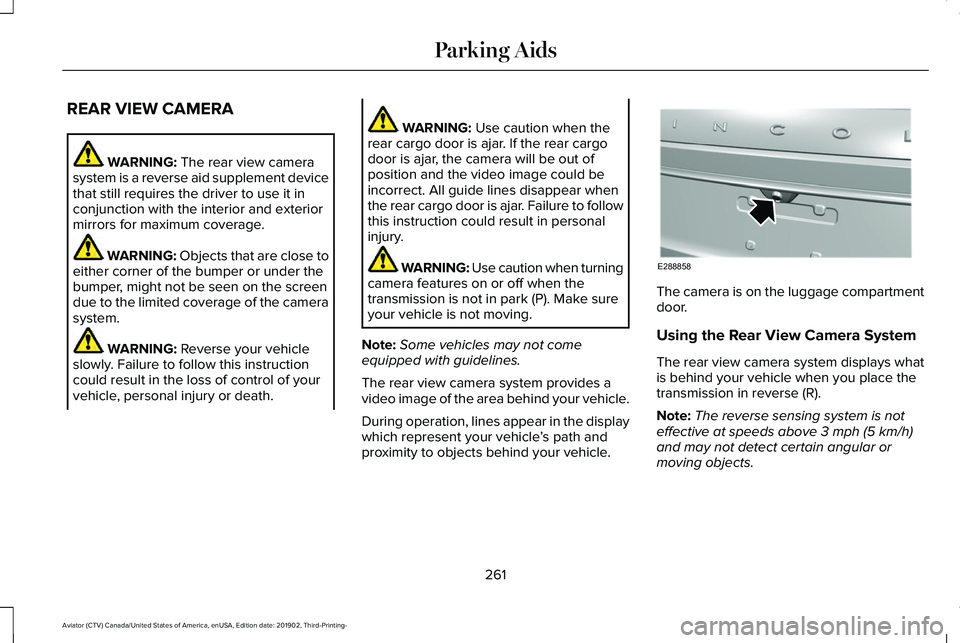
proximity to objects behind your vehicle. The camera is on the luggage compartment
door.
Using the Rear View Camera System
The rear view camera system displays what
is behind your vehicle when you place the
transmission in reverse (R).
Note:
The reverse sensing system is not
effective at speeds above
3 mph (5 km/h)
and may not detect certain angular or
moving objects.
261
Aviator (CTV) Canada/United States of America, enUSA, Edition date: 201902, Third-Printing- Parking AidsE288858
Page 266 of 609
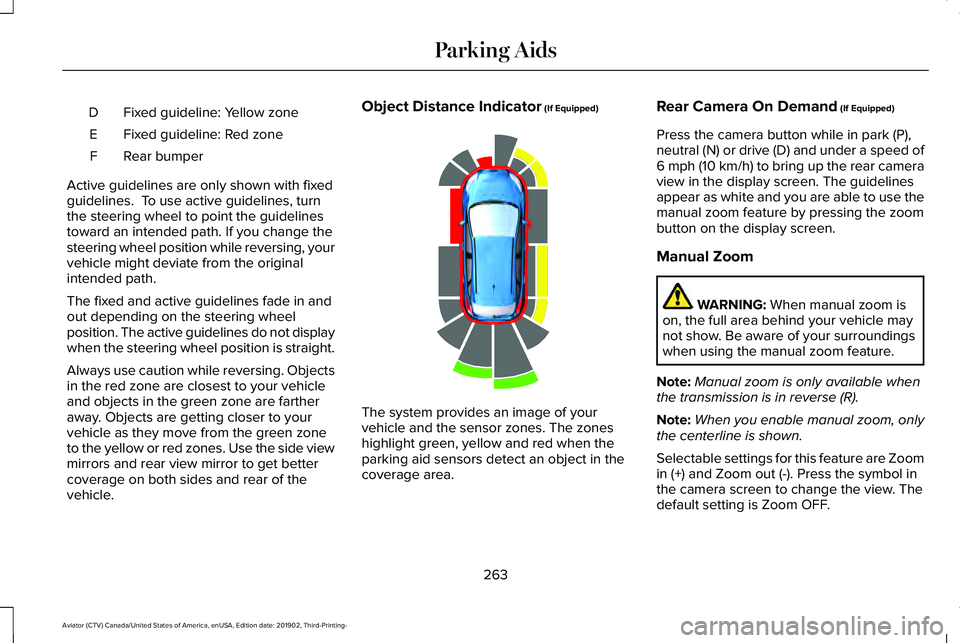
Fixed guideline: Yellow zone
D
Fixed guideline: Red zone
E
Rear bumper
F
Active guidelines are only shown with fixed
guidelines. To use active guidelines, turn
the steering wheel to point the guidelines
toward an intended path. If you change the
steering wheel position while reversing, your
vehicle might deviate from the original
intended path.
The fixed and active guidelines fade in and
out depending on the steering wheel
position. The active guidelines do not display
when the steering wheel position is straight.
Always use caution while reversing. Objects
in the red zone are closest to your vehicle
and objects in the green zone are farther
away. Objects are getting closer to your
vehicle as they move from the green zone
to the yellow or red zones. Use the side view
mirrors and rear view mirror to get better
coverage on both sides and rear of the
vehicle. Object Distance Indicator (If Equipped)
The system provides an image of your
vehicle and the sensor zones. The zones
highlight green, yellow and red when the
parking aid sensors detect an object in the
coverage area.Rear Camera On Demand (If Equipped)
Press the camera button while in park (P),
neutral (N) or drive (D) and under a speed of
6 mph (10 km/h) to bring up the rear camera
view in the display screen. The guidelines
appear as white and you are able to use the
manual zoom feature by pressing the zoom
button on the display screen.
Manual Zoom WARNING:
When manual zoom is
on, the full area behind your vehicle may
not show. Be aware of your surroundings
when using the manual zoom feature.
Note: Manual zoom is only available when
the transmission is in reverse (R).
Note: When you enable manual zoom, only
the centerline is shown.
Selectable settings for this feature are Zoom
in (+) and Zoom out (-). Press the symbol in
the camera screen to change the view. The
default setting is Zoom OFF.
263
Aviator (CTV) Canada/United States of America, enUSA, Edition date: 201902, Third-Printing- Parking AidsE190459
Page 267 of 609
This allows you to get a closer view of an
object behind your vehicle. The zoomed
image keeps the bumper in the image to
provide a reference. The zoom is only active
while the transmission is in reverse (R).
Rear Camera Delay
Selectable settings for this feature are ON
and OFF.
The default setting for the rear camera delay
is OFF.
When shifting the transmission out of reverse
(R) and into any gear other than park (P), the
camera image remains in the display until:
•
Your vehicle speed reaches
approximately 5 mph (8 km/h).
• You shift your vehicle into park (P). 360 DEGREE CAMERA
(IF EQUIPPED) WARNING: The 360 degree camera
system still requires the driver to use it in
conjunction with looking out of the
windows, and checking the interior and
exterior mirrors for maximum coverage. WARNING:
Objects that are close to
either corner of the bumper or under the
bumper, might not be seen on the screen
due to the limited coverage of the camera
system. WARNING:
Use caution when turning
camera features on or off when the
transmission is not in park (P). Make sure
your vehicle is not moving. WARNING:
You are responsible for
controlling your vehicle at all times. The
system is designed to be an aid and does
not relieve you of your responsibility to
drive with due care and attention. Failure
to follow this instruction could result in the
loss of control of your vehicle, personal
injury or death.
Note: Use caution using the 360 view when
any of the doors are ajar. If a door is ajar,
the camera will be out of position and the
video image may be incorrect.
The 360 degree camera system consists of
front, side and rear cameras. The system:
• Allows you to see what is directly in front
or behind your vehicle.
• Provides cross traffic view in front and
behind your vehicle.
264
Aviator (CTV) Canada/United States of America, enUSA, Edition date: 201902, Third-Printing- Parking Aids
Page 273 of 609
WARNING: Pay close attention to
changing road conditions such as entering
or leaving a highway, on roads with
intersections or roundabouts, roads
without visible lanes of travel, roads that
are winding, slippery, unpaved, or steep
slopes. WARNING:
The system does not
control speed in low traction conditions or
extremely steep slopes. The system is
designed to be an aid and does not relieve
you of your responsibility to drive with due
care and attention. Failure to follow this
instruction could result in personal injury. WARNING:
The system is not a crash
warning or avoidance system. WARNING:
Do not use the system
when towing a trailer that has aftermarket
electronic trailer brake controls. Failure to
follow this instruction could result in the
loss of control of your vehicle, personal
injury or death. WARNING:
Do not use tire sizes
other than those recommended because
this can affect the normal operation of the
system. Failure to do so may result in a loss
of vehicle control, which could result in
serious injury. WARNING:
Do not use the system
with a snow plow blade installed. WARNING:
Do not use the system in
poor visibility, for example fog, heavy rain,
spray or snow.
When Following a Vehicle WARNING: When following a vehicle
that is braking, your vehicle does not
always decelerate quickly enough to avoid
a crash without driver intervention. Apply
the brakes when necessary. Failure to
follow this instruction could result in
personal injury or death. Hilly Condition Usage
You should select a lower gear when the
system is active in situations such as
prolonged downhill driving on steep grades,
for example in mountainous areas. The
system needs additional engine braking in
these situations to reduce the load on the
vehicle
’s regular brake system to prevent it
from overheating.
Note: An audible alarm sounds and the
system shuts down if it applies brakes for an
extended period of time. This allows the
brakes to cool. The system functions
normally again after the brakes cool.
ADAPTIVE CRUISE CONTROL
LIMITATIONS - VEHICLES WITH:
ADAPTIVE CRUISE CONTROL
WITH LANE CENTERING
Adaptive cruise control limitations apply to
lane centering unless stated otherwise or
contradicted by a lane centering limitation.
See
Adaptive Cruise Control Limitations
(page 271).
270
Aviator (CTV) Canada/United States of America, enUSA, Edition date: 201902, Third-Printing- Adaptive Cruise Control
(If Equipped)
Page 278 of 609
SETTING THE ADAPTIVE CRUISE
CONTROL GAP
Press the button to cycle through
the four gap settings.
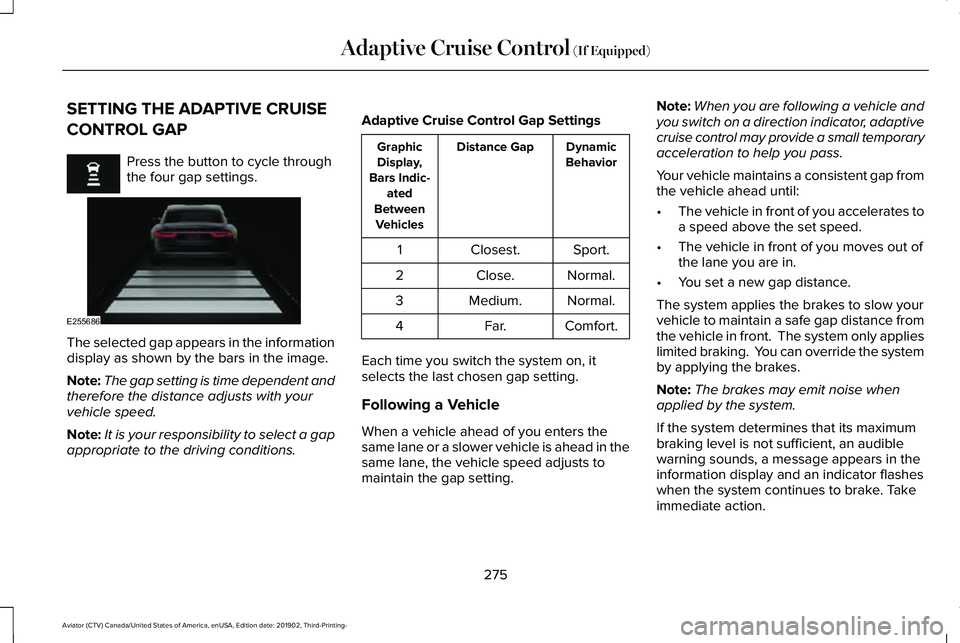
The selected gap appears in the information
display as shown by the bars in the image.
Note:
The gap setting is time dependent and
therefore the distance adjusts with your
vehicle speed.
Note: It is your responsibility to select a gap
appropriate to the driving conditions. Adaptive Cruise Control Gap Settings Dynamic
Behavior
Distance Gap
Graphic
Display,
Bars Indic- ated
Between Vehicles
Sport.
Closest.
1
Normal.
Close.
2
Normal.
Medium.
3
Comfort.
Far.
4
Each time you switch the system on, it
selects the last chosen gap setting.
Following a Vehicle
When a vehicle ahead of you enters the
same lane or a slower vehicle is ahead in the
same lane, the vehicle speed adjusts to
maintain the gap setting. Note:
When you are following a vehicle and
you switch on a direction indicator, adaptive
cruise control may provide a small temporary
acceleration to help you pass.
Your vehicle maintains a consistent gap from
the vehicle ahead until:
• The vehicle in front of you accelerates to
a speed above the set speed.
• The vehicle in front of you moves out of
the lane you are in.
• You set a new gap distance.
The system applies the brakes to slow your
vehicle to maintain a safe gap distance from
the vehicle in front. The system only applies
limited braking. You can override the system
by applying the brakes.
Note: The brakes may emit noise when
applied by the system.
If the system determines that its maximum
braking level is not sufficient, an audible
warning sounds, a message appears in the
information display and an indicator flashes
when the system continues to brake. Take
immediate action.
275
Aviator (CTV) Canada/United States of America, enUSA, Edition date: 201902, Third-Printing- Adaptive Cruise Control (If Equipped) E255686
Page 290 of 609
Red: Indicates that the system is providing
or has just provided a lane keeping alert
warning.
The system can be temporarily suppressed
at any time by the following:
•
Quick braking.
• Fast acceleration. •
Using the direction indicator.
• Evasive steering maneuver.
• Driving too close to the lane markings.
Troubleshooting Why is the feature not available (line markings are gray) when I can s\
ee the lane markings on the road?
Your vehicle speed is outside the operational range of the feature.
The sun is shining directly into the camera lens.
A quick intentional lane change has occurred.
Your vehicle stays too close to the lane markings.
Driving at high speeds in curves.
The last Alert warning or Aid intervention occurred a short time ago.
Ambiguous lane markings, for example in construction zones.
Rapid transition from light to dark, or from dark to light.
Sudden offset in lane markings.
ABS or AdvanceTrac ™ is active.
There is a camera blockage due to dirt, grime, fog, frost or water on the windshield.
287
Aviator (CTV) Canada/United States of America, enUSA, Edition date: 201902, Third-Printing- Driving Aids
Page 291 of 609
 when I can s\
ee the lane markings on the road?
You are driving too close to the vehicle in front of you.
Transitioning between no lane markin")
Why is the feature not available (line markings are gray) when I can s\
ee the lane markings on the road?
You are driving too close to the vehicle in front of you.
Transitioning between no lane markings to lane markings or vice versa.
There is standing water on the road.
Faint lane markings, for example partial yellow lane markings on concret\
e roads.
Lane width is too narrow or too wide.
The camera has not been calibrated after a windshield replacement.
Driving on tight roads or on uneven roads. Why does the vehicle not come back toward the middle of the lane, as expected, in the Aid or Aid and Alert mode?
High cross winds are present.
There is a large road crown.
Rough roads, grooves or shoulder drop-offs.
Heavy uneven loading of the vehicle or improper tire inflation pressure.
The tires have been changed, or the suspension has been modified.
288
Aviator (CTV) Canada/United States of America, enUSA, Edition date: 201902, Third-Printing- Driving Aids
Page 317 of 609
Special Loading Instructions for
Owners of Pick-up Trucks and Utility-
type Vehicles
WARNING: When loading the
roof racks, we recommend you evenly
distribute the load, as well as maintain
a low center of gravity. Loaded
vehicles, with higher centers of gravity,
may handle differently than unloaded
vehicles. Take extra precautions, such
as slower speeds and increased
stopping distance, when driving a
heavily loaded vehicle.
AIR SUSPENSION
(IF EQUIPPED) WARNING:
If your vehicle has
self-leveling air suspension, you must
switch the system off before carrying out
any maintenance or repair. Failure to follow
this warning could result in serious
personal injury or death. The air suspension system automatically
adjusts to maintain a constant frame height,
allows for ease of vehicle loading, provides
improved vehicle ride, and increased driver
comfort.
You can adjust different ride settings through
the selectable drive modes.
See Selecting
a Drive Mode (page 306).
Note: The air suspension system may not
operate properly if you exceed the load limit.
See
Load Limit (page 310).
Note: When your vehicle is off, the air
compressor may run for a short time. This is
normal.
Switching the systems on or off
You can access the air suspension, liftgate
and easy entry features through the
information display menu settings.
See
General Information (page 130).
Using the Service Mode
When the service mode is active, the air
suspension does not make any adjustments
while your vehicle is stationary. Note:
Always switch the air suspension
service mode to on before servicing your
vehicle.
Using Cargo Loading
The air suspension cargo loading feature
lowers your vehicle for easier access when
the system detects the liftgate is opening.
When the liftgate is closed your vehicle
returns to its normal height after a short time.
Note: To preserve your vehicle battery, your
vehicle may only lower for cargo mode one
to two times per ignition cycle.
Using Easy Entry
The air suspension can lower your vehicle
to an easier access entry height when the
system detects the intelligent access key,
you press the unlock button, use the remote
start, or use Phone as a Key.
The leveling process stops when you open
a door or the target level is achieved.
Note: To stop the leveling process, press the
lock button on the intelligent access key.
314
Aviator (CTV) Canada/United States of America, enUSA, Edition date: 201902, Third-Printing- Load Carrying
Page 319 of 609
TOWING A TRAILER
WARNING: Towing trailers
beyond the maximum recommended
gross trailer weight exceeds the limit
of your vehicle and could result in
engine damage, transmission damage,
structural damage, loss of vehicle
control, vehicle rollover and personal
injury. WARNING:
Do not exceed the
GVWR or the GAWR specified on the
certification label.
Note: See
Recommended Towing
Weights (page 317).
Your vehicle may have electrical items,
such as fuses or relays, related to
towing.
See Fuses (page 342). Your vehicle's load capacity designation
is by weight, not by volume, so you
cannot necessarily use all available
space when loading a vehicle or trailer.
Towing a trailer places an extra load on
your vehicle's engine, transmission, axle,
brakes, tires and suspension. Inspect
these components periodically during,
and after, any towing operation.
Load Placement
To help minimize how trailer movement
affects your vehicle when driving:
•
Load the heaviest items closest to
the trailer floor.
• Load the heaviest items centered
between the left and right side trailer
tires. •
Load the heaviest items above the
trailer axles or just slightly forward
toward the trailer tongue. Do not
allow the final trailer tongue weight
to go above or below 10-15% of the
loaded trailer weight.
• Select a ball mount with the correct
rise or drop and load capacity. When
both the loaded vehicle and trailer
are connected, the trailer frame
should be level, or slightly angled
down toward your vehicle, when
viewed from the side.
When driving with a trailer or payload, a
slight takeoff vibration or shudder may
be present due to the increased payload
weight. Additional information regarding
proper trailer loading and setting your
vehicle up for towing is located in
another chapter of this manual.
See
Load Limit (page 310).
You can also find information in the
RV
& Trailer Towing Guide available at your
authorized dealer, or online.
316
Aviator (CTV) Canada/United States of America, enUSA, Edition date: 201902, Third-Printing- Towing