ECO mode LINCOLN AVIATOR 2021 Owners Manual
[x] Cancel search | Manufacturer: LINCOLN, Model Year: 2021, Model line: AVIATOR, Model: LINCOLN AVIATOR 2021Pages: 667, PDF Size: 7.01 MB
Page 443 of 667
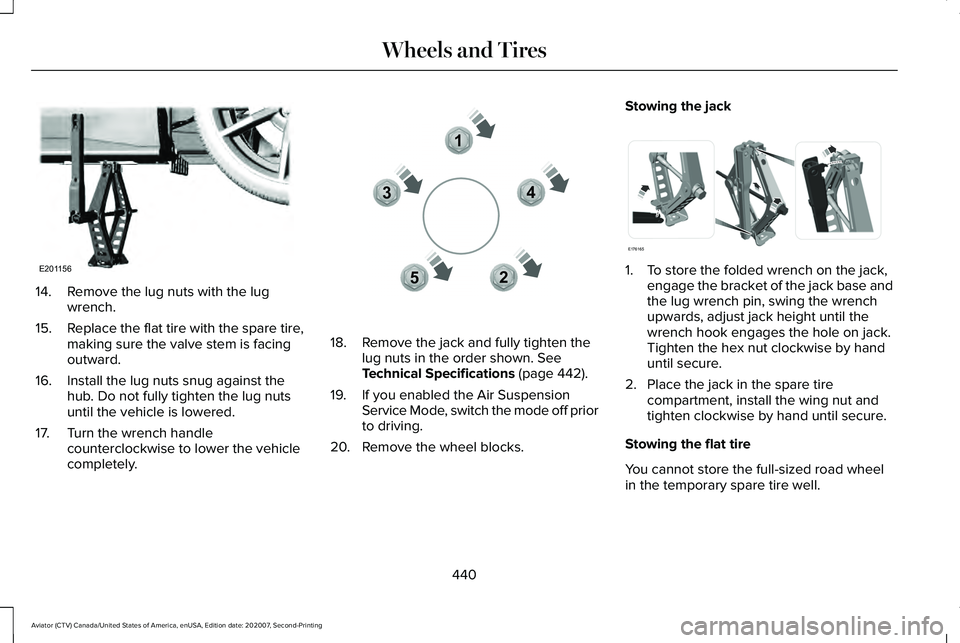
14. Remove the lug nuts with the lug
wrench.
15. Replace the flat tire with the spare tire,
making sure the valve stem is facing
outward.
16. Install the lug nuts snug against the hub. Do not fully tighten the lug nuts
until the vehicle is lowered.
17. Turn the wrench handle counterclockwise to lower the vehicle
completely. 18. Remove the jack and fully tighten the
lug nuts in the order shown. See
Technical Specifications (page 442).
19. If you enabled the Air Suspension Service Mode, switch the mode off prior
to driving.
20. Remove the wheel blocks. Stowing the jack
1. To store the folded wrench on the jack,
engage the bracket of the jack base and
the lug wrench pin, swing the wrench
upwards, adjust jack height until the
wrench hook engages the hole on jack.
Tighten the hex nut clockwise by hand
until secure.
2. Place the jack in the spare tire compartment, install the wing nut and
tighten clockwise by hand until secure.
Stowing the flat tire
You cannot store the full-sized road wheel
in the temporary spare tire well.
440
Aviator (CTV) Canada/United States of America, enUSA, Edition date: 202007, Second-Printing Wheels and TiresE201156 12
3
4
5E306781 E176165
Page 453 of 667
VEHICLE IDENTIFICATION
NUMBER
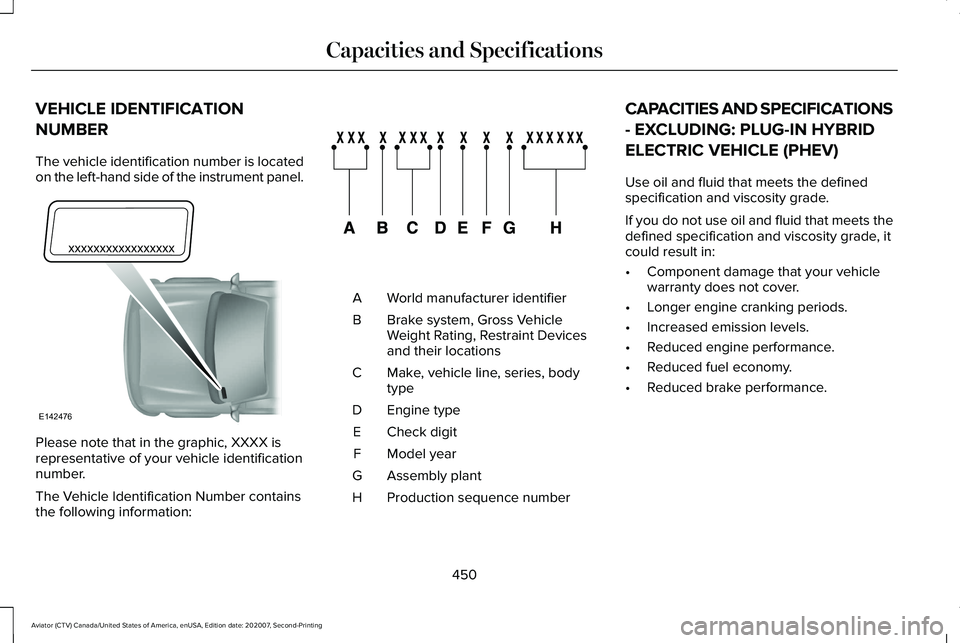
The vehicle identification number is located
on the left-hand side of the instrument panel.
Please note that in the graphic, XXXX is
representative of your vehicle identification
number.
The Vehicle Identification Number contains
the following information: World manufacturer identifier
A
Brake system, Gross Vehicle
Weight Rating, Restraint Devices
and their locations
B
Make, vehicle line, series, body
type
C
Engine type
D
Check digit
E
Model year
F
Assembly plant
G
Production sequence number
H CAPACITIES AND SPECIFICATIONS
- EXCLUDING: PLUG-IN HYBRID
ELECTRIC VEHICLE (PHEV)
Use oil and fluid that meets the defined
specification and viscosity grade.
If you do not use oil and fluid that meets the
defined specification and viscosity grade, it
could result in:
•
Component damage that your vehicle
warranty does not cover.
• Longer engine cranking periods.
• Increased emission levels.
• Reduced engine performance.
• Reduced fuel economy.
• Reduced brake performance.
450
Aviator (CTV) Canada/United States of America, enUSA, Edition date: 202007, Second-Printing Capacities and SpecificationsE142476 E142477
Page 478 of 667
CONNECTING THE VEHICLE TO A
MOBILE NETWORK
What Is the Modem
The modem allows you to connect your
vehicle to the Internet to use when you are
on the road.
If you enable the modem using the Lincoln
Way app, you can access the following
services:
•
Locating and remotely starting, locking
and unlocking your vehicle. See the
information in the Lincoln Way app.
• Automatic system updates. Note:
We may need to update operating
system software on your vehicle to keep
connected services updated without prior
notice to you.
Enabling the Modem Using The Lincoln
Way
1. Open the Lincoln Way app on your device and log in.
2. Select your vehicle.
3. Select the option for vehicle details.
4. Select the option to activate your vehicle.
5. Switch the ignition on. 6. Make sure that the name on the screen
matches the name shown in your Lincoln
Way account.
7. Confirm the association of your vehicle with your Lincoln Way account.
Enabling the Modem Using the
Touchscreen Select the settings option on the
feature bar.
1. Select Lincoln Connect .
2. Select
Connectivity Settings.
3. Switch connectivity features on.
475
Aviator (CTV) Canada/United States of America, enUSA, Edition date: 202007, Second-Printing Network ConnectivityE280315
Page 481 of 667
Mobile Network
Possible Cause and Resolution
Symptom
–Modem is not enabled.
•Enable the modem through Lincoln Way.
– Weak network signal.
•Move your vehicle closer to a place where the network signal is not obst\
ructed.
I cannot confirm association with Lincoln Way
when trying to enable the modem.
478
Aviator (CTV) Canada/United States of America, enUSA, Edition date: 202007, Second-Printing Network Connectivity
Page 485 of 667
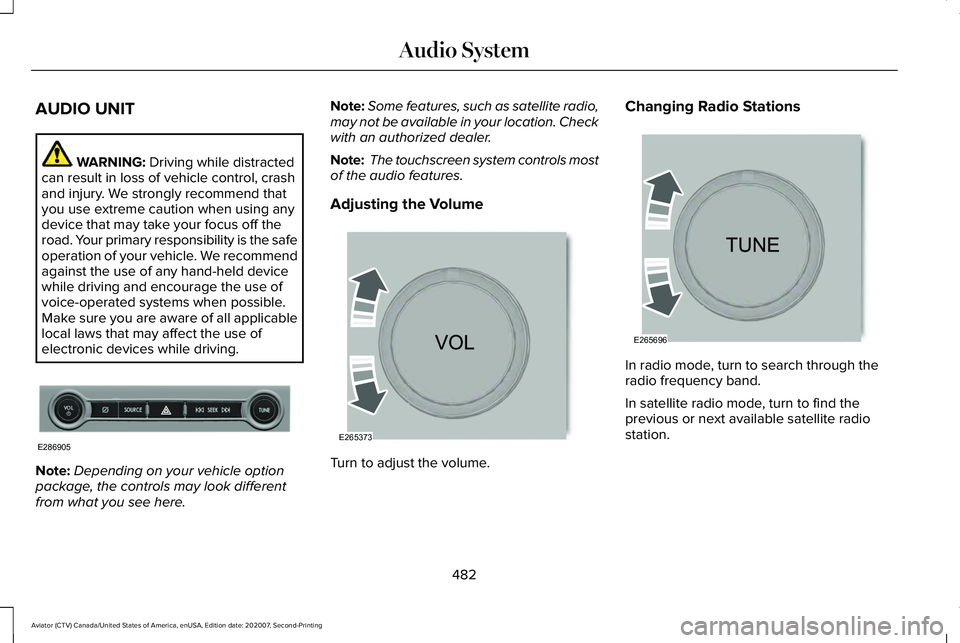
AUDIO UNIT
WARNING: Driving while distracted
can result in loss of vehicle control, crash
and injury. We strongly recommend that
you use extreme caution when using any
device that may take your focus off the
road. Your primary responsibility is the safe
operation of your vehicle. We recommend
against the use of any hand-held device
while driving and encourage the use of
voice-operated systems when possible.
Make sure you are aware of all applicable
local laws that may affect the use of
electronic devices while driving. Note:
Depending on your vehicle option
package, the controls may look different
from what you see here. Note:
Some features, such as satellite radio,
may not be available in your location. Check
with an authorized dealer.
Note: The touchscreen system controls most
of the audio features.
Adjusting the Volume Turn to adjust the volume.Changing Radio Stations
In radio mode, turn to search through the
radio frequency band.
In satellite radio mode, turn to find the
previous or next available satellite radio
station.
482
Aviator (CTV) Canada/United States of America, enUSA, Edition date: 202007, Second-Printing Audio SystemE286905 E265373 E265696
Page 486 of 667
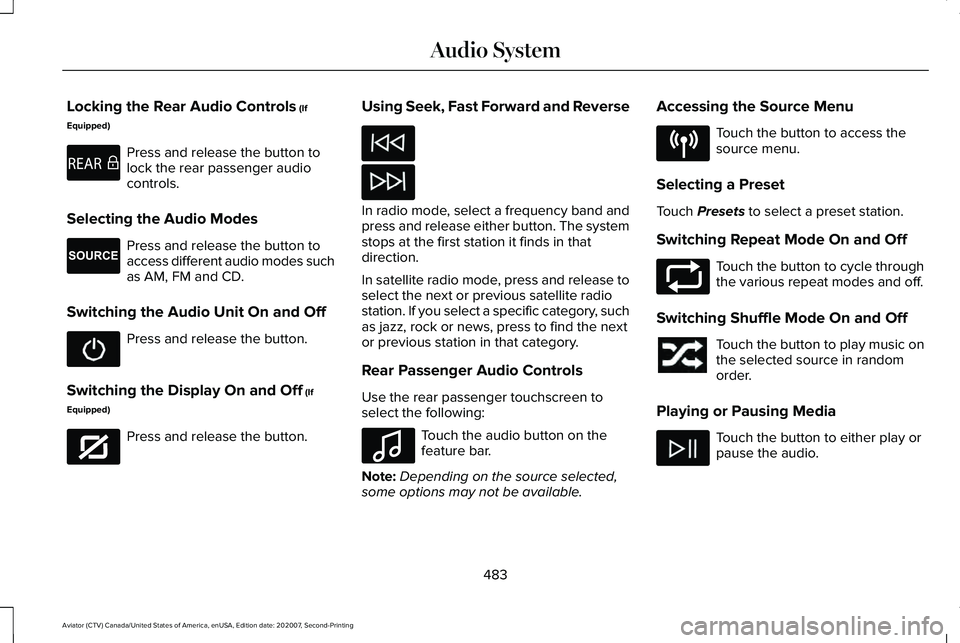
Locking the Rear Audio Controls (If
Equipped) Press and release the button to
lock the rear passenger audio
controls.
Selecting the Audio Modes Press and release the button to
access different audio modes such
as AM, FM and CD.
Switching the Audio Unit On and Off Press and release the button.
Switching the Display On and Off
(If
Equipped) Press and release the button. Using Seek, Fast Forward and Reverse In radio mode, select a frequency band and
press and release either button. The system
stops at the first station it finds in that
direction.
In satellite radio mode, press and release to
select the next or previous satellite radio
station. If you select a specific category, such
as jazz, rock or news, press to find the next
or previous station in that category.
Rear Passenger Audio Controls
Use the rear passenger touchscreen to
select the following:
Touch the audio button on the
feature bar.
Note: Depending on the source selected,
some options may not be available. Accessing the Source Menu Touch the button to access the
source menu.
Selecting a Preset
Touch
Presets to select a preset station.
Switching Repeat Mode On and Off Touch the button to cycle through
the various repeat modes and off.
Switching Shuffle Mode On and Off Touch the button to play music on
the selected source in random
order.
Playing or Pausing Media Touch the button to either play or
pause the audio.
483
Aviator (CTV) Canada/United States of America, enUSA, Edition date: 202007, Second-Printing Audio SystemE270448 E265276 E272035 E100027 E287123 E287125
Page 487 of 667
Switching the Audio Control On and
Off
Adjusting the Volume
Touch the arrow buttons to adjust the
volume.
Using Seek, Fast Forward and Reverse
In radio mode, select a frequency band and
touch either button. The system stops at the
first station it finds in that direction.
In satellite radio mode, touch to select the
next or previous satellite radio station. If you
select a specific category, such as jazz, rock
or news, touch to find the next or previous
station in that category. Rear Audio Control Lock Message
A message displays when the controls are
locked through the front and you try to
operate them.
Note:
The controls also lock when a voice
session or phone call is active.
DIGITAL RADIO
Note: HD Radio broadcasts are not available
in all markets.
HD Radio technology is the digital evolution
of analog AM/FM radio. Your system has a
special receiver that allows it to receive
digital broadcasts, where available, in
addition to the analog broadcasts, it already
receives. Digital broadcasts provide a better
sound quality than analog broadcasts with
free, crystal-clear audio and no static or
distortion. For more information, and a guide
to available stations and programming,
please visit www.hdradio.com. When HD Radio is on and you tune to a
station broadcasting HD Radio technology,
you may notice the HD Radio logo on your
screen. When this logo is available, you may
also see Title and Artist fields on-screen.
The multicast indicator appears in FM mode,
only, if the current station is broadcasting
multiple digital broadcasts. The highlighted
numbers signify available digital channels
where new or different content is available.
HD1 signifies the main programming status
and is available in analog and digital
broadcasts. Other multicast stations, HD2
through HD7, are only available digitally.
When HD Radio broadcasts are active, you
can access the following functions:
•
Memory presets allow you to save an
active channel as a memory preset.
Touch and hold a memory preset slot
until the sound returns. There is a brief
mute while the radio saves the station.
Sound returns when finished. When
switching to an HD2 or HD3 memory
preset, the sound mutes before the
digital audio plays, because the system
has to reacquire the digital signal.
484
Aviator (CTV) Canada/United States of America, enUSA, Edition date: 202007, Second-Printing Audio System
Page 507 of 667
SiriusXM Traffic and Travel Link (If Equipped)
Description
Voice command
Displays a list of traffic incidents.
Show Traffic
Displays the current weather map.
Show Weather Map
Displays a list of fuel prices.
Show Fuel Prices
Displays the 5 day weather forecast.
Show 5 Day Fore-
cast
Voice Settings Description
Voice Command
Go to the voice settings menu.
Voice Settings
Switch long voice prompts on.
Interaction Mode Novice
Switch short voice prompts on.
Interaction Mode Advanced
Switch call confirmation on. The system prompts you to confirm before mak\
ing a
call.
Phone Confirmation On
504
Aviator (CTV) Canada/United States of America, enUSA, Edition date: 202007, Second-Printing SYNC™ 3
Page 512 of 667
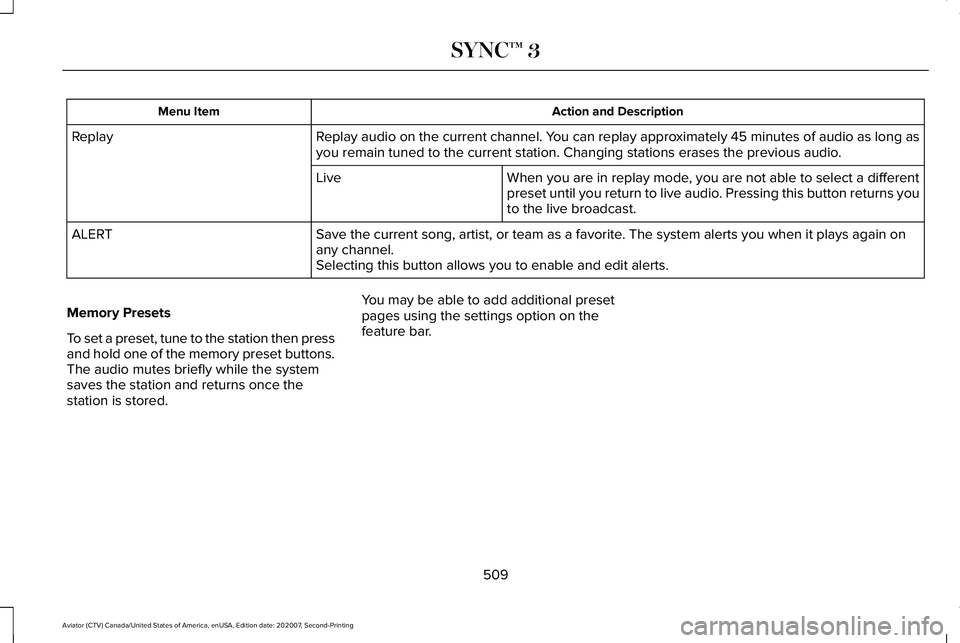
Action and Description
Menu Item
Replay audio on the current channel. You can replay approximately 45 minutes of audio as long as
you remain tuned to the current station. Changing stations erases the pr\
evious audio.
Replay
When you are in replay mode, you are not able to select a different
preset until you return to live audio. Pressing this button returns you
to the live broadcast.
Live
Save the current song, artist, or team as a favorite. The system alerts you when it plays again on
any channel.
ALERT
Selecting this button allows you to enable and edit alerts.
Memory Presets
To set a preset, tune to the station then press
and hold one of the memory preset buttons.
The audio mutes briefly while the system
saves the station and returns once the
station is stored. You may be able to add additional preset
pages using the settings option on the
feature bar.
509
Aviator (CTV) Canada/United States of America, enUSA, Edition date: 202007, Second-Printing SYNC™ 3
Page 515 of 667
HD Radio technology is the digital evolution
of analog AM/FM radio. Your system has a
special receiver that allows it to receive
digital broadcasts (where available) in
addition to the analog broadcasts, it already
receives. Digital broadcasts provide a better
sound quality than analog broadcasts with
free, crystal-clear audio and no static or
distortion. For more information, and a guide
to available stations and programming,
please visit:
Website
www.hdradio.com
When HD Radio is on and you tune to a
station broadcasting HD Radio technology,
you may notice the following indicators on
your screen: The HD logo is grey when acquiring a digital
station, and then changes to orange when
digital audio is playing. When this logo is
available, you may also see Title and Artist
fields on-screen.
The multicast indicator appears in FM mode
(only) if the current station is broadcasting
multiple digital broadcasts. The highlighted
numbers signify available digital channels
where new or different content is available.
HD1 signifies the main programming status
and is available in analog and digital
broadcasts. Other multicast stations (HD2
through HD7) are only available digitally.
Note:
There is also an additional feature for
stations that have more than 1 HD multicast
(For example, HD1 or HD2). The HD logo and
Radio text appears as a button. Pressing this
button allows you to cycle through all of the
HD stations on that specific frequency. For
example, if you are on 101.1 and it has HD1,
HD2, HD3, pressing the button repeatedly
causes the radio to cycle through the HD
stations in a cyclic increasing order.
512
Aviator (CTV) Canada/United States of America, enUSA, Edition date: 202007, Second-Printing SYNC™ 3E142616