phone LINCOLN AVIATOR 2021 User Guide
[x] Cancel search | Manufacturer: LINCOLN, Model Year: 2021, Model line: AVIATOR, Model: LINCOLN AVIATOR 2021Pages: 667, PDF Size: 7.01 MB
Page 77 of 667
5. Press the brake pedal and the ignition
button within 20 seconds to start the
vehicle.
6. If your vehicle does not start, repeat steps 1-5.
System Lockout
The system locks after five attempts of trying
to enter a Backup Start Passcode, resetting
a current passcode or entering an incorrect
Valet Mode passcode.
Note: The system remains locked for five
minutes. After five minutes the system allows
codes to be entered again. PHONE AS A KEY –
TROUBLESHOOTING
Phone as a Key – Frequently Asked
Questions
How can I tell if my vehicle has Phone as a
Key?
The touchscreen shows the Phone as a
Key reset option if your vehicle has
Phone as a Key. If you have registered
your vehicle through the Lincoln Way
app, a control button appears on the
home screen of the Lincoln Way app. What happens if I cannot unlock the vehicle
with Phone as a Key?
Attempt to move your phone closer to
the vehicle. Check that the Lincoln Way
app is still running and that the Phone
as a Key control screen shows
connected. If the phone is connected,
attempt to press the remote unlock
button in the Lincoln Way app. If the
phone is not connected or the remote
unlock button does not work in the
Lincoln Way app, attempt to force close
and restart the app.
Why do I get a No Key Detected message
in the instrument cluster display when I am
using Phone as a Key and my phone is in
the car? Your phone ’s Bluetooth connection has
been disrupted or is not connected. Try
reconnecting your phone's Bluetooth
connection. Move the phone closer to
the center of the vehicle near the cup
holder or center console. Verify your
Phone as a Key is still active, enabled
and has not been revoked.
74
Aviator (CTV) Canada/United States of America, enUSA, Edition date: 202007, Second-Printing Phone as a Key (If Equipped)
Page 78 of 667
What do I do if my phone is lost, damaged,
or the battery has depleted?
Use the Backup Start Passcode that you
created to protect you in the event that
you lose your phone, damage it, or the
battery depletes. See Using the
Backup Start Passcode (page 73).
How many phones can I use for Phone as
a Key? You can program and activate up to four
phones with Phone as a Key to your
vehicle.
How does a valet drive my car if I only use
my Phone as a Key? Have the valet use the temporary valet
passcode that you created when using
valet mode. See Using the Valet Mode
(page
73). I uninstalled my Lincoln Way app and
reinstalled it. Why am I not able to get a
new Phone as a Key?
Remove the Phone as a Key that was
previously associated with your phone
or reset Phone as a Key from your
vehicle, and then request a new Phone
as a Key.
See Programming Your
Phone (page 72).
Why can I not remotely start the vehicle
with my Phone as a Key? Using the Lincoln Way app, verify your
Phone as a Key setup is complete and
enabled via Bluetooth connection on at
least one phone. If Bluetooth has
connected but Phone as a Key setup is
not complete, complete the setup of
your Phone as a Key, as prompted from
the Lincoln Way app.
See Programming
Your Phone (page 72).
75
Aviator (CTV) Canada/United States of America, enUSA, Edition date: 202007, Second-Printing Phone as a Key
(If Equipped)
Page 105 of 667
AUDIO CONTROL
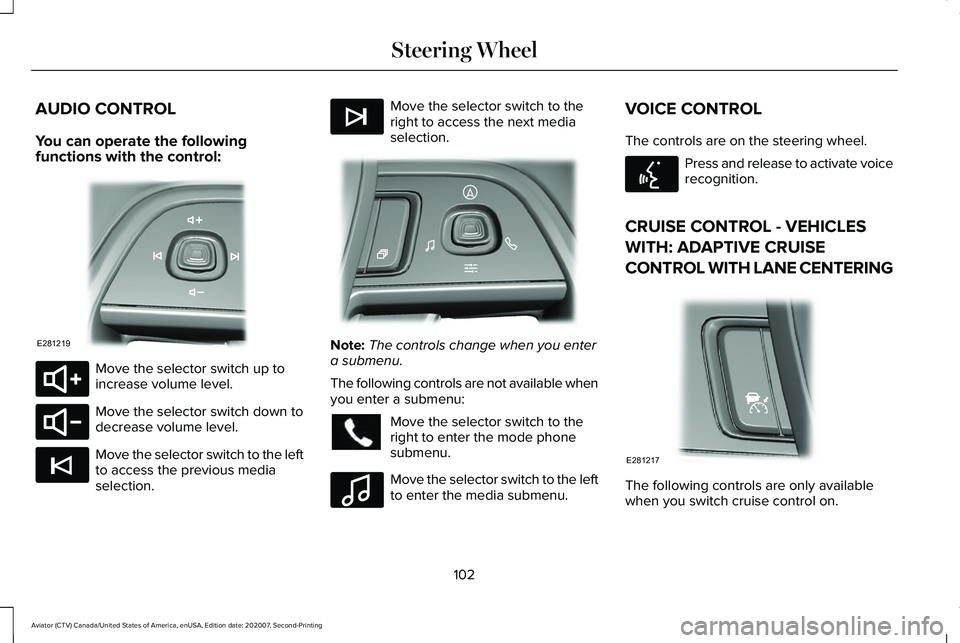
You can operate the following
functions with the control:
Move the selector switch up to
increase volume level.
Move the selector switch down to
decrease volume level.
Move the selector switch to the left
to access the previous media
selection. Move the selector switch to the
right to access the next media
selection.
Note:
The controls change when you enter
a submenu.
The following controls are not available when
you enter a submenu: Move the selector switch to the
right to enter the mode phone
submenu.
Move the selector switch to the left
to enter the media submenu.VOICE CONTROL
The controls are on the steering wheel. Press and release to activate voice
recognition.
CRUISE CONTROL - VEHICLES
WITH: ADAPTIVE CRUISE
CONTROL WITH LANE CENTERING The following controls are only available
when you switch cruise control on.
102
Aviator (CTV) Canada/United States of America, enUSA, Edition date: 202007, Second-Printing Steering WheelE281219 E280803 E280802 E265045 E265044 E281220 E100027 E142599 E281217
Page 137 of 667
GENERAL INFORMATION
WARNING: Driving while distracted
can result in loss of vehicle control, crash
and injury. We strongly recommend that
you use extreme caution when using any
device that may take your focus off the
road. Your primary responsibility is the safe
operation of your vehicle. We recommend
against the use of any hand-held device
while driving and encourage the use of
voice-operated systems when possible.
Make sure you are aware of all applicable
local laws that may affect the use of
electronic devices while driving.
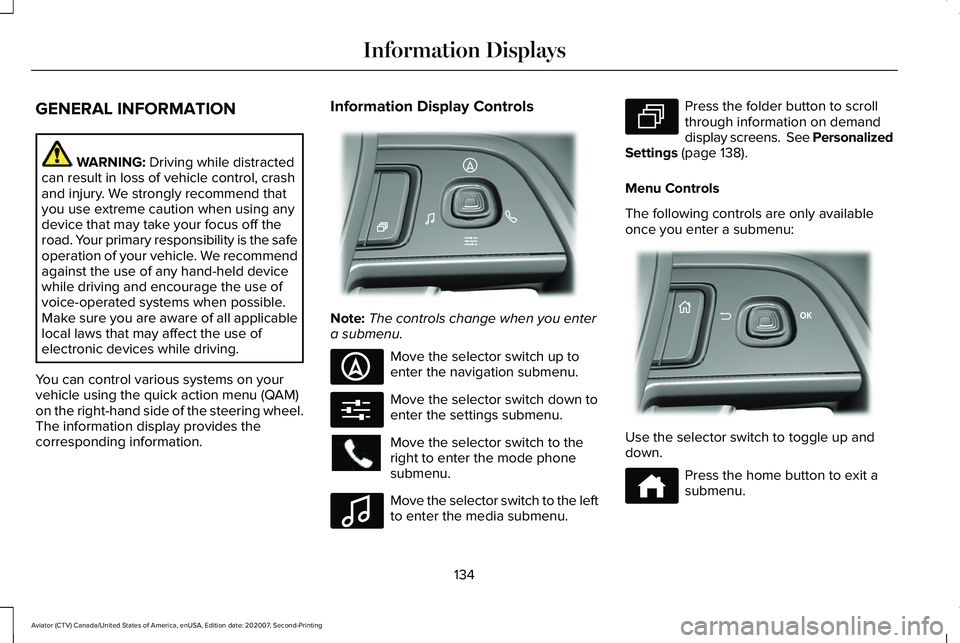
You can control various systems on your
vehicle using the quick action menu (QAM)
on the right-hand side of the steering wheel.
The information display provides the
corresponding information. Information Display Controls
Note:
The controls change when you enter
a submenu. Move the selector switch up to
enter the navigation submenu.
Move the selector switch down to
enter the settings submenu.
Move the selector switch to the
right to enter the mode phone
submenu.
Move the selector switch to the left
to enter the media submenu. Press the folder button to scroll
through information on demand
display screens. See Personalized
Settings (page 138).
Menu Controls
The following controls are only available
once you enter a submenu: Use the selector switch to toggle up and
down.
Press the home button to exit a
submenu.
134
Aviator (CTV) Canada/United States of America, enUSA, Edition date: 202007, Second-Printing Information DisplaysE281220 E281481 E280315 E100027 E281483 E299701 E272621
Page 139 of 667
Note:
Additional vehicle settings are
available through your touchscreen. See
Settings (page 540).
Head Up Display Head Up Display
Menu options covered in the head up display section.
See Head Up Display (page 164).
Phone Phone
Menu options covered in the SYNC chapter.
See Phone (page 521).
Audio Audio
Menu options covered in the SYNC chapter.
See Entertainment (page 506).
136
Aviator (CTV) Canada/United States of America, enUSA, Edition date: 202007, Second-Printing Information Displays
Page 169 of 667
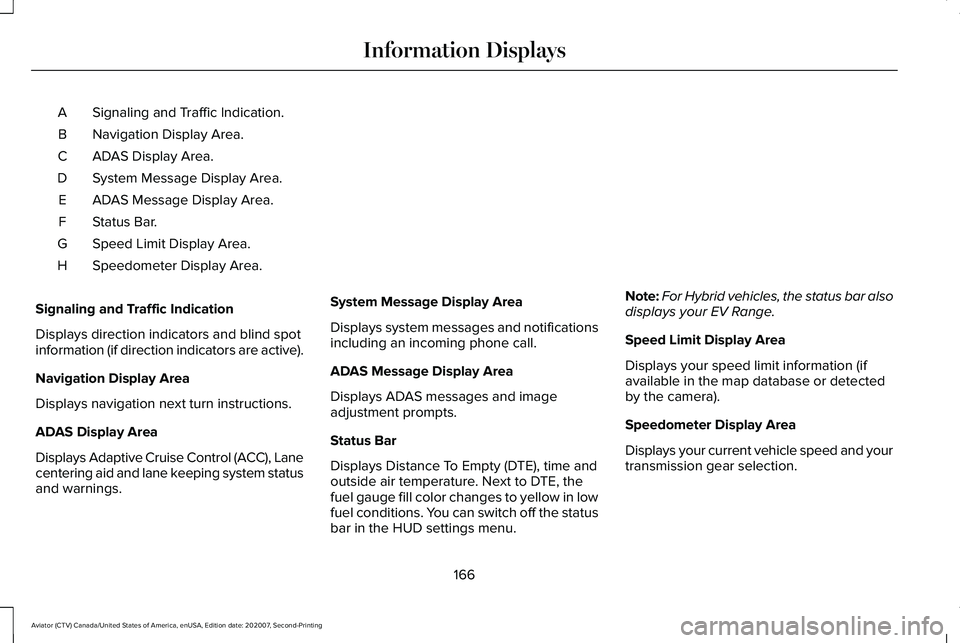
Signaling and Traffic Indication.
A
Navigation Display Area.
B
ADAS Display Area.
C
System Message Display Area.
D
ADAS Message Display Area.
E
Status Bar.
F
Speed Limit Display Area.
G
Speedometer Display Area.
H
Signaling and Traffic Indication
Displays direction indicators and blind spot
information (if direction indicators are active).
Navigation Display Area
Displays navigation next turn instructions.
ADAS Display Area
Displays Adaptive Cruise Control (ACC), Lane
centering aid and lane keeping system status
and warnings. System Message Display Area
Displays system messages and notifications
including an incoming phone call.
ADAS Message Display Area
Displays ADAS messages and image
adjustment prompts.
Status Bar
Displays Distance To Empty (DTE), time and
outside air temperature. Next to DTE, the
fuel gauge fill color changes to yellow in low
fuel conditions. You can switch off the status
bar in the HUD settings menu.Note:
For Hybrid vehicles, the status bar also
displays your EV Range.
Speed Limit Display Area
Displays your speed limit information (if
available in the map database or detected
by the camera).
Speedometer Display Area
Displays your current vehicle speed and your
transmission gear selection.
166
Aviator (CTV) Canada/United States of America, enUSA, Edition date: 202007, Second-Printing Information Displays
Page 191 of 667
Linking a Personal Profile to Your Remote
Control or Mobile Device
You can save preset memory positions for
up to three remote controls, by assigning a
remote control to a personal profile in your
SYNC 3. You can assign three additional
remote controls set up as Phone as a Key.
See Keys and Remote Controls (page 66).
Use the SYNC display to link a remote
control, mobile device or both to a personal
profile.
1. Switch the ignition on and leave the vehicle in park (P).
2. Select the Personal Profiles button under
Settings.
3. Touch the arrow for the profile you wish to link to a remote control or mobile
device.
4. Select the correct button to link a remote
control, mobile device, or both.
5. Follow the instructions on the display. Note:
To successfully link a mobile device,
the mobile device must be present in your
vehicle, and must have previously been
setup as a remote control for your vehicle.
Note: If more than one linked remote control
is in range, the memory function moves to
the settings of the first key to initiate a
memory recall.
Note: The guest profile consists of existing
settings when there is no driver profile
created. After you create a driver profile, the
guest profile serves as an additional driver
profile.
Note: You cannot link a personalized name,
a memory seat button or a remote control
to a guest profile.
Personal Settings
Personal Profiles allow you to personalize
positional settings such as seats and mirrors,
as well as non-positional settings such as
radio, navigation, driver assist and system
settings.
See SYNC™ 3 (page 492). You
cannot change the menu locations and
settings of those personalized features with
Personal Profiles. Note:
Non-positional settings are saved to
the active driver profile whenever you
change a setting.
Note: You can save positional settings if you
press and hold a memory seat button.
Recalling and Changing a Profile
You can recall a profile by:
• Using a remote control or mobile device
that has been linked to a driver profile to
access the remote start feature, press an
unlock button or open the door with the
exterior door handle.
• Pressing a memory seat button that has
been linked to a driver profile.
• Using the Personal Profiles menu on the
SYNC touchscreen.
Note: The recalled profile replaces the
previously active profile. If the active profile
is not your preferred profile, you can change
it using any of the three methods listed.
188
Aviator (CTV) Canada/United States of America, enUSA, Edition date: 202007, Second-Printing Seats
Page 208 of 667
Do not place metal objects, for example
remote controls, coins and candy wrappers,
on or near the charging area when charging
a device. Metal objects may heat up and
degrade the charging performance.
Note:
The rate of charge, or charging power,
is controlled by the device. During charging,
the device and the charger may heat up, this
is normal. If the battery gets hotter than
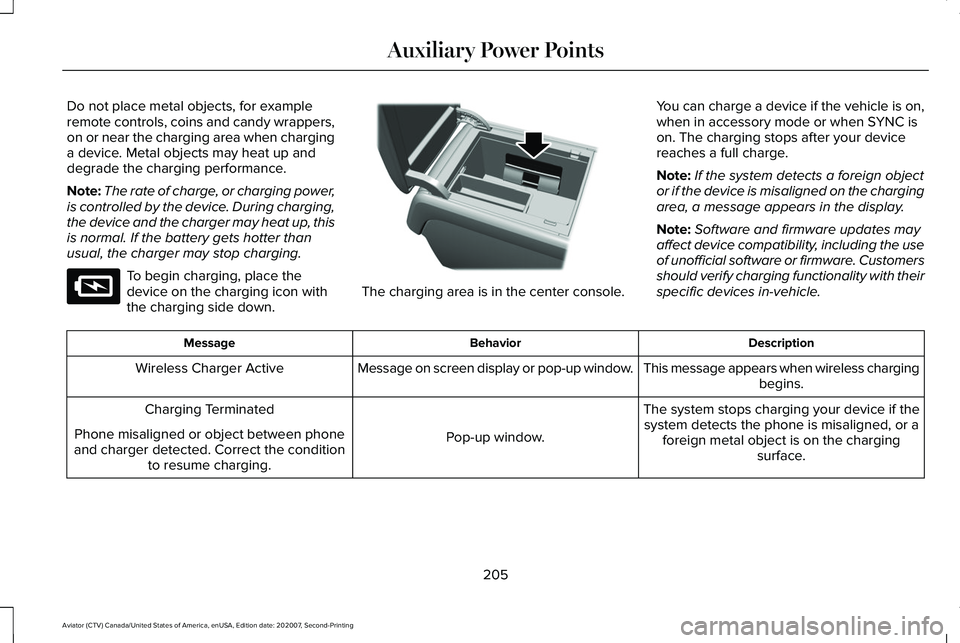
usual, the charger may stop charging. To begin charging, place the
device on the charging icon with
the charging side down.
The charging area is in the center console.
You can charge a device if the vehicle is on,
when in accessory mode or when SYNC is
on. The charging stops after your device
reaches a full charge.
Note:
If the system detects a foreign object
or if the device is misaligned on the charging
area, a message appears in the display.
Note: Software and firmware updates may
affect device compatibility, including the use
of unofficial software or firmware. Customers
should verify charging functionality with their
specific devices in-vehicle. Description
Behavior
Message
This message appears when wireless chargingbegins.
Message on screen display or pop-up window.
Wireless Charger Active
The system stops charging your device if thesystem detects the phone is misaligned, or a foreign metal object is on the charging surface.
Pop-up window.
Charging Terminated
Phone misaligned or object between phone
and charger detected. Correct the condition to resume charging.
205
Aviator (CTV) Canada/United States of America, enUSA, Edition date: 202007, Second-Printing Auxiliary Power PointsE297549 E317944
Page 211 of 667
GENERAL INFORMATION
WARNING: Extended idling at high
engine speeds can produce very high
temperatures in the engine and exhaust
system, creating the risk of fire or other
damage. WARNING:
Do not park, idle or drive
your vehicle on dry grass or other dry
ground cover. The emission system heats
up the engine compartment and exhaust
system, creating the risk of fire. WARNING:
Do not start the engine
in a closed garage or in other enclosed
areas. Exhaust fumes can be toxic. Always
open the garage door before you start the
engine. WARNING: Exhaust leaks may result
in entry of harmful and potentially lethal
fumes into the passenger compartment. If
you smell exhaust fumes inside your
vehicle, have your vehicle inspected
immediately. Do not drive if you smell
exhaust fumes.
If you disconnect the battery, your vehicle
may exhibit some unusual driving
characteristics for approximately 5 mi (8 km)
after you reconnect it. This is because the
engine management system must realign
itself with the engine. You can disregard any
unusual driving characteristics during this
period.
The powertrain control system meets all
Canadian interference-causing equipment
standard requirements regulating the
impulse electrical field or radio noise.
When you start the engine, avoid pressing
the accelerator pedal before and during
operation. Only use the accelerator pedal
when you have difficulty starting the engine. KEYLESS STARTING
Note:
The system may not function if the
remote control is close to metal objects or
electronic devices, for example keys or a
cell phone.
Note: A valid remote control must be located
inside your vehicle to switch the ignition on
and start your vehicle.
Note: If the remote remains motionless for
40 or more seconds you need to move the
remote for the passive entry feature to
function. If the remote remains motionless
for 8 or more hours you need to move the
remote for the push button start feature to
function.
208
Aviator (CTV) Canada/United States of America, enUSA, Edition date: 202007, Second-Printing Starting and Stopping the Engine
Page 214 of 667
Vehicles using Phone as a Key
Note:
Do not touch the accelerator pedal.
Note: You must have your Phone as a Key
in your vehicle in order to shift the
transmission out of park (P).
1. Fully depress the brake pedal.
2. Press the push button ignition switch.
The system does not function if:
• The bluetooth-enabled phone
frequencies are jammed.
• The Phone as a Key battery is low or fully
discharged.
Phone as a Key Backup Starting
Passcode
Note: In order to use the Backup Start
Passcode feature, Phone as a Key must be
active and enabled on at least one phone.
If you are unable to start your vehicle, do the
following:
1. Fully depress the brake pedal.
2. SYNC displays the Backup Starting Passcode entry screen. 3.
Using the SYNC display enter the backup
password and select Enter within 30
seconds.
4. SYNC displays messages to start the vehicle.
5. Fully depress the brake pedal and press
the start button within 20 seconds to start
the engine.
Automatic Engine Shutdown
This feature shuts down the engine if it has
been idling for an extended period. The
ignition also turns off in order to save battery
power. Before your vehicle shuts down, a
message appears in the information display
showing a timer counting down from 30
seconds. If you do not intervene within 30
seconds, your vehicle shuts down. Another
message appears in the information display
to inform you that your vehicle has shut down
to save fuel. Start your vehicle as you
normally do.
Note: Automatic Engine Shutdown may be
more frequent for hybrid vehicles. Automatic Engine Shutdown Override
Note:
You cannot permanently switch off
the automatic shutdown feature. When you
switch it off temporarily, it turns on at the
next ignition cycle.
You can stop the shutdown, or reset the
timer, at any point before the 30-second
countdown has expired by doing any of the
following:
• You can reset the timer by interacting
with your vehicle, for example pressing
the brake or accelerator pedal.
• You can temporarily switch off the
shutdown feature any time the ignition is
on using the information display. See
Information Displays (page 134). The
feature only remains off for the current
ignition cycle.
• During the 30-second countdown, the
system prompts you to press OK or
RESET to temporarily switch the feature
off for the current ignition cycle only.
211
Aviator (CTV) Canada/United States of America, enUSA, Edition date: 202007, Second-Printing Starting and Stopping the Engine