phone LINCOLN AVIATOR 2021 Service Manual
[x] Cancel search | Manufacturer: LINCOLN, Model Year: 2021, Model line: AVIATOR, Model: LINCOLN AVIATOR 2021Pages: 667, PDF Size: 7.01 MB
Page 508 of 667
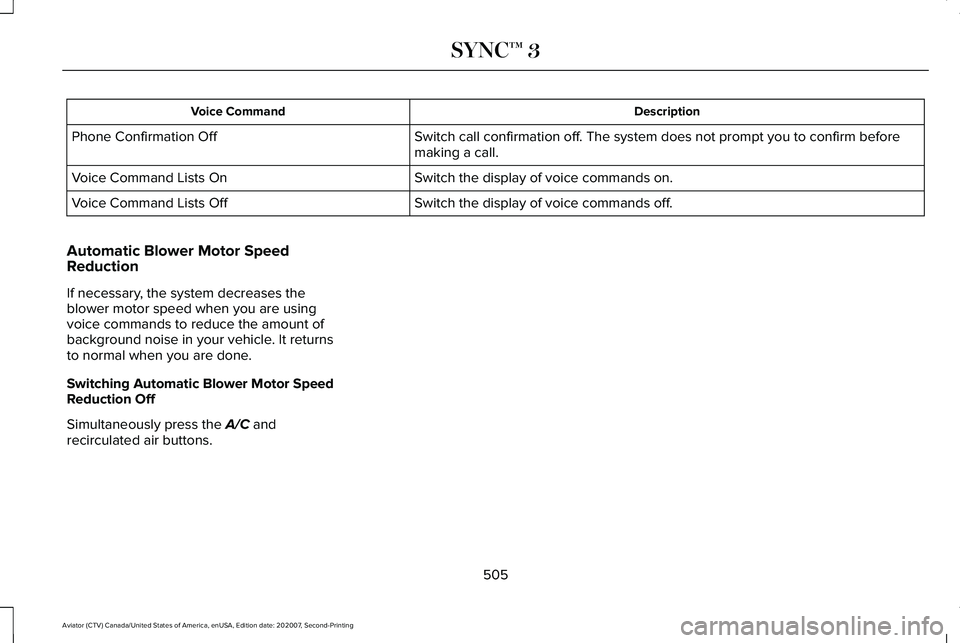
Description
Voice Command
Switch call confirmation off. The system does not prompt you to confirm before
making a call.
Phone Confirmation Off
Switch the display of voice commands on.
Voice Command Lists On
Switch the display of voice commands off.
Voice Command Lists Off
Automatic Blower Motor Speed
Reduction
If necessary, the system decreases the
blower motor speed when you are using
voice commands to reduce the amount of
background noise in your vehicle. It returns
to normal when you are done.
Switching Automatic Blower Motor Speed
Reduction Off
Simultaneously press the A/C and
recirculated air buttons.
505
Aviator (CTV) Canada/United States of America, enUSA, Edition date: 202007, Second-Printing SYNC™ 3
Page 510 of 667
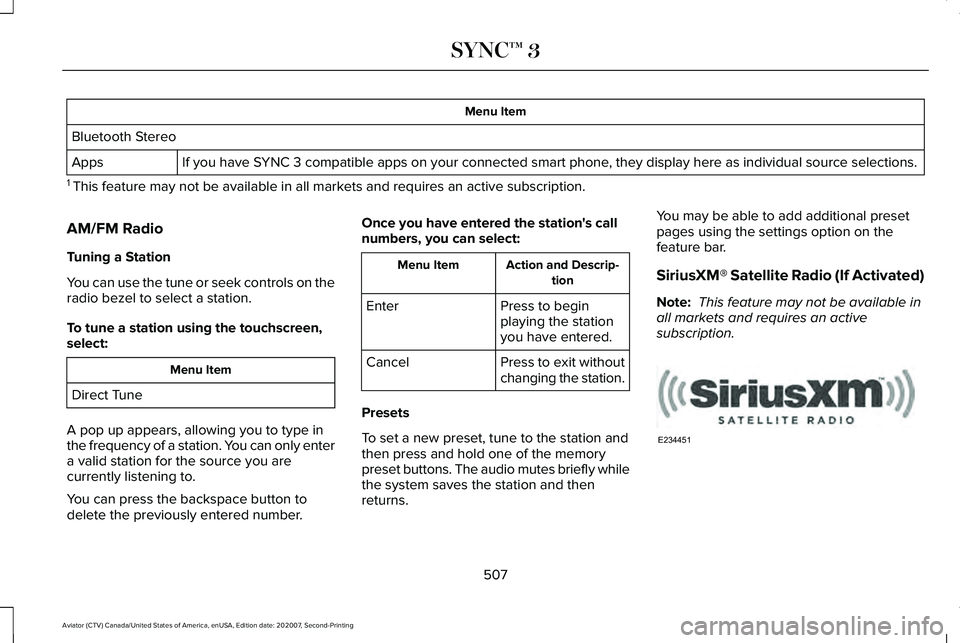
Menu Item
Bluetooth Stereo If you have SYNC 3 compatible apps on your connected smart phone, they display here as individual source selections.
Apps
1 This feature may not be available in all markets and requires an active subscription.
AM/FM Radio
Tuning a Station
You can use the tune or seek controls on the
radio bezel to select a station.
To tune a station using the touchscreen,
select: Menu Item
Direct Tune
A pop up appears, allowing you to type in
the frequency of a station. You can only enter
a valid station for the source you are
currently listening to.
You can press the backspace button to
delete the previously entered number. Once you have entered the station's call
numbers, you can select: Action and Descrip-
tion
Menu Item
Press to begin
playing the station
you have entered.
Enter
Press to exit without
changing the station.
Cancel
Presets
To set a new preset, tune to the station and
then press and hold one of the memory
preset buttons. The audio mutes briefly while
the system saves the station and then
returns. You may be able to add additional preset
pages using the settings option on the
feature bar.
SiriusXM® Satellite Radio (If Activated)
Note:
This feature may not be available in
all markets and requires an active
subscription. 507
Aviator (CTV) Canada/United States of America, enUSA, Edition date: 202007, Second-Printing SYNC™ 3E234451
Page 521 of 667
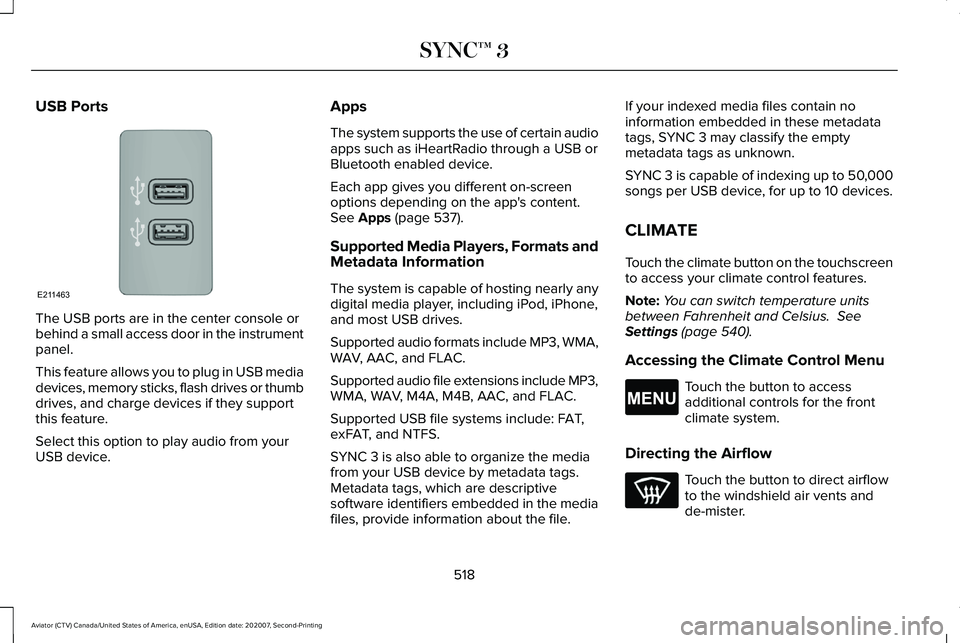
USB Ports
The USB ports are in the center console or
behind a small access door in the instrument
panel.
This feature allows you to plug in USB media
devices, memory sticks, flash drives or thumb
drives, and charge devices if they support
this feature.
Select this option to play audio from your
USB device. Apps
The system supports the use of certain audio
apps such as iHeartRadio through a USB or
Bluetooth enabled device.
Each app gives you different on-screen
options depending on the app's content.
See Apps (page 537).
Supported Media Players, Formats and
Metadata Information
The system is capable of hosting nearly any
digital media player, including iPod, iPhone,
and most USB drives.
Supported audio formats include MP3, WMA,
WAV, AAC, and FLAC.
Supported audio file extensions include MP3,
WMA, WAV, M4A, M4B, AAC, and FLAC.
Supported USB file systems include: FAT,
exFAT, and NTFS.
SYNC 3 is also able to organize the media
from your USB device by metadata tags.
Metadata tags, which are descriptive
software identifiers embedded in the media
files, provide information about the file. If your indexed media files contain no
information embedded in these metadata
tags, SYNC 3 may classify the empty
metadata tags as unknown.
SYNC 3 is capable of indexing up to 50,000
songs per USB device, for up to 10 devices.
CLIMATE
Touch the climate button on the touchscreen
to access your climate control features.
Note:
You can switch temperature units
between Fahrenheit and Celsius.
See
Settings (page 540).
Accessing the Climate Control Menu Touch the button to access
additional controls for the front
climate system.
Directing the Airflow Touch the button to direct airflow
to the windshield air vents and
de-mister.
518
Aviator (CTV) Canada/United States of America, enUSA, Edition date: 202007, Second-Printing SYNC™ 3E211463 E265038
Page 524 of 667
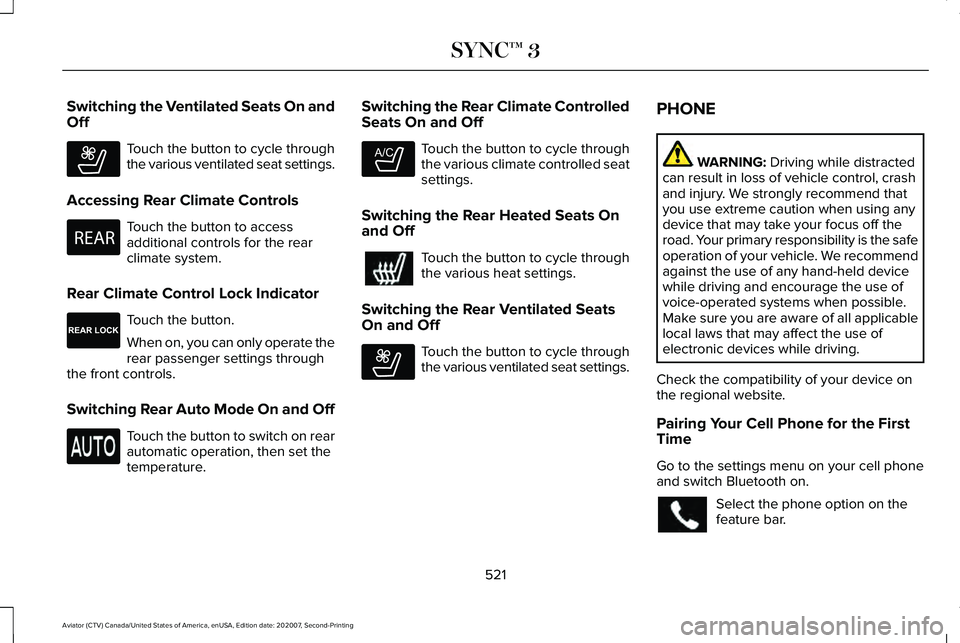
Switching the Ventilated Seats On and
Off
Touch the button to cycle through
the various ventilated seat settings.
Accessing Rear Climate Controls Touch the button to access
additional controls for the rear
climate system.
Rear Climate Control Lock Indicator Touch the button.
When on, you can only operate the
rear passenger settings through
the front controls.
Switching Rear Auto Mode On and Off Touch the button to switch on rear
automatic operation, then set the
temperature. Switching the Rear Climate Controlled
Seats On and Off Touch the button to cycle through
the various climate controlled seat
settings.
Switching the Rear Heated Seats On
and Off Touch the button to cycle through
the various heat settings.
Switching the Rear Ventilated Seats
On and Off Touch the button to cycle through
the various ventilated seat settings.PHONE WARNING: Driving while distracted
can result in loss of vehicle control, crash
and injury. We strongly recommend that
you use extreme caution when using any
device that may take your focus off the
road. Your primary responsibility is the safe
operation of your vehicle. We recommend
against the use of any hand-held device
while driving and encourage the use of
voice-operated systems when possible.
Make sure you are aware of all applicable
local laws that may affect the use of
electronic devices while driving.
Check the compatibility of your device on
the regional website.
Pairing Your Cell Phone for the First
Time
Go to the settings menu on your cell phone
and switch Bluetooth on. Select the phone option on the
feature bar.
521
Aviator (CTV) Canada/United States of America, enUSA, Edition date: 202007, Second-Printing SYNC™ 3E268558 E270447 E265289 E265282 E268558
Page 525 of 667
1. Select Add Phone.
Note: A prompt alerts you to search for your
vehicle on your cell phone.
2. Select your vehicle on your cell phone.
Note: A number appears on your cell phone
and on the touchscreen.
3. Confirm that the number on your cell phone matches the number on the
touchscreen.
Note: The touchscreen indicates that you
have successfully paired your cell phone.
4. Download the phonebook from your cell
phone when you are prompted.
Note: If you pair more than one cell phone,
use the phone settings to specify the primary
phone. You can change this setting at any
time.
Using Your Cell Phone
Recent Call List
Display and select an entry from a list of
previous calls. Contacts
Display a smart search form to look up your
contacts. Use the List button to alphabetically
sort your contacts.
Change Phone
Display the list of paired or connected
devices that you can select.
Phone Settings
Change ring tones, alerts or pair another
phone.
Do Not Disturb
Reject incoming calls and switch ring tones
and alerts off.
Phone Keypad
Directly dial a number.
Mute
Mute the microphone when in a call or voice
recognition session.
Text Messaging
Setting Text Message Notification
iOS
1. Go to the settings menu on your cell
phone.
2. Select Bluetooth.
3. Select the information icon to the right of
your vehicle.
4. Switch text message notification on.
Android
1. Go to the settings menu on your cell phone.
2. Select Bluetooth.
3. Select the profiles option.
4. Select the phone profile.
5. Switch text message notification on.
522
Aviator (CTV) Canada/United States of America, enUSA, Edition date: 202007, Second-Printing SYNC™ 3
Page 532 of 667
Adjusting the Guidance Prompt Volume
Turn the volume control when a guidance
prompt plays to adjust the volume.
Note:
If you have inadvertently adjusted the
volume to zero, press the turn indicator
button to play the last voice prompt and then
adjust the volume to the desired level.
Muting Guidance Prompts Select the mute option on the
screen to mute guidance prompts.
Note: The system mutes the next and all
future guidance prompts.
Adding Waypoints
You can add a waypoint to a navigation route
as a destination along your route. You can
add up to five waypoints.
1. Select the search option on the map.
2. Set a destination.
3. Select Add Waypoint.
4. Select
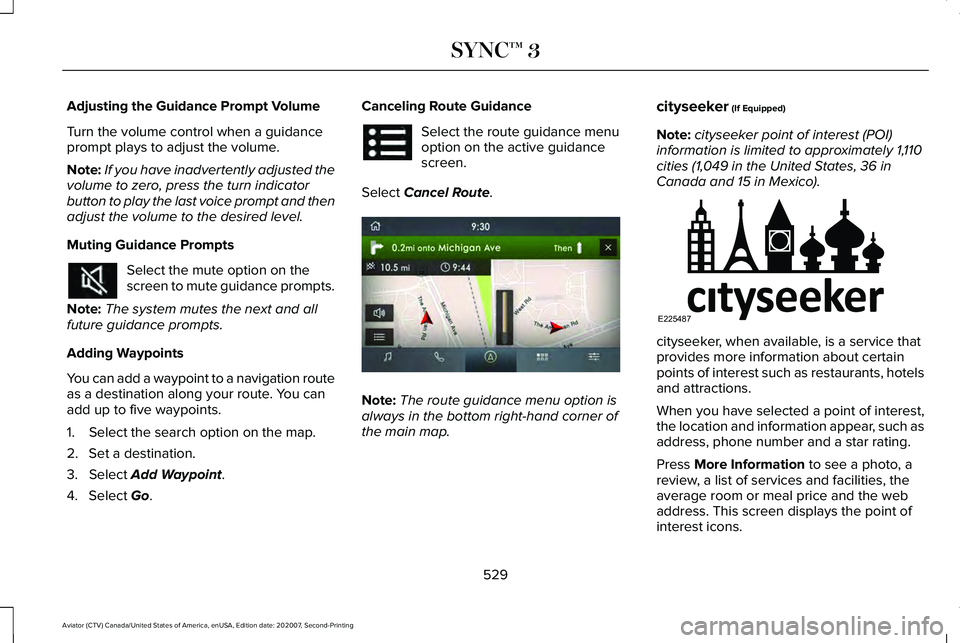
Go. Canceling Route Guidance Select the route guidance menu
option on the active guidance
screen.
Select
Cancel Route. Note:
The route guidance menu option is
always in the bottom right-hand corner of
the main map. cityseeker
(If Equipped)
Note: cityseeker point of interest (POI)
information is limited to approximately 1,110
cities (1,049 in the United States, 36 in
Canada and 15 in Mexico). cityseeker, when available, is a service that
provides more information about certain
points of interest such as restaurants, hotels
and attractions.
When you have selected a point of interest,
the location and information appear, such as
address, phone number and a star rating.
Press
More Information to see a photo, a
review, a list of services and facilities, the
average room or meal price and the web
address. This screen displays the point of
interest icons.
529
Aviator (CTV) Canada/United States of America, enUSA, Edition date: 202007, Second-Printing SYNC™ 3 E297860 E225487
Page 533 of 667
For restaurants, cityseeker can provide
information such as star rating, average cost,
review, handicap access, hours of operation,
and website address.
For hotels, cityseeker can provide
information such as star rating, price
category, review, check-in and checkout
times, hotel service icons and website
address. Hotel service icons include:
•
Restaurant
• Business center
• Handicap facilities
• Laundry
• Refrigerator
• 24 hour room service
• Fitness center
• Internet access
• Pool
• Wi-Fi
Attractions include nearby landmarks,
amusement parks, historic buildings and
more. cityseeker can provide information
such as star rating, reviews, hour of operation
and admission price. SiriusXM Traffic and Travel Link (If
Equipped)
SiriusXM Traffic and Travel Link is available
on vehicles equipped with navigation and
only in select markets. You must activate and
subscribe to receive SiriusXM Traffic and
Travel Link information. It helps you locate
the best gas prices, find movie listings, get
current traffic alerts, view the weather map,
get accurate ski conditions and see current
sports scores.
The system calculates a reasonable efficient
route based on available speed limits, traffic,
and road conditions. You may know a local
short cut that is more efficient at a given time
than the route provided by SYNC 3, but you
should expect a slight difference in minutes
or miles with the SYNC 3 route. Michelin Travel Guide (If Equipped)
The Michelin travel guide is a service which
provides additional information about certain
places of interest, for example restaurants,
hotels and tourist sites. Points of interest that
have Michelin travel guide information
display a button to show you more
information. Push the button to see the
additional information. If you have paired
your phone with the system, you can press
the phone button to directly establish a call
with the selected point of interest.
Navigation Map Accuracy and Updates
HERE is the digital map provider for the
navigation application. If you find map data
errors, you may report them directly to HERE
by going to www.here.com. HERE evaluates
all reported map errors and responds with
the result of their investigation by e-mail.
530
Aviator (CTV) Canada/United States of America, enUSA, Edition date: 202007, Second-Printing SYNC™ 3
Page 541 of 667
When you start an app through the system
for the first time, you could be asked to grant
certain permissions. You can review and
change the permissions that you have
granted at any time when your vehicle is not
moving. We recommend that you check your
data plan before using your apps through
the system. Using them could result in
additional charges. We also recommend that
you check the app provider's terms and
conditions and privacy policy before using
their app. Make sure that you have an active
account for apps that you want to use
through the system. Some apps will work
with no setup. Others require you to
configure some personal settings before you
can use them.
Note:
For more information about available
apps, visit catalog.ford.com.
Using Apps on an iOS Device Select the apps option on the
feature bar.
1. If your device is connected via USB, switch Apple CarPlay off. See Phone
(page 521). 2. Connect your device to a USB port or
pair and connect using Bluetooth.
3. If prompted to enable CarPlay, select Disable
.
4. Start the apps on your device that you want to use through SYNC.
Note: If you close the apps on your device,
you will not be able to use them through the
system.
5. Select the app that you want to use on the touchscreen.
Note: Connect your device to a USB port if
you want to use a navigation app. When
using a navigation app, keep your device
unlocked and the app open.
Using Apps on an Android Device Select the apps option on the
feature bar.
1. If your device is connected via USB, switch Android Auto off.
See Phone
(page 521).
2. Pair your device. See Phone (page 521). 3. Start the apps on your device that you
want to use through SYNC.
Note: If you close the apps on your device,
you will not be able to use them through the
system.
4. Select
Find Mobile Apps.
Note: The system searches and connects to
compatible apps that are running on your
device.
5. Select the app that you want to use on the touchscreen.
Note: Mobile Apps on your device use the
USB port to establish a connection with
SYNC. Some devices may lose the ability to
play music over USB when Mobile Apps are
enabled.
Using Mobile Navigation on an Android
Device
1. Connect your device to a USB port.
2. Switch Android Auto off.
See Phone
(page 521).
3. Switch on
Enable Mobile Apps via USB
in the Mobile Apps Settings tile.
538
Aviator (CTV) Canada/United States of America, enUSA, Edition date: 202007, Second-Printing SYNC™ 3
Page 543 of 667

Action and Description
Menu Item
Touch this button to view nearby movie theaters and their show times, if \
available.
Movie Listings
Touch this button to view the nearby weather, current weather, or the five-day forecast for the
chosen area.
Weather
Select to see the weather map, which can show storms,
radar information, charts and winds.
Map
Select to choose from a listing of weather locations.
Area
Touch this button to view scores and schedules from a variety of sports. \
You can also save up to
10 favorite teams for easier access. The score automatically refreshes w\
hen a game is in progress.
Sports Info
Touch this button to view ski conditions for a specific area.
Ski Conditions
SETTINGS Press the button to enter the
settings menu.
Once you select a tile, press the
button next to a menu item to view
an explanation of the feature or
setting. Sound
Select this tile to adjust the sound settings.
Clock
Select this tile to adjust the clock settings.
Bluetooth
Select this tile to switch Bluetooth on and off
and adjust settings.Phone
Select this tile to connect, disconnect, and
manage the connected device settings.
Audio
Select this tile to adjust the audio settings.
540
Aviator (CTV) Canada/United States of America, enUSA, Edition date: 202007, Second-Printing SYNC™ 3E280315 E268570
Page 546 of 667
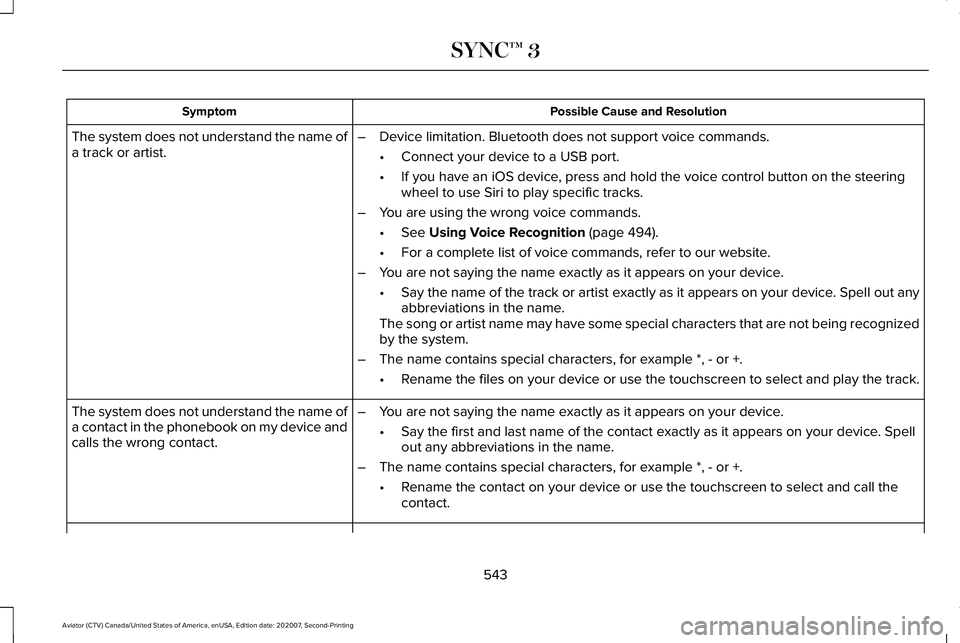
Possible Cause and Resolution
Symptom
–Device limitation. Bluetooth does not support voice commands.
•Connect your device to a USB port.
• If you have an iOS device, press and hold the voice control button on the steering
wheel to use Siri to play specific tracks.
– You are using the wrong voice commands.
•See Using Voice Recognition (page 494).
• For a complete list of voice commands, refer to our website.
– You are not saying the name exactly as it appears on your device.
•Say the name of the track or artist exactly as it appears on your device\
. Spell out any
abbreviations in the name.
The song or artist name may have some special characters that are not be\
ing recognized
by the system.
– The name contains special characters, for example *, - or +.
•Rename the files on your device or use the touchscreen to select and play\
the track.
The system does not understand the name of
a track or artist.
–You are not saying the name exactly as it appears on your device.
•Say the first and last name of the contact exactly as it appears on your\
device. Spell
out any abbreviations in the name.
– The name contains special characters, for example *, - or +.
•Rename the contact on your device or use the touchscreen to select and ca\
ll the
contact.
The system does not understand the name of
a contact in the phonebook on my device and
calls the wrong contact.
543
Aviator (CTV) Canada/United States of America, enUSA, Edition date: 202007, Second-Printing SYNC™ 3