touch screen LINCOLN AVIATOR 2023 Owners Manual
[x] Cancel search | Manufacturer: LINCOLN, Model Year: 2023, Model line: AVIATOR, Model: LINCOLN AVIATOR 2023Pages: 681, PDF Size: 9.33 MB
Page 24 of 681
CONNECTED VEHICLE DATA
The modem has a SIM. The
modem was enabled when your
vehicle was built and periodically
sends messages to stay connected to the
cell phone network, receive automatic
software updates and send vehicle-related
information to us, for example diagnostic
information. These messages could include
information that identifies your vehicle, the
SIM and the electronic serial number of the
modem. Cell phone network service
providers could have access to additional
information, for example cell phone network
tower identification. For additional
information about our privacy policy, visit
www.ConnectedLincoln.com or refer to your
local Lincoln website.
Note:The modem continues to send this
information unless you disable the modem
or stop the modem from sharing vehicle data
by changing the modem settings.
Note:The service can be unavailable or
interrupted for a number of reasons, for
example environmental or topographical
conditions and data plan coverage.Note:To find out if your vehicle has a
modem, visit www
.ConnectedLincoln.com.
MOBILE DEVICE DATA
If you connect a mobile device to your
vehicle, you can display data from your
device on the touchscreen for example,
music and album art. You can share your
vehicle data with mobile apps on your device
through the system. See Apps.
The mobile apps function operates by your
connected device sending data to us in the
United States. The data is encrypted and
includes, for example, the vehicle
identification number of your vehicle, the
SYNC module serial number, odometer,
enabled apps, usage statistics and
debugging information. We retain it only as
long as necessary to provide the service, to
troubleshoot, for continuous improvement
and to offer you products and services that
may be of interest to you according to your
preferences and where allowed by law.If you connect a cell phone to the system,
the system creates a profile that links to that
cell phone. The cell phone profile enables
more mobile features and efficient operation.
The profile contains, for example data from
your phonebook, read and unread text
messages and call history, including history
of calls when your cell phone was not
connected to the system.
If you connect a media device, the system
creates and retains a media device index of
supported media content. The system also
records a short diagnostic log of
approximately 10 minutes of all recent system
activity.
The cell phone profile, media device index
and diagnostic log remain in your vehicle
unless you delete them and are generally
accessible only in your vehicle when you
connect your cell phone or media device. If
you no longer plan to use the system or your
vehicle, we recommend you use the master
reset function to erase the stored
information. See Settings.
21
Data Privacy
Page 75 of 681
The remote start system does not work if any
of the following occur:
• The ignition is on.
• The anti-theft alarm triggers.
• You switch the feature off through the
touchscreen.
• The hood is open.
• The transmission is not in park (P).
• The battery voltage is below the
minimum operating voltage.
Note:Do not use remote start if your fuel
level is low.
Remote Control Feedback
An LED on the remote control provides status
feedback of remote start or stop commands.
Status LED
Remote start
successful Solid green
Remote stop
successful Solid red
Request failed or
status not received Blinking red
Status incomplete Blinking green
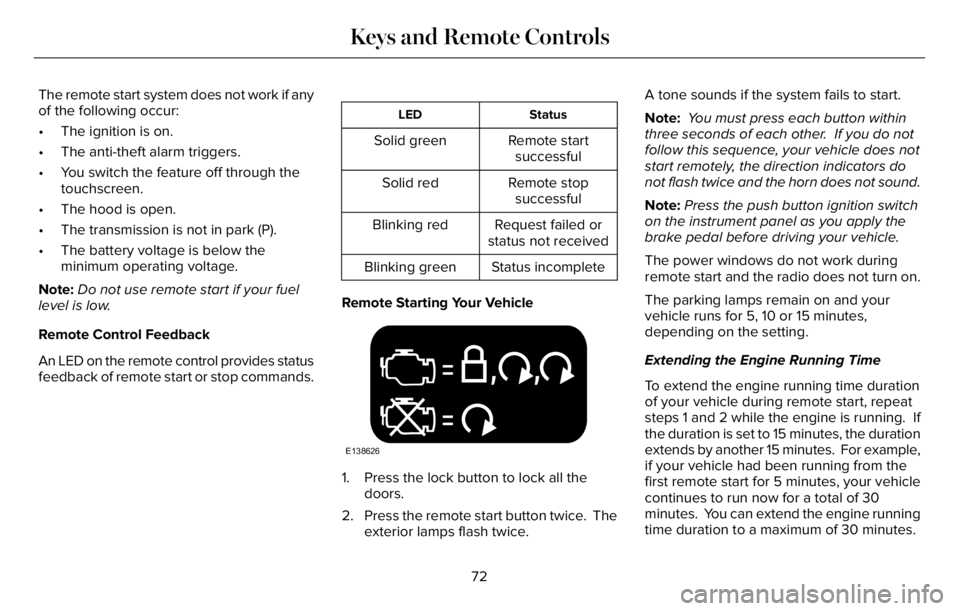
Remote Starting Your Vehicle
E138626
1. Press the lock button to lock all the
doors.
2. Press the remote start button twice. The
exterior lamps flash twice.A tone sounds if the system fails to start.
Note: You must press each button within
three seconds of each other. If you do not
follow this sequence, your vehicle does not
start remotely, the direction indicators do
not flash twice and the horn does not sound.
Note:Press the push button ignition switch
on the instrument panel as you apply the
brake pedal before driving your vehicle.
The power windows do not work during
remote start and the radio does not turn on.
The parking lamps remain on and your
vehicle runs for 5, 10 or 15 minutes,
depending on the setting.
Extending the Engine Running Time
To extend the engine running time duration
of your vehicle during remote start, repeat
steps 1 and 2 while the engine is running. If
the duration is set to 15 minutes, the duration
extends by another 15 minutes. For example,
if your vehicle had been running from the
first remote start for 5 minutes, your vehicle
continues to run now for a total of 30
minutes. You can extend the engine running
time duration to a maximum of 30 minutes.
72
Keys and Remote Controls
Page 76 of 681
Wait at least five seconds before remote
starting after the engine stops running.
Turning Your Vehicle Off After Remote
Starting
E138625
Press the button once. Your
vehicle and the parking lamps turn
off.
Due to ground reflection and the added
noise of your vehicle running, you might
need to move closer to the vehicle when
using remote start to switch it on or off. You
can switch this feature on or off using the
touchscreen. See Settings (page 555).
Memory Feature
You can program your passive key to recall
memory positions. See Memory Function
(page 184).
REPLACING A LOST KEY OR
REMOTE CONTROL
Replacement keys or remote controls can
be purchased from an authorized dealer.
Authorized dealers can program remote
controls for your vehicle.
73
Keys and Remote Controls
Page 77 of 681
WHAT IS PHONE AS A KEY
Phone as a Key allows you to use your phone
in place of a passive key.
You can use your phone for the following
functions:
• Remote locking and unlocking.
• Passive entry and exit.
• Passive start and drive the vehicle.
• Remote start.
• Memory function recall.
PHONE AS A KEY LIMITATIONS
Limitations can vary based on the make and
model of your phone, phone location and
physical obstructions.
The following items could impact Phone as
a Key performance or prevent functionality
in some cases:
• The typical operating range for Phone as
a Key is 131 ft (40 m).• Your Bluetooth® connection is not
enabled, is disrupted, or out of range.
• Your Phone as a Key is not active or
enabled on at least one phone.
• Your vehicle battery has depleted.
• Your phone battery has depleted.
• Interference from other devices using
radio frequencies or physical
obstructions.
• Your phone is too close to metal objects
or other electronic devices.
Note:Do not leave a duplicate coded key
in the vehicle. Always take your keys and
phone and lock all doors when leaving the
vehicle.
PROGRAMMING YOUR PHONE
To program your smartphone as phone as a
key:
1. Visit your device's app store to download
the Lincoln Way app.
2. Create a new account or sign in to an
existing account on the Lincoln Way app.3. Add the vehicle identification number to
your account and follow the prompts in
the Lincoln Way app to complete the
Sync Connect Authorization process.
4. After the authorization is complete, you
can set up phone as a key following the
prompts in the Lincoln Way app.
5. After phone as a key is set up, you can
set up the backup start passcode by
following the prompts on your
touchscreen.
Note:Keep your new backup start passcode
with you in case of an emergency.
Resetting Phone as a Key
1. Press Settings on the touchscreen.
2. Press General.
3. Press Reset.
4. Press the app connect reset option.
5. Press Phone as a Key Reset.
6. Confirm you would like to continue with
erasing all phone as a key, keys and
backup start passcodes.
7. Press Continue.
74
Phone as a Key (If Equipped)
Page 78 of 681
8. Confirm you are aware you are
de-authorizing all authorized users and
Lincoln Way Connect settings.
9. Press Continue.
USING THE VALET MODE
Classic Valet Mode
Enabling Valet Mode
Make sure the remote control is in your
vehicle.
1. Press Settings on the touchscreen.
2. Press Valet Mode.
3. Enter a four digit code to lock the
touchscreen.
4. Re-enter the same four digit code to
complete enabling valet mode.
Disabling Valet Mode
1. Press Exit Valet Mode.
2. Enter your four digit code to disable valet
mode and unlock your touchscreen.
Enhanced Valet Mode
Enabling Valet Mode
Have your backup start passcode completely
set up before using valet mode.
Note:If your vehicle detects a remote
control, the system defaults to classic valet
mode.
1. Press Settings on the touchscreen.
2. Press Valet Mode.
Note:If the system detects a valid phone as
a key, the temporary passcode displays in
both the touchscreen and mobile app.
Note:If the system does not detect a valid
phone as a key, it prompts you to enter your
backup start passcode on the touchscreen.
Once validated, the temporary passcode
displays on the touchscreen.
3. Provide the valet the first five digits of the
passcode to enter on the keyless entry
keypad to unlock your vehicle.
4. Provide the valet the eight-digit passcode
to enter on the touchscreen to start and
drive your vehicle.Disabling Valet Mode
1. Press Exit Valet Mode.
Note:If the system detects an authorized
phone as a key, valet mode disables.
Note:If the system does not detect a valid
phone as a key, it prompts you to enter your
backup start passcode. Once validated, valet
mode disables.
USING THE BACKUP START
PASSCODE
Make sure you have phone as a key active
on at least one phone to use the previously
created backup start passcode.
1. Press the brake pedal and the push
button ignition switch. If the system does
not detect a valid phone as a key or
remote control, a message appears on
the touchscreen and the system prompts
you for your backup start passcode.
Note:The touchscreen times out after 30
seconds with no interaction.
75
Phone as a Key (If Equipped)
Page 79 of 681
Note:If the backup start passcode screen
does not appear, press the brake pedal and
push button ignition switch again.
2. Use the touchscreen to enter your
backup start passcode.
3. After entering your backup start
passcode, press Enter within 30 seconds.
4. Once the system validates the backup
start passcode, a message alerts you to
start your vehicle.
5. Press the brake pedal and the push
button ignition switch within 20 seconds
to start the vehicle.
6. If your vehicle does not start, repeat
steps 1-5.
System Lockout
The system locks after five combined
incorrect attempts of the following:
• Entering a backup start passcode.
• Resetting a current passcode.
• Entering a valet mode passcode.Note:The system remains locked for five
minutes. After five minutes the system allows
codes to be entered again.
PHONE AS A KEY –
TROUBLESHOOTING
PHONE AS A KEY – FREQUENTLY
ASKED QUESTIONS
How can I tell if my vehicle has Phone as a
Key?
The touchscreen shows the Phone as a
Key reset option if your vehicle has
Phone as a Key. If you have registered
your vehicle through the Lincoln Way
app, a control button appears on the
home screen of the Lincoln Way app.What happens if I cannot unlock the vehicle
with Phone as a Key?
Attempt to move your phone closer to
the vehicle. Check that the Lincoln Way
app is still running and that the Phone
as a Key control screen shows
connected. If the phone is connected,
attempt to press the remote unlock
button in the Lincoln Way app. If the
phone is not connected or the remote
unlock button does not work in the
Lincoln Way app, attempt to force close
and restart the app.
Why do I get a No Key Detected message
in the instrument cluster display when I am
using Phone as a Key and my phone is in
the car?
Your phone’s Bluetooth connection has
been disrupted or is not connected. Try
reconnecting your phone's Bluetooth
connection. Move the phone closer to
the center of the vehicle near the cup
holder or center console. Verify your
Phone as a Key is still active, enabled
and has not been revoked.
76
Phone as a Key (If Equipped)
Page 81 of 681
PRINCIPLE OF OPERATION
MyKey allows you to program keys with
restricted driving modes to promote good
driving habits. You can program the
restrictions to all keys except one. Any keys
that you did not program are administrator
keys or admin keys.
You can use admin keys to:
• Create a MyKey with certain vehicle
restrictions.
• Program certain MyKey settings.
• Clear all MyKey restrictions.
After you program a MyKey, you can view
the following information through the
information display:
• The total number of admin keys and
MyKeys for your vehicle.
• The total distance a MyKey driver
traveled with your vehicle.
Note:Every MyKey receives the same
restrictions and settings. You cannot
program them individually.Note:For vehicles equipped with a
push-button start switch: When both a MyKey
and an admin key are present when you
start your vehicle, the system recognizes the
admin key only.
Standard Settings
Not every vehicle includes the features listed
below. If your vehicle has this equipment,
then you cannot change the following
settings when using a MyKey:
• Seatbelt reminder or Belt-Minder™. MyKey
mutes the audio system until drivers, and
in some instances, passengers, fasten
their seatbelts. Note: If your vehicle
includes an AM/FM radio or a very basic
audio system, then the radio may not
mute.
• Earlier low-fuel warning. The low-fuel
warning activates earlier for MyKey
drivers, giving them more time to refuel.• Certain driver alerts, stability systems or
parking aids turn on automatically when
you use the MyKey system. For example,
Blind Spot Information System (BLIS),
cross traffic alert, lane departure warning
or forward collision warning. Note: MyKey
drivers may be able to turn the lane
departure warning feature off, but this
feature turns back on automatically with
every new key cycle.
• Restricted touchscreen operation in some
markets. For example, MyKey may
prevent manual navigation destination
input while the vehicle is in any gear
other than park (P) or when the vehicle
reaches a certain rate of speed.
• Satellite radio adult content restrictions,
if this feature is available in your market.
Optional Settings
You can configure certain vehicle feature
settings when you first create a MyKey. You
can also change the settings afterward with
an admin key.
78
MyKey™
Page 82 of 681
Note:Not every feature applies to every
vehicle in every market. When they are
available for your vehicle, then they appear
in the information display, providing choices
to switch them on or off, or to select a more
specific setting.
• Various vehicle speed limits so the
MyKey driver cannot exceed certain
speeds. The information display shows
warnings followed by an audible tone
when the MyKey driver reaches the set
speed. You cannot override the set
speed by fully depressing the accelerator
pedal.
WARNING: Do not set MyKey
maximum speed limit to a limit that will
prevent the driver from maintaining a safe
speed considering posted speed limits and
prevailing road conditions. The driver is
always responsible to drive in accordance
with local laws and prevailing conditions.
Failure to do so could result in accident or
injury.• Various vehicle speed reminders so
MyKey drivers know when their vehicle
speed approaches the limits. Warnings
appear in the information display and a
tone sounds when the MyKey drivers
exceed the set vehicle speed.
• The audio system's maximum volume
limits to 45% so MyKey drivers can
concentrate on the road. A message
appears in the information display when
MyKey drivers attempt to exceed the
limited volume. MyKey also disables the
automatic volume control. Note: If your
vehicle includes an AM/FM radio or a
very basic audio system, then the radio
may not limit.
• Always on setting. This setting forces
certain features to remain on and active
for MyKey drivers. For example, E911 or
emergency assistance and the do not
disturb features stay on even if a MyKey
driver uses the feature's control to switch
it off. When selected, you will not be able
to turn off Advance Trac or traction
control (if your vehicle has this feature).
CREATING A MYKEY
Use the touchscreen to create a MyKey:
1. Insert the key you want to program into
the ignition. If your vehicle has a push
button start, place the remote control into
the backup slot. See Starting a Gasoline
Engine (page 206).
2. Switch the ignition on.
3. Press SETTINGS.
4. Press Vehicle.
5. Press MyKey.
6. Press Create MyKey.
7. Press Ye s.
8. Switch the ignition off.
You have successfully created a MyKey.
Make sure you label it so you can distinguish
it from the admin keys.
You can also program configurable settings
for the key.
79
MyKey™
Page 83 of 681
Programming and Changing
Configurable Settings
Use the touchscreen to access your
configurable MyKey settings.
1. Switch the ignition on using an admin key
or the remote control you want to
program.
2. Press SETTINGS.
3. Press Vehicle.
4. Press MyKey.
5. Select a setting and configure it by
following the instructions on the
touchscreen.
The programmed restrictions apply when
you switch the vehicle off, open and close
the driver door and restart your vehicle with
the programmed key or remote control.Note: You can clear or change your MyKey
settings at any time during the same key
cycle as you created the MyKey. Once you
have switched the vehicle off, you need an
admin key to change or clear your MyKey
settings. When you make any changes to
your MyKey settings, you change the settings
for every MyKey. You cannot make
individual changes to apply to specific
MyKeys.
CLEARING ALL MYKEYS
When you clear your MyKeys, you remove
all restrictions and return all MyKeys to their
original admin key status at once. To clear
all MyKeys of all MyKey settings, use the
touchscreen.
1. Switch the ignition on using an admin
key.
2. Press SETTINGS.
3. Press Vehicle.
4. Press MyKey.
5. Press Clear All MyKeys.
6. Press Ye s.7. A confirmation message appears in the
display after you finish clearing your
MyKeys.
CHECKING MYKEY SYSTEM
STATUS
You can find information about your
programmed MyKeys by using the
touchscreen. See Settings (page 555).
MyKey Distance
Tracks the distance when drivers use a
MyKey. The only way to delete the
accumulated distance is by using an admin
key to clear all MyKeys. If the distance does
not accumulate as expected, then the
intended user is not using the MyKey, or an
admin key user recently cleared and then
recreated a MyKey.
80
MyKey™
Page 88 of 681
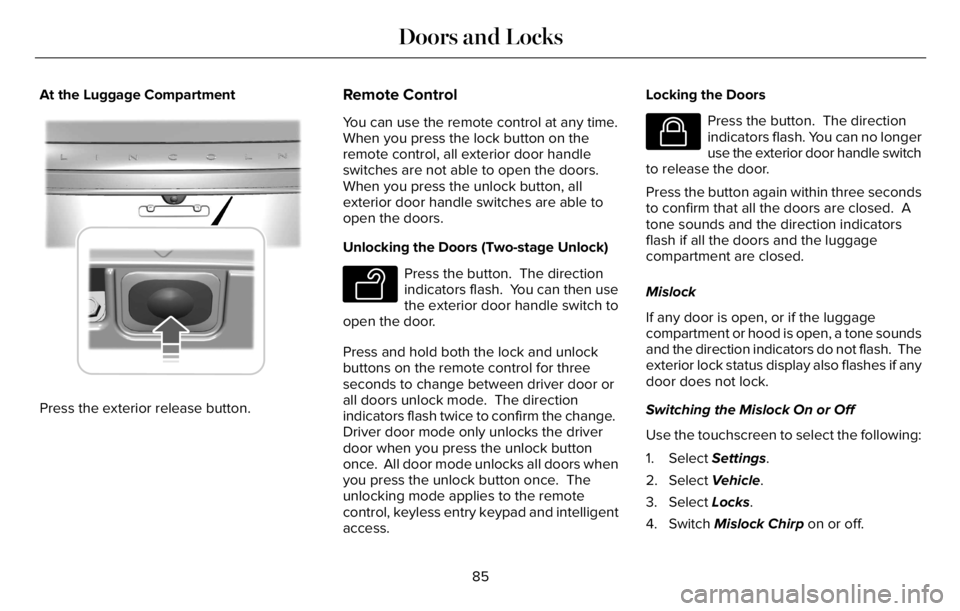
At the Luggage Compartment
E291416E291416
Press the exterior release button.
Remote Control
You can use the remote control at any time.
When you press the lock button on the
remote control, all exterior door handle
switches are not able to open the doors.
When you press the unlock button, all
exterior door handle switches are able to
open the doors.
Unlocking the Doors (Two-stage Unlock)
E138629
Press the button. The direction
indicators flash. You can then use
the exterior door handle switch to
open the door.
Press and hold both the lock and unlock
buttons on the remote control for three
seconds to change between driver door or
all doors unlock mode. The direction
indicators flash twice to confirm the change.
Driver door mode only unlocks the driver
door when you press the unlock button
once. All door mode unlocks all doors when
you press the unlock button once. The
unlocking mode applies to the remote
control, keyless entry keypad and intelligent
access.Locking the Doors
E138623
Press the button. The direction
indicators flash. You can no longer
use the exterior door handle switch
to release the door.
Press the button again within three seconds
to confirm that all the doors are closed. A
tone sounds and the direction indicators
flash if all the doors and the luggage
compartment are closed.
Mislock
If any door is open, or if the luggage
compartment or hood is open, a tone sounds
and the direction indicators do not flash. The
exterior lock status display also flashes if any
door does not lock.
Switching the Mislock On or Off
Use the touchscreen to select the following:
1. Select Settings.
2. Select Vehicle.
3. Select Locks.
4. Switch Mislock Chirp on or off.
85
Doors and Locks