remote control LINCOLN CORSAIR 2020 Owner's Manual
[x] Cancel search | Manufacturer: LINCOLN, Model Year: 2020, Model line: CORSAIR, Model: LINCOLN CORSAIR 2020Pages: 591, PDF Size: 6 MB
Page 86 of 591
Note:
Make sure the area behind your
vehicle is free from obstruction and that
there is enough room for you to operate the
liftgate. Objects too close to your vehicle,
for example a wall, garage door or another
vehicle may come into contact with the
moving liftgate. This could damage the
liftgate and its components.
Note: Be careful when opening or closing
the liftgate in a garage or other enclosed
area to avoid damaging the liftgate.
Note: Do not leave the liftgate open when
you are driving. This could damage the
liftgate and its components.
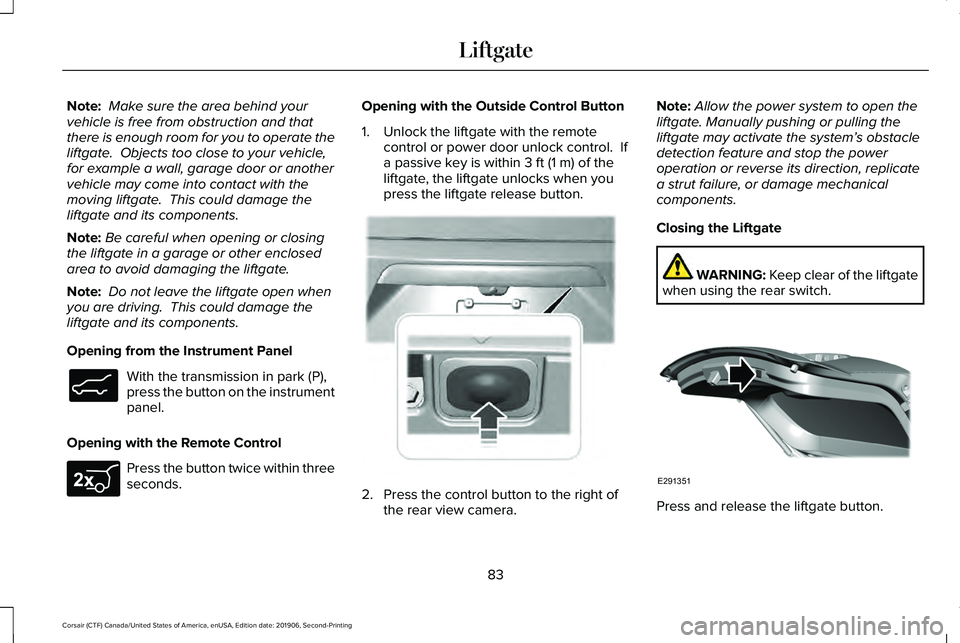
Opening from the Instrument Panel With the transmission in park (P),
press the button on the instrument
panel.
Opening with the Remote Control Press the button twice within three
seconds. Opening with the Outside Control Button
1. Unlock the liftgate with the remote
control or power door unlock control. If
a passive key is within 3 ft (1 m) of the
liftgate, the liftgate unlocks when you
press the liftgate release button. 2. Press the control button to the right of
the rear view camera. Note:
Allow the power system to open the
liftgate. Manually pushing or pulling the
liftgate may activate the system’ s obstacle
detection feature and stop the power
operation or reverse its direction, replicate
a strut failure, or damage mechanical
components.
Closing the Liftgate WARNING: Keep clear of the liftgate
when using the rear switch. Press and release the liftgate button.
83
Corsair (CTF) Canada/United States of America, enUSA, Edition date: 201906, Second-Printing LiftgateE138633 E267940 E291352 E291351
Page 87 of 591
Stopping the Liftgate Movement
Note:
Do not apply sudden excessive force
to the liftgate while it is in motion. This could
damage the power liftgate and its
components.
You can stop the liftgate movement by doing
any of the following:
• Pressing the liftgate control button.
• Pressing the liftgate button on the remote
control twice.
• Pressing the liftgate button on the
instrument panel.
• Moving your foot under and away from
the center rear bumper in a single-kick
motion.*
*This method only works for vehicles with
the hands-free liftgate feature.
Setting the Liftgate Open Height
1. Open the liftgate.
2. Stop the liftgate movement by pressing the control button on the liftgate when it
reaches the desired height. Note:
Once the liftgate has stopped moving,
you can also manually move it to the desired
height.
3. Press and hold the liftgate control button
on the liftgate until you hear a tone,
indicating programming is complete.
Note: You can only use the liftgate control
button to program the height.
Note: You cannot program the height if the
liftgate position is too low.
The new open liftgate height is recalled
when the power liftgate is opened. To
change the programmed height, repeat the
above procedure. Once you open the power
liftgate, you can manually move it to a
different height.
Note: The system recalls the new
programmed height until you reprogram it,
even if you disconnect the battery.
When operating the power liftgate after you
have programmed a lower height than fully
open, you can fully open the liftgate by
manually pushing it upward to the maximum
open position. Obstacle Detection
Note:
Entering your vehicle while the liftgate
is closing can cause your vehicle to bounce
and activate obstacle detection. To prevent
this, let the power liftgate close completely
before you enter your vehicle. Before driving
off, check the instrument cluster for a liftgate
or door ajar message or warning indicator.
Failure to do this could result in
unintentionally leaving the liftgate open
while driving.
When Closing
The system stops when it detects an
obstacle. A tone sounds and the system
reverses to open. Once you remove the
obstacle, you can power close the liftgate.
When Opening
The system stops when it detects an
obstacle and a tone sounds. Once you
remove the obstacle, you can continue to
operate the liftgate.
84
Corsair (CTF) Canada/United States of America, enUSA, Edition date: 201906, Second-Printing Liftgate
Page 90 of 591
PASSIVE ANTI-THEFT SYSTEM
Note:
The system is not compatible with
non-Lincoln aftermarket remote start
systems. Use of these systems may result in
engine starting problems and a loss of
security protection.
Note: Metallic objects, electronic devices or
a second coded key on the same key chain
may result in vehicle starting problems,
especially if they are too close to the key
when starting your vehicle. Prevent these
objects from touching the coded key when
starting your vehicle. Switch the ignition off,
move all objects on the key chain away from
the coded key and restart your vehicle if a
problem occurs
Note: Do not leave a duplicate coded key
in your vehicle. Always take your keys and
lock all doors when leaving your vehicle. SecuriLock®
The system helps prevent the engine from
starting unless you use a coded key
programmed to your vehicle. Using the
wrong key may prevent your vehicle from
starting. A message may appear in the
information display.
If you are unable to start your vehicle with a
coded key, it is not operating correctly. A
message may appear in the information
display.
Automatic Arming
The system arms when you switch the
ignition off.
Automatic Disarming
The system disarms when you switch the
ignition on with a coded key.
Replacement Keys
Note:
Your vehicle comes with two keys. The intelligent access key functions as a
programmed key that operates the driver
door lock and turns on the intelligent access
with push button start system, as well as a
remote control.
If your programmed transmitters are lost or
stolen and you do not have an extra coded
key, you will need to have your vehicle
towed to an authorized dealer to program
new coded keys.
Store a spare intelligent access key away
from your vehicle in a safe place. You can
purchase replacement keys or remote
controls from an authorized dealer.
Programming a Spare Key
Note:
You can program a maximum of four
keys to your vehicle.
You must have two previously programmed
intelligent access keys inside your vehicle
and the new unprogrammed intelligent
access keys readily accessible. Contact an
authorized dealer to have the spare key
programmed if two previously programmed
keys are not available.
87
Corsair (CTF) Canada/United States of America, enUSA, Edition date: 201906, Second-Printing Security
Page 91 of 591
Make sure that the ignition is switched off
before beginning this procedure. Make sure
that you close all the doors before beginning
and that they remain closed throughout the
procedure. Carry out all steps within 30
seconds of starting the sequence. Stop and
wait for at least one minute before starting
again if you carry out any steps out of
sequence.
Read and understand the entire procedure
before you begin.
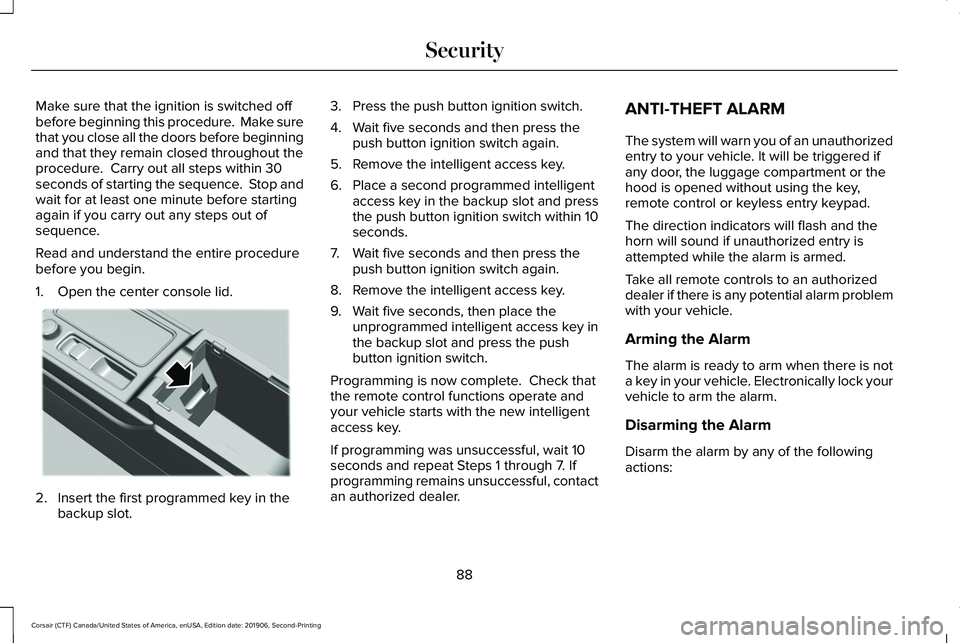
1. Open the center console lid.
2. Insert the first programmed key in the
backup slot. 3. Press the push button ignition switch.
4. Wait five seconds and then press the
push button ignition switch again.
5. Remove the intelligent access key.
6. Place a second programmed intelligent access key in the backup slot and press
the push button ignition switch within 10
seconds.
7. Wait five seconds and then press the push button ignition switch again.
8. Remove the intelligent access key.
9. Wait five seconds, then place the unprogrammed intelligent access key in
the backup slot and press the push
button ignition switch.
Programming is now complete. Check that
the remote control functions operate and
your vehicle starts with the new intelligent
access key.
If programming was unsuccessful, wait 10
seconds and repeat Steps 1 through 7. If
programming remains unsuccessful, contact
an authorized dealer. ANTI-THEFT ALARM
The system will warn you of an unauthorized
entry to your vehicle. It will be triggered if
any door, the luggage compartment or the
hood is opened without using the key,
remote control or keyless entry keypad.
The direction indicators will flash and the
horn will sound if unauthorized entry is
attempted while the alarm is armed.
Take all remote controls to an authorized
dealer if there is any potential alarm problem
with your vehicle.
Arming the Alarm
The alarm is ready to arm when there is not
a key in your vehicle. Electronically lock your
vehicle to arm the alarm.
Disarming the Alarm
Disarm the alarm by any of the following
actions:
88
Corsair (CTF) Canada/United States of America, enUSA, Edition date: 201906, Second-Printing SecurityE306288
Page 92 of 591
•
Unlock the doors or luggage
compartment with the remote control or
keyless entry keypad.
• Switch your vehicle on or start your
vehicle.
• Use a key in the driver door to unlock
your vehicle, then switch your vehicle on
within 12 seconds.
Note: Pressing the panic button on the
remote control will stop the horn and signal
indicators, but will not disarm the system.
89
Corsair (CTF) Canada/United States of America, enUSA, Edition date: 201906, Second-Printing Security
Page 107 of 591
1.
Select Settings. See Settings (page 478).
2. Select
Vehicle.
3. Select
Lighting.
INTERIOR LAMPS
The lamps turn on under the following
conditions:
• You open any door.
• You press a button on the remote control.
• You press the all lamps on button on the
overhead console.
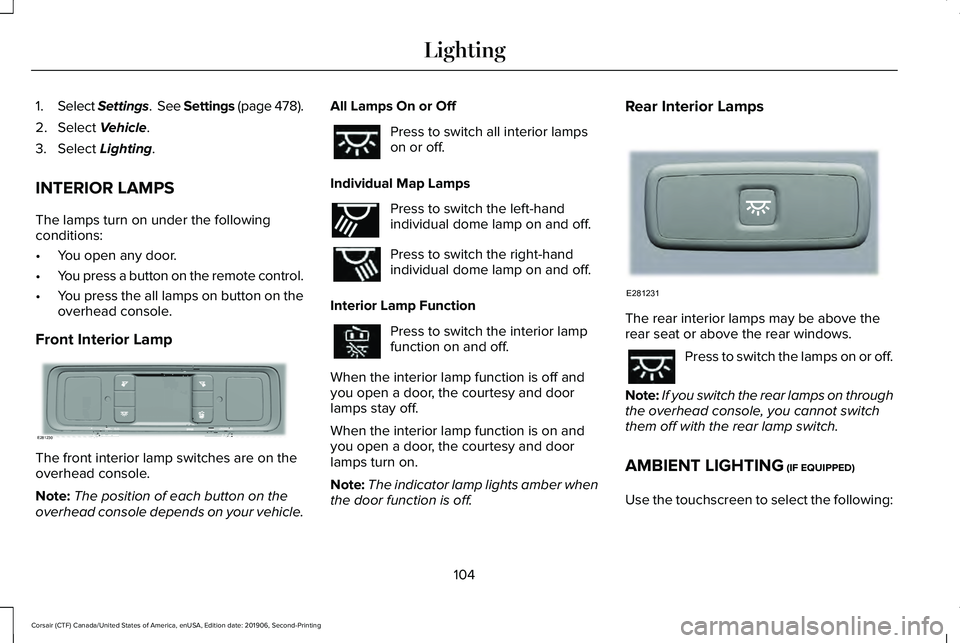
Front Interior Lamp The front interior lamp switches are on the
overhead console.
Note:
The position of each button on the
overhead console depends on your vehicle. All Lamps On or Off Press to switch all interior lamps
on or off.
Individual Map Lamps Press to switch the left-hand
individual dome lamp on and off.
Press to switch the right-hand
individual dome lamp on and off.
Interior Lamp Function Press to switch the interior lamp
function on and off.
When the interior lamp function is off and
you open a door, the courtesy and door
lamps stay off.
When the interior lamp function is on and
you open a door, the courtesy and door
lamps turn on.
Note: The indicator lamp lights amber when
the door function is off. Rear Interior Lamps
The rear interior lamps may be above the
rear seat or above the rear windows.
Press to switch the lamps on or off.
Note: If you switch the rear lamps on through
the overhead console, you cannot switch
them off with the rear lamp switch.
AMBIENT LIGHTING
(IF EQUIPPED)
Use the touchscreen to select the following:
104
Corsair (CTF) Canada/United States of America, enUSA, Edition date: 201906, Second-Printing LightingE281230 E262193 E281231
Page 112 of 591
Resetting Bounce-Back
WARNING: Bounce-back is off until
you reset the memory. Take care when
closing the windows to avoid personal
injury or damage to your vehicle.
If you have disconnected the battery, you
must reset the bounce-back memory
separately for each window.
1. Lift and hold the switch until the window
is fully closed.
2. Release the switch.
3. Lift and hold the switch again for a few seconds.
4. Release the switch.
5. Lift and hold the switch again for a few seconds.
6. Release the switch.
7. Press and hold the switch until the window is fully open.
8. Lift and hold the switch until the window
is fully closed.
9. Release the switch. 10.
Open the window and then try to close
it using one-touch close.
Note: Repeat the procedure if the window
does not close when you use one-touch.
Accessory Delay
You can use the window controls for several
minutes after switching off the ignition or
until opening either front door.
GLOBAL OPENING AND CLOSING
You can use the remote control to operate
the windows with the ignition off.
Note: You can switch this feature on and off
in the information display or contact an
authorized dealer. See
General Information
(page 123).
Note: To operate this feature, make sure the
accessory delay is not switched on. Opening the Windows
You can open the windows only for a short
time after you unlock your vehicle with the
remote control. After you unlock your vehicle,
press and hold the remote control unlock
button to open the windows. Release the
button once movement starts. Press the lock
or unlock button to stop movement.
Closing the Windows
WARNING:
When closing the
windows, you should verify they are free
of obstructions and make sure that children
and pets are not in the proximity of the
window openings.
To close the windows, press and hold the
remote control lock button. Release the
button once movement starts. Press the lock
or unlock button to stop movement.
109
Corsair (CTF) Canada/United States of America, enUSA, Edition date: 201906, Second-Printing Windows and Mirrors
Page 159 of 591
Note:
Do not remove ice from the mirrors
with a scraper or adjust the mirror glass
when it is frozen in place.
Note: Do not clean the mirror housing or
glass with harsh abrasives, fuel or other
petroleum-based cleaning products. The
vehicle warranty may not cover damage
caused to the mirror housing or glass.
CABIN AIR FILTER
The cabin air filter is under the instrument
panel in the passenger footwell area or
under the center console on the passenger
side.
The system filters airborne particles such as
dust, spores and pollen in the air supplied to
and recirculated in the interior of your
vehicle.
Make sure you have a cabin air filter installed
at all times. Running the system without a
filter in place could degrade or damage the
system. Your vehicle cabin air filter gives you and
your passengers the following benefits:
•
It improves your driving comfort by
reducing particle concentration.
• It improves the interior compartment
cleanliness.
• It protects the climate control
components from particle deposits.
Change the air filter element at the proper
intervals. See Scheduled Maintenance
(page 502).
For additional cabin air filter information, or
to replace the filter, see an authorized dealer.
REMOTE START
(IF EQUIPPED)
The system adjusts the interior temperature
depending on your chosen settings during
remote start.
You cannot adjust the climate control setting
during remote start operation. When you
switch the ignition on, the climate control
system returns to the previous settings. You
can now make adjustments. Some features may remain on if they turn on
during remote start:
•
Driver heated seat.
• Driver ventilated seat.
• Heated steering wheel.
• Heated mirrors.
• Heated rear window.
• Windshield wiper de-icer.
Note: If the passenger heated or ventilated
seats are on when you switch the vehicle
off, they default to the driver setting when
you switch the vehicle on.
You can adjust the default remote start
settings using the information display
controls. See Information Displays (page
123).
Automatic Settings
In hot weather, the system sets to
72°F
(22°C). The ventilated seats set to high (if
available, and if you select AUTO in the
information display).
156
Corsair (CTF) Canada/United States of America, enUSA, Edition date: 201906, Second-Printing Climate Control
Page 169 of 591
Recalling a PreSet Position
Press and release the preset button
associated with your preferred driving
position. The memory features move to the
position stored for that preset.
Note:
You can only recall a preset memory
position when the ignition is off, or when the
transmission is in park (P) or neutral (N) and
the ignition is on.
Note: Press any seat or mirror adjustment
switch, or any memory button during a
memory recall, to cancel the operation.
You can also recall a preset memory position
by:
• Pressing the unlock button on your
remote control if you linked it to a preset
position.
• Unlocking the driver door if a linked
remote control is present.
Note: Using a linked remote control to recall
your memory position when the ignition is
off moves the seat and steering column to
the Easy Entry position. Linking a PreSet Position to Your
Remote Control
For information on linking a preset position
to your remote control, see the Personal
Profiles section.
Easy Entry and Exit Feature
If you enable the easy entry and exit feature,
it moves the driver seat position rearward up
to 2 in (5 cm) when you switch the ignition
off. The driver seat returns to the previous
position when you switch the ignition on.
You can enable or disable this feature
through the information display.
See
Information Displays (page 123). Personal Profiles
This feature allows you to create multiple
personal profiles enabling users to
personalize vehicle
’s settings. You can
create one profile for each preset memory
seat button along with a guest profile. You
can recall a profile using the touchscreen or
the preset button you selected when you
created your profile. You can also link a
remote control and a mobile device to your
profile, which are used to recall it.
Creating a Personal Profile
Use the touchscreen to create a personal
profile.
1. Switch the ignition on and leave the vehicle in park (P).
2. Select the Personal Profiles button under
Settings.
3. Follow the instructions on the display.
166
Corsair (CTF) Canada/United States of America, enUSA, Edition date: 201906, Second-Printing Seats
Page 170 of 591
Linking a Personal Profile to Your Remote
Control or Mobile Device
You can save preset memory positions for
up to three remote controls by assigning a
remote control to a personal profile using
the touchscreen. You can assign three
additional remote controls set up as Phone
as a Key.
Use the touchscreen to link a remote control,
mobile device or both to a personal profile.
1. Switch the ignition on and leave the
vehicle in park (P).
2. Select the Personal Profiles button under
Settings.
3. Touch the arrow for the profile you wish to link to a remote control or mobile
device.
4. Select remote control, mobile device, or
both.
5. Follow the instructions on the display.
Note: To successfully link a mobile device,
the mobile device must be in your vehicle,
and must have previously been setup as a
remote control for your vehicle. Note:
If more than one linked remote control
is in range, the memory function moves to
the settings of the first key to initiate a
memory recall.
Note: The guest profile consists of existing
settings when there is no driver profile
created. After you create a driver profile, the
guest profile serves as an additional driver
profile.
Note: You cannot link a personalized name,
a memory seat button or a remote control
to a guest profile.
Personal Settings
Personal Profiles allow you to personalize
positional settings such as seats and mirrors,
as well as non-positional settings such as
radio, navigation, driver assist and system
settings. See SYNC™ 3 (page 430). You
cannot change the menu locations and
settings of those personalized features with
Personal Profiles.
Note: Non-positional settings save to the
active driver profile whenever you change
a setting. Note:
You can save positional settings if you
press and hold a memory seat button.
Recalling and Changing a Profile
You can recall a profile by:
• Using a remote control or mobile device
linked to a driver profile to access the
remote start feature, press an unlock
button or open the door with the exterior
door handle.
• Pressing a memory seat button linked to
a driver profile.
• Using the Personal Profiles menu on the
touchscreen.
Note: The recalled profile replaces the
previously active profile. If the active profile
is not your preferred profile, you can change
it using any of the three methods listed.
167
Corsair (CTF) Canada/United States of America, enUSA, Edition date: 201906, Second-Printing Seats