display LINCOLN CORSAIR 2020 Workshop Manual
[x] Cancel search | Manufacturer: LINCOLN, Model Year: 2020, Model line: CORSAIR, Model: LINCOLN CORSAIR 2020Pages: 591, PDF Size: 6 MB
Page 150 of 591

Action
Message
A reminder to shift into park. In addition, this message is typical afte\
r reconnecting or rechargingthe battery until you cycle the ignition to the on mode. See Changing the 12V Battery (page
340).
Transmission Not in Park
Displays when there is a system fault and the park brake needs to be depressed before exitingthe vehicle. See your authorized dealer.
SHIFT SYS FAULT Confirm Park Brake
Apply Before Exiting the Vehicle
See your authorized dealer.
SHIFT SYS FAULT Service Required
Displays when there is a system fault while the vehicle is shifting to p\
ark. See your authorized dealer.
SHIFT SYS FAULT Vehicle is Shifting to
Park
Displays when there is a system fault while the vehicle is shifting to r\
everse. See your authorized dealer.
SHIFT SYS FAULT Reverse Unavailable
Service Required
See an authorized dealer.
SHIFT SYS FAULT Drive Unavailable Select
S for Drive Service Required
See your authorized dealer.
SHIFT SYS FAULT Neutral Unavailable
Service Required
See your authorized dealer.
SHIFT SYS FAULT Sport Unavailable
Service Required
Displays when an invalid gear has been selected.
Invalid Gear Selection
Displays when the brake pedal needs to be depressed to enable the transmission to shift from park.
Depress Brake to Shift from Park
147
Corsair (CTF) Canada/United States of America, enUSA, Edition date: 201906, Second-Printing Information Displays
Page 151 of 591
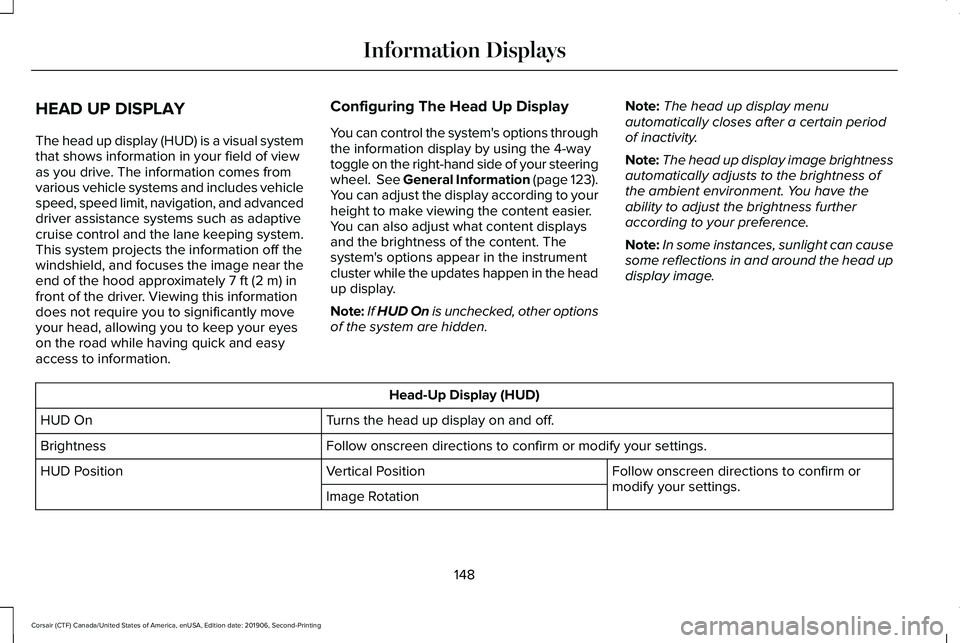
HEAD UP DISPLAY
The head up display (HUD) is a visual system
that shows information in your field of view
as you drive. The information comes from
various vehicle systems and includes vehicle
speed, speed limit, navigation, and advanced
driver assistance systems such as adaptive
cruise control and the lane keeping system.
This system projects the information off the
windshield, and focuses the image near the
end of the hood approximately 7 ft (2 m) in
front of the driver. Viewing this information
does not require you to significantly move
your head, allowing you to keep your eyes
on the road while having quick and easy
access to information. Configuring The Head Up Display
You can control the system's options through
the information display by using the 4-way
toggle on the right-hand side of your steering
wheel.
See General Information (page 123).
You can adjust the display according to your
height to make viewing the content easier.
You can also adjust what content displays
and the brightness of the content. The
system's options appear in the instrument
cluster while the updates happen in the head
up display.
Note: If HUD On is unchecked, other options
of the system are hidden. Note:
The head up display menu
automatically closes after a certain period
of inactivity.
Note: The head up display image brightness
automatically adjusts to the brightness of
the ambient environment. You have the
ability to adjust the brightness further
according to your preference.
Note: In some instances, sunlight can cause
some reflections in and around the head up
display image. Head-Up Display (HUD)
Turns the head up display on and off.
HUD On
Follow onscreen directions to confirm or modify your settings.
Brightness
Follow onscreen directions to confirm or
modify your settings.
Vertical Position
HUD Position
Image Rotation
148
Corsair (CTF) Canada/United States of America, enUSA, Edition date: 201906, Second-Printing Information Displays
Page 152 of 591
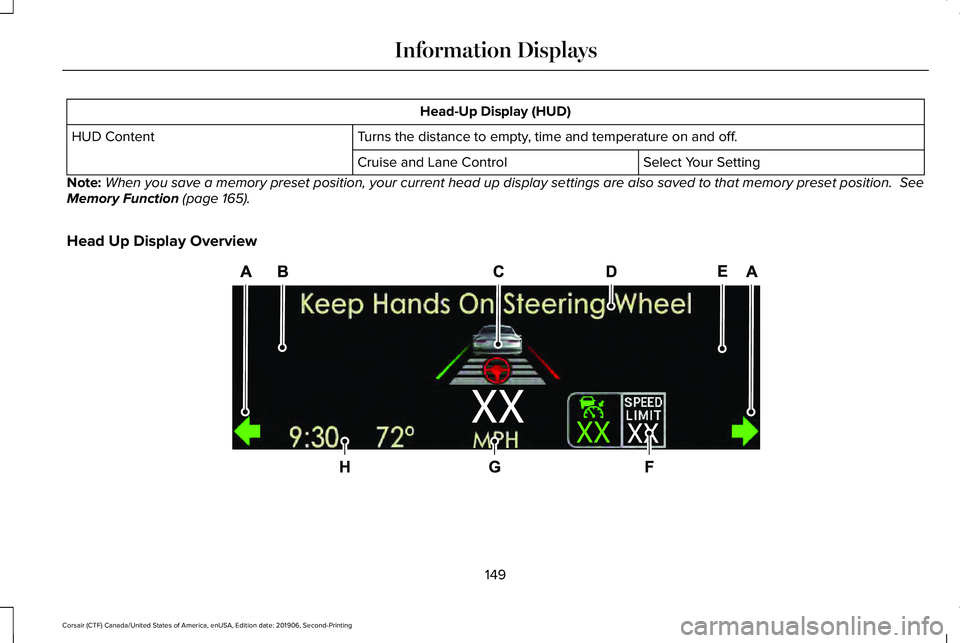
Head-Up Display (HUD)
Turns the distance to empty, time and temperature on and off.
HUD Content
Select Your Setting
Cruise and Lane Control
Note: When you save a memory preset position, your current head up display set\
tings are also saved to that memory preset position. See
Memory Function (page 165).
Head Up Display Overview 149
Corsair (CTF) Canada/United States of America, enUSA, Edition date: 201906, Second-Printing Information DisplaysE307581
Page 153 of 591
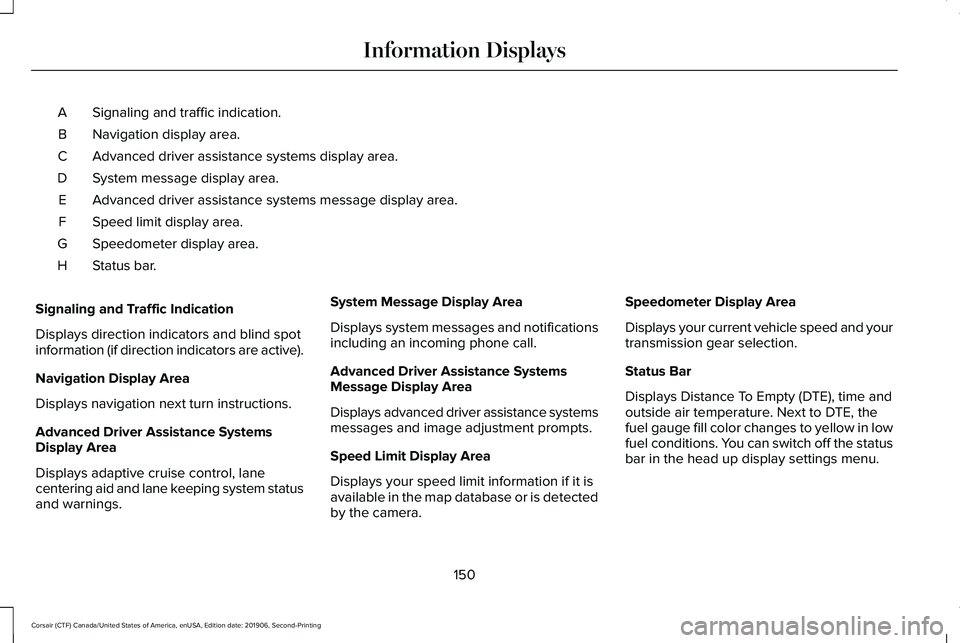
Signaling and traffic indication.
A
Navigation display area.
B
Advanced driver assistance systems display area.
C
System message display area.
D
Advanced driver assistance systems message display area.
E
Speed limit display area.
F
Speedometer display area.
G
Status bar.
H
Signaling and Traffic Indication
Displays direction indicators and blind spot
information (if direction indicators are active).
Navigation Display Area
Displays navigation next turn instructions.
Advanced Driver Assistance Systems
Display Area
Displays adaptive cruise control, lane
centering aid and lane keeping system status
and warnings. System Message Display Area
Displays system messages and notifications
including an incoming phone call.
Advanced Driver Assistance Systems
Message Display Area
Displays advanced driver assistance systems
messages and image adjustment prompts.
Speed Limit Display Area
Displays your speed limit information if it is
available in the map database or is detected
by the camera.Speedometer Display Area
Displays your current vehicle speed and your
transmission gear selection.
Status Bar
Displays Distance To Empty (DTE), time and
outside air temperature. Next to DTE, the
fuel gauge fill color changes to yellow in low
fuel conditions. You can switch off the status
bar in the head up display settings menu.
150
Corsair (CTF) Canada/United States of America, enUSA, Edition date: 201906, Second-Printing Information Displays
Page 154 of 591
Maintaining Your Head Up Display
•
Do not place objects onto the transparent
cover, as they may block you from seeing
portions of the image. These objects
could also damage the cover and affect
the quality of the projected image.
• The system uses a special windshield
designed to provide the optimum image
quality. You must replace the windshield
in a vehicle with this system with a
certified original equipment
manufactured (OEM) head up display
windshield. Replacing this system's
windshield with a non-head up display
windshield causes a double image or
distorted image. Have an authorized
dealer or authorized repair facility replace
the windshield.
• Light conditions such as oncoming
headlamps, sunrise, sunset or reflections
off road surfaces can affect the driver's
ability to see the head up display image.
• Clean the windshield often for optimal
head up display performance. See
Cleaning the Windows and Wiper
Blades
(page 349).
151
Corsair (CTF) Canada/United States of America, enUSA, Edition date: 201906, Second-Printing Information Displays
Page 159 of 591
Note:
Do not remove ice from the mirrors
with a scraper or adjust the mirror glass
when it is frozen in place.
Note: Do not clean the mirror housing or
glass with harsh abrasives, fuel or other
petroleum-based cleaning products. The
vehicle warranty may not cover damage
caused to the mirror housing or glass.
CABIN AIR FILTER
The cabin air filter is under the instrument
panel in the passenger footwell area or
under the center console on the passenger
side.
The system filters airborne particles such as
dust, spores and pollen in the air supplied to
and recirculated in the interior of your
vehicle.
Make sure you have a cabin air filter installed
at all times. Running the system without a
filter in place could degrade or damage the
system. Your vehicle cabin air filter gives you and
your passengers the following benefits:
•
It improves your driving comfort by
reducing particle concentration.
• It improves the interior compartment
cleanliness.
• It protects the climate control
components from particle deposits.
Change the air filter element at the proper
intervals. See Scheduled Maintenance
(page 502).
For additional cabin air filter information, or
to replace the filter, see an authorized dealer.
REMOTE START
(IF EQUIPPED)
The system adjusts the interior temperature
depending on your chosen settings during
remote start.
You cannot adjust the climate control setting
during remote start operation. When you
switch the ignition on, the climate control
system returns to the previous settings. You
can now make adjustments. Some features may remain on if they turn on
during remote start:
•
Driver heated seat.
• Driver ventilated seat.
• Heated steering wheel.
• Heated mirrors.
• Heated rear window.
• Windshield wiper de-icer.
Note: If the passenger heated or ventilated
seats are on when you switch the vehicle
off, they default to the driver setting when
you switch the vehicle on.
You can adjust the default remote start
settings using the information display
controls. See Information Displays (page
123).
Automatic Settings
In hot weather, the system sets to
72°F
(22°C). The ventilated seats set to high (if
available, and if you select AUTO in the
information display).
156
Corsair (CTF) Canada/United States of America, enUSA, Edition date: 201906, Second-Printing Climate Control
Page 160 of 591
In moderate weather, the system heats or
cools (based on pre-selected settings). The
rear defroster, heated mirrors and heated or
ventilated seats do not turn on.
In cold weather, the system sets to 72°F
(22°C). The heated seats and heated steering
wheel set to high (if available, and if you
select AUTO in the information display). The
rear defroster and heated mirrors turn on.
157
Corsair (CTF) Canada/United States of America, enUSA, Edition date: 201906, Second-Printing Climate Control
Page 168 of 591
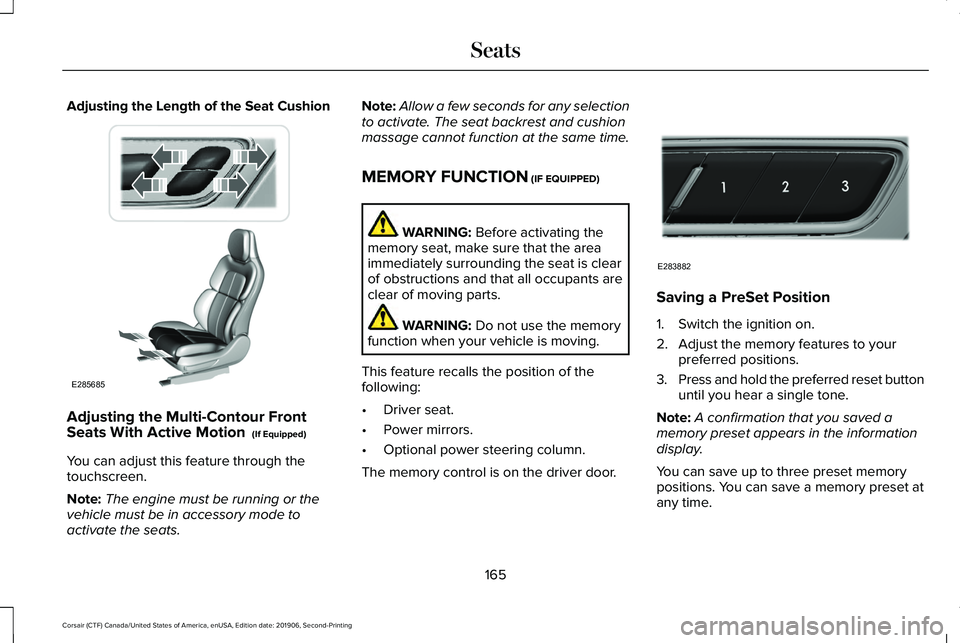
Adjusting the Length of the Seat Cushion
Adjusting the Multi-Contour Front
Seats With Active Motion (If Equipped)
You can adjust this feature through the
touchscreen.
Note: The engine must be running or the
vehicle must be in accessory mode to
activate the seats. Note:
Allow a few seconds for any selection
to activate. The seat backrest and cushion
massage cannot function at the same time.
MEMORY FUNCTION
(IF EQUIPPED) WARNING:
Before activating the
memory seat, make sure that the area
immediately surrounding the seat is clear
of obstructions and that all occupants are
clear of moving parts. WARNING:
Do not use the memory
function when your vehicle is moving.
This feature recalls the position of the
following:
• Driver seat.
• Power mirrors.
• Optional power steering column.
The memory control is on the driver door. Saving a PreSet Position
1. Switch the ignition on.
2. Adjust the memory features to your
preferred positions.
3. Press and hold the preferred reset button
until you hear a single tone.
Note: A confirmation that you saved a
memory preset appears in the information
display.
You can save up to three preset memory
positions. You can save a memory preset at
any time.
165
Corsair (CTF) Canada/United States of America, enUSA, Edition date: 201906, Second-Printing SeatsE285685 E283882
Page 169 of 591
Recalling a PreSet Position
Press and release the preset button
associated with your preferred driving
position. The memory features move to the
position stored for that preset.
Note:
You can only recall a preset memory
position when the ignition is off, or when the
transmission is in park (P) or neutral (N) and
the ignition is on.
Note: Press any seat or mirror adjustment
switch, or any memory button during a
memory recall, to cancel the operation.
You can also recall a preset memory position
by:
• Pressing the unlock button on your
remote control if you linked it to a preset
position.
• Unlocking the driver door if a linked
remote control is present.
Note: Using a linked remote control to recall
your memory position when the ignition is
off moves the seat and steering column to
the Easy Entry position. Linking a PreSet Position to Your
Remote Control
For information on linking a preset position
to your remote control, see the Personal
Profiles section.
Easy Entry and Exit Feature
If you enable the easy entry and exit feature,
it moves the driver seat position rearward up
to 2 in (5 cm) when you switch the ignition
off. The driver seat returns to the previous
position when you switch the ignition on.
You can enable or disable this feature
through the information display.
See
Information Displays (page 123). Personal Profiles
This feature allows you to create multiple
personal profiles enabling users to
personalize vehicle
’s settings. You can
create one profile for each preset memory
seat button along with a guest profile. You
can recall a profile using the touchscreen or
the preset button you selected when you
created your profile. You can also link a
remote control and a mobile device to your
profile, which are used to recall it.
Creating a Personal Profile
Use the touchscreen to create a personal
profile.
1. Switch the ignition on and leave the vehicle in park (P).
2. Select the Personal Profiles button under
Settings.
3. Follow the instructions on the display.
166
Corsair (CTF) Canada/United States of America, enUSA, Edition date: 201906, Second-Printing Seats
Page 170 of 591
Linking a Personal Profile to Your Remote
Control or Mobile Device
You can save preset memory positions for
up to three remote controls by assigning a
remote control to a personal profile using
the touchscreen. You can assign three
additional remote controls set up as Phone
as a Key.
Use the touchscreen to link a remote control,
mobile device or both to a personal profile.
1. Switch the ignition on and leave the
vehicle in park (P).
2. Select the Personal Profiles button under
Settings.
3. Touch the arrow for the profile you wish to link to a remote control or mobile
device.
4. Select remote control, mobile device, or
both.
5. Follow the instructions on the display.
Note: To successfully link a mobile device,
the mobile device must be in your vehicle,
and must have previously been setup as a
remote control for your vehicle. Note:
If more than one linked remote control
is in range, the memory function moves to
the settings of the first key to initiate a
memory recall.
Note: The guest profile consists of existing
settings when there is no driver profile
created. After you create a driver profile, the
guest profile serves as an additional driver
profile.
Note: You cannot link a personalized name,
a memory seat button or a remote control
to a guest profile.
Personal Settings
Personal Profiles allow you to personalize
positional settings such as seats and mirrors,
as well as non-positional settings such as
radio, navigation, driver assist and system
settings. See SYNC™ 3 (page 430). You
cannot change the menu locations and
settings of those personalized features with
Personal Profiles.
Note: Non-positional settings save to the
active driver profile whenever you change
a setting. Note:
You can save positional settings if you
press and hold a memory seat button.
Recalling and Changing a Profile
You can recall a profile by:
• Using a remote control or mobile device
linked to a driver profile to access the
remote start feature, press an unlock
button or open the door with the exterior
door handle.
• Pressing a memory seat button linked to
a driver profile.
• Using the Personal Profiles menu on the
touchscreen.
Note: The recalled profile replaces the
previously active profile. If the active profile
is not your preferred profile, you can change
it using any of the three methods listed.
167
Corsair (CTF) Canada/United States of America, enUSA, Edition date: 201906, Second-Printing Seats