audio LINCOLN CORSAIR 2021 Owner's Manual
[x] Cancel search | Manufacturer: LINCOLN, Model Year: 2021, Model line: CORSAIR, Model: LINCOLN CORSAIR 2021Pages: 638, PDF Size: 5.7 MB
Page 479 of 638
Action
Condition
Message
Use the channel guide to turn off the Lock or
Skip function on that station.
All the channels in the selected category are
either skipped or locked.
None found
Check Channel Guide
No action required.
SiriusXM has updated the channels available
for your vehicle.
Subscription Updated
USB PORT WARNING: Driving while distracted
can result in loss of vehicle control, crash
and injury. We strongly recommend that
you use extreme caution when using any
device that may take your focus off the
road. Your primary responsibility is the safe
operation of your vehicle. We recommend
against the use of any hand-held device
while driving and encourage the use of
voice-operated systems when possible.
Make sure you are aware of all applicable
local laws that may affect the use of
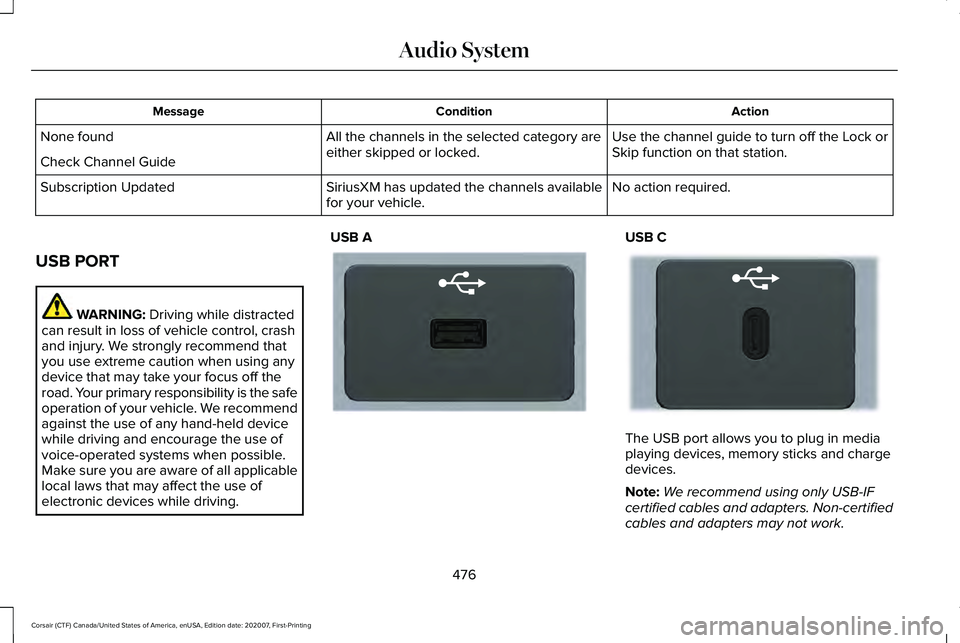
electronic devices while driving. USB A USB C
The USB port allows you to plug in media
playing devices, memory sticks and charge
devices.
Note:
We recommend using only USB-IF
certified cables and adapters. Non-certified
cables and adapters may not work.
476
Corsair (CTF) Canada/United States of America, enUSA, Edition date: 202007, First-Printing Audio SystemE201595 E301114
Page 480 of 638
Locating the USB Ports
The USB ports may be in the following
locations:
•
Inside the media bin.
• Inside the center console.
• On the lower instrument panel.
Note: The number and type of USB ports
may vary depending on your vehicle.
Note: Not all USB ports in your vehicle have
data transfer capabilities. See Auxiliary
Power Points (page 192).
477
Corsair (CTF) Canada/United States of America, enUSA, Edition date: 202007, First-Printing Audio System
Page 481 of 638
GENERAL INFORMATION
WARNING: Driving while distracted
can result in loss of vehicle control, crash
and injury. We strongly recommend that
you use extreme caution when using any
device that may take your focus off the
road. Your primary responsibility is the safe
operation of your vehicle. We recommend
against the use of any hand-held device
while driving and encourage the use of
voice-operated systems when possible.
Make sure you are aware of all applicable
local laws that may affect the use of
electronic devices while driving.
About SYNC
The system allows you to interact with the
entertainment, information and
communication systems on your vehicle
using voice commands and a touchscreen.
The system provides easy interaction with
audio, phone, navigation, mobile apps and
settings. Note:
You can switch the system on and use
it for up to an hour without switching the
ignition on.
Note: You can use the system after you
switch the ignition off for up to 10 minutes or
until you open a door.
Note: For your safety, some features are
speed-dependent. Their use is limited to
when your vehicle speed is less than 3 mph
(5 km/h)
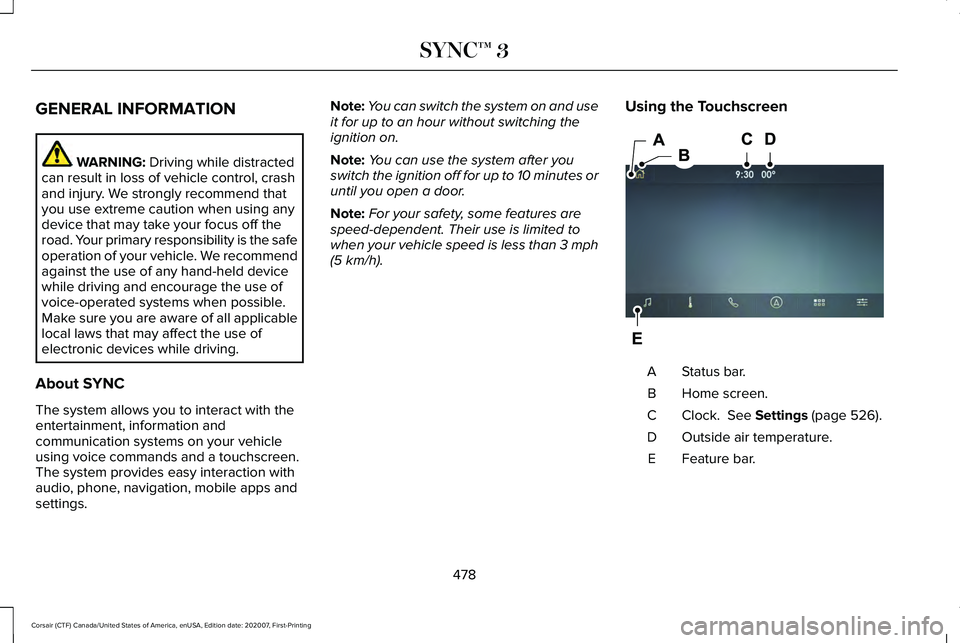
. Using the Touchscreen Status bar.
A
Home screen.
B
Clock.
See Settings (page 526).
C
Outside air temperature.
D
Feature bar.
E
478
Corsair (CTF) Canada/United States of America, enUSA, Edition date: 202007, First-Printing SYNC™ 3E297844
Page 482 of 638
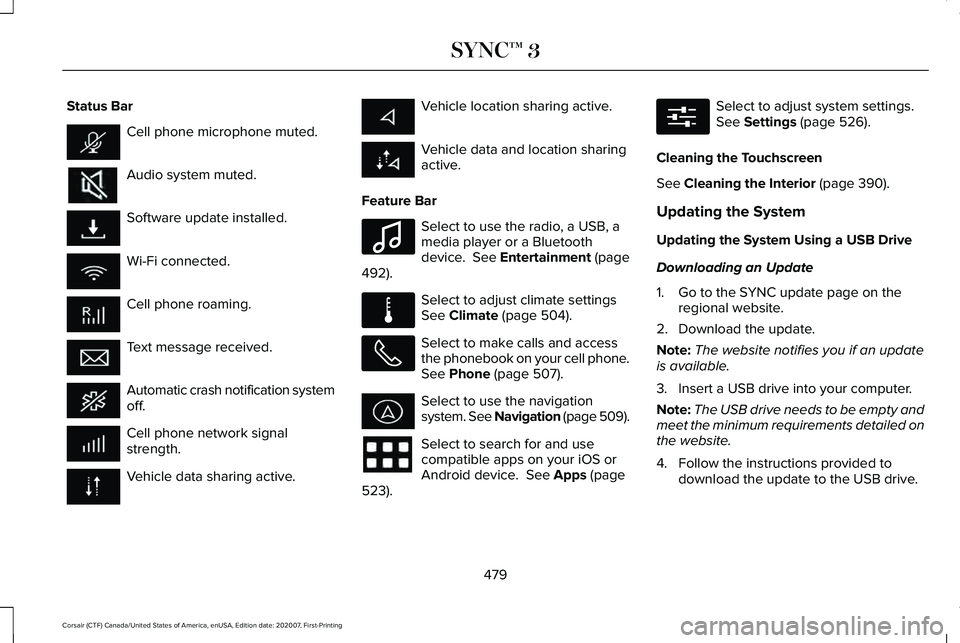
Status Bar
Cell phone microphone muted.
Audio system muted.
Software update installed.
Wi-Fi connected.
Cell phone roaming.
Text message received.
Automatic crash notification system
off.
Cell phone network signal
strength.
Vehicle data sharing active. Vehicle location sharing active.
Vehicle data and location sharing
active.
Feature Bar Select to use the radio, a USB, a
media player or a Bluetooth
device. See Entertainment (page
492). Select to adjust climate settings
See
Climate (page 504).
Select to make calls and access
the phonebook on your cell phone.
See
Phone (page 507).
Select to use the navigation
system. See Navigation (page 509).
Select to search for and use
compatible apps on your iOS or
Android device.
See Apps (page
523). Select to adjust system settings.
See
Settings (page 526).
Cleaning the Touchscreen
See
Cleaning the Interior (page 390).
Updating the System
Updating the System Using a USB Drive
Downloading an Update
1. Go to the SYNC update page on the regional website.
2. Download the update.
Note: The website notifies you if an update
is available.
3. Insert a USB drive into your computer.
Note: The USB drive needs to be empty and
meet the minimum requirements detailed on
the website.
4. Follow the instructions provided to download the update to the USB drive.
479
Corsair (CTF) Canada/United States of America, enUSA, Edition date: 202007, First-Printing SYNC™ 3 E100027 E283811 E280315
Page 485 of 638
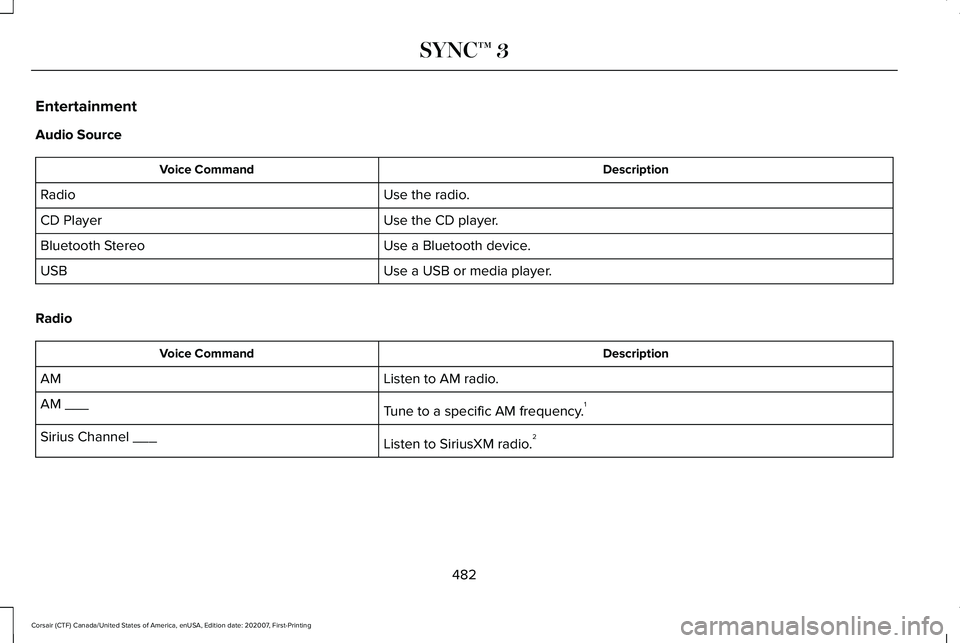
Entertainment
Audio Source
Description
Voice Command
Use the radio.
Radio
Use the CD player.
CD Player
Use a Bluetooth device.
Bluetooth Stereo
Use a USB or media player.
USB
Radio Description
Voice Command
Listen to AM radio.
AM
Tune to a specific AM frequency.1
AM ___
Listen to SiriusXM radio.2
Sirius Channel ___
482
Corsair (CTF) Canada/United States of America, enUSA, Edition date: 202007, First-Printing SYNC™ 3
Page 486 of 638
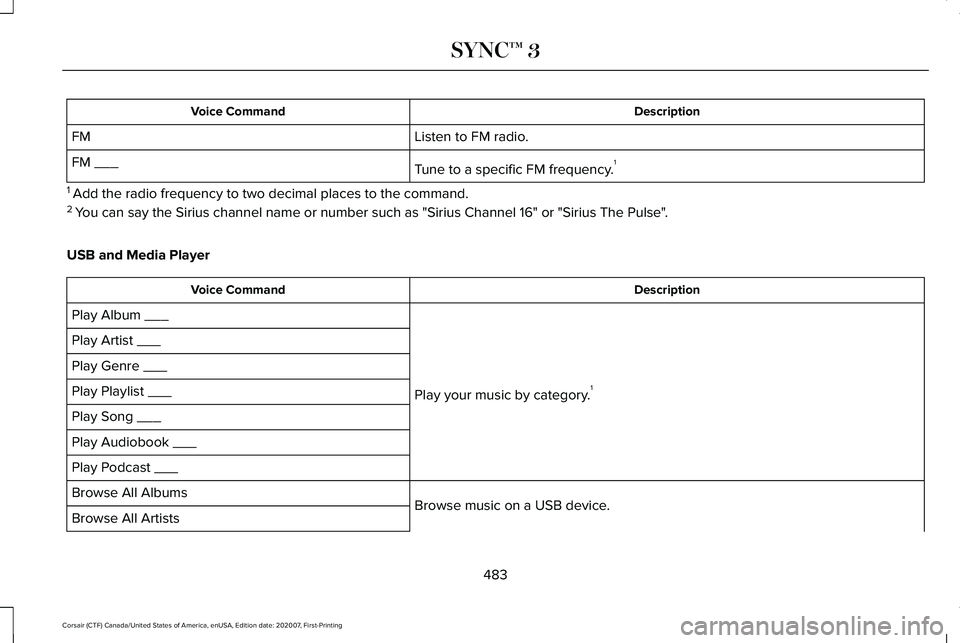
Description
Voice Command
Listen to FM radio.
FM
Tune to a specific FM frequency.1
FM ___
1 Add the radio frequency to two decimal places to the command.
2 You can say the Sirius channel name or number such as "Sirius Channel 16"\
or "Sirius The Pulse".
USB and Media Player Description
Voice Command
Play your music by category.1
Play Album ___
Play Artist ___
Play Genre ___
Play Playlist ___
Play Song ___
Play Audiobook ___
Play Podcast ___
Browse music on a USB device.
Browse All Albums
Browse All Artists
483
Corsair (CTF) Canada/United States of America, enUSA, Edition date: 202007, First-Printing SYNC™ 3
Page 487 of 638
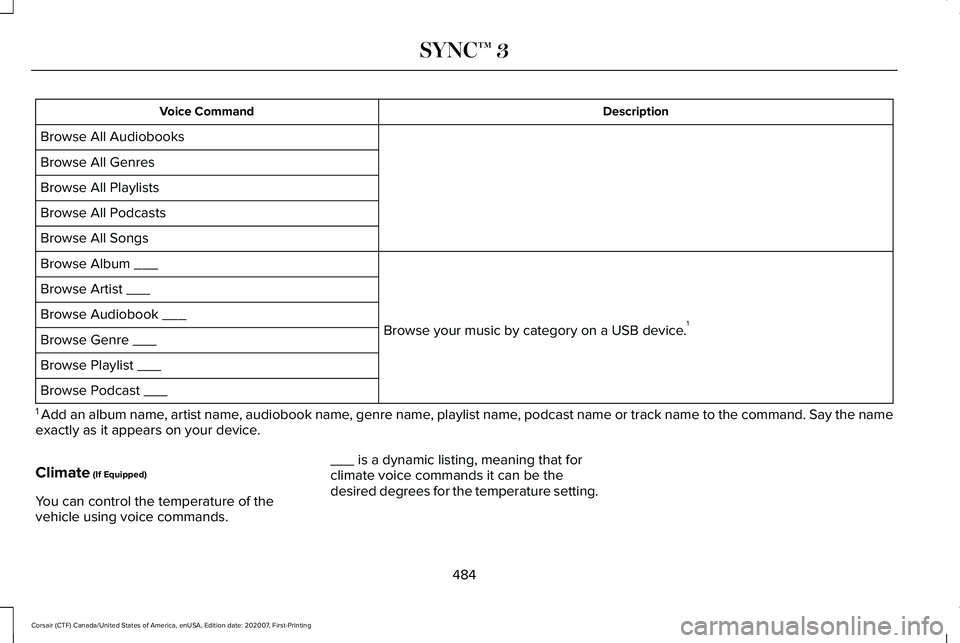
Description
Voice Command
Browse All Audiobooks
Browse All Genres
Browse All Playlists
Browse All Podcasts
Browse All Songs
Browse your music by category on a USB device.1
Browse Album ___
Browse Artist ___
Browse Audiobook ___
Browse Genre ___
Browse Playlist ___
Browse Podcast ___
1 Add an album name, artist name, audiobook name, genre name, playlist name, podcast name or track name to the command. Say the name
exactly as it appears on your device.
Climate (If Equipped)
You can control the temperature of the
vehicle using voice commands. ___ is a dynamic listing, meaning that for
climate voice commands it can be the
desired degrees for the temperature setting.
484
Corsair (CTF) Canada/United States of America, enUSA, Edition date: 202007, First-Printing SYNC™ 3
Page 495 of 638
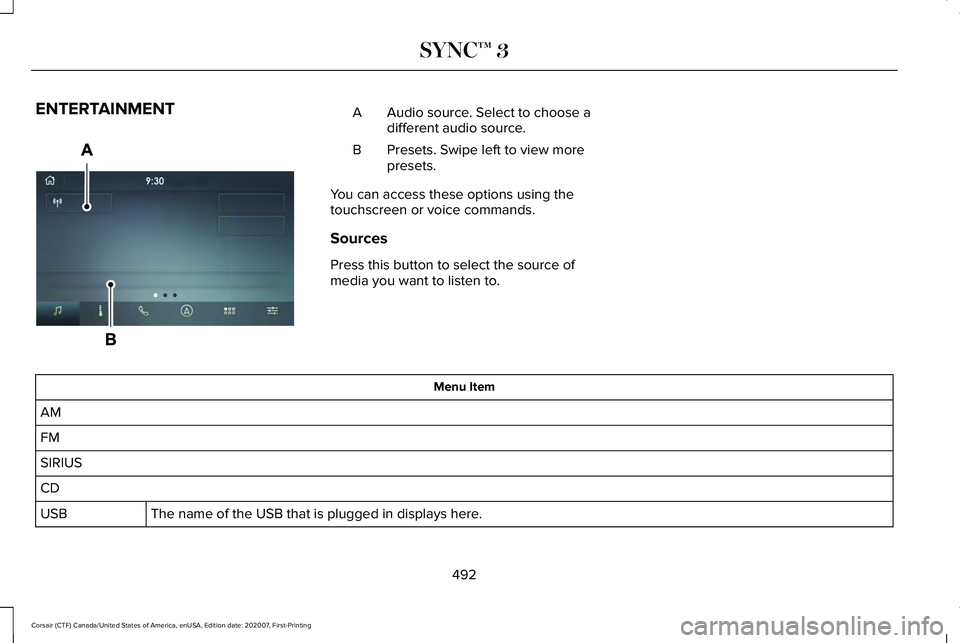
ENTERTAINMENT
Audio source. Select to choose a
different audio source.
A
Presets. Swipe left to view more
presets.
B
You can access these options using the
touchscreen or voice commands.
Sources
Press this button to select the source of
media you want to listen to. Menu Item
AM
FM
SIRIUS
CD The name of the USB that is plugged in displays here.
USB
492
Corsair (CTF) Canada/United States of America, enUSA, Edition date: 202007, First-Printing SYNC™ 3E297845
Page 496 of 638
Menu Item
Bluetooth Stereo If you have SYNC 3 compatible apps on your connected smart phone, they display here as individual source selections.
Apps
AM/FM Radio
Tuning a Station
You can use the tune or seek controls on the
radio bezel to select a station.
To tune a station using the touchscreen,
select: Menu Item
Direct Tune
A pop up appears, allowing you to type in
the frequency of a station. You can only enter
a valid station for the source you are
currently listening to.
You can press the backspace button to
delete the previously entered number. Once you have entered the station's call
numbers, you can select: Action and Descrip-
tion
Menu Item
Press to begin
playing the station
you have entered.
Enter
Press to exit without
changing the station.
Cancel
Presets
To set a new preset, tune to the station and
then press and hold one of the memory
preset buttons. The audio mutes briefly while
the system saves the station and then
returns. You may be able to add additional preset
pages using the settings option on the
feature bar.
SiriusXM® Satellite Radio (If Activated)
Note:
This feature may not be available in
all markets and requires an active
subscription. 493
Corsair (CTF) Canada/United States of America, enUSA, Edition date: 202007, First-Printing SYNC™ 3E234451
Page 498 of 638
Action and Description
Menu Item
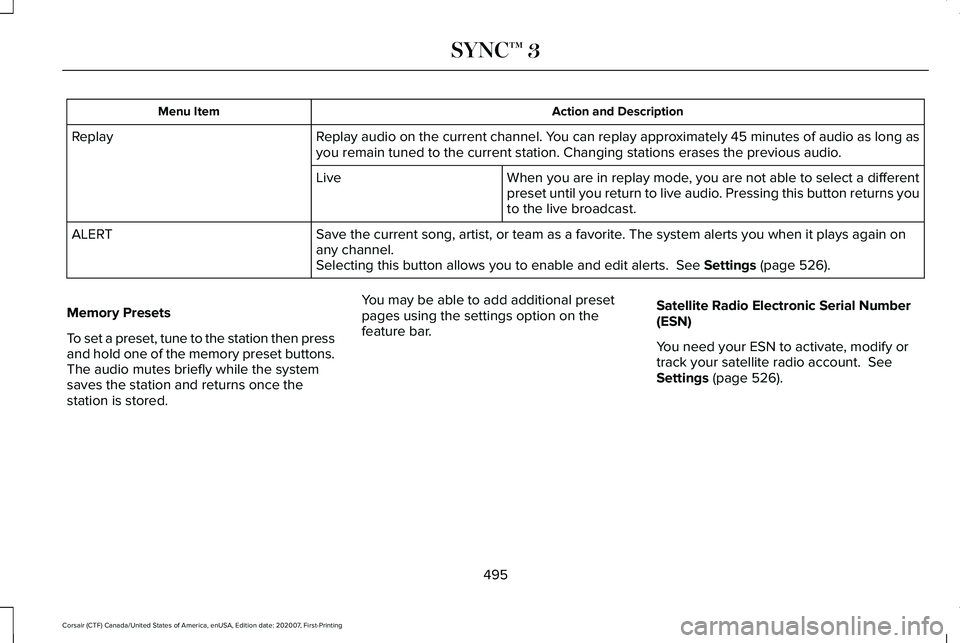
Replay audio on the current channel. You can replay approximately 45 minutes of audio as long as
you remain tuned to the current station. Changing stations erases the pr\
evious audio.
Replay
When you are in replay mode, you are not able to select a different
preset until you return to live audio. Pressing this button returns you
to the live broadcast.
Live
Save the current song, artist, or team as a favorite. The system alerts you when it plays again on
any channel.
ALERT
Selecting this button allows you to enable and edit alerts. See Settings (page 526).
Memory Presets
To set a preset, tune to the station then press
and hold one of the memory preset buttons.
The audio mutes briefly while the system
saves the station and returns once the
station is stored. You may be able to add additional preset
pages using the settings option on the
feature bar.
Satellite Radio Electronic Serial Number
(ESN)
You need your ESN to activate, modify or
track your satellite radio account.
See
Settings (page 526).
495
Corsair (CTF) Canada/United States of America, enUSA, Edition date: 202007, First-Printing SYNC™ 3