display LINCOLN CORSAIR 2021 Owners Manual
[x] Cancel search | Manufacturer: LINCOLN, Model Year: 2021, Model line: CORSAIR, Model: LINCOLN CORSAIR 2021Pages: 638, PDF Size: 5.7 MB
Page 6 of 638
Daytime Running Lamps - Vehicles With:
Daytime Running Lamps (DRL) .............104
Front Fog Lamps ..........................................
104
Adaptive Headlamps ..................................
105
Direction Indicators ......................................
107
Welcome Lighting ........................................
107
Interior Lamps ...............................................
108
Ambient Lighting ..........................................
108
Automatic High Beam Control
What Is Automatic High Beam Control ........................................................................\
110
Switching Automatic High Beam Control On and Off ..................................................
110
Automatic High Beam Control Indicators ........................................................................\
.
111
Overriding Automatic High Beam Control ........................................................................\
.
111
Windows and Mirrors
Power Windows .............................................
112
Global Opening and Closing ......................
113
Exterior Mirrors ..............................................
113
Interior Mirror .................................................
115Sun Visors
.......................................................
115
Moonroof .........................................................
116
Instrument Cluster
Gauges - Plug-In Hybrid Electric Vehicle (PHEV), Vehicles With: 12.3 Inch
Instrument Cluster Display Screen .......
118
Gauges - Vehicles With: 6.5 Inch Instrument Cluster Display Screen ......
122
Gauges - Vehicles With: 12.3 Inch Instrument Cluster Display Screen ......
124
Warning Lamps and Indicators .................
126
Audible Warnings and Indicators .............
130
Information Displays
General Information ......................................
131
Personalized Settings .................................
135
Information Messages .................................
137
Head Up Display ..........................................
157
Remote Start
What Is Remote Start ....................................
161
Remote Start Limitations .............................
161
Enabling Remote Start .................................
161Remotely Starting the Engine
....................
161
Extending the Remote Start Duration ........................................................................\
161
Remotely Stopping the Engine .................
162
Remote Start Remote Control Indicators .......................................................................
162
Remote Start Settings .................................
162
Climate Control
Automatic Climate Control ........................
164
Hints on Controlling the Interior Climate .......................................................................
166
Heated Windshield ......................................
167
Heated Rear Window ..................................
167
Heated Exterior Mirrors ..............................
168
Interior Air Quality
What Is the Cabin Air Filter ........................
169
Locating the Cabin Air Filter .....................
169
Replacing the Cabin Air Filter ...................
169
Seats
Sitting in the Correct Position ...................
170
Head Restraints .............................................
171
3
Corsair (CTF) Canada/United States of America, enUSA, Edition date: 202007, First-Printing Table of Contents
Page 20 of 638
Vehicles With a Modem (If Equipped)
The modem has a SIM. The
modem was enabled when your
vehicle was built and periodically
sends messages to stay connected to the
cell phone network, receive automatic
software updates and send vehicle-related
information to us, for example, diagnostic
information. These messages could include
information that identifies your vehicle, the
SIM and the electronic serial number of the
modem. Cell phone network service
providers could have access to additional
information, for example, cell phone network
tower identification. For additional
information about our privacy policy, visit
www .ConnectedLincoln. com or refer to your
local Lincoln website.
Note: The modem continues to send this
information unless you disable the modem
or stop the modem from sharing vehicle data
by changing the modem settings.
See
Network Connectivity (page 462). Note:
The service can be unavailable or
interrupted for a number of reasons, for
example, environmental or topographical
conditions and data plan coverage.
Note: To find out if your vehicle has a
modem, visit
www .ConnectedLincoln. com .
Vehicles With SYNC
Mobile Device Data
If you connect a mobile device to your
vehicle, you can display data from your
device on the touchscreen for example,
music and album art. You can share your
vehicle data with mobile apps on your device
through the system.
See Apps (page 523).
The mobile apps function operates by your
connected device sending data to us in the
United States. The data is encrypted and
includes the vehicle identification number of
your vehicle, the SYNC module serial
number, odometer, enabled apps, usage
statistics and debugging information. We retain it only as long as necessary to provide
the service, to troubleshoot, for continuous
improvement and to offer you products and
services that may be of interest to you
according to your preferences and where
allowed by law.
If you connect a cell phone to the system,
the system creates a profile that links to that
cell phone. The cell phone profile enables
more mobile features and efficient operation.
The profile contains, for example, data from
your phonebook, read and unread text
messages and call history, including history
of calls when your cell phone was not
connected to the system.
If you connect a media device, the system
creates and retains a media device index of
supported media content. The system also
records a short diagnostic log of
approximately 10 minutes of all recent system
activity.
17
Corsair (CTF) Canada/United States of America, enUSA, Edition date: 202007, First-Printing Introduction
Page 27 of 638
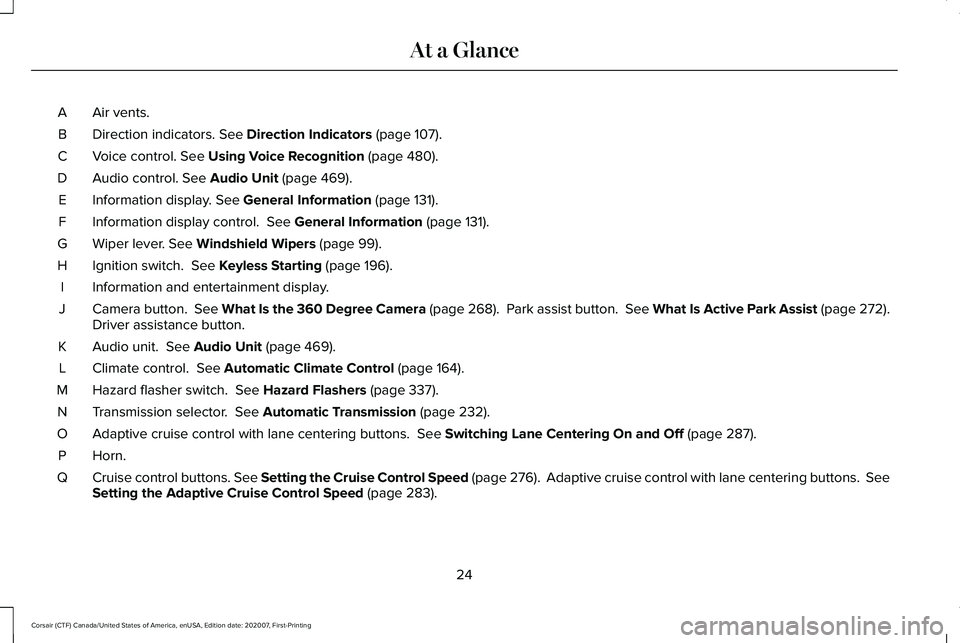
Air vents.
A
Direction indicators. See Direction Indicators (page 107).
B
Voice control.
See Using Voice Recognition (page 480).
C
Audio control.
See Audio Unit (page 469).
D
Information display.
See General Information (page 131).
E
Information display control.
See General Information (page 131).
F
Wiper lever.
See Windshield Wipers (page 99).
G
Ignition switch.
See Keyless Starting (page 196).
H
Information and entertainment display.
I
Camera button.
See What Is the 360 Degree Camera (page 268). Park assist button. See What Is Active Park Assist (page 272).
Driver assistance button.
J
Audio unit.
See Audio Unit (page 469).
K
Climate control.
See Automatic Climate Control (page 164).
L
Hazard flasher switch.
See Hazard Flashers (page 337).
M
Transmission selector.
See Automatic Transmission (page 232).
N
Adaptive cruise control with lane centering buttons.
See Switching Lane Centering On and Off (page 287).
O
Horn.P
Cruise control buttons.
See Setting the Cruise Control Speed (page 276). Adaptive cruise control with lane centering buttons. Se\
e
Setting the Adaptive Cruise Control Speed (page 283).
Q
24
Corsair (CTF) Canada/United States of America, enUSA, Edition date: 202007, First-Printing At a Glance
Page 50 of 638
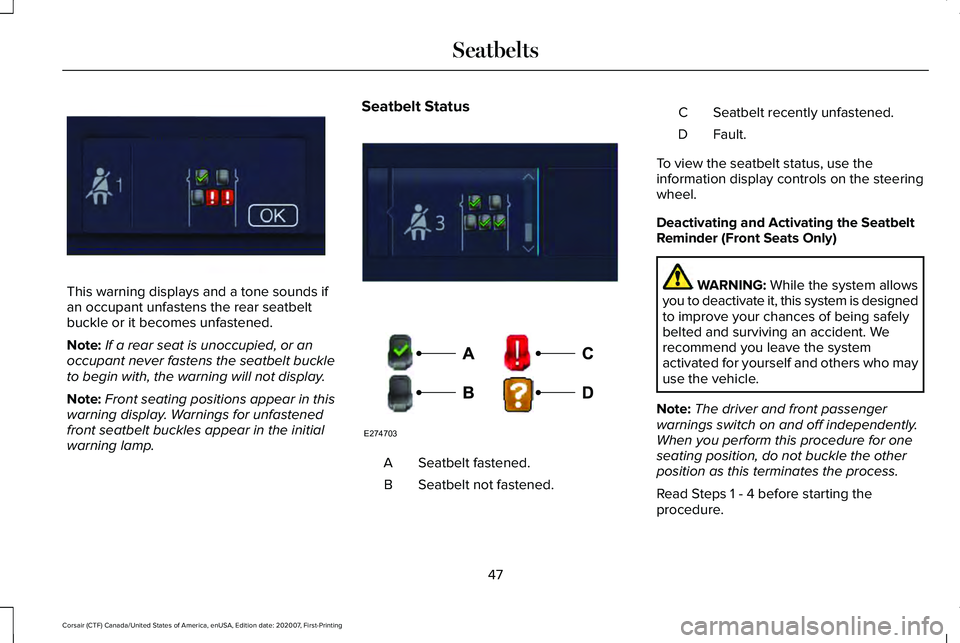
This warning displays and a tone sounds if
an occupant unfastens the rear seatbelt
buckle or it becomes unfastened.
Note:
If a rear seat is unoccupied, or an
occupant never fastens the seatbelt buckle
to begin with, the warning will not display.
Note: Front seating positions appear in this
warning display. Warnings for unfastened
front seatbelt buckles appear in the initial
warning lamp. Seatbelt Status
Seatbelt fastened.
A
Seatbelt not fastened.
B Seatbelt recently unfastened.
C
Fault.D
To view the seatbelt status, use the
information display controls on the steering
wheel.
Deactivating and Activating the Seatbelt
Reminder (Front Seats Only) WARNING: While the system allows
you to deactivate it, this system is designed
to improve your chances of being safely
belted and surviving an accident. We
recommend you leave the system
activated for yourself and others who may
use the vehicle.
Note: The driver and front passenger
warnings switch on and off independently.
When you perform this procedure for one
seating position, do not buckle the other
position as this terminates the process.
Read Steps 1 - 4 before starting the
procedure.
47
Corsair (CTF) Canada/United States of America, enUSA, Edition date: 202007, First-Printing SeatbeltsE331448 E281361 E274703
Page 66 of 638
•
SYNC must be powered and working
properly at the time of the incident and
throughout feature activation and use.
• The 911 Assist feature must be set on
before the incident.
• You must pair and connect a Bluetooth
enabled and compatible cell phone to
SYNC.
• A connected Bluetooth enabled phone
must have the ability to make and
maintain an outgoing call at the time of
the incident.
• A connected Bluetooth enabled phone
must have adequate network coverage,
battery power and signal strength.
• The vehicle must have battery power and
be located in the U.S., Canada or in a
territory in which 911 is the emergency
number.
Note: If any user sets 911 Assist to on or off,
that setting applies for all paired phones. If
911 Assist is switched off and the phone is
connected to SYNC, an icon displays on the
status bar. Note:
Every phone operates differently.
While SYNC 911 Assist works with most
cellular phones, some may have trouble
using this feature.
EMERGENCY CALL LIMITATIONS
The SYNC 911 Assist feature only operates
in the U.S., Canada or in a territory in which
911 is the emergency number.
• Your cellular phone or 911 Assist
hardware sustains damage in a crash.
• The vehicle's battery or the SYNC system
has no power.
• The phone(s) thrown from your vehicle
are the ones paired and connected to
the system.
63
Corsair (CTF) Canada/United States of America, enUSA, Edition date: 202007, First-Printing 911 Assist
Page 69 of 638
WARNING: If the battery
compartment does not securely close, stop
using the remote control and replace it as
soon as possible. In the meantime, keep
the remote control away from children.
Failure to follow this instruction could result
in personal injury or death.
Note: Refer to local regulations before you
dispose of the remote control batteries.
Note: Do not wipe off any grease on the
battery terminals or on the back surface of
the circuit board.
Note: Replacing the remote control battery
does not erase the programmed key from
your vehicle. The remote control operates
as normal.
A message appears in the information
display when the remote control battery is
low.
See Information Messages (page 137).
The remote control uses one coin-type
three-volt lithium battery, CR2450, or
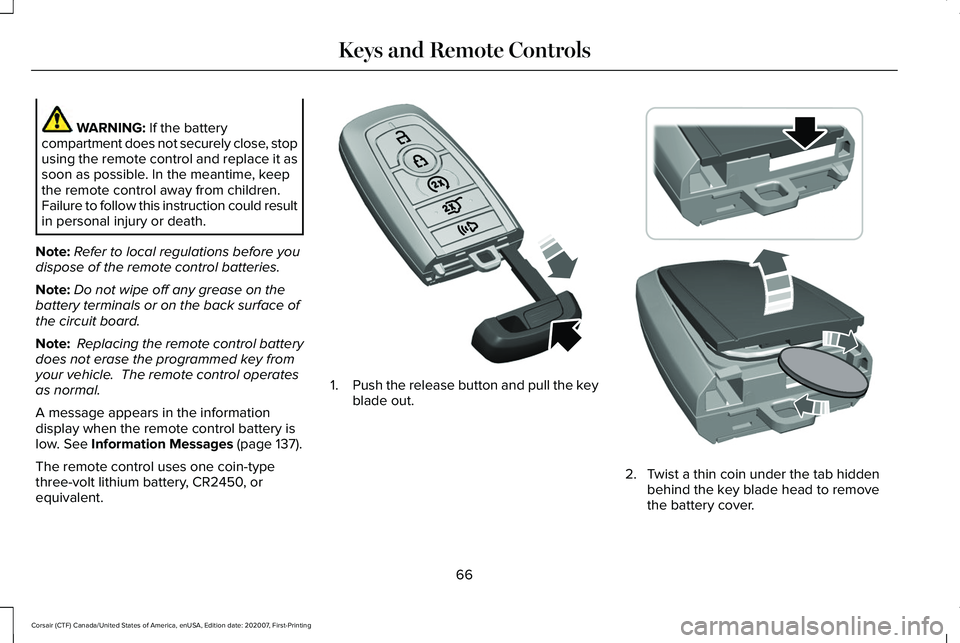
equivalent. 1.
Push the release button and pull the key
blade out. 2. Twist a thin coin under the tab hidden
behind the key blade head to remove
the battery cover.
66
Corsair (CTF) Canada/United States of America, enUSA, Edition date: 202007, First-Printing Keys and Remote ControlsE305199 E303824
Page 72 of 638
4. Press Lincoln Way Connect Reset.
5. Press
Reset All.
6. Confirm you would like to continue with erasing all Phone as a Key, Backup Start
Passcodes.
7. Press
Continue.
8. Confirm you are aware you are de-authorizing all authorized users and
Lincoln Way Connect settings.
9. Press
Continue.
Note: Please wait while the vehicle resets
all the Phone as a Key, Backup Start
Passcodes, Lincoln Way Connect Settings
and de-authorize previously authorized
users.
USING THE VALET MODE
1. Press Settings on the touchscreen.
2. Press Valet Mode.
Note: Have your Backup Start Passcode
completely setup before using Valet Mode. Note:
Once the system detects a valid Phone
as a Key, the temporary passcode displays
in both the touchscreen and mobile app. If
the system does not detect a valid Phone as
a Key, it prompts you to enter your Backup
Start Passcode. Once validated, the
temporary passcode displays on the
touchscreen.
3. Enter the first five digits of the passcode
on the keyless entry keypad to unlock
your vehicle.
4. Enter the eight-digit passcode on the touchscreen to start and drive your
vehicle.
To disable Valet Mode, press Exit Valet Mode
on the touchscreen. Once the system detects
an authorized Phone as a Key, it disables. If
the system does not detect a valid Phone as
a Key, it prompts you to enter your Backup
Start Passcode. Once validated, Valet Mode
disables. USING THE BACKUP START
PASSCODE
If you are unable to start your vehicle with
Phone as a Key, follow the steps below:
1. Press the brake pedal and the ignition
button. If the system does not detect a
valid Phone as a Key, a message appears
and the system prompts you for your
Backup Start Passcode.
Note: Make sure you have Phone as a Key
active on at least one phone to use the
previously created Backup Start Passcode.
Note: If the Backup Start Passcode screen
does not appear, it is necessary to press the
ignition button again.
2. Use the touchscreen to enter your Backup Start Passcode.
3. After entering your Backup Start Passcode, you must press Enter within
30 seconds.
4. Once the system validates the Backup Start Passcode, a message alerts you to
start your vehicle.
69
Corsair (CTF) Canada/United States of America, enUSA, Edition date: 202007, First-Printing Phone as a Key
Page 73 of 638
5. Press the brake pedal and the ignition
button within 20 seconds to start the
vehicle.
6. If your vehicle does not start, repeat steps 1-5.
PHONE AS A KEY –
TROUBLESHOOTING
Phone as a Key – Frequently Asked
Questions
How can I tell if my vehicle has Phone as a
Key? The touchscreen shows the Phone as a
Key reset option if your vehicle has
Phone as a Key. If you have registered
your vehicle through the Lincoln Way
app, a control button appears on the
home screen of the Lincoln Way app. What happens if I cannot unlock the vehicle
with Phone as a Key?
Attempt to move your phone closer to
the vehicle. Check that the Lincoln Way
app is still running and that the Phone
as a Key control screen shows
connected. If the phone is connected,
attempt to press the remote unlock
button in the Lincoln Way app. If the
phone is not connected or the remote
unlock button does not work in the
Lincoln Way app, attempt to force close
and restart the app.
Why do I get a No Key Detected message
in the instrument cluster display when I am
using Phone as a Key and my phone is in
the car? Your phone ’s Bluetooth connection has
been disrupted or is not connected. Try
reconnecting your phone's Bluetooth
connection. Move the phone closer to
the center of the vehicle near the cup
holder or center console. Verify your
Phone as a Key is still active, enabled
and has not been revoked. What do I do if my phone is lost, damaged,
or the battery has depleted?
Use the Backup Start Passcode that you
created to protect you in the event that
you lose your phone, damage it, or the
battery depletes. See Using the
Backup Start Passcode (page 69).
How many phones can I use for Phone as
a Key? You can program and activate up to four
phones with Phone as a Key to your
vehicle.
How does a valet drive my car if I only use
my Phone as a Key? Have the valet use the temporary valet
passcode that you created when using
valet mode. See Using the Valet Mode
(page
69).
70
Corsair (CTF) Canada/United States of America, enUSA, Edition date: 202007, First-Printing Phone as a Key
Page 75 of 638
WHAT IS MYKEY
MyK
ey
MyKey allows you to program keys with
restricted driving modes to promote good
driving habits.
MYKEY SETTINGS
Non-Configurable MyKey Settings
Seatbelt Reminder or Belt-Minder™
MyKey mutes the audio system until the
drivers, and in some instances, passengers,
fasten their seatbelts.
Note:
If your vehicle includes an AM/FM
radio or a very basic audio system, then the
radio may not mute.
Satellite Radio (If Equipped)
Satellite radio adult content restrictions. Early Low Fuel
The low fuel level warning lamp turns on
earlier.
Driving and Parking Aids
Parking aids, blind spot information system
and cross traffic alert turn on when you start
the engine and cannot be switched off with
a MyKey.
Pre-collision assist and lane keeping alert
turn on when you start the engine, but can
be switched off with a MyKey.
A new destination in the navigation system
can only be set using voice commands when
using a MyKey, and with your vehicle moving.
Note:
MyKey drivers may be able to turn the
lane departure warning feature off, but this
feature turns back on automatically with
every new key cycle.
Configurable MyKey Settings
You can configure the following settings after
creating a MyKey.
See Creating a MyKey
(page 73). Speed Limit WARNING:
Do not set MyKey
maximum speed limit to a limit that will
prevent the driver from maintaining a safe
speed considering posted speed limits and
prevailing road conditions. The driver is
always responsible to drive in accordance
with local laws and prevailing conditions.
Failure to do so could result in accident or
injury.
You can set a speed limit for your vehicle.
Warning messages appear in the information
display and a tone sounds if your vehicle
reaches the set speed. You cannot override
the set speed when using a MyKey.
Speed Reminder
You can set a speed reminder for your
vehicle. Warning messages appear in the
information display and a tone sounds if your
vehicle exceeds the set speed.
72
Corsair (CTF) Canada/United States of America, enUSA, Edition date: 202007, First-Printing MyKey™
Page 76 of 638
Audio System Volume Limit
The audio system maximum volume is
reduced. A message appears in the
information display if you attempt to exceed
the volume limit. Automatic volume control
turns off.
Emergency Assistance
If you set emergency assistance to always
on, you cannot switch it off with a MyKey.
Do Not Disturb
If you set do not disturb to always on, you
cannot switch it off with a MyKey.
Note:
If a phone is connected using Apple
CarPlay or Android Auto while driving with
a MyKey, the driver can receive phone calls
and text messages even if the do not disturb
restriction is on. If the vehicle comes with
satellite radio, the adult content is not
restricted.
Traction Control
If you set traction control to always on, you
cannot switch it off with a MyKey. CREATING A MYKEY
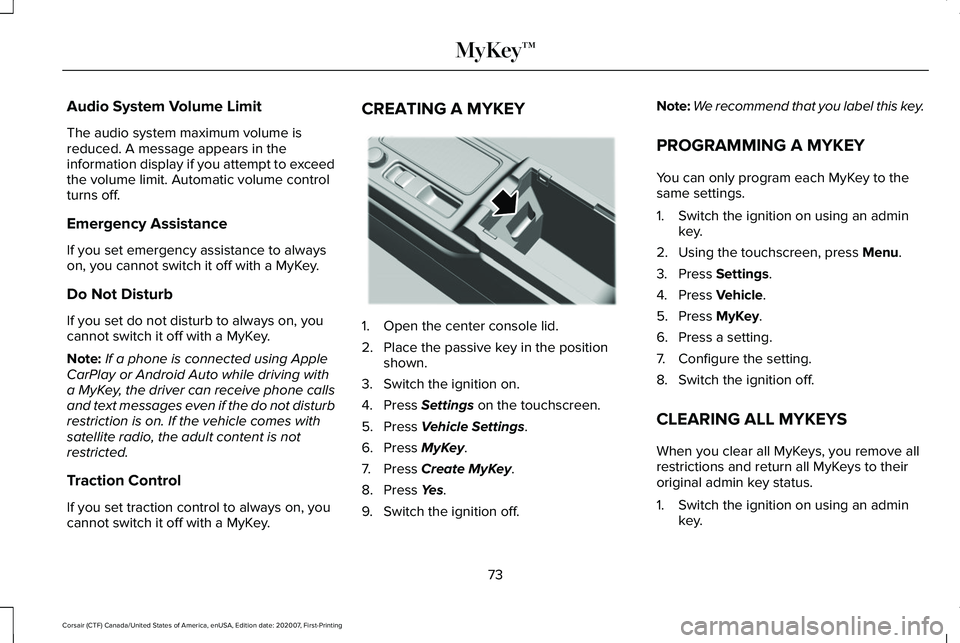
1. Open the center console lid.
2. Place the passive key in the position
shown.
3. Switch the ignition on.
4. Press Settings on the touchscreen.
5. Press
Vehicle Settings.
6. Press
MyKey.
7. Press
Create MyKey.
8. Press
Yes.
9. Switch the ignition off. Note:
We recommend that you label this key.
PROGRAMMING A MYKEY
You can only program each MyKey to the
same settings.
1. Switch the ignition on using an admin key.
2. Using the touchscreen, press
Menu.
3. Press
Settings.
4. Press
Vehicle.
5. Press
MyKey.
6. Press a setting.
7. Configure the setting.
8. Switch the ignition off.
CLEARING ALL MYKEYS
When you clear all MyKeys, you remove all
restrictions and return all MyKeys to their
original admin key status.
1. Switch the ignition on using an admin key.
73
Corsair (CTF) Canada/United States of America, enUSA, Edition date: 202007, First-Printing MyKey™E306288