keyless entry LINCOLN CORSAIR 2021 Owners Manual
[x] Cancel search | Manufacturer: LINCOLN, Model Year: 2021, Model line: CORSAIR, Model: LINCOLN CORSAIR 2021Pages: 638, PDF Size: 5.7 MB
Page 5 of 638
Programming Your Phone
..........................68
Using the Valet Mode ...................................
69
Using the Backup Start Passcode .............
69
Phone as a Key – Troubleshooting ...........
70
MyKey™
What Is MyKey ................................................
72
MyKey Settings ...............................................
72
Creating a MyKey ...........................................
73
Programming a MyKey .................................
73
Clearing All MyKeys ......................................
73
Checking MyKey System Status ................
74
Using MyKey With Remote Start Systems ........................................................................\
.
74
MyKey – Troubleshooting ............................
74
Doors and Locks
Locking and Unlocking .................................
76
Keyless Entry
Locating the Keyless Entry Keypad ...........
81
Keyless Entry Limitations ..............................
81
Master Access Code ......................................
81Keyless Entry Settings
...................................
81
Locking and Unlocking the Doors Using Keyless Entry ..............................................
83
Keyless Entry – Troubleshooting ...............
84
Liftgate
Liftgate Precautions ......................................
85
Opening the Liftgate .....................................
85
Setting the Liftgate Opening Height .........
87
Closing the Liftgate .......................................
88
Stopping the Liftgate Movement ...............
90
Liftgate Obstacle Detection ........................
90
Liftgate – Troubleshooting ...........................
91
Security
Passive Anti-Theft System ...........................
93
Anti-Theft Alarm System ..............................
93
Anti-Theft Alarm System Settings .............
94
Security – Troubleshooting .........................
95
Steering Wheel
Adjusting the Steering Wheel - Vehicles With: Power Adjustable Steering Column
........................................................................\
.
97 Adjusting the Steering Wheel - Vehicles
With: Manual Adjustable Steering
Column .........................................................
97
Resetting the Stopping Position - Vehicles With: Power Adjustable Steering Column
........................................................................\
98
Horn ..................................................................
98
Switching the Heated Steering Wheel On ........................................................................\
98
Wipers and Washers
Windshield Wipers ........................................
99
Autowipers ....................................................
100
Windshield Washers .....................................
101
Rear Window Wiper and Washers ............
101
Lighting
General Information ....................................
102
Lighting Control ............................................
102
Autolamps ......................................................
103
Instrument Lighting Dimmer ......................
103
Headlamp Exit Delay ...................................
104
Daytime Running Lamps - Vehicles With: Configurable Daytime Running Lamps
.......................................................................
104
2
Corsair (CTF) Canada/United States of America, enUSA, Edition date: 202007, First-Printing Table of Contents
Page 72 of 638
4. Press Lincoln Way Connect Reset.
5. Press
Reset All.
6. Confirm you would like to continue with erasing all Phone as a Key, Backup Start
Passcodes.
7. Press
Continue.
8. Confirm you are aware you are de-authorizing all authorized users and
Lincoln Way Connect settings.
9. Press
Continue.
Note: Please wait while the vehicle resets
all the Phone as a Key, Backup Start
Passcodes, Lincoln Way Connect Settings
and de-authorize previously authorized
users.
USING THE VALET MODE
1. Press Settings on the touchscreen.
2. Press Valet Mode.
Note: Have your Backup Start Passcode
completely setup before using Valet Mode. Note:
Once the system detects a valid Phone
as a Key, the temporary passcode displays
in both the touchscreen and mobile app. If
the system does not detect a valid Phone as
a Key, it prompts you to enter your Backup
Start Passcode. Once validated, the
temporary passcode displays on the
touchscreen.
3. Enter the first five digits of the passcode
on the keyless entry keypad to unlock
your vehicle.
4. Enter the eight-digit passcode on the touchscreen to start and drive your
vehicle.
To disable Valet Mode, press Exit Valet Mode
on the touchscreen. Once the system detects
an authorized Phone as a Key, it disables. If
the system does not detect a valid Phone as
a Key, it prompts you to enter your Backup
Start Passcode. Once validated, Valet Mode
disables. USING THE BACKUP START
PASSCODE
If you are unable to start your vehicle with
Phone as a Key, follow the steps below:
1. Press the brake pedal and the ignition
button. If the system does not detect a
valid Phone as a Key, a message appears
and the system prompts you for your
Backup Start Passcode.
Note: Make sure you have Phone as a Key
active on at least one phone to use the
previously created Backup Start Passcode.
Note: If the Backup Start Passcode screen
does not appear, it is necessary to press the
ignition button again.
2. Use the touchscreen to enter your Backup Start Passcode.
3. After entering your Backup Start Passcode, you must press Enter within
30 seconds.
4. Once the system validates the Backup Start Passcode, a message alerts you to
start your vehicle.
69
Corsair (CTF) Canada/United States of America, enUSA, Edition date: 202007, First-Printing Phone as a Key
Page 79 of 638
LOCKING AND UNLOCKING
You can use the power door lock or the
remote control to lock and unlock your
vehicle.
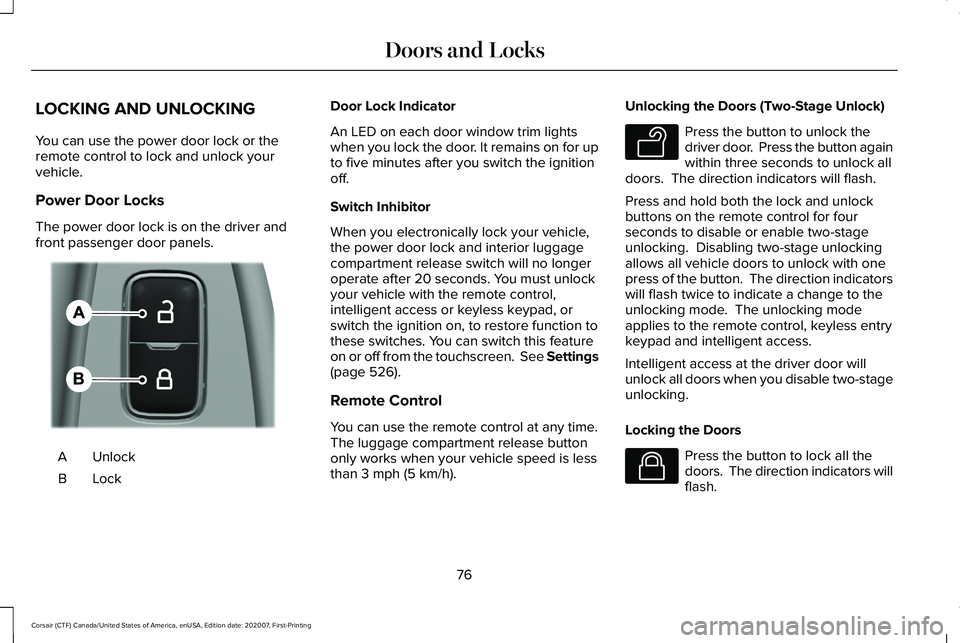
Power Door Locks
The power door lock is on the driver and
front passenger door panels.
Unlock
A
LockB Door Lock Indicator
An LED on each door window trim lights
when you lock the door. It remains on for up
to five minutes after you switch the ignition
off.
Switch Inhibitor
When you electronically lock your vehicle,
the power door lock and interior luggage
compartment release switch will no longer
operate after 20 seconds. You must unlock
your vehicle with the remote control,
intelligent access or keyless keypad, or
switch the ignition on, to restore function to
these switches. You can switch this feature
on or off from the touchscreen. See Settings
(page 526).
Remote Control
You can use the remote control at any time.
The luggage compartment release button
only works when your vehicle speed is less
than
3 mph (5 km/h). Unlocking the Doors (Two-Stage Unlock) Press the button to unlock the
driver door. Press the button again
within three seconds to unlock all
doors. The direction indicators will flash.
Press and hold both the lock and unlock
buttons on the remote control for four
seconds to disable or enable two-stage
unlocking. Disabling two-stage unlocking
allows all vehicle doors to unlock with one
press of the button. The direction indicators
will flash twice to indicate a change to the
unlocking mode. The unlocking mode
applies to the remote control, keyless entry
keypad and intelligent access.
Intelligent access at the driver door will
unlock all doors when you disable two-stage
unlocking.
Locking the Doors Press the button to lock all the
doors. The direction indicators will
flash.
76
Corsair (CTF) Canada/United States of America, enUSA, Edition date: 202007, First-Printing Doors and LocksE309203 E138629 E138623
Page 81 of 638
Note:
The system may not function if the
passive key is close to metal objects or
electronic devices, for example keys or a
cell phone.
Note: If the system does not function, use
the key blade to lock and unlock your
vehicle. See Remote Control (page 64).
Unlocking Using Intelligent Access With your intelligent access key within
3 ft
(1 m) of your vehicle, touch the unlock sensor
on the back of the door handle for a brief
period and then pull on the door handle to
unlock, being careful to not touch the lock
sensor at the same time or pulling the door
handle too quickly. The intelligent access
system requires a brief delay to authenticate
your intelligent access key fob. Locking Using Intelligent Access With your intelligent access key within
3 ft
(1 m) of your vehicle, touch the outer door
handle lock sensor for approximately one
second to lock, being careful to not touch
the unlock sensor on the back of the door
handle at the same time. After locking, you
can immediately pull on the door handle to
confirm locking occurred without
inadvertently unlocking.
At the Liftgate
Press the exterior liftgate release button
inside the top of the liftgate pull-cup handle.
Smart Unlocks
This feature helps to prevent you from
unintentionally locking your intelligent access
key inside the passenger compartment or
rear cargo area. When you lock your vehicle with the door
open and the ignition off, your vehicle will
search for an intelligent access key in the
passenger compartment after you close the
door. If your vehicle finds a key, all of the
doors will immediately unlock.
You can override the smart unlock feature
and intentionally lock the intelligent access
key inside your vehicle. To do this, lock your
vehicle after you have closed all the doors
by:
•
Using the keyless entry keypad.
• Pressing the lock button on another
intelligent access key.
• Touching the locking area on the handle
with another intelligent access key in
your hand.
When you open one of the front doors with
the ignition on, and lock your vehicle using
the power door lock, all doors will lock then
unlock.
78
Corsair (CTF) Canada/United States of America, enUSA, Edition date: 202007, First-Printing Doors and LocksE248553 E248554
Page 84 of 638
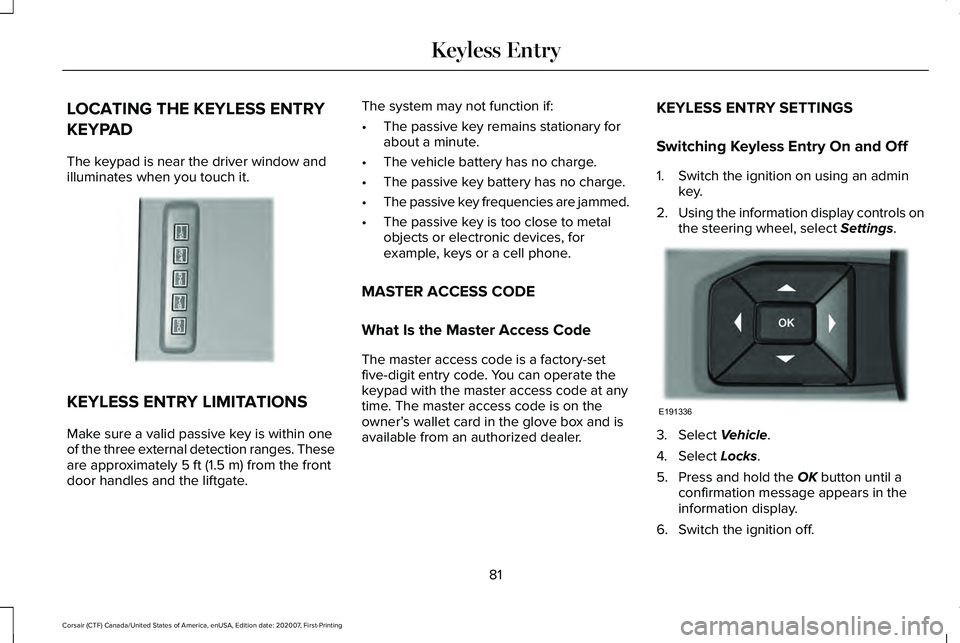
LOCATING THE KEYLESS ENTRY
KEYPAD
The keypad is near the driver window and
illuminates when you touch it.
KEYLESS ENTRY LIMITATIONS
Make sure a valid passive key is within one
of the three external detection ranges. These
are approximately 5 ft (1.5 m) from the front
door handles and the liftgate. The system may not function if:
•
The passive key remains stationary for
about a minute.
• The vehicle battery has no charge.
• The passive key battery has no charge.
• The passive key frequencies are jammed.
• The passive key is too close to metal
objects or electronic devices, for
example, keys or a cell phone.
MASTER ACCESS CODE
What Is the Master Access Code
The master access code is a factory-set
five-digit entry code. You can operate the
keypad with the master access code at any
time. The master access code is on the
owner’ s wallet card in the glove box and is
available from an authorized dealer. KEYLESS ENTRY SETTINGS
Switching Keyless Entry On and Off
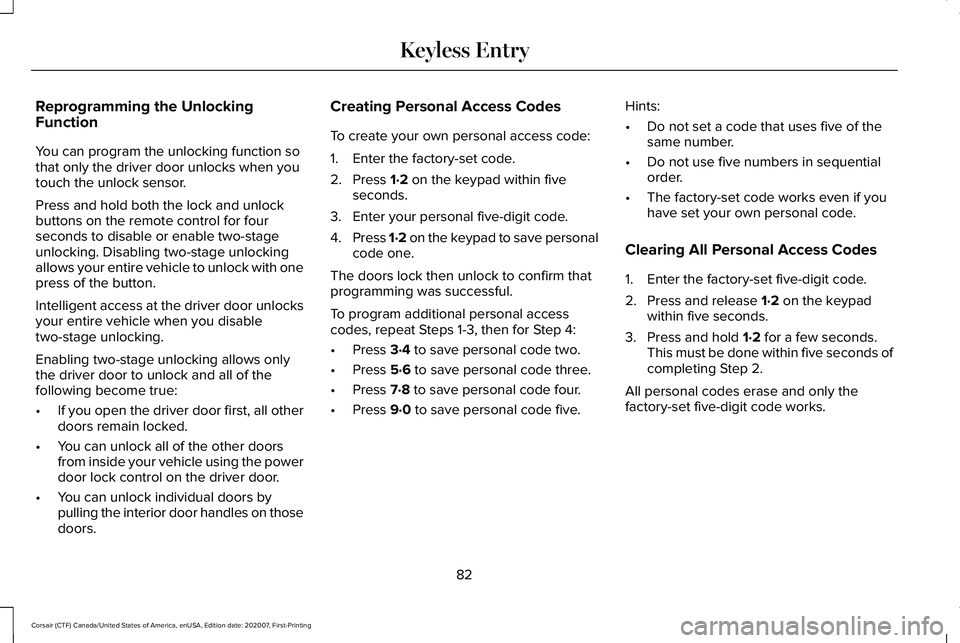
1. Switch the ignition on using an admin
key.
2. Using the information display controls on
the steering wheel, select
Settings. 3. Select
Vehicle.
4. Select
Locks.
5. Press and hold the
OK button until a
confirmation message appears in the
information display.
6. Switch the ignition off.
81
Corsair (CTF) Canada/United States of America, enUSA, Edition date: 202007, First-Printing Keyless EntryE190936 E191336
Page 85 of 638
Reprogramming the Unlocking
Function
You can program the unlocking function so
that only the driver door unlocks when you
touch the unlock sensor.
Press and hold both the lock and unlock
buttons on the remote control for four
seconds to disable or enable two-stage
unlocking. Disabling two-stage unlocking
allows your entire vehicle to unlock with one
press of the button.
Intelligent access at the driver door unlocks
your entire vehicle when you disable
two-stage unlocking.
Enabling two-stage unlocking allows only
the driver door to unlock and all of the
following become true:
•
If you open the driver door first, all other
doors remain locked.
• You can unlock all of the other doors
from inside your vehicle using the power
door lock control on the driver door.
• You can unlock individual doors by
pulling the interior door handles on those
doors. Creating Personal Access Codes
To create your own personal access code:
1. Enter the factory-set code.
2. Press 1·2 on the keypad within five
seconds.
3. Enter your personal five-digit code.
4. Press 1·2 on the keypad to save personal
code one.
The doors lock then unlock to confirm that
programming was successful.
To program additional personal access
codes, repeat Steps 1-3, then for Step 4:
• Press
3·4 to save personal code two.
• Press
5·6 to save personal code three.
• Press
7·8 to save personal code four.
• Press
9·0 to save personal code five. Hints:
•
Do not set a code that uses five of the
same number.
• Do not use five numbers in sequential
order.
• The factory-set code works even if you
have set your own personal code.
Clearing All Personal Access Codes
1. Enter the factory-set five-digit code.
2. Press and release
1·2 on the keypad
within five seconds.
3. Press and hold
1·2 for a few seconds.
This must be done within five seconds of
completing Step 2.
All personal codes erase and only the
factory-set five-digit code works.
82
Corsair (CTF) Canada/United States of America, enUSA, Edition date: 202007, First-Printing Keyless Entry
Page 86 of 638
LOCKING AND UNLOCKING THE
DOORS USING KEYLESS ENTRY
Unlocking the Doors
Enter the factory-set five-digit code or your
personal code. You must press each number
within five seconds of each other. The
interior lamps illuminate.
Note:
All doors unlock if you disable the
two-stage unlocking feature. To disable the
two-stage unlocking feature:
1. Switch the ignition on using an admin key.
2. Using the information display controls on
the steering wheel, select Settings.
3. Select
Vehicle Settings.
4. Select
Locks.
5. Press and hold the
OK button until a
confirmation message appears in the
information display.
6. Switch the ignition off. To Unlock All Doors
Enter the factory-set code or your personal
code, then press the
3·4 control within five
seconds.
To Release the Liftgate (If Equipped)
Enter the factory-set code or your personal
code, then press the
5·6 control within five
seconds.
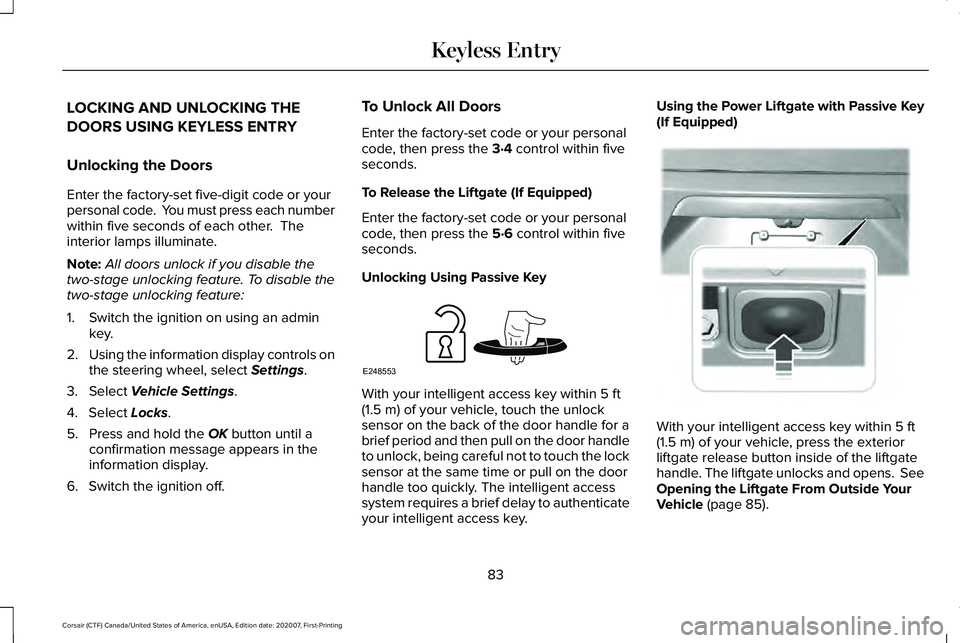
Unlocking Using Passive Key With your intelligent access key within
5 ft
(1.5 m) of your vehicle, touch the unlock
sensor on the back of the door handle for a
brief period and then pull on the door handle
to unlock, being careful not to touch the lock
sensor at the same time or pull on the door
handle too quickly. The intelligent access
system requires a brief delay to authenticate
your intelligent access key. Using the Power Liftgate with Passive Key
(If Equipped)
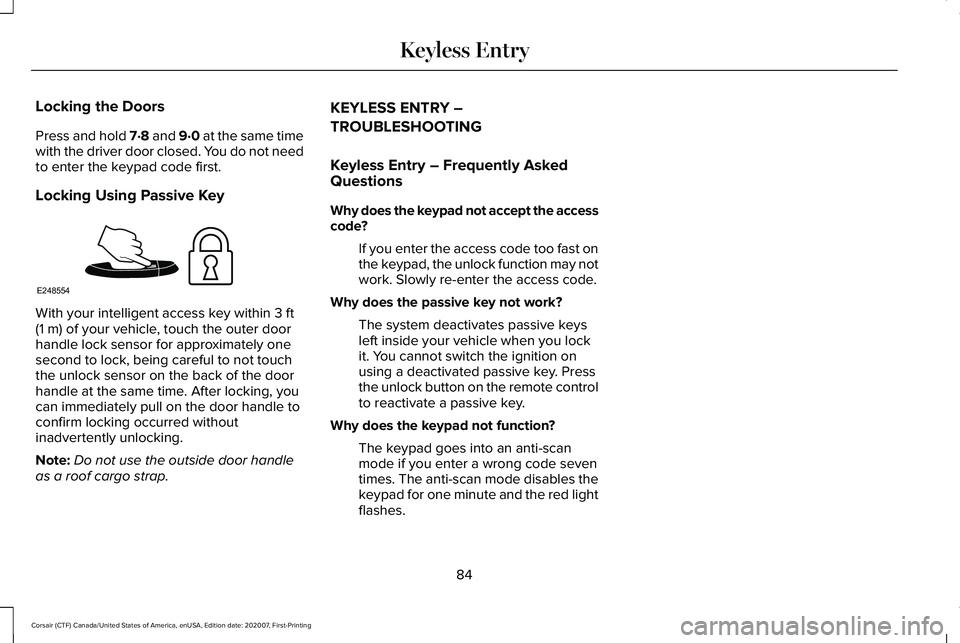
With your intelligent access key within
5 ft
(1.5 m) of your vehicle, press the exterior
liftgate release button inside of the liftgate
handle. The liftgate unlocks and opens. See
Opening the Liftgate From Outside Your
Vehicle
(page 85).
83
Corsair (CTF) Canada/United States of America, enUSA, Edition date: 202007, First-Printing Keyless EntryE248553 E291352
Page 87 of 638
Locking the Doors
Press and hold 7·8 and 9·0 at the same time
with the driver door closed. You do not need
to enter the keypad code first.
Locking Using Passive Key
With your intelligent access key within 3 ft
(1 m) of your vehicle, touch the outer door
handle lock sensor for approximately one
second to lock, being careful to not touch
the unlock sensor on the back of the door
handle at the same time. After locking, you
can immediately pull on the door handle to
confirm locking occurred without
inadvertently unlocking.
Note: Do not use the outside door handle
as a roof cargo strap. KEYLESS ENTRY –
TROUBLESHOOTING
Keyless Entry – Frequently Asked
Questions
Why does the keypad not accept the access
code?
If you enter the access code too fast on
the keypad, the unlock function may not
work. Slowly re-enter the access code.
Why does the passive key not work? The system deactivates passive keys
left inside your vehicle when you lock
it. You cannot switch the ignition on
using a deactivated passive key. Press
the unlock button on the remote control
to reactivate a passive key.
Why does the keypad not function? The keypad goes into an anti-scan
mode if you enter a wrong code seven
times. The anti-scan mode disables the
keypad for one minute and the red light
flashes.
84
Corsair (CTF) Canada/United States of America, enUSA, Edition date: 202007, First-Printing Keyless EntryE248554
Page 199 of 638
GENERAL INFORMATION
WARNING: Extended idling at high
engine speeds can produce very high
temperatures in the engine and exhaust
system, creating the risk of fire or other
damage. WARNING:
Do not park, idle or drive
your vehicle on dry grass or other dry
ground cover. The emission system heats
up the engine compartment and exhaust
system, creating the risk of fire. WARNING:
Do not start the engine
in a closed garage or in other enclosed
areas. Exhaust fumes can be toxic. Always
open the garage door before you start the
engine. WARNING: Exhaust leaks may result
in entry of harmful and potentially lethal
fumes into the passenger compartment. If
you smell exhaust fumes inside your
vehicle, have your vehicle inspected
immediately. Do not drive if you smell
exhaust fumes.
If you disconnect the battery, your vehicle
may exhibit some unusual driving
characteristics for approximately 5 mi (8 km)
after you reconnect it. This is because the
engine management system must realign
itself with the engine. You can disregard any
unusual driving characteristics during this
period.
The powertrain control system meets all
Canadian interference-causing equipment
standard requirements regulating the
impulse electrical field or radio noise.
When you start the engine, avoid pressing
the accelerator pedal before and during
operation. Only use the accelerator pedal
when you have difficulty starting the engine. KEYLESS STARTING
Note:
The keyless starting system may not
function if the key is close to metal objects
or electronic devices such as cellular
phones.
Note: A valid key must be located inside
your vehicle to switch the ignition on and
start the engine.
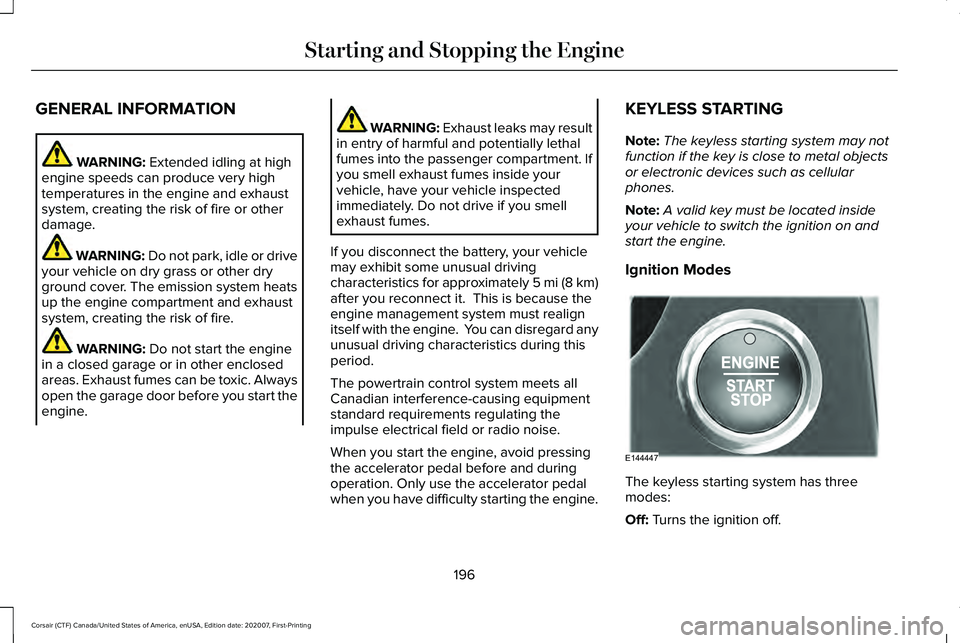
Ignition Modes The keyless starting system has three
modes:
Off:
Turns the ignition off.
196
Corsair (CTF) Canada/United States of America, enUSA, Edition date: 202007, First-Printing Starting and Stopping the EngineE144447
Page 629 of 638
Interior Air Quality.........................................169
Interior Lamps................................................108
Front Interior Lamp.............................................108
Rear Interior Lamps............................................108
Interior Mirror
..................................................115
Auto-Dimming Mirror...........................................115
Introduction........................................................11
J
Jump Starting the Vehicle
..........................338
Connecting the Jumper Cables .....................339
Preparing Your Vehicle.....................................339
Removing the Jumper Cables.........................340
Starting the Engine............................................340
K
Keyless Entry
.....................................................81
Keyless Entry Settings..........................................81
Keyless Entry – Troubleshooting......................84
Locking and Unlocking the Doors Using
Keyless Entry.....................................................83
Master Access Code.............................................81
Keyless Entry Limitations...............................81
Keyless Entry Settings....................................81 Clearing All Personal Access Codes...............82
Creating Personal Access Codes.....................
82 Reprogramming the Unlocking Function.......82
Switching Keyless Entry On and Off.................81
Keyless Entry – Troubleshooting................84 Keyless Entry – Frequently Asked
Questions...........................................................84
Keyless Starting
.............................................196
Ignition Modes.....................................................196
Keys and Remote Controls...........................64
L
Lane Keeping System
.................................293
Switching the System On and Off..................294
Liftgate...............................................................85 Closing the Liftgate..............................................88
Liftgate – Troubleshooting..................................91
Opening the Liftgate............................................85
Liftgate Obstacle Detection
.........................90
Closing the Liftgate..............................................90
Opening the Liftgate............................................90
Liftgate Precautions.......................................85
Liftgate – Troubleshooting............................91 Liftgate – Frequently Asked Questions..........92
Liftgate – Information Messages.......................91
Lighting Control
.............................................102
Flashing High Beam Headlamps.....................103
Lighting Control Selections..............................102 Switching High Beam Headlamps On and
Off.......................................................................102
Lighting............................................................102 General Information............................................102
Lincoln Automotive Financial Services......18
Lincoln Protect
..............................................547
Lincoln Protect (CANADA ONLY)...................548
Lincoln Protect Extended Service Plans (U.S. Only)..................................................................547
Load Carriers See: Roof Racks and Load Carriers................318
Load Carrying
.................................................318
Load Limit.......................................................320
Special Loading Instructions for Owners of
Pick-up Trucks and Utility-type
Vehicles............................................................324
Vehicle Loading - with and without a Trailer................................................................320
Locating the Cabin Air Filter.......................169
Locating the Keyless Entry Keypad.............81
Locating the Rear View Camera..............265
Locking and Unlocking..................................76 Activating Intelligent Access..............................77
Autolock..................................................................79
Autounlock..............................................................79
Battery Saver.........................................................80
Illuminated Entry....................................................79
Illuminated Exit......................................................79
626
Corsair (CTF) Canada/United States of America, enUSA, Edition date: 202007, First-Printing Index