lane assist LINCOLN CORSAIR 2021 Owners Manual
[x] Cancel search | Manufacturer: LINCOLN, Model Year: 2021, Model line: CORSAIR, Model: LINCOLN CORSAIR 2021Pages: 638, PDF Size: 5.7 MB
Page 9 of 638
Active Park Assist
What Is Active Park Assist
.........................272
Switching Active Park Assist On and Off ......................................................................
272
Entering a Parallel Parking Space ...........
272
Entering a Perpendicular Parking Space ......................................................................
272
Exiting a Parking Space .............................
273
Active Park Assist – Troubleshooting ......................................................................
274
Cruise Control
What Is Cruise Control ...............................
276
Switching Cruise Control On and Off ......
276
Setting the Cruise Control Speed ...........
276
Canceling the Set Speed ..........................
277
Resuming the Set Speed ...........................
277
Cruise Control Indicators ...........................
277
Adaptive Cruise Control
How Does Adaptive Cruise Control With Stop and Go Work ..................................
278
What Is Adaptive Cruise Control With Lane Centering ..................................................
278What Is Intelligent Adaptive Cruise Control
......................................................................
278
Adaptive Cruise Control Precautions - Vehicles With: Adaptive Cruise Control
With Lane Centering ..............................
278
Adaptive Cruise Control Precautions - Vehicles With: Adaptive Cruise Control
With Stop and Go ....................................
279
Adaptive Cruise Control Limitations - Vehicles With: Adaptive Cruise Control
With Lane Centering ..............................
280
Adaptive Cruise Control Limitations - Vehicles With: Adaptive Cruise Control
With Stop and Go ...................................
280
Switching Adaptive Cruise Control On and Off ...............................................................
282
Setting the Adaptive Cruise Control Speed ......................................................................
283
Setting the Adaptive Cruise Control Gap ......................................................................
284
Canceling the Set Speed ..........................
285
Resuming the Set Speed ..........................
285
Overriding the Set Speed .........................
285
Adaptive Cruise Control Indicators - Vehicles With: Adaptive Cruise Control
With Lane Centering ..............................
285Adaptive Cruise Control Indicators -
Vehicles With: Adaptive Cruise Control
With Stop and Go ...................................
286
Adaptive Cruise Control Indicators - Vehicles With: Intelligent Adaptive
Cruise Control .........................................
286
Switching From Adaptive Cruise Control to Cruise Control .....................................
286
Switching Lane Centering On and Off ......................................................................
287
Switching Intelligent Mode On and Off ......................................................................
288
Adjusting the Set Speed Tolerance - Vehicles With: Intelligent Adaptive
Cruise Control .........................................
288
Adaptive Cruise Control – Troubleshooting ......................................................................
289
Driving Aids
Driver Alert ....................................................
292
Lane Keeping System ................................
293
Blind Spot Information System ................
299
Cross Traffic Alert .........................................
301
Steering .........................................................
306
Pre-Collision Assist .....................................
306
6
Corsair (CTF) Canada/United States of America, enUSA, Edition date: 202007, First-Printing Table of Contents
Page 27 of 638
Air vents.
A
Direction indicators. See Direction Indicators (page 107).
B
Voice control.
See Using Voice Recognition (page 480).
C
Audio control.
See Audio Unit (page 469).
D
Information display.
See General Information (page 131).
E
Information display control.
See General Information (page 131).
F
Wiper lever.
See Windshield Wipers (page 99).
G
Ignition switch.
See Keyless Starting (page 196).
H
Information and entertainment display.
I
Camera button.
See What Is the 360 Degree Camera (page 268). Park assist button. See What Is Active Park Assist (page 272).
Driver assistance button.
J
Audio unit.
See Audio Unit (page 469).
K
Climate control.
See Automatic Climate Control (page 164).
L
Hazard flasher switch.
See Hazard Flashers (page 337).
M
Transmission selector.
See Automatic Transmission (page 232).
N
Adaptive cruise control with lane centering buttons.
See Switching Lane Centering On and Off (page 287).
O
Horn.P
Cruise control buttons.
See Setting the Cruise Control Speed (page 276). Adaptive cruise control with lane centering buttons. Se\
e
Setting the Adaptive Cruise Control Speed (page 283).
Q
24
Corsair (CTF) Canada/United States of America, enUSA, Edition date: 202007, First-Printing At a Glance
Page 75 of 638
WHAT IS MYKEY
MyK
ey
MyKey allows you to program keys with
restricted driving modes to promote good
driving habits.
MYKEY SETTINGS
Non-Configurable MyKey Settings
Seatbelt Reminder or Belt-Minder™
MyKey mutes the audio system until the
drivers, and in some instances, passengers,
fasten their seatbelts.
Note:
If your vehicle includes an AM/FM
radio or a very basic audio system, then the
radio may not mute.
Satellite Radio (If Equipped)
Satellite radio adult content restrictions. Early Low Fuel
The low fuel level warning lamp turns on
earlier.
Driving and Parking Aids
Parking aids, blind spot information system
and cross traffic alert turn on when you start
the engine and cannot be switched off with
a MyKey.
Pre-collision assist and lane keeping alert
turn on when you start the engine, but can
be switched off with a MyKey.
A new destination in the navigation system
can only be set using voice commands when
using a MyKey, and with your vehicle moving.
Note:
MyKey drivers may be able to turn the
lane departure warning feature off, but this
feature turns back on automatically with
every new key cycle.
Configurable MyKey Settings
You can configure the following settings after
creating a MyKey.
See Creating a MyKey
(page 73). Speed Limit WARNING:
Do not set MyKey
maximum speed limit to a limit that will
prevent the driver from maintaining a safe
speed considering posted speed limits and
prevailing road conditions. The driver is
always responsible to drive in accordance
with local laws and prevailing conditions.
Failure to do so could result in accident or
injury.
You can set a speed limit for your vehicle.
Warning messages appear in the information
display and a tone sounds if your vehicle
reaches the set speed. You cannot override
the set speed when using a MyKey.
Speed Reminder
You can set a speed reminder for your
vehicle. Warning messages appear in the
information display and a tone sounds if your
vehicle exceeds the set speed.
72
Corsair (CTF) Canada/United States of America, enUSA, Edition date: 202007, First-Printing MyKey™
Page 160 of 638

Action
Message
Displays when there is a system fault while the vehicle is shifting to r\
everse. Have the system checked as soon as possible.
SHIFT SYS FAULT Reverse Unavailable
Service Required
Have the system checked as soon as possible.
SHIFT SYS FAULT Drive Unavailable Select
S for Drive Service Required
Have the system checked as soon as possible.
SHIFT SYS FAULT Neutral Unavailable
Service Required
Have the system checked as soon as possible.
SHIFT SYS FAULT Sport Unavailable
Service Required
Displays when an invalid gear has been selected.
Invalid Gear Selection
Displays when the brake pedal needs to be depressed to enable the transmission to shift from park.
Depress Brake to Shift from Park
HEAD UP DISPLAY (IF EQUIPPED)
The head up display (HUD) is a visual system
that shows information in your field of view
as you drive. The information comes from
various vehicle systems and includes vehicle
speed, speed limit, navigation, and advanced
driver assistance systems such as adaptive
cruise control and the lane keeping system. This system projects the information off the
windshield, and focuses the image near the
end of the hood approximately 7 ft (2 m) in
front of the driver. Viewing this information
does not require you to significantly move
your head, allowing you to keep your eyes
on the road while having quick and easy
access to information.
157
Corsair (CTF) Canada/United States of America, enUSA, Edition date: 202007, First-Printing Information Displays
Page 163 of 638
Signaling and Traffic Indication
Displays direction indicators and blind spot
information (if direction indicators are active).
Navigation Display Area
Displays navigation next turn instructions.
Advanced Driver Assistance Systems
Display Area
Displays adaptive cruise control, lane
centering aid and lane keeping system status
and warnings.
System Message Display Area
Displays system messages and notifications
including an incoming phone call.
Advanced Driver Assistance Systems
Message Display Area
Displays advanced driver assistance systems
messages and image adjustment prompts.
Speed Limit Display Area
Displays your speed limit information if it is
available in the map database or is detected
by the camera.
Speedometer Display Area
Displays your current vehicle speed and your
transmission gear selection.
Status Bar
Displays Distance To Empty (DTE), time and
outside air temperature. Next to DTE, the
fuel gauge fill color changes to yellow in low
fuel conditions. You can switch off the status
bar in the head up display settings menu.
Maintaining Your Head Up Display
•
Do not place objects onto the transparent
cover, as they may block you from seeing
portions of the image. These objects
could also damage the cover and affect
the quality of the projected image.
• The system uses a special windshield
designed to provide the optimum image
quality. You must replace the windshield
in a vehicle with this system with a
certified original equipment
manufactured (OEM) head up display
windshield. Replacing this system's
windshield with a non-head up display
windshield causes a double image or
distorted image. Have an authorized
dealer or authorized repair facility replace
the windshield.
• Light conditions such as oncoming
headlamps, sunrise, sunset or reflections
off road surfaces can affect the driver's
ability to see the head up display image.
• Clean the windshield often for optimal
head up display performance. See
Cleaning the Windows and Wiper
Blades
(page 389).
160
Corsair (CTF) Canada/United States of America, enUSA, Edition date: 202007, First-Printing Information Displays
Page 276 of 638
Note:
Active park assist does not recognize
parking space lines and centers your vehicle
between objects.
2. Press the active park assist icon on the touchscreen.
3. Select perpendicular parking.
4. Use the turn signal lever to search for a parking space on the driver or passenger
side of your vehicle.
Note: If you do not use the turn signal lever,
the system searches for a parking space on
the passenger side of your vehicle.
5. Drive your vehicle approximately 3 ft (1 m)
away from and perpendicular to the other
parked vehicles when searching for a
parking space.
Note: A tone sounds and a message
appears in the information and
entertainment display when active park
assist finds a parking space.
6. Press and hold the brake pedal.
7. Release the steering wheel and shift into
neutral (N). 8. Press and hold the active park assist
button.
9. Release the brake pedal to allow the vehicle to park.
Note: Active park assist backs your vehicle
into parking spaces.
Note: Active park assist aligns the front end
of your vehicle with the lane side of the
object next to it.
Note: When the system detects only one
object, it allows enough distance to open
the door on either side.
Note: You can slow down your vehicle at
any time by pressing the brake pedal.
Note: When parking is complete, your
vehicle shifts into park (P).
EXITING A PARKING SPACE
Active park assist only assists leaving parallel
parking spaces.
1. Press the active park assist button.
2. Press the active park assist icon on the touchscreen. 3. Select parallel park exit.
4. Use the turn signal to choose the
direction to exit the parking space.
5. Press and hold the brake pedal.
6. Release the steering wheel and shift into
neutral (N).
7. Release the parking brake.
8. Press and hold the active park assist button.
9. Release the brake pedal to allow your vehicle to move.
Note: After active park assist drives your
vehicle to a position where you can exit the
parking space in a forward movement, a
message appears instructing you to take full
control of your vehicle.
10. Take control of your vehicle.
Note: You can slow down your vehicle at
any time by pressing the brake pedal.
273
Corsair (CTF) Canada/United States of America, enUSA, Edition date: 202007, First-Printing Active Park Assist (If Equipped)
Page 281 of 638
HOW DOES ADAPTIVE CRUISE
CONTROL WITH STOP AND GO
WORK
Adaptive cruise control with stop and go
uses radar and camera sensors to adjust the
speed of your vehicle to maintain a set gap
from the vehicle in front of you in the same
lane while following it to a complete stop.
You can also engage the system to follow a
vehicle in front of you and adjust set speed
while stopped.
WHAT IS ADAPTIVE CRUISE
CONTROL WITH LANE CENTERING
Adaptive cruise control with lane centering
uses radar and camera sensors to help keep
your vehicle in the lane by applying
continuous assistance steering torque input
toward the lane center on highways.
Note:
The adaptive cruise control gap setting
operates normally. WHAT IS INTELLIGENT ADAPTIVE
CRUISE CONTROL
Intelligent adaptive cruise control combines
speed sign recognition with adaptive cruise
control to adjust the cruise set speed to the
speed limit detected by the speed sign
recognition system. For example, if the speed
sign recognition system detects a 50 mph
(80 km/h) speed limit, the cruise set speed
is updated to 50 mph (80 km/h).
Note: The adaptive cruise control gap setting
operates normally.
ADAPTIVE CRUISE CONTROL
PRECAUTIONS - VEHICLES WITH:
ADAPTIVE CRUISE CONTROL
WITH LANE CENTERING
Adaptive cruise control precautions apply to
lane centering unless stated otherwise or
contradicted by a lane centering precaution.
See
Adaptive Cruise Control Precautions
(page 279). WARNING:
Do not use the system
when towing a trailer. Failure to follow this
instruction could result in the loss of
control of your vehicle, personal injury or
death. WARNING: Do not use the system if
any changes or modifications to the
steering wheel have been made. Any
changes or modifications to the steering
wheel could affect the functionality or
performance of the system. Failure to
follow this instruction could result in the
loss of control of your vehicle, personal
injury or death.
278
Corsair (CTF) Canada/United States of America, enUSA, Edition date: 202007, First-Printing Adaptive Cruise Control
(If Equipped)
Page 283 of 638
Hilly Condition Usage
You should select a lower gear when the
system is active in situations such as
prolonged downhill driving on steep grades,
for example in mountainous areas. The
system needs additional engine braking in
these situations to reduce the load on the
vehicle
’s regular brake system to prevent it
from overheating.
Note: An audible alarm sounds and the
system shuts down if it applies brakes for an
extended period of time. This allows the
brakes to cool. The system functions
normally again after the brakes cool.
ADAPTIVE CRUISE CONTROL
LIMITATIONS - VEHICLES WITH:
ADAPTIVE CRUISE CONTROL
WITH LANE CENTERING
Adaptive cruise control limitations apply to
lane centering unless stated otherwise or
contradicted by a lane centering limitation.
See Adaptive Cruise Control Limitations
(page 280). The system may not correctly operate in any
of the following conditions:
•
Your vehicle is not centered in the lane.
• The lane is too narrow or wide.
• The system does not detect at least one
lane marking or when lanes merge or
split.
• You switch the direction indicator on.
• Limited steering torque input is applied.
• Areas under construction or new
infrastructure.
• When modifications to the steering
system have been made.
• When using a spare tire.
Note: The driving assistance torque is limited
and may not be sufficient for all driving
situations such as driving through tight
curves or driving through curves at high
speeds.
Note: In exceptional conditions, the system
may deviate from the center line. ADAPTIVE CRUISE CONTROL
LIMITATIONS - VEHICLES WITH:
ADAPTIVE CRUISE CONTROL
WITH STOP AND GO
Sensor Limitations
WARNING:
On rare occasions,
detection issues can occur due to the road
infrastructures, for example bridges,
tunnels and safety barriers. In these cases,
the system may brake late or
unexpectedly. At all times, you are
responsible for controlling your vehicle,
supervising the system and intervening, if
required. WARNING:
If the system
malfunctions, have your vehicle checked
as soon as possible. WARNING: Large contrasts in outside
lighting can limit sensor performance.
280
Corsair (CTF) Canada/United States of America, enUSA, Edition date: 202007, First-Printing Adaptive Cruise Control
(If Equipped)
Page 288 of 638
CANCELING THE SET SPEED
Press the button or tap the brake
pedal.
The set speed does not erase.
RESUMING THE SET SPEED Press the button.
Your vehicle speed returns to the previously
set speed and gap setting. The set speed
displays continuously in the information
display when the system is active.
Note: Only use resume if you are aware of
the set speed and intend to return to it.
Resuming the Set Speed from a
Complete Stop
If your vehicle follows a vehicle to a complete
stop and remains stationary for less than
three seconds, your vehicle accelerates from
a stationary position to follow the vehicle
ahead. If your vehicle follows a vehicle to
a complete stop and remains
stationary for more than three
seconds, press and release the button or
press the accelerator pedal to follow the
vehicle ahead.
OVERRIDING THE SET SPEED WARNING: If you override the system
by pressing the accelerator pedal, it does
not automatically apply the brakes to
maintain a gap from any vehicle ahead.
When you press the accelerator pedal, you
override the set speed and gap distance.
Use the accelerator pedal to intentionally
exceed the set speed limit.
When you override the system, the green
indicator illuminates and the vehicle icon
does not appear in the instrument cluster
display. The system resumes operation when you
release the accelerator pedal. The vehicle
speed decreases to the set speed, or a lower
speed if following a slower vehicle.
ADAPTIVE CRUISE CONTROL
INDICATORS - VEHICLES WITH:
ADAPTIVE CRUISE CONTROL
WITH LANE CENTERING
Illuminates when you switch lane
centering on. The color of the
indicator changes to indicate the
system status.
Gray indicates the system is on but inactive.
Green indicates the system is active and
applying assistance steering torque input to
keep your vehicle in the center of the lane.
Amber with an audible tone and then gray
indicates a system auto-cancellation.
285
Corsair (CTF) Canada/United States of America, enUSA, Edition date: 202007, First-Printing Adaptive Cruise Control (If Equipped)E281471 E281472 E281472 E262175
Page 292 of 638
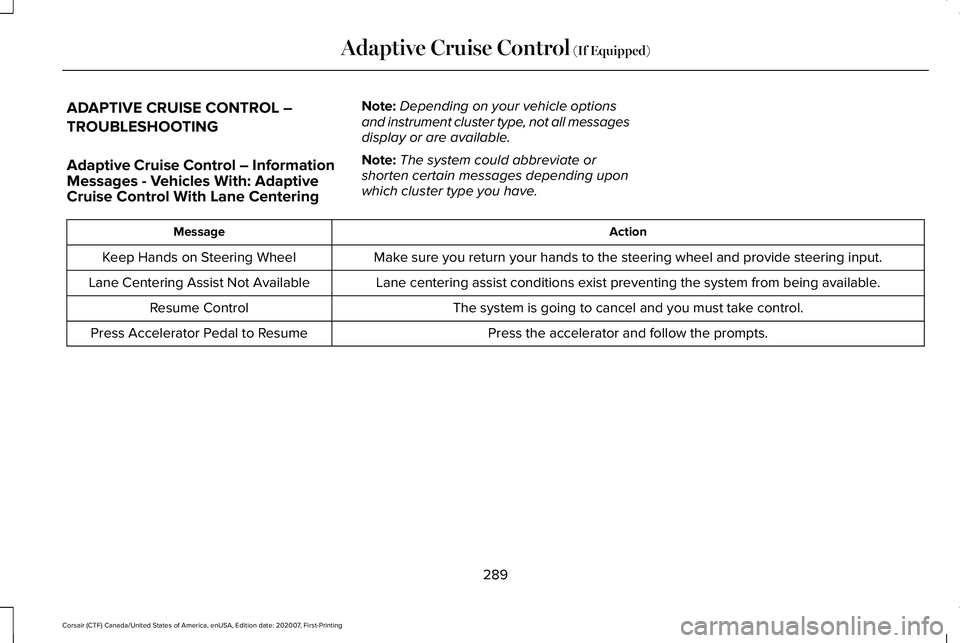
ADAPTIVE CRUISE CONTROL –
TROUBLESHOOTING
Adaptive Cruise Control – Information
Messages - Vehicles With: Adaptive
Cruise Control With Lane Centering
Note:
Depending on your vehicle options
and instrument cluster type, not all messages
display or are available.
Note: The system could abbreviate or
shorten certain messages depending upon
which cluster type you have. Action
Message
Make sure you return your hands to the steering wheel and provide steering \
input.
Keep Hands on Steering Wheel
Lane centering assist conditions exist preventing the system from being a\
vailable.
Lane Centering Assist Not Available
The system is going to cancel and you must take control.
Resume Control
Press the accelerator and follow the prompts.
Press Accelerator Pedal to Resume
289
Corsair (CTF) Canada/United States of America, enUSA, Edition date: 202007, First-Printing Adaptive Cruise Control (If Equipped)