mirror LINCOLN CORSAIR 2022 User Guide
[x] Cancel search | Manufacturer: LINCOLN, Model Year: 2022, Model line: CORSAIR, Model: LINCOLN CORSAIR 2022Pages: 676, PDF Size: 7.67 MB
Page 176 of 676
HEATED EXTERIOR MIRRORS (IF
EQUIPPED)
When you switch the heated rear window
on, the heated exterior mirrors turn on.
Note: Do not remove ice from the mirrors
with a scraper or adjust the mirror glass
when it is frozen in place.
Note: Do not clean the mirror housing or
glass with harsh abrasives, fuel or other
petroleum-based cleaning products. The
vehicle warranty may not cover damage
caused to the mirror housing or glass.
173
2022 Corsair (CTF) Canada/United States of America, enUSA, Edition date: 202106, First-Printing Climate Control
Page 186 of 676
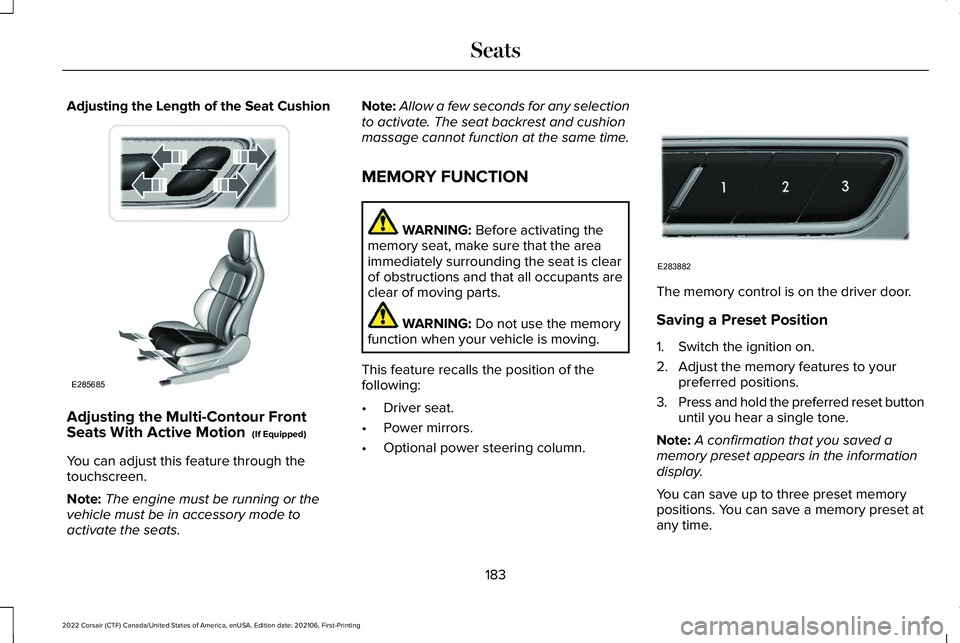
Adjusting the Length of the Seat Cushion
Adjusting the Multi-Contour Front
Seats With Active Motion (If Equipped)
You can adjust this feature through the
touchscreen.
Note: The engine must be running or the
vehicle must be in accessory mode to
activate the seats. Note:
Allow a few seconds for any selection
to activate. The seat backrest and cushion
massage cannot function at the same time.
MEMORY FUNCTION WARNING:
Before activating the
memory seat, make sure that the area
immediately surrounding the seat is clear
of obstructions and that all occupants are
clear of moving parts. WARNING:
Do not use the memory
function when your vehicle is moving.
This feature recalls the position of the
following:
• Driver seat.
• Power mirrors.
• Optional power steering column. The memory control is on the driver door.
Saving a Preset Position
1. Switch the ignition on.
2. Adjust the memory features to your
preferred positions.
3. Press and hold the preferred reset button
until you hear a single tone.
Note: A confirmation that you saved a
memory preset appears in the information
display.
You can save up to three preset memory
positions. You can save a memory preset at
any time.
183
2022 Corsair (CTF) Canada/United States of America, enUSA, Edition date: 202106, First-Printing SeatsE285685 E283882
Page 187 of 676
Recalling a Preset Position
Press and release the preset button
associated with your preferred driving
position. The memory features move to the
position stored for that preset.
Note:
You can only recall a preset memory
position when the ignition is off, or when the
transmission is in park (P) or neutral (N) and
the ignition is on.
Note: Press any seat or mirror adjustment
switch, or any memory button during a
memory recall, to cancel the operation.
You can also recall a preset memory position
by:
• Pressing the unlock button on your
remote control if you linked it to a preset
position.
• Unlocking the driver door if a linked
remote control is present.
Note: Using a linked remote control to recall
your memory position when the ignition is
off moves the seat and steering column to
the Easy Entry position. Linking a Preset Position to Your
Remote Control
For information on linking a preset position
to your remote control, see the Personal
Profiles section.
Easy Entry and Exit Feature
If you enable the easy entry and exit feature,
it moves the driver seat position rearward up
to 2 in (5 cm) when you switch the ignition
off. The driver seat returns to the previous
position when you switch the ignition on.
You can enable or disable this feature
through the information display.
See
Information Displays (page 136). Personal Profiles
This feature allows you to create multiple
personal profiles enabling users to
personalize vehicle
’s settings. You can
create one profile for each preset memory
seat button along with a guest profile. You
can recall a profile using the touchscreen or
the preset button you selected when you
created your profile. You can also link a
remote control and a mobile device to your
profile, which are used to recall it.
Creating a Personal Profile
Use the touchscreen to create a personal
profile.
1. Switch the ignition on and leave the vehicle in park (P).
2. Select the Personal Profiles button under
Settings.
3. Follow the instructions on the display.
184
2022 Corsair (CTF) Canada/United States of America, enUSA, Edition date: 202106, First-Printing Seats
Page 188 of 676
Linking a Personal Profile to Your Remote
Control or Mobile Device
You can save preset memory positions for
up to three remote controls by assigning a
remote control to a personal profile using
the touchscreen. You can assign three
additional remote controls set up as Phone
as a Key.
Use the touchscreen to link a remote control,
mobile device or both to a personal profile.
1. Switch the ignition on and leave the
vehicle in park (P).
2. Select the Personal Profiles button under
Settings.
3. Touch the arrow for the profile you wish to link to a remote control or mobile
device.
4. Select remote control, mobile device, or
both.
5. Follow the instructions on the display.
Note: To successfully link a mobile device,
the mobile device must be in your vehicle,
and must have previously been setup as a
remote control for your vehicle. Note:
If more than one linked remote control
is in range, the memory function moves to
the settings of the first key to initiate a
memory recall.
Note: The guest profile consists of existing
settings when there is no driver profile
created. After you create a driver profile, the
guest profile serves as an additional driver
profile.
Note: You cannot link a personalized name,
a memory seat button or a remote control
to a guest profile.
Personal Settings
Personal Profiles allow you to personalize
positional settings such as seats and mirrors,
as well as non-positional settings such as
radio, navigation, driver assist and system
settings. See SYNC™ 3 (page 507). You
cannot change the menu locations and
settings of those personalized features with
Personal Profiles.
Note: Non-positional settings save to the
active driver profile whenever you change
a setting. Note:
You can save positional settings if you
press and hold a memory seat button.
Recalling and Changing a Profile
You can recall a profile by:
• Using a remote control or mobile device
linked to a driver profile to access the
remote start feature, press an unlock
button or open the door with the exterior
door handle.
• Pressing a memory seat button linked to
a driver profile.
• Using the Personal Profiles menu on the
touchscreen.
Note: The recalled profile replaces the
previously active profile. If the active profile
is not your preferred profile, you can change
it using any of the three methods listed.
185
2022 Corsair (CTF) Canada/United States of America, enUSA, Edition date: 202106, First-Printing Seats
Page 293 of 676
WHAT IS THE REAR VIEW CAMERA
The rear view camera provides a video
image of the area behind your vehicle when
the transmission is in reverse (R).
REAR VIEW CAMERA
PRECAUTIONS
WARNING: The rear view camera
system is a reverse aid supplement device
that still requires the driver to use it in
conjunction with the interior and exterior
mirrors for maximum coverage. WARNING:
Objects that are close to
either corner of the bumper or under the
bumper, might not be seen on the screen
due to the limited coverage of the camera
system. WARNING:
Reverse your vehicle
slowly. Failure to follow this instruction
could result in the loss of control of your
vehicle, personal injury or death. WARNING:
Use caution when the
rear cargo door is ajar. If the rear cargo
door is ajar, the camera will be out of
position and the video image could be
incorrect. All guide lines disappear when
the rear cargo door is ajar. Failure to follow
this instruction could result in personal
injury. WARNING:
Use caution when turning
camera features on or off when the
transmission is not in park (P). Make sure
your vehicle is not moving.
Note: When towing, the camera only sees
what you are towing. This might not provide
adequate coverage and you might not see
some objects. In some vehicles, the guide
lines may disappear when you connect the
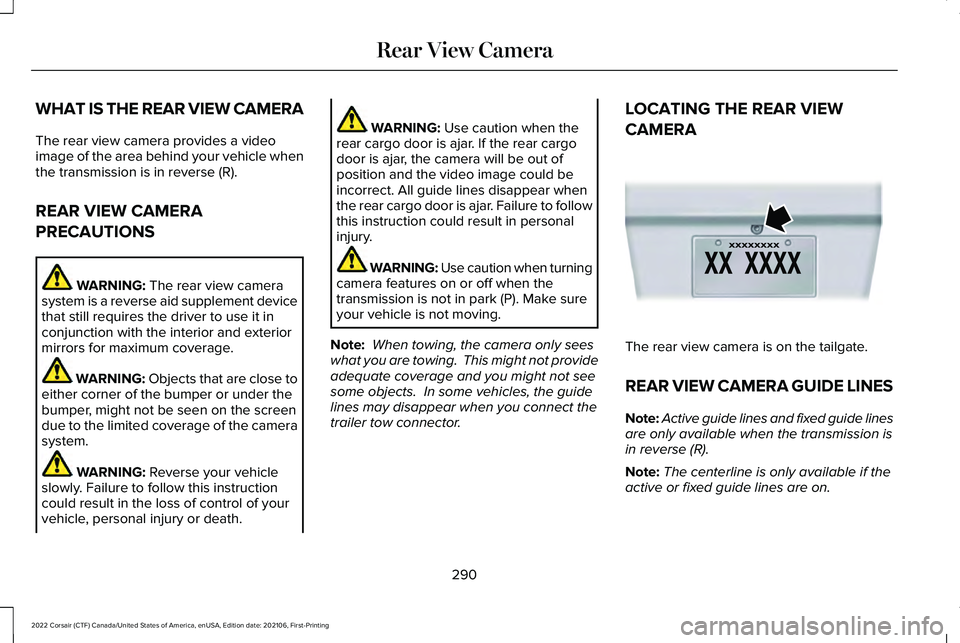
trailer tow connector. LOCATING THE REAR VIEW
CAMERA
The rear view camera is on the tailgate.
REAR VIEW CAMERA GUIDE LINES
Note:
Active guide lines and fixed guide lines
are only available when the transmission is
in reverse (R).
Note: The centerline is only available if the
active or fixed guide lines are on.
290
2022 Corsair (CTF) Canada/United States of America, enUSA, Edition date: 202106, First-Printing Rear View CameraE142435
Page 294 of 676

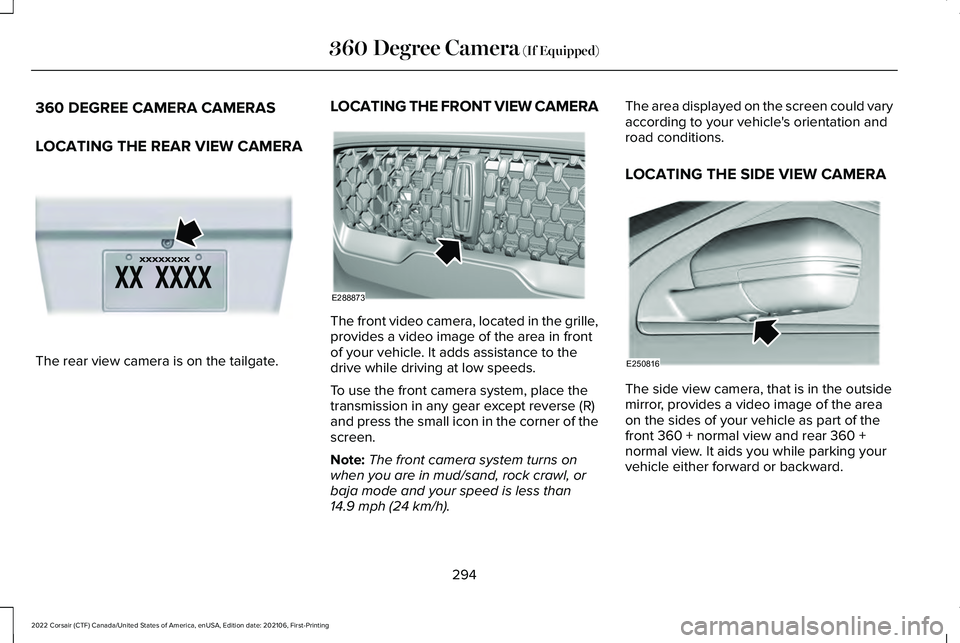
A. Active guide lines.
B. Centerline.
C.
Fixed guide line: Green zone. D.
Fixed guide line: Yellow zone.
E. Fixed guide line: Red zone.
F. Rear bumper.
Active guide lines only show with fixed guide
lines. To use active guide lines, turn the
steering wheel to point the guide lines
toward an intended path. If the steering
wheel position changes while reversing, your
vehicle might deviate from the intended path.
The fixed and active guide lines fade in and
out depending on the steering wheel
position. The active guide lines do not
display when the steering wheel position is
straight.
Use caution while reversing. Objects in the
red zone are closest to your vehicle and
objects in the green zone are farther away.
Objects get closer to your vehicle as they
move from the green zone to the yellow or
red zones. Use the side view mirrors and rear
view mirror to get better coverage on both
sides and rear of your vehicle. REAR VIEW CAMERA OBJECT
DISTANCE INDICATORS
The system provides an image of your
vehicle and the sensor zones. The zones
highlight green, yellow, and red when the
parking aid sensors detect an object in the
coverage area.
REAR VIEW CAMERA SETTINGS
ZOOMING THE REAR VIEW CAMERA
IN AND OUT
WARNING: When manual zoom is
on, the full area behind your vehicle may
not show. Be aware of your surroundings
when using the manual zoom feature.
Selectable settings for this feature are zoom
in (+) and zoom out (-). Press the symbol on
the camera screen to change the view. The
default setting is zoom off.
291
2022 Corsair (CTF) Canada/United States of America, enUSA, Edition date: 202106, First-Printing Rear View CameraE306774
Page 296 of 676
WHAT IS THE 360 DEGREE
CAMERA
The 360 degree camera system provides
visibility around your vehicle in parking
maneuvers such as:
•
Centering in a parking space.
• Obstacles near your vehicle.
• Parallel parking.
The 360 degree camera system consists of
front, side and rear cameras.
360 DEGREE CAMERA
PRECAUTIONS WARNING: The 360 degree camera
system still requires the driver to use it in
conjunction with looking out of the
windows, and checking the interior and
exterior mirrors for maximum coverage. WARNING: Objects that are close to
either corner of the bumper or under the
bumper, might not be seen on the screen
due to the limited coverage of the camera
system. WARNING:
Use caution when turning
camera features on or off when the
transmission is not in park (P). Make sure
your vehicle is not moving. WARNING:
You are responsible for
controlling your vehicle at all times. The
system is designed to be an aid and does
not relieve you of your responsibility to
drive with due care and attention. Failure
to follow this instruction could result in the
loss of control of your vehicle, personal
injury or death. WARNING:
Use caution when the
rear cargo door is ajar. If the rear cargo
door is ajar, the camera will be out of
position and the video image could be
incorrect. All guide lines disappear when
the rear cargo door is ajar. Failure to follow
this instruction could result in personal
injury. WARNING:
When manual zoom is
on, the full area behind your vehicle may
not show. Be aware of your surroundings
when using the manual zoom feature.
360 DEGREE CAMERA
LIMITATIONS
Note: Use caution if a door is ajar. The 360
degree camera could be out of position and
the image could be incorrect.
293
2022 Corsair (CTF) Canada/United States of America, enUSA, Edition date: 202106, First-Printing 360 Degree Camera
(If Equipped)
Page 297 of 676
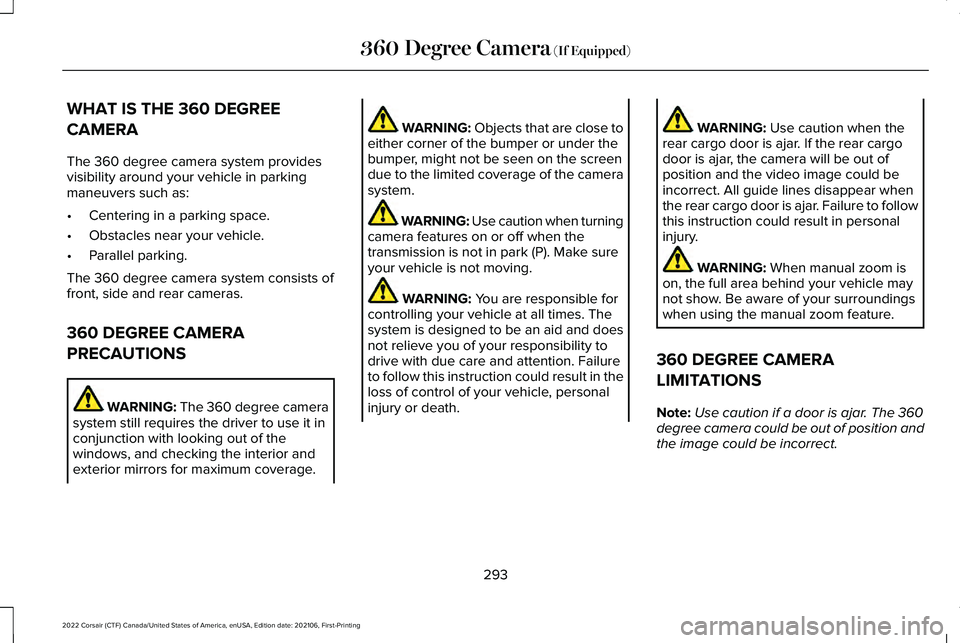
360 DEGREE CAMERA CAMERAS
LOCATING THE REAR VIEW CAMERA
The rear view camera is on the tailgate. LOCATING THE FRONT VIEW CAMERA The front video camera, located in the grille,
provides a video image of the area in front
of your vehicle. It adds assistance to the
drive while driving at low speeds.
To use the front camera system, place the
transmission in any gear except reverse (R)
and press the small icon in the corner of the
screen.
Note:
The front camera system turns on
when you are in mud/sand, rock crawl, or
baja mode and your speed is less than
14.9 mph (24 km/h). The area displayed on the screen could vary
according to your vehicle's orientation and
road conditions.
LOCATING THE SIDE VIEW CAMERA
The side view camera, that is in the outside
mirror, provides a video image of the area
on the sides of your vehicle as part of the
front 360 + normal view and rear 360 +
normal view. It aids you while parking your
vehicle either forward or backward.
294
2022 Corsair (CTF) Canada/United States of America, enUSA, Edition date: 202106, First-Printing 360 Degree Camera
(If Equipped)E142435 E288873 E250816
Page 298 of 676
360 DEGREE CAMERA GUIDE
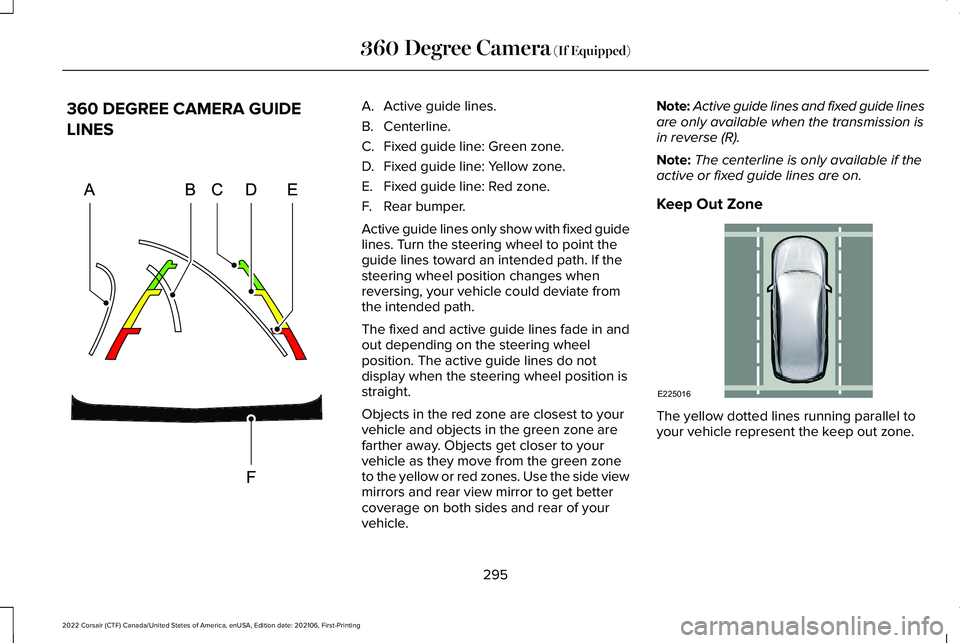
LINES A. Active guide lines.
B. Centerline.
C.
Fixed guide line: Green zone.
D. Fixed guide line: Yellow zone.
E. Fixed guide line: Red zone.
F. Rear bumper.
Active guide lines only show with fixed guide
lines. Turn the steering wheel to point the
guide lines toward an intended path. If the
steering wheel position changes when
reversing, your vehicle could deviate from
the intended path.
The fixed and active guide lines fade in and
out depending on the steering wheel
position. The active guide lines do not
display when the steering wheel position is
straight.
Objects in the red zone are closest to your
vehicle and objects in the green zone are
farther away. Objects get closer to your
vehicle as they move from the green zone
to the yellow or red zones. Use the side view
mirrors and rear view mirror to get better
coverage on both sides and rear of your
vehicle. Note:
Active guide lines and fixed guide lines
are only available when the transmission is
in reverse (R).
Note: The centerline is only available if the
active or fixed guide lines are on.
Keep Out Zone The yellow dotted lines running parallel to
your vehicle represent the keep out zone.
295
2022 Corsair (CTF) Canada/United States of America, enUSA, Edition date: 202106, First-Printing 360 Degree Camera (If Equipped)E306774 E225016
Page 309 of 676
WARNING: The system only warns
of vehicles detected by the radar sensor.
In some cases there may be no warning
or a delayed warning. Apply the brakes
when necessary. Failure to follow this
instruction could result in personal injury
or death. WARNING:
The system may not
detect stationary or slow moving vehicles
below
6 mph (10 km/h). WARNING:
The system does not
detect pedestrians or objects in the road. WARNING:
The system does not
detect oncoming vehicles in the same lane. WARNING:
The system may not
operate properly if the sensor is blocked.
Keep the windshield free from obstruction. WARNING:
The sensor may
incorrectly track lane markings as other
structures or objects. This can result in a
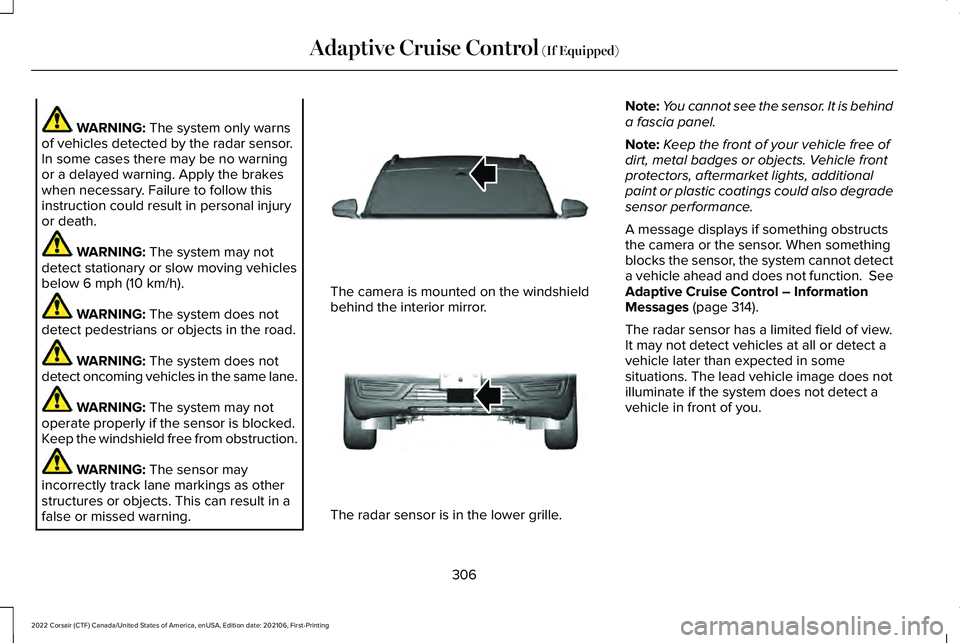
false or missed warning. The camera is mounted on the windshield
behind the interior mirror.
The radar sensor is in the lower grille.Note:
You cannot see the sensor. It is behind
a fascia panel.
Note: Keep the front of your vehicle free of
dirt, metal badges or objects. Vehicle front
protectors, aftermarket lights, additional
paint or plastic coatings could also degrade
sensor performance.
A message displays if something obstructs
the camera or the sensor. When something
blocks the sensor, the system cannot detect
a vehicle ahead and does not function. See
Adaptive Cruise Control – Information
Messages
(page 314).
The radar sensor has a limited field of view.
It may not detect vehicles at all or detect a
vehicle later than expected in some
situations. The lead vehicle image does not
illuminate if the system does not detect a
vehicle in front of you.
306
2022 Corsair (CTF) Canada/United States of America, enUSA, Edition date: 202106, First-Printing Adaptive Cruise Control
(If Equipped)E307893 E307892