ECU LINCOLN CORSAIR 2023 Service Manual
[x] Cancel search | Manufacturer: LINCOLN, Model Year: 2023, Model line: CORSAIR, Model: LINCOLN CORSAIR 2023Pages: 690, PDF Size: 15.04 MB
Page 496 of 690
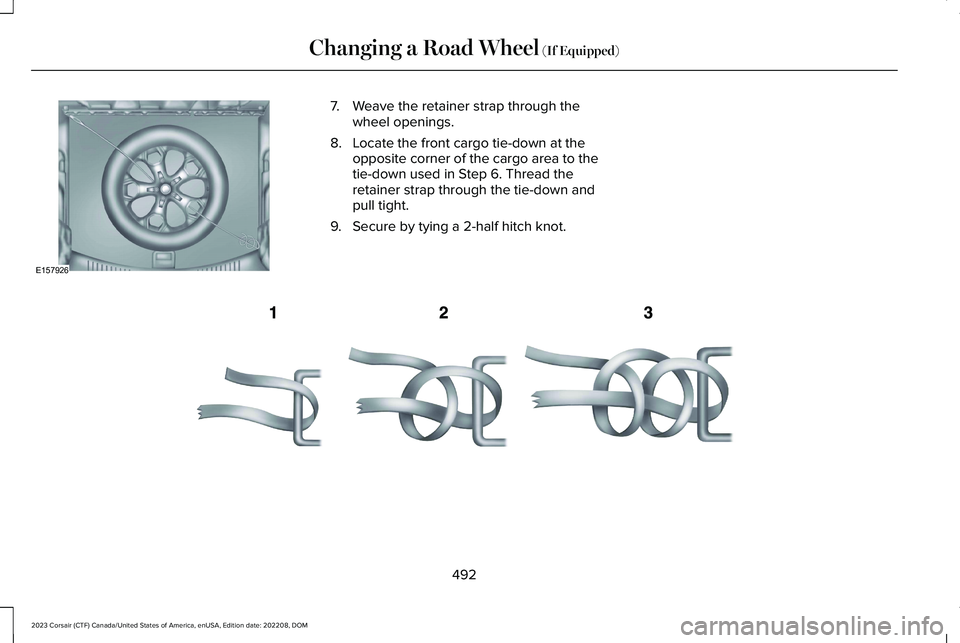
7.Weave the retainer strap through thewheel openings.
8.Locate the front cargo tie-down at theopposite corner of the cargo area to thetie-down used in Step 6. Thread theretainer strap through the tie-down andpull tight.
9.Secure by tying a 2-half hitch knot.
492
2023 Corsair (CTF) Canada/United States of America, enUSA, Edition date: 202208, DOMChanging a Road Wheel (If Equipped)E157926 E143746
Page 497 of 690

WHEEL NUTS
WARNING: When you install a wheel, remove any corrosion, dirt or foreign materials present on the mounting surfaces of the wheelor the surface of the wheel hub, brake drum or brake disc that contacts the wheel. Make sure to secure any fasteners that attach the rotorto the hub so they do not interfere with the mounting surfaces of the wheel. Installing wheels without following these steps can cause thewheel nuts to loosen and the wheel to come off while your vehicle is in motion, resulting in loss of vehicle control, personal injury or death.
lb.ft (Nm)Bolt size
100 lb.ft (135 Nm)M12 x 1.5
*Torque specifications are for nut and bolt threads free of dirt and rust. Use only Ford recommended replacement fasteners.
Retighten the wheel nuts to the specified torque within 100 mi (160 km) after any wheel disturbance (such as tire rotation, changing a flat tire,wheel removal).
493
2023 Corsair (CTF) Canada/United States of America, enUSA, Edition date: 202208, DOMChanging a Road Wheel (If Equipped)
Page 519 of 690
1.Press Connectivity.
2.Press Manage Wi-Fi Networks.
3.Switch Wi-Fi on.
4.Press View Available Networks.
5.Select an available Wi-Fi network.
Note:Enter the network password toconnect to a secure network.
CONNECTED VEHICLE –
TROUBLESHOOTING
CONNECTED VEHICLE – FREQUENTLYASKED QUESTIONS - VEHICLES WITH:MODEM
Why can I not confirm the connectionof my Lincoln Way account to themodem?
•The modem is not enabled. Switchvehicle connectivity on.
•The network signal is weak. Move yourvehicle closer to a place where thenetwork signal is not obstructed.
515
2023 Corsair (CTF) Canada/United States of America, enUSA, Edition date: 202208, DOMConnected Vehicle
Page 523 of 690
CREATING A VEHICLE WI-FI
HOTSPOT
You can create a Wi-Fi hotspot in yourvehicle and allow devices to connect to it foraccess to the Internet.
Select the settings option on thefeature bar.
1.Press Vehicle Hotspot.
Note:The vehicle hotspot default setting ison.
2.Press Settings.
3.Press Edit.
4.Press Hotspot visibility.
Note:The hotspot visibility default setting ison.
Finding the Wi-Fi Hotspot Name andPassword
Select the settings option on thefeature bar.
1.Press Vehicle Hotspot.
2.Press Settings.
Note:The network name is the hotspotname.
3.Press View Password.
Connecting a Device to the Wi-Fi
Hotspot
1.On your device, switch Wi-Fi on andselect the hotspot from the list ofavailable Wi-Fi networks.
2.When prompted, enter the password.
Purchasing a Data Plan
1.Connect a device to the hotspot.
Note:The vehicle network carrier’s portalopens on your device.
2.If the portal does not open on yourdevice, open a website and it redirectsto the vehicle network carrier’s portal.
Note:Secure websites do not redirect.
3.Follow the instructions on the carrierportal to purchase a plan.
Note:If you have an active plan, the systemdoes not redirect to the vehicle networkcarrier’s portal when you connect a device.Visit the vehicle network carrier’s website topurchase more data.
Note:If data usage information is availablein the vehicle hotspot menu, it isapproximate.
Note:If you carry out a master reset, thesystem does not remove your vehicle fromyour vehicle network carrier’s account. Toremove your vehicle from the account,contact your vehicle network carrier.
Note:The vehicle network carrier providesVehicle Hotspot services, subject to yourvehicle network carrier agreement, coverageand availability.
CHANGING THE VEHICLE WI-FI
HOTSPOT NAME OR PASSWORD
Select the settings option on thefeature bar.
1.Press Vehicle Hotspot.
519
2023 Corsair (CTF) Canada/United States of America, enUSA, Edition date: 202208, DOMVehicle Wi-Fi HotspotE280315 E280315 E280315
Page 531 of 690
SATELLITE RADIO SETTINGS
Subscription
Your subscription status is displayed. Youcan subscribe or manage your subscriptiondirectly from the touchscreen.
SiriusXM Favorites
While you are listening to SiriusXM, you cansave favorites by:
•Tapping the currently tuned channel orshow logo on the SiriusXM audio screen.
•Tuning to a channel or show you want tosave as a favorite. Navigate to theSiriusXM Favorites screen and press theAdd Current button. The currently tunedchannel or show is saved as a favorite.
•Saving a radio preset. This saves thecurrently tuned SiriusXM channel or showas a favorite
Note:Requires a trial or active subscriptionto use.
Listening History
Listening history is a list of recently listenedto SiriusXM content. You can view, manageand reset the listening history using thecontrols on the touchscreen.
Note:Requires a trial or active subscriptionto use.
Help and Support
You can contact SiriusXM Customer Caredirectly from SYNC and view informationrequired to manage your SiriusXM account.
SETTING AN ALERT
Set a notification for the currentsong, artist, or sports team bypressing the icon. The systemalerts you when it plays again on anychannel. Selecting this button allows you toenable and edit alerts.
Note:Notifications can be switched on oroff and edited in the satellite radio settings.
527
2023 Corsair (CTF) Canada/United States of America, enUSA, Edition date: 202208, DOMAudio SystemE343640
Page 558 of 690
This introduces new features and providesupdates to the vehicle's software systems.Make sure to switch Automatic Updates on,set a recurring update schedule and connectyour vehicle to Wi-Fi. Updates could takelonger when not connected to Wi-Fi or couldnot download at all. See Connecting theVehicle to a Wi-Fi Network (page 514). SeeConnecting the Vehicle to a Wi-Fi Network(page 514).
Your vehicle may be able to receive drivablesoftware updates, non-drivable softwareupdates or both. Drivable software updateshappen during normal vehicle usage andrequire limited input from you. You arenotified on your touchscreen and connecteddevice prior to a non-drivable update.
Most updates complete in less than 30minutes, although some updates could takeup to a few hours. Check your touchscreenor connected device for the most accurateestimated update time.
You are notified of the status of the vehiclesoftware update in the touchscreen and onyour connected device. See SoftwareUpdate Indicators (page 555).
Vehicle Software Update Requirements
Non-drivable software updates do not installif any of the following occur:
•Your vehicle is running.
•Your vehicle is switched on.
•Your vehicle is not parked.
•The 12 V battery charge is too low.
•The hazard indicators are switched on.
•The alarm is sounding.
•The doors are open.
•The parking lamps are switched on.
•You are pressing the brake pedal.
•An emergency call is in process.
•Your vehicle is in limp home mode.
Vehicle Software Update Limitations
Once you begin a non-drivable softwareupdate, you cannot:
•Cancel the update.
•Lock, unlock or enter your vehicle unlessyou have a key blade.
•You can open the doors using themechanical latch if child locks are noton.
•Drive your vehicle.
•Start your vehicle.
•Use the remote control to lock, unlock orstart your vehicle.
•Use the alarm, central locks or doortones.
•Use the electronic door locks.
•Charge your vehicle.
•Charging resumes once the updatecompletes.
SOFTWARE UPDATE SETTINGS
To access the Software Updates menu:
554
2023 Corsair (CTF) Canada/United States of America, enUSA, Edition date: 202208, DOMVehicle Software Updates
Page 559 of 690
1.Press Settings on the touchscreen.
2.Press Software Updates.
You can do the following in the SoftwareUpdates menu:
•Switch Automatic Updates on and off.
•Schedule and install software updates.
•View software update details.
Press the button next to a menuoption for more information.
Switching Automatic Updates On andOff
Your vehicle may come with AutomaticUpdates switched on. To make sure yourvehicle always has the latest software, whichcould include security or otherenhancements, we do not recommendswitching Automatic Updates off.
Note:Software updates require approval todownload or install with Automatic Updatesswitched off.
Scheduling and Installing SoftwareUpdates
Scheduling Software Updates
From the Software Updates menu:
1.Press Schedule Updates.
2.Select the days and time for updates.
3.Press Save.
The more days that updates are scheduled,the more frequently your vehicle installs newupdates. We recommend selecting a timeyou normally do not need your vehicle, suchas overnight.
Some updates require your vehicle to beswitched off.
Note:The schedule you set is recurring. IfAutomatic Updates is on, every time anon-drivable update is available, it installson this schedule unless you change it. Youare notified on your touchscreen andconnected device prior to a non-drivableupdate, with an option to reschedule it.
Installing Software Updates
Using the Status Bar
1.Press a Software Update indicator onyour touchscreen when it appears.
2.Follow the instructions on thetouchscreen.
Using the Touchscreen
From the Software Updates menu:
1.Press Update Details.
2.Press Update Now.
Viewing Software Update Details
From the Software Updates menu:
1.Press Update Details.
SOFTWARE UPDATE INDICATORS
You can press the indicators in the status barwhen they appear for more information.
555
2023 Corsair (CTF) Canada/United States of America, enUSA, Edition date: 202208, DOMVehicle Software UpdatesE366956
Page 565 of 690
Transferable Coverage
If you sell your vehicle before your LincolnProtect extended service plan coverageexpires, you can transfer any remainingcoverage to the new owner. This should giveyou and your potential buyer a little morepeace of mind.
Less Cost to Properly Maintain Your Vehicle
The Lincoln Protect extended service planalso offers a Premium Maintenance Plan thatcovers all scheduled maintenance, andselected wear items. The coverage isprepaid, so you never have to worry aboutthe cost of your vehicle’s maintenance.
Covered maintenance includes:
•Windshield wiper blades.
•Spark plugs.
•The clutch disc - if equipped.
•Brake pads and linings.
•Shock absorbers and struts.
•Engine cooling hoses, clamps ando-rings.
•Engine belts.
•Diesel exhaust fluid replenishment - ifequipped.
Interest Free Finance Options
Just a 5% down payment will provide youwith an affordable, no interest, no feepayment program allowing you all thesecurity and benefits Lincoln Protectextended service plan has to offer whilepaying over time. You are pre-approved withno credit check or hassles. To learn more,call our Lincoln Protect extended serviceplan specialists at 800-367-3377.
Complete the information below and mail to:
Lincoln Protect Extended Service PlanP.O. Box 321067Detroit, MI 48232
Lincoln Protect (Canada Only)
You can get more protection for your vehicleby purchasing a Lincoln Protect extendedservice plan. The Lincoln Protect extendedservice plan is the only service contractbacked by Lincoln, Limited. Depending onthe plan you purchase, the Lincoln Protectextended service plan provides benefits suchas:
•Rental reimbursement.
•Coverage for certain maintenance andwear items.
•Protection against repair costs after yourNew Vehicle Limited Warranty Coverageexpires.
•Roadside Assistance benefits.
561
2023 Corsair (CTF) Canada/United States of America, enUSA, Edition date: 202208, DOMLincoln Protect
Page 625 of 690
MOBILE COMMUNICATIONS
EQUIPMENT
WARNING: Driving while distractedcan result in loss of vehicle control, crashand injury. We strongly recommend thatyou use extreme caution when using anydevice that may take your focus off theroad. Your primary responsibility is the safeoperation of your vehicle. We recommendagainst the use of any hand-held devicewhile driving and encourage the use ofvoice-operated systems when possible.Make sure you are aware of all applicablelocal laws that may affect the use ofelectronic devices while driving.
Using mobile communications equipment isbecoming increasingly important in theconduct of business and personal affairs. However, you must not compromise yourown or others’ safety when using suchequipment. Mobile communications canenhance personal safety and security whenappropriately used, particularly in emergencysituations. Safety must be paramount when
using mobile communications equipment toavoid negating these benefits. Mobilecommunication equipment includes, but isnot limited to, cellular phones, pagers,portable email devices, text messagingdevices and portable two-way radios.
FEDERAL HIGHWAY
ADMINISTRATION REGULATION
Regulations such as those issued by theFederal Highway Administration or issuedpursuant to the Occupational Safety andHealth Act (OSHA), and state and local lawsand regulations may require additionalequipment for the way you intend to use yourvehicle. It is the responsibility of theregistered owner to determine theapplicability of such laws and regulations toyour intended use for the vehicle, and toarrange for the installation of requiredequipment. The dealer has informationabout the availability of equipment which canbe ordered for your vehicle.
END USER LICENSE AGREEMENT
VEHICLE SOFTWARE END USERLICENSE AGREEMENT (EULA)
•You (“You” or “Your” as applicable) haveacquired a vehicle having severaldevices, including SYNC ® and variouscontrol modules, ("DEVICES") that includesoftware licensed or owned by FordMotor Company and its affiliates ("FORDMOTOR COMPANY"). Those softwareproducts of FORD MOTOR COMPANYorigin, as well as associated media,printed materials, and "online" orelectronic documentation ("SOFTWARE")are protected by international intellectualproperty laws and treaties. TheSOFTWARE is licensed, not sold. Allrights reserved.
•The SOFTWARE may interface withand/or communicate with, or may be laterupgraded to interface with and/orcommunicate with additional softwareand/or systems provided by FORDMOTOR COMPANY.
621
2023 Corsair (CTF) Canada/United States of America, enUSA, Edition date: 202208, DOMCustomer Information
Page 636 of 690
(b) use your own personal judgment whiledriving. If you feel that a route suggested bythe TeleNav Software instructs you toperform an unsafe or illegal maneuver,places you in an unsafe situation, or directsyou into an area that you consider to beunsafe, do not follow such instructions;
(c) do not input destinations, or otherwisemanipulate the TeleNav Software, unlessyour vehicle is stationary and parked;
(d) do not use the TeleNav Software for anyillegal, unauthorized, unintended, unsafe,hazardous, or unlawful purposes, or in anymanner inconsistent with this Agreement;
(e) arrange all GPS and wireless devices andcables necessary for use of the TeleNavSoftware in a secure manner in your vehicleso that they will not interfere with yourdriving and will not prevent the operation ofany safety device (such as an airbag).
You agree to indemnify and hold TeleNavharmless against all claims resulting from anydangerous or otherwise inappropriate useof the TeleNav Software in any movingvehicle, including as a result of your failureto comply with the directions above.
2. Account Information
You agree: (a) when registering the TeleNavSoftware, to provide TeleNav with true,accurate, current, and complete informationabout yourself, and (b) to inform TeleNavpromptly of any changes to such information,and to keep it true, accurate, current andcomplete.
3. Software License
•Subject to your compliance with theterms of this Agreement, TeleNav herebygrants to you a personal, non-exclusive,non-transferable license (except asexpressly permitted below in connectionwith your permanent transfer of theTeleNav Software license), without theright to sublicense, to use the TeleNavSoftware (in object code form only) inorder to access and use the TeleNavSoftware. This license shall terminateupon any termination or expiration of thisAgreement. You agree that you will usethe TeleNav Software only for yourpersonal business or leisure purposes,and not to provide commercial navigationservices to other parties.
3.1 License Limitations
•(a) reverse engineer, decompile,disassemble, translate, modify, alter orotherwise change the TeleNav Softwareor any part thereof; (b) attempt to derivethe source code, audio library orstructure of the TeleNav Software withoutthe prior express written consent ofTeleNav; (c) remove from the TeleNavSoftware, or alter, any of TeleNav's or itssuppliers' trademarks, trade names,logos, patent or copyright notices, orother notices or markings; (d) distribute,sublicense or otherwise transfer theTeleNav Software to others, except aspart of your permanent transfer of theTeleNav Software; or (e) use the TeleNavSoftware in any manner that
I. infringes the intellectual property orproprietary rights, rights of publicity orprivacy or other rights of any party,
ii. violates any law, statute, ordinance orregulation, including but not limited to lawsand regulations related to spamming, privacy,consumer and child protection, obscenity ordefamation, or
632
2023 Corsair (CTF) Canada/United States of America, enUSA, Edition date: 202208, DOMCustomer Information