key LINCOLN CORSAIR 2023 Workshop Manual
[x] Cancel search | Manufacturer: LINCOLN, Model Year: 2023, Model line: CORSAIR, Model: LINCOLN CORSAIR 2023Pages: 690, PDF Size: 15.04 MB
Page 427 of 690
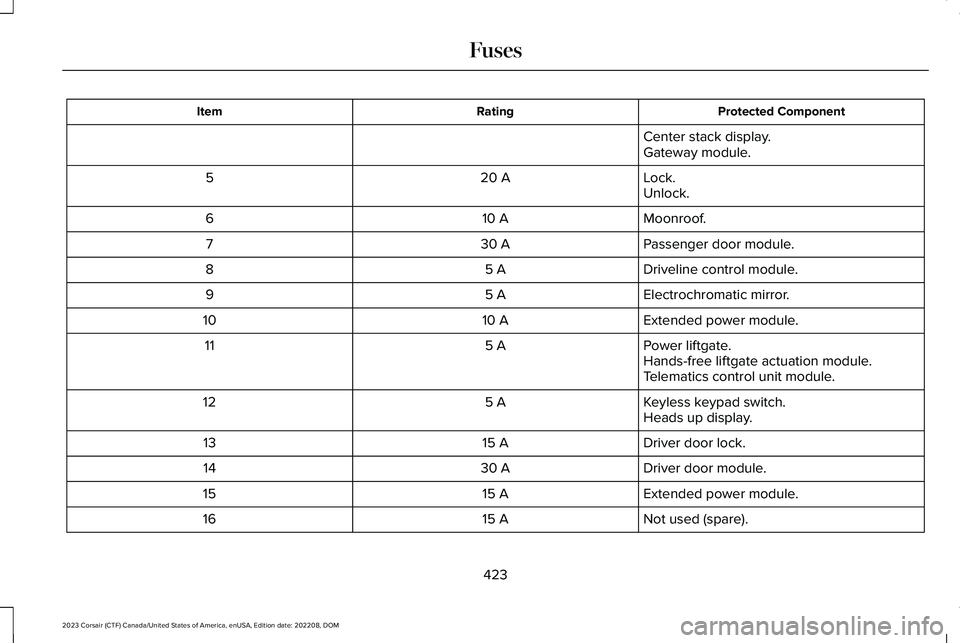
Protected ComponentRatingItem
Center stack display.Gateway module.
Lock.20 A5Unlock.
Moonroof.10 A6
Passenger door module.30 A7
Driveline control module.5 A8
Electrochromatic mirror.5 A9
Extended power module.10 A10
Power liftgate.5 A11Hands-free liftgate actuation module.Telematics control unit module.
Keyless keypad switch.5 A12Heads up display.
Driver door lock.15 A13
Driver door module.30 A14
Extended power module.15 A15
Not used (spare).15 A16
423
2023 Corsair (CTF) Canada/United States of America, enUSA, Edition date: 202208, DOMFuses
Page 536 of 690
CENTER DISPLAY PRECAUTIONS
WARNING: Driving while distractedcan result in loss of vehicle control, crashand injury. We strongly recommend thatyou use extreme caution when using anydevice that may take your focus off theroad. Your primary responsibility is the safeoperation of your vehicle. We recommendagainst the use of any hand-held devicewhile driving and encourage the use ofvoice-operated systems when possible.Make sure you are aware of all applicablelocal laws that may affect the use ofelectronic devices while driving.
CENTER DISPLAY LIMITATIONS
Speed-restricted Features
For your safety, some features are notavailable while the vehicle is in motion at orabove 5 mph (8 km/h). Settings that are notcritical while driving your vehicle are shownas restricted on your display. Some of thesesettings include:
•Software updates.
•Personal profiles setup.
•Valet mode setup.
•Driver assistance settings.
•Door keypad code setup.
These restricted features become availablewhen your vehicle is no longer in motion.
STATUS BAR
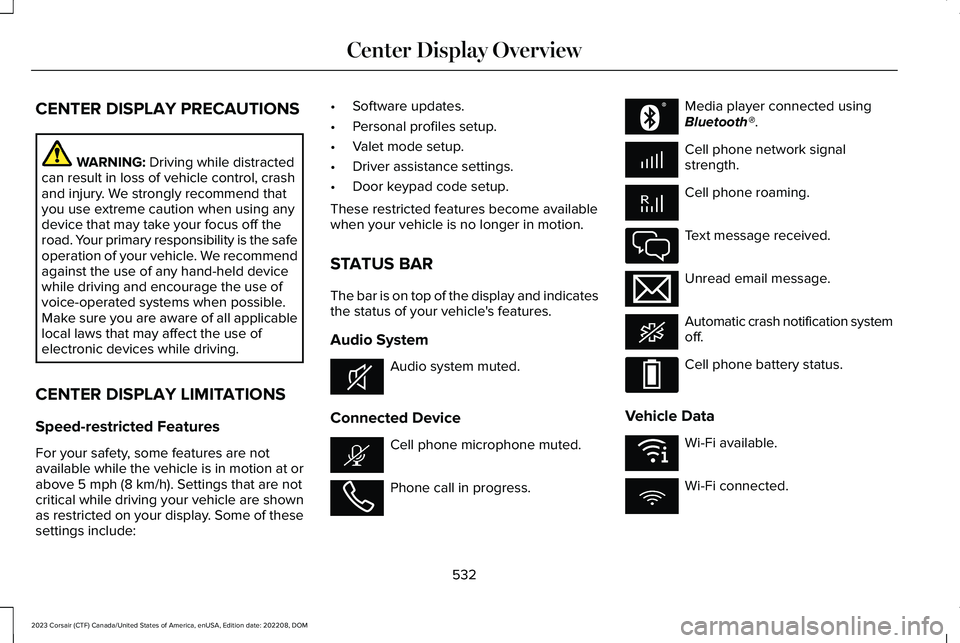
The bar is on top of the display and indicatesthe status of your vehicle's features.
Audio System
Audio system muted.
Connected Device
Cell phone microphone muted.
Phone call in progress.
Media player connected usingBluetooth®.
Cell phone network signalstrength.
Cell phone roaming.
Text message received.
Unread email message.
Automatic crash notification systemoff.
Cell phone battery status.
Vehicle Data
Wi-Fi available.
Wi-Fi connected.
532
2023 Corsair (CTF) Canada/United States of America, enUSA, Edition date: 202208, DOMCenter Display OverviewE353221 E353213 E353208 E335295 E353216 E335293 E353219
Page 543 of 690
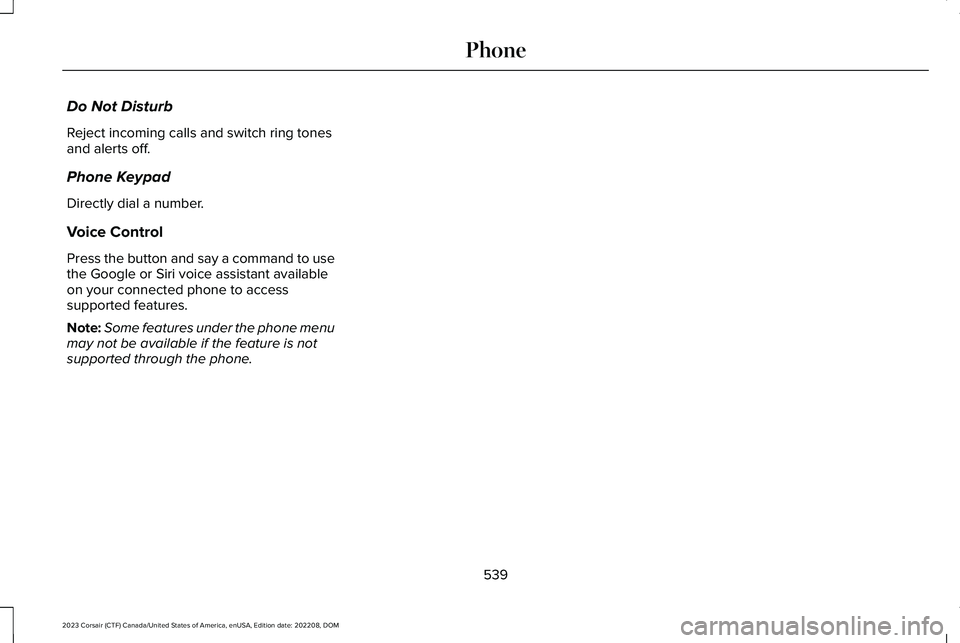
Do Not Disturb
Reject incoming calls and switch ring tonesand alerts off.
Phone Keypad
Directly dial a number.
Voice Control
Press the button and say a command to usethe Google or Siri voice assistant availableon your connected phone to accesssupported features.
Note:Some features under the phone menumay not be available if the feature is notsupported through the phone.
539
2023 Corsair (CTF) Canada/United States of America, enUSA, Edition date: 202208, DOMPhone
Page 544 of 690
MAKING AND RECEIVING A
PHONE CALL
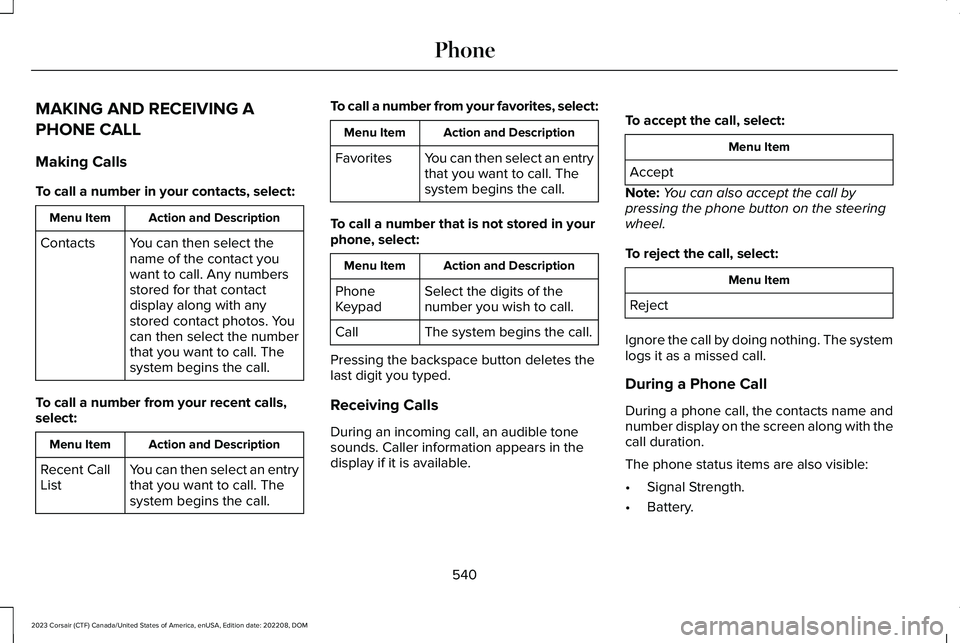
Making Calls
To call a number in your contacts, select:
Action and DescriptionMenu Item
You can then select thename of the contact youwant to call. Any numbersstored for that contactdisplay along with anystored contact photos. Youcan then select the numberthat you want to call. Thesystem begins the call.
Contacts
To call a number from your recent calls,select:
Action and DescriptionMenu Item
You can then select an entrythat you want to call. Thesystem begins the call.
Recent CallList
To call a number from your favorites, select:
Action and DescriptionMenu Item
You can then select an entrythat you want to call. Thesystem begins the call.
Favorites
To call a number that is not stored in yourphone, select:
Action and DescriptionMenu Item
Select the digits of thenumber you wish to call.PhoneKeypad
The system begins the call.Call
Pressing the backspace button deletes thelast digit you typed.
Receiving Calls
During an incoming call, an audible tonesounds. Caller information appears in thedisplay if it is available.
To accept the call, select:
Menu Item
Accept
Note:You can also accept the call bypressing the phone button on the steeringwheel.
To reject the call, select:
Menu Item
Reject
Ignore the call by doing nothing. The systemlogs it as a missed call.
During a Phone Call
During a phone call, the contacts name andnumber display on the screen along with thecall duration.
The phone status items are also visible:
•Signal Strength.
•Battery.
540
2023 Corsair (CTF) Canada/United States of America, enUSA, Edition date: 202208, DOMPhone
Page 545 of 690
You can select any of the following duringan active phone call:Item
Immediately end aphone call. You canalso press the buttonon the steeringwheel.
End Call
Press this to accessthe phone keypad.Keypad
You can switch themicrophone off sothe caller does nothear you.
Mute
Transfer the phonecall audio to the cellphone or back to thetouchscreen.
Privacy
541
2023 Corsair (CTF) Canada/United States of America, enUSA, Edition date: 202208, DOMPhone
Page 553 of 690
When disabled:
•Unlocking a door with a remote controlor mobile device does not recall anynon-positional settings but still recallspositional settings from the driver profilewhich the remote control or mobiledevice is linked to.
•Pressing a memory seat button that isnot linked to a driver profile or saved toa preset setting does not change thepositional or non-positional settings.
•Pressing a memory seat button that islinked to a driver profile or has saved toa preset setting recalls the positionalsettings that you saved to that memoryseat button.
CREATING A PERSONAL PROFILE
Use the touchscreen to create a personalprofile.
1.Switch the vehicle on and leave thevehicle in park (P).
2.Select the Personal Profiles button underSettings.
3.Follow the instructions on the display.
LINKING OR UNLINKING A
PERSONAL PROFILE TO A REMOTE
CONTROL
You can save preset memory positions forup to three remote controls by assigning aremote control to a personal profile usingthe touchscreen.
Use the touchscreen to link a remote controlto a personal profile.
1.Switch the vehicle on and leave thevehicle in park (P).
2.Select the Personal Profiles button underSettings.
3.Touch the arrow for the profile you wishto link to a remote control.
4.Select remote control.
5.Follow the instructions on the display.
Note:If more than one linked remote controlis in range, the memory function moves tothe settings of the first key to initiate amemory recall.
Note:The guest profile consists of existingsettings when there is no driver profilecreated. After you create a driver profile, theguest profile serves as an additional driverprofile.
Note:You cannot link a remote control to aguest profile.
LINKING OR UNLINKING A
PERSONAL PROFILE TO A DEVICE
Use the touchscreen to link a mobile deviceto a personal profile.
1.Switch the vehicle on and leave thevehicle in park (P).
2.Select the Personal Profiles button underSettings.
3.Touch the arrow for the profile you wishto link to a mobile device.
4.Select mobile device.
5.Follow the instructions on the display.
549
2023 Corsair (CTF) Canada/United States of America, enUSA, Edition date: 202208, DOMPersonal Profiles
Page 556 of 690
SETTING A DESTINATION
SETTING A DESTINATION USING THETEXT ENTRY SCREEN
1.Press the search bar at the top of thescreen.
2.Enter your destination using thekeyboard.
3.Press Search.
4.Select a destination from the list.
5.Press Start to begin navigation.
SETTING A DESTINATION USING THEMAP SCREEN
Press and hold on the map to place a pin atthat location. Information about the locationof the pin appears on the screen.
Press the button to beginnavigation to the pin.
SETTING A DESTINATION USING APREDICTIVE DESTINATION
Press the predicted destination card on thescreen to navigate to it. These appear whenthe navigation system has learned yourdriving habits.
SETTING A DESTINATION USING ARECENT DESTINATION
1.Press the Recents tile.
2.Select a destination from the list.
SETTING A DESTINATION USINGA SAVED DESTINATION
1.Press Saved Places.
2.Select a saved destination.
Note:Press the star icon next when viewinglocation details to save the location.
SETTING A DESTINATION USING APOINT OF INTEREST
Press a point of interest icon on the map.Information about the location of the pointof interest appears on the screen.
Press the button to beginnavigation to the point of interest.
WAYPOINTS
ADDING A WAYPOINT
Press the Add Waypoint buttonwhen in an active navigationsession.
1.Select a catagory or enter your waypointon the keyboard and press Search.
2.Select a waypoint from the list.
3.Press Add to Trip.
EDITING WAYPOINTS
1.Press the waypoint you would like to edit.
552
2023 Corsair (CTF) Canada/United States of America, enUSA, Edition date: 202208, DOMNavigationE328844 E328844 E328843
Page 558 of 690
This introduces new features and providesupdates to the vehicle's software systems.Make sure to switch Automatic Updates on,set a recurring update schedule and connectyour vehicle to Wi-Fi. Updates could takelonger when not connected to Wi-Fi or couldnot download at all. See Connecting theVehicle to a Wi-Fi Network (page 514). SeeConnecting the Vehicle to a Wi-Fi Network(page 514).
Your vehicle may be able to receive drivablesoftware updates, non-drivable softwareupdates or both. Drivable software updateshappen during normal vehicle usage andrequire limited input from you. You arenotified on your touchscreen and connecteddevice prior to a non-drivable update.
Most updates complete in less than 30minutes, although some updates could takeup to a few hours. Check your touchscreenor connected device for the most accurateestimated update time.
You are notified of the status of the vehiclesoftware update in the touchscreen and onyour connected device. See SoftwareUpdate Indicators (page 555).
Vehicle Software Update Requirements
Non-drivable software updates do not installif any of the following occur:
•Your vehicle is running.
•Your vehicle is switched on.
•Your vehicle is not parked.
•The 12 V battery charge is too low.
•The hazard indicators are switched on.
•The alarm is sounding.
•The doors are open.
•The parking lamps are switched on.
•You are pressing the brake pedal.
•An emergency call is in process.
•Your vehicle is in limp home mode.
Vehicle Software Update Limitations
Once you begin a non-drivable softwareupdate, you cannot:
•Cancel the update.
•Lock, unlock or enter your vehicle unlessyou have a key blade.
•You can open the doors using themechanical latch if child locks are noton.
•Drive your vehicle.
•Start your vehicle.
•Use the remote control to lock, unlock orstart your vehicle.
•Use the alarm, central locks or doortones.
•Use the electronic door locks.
•Charge your vehicle.
•Charging resumes once the updatecompletes.
SOFTWARE UPDATE SETTINGS
To access the Software Updates menu:
554
2023 Corsair (CTF) Canada/United States of America, enUSA, Edition date: 202208, DOMVehicle Software Updates
Page 594 of 690
KEYS AND REMOTE CONTROLS
Argentina
Brazil
Djibouti
Ghana
Jamaica
590
2023 Corsair (CTF) Canada/United States of America, enUSA, Edition date: 202208, DOMCustomer InformationE339844 E340316 E340121 E343017 E340317 E340219 E340318
Page 665 of 690
1
12V Battery.....................................................44212V Battery Precautions...................................442Battery Management SystemLimitations........................................................443Changing the 12V Battery................................444Charging the 12V Battery.................................446How Does the Battery Management SystemWork..................................................................443Recycling and Disposing of the 12VBattery..............................................................446Resetting the Battery Sensor..........................446What Is the Battery ManagementSystem..............................................................443
12V Battery – Troubleshooting.................44612V Battery – Information Messages.............44712V Battery – Warning Lamps.........................446
3
360 Degree Camera...................................302360 Degree Camera Settings.........................304
360 Degree Camera Guide Lines............303360 Degree Camera Limitations..............303360 Degree Camera Precautions............302
360 Degree Camera Settings...................304Switching the 360 Degree Camera On andOff......................................................................304Switching the 360 Degree CameraView..................................................................304
9
911 Assist...........................................................76
A
A/CSee: Climate Control..........................................168
About This Publication...................................21ABSSee: Brakes..........................................................268
Accessing Apps............................................545Accessing Navigation..................................551Accessing the Passive Key BackupPosition.........................................................210Accessing the Trip Computer....................159Accessories...................................................558AC Charging..................................................248Connecting the Charger...................................248Stopping Charging.............................................249
ActiveGlide™...................................................328ActiveGlide™ – Troubleshooting.....................335
In-Lane Repositioning........................................334Lane Change Assist...........................................333Lane Change Assist - Troubleshooting.........334
ActiveGlide™ Alerts........................................331ActiveGlide™ Automatic Cancellation.......331ActiveGlide™ Indicators...............................332ActiveGlide™ Limitations.............................330ActiveGlide™ Precautions...........................328ActiveGlide™ Requirements.......................329ActiveGlide™ Settings..................................330ActiveGlide™ – Troubleshooting...............335ActiveGlide™ – Information Messages..........335
ActiveGlide™ Videos.....................................337Active Park Assist.........................................305Active Park Assist – Troubleshooting...........307
Active Park Assist Precautions.................305Active Park Assist –Troubleshooting.........................................307Active Park Assist – Frequently AskedQuestions.........................................................307Active Park Assist – InformationMessages.........................................................307
Adaptive Cruise Control..............................310Adaptive Cruise Control –Troubleshooting.............................................325Lane Centering....................................................319Predictive Speed Assist....................................322
661
2023 Corsair (CTF) Canada/United States of America, enUSA, Edition date: 202208, DOMIndex