light LINCOLN MKC 2015 Owners Manual
[x] Cancel search | Manufacturer: LINCOLN, Model Year: 2015, Model line: MKC, Model: LINCOLN MKC 2015Pages: 490, PDF Size: 4.74 MB
Page 319 of 490
C. Maximum Load Dual lb (kg) at psi
(kPa) cold: Indicates the maximum load
and tire pressure when the tire is used
as a dual, defined as four tires on the
rear axle (a total of six or more tires on
the vehicle).
D.
Maximum Load Single lb (kg) at psi
(kPa) cold: Indicates the maximum load
and tire pressure when the tire is used
as a single, defined as two tires (total)
on the rear axle.
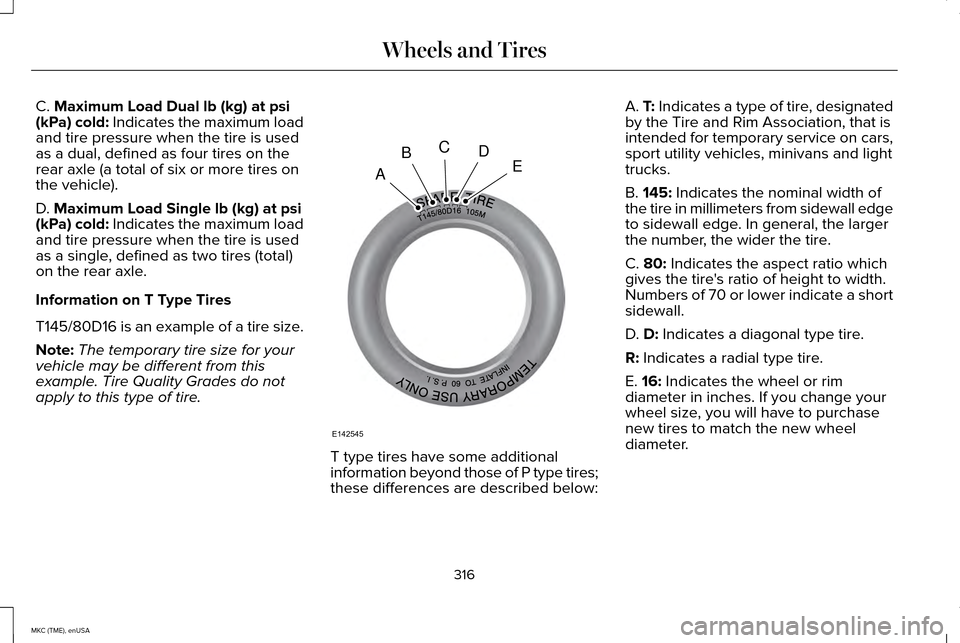
Information on T Type Tires
T145/80D16 is an example of a tire size.
Note: The temporary tire size for your
vehicle may be different from this
example. Tire Quality Grades do not
apply to this type of tire. T type tires have some additional
information beyond those of P type tires;
these differences are described below:A.
T: Indicates a type of tire, designated
by the Tire and Rim Association, that is
intended for temporary service on cars,
sport utility vehicles, minivans and light
trucks.
B.
145: Indicates the nominal width of
the tire in millimeters from sidewall edge
to sidewall edge. In general, the larger
the number, the wider the tire.
C.
80: Indicates the aspect ratio which
gives the tire's ratio of height to width.
Numbers of 70 or lower indicate a short
sidewall.
D.
D: Indicates a diagonal type tire.
R:
Indicates a radial type tire.
E.
16: Indicates the wheel or rim
diameter in inches. If you change your
wheel size, you will have to purchase
new tires to match the new wheel
diameter.
316
MKC (TME), enUSA Wheels and TiresA
BCDE
E142545
Page 329 of 490
Understanding Your Tire Pressure
Monitoring System
The tire pressure monitoring system
measures pressure in your four road tires
and sends the tire pressure readings to your
vehicle. The low tire pressure warning light
will turn on if the tire pressure is significantly
low. Once the light is illuminated, your tires
are under-inflated and need to be inflated to
the manufacturer’
s recommended tire
pressure. Even if the light turns on and a
short time later turns off, your tire pressure
still needs to be checked. When Your Temporary Spare Tire is
Installed
When one of your road tires needs to be
replaced with the temporary spare, the
system will continue to identify an issue to
remind you that the damaged road wheel
and tire assembly needs to be repaired and
put back on your vehicle.
To restore the full function of the tire
pressure monitoring system, have the
damaged road wheel and tire assembly
repaired and remounted on your vehicle.
When You Believe Your System is Not
Operating Properly
The main function of the tire pressure
monitoring system is to warn you when your
tires need air. It can also warn you in the
event the system is no longer capable of
functioning as intended. See the following
chart for information concerning your tire
pressure monitoring system:
326
MKC (TME), enUSA Wheels and Tires
Page 330 of 490
Customer action required
Possible cause
Low tire pressure warning light
Make sure tires are at the proper pressure. See Inflating your tires
in this chapter. After inflating your tires to the manufacturer’s
recommended pressure as shown on the Tire Label (located on
the edge of driver’ s door or the B-Pillar), the vehicle must be driven
for at least two minutes over 20 mph (32 km/h) before the light
turns off.
Tire(s) under-inflated
Solid warning light
Repair the damaged road wheel and tire assembly and reinstall
it on the vehicle to restore system function. For a description on
how the system functions, see When your temporary spare tire
is installed in this section.
Spare tire in use
If the tires are properly inflated and the spare tire is not in use but
the light remains on, contact your authorized dealer as soon as
possible.
TPMS malfunction
Repair the damaged road wheel and tire assembly and reinstall
it on the vehicle to restore system function. For a description on
how the system functions, see
When your temporary spare tire
is installed in this section.
Spare tire in use
Flashing warning light
If the tires are properly inflated and the spare tire is not in use but
the light remains on, contact your authorized dealer as soon as
possible.
TPMS malfunction
327
MKC (TME), enUSA Wheels and Tires
Page 331 of 490
When Inflating Your Tires
When putting air into your tires (such as at a
gas station or in your garage), the tire
pressure monitoring system may not respond
immediately to the air added to your tires.
It may take up to two minutes of driving over
20 mph (32 km/h) for the light to turn off after
you have filled your tires to the
recommended inflation pressure
How Temperature Affects Your Tire
Pressure
The tire pressure monitoring system monitors
tire pressure in each pneumatic tire. While
driving in a normal manner, a typical
passenger tire inflation pressure may
increase about 2 to 4 psi (14 to 28 kPa) from
a cold start situation. If the vehicle is
stationary overnight with the outside
temperature significantly lower than the
daytime temperature, the tire pressure may
decrease about 3 psi (21 kPa) for a drop of
30°F (17°C) in ambient temperature. This
lower pressure value may be detected by
the tire pressure monitoring system as being
significantly lower than the recommended
inflation pressure and activate the system
warning light for low tire pressure. If the low
tire pressure warning light is on, visually
check each tire to verify that no tire is flat. If
one or more tires are flat, repair as
necessary. Check the air pressure in the road
tires. If any tire is under-inflated, carefully
drive the vehicle to the nearest location
where air can be added to the tires. Inflate
all the tires to the recommended inflation
pressure.
CHANGING A ROAD WHEEL
WARNINGS
The use of tire sealants may damage
your tire pressure monitoring system
and should not be used. However, if you
must use a sealant, the tire pressure
monitoring system sensor and valve stem on
the wheel must be replaced by an authorized
dealer. See Tire Pressure Monitoring System
(page 324). If the tire pressure monitor
sensor becomes damaged, it will no longer
function. Note:
The tire pressure monitoring system
indicator light will illuminate when the spare
tire is in use. To restore the full function of
the monitoring system, all road wheels
equipped with tire pressure monitoring
sensors must be mounted on the vehicle.
If you get a flat tire while driving, do not apply
the brake heavily. Instead, gradually
decrease your speed. Hold the steering
wheel firmly and slowly move to a safe place
on the side of the road.
Have a flat serviced by an authorized dealer
in order to prevent damage to the tire
pressure monitoring system sensors. See
Tire Pressure Monitoring System (page 324).
Replace the spare tire with a road tire as
soon as possible. During repairing or
replacing of the flat tire, have the authorized
dealer inspect the tire pressure monitoring
system sensor for damage.
328
MKC (TME), enUSA Wheels and Tires
Page 349 of 490
Do not expose discs to direct sunlight or heat
sources for extended periods.
MP3 and WMA Track and Folder
Structure
Audio systems capable of recognizing and
playing MP3 and WMA individual tracks and
folder structures work as follows:
•
There are two different modes for MP3
and WMA disc playback: MP3 and WMA
track mode (system default) and MP3 and
WMA folder mode.
• MP3 and WMA track mode ignores any
folder structure on the MP3 and WMA
disc. The player numbers each MP3 and
WMA track on the disc (noted by the MP3
or WMA file extension) from T001 to a
maximum of T255. The maximum number
of playable MP3 and WMA files may be
less depending on the structure of the
CD and exact model of radio present. •
MP3 and WMA folder mode represents
a folder structure consisting of one level
of folders. The CD player numbers all
MP3 and WMA tracks on the disc (noted
by the MP3 or WMA file extension) and
all folders containing MP3 and WMA files,
from F001 (folder) T001 (track) to F253
T255.
• Creating discs with only one level of
folders helps with navigation through the
disc files.
If you are burning your own MP3 and WMA
discs, it is important to understand how the
system reads the structures you create. While
various files may be present, (files with
extensions other than MP3 and WMA), only
files with the MP3 and WMA extension are
played; other files are ignored by the system.
This enables you to use the same MP3 and
WMA disc for a variety of tasks on your work
computer, home computer and your
in-vehicle system. In track mode, the system displays and plays
the structure as if it were only one level deep
(all MP3 and WMA files play, regardless of
being in a specific folder). In folder mode,
the system only plays the MP3 and WMA files
in the current folder.
AUDIO UNIT - VEHICLES WITH:
PREMIUM AM/FM/CD
WARNING
Driving while distracted can result in
loss of vehicle control, crash and injury.
We strongly recommend that you use
extreme caution when using any device that
may take your focus off the road. Your
primary responsibility is the safe operation
of your vehicle. We recommend against the
use of any hand-held device while driving
and encourage the use of voice-operated
systems when possible. Make sure you are
aware of all applicable local laws that may
affect the use of electronic devices while
driving. 346
MKC (TME), enUSA Audio System
Page 356 of 490
Press to select any of the following:
•
Services
• Travel Link
• Alerts
• Calendar
• Apps
ENTERTAINMENT
Press to select any of the following:
• AM
• FM
• SIRIUS
• CD
• USB
• BT Stereo
• SD Card
• Line In Using the Touch-Sensitive Controls on
Your System
To turn a feature on and off, just touch the
graphic with your finger. To get the best
performance from the touch-sensitive
controls:
•
Do not press hard on the controls. They
are sensitive to light touch.
• Use your bare finger to touch the center
of a touch-control graphic. Touching
off-center of the graphic may affect
operation of a nearby control.
• Make sure your hands are clean and dry.
• Since the touchscreen operates based
on the touch of a finger, you may have
trouble using it if you are wearing gloves.
• Keep metal and other conductive
material away from the surface of the
touchscreen as this may cause electronic
interference (for example, inadvertently
turning on a feature other than the one
you meant to turn on). Depending on your vehicle and option
package, you may also have these controls
on your bezel:
•
Power: Switch the media or climate
features off and on.
• Temperature, fan and climate control:
Control the temperature, fan speed or
settings of the climate control system.
• Seek buttons
and Tune knob: Use as
you normally would in media modes.
• Eject:
Eject a CD from the entertainment
system.
353
MKC (TME), enUSA MyLincoln Touch™
Page 367 of 490
Under this menu, you can set your
clock, access and adjust the
display, sound and vehicle settings
as well as access settings for specific modes
or the help feature.
Clock
Note: You cannot manually set the date.
Your vehicle ’s GPS does this for you.
Note: If the battery has been disconnected,
your vehicle needs to acquire a GPS signal
to update the clock. Once your vehicle
acquires the signal, it may take a few
minutes for the update to display the correct
time. 1. Press the Settings icon > Clock.
2. Press
+ and - to adjust the time.
From this screen, you can also make other
adjustments such as 12-hour or 24-hour
mode, activate GPS time synchronization and
have the system automatically update new
time zones. You can also switch the outside air
temperature display off and on. It appears at
the top center of the touchscreen, next to
the time and date.
The system automatically saves any updates
you make to the settings.
Display
You can adjust the touchscreen display
through the touchscreen or by pressing the
voice button on your steering wheel controls
and when prompted, say, "Display settings".
Press the Settings icon >
Display,
to access and make adjustments
using the touchscreen.
• Brightness
allows you to make the
screen display brighter or dimmer.
• Auto DIM
, when set to On, lets you use
the Auto Dim Manual Offset feature.
When set to
Off, screen brightness does
not change. •
Mode
allows you to set the screen to a
certain brightness or have the system
automatically change based on the
outside light level, or switch the display
off.
• If you select
AUTO or NIGHT, you
have the options of switching the
display's Auto Dim feature on or off
and changing the Auto Dim Manual
Offset feature.
• Auto Dim Manual Offset
allows you to
adjust screen dimming as the outside
lighting conditions change from day to
night. This feature also allows you to
adjust screen brightness using the
instrument panel dimming control.
• Edit Wallpaper
•You can have your touchscreen
display the default photo or upload
your own.
364
MKC (TME), enUSA MyLincoln Touch™E142607 E142607 E142607
Page 368 of 490
Uploading Photos for Your Home Screen
Wallpaper
Note:
You cannot load photos directly from
your camera. You must access the photos
either from your USB mass storage device
or from an SD card.
Note: Photographs with extremely large
dimensions (such as 2048 x 1536) may not
be compatible and appear as a blank (black)
image on the display.
Your system allows you to upload and view
up to 32 photos. To access, press the Settings icon
> Display > Edit Wallpaper, and
then follow the system prompts to
upload your photographs.
Only photographs that meet the following
conditions display:
• Compatible file formats are as follows:
.jpg, .gif, .png, .bmp
• Each file must be 1.5 MB or less.
• Recommended dimensions: 800 x 384 Sound Press the
Settings icon > Sound,
then select from the following: Sound
Bass
Midrange Treble
Set Balance and Fade
DSP*
THX Deep Note Demo *
Occupancy Mode *
Speed Compensated Volume
* Your vehicle may not have these sound
settings. Vehicle Press the Settings icon > Vehicle,
then select from the following:
• Ambient Lighting.
• Vehicle Health Report.
• Camera Settings.
• Enable Valet Mode.
Ambient Lighting (If Equipped)
When you switch this feature on, ambient
lighting illuminates footwells and cupholders
with a choice of colors. To access and make
adjustments: 1. Press the Settings icon >
Vehicle >
Ambient Lighting.
2. Touch the desired color.
3. Use the scroll bar to increase or decrease
the intensity.
To switch the feature on or off, press the
power button.
365
MKC (TME), enUSA MyLincoln Touch™E142607 E142607 E142607 E142607
Page 382 of 490
Memory Presets
Save a station by pressing and holding one
of the memory preset areas. There is a brief
mute while the radio saves the station. Sound
returns when finished.
HD Radio
Touch this button to turn HD Radio on. The
light on the button illuminates when the
feature is on. HD Radio allows you to receive
radio broadcasts digitally, where available,
providing free, crystal-clear sound. See HD
Radio information later in this chapter.
Scan
Touch this button to go to the next strong
AM or FM radio station. The light on the
button illuminates when the feature is on.
Options
Sound Settings
Touch this button to adjust settings for:
•
Bass
• Midrange •
Treble
• Balance and Fade
• THX Deep Note Demo
• DSP (Digital Signal processing)
• Occupancy Mode
• Speed Compensated Volume.
Note: Your vehicle may not have all these
sound settings.
Set PTY for Seek/Scan
This allows you to select a category of music
you would like to search for. You can then
choose to either seek or scan for the stations
playing that category.
RDS Text Display
This allows you to view the information
broadcast by FM stations.
AST
AST (Autostore) allows you to have the
system automatically store the six strongest
stations in your current location. TAG Button
This feature is available when HD Radio is
on, and allows you to tag a song to download
later. When you select On, TAG appears
on-screen when HD Radio is active. You can
touch
TAG to save the information of the
song that is playing. When you plug in your
portable music player, the information
transfers, if supported by your device. When
you are connected to iTunes®, the tags
appear to remind you of the songs you would
like to download. See HD Radio information
later in this chapter.
Direct Tune
Touch this button to enter the desired station
number manually. Touch Enter when you are
done.
HD Radio ™ Information (If Available)
Note: HD Radio broadcasts are not available
in all markets.
379
MKC (TME), enUSA MyLincoln Touch™
Page 383 of 490
HD Radio technology is the digital evolution
of analog AM/FM radio. Your system has a
special receiver that allows it to receive
digital broadcasts (where available) in
addition to the analog broadcasts, it already
receives. Digital broadcasts provide a better
sound quality than analog broadcasts with
free, crystal-clear audio and no static or
distortion. For more information, and a guide
to available stations and programming,
please visit www.hdradio.com.
When HD Radio is on and you tune to a
station broadcasting HD Radio technology,
you may notice the following indicators on
your screen:
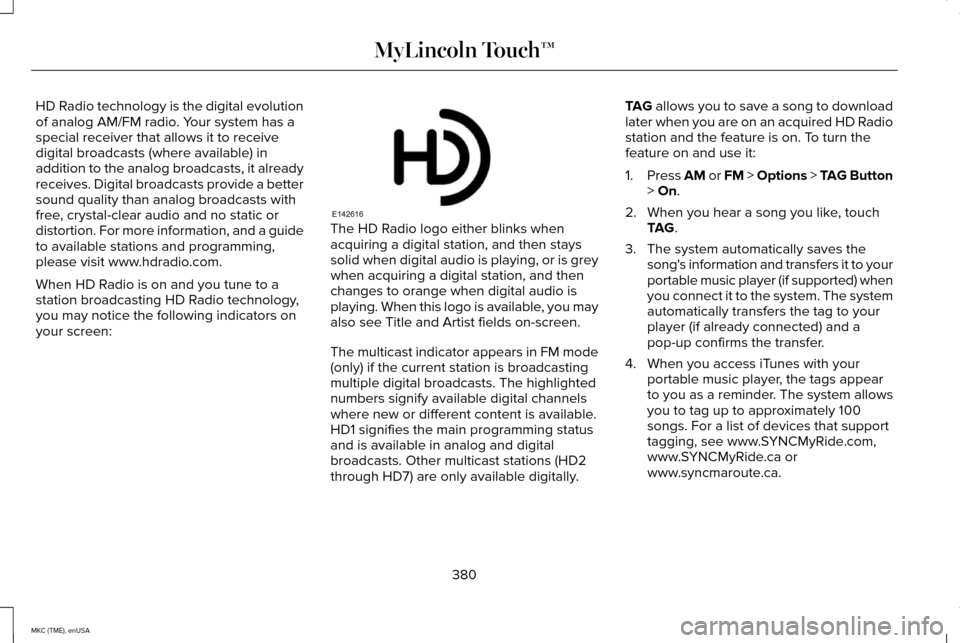
The HD Radio logo either blinks when
acquiring a digital station, and then stays
solid when digital audio is playing, or is grey
when acquiring a digital station, and then
changes to orange when digital audio is
playing. When this logo is available, you may
also see Title and Artist fields on-screen.
The multicast indicator appears in FM mode
(only) if the current station is broadcasting
multiple digital broadcasts. The highlighted
numbers signify available digital channels
where new or different content is available.
HD1 signifies the main programming status
and is available in analog and digital
broadcasts. Other multicast stations (HD2
through HD7) are only available digitally.
TAG allows you to save a song to download
later when you are on an acquired HD Radio
station and the feature is on. To turn the
feature on and use it:
1. Press
AM or FM > Options > TAG Button
> On.
2. When you hear a song you like, touch TAG
.
3. The system automatically saves the song's information and transfers it to your
portable music player (if supported) when
you connect it to the system. The system
automatically transfers the tag to your
player (if already connected) and a
pop-up confirms the transfer.
4. When you access iTunes with your portable music player, the tags appear
to you as a reminder. The system allows
you to tag up to approximately 100
songs. For a list of devices that support
tagging, see www.SYNCMyRide.com,
www.SYNCMyRide.ca or
www.syncmaroute.ca.
380
MKC (TME), enUSA MyLincoln Touch™E142616