steering wheel LINCOLN MKC 2016 Owner's Manual
[x] Cancel search | Manufacturer: LINCOLN, Model Year: 2016, Model line: MKC, Model: LINCOLN MKC 2016Pages: 432, PDF Size: 4.89 MB
Page 193 of 432
PRINCIPLE OF OPERATION
WARNINGS
Vehicle modifications involving braking
system, aftermarket roof racks,
suspension, steering system, tire
construction and wheel and tire size may
change the handling characteristics of your
vehicle and may adversely affect the
performance of the electronic stability control
system. In addition, installing any stereo
loudspeakers may interfere with and
adversely affect the electronic stability
control system. Install any aftermarket stereo
loudspeaker as far as possible from the front
center console, the tunnel, and the front
seats in order to minimize the risk of
interfering with the electronic stability control
sensors. Reducing the effectiveness of the
electronic stability control system could lead
to an increased risk of loss of vehicle control,
vehicle rollover, personal injury and death. WARNINGS
Remember that even advanced
technology cannot defy the laws of
physics. It’ s always possible to lose control
of a vehicle due to inappropriate driver input
for the conditions. Aggressive driving on any
road condition can cause you to lose control
of your vehicle increasing the risk of personal
injury or property damage. Activation of the
electronic stability control system is an
indication that at least some of the tires have
exceeded their ability to grip the road; this
could reduce the operator’ s ability to control
the vehicle potentially resulting in a loss of
vehicle control, vehicle rollover, personal
injury and death. If your electronic stability
control system activates, SLOW DOWN. The system automatically turns on each time
you switch the ignition on.
If a driving condition activates either the
stability control or the traction control system
you may experience the following conditions:
•
The stability and traction control light
flashes.
• Your vehicle slows down. •
Reduced engine power.
• A vibration in the brake pedal.
• The brake pedal is stiffer than usual.
• If the driving condition is severe and your
foot is not on the brake, the brake pedal
may move as the systems applies higher
brake forces.
The stability control system has several
features built into it to help you maintain
control of your vehicle:
Electronic Stability Control
The system enhances your vehicle ’s ability
to prevent skids or lateral slides by applying
brakes to one or more of the wheels
individually and, if necessary, reducing
engine power.
Roll Stability Control
The system enhances your vehicle ’s ability
to prevent rollovers by detecting your
vehicle ’s roll motion and the rate at which it
changes by applying the brakes to one or
more wheels individually.
190
MKC (TME), enUSA, First Printing Stability Control
Page 198 of 432
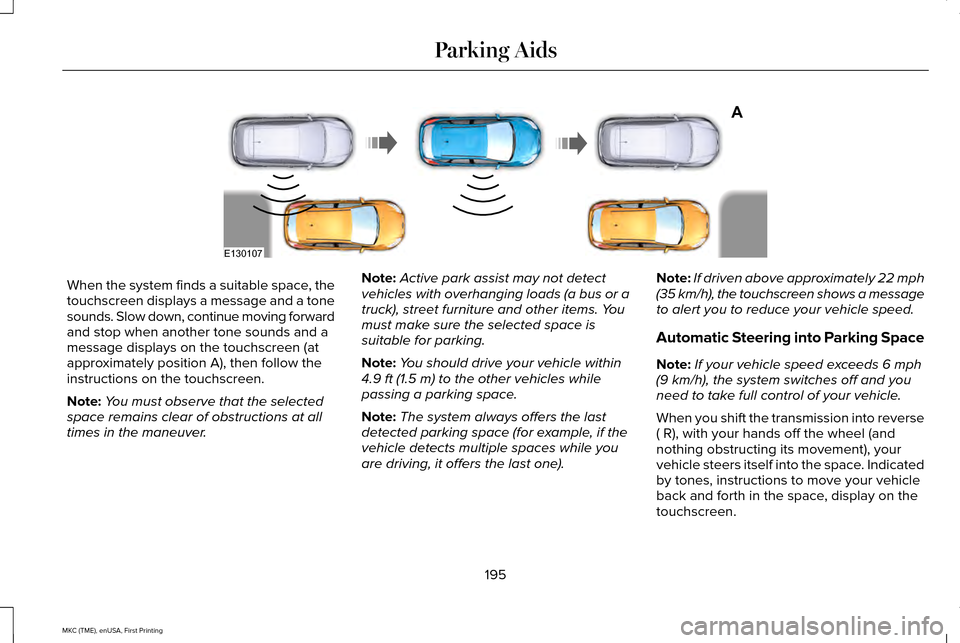
When the system finds a suitable space, the
touchscreen displays a message and a tone
sounds. Slow down, continue moving forward
and stop when another tone sounds and a
message displays on the touchscreen (at
approximately position A), then follow the
instructions on the touchscreen.
Note:
You must observe that the selected
space remains clear of obstructions at all
times in the maneuver. Note:
Active park assist may not detect
vehicles with overhanging loads (a bus or a
truck), street furniture and other items. You
must make sure the selected space is
suitable for parking.
Note: You should drive your vehicle within
4.9 ft (1.5 m) to the other vehicles while
passing a parking space.
Note: The system always offers the last
detected parking space (for example, if the
vehicle detects multiple spaces while you
are driving, it offers the last one). Note:
If driven above approximately
22 mph
(35 km/h), the touchscreen shows a message
to alert you to reduce your vehicle speed.
Automatic Steering into Parking Space
Note: If your vehicle speed exceeds
6 mph
(9 km/h), the system switches off and you
need to take full control of your vehicle.
When you shift the transmission into reverse
( R), with your hands off the wheel (and
nothing obstructing its movement), your
vehicle steers itself into the space. Indicated
by tones, instructions to move your vehicle
back and forth in the space, display on the
touchscreen.
195
MKC (TME), enUSA, First Printing Parking AidsA
E130107
Page 200 of 432
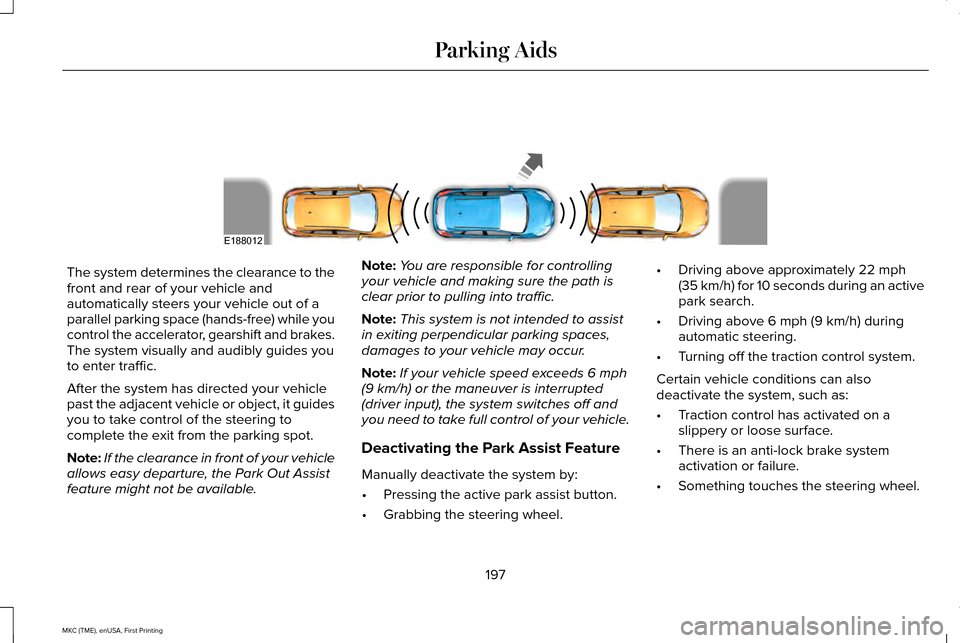
The system determines the clearance to the
front and rear of your vehicle and
automatically steers your vehicle out of a
parallel parking space (hands-free) while you
control the accelerator, gearshift and brakes.
The system visually and audibly guides you
to enter traffic.
After the system has directed your vehicle
past the adjacent vehicle or object, it guides
you to take control of the steering to
complete the exit from the parking spot.
Note:
If the clearance in front of your vehicle
allows easy departure, the Park Out Assist
feature might not be available. Note:
You are responsible for controlling
your vehicle and making sure the path is
clear prior to pulling into traffic.
Note: This system is not intended to assist
in exiting perpendicular parking spaces,
damages to your vehicle may occur.
Note: If your vehicle speed exceeds 6 mph
(9 km/h) or the maneuver is interrupted
(driver input), the system switches off and
you need to take full control of your vehicle.
Deactivating the Park Assist Feature
Manually deactivate the system by:
• Pressing the active park assist button.
• Grabbing the steering wheel. •
Driving above approximately
22 mph
(35 km/h) for 10 seconds during an active
park search.
• Driving above
6 mph (9 km/h) during
automatic steering.
• Turning off the traction control system.
Certain vehicle conditions can also
deactivate the system, such as:
• Traction control has activated on a
slippery or loose surface.
• There is an anti-lock brake system
activation or failure.
• Something touches the steering wheel.
197
MKC (TME), enUSA, First Printing Parking AidsE188012
Page 204 of 432
Note:
Whenever the battery is disconnected
or a new battery installed, you need to drive
your vehicle a short distance and your speed
must exceed 12 mph (20 km/h) so the system
can recalibrate the steering angle data in
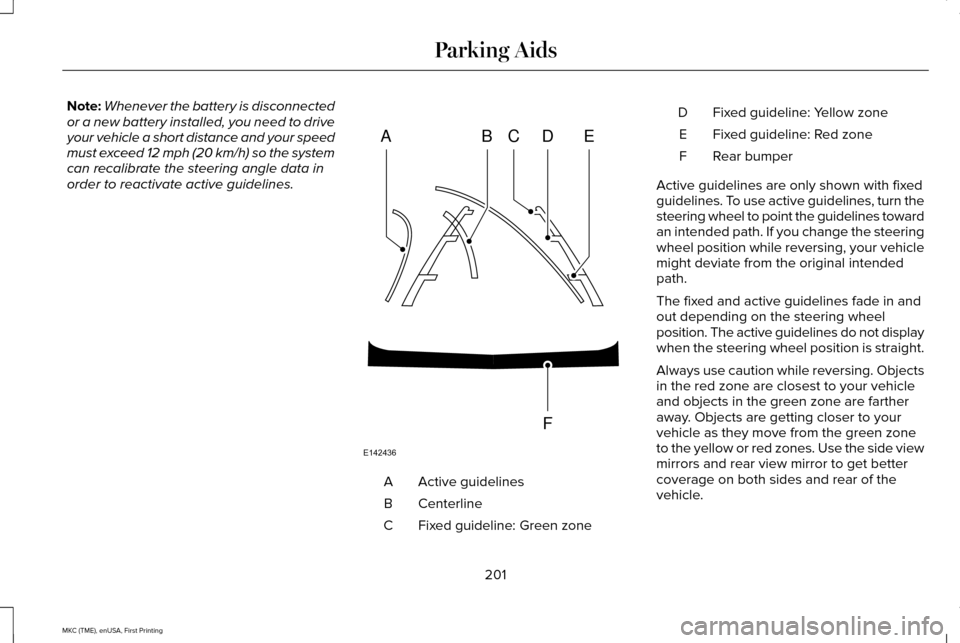
order to reactivate active guidelines. Active guidelines
A
Centerline
B
Fixed guideline: Green zone
C Fixed guideline: Yellow zone
D
Fixed guideline: Red zone
E
Rear bumper
F
Active guidelines are only shown with fixed
guidelines. To use active guidelines, turn the
steering wheel to point the guidelines toward
an intended path. If you change the steering
wheel position while reversing, your vehicle
might deviate from the original intended
path.
The fixed and active guidelines fade in and
out depending on the steering wheel
position. The active guidelines do not display
when the steering wheel position is straight.
Always use caution while reversing. Objects
in the red zone are closest to your vehicle
and objects in the green zone are farther
away. Objects are getting closer to your
vehicle as they move from the green zone
to the yellow or red zones. Use the side view
mirrors and rear view mirror to get better
coverage on both sides and rear of the
vehicle.
201
MKC (TME), enUSA, First Printing Parking AidsABCD
F
E
E142436
Page 206 of 432
PRINCIPLE OF OPERATION
Cruise control lets you maintain a set speed
without keeping your foot on the accelerator
pedal. You can use cruise control when your
vehicle speed is greater than 20 mph
(30 km/h).
USING CRUISE CONTROL WARNINGS
Do not use cruise control on winding
roads, in heavy traffic or when the road
surface is slippery. This could result in loss
of vehicle control, serious injury or death. When you are going downhill, your
vehicle speed may increase above the
set speed. The system will not apply the
brakes but a warning displays. Note:
Cruise control will disengage if the
vehicle speed decreases more than 10 mph
(16 km/h)
below the set speed while driving
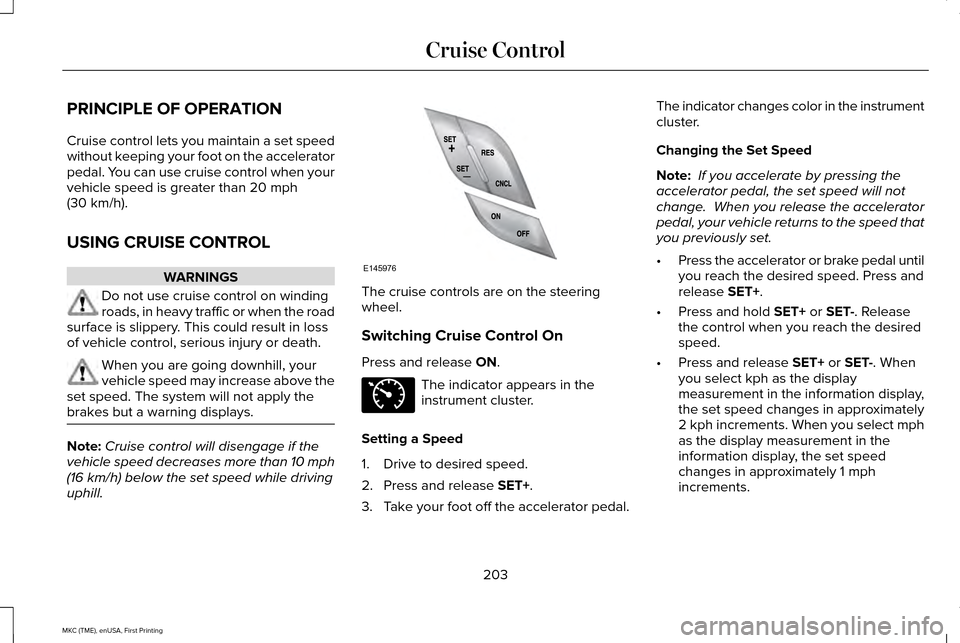
uphill. The cruise controls are on the steering
wheel.
Switching Cruise Control On
Press and release
ON.
The indicator appears in the
instrument cluster.
Setting a Speed
1. Drive to desired speed.
2. Press and release
SET+.
3. Take your foot off the accelerator pedal. The indicator changes color in the instrument
cluster.
Changing the Set Speed
Note:
If you accelerate by pressing the
accelerator pedal, the set speed will not
change. When you release the accelerator
pedal, your vehicle returns to the speed that
you previously set.
• Press the accelerator or brake pedal until
you reach the desired speed. Press and
release
SET+.
• Press and hold
SET+ or SET-. Release
the control when you reach the desired
speed.
• Press and release
SET+ or SET-. When
you select kph as the display
measurement in the information display,
the set speed changes in approximately
2 kph increments. When you select mph
as the display measurement in the
information display, the set speed
changes in approximately 1 mph
increments.
203
MKC (TME), enUSA, First Printing Cruise ControlE145976 E71340
Page 207 of 432
Canceling the Set Speed
Press CNCL or tap the brake pedal. You will
not erase the set speed.
Resuming the Set Speed
Press and release RES.
Switching Cruise Control Off
Note: You will erase the set speed if you
switch the system off.
Press and release OFF or switch the ignition
off.
USING ADAPTIVE CRUISE
CONTROL
(If Equipped) WARNINGS
Always pay close attention to changing
road conditions, especially when using
adaptive cruise control. Adaptive cruise
control cannot replace attentive driving.
Failing to follow any of the warnings below
or failing to pay attention to the road may
result in a crash, serious injury or death. WARNINGS
Adaptive cruise control is not a crash
warning or avoidance system.
Adaptive cruise control does not detect
stationary or slow moving vehicles
below
6.2 mph (10 km/h). Adaptive cruise control does not detect
pedestrians or objects in the roadway.
Adaptive cruise control does not detect
oncoming vehicles in the same lane.
Do not use the adaptive cruise control
when entering or leaving a highway, in
heavy traffic or on roads that are winding,
slippery or unpaved. Do not use in poor visibility, specifically
fog, rain, spray or snow.
Note:
It is your responsibility to stay alert,
drive safely and control the vehicle at all
times.
The system adjusts your speed to maintain
a proper distance between you and the
vehicle in front of you in the same lane. You
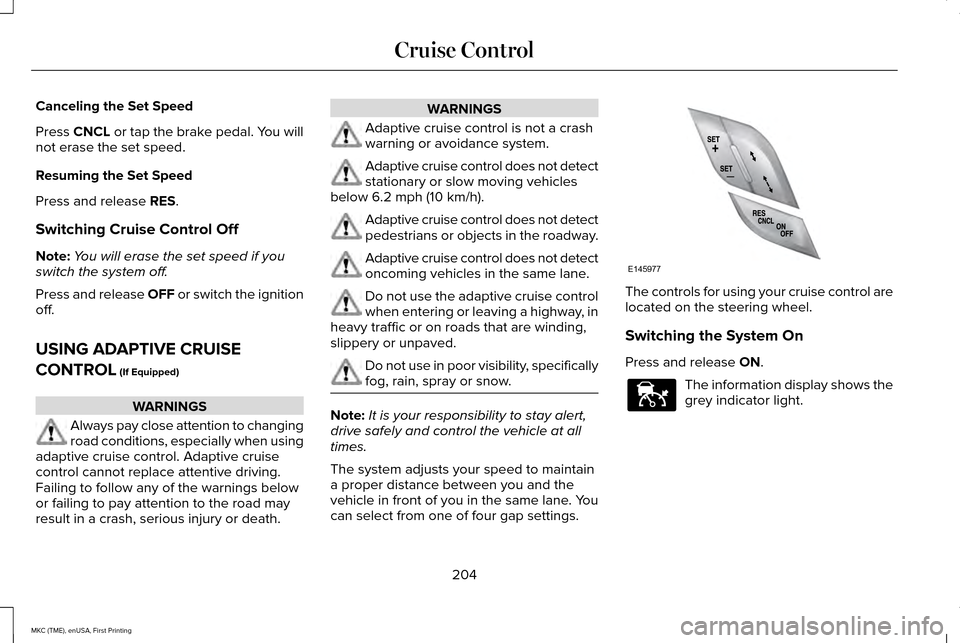
can select from one of four gap settings. The controls for using your cruise control are
located on the steering wheel.
Switching the System On
Press and release
ON.
The information display shows the
grey indicator light.
204
MKC (TME), enUSA, First Printing Cruise ControlE145977 E144529
Page 216 of 432
DRIVER ALERT (If Equipped)
WARNING
The driver alert system is designed to
aid you. It is not intended to replace
your attention and judgment. You are still
responsible to drive with due care and
attention. Note:
The system will store the on or off
setting in the information display menu
through ignition cycles.
Note: If enabled in the menu, the system will
be active at speeds above 40 mph (64 km/h).
When below the activation speed, the
information display will inform you that the
system is unavailable.
Note: The system works as long as one lane
marking can be detected by the camera.
Note: If the camera is blocked or if the
windshield is damaged, the system may not
function.
Note: The system may not be available in
poor weather or other low visibility
conditions. The system automatically monitors your
driving behavior using various inputs
including the front camera sensor.
If the system detects that your driving
alertness is reduced below a certain
threshold, the system will alert you using a
chime and a message in the information
display.
Using Driver Alert
Switching the system on and off
You may switch the system on or off through
the information display by selecting Settings
then Driver Assist then Driver Alert in the
menu. When activated, the system will
monitor your alertness level based upon your
driving behavior in relation to the lane
markings, and other factors.
System Warnings
Note:
The system will not issue warnings
below approximately 40 mph (64 km/h). The warning system is in two stages. At first
the system issues a temporary warning that
you need to take a rest. This message will
only appear for a short time. If the system
detects further reduction in driving alertness,
another warning may be issued which will
remain in the information display for a longer
time. Press OK on the steering wheel control
to clear the warning
System Display
When active the system will run automatically
in the background and only issue a warning
if required. You can view the status at any
time using the information display.
See
General Information (page 109).
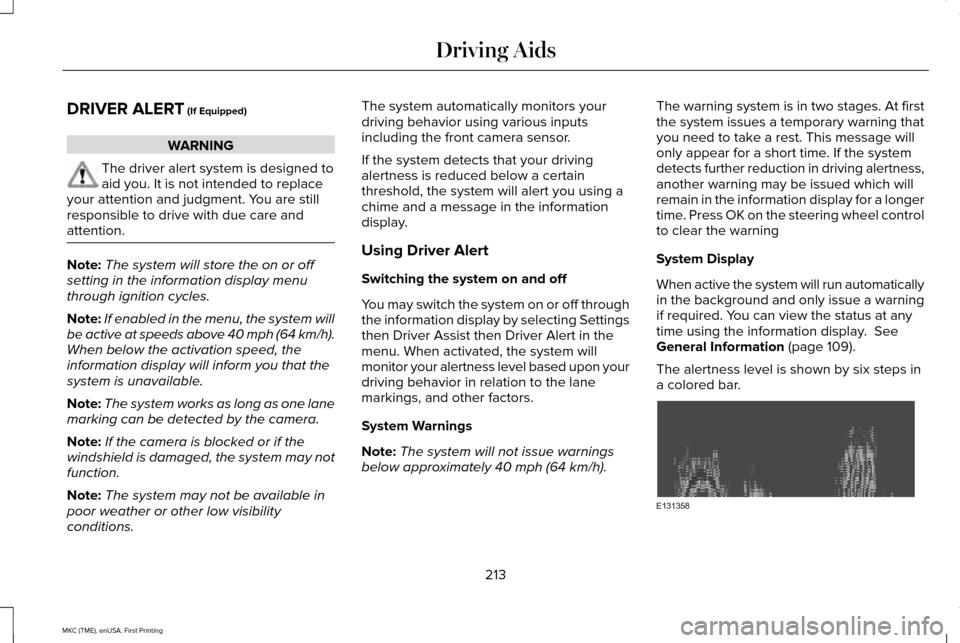
The alertness level is shown by six steps in
a colored bar. 213
MKC (TME), enUSA, First Printing Driving AidsE131358
Page 217 of 432
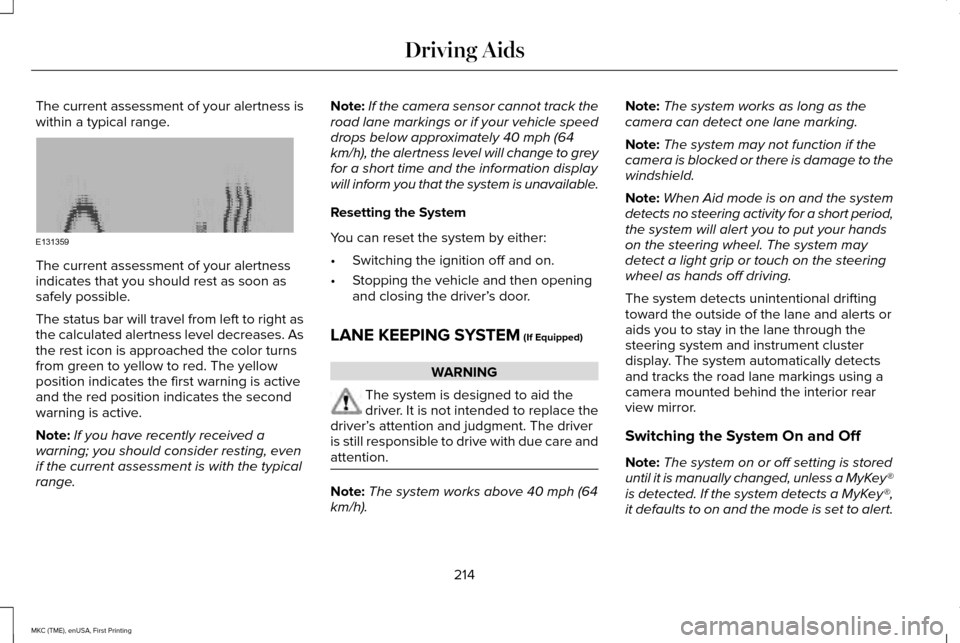
The current assessment of your alertness is
within a typical range.
The current assessment of your alertness
indicates that you should rest as soon as
safely possible.
The status bar will travel from left to right as
the calculated alertness level decreases. As
the rest icon is approached the color turns
from green to yellow to red. The yellow
position indicates the first warning is active
and the red position indicates the second
warning is active.
Note:
If you have recently received a
warning; you should consider resting, even
if the current assessment is with the typical
range. Note:
If the camera sensor cannot track the
road lane markings or if your vehicle speed
drops below approximately 40 mph (64
km/h), the alertness level will change to grey
for a short time and the information display
will inform you that the system is unavailable.
Resetting the System
You can reset the system by either:
• Switching the ignition off and on.
• Stopping the vehicle and then opening
and closing the driver’ s door.
LANE KEEPING SYSTEM (If Equipped) WARNING
The system is designed to aid the
driver. It is not intended to replace the
driver’ s attention and judgment. The driver
is still responsible to drive with due care and
attention. Note:
The system works above 40 mph (64
km/h). Note:
The system works as long as the
camera can detect one lane marking.
Note: The system may not function if the
camera is blocked or there is damage to the
windshield.
Note: When Aid mode is on and the system
detects no steering activity for a short period,
the system will alert you to put your hands
on the steering wheel. The system may
detect a light grip or touch on the steering
wheel as hands off driving.
The system detects unintentional drifting
toward the outside of the lane and alerts or
aids you to stay in the lane through the
steering system and instrument cluster
display. The system automatically detects
and tracks the road lane markings using a
camera mounted behind the interior rear
view mirror.
Switching the System On and Off
Note: The system on or off setting is stored
until it is manually changed, unless a MyKey®
is detected. If the system detects a MyKey®,
it defaults to on and the mode is set to alert.
214
MKC (TME), enUSA, First Printing Driving AidsE131359
Page 218 of 432
Note:
If a MyKey® is detected, pressing the
button will not affect the on or off status of
the system. You can only change the mode
and intensity settings. Press the button located on the left
steering wheel stalk to switch the
system on or off.
System Settings
The system has two optional setting menus
available. To view or adjust them, select
Settings > Driver Assist > Lane Keeping Sys
in the information display using the OK
button on the steering wheel. The system
stores the last known selection for each of
these settings. You do not need to readjust
your settings each time you turn on the
system.
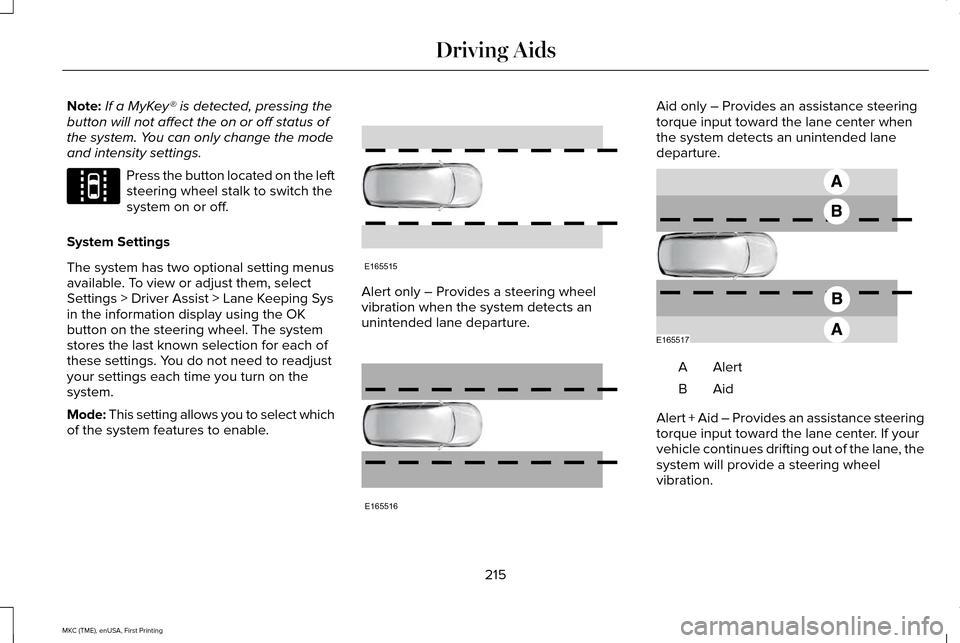
Mode: This setting allows you to select which
of the system features to enable. Alert only – Provides a steering wheel
vibration when the system detects an
unintended lane departure. Aid only – Provides an assistance steering
torque input toward the lane center when
the system detects an unintended lane
departure.
AlertA
AidB
Alert + Aid – Provides an assistance steering
torque input toward the lane center. If your
vehicle continues drifting out of the lane, the
system will provide a steering wheel
vibration.
215
MKC (TME), enUSA, First Printing Driving AidsE144813 E165515 E165516 E165517
Page 219 of 432
Note:
The alert and aid diagrams illustrate
general zone coverage. They do not indicate
the exact zone coverage area.
Intensity: This setting affects the intensity of
the steering wheel vibration used for the alert
and alert + aid modes. This setting is not valid
for the aid mode.
• Low
• Medium
• High
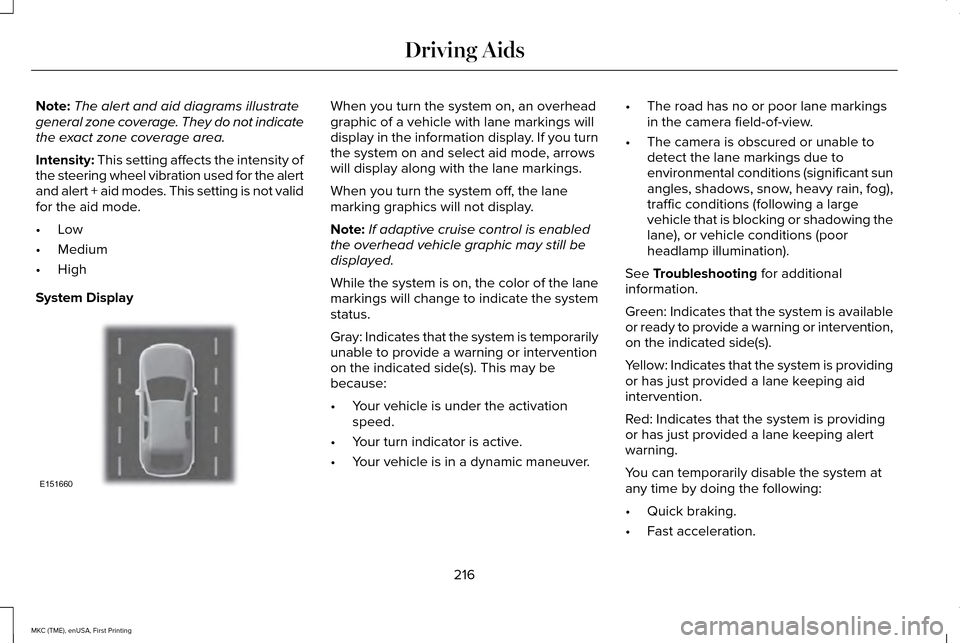
System Display When you turn the system on, an overhead
graphic of a vehicle with lane markings will
display in the information display. If you turn
the system on and select aid mode, arrows
will display along with the lane markings.
When you turn the system off, the lane
marking graphics will not display.
Note:
If adaptive cruise control is enabled
the overhead vehicle graphic may still be
displayed.
While the system is on, the color of the lane
markings will change to indicate the system
status.
Gray: Indicates that the system is temporarily
unable to provide a warning or intervention
on the indicated side(s). This may be
because:
• Your vehicle is under the activation
speed.
• Your turn indicator is active.
• Your vehicle is in a dynamic maneuver. •
The road has no or poor lane markings
in the camera field-of-view.
• The camera is obscured or unable to
detect the lane markings due to
environmental conditions (significant sun
angles, shadows, snow, heavy rain, fog),
traffic conditions (following a large
vehicle that is blocking or shadowing the
lane), or vehicle conditions (poor
headlamp illumination).
See
Troubleshooting for additional
information.
Green: Indicates that the system is available
or ready to provide a warning or intervention,
on the indicated side(s).
Yellow: Indicates that the system is providing
or has just provided a lane keeping aid
intervention.
Red: Indicates that the system is providing
or has just provided a lane keeping alert
warning.
You can temporarily disable the system at
any time by doing the following:
• Quick braking.
• Fast acceleration.
216
MKC (TME), enUSA, First Printing Driving AidsE151660