Manual LINCOLN MKC 2017 Workshop Manual
[x] Cancel search | Manufacturer: LINCOLN, Model Year: 2017, Model line: MKC, Model: LINCOLN MKC 2017Pages: 538, PDF Size: 4.8 MB
Page 430 of 538

Action and Description
Menu Item
SYNC 3 may not always announce vehicle arrival at the exact point of your\
destination and you may have to
cancel a route manually.
Navigation Menu
In map mode and during active navigation
you can access the navigation menu. During active navigation, touch the bottom
of the screen to view the menu and other
buttons.
To access the Navigation menu, press: Button
Menu
You can then select: A full screen map displays during navigation.
Full Map
Screen View
Highway exit information displays on the right hand side of the screen d\
uring navigation.
Highway Exit Info
Points of interest icons display for restaurants, hotels, fuel stations a\
nd ATMs when they
are present at the exit. You can select the POI icons to receive a listing of specific locations.
You can select the POI location as a waypoint or destination if desired.
Only available during an active route. Displays all of the turns on the current route.
Turn List
You can choose to avoid any road on the turn list by selecting the road f\
rom the list. A
screen then appears and you can press:
427
MKC (TME) Canada/United States of America, enUSA, Edition date: 01/2016, First Printing SYNC™ 3
Page 441 of 538
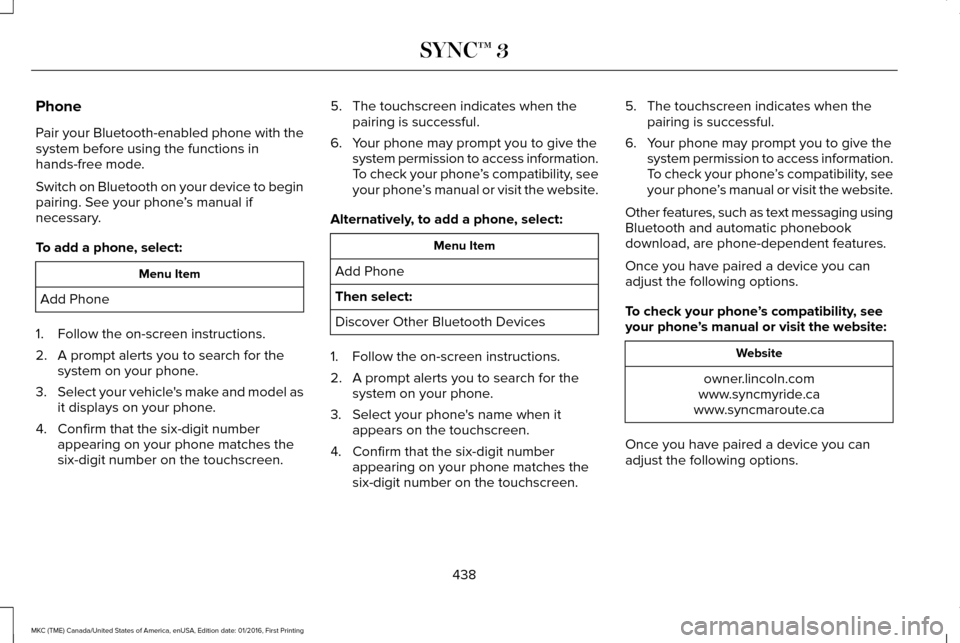
Phone
Pair your Bluetooth-enabled phone with the
system before using the functions in
hands-free mode.
Switch on Bluetooth on your device to begin
pairing. See your phone
’s manual if
necessary.
To add a phone, select: Menu Item
Add Phone
1. Follow the on-screen instructions.
2. A prompt alerts you to search for the system on your phone.
3. Select your vehicle's make and model as
it displays on your phone.
4. Confirm that the six-digit number appearing on your phone matches the
six-digit number on the touchscreen. 5. The touchscreen indicates when the
pairing is successful.
6. Your phone may prompt you to give the system permission to access information.
To check your phone ’s compatibility, see
your phone ’s manual or visit the website.
Alternatively, to add a phone, select: Menu Item
Add Phone
Then select:
Discover Other Bluetooth Devices
1. Follow the on-screen instructions.
2. A prompt alerts you to search for the system on your phone.
3. Select your phone's name when it appears on the touchscreen.
4. Confirm that the six-digit number appearing on your phone matches the
six-digit number on the touchscreen. 5. The touchscreen indicates when the
pairing is successful.
6. Your phone may prompt you to give the system permission to access information.
To check your phone ’s compatibility, see
your phone ’s manual or visit the website.
Other features, such as text messaging using
Bluetooth and automatic phonebook
download, are phone-dependent features.
Once you have paired a device you can
adjust the following options.
To check your phone ’s compatibility, see
your phone ’s manual or visit the website: Website
owner.lincoln.com
www.syncmyride.ca
www.syncmaroute.ca
Once you have paired a device you can
adjust the following options.
438
MKC (TME) Canada/United States of America, enUSA, Edition date: 01/2016, First Printing SYNC™ 3
Page 443 of 538
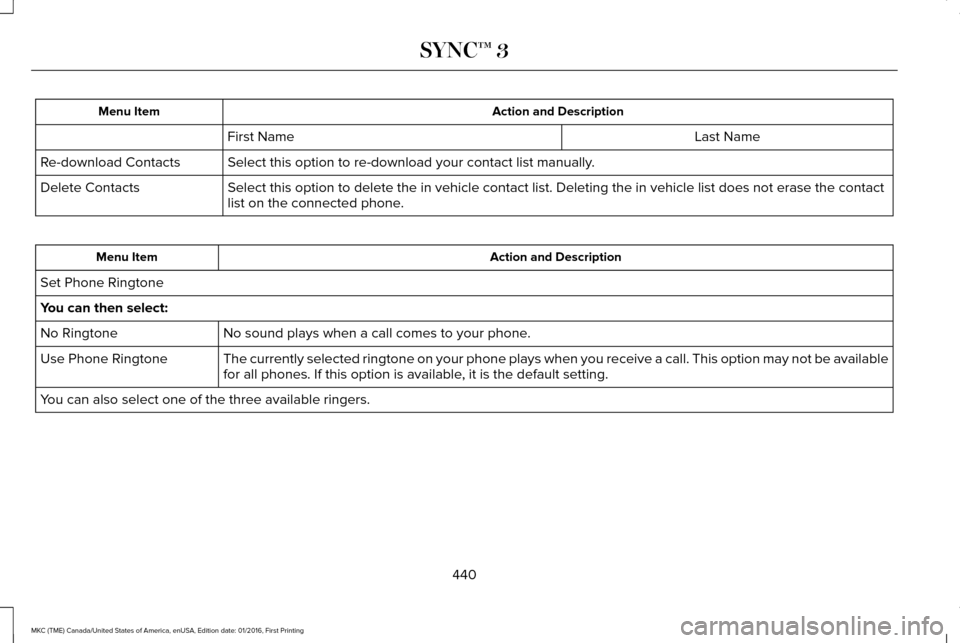
Action and Description
Menu Item
Last Name
First Name
Select this option to re-download your contact list manually.
Re-download Contacts
Select this option to delete the in vehicle contact list. Deleting the i\
n vehicle list does not erase the contact
list on the connected phone.
Delete Contacts Action and Description
Menu Item
Set Phone Ringtone
You can then select: No sound plays when a call comes to your phone.
No Ringtone
The currently selected ringtone on your phone plays when you receive a c\
all. This option may not be available
for all phones. If this option is available, it is the default setting.
Use Phone Ringtone
You can also select one of the three available ringers.
440
MKC (TME) Canada/United States of America, enUSA, Edition date: 01/2016, First Printing SYNC™ 3
Page 449 of 538
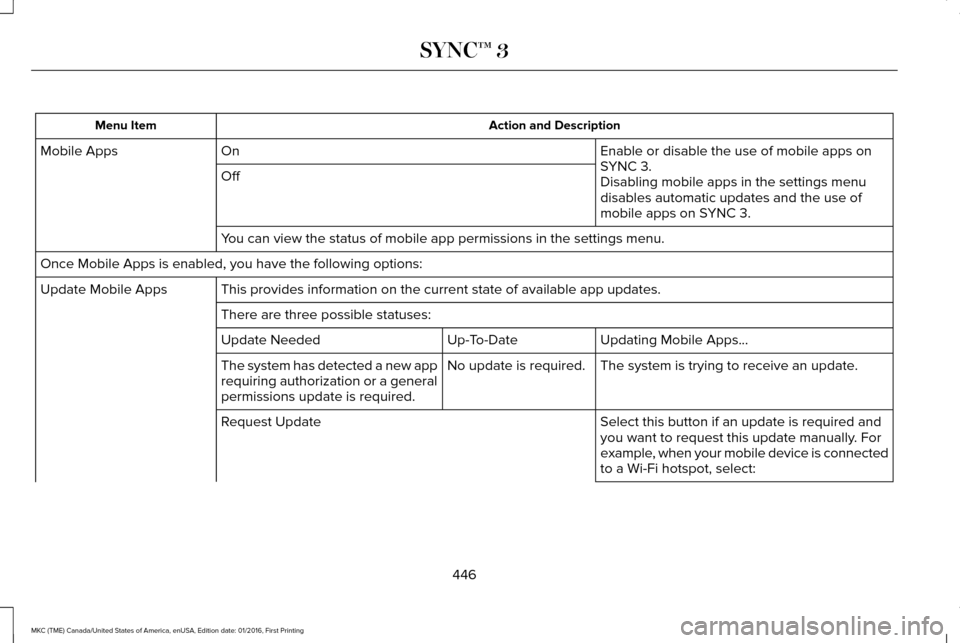
Action and Description
Menu Item
Enable or disable the use of mobile apps on
SYNC 3.
On
Mobile Apps
Off Disabling mobile apps in the settings menu
disables automatic updates and the use of
mobile apps on SYNC 3.
You can view the status of mobile app permissions in the settings menu.
Once Mobile Apps is enabled, you have the following options: This provides information on the current state of available app updates.\
Update Mobile Apps
There are three possible statuses: Updating Mobile Apps\b
Up-To-Date
Update Needed
The system is trying to receive an update.
No update is required.
The system has detected a new app
requiring authorization or a general
permissions update is required.
Select this button if an update is required and
you want to request this update manually. For
example, when your mobile device is connected
to a Wi-Fi hotspot, select:
Request Update
446
MKC (TME) Canada/United States of America, enUSA, Edition date: 01/2016, First Printing SYNC™ 3
Page 452 of 538
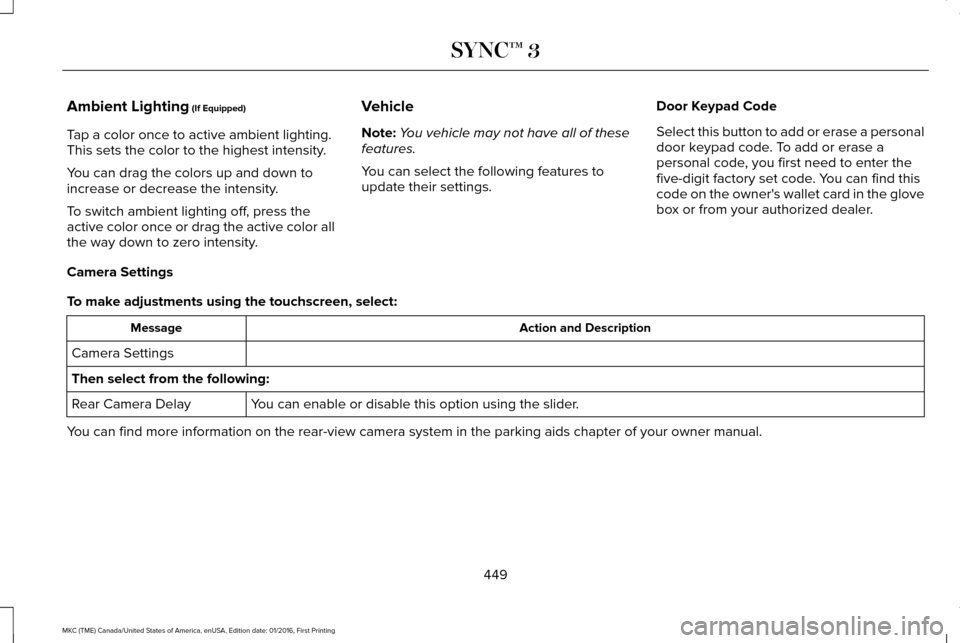
Ambient Lighting (If Equipped)
Tap a color once to active ambient lighting.
This sets the color to the highest intensity.
You can drag the colors up and down to
increase or decrease the intensity.
To switch ambient lighting off, press the
active color once or drag the active color all
the way down to zero intensity. Vehicle
Note:
You vehicle may not have all of these
features.
You can select the following features to
update their settings. Door Keypad Code
Select this button to add or erase a personal
door keypad code. To add or erase a
personal code, you first need to enter the
five-digit factory set code. You can find this
code on the owner's wallet card in the glove
box or from your authorized dealer.
Camera Settings
To make adjustments using the touchscreen, select: Action and Description
Message
Camera Settings
Then select from the following: You can enable or disable this option using the slider.
Rear Camera Delay
You can find more information on the rear-view camera system in the parki\
ng aids chapter of your owner manual.
449
MKC (TME) Canada/United States of America, enUSA, Edition date: 01/2016, First Printing SYNC™ 3
Page 455 of 538
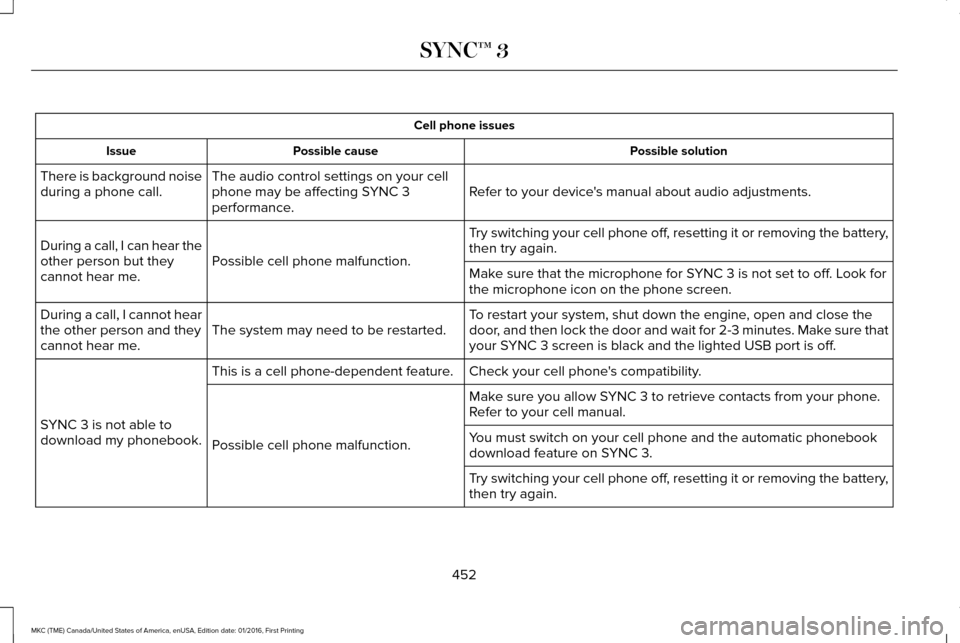
Cell phone issues
Possible solution
Possible cause
Issue
Refer to your device's manual about audio adjustments.
The audio control settings on your cell
phone may be affecting SYNC 3
performance.
There is background noise
during a phone call.
Try switching your cell phone off, resetting it or removing the battery,
then try again.
Possible cell phone malfunction.
During a call, I can hear the
other person but they
cannot hear me.
Make sure that the microphone for SYNC 3 is not set to off. Look for
the microphone icon on the phone screen.
To restart your system, shut down the engine, open and close the
door, and then lock the door and wait for 2-3 minutes. Make sure that
your SYNC 3 screen is black and the lighted USB port is off.
The system may need to be restarted.
During a call, I cannot hear
the other person and they
cannot hear me.
Check your cell phone's compatibility.
This is a cell phone-dependent feature.
SYNC 3 is not able to
download my phonebook. Make sure you allow SYNC 3 to retrieve contacts from your phone.
Refer to your cell manual.
Possible cell phone malfunction. You must switch on your cell phone and the automatic phonebook
download feature on SYNC 3.
Try switching your cell phone off, resetting it or removing the battery,
then try again.
452
MKC (TME) Canada/United States of America, enUSA, Edition date: 01/2016, First Printing SYNC™ 3
Page 456 of 538
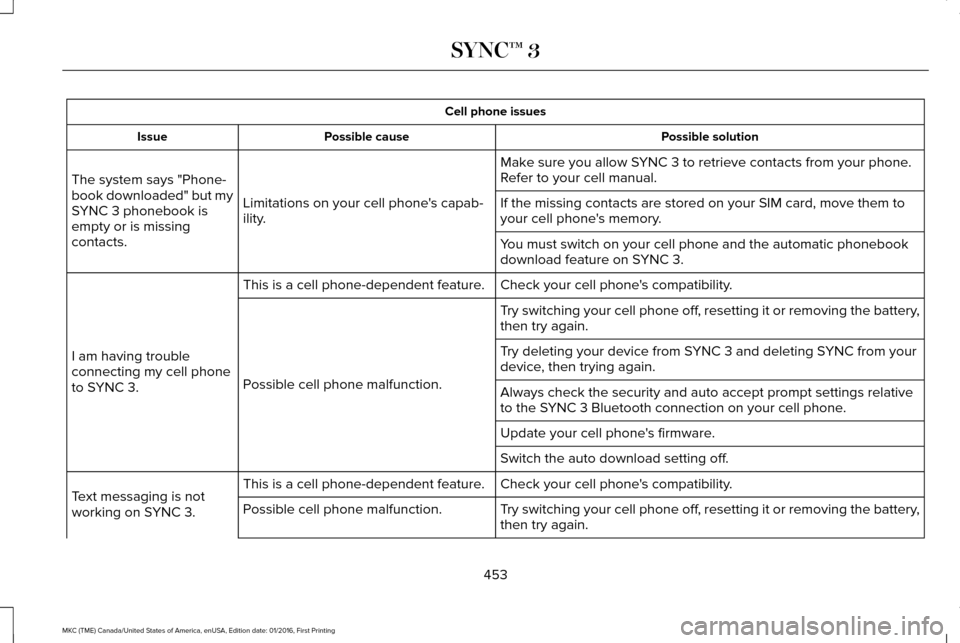
Cell phone issues
Possible solution
Possible cause
Issue
Make sure you allow SYNC 3 to retrieve contacts from your phone.
Refer to your cell manual.
Limitations on your cell phone's capab-
ility.
The system says "Phone-
book downloaded" but my
SYNC 3 phonebook is
empty or is missing
contacts. If the missing contacts are stored on your SIM card, move them to
your cell phone's memory.
You must switch on your cell phone and the automatic phonebook
download feature on SYNC 3.
Check your cell phone's compatibility.
This is a cell phone-dependent feature.
I am having trouble
connecting my cell phone
to SYNC 3. Try switching your cell phone off, resetting it or removing the battery,
then try again.
Possible cell phone malfunction. Try deleting your device from SYNC 3 and deleting SYNC from your
device, then trying again.
Always check the security and auto accept prompt settings relative
to the SYNC 3 Bluetooth connection on your cell phone.
Update your cell phone's firmware.
Switch the auto download setting off.
Check your cell phone's compatibility.
This is a cell phone-dependent feature.
Text messaging is not
working on SYNC 3. Try switching your cell phone off, resetting it or removing the battery,
then try again.
Possible cell phone malfunction.
453
MKC (TME) Canada/United States of America, enUSA, Edition date: 01/2016, First Printing SYNC™ 3
Page 458 of 538
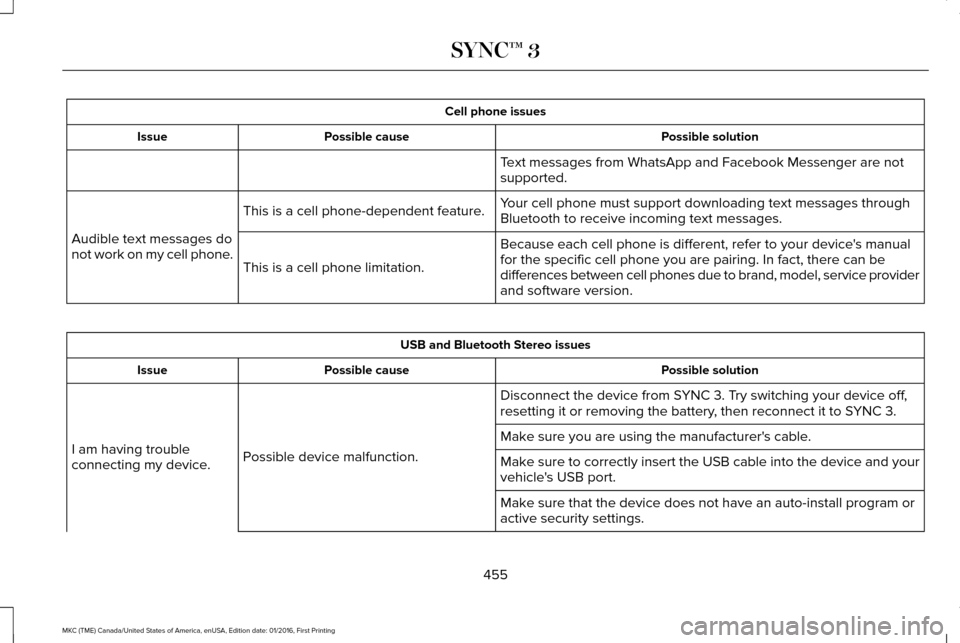
Cell phone issues
Possible solution
Possible cause
Issue
Text messages from WhatsApp and Facebook Messenger are not
supported.
Your cell phone must support downloading text messages through
Bluetooth to receive incoming text messages.
This is a cell phone-dependent feature.
Audible text messages do
not work on my cell phone. Because each cell phone is different, refer to your device's manual
for the specific cell phone you are pairing. In fact, there can be
differences between cell phones due to brand, model, service provider
and software version.
This is a cell phone limitation. USB and Bluetooth Stereo issues
Possible solution
Possible cause
Issue
Disconnect the device from SYNC 3. Try switching your device off,
resetting it or removing the battery, then reconnect it to SYNC 3.
Possible device malfunction.
I am having trouble
connecting my device. Make sure you are using the manufacturer's cable.
Make sure to correctly insert the USB cable into the device and your
vehicle's USB port.
Make sure that the device does not have an auto-install program or
active security settings.
455
MKC (TME) Canada/United States of America, enUSA, Edition date: 01/2016, First Printing SYNC™ 3
Page 467 of 538
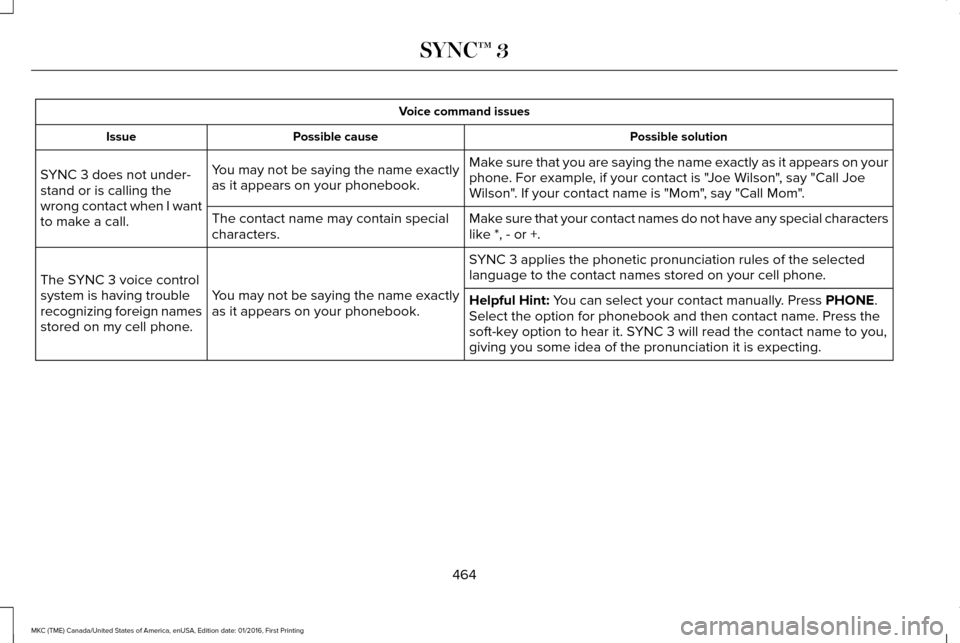
Voice command issues
Possible solution
Possible cause
Issue
Make sure that you are saying the name exactly as it appears on your
phone. For example, if your contact is "Joe Wilson", say "Call Joe
Wilson". If your contact name is "Mom", say "Call Mom".
You may not be saying the name exactly
as it appears on your phonebook.
SYNC 3 does not under-
stand or is calling the
wrong contact when I want
to make a call.
Make sure that your contact names do not have any special characters
like *, - or +.
The contact name may contain special
characters.
SYNC 3 applies the phonetic pronunciation rules of the selected
language to the contact names stored on your cell phone.
You may not be saying the name exactly
as it appears on your phonebook.
The SYNC 3 voice control
system is having trouble
recognizing foreign names
stored on my cell phone.
Helpful Hint: You can select your contact manually. Press PHONE.
Select the option for phonebook and then contact name. Press the
soft-key option to hear it. SYNC 3 will read the contact name to you,
giving you some idea of the pronunciation it is expecting.
464
MKC (TME) Canada/United States of America, enUSA, Edition date: 01/2016, First Printing SYNC™ 3
Page 475 of 538
GENERAL MAINTENANCE
INFORMATION
Why Maintain Your Vehicle?
Carefully following the maintenance
schedule helps protect against major repair
expenses resulting from neglect or
inadequate maintenance and may help to
increase the value of your vehicle when you
sell or trade it. Keep all receipts for
completed maintenance with your vehicle.
We have established regular maintenance
intervals for your vehicle based upon
rigorous testing. It is important that you have
your vehicle serviced at the proper times.
These intervals serve two purposes; one is
to maintain the reliability of your vehicle and
the second is to keep your cost of owning
your vehicle down.
It is your responsibility to have all scheduled
maintenance performed and to make sure
that the materials used meet the
specifications identified in this owner's
manual. See Capacities and Specifications
(page 344).
Failure to perform scheduled maintenance
invalidates warranty coverage on parts
affected by the lack of maintenance.
Why Maintain Your Vehicle at Your
Dealership?
Factory-Trained Technicians
Service technicians participate in extensive
factory-sponsored certification training to
help them become experts on the operation
of your vehicle. Ask your dealership about
the training and certification their technicians
have received.
Genuine Ford and Motorcraft® Replacement
Parts
Dealerships stock Ford, Motorcraft and
Ford-authorized branded re-manufactured
replacement parts. These parts meet or
exceed our specifications. Parts installed at
your dealership carry a nationwide 24-month
or unlimited mile (kilometer) parts and labor
limited warranty.
If you do not use Ford authorized parts they
may not meet our specifications and
depending on the part, it could affect
emissions compliance.
Convenience
Many dealerships have extended evening
and Saturday hours to make your service
visit more convenient and they offer one stop
shopping. They can perform any services
that are required on your vehicle, from
general maintenance to collision repairs.
Note:
Not all dealers have extended hours
or body shops. Please contact your dealer
for details.
Protecting Your Investment
Maintenance is an investment that pays
dividends in the form of improved reliability,
durability and resale value. To maintain the
proper performance of your vehicle and its
emission control systems, make sure you
have scheduled maintenance performed at
the designated intervals.
472
MKC (TME) Canada/United States of America, enUSA, Edition date: 01/2016, First Printing Scheduled Maintenance