lights LINCOLN MKC 2019 User Guide
[x] Cancel search | Manufacturer: LINCOLN, Model Year: 2019, Model line: MKC, Model: LINCOLN MKC 2019Pages: 581, PDF Size: 5.41 MB
Page 150 of 581
Note:The heated seats will only functionwhen the engine is running.
The rear seat heat controls are located onthe rear of the center console.
Press the heated seat symbol to cyclethrough the various heat settings and off.More indicator lights indicate warmersettings.
CLIMATE CONTROLLED SEATS (If
Equipped)
Heated Seats
WARNING: People who are unable tofeel pain to their skin because of advancedage, chronic illness, diabetes, spinal cordinjury, medication, alcohol use, exhaustionor other physical conditions, must usecaution when using the heated seat. Theheated seat may cause burns even at lowtemperatures, especially if used for longperiods of time. Do not place anything onthe seat that may block the heat, such as ablanket or cushion. This can cause theheated seat to overheat. Do not puncturethe seat with pins, needles or other pointedobjects. This damages the heating elementand can cause the heated seat to overheat.An overheated seat may cause seriouspersonal injury.
Do not do the following:
•Place heavy objects on the seat.
•Operate the seat heater if water or anyother liquid spills on the seat. Allow theseat to dry thoroughly.
Note:The heated seats only function whenthe engine is running.
Press the heated seat symbol to cyclethrough the various heat settings and off.More indicator lights indicate warmersettings.
Note:After 90 minutes of operation, theheated seats switch off. Press the heatedseat symbol to switch the heated seats on.
Note:Depending on your remote startsettings, the heated seats may remain onafter you remote start your vehicle. Theheated seats may also turn on when youstart your vehicle if they were on when yourvehicle was turned off.
Cooled Seats
Note:The cooled seats only function whenthe engine is running.
147
MKC (TME) Canada/United States of America, enUSA, Edition date: 201802, Second-Printing
SeatsE146322 E146322
Page 151 of 581
Press the cooled seat symbol to cyclethrough the various cool settings and off.More indicator lights indicate cooler settings.
Note:Depending on your remote startsettings, the cooled seats may remain onafter you remote start your vehicle. Thecooled seats may also turn on when youstart your vehicle if they were on when yourvehicle was turned off.
148
MKC (TME) Canada/United States of America, enUSA, Edition date: 201802, Second-Printing
SeatsE146309
Page 154 of 581
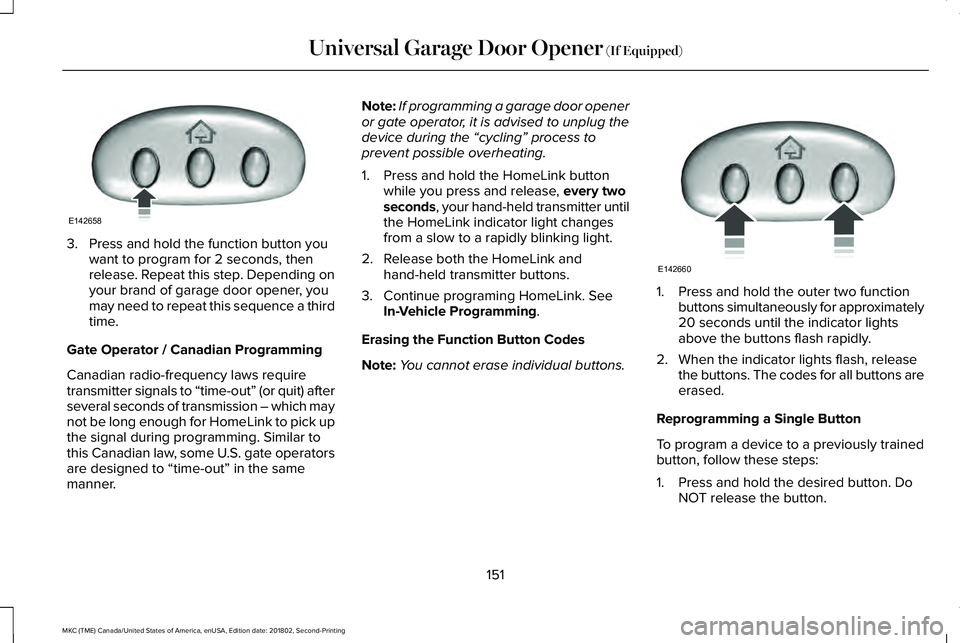
3. Press and hold the function button youwant to program for 2 seconds, thenrelease. Repeat this step. Depending onyour brand of garage door opener, youmay need to repeat this sequence a thirdtime.
Gate Operator / Canadian Programming
Canadian radio-frequency laws requiretransmitter signals to “time-out” (or quit) afterseveral seconds of transmission – which maynot be long enough for HomeLink to pick upthe signal during programming. Similar tothis Canadian law, some U.S. gate operatorsare designed to “time-out” in the samemanner.
Note:If programming a garage door openeror gate operator, it is advised to unplug thedevice during the “cycling” process toprevent possible overheating.
1. Press and hold the HomeLink buttonwhile you press and release, every twoseconds, your hand-held transmitter untilthe HomeLink indicator light changesfrom a slow to a rapidly blinking light.
2. Release both the HomeLink andhand-held transmitter buttons.
3. Continue programing HomeLink. SeeIn-Vehicle Programming.
Erasing the Function Button Codes
Note:You cannot erase individual buttons.
1. Press and hold the outer two functionbuttons simultaneously for approximately20 seconds until the indicator lightsabove the buttons flash rapidly.
2. When the indicator lights flash, releasethe buttons. The codes for all buttons areerased.
Reprogramming a Single Button
To program a device to a previously trainedbutton, follow these steps:
1. Press and hold the desired button. DoNOT release the button.
151
MKC (TME) Canada/United States of America, enUSA, Edition date: 201802, Second-Printing
Universal Garage Door Opener (If Equipped)E142658 E142660
Page 156 of 581
Programming HomeLink to the GenieIntellicode Garage Door Opener Motor
Note:You may need a ladder to access thegarage door opener motor.
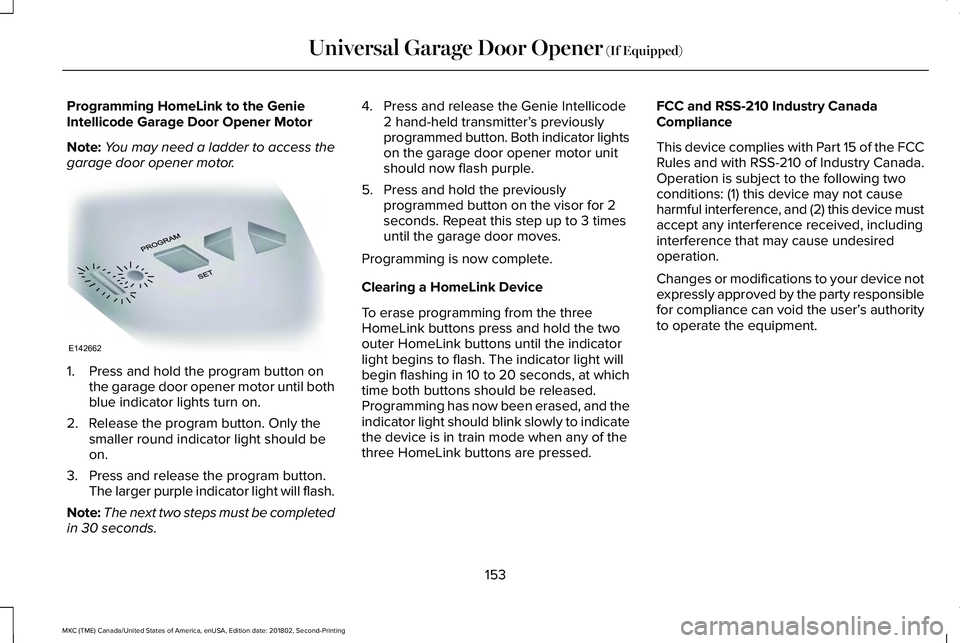
1. Press and hold the program button onthe garage door opener motor until bothblue indicator lights turn on.
2. Release the program button. Only thesmaller round indicator light should beon.
3. Press and release the program button.The larger purple indicator light will flash.
Note:The next two steps must be completedin 30 seconds.
4. Press and release the Genie Intellicode2 hand-held transmitter’s previouslyprogrammed button. Both indicator lightson the garage door opener motor unitshould now flash purple.
5. Press and hold the previouslyprogrammed button on the visor for 2seconds. Repeat this step up to 3 timesuntil the garage door moves.
Programming is now complete.
Clearing a HomeLink Device
To erase programming from the threeHomeLink buttons press and hold the twoouter HomeLink buttons until the indicatorlight begins to flash. The indicator light willbegin flashing in 10 to 20 seconds, at whichtime both buttons should be released.Programming has now been erased, and theindicator light should blink slowly to indicatethe device is in train mode when any of thethree HomeLink buttons are pressed.
FCC and RSS-210 Industry CanadaCompliance
This device complies with Part 15 of the FCCRules and with RSS-210 of Industry Canada.Operation is subject to the following twoconditions: (1) this device may not causeharmful interference, and (2) this device mustaccept any interference received, includinginterference that may cause undesiredoperation.
Changes or modifications to your device notexpressly approved by the party responsiblefor compliance can void the user’s authorityto operate the equipment.
153
MKC (TME) Canada/United States of America, enUSA, Edition date: 201802, Second-Printing
Universal Garage Door Opener (If Equipped)E142662
Page 195 of 581
When the system is active, your vehicle willremain stationary on the slope for two tothree seconds after you release the brakepedal. This allows you time to move yourfoot from the brake to the accelerator pedal. The brakes release automatically when theengine has sufficient torque to prevent yourvehicle from rolling down the grade. This isan advantage when pulling away on a slope,for example from a car park ramp, trafficlights or when reversing uphill into a parkingspace.
The system will activate automatically on anyslope that will cause significant vehiclerollback. For vehicles with a manualtransmission, you can switch this feature offusing the information display. SeeInformation Displays (page 108). The systemwill remain on or off depending on how itwas last set.
Note:There is no warning lamp to indicatethe system is either on or off.
Note:If your vehicle is equipped with AutoHold, Hill Start Assist will not be availablewhile Auto Hold is active.
Using Hill Start Assist
1. Bring your vehicle to a completestandstill. Keep the brake pedal pressedand select an uphill gear (for example,drive (D) or first (1) when facing uphill orreverse (R) when facing downhill).
2. If the sensors detect that your vehicle ison a slope, the system will activateautomatically.
3. When you remove your foot from thebrake pedal, your vehicle will remain onthe slope without rolling away for abouttwo or three seconds. This hold time willautomatically be extended if you are inthe process of driving off.
4. Drive off in the normal manner. Thebrakes will release automatically.
Switching the System On and Off
You can switch this feature on or off if yourvehicle is equipped with a manualtransmission and an information display. SeeGeneral Information (page 108). The systemremembers the last setting when you startyour vehicle.
If your vehicle is not equipped with a manualtransmission and an information display, youcannot turn the system on or off. When youswitch the ignition on, the systemautomatically turns on.
AUTO HOLD
WARNING: The system does notreplace the parking brake. When you leaveyour vehicle, always apply the parking brake.
WARNING: You must remain in yourvehicle when the system turns on. At alltimes, you are responsible for controllingyour vehicle, supervising the system andintervening, if required. Failure to take caremay result in the loss of control of yourvehicle, serious personal injury or death.
WARNING: The system will turn off ifa malfunction is apparent. Failure to takecare may result in the loss of control of yourvehicle, serious personal injury or death.
192
MKC (TME) Canada/United States of America, enUSA, Edition date: 201802, Second-Printing
Brakes
Page 196 of 581
Auto Hold uses your vehicle's brakes to holdyour vehicle at a stop once your vehicle hasreached a standstill condition. For example,Auto Hold can assist you while stopping attraffic lights or while in traffic jams by holdingthe brake pressure for you once you bringyour vehicle to a stop.
Switch Auto Hold off during vehicle or trailertowing.
Note:In case of a malfunction in the systemwhile Auto Hold actively holds the vehicle(for example, low power supply), a messageappears in the information display askingyou to press the brake pedal. If you see thismessage, press the brake pedalimmediately.
Note:Auto Hold only activates if the systemrecognizes it is applying enough brakepressure. On a steep hill or incline, you mayneed to make sure the brake pedal ispressed sufficiently to activate the Auto Holdsystem.
Note:In some cases, Auto Hold might handover to the parking brake. When the parkingbrake automatically applies, the red brakelamp appears. This is normal. When youpress the accelerator pedal, the drive awayrelease feature automatically releases theparking brake.
Note:Auto Hold works on all road grades.
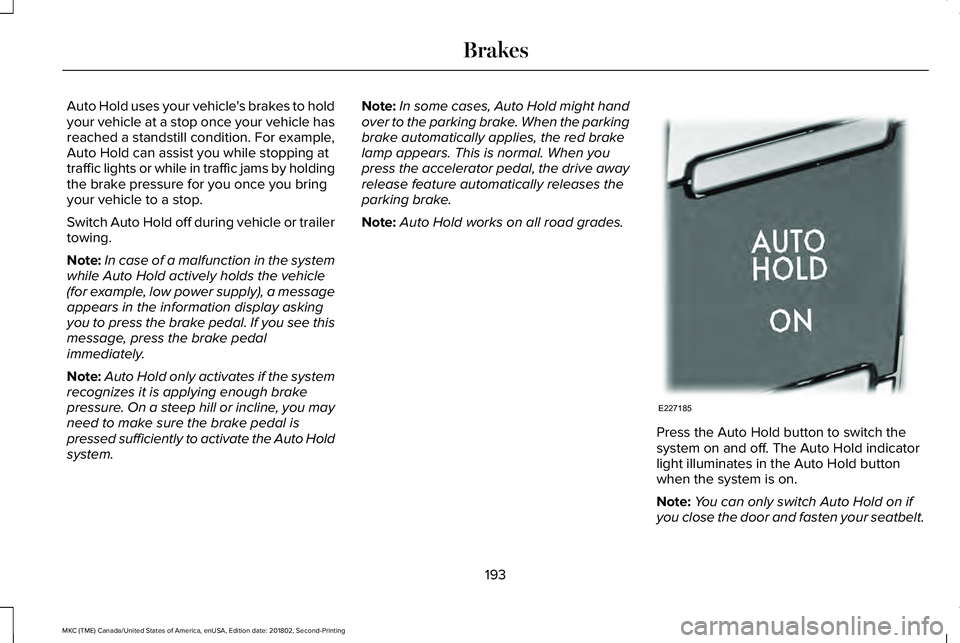
Press the Auto Hold button to switch thesystem on and off. The Auto Hold indicatorlight illuminates in the Auto Hold buttonwhen the system is on.
Note:You can only switch Auto Hold on ifyou close the door and fasten your seatbelt.
193
MKC (TME) Canada/United States of America, enUSA, Edition date: 201802, Second-Printing
BrakesE227185
Page 198 of 581
PRINCIPLE OF OPERATION
The traction control system helps avoid drivewheel spin and loss of traction.
If your vehicle begins to slide, the systemapplies the brakes to individual wheels and,when needed, reduces engine power at thesame time. If the wheels spin whenaccelerating on slippery or loose surfaces,the system reduces engine power in orderto increase traction.
USING TRACTION CONTROL
WARNING: The stability and tractioncontrol light illuminates steadily if the systemdetects a failure. Make sure you did notmanually disable the traction control systemusing the information display controls or theswitch. If the stability control and traction
control light is still illuminating steadily, havethe system serviced by an authorized dealerimmediately. Operating your vehicle with thetraction control disabled could lead to anincreased risk of loss of vehicle control,vehicle rollover, personal injury and death.
The system automatically turns on each timeyou switch the ignition on.
If your vehicle is stuck in mud or snow,switching traction control off may bebeneficial as this allows the wheels to spin.
Note:When you switch traction control off,stability control remains fully active.
Switching the System Off
When you switch the system off or on, amessage appears in the information displayshowing system status.
You can switch the system off by either usingthe information display controls or the switch.
Using the Information Display Controls
You can switch this feature off or on in theinformation display. See General Information(page 108).
Using a Switch (If Equipped)
Use the traction control switch on theinstrument panel to switch the system off oron.
System Indicator Lights and Messages
The stability and traction controllight:
•Temporarily illuminates on enginestart-up.
•Flashes when a driving conditionactivates either of the systems.
•Illuminates if a problem occurs in eitherof the systems.
The stability and traction controloff light temporarily illuminates onengine start-up and stays on whenyou switch the traction control system off.
195
MKC (TME) Canada/United States of America, enUSA, Edition date: 201802, Second-Printing
Traction ControlE138639 E130458
Page 212 of 581
Fixed guideline: Yellow zoneD
Fixed guideline: Red zoneE
Rear bumperF
Active guidelines are only shown with fixedguidelines. To use active guidelines, turnthe steering wheel to point the guidelinestoward an intended path. If you change thesteering wheel position while reversing, yourvehicle might deviate from the originalintended path.
The fixed and active guidelines fade in andout depending on the steering wheelposition. The active guidelines do notdisplay when the steering wheel position isstraight.
Always use caution while reversing. Objectsin the red zone are closest to your vehicleand objects in the green zone are fartheraway. Objects are getting closer to yourvehicle as they move from the green zoneto the yellow or red zones. Use the side viewmirrors and rear view mirror to get bettercoverage on both sides and rear of thevehicle.
Manual Zoom
WARNING: When manual zoom is on,the full area behind your vehicle may notshow. Be aware of your surroundings whenusing the manual zoom feature.
Note:Manual zoom is only available whenthe transmission is in reverse (R).
Note:When you enable manual zoom, onlythe centerline is shown.
Selectable settings for this feature are Zoomin (+) and Zoom out (-). Press the symbol inthe camera screen to change the view. Thedefault setting is Zoom OFF.
This allows you to get a closer view of anobject behind your vehicle. The zoomedimage keeps the bumper in the image toprovide a reference. The zoom is only activewhile the transmission is in reverse (R).
Camera System Settings
The rear view camera system settings canbe changed in the display screen. SeeSettings (page 445).
Enhanced Park Aids or Park Pilot
Selectable settings for this feature are ONand OFF.
The system uses red, yellow and greenhighlights that appear on top of the videoimage when any of the sensing systemsdetect an object.
Rear Camera Delay
Selectable settings for this feature are ONand OFF.
The default setting for the rear camera delayis OFF.
When shifting the transmission out of reverse(R) and into any gear other than park (P), thecamera image remains in the display until:
•Your vehicle speed sufficiently increases.
•You shift your vehicle into park (P).
209
MKC (TME) Canada/United States of America, enUSA, Edition date: 201802, Second-Printing
Parking Aids
Page 230 of 581
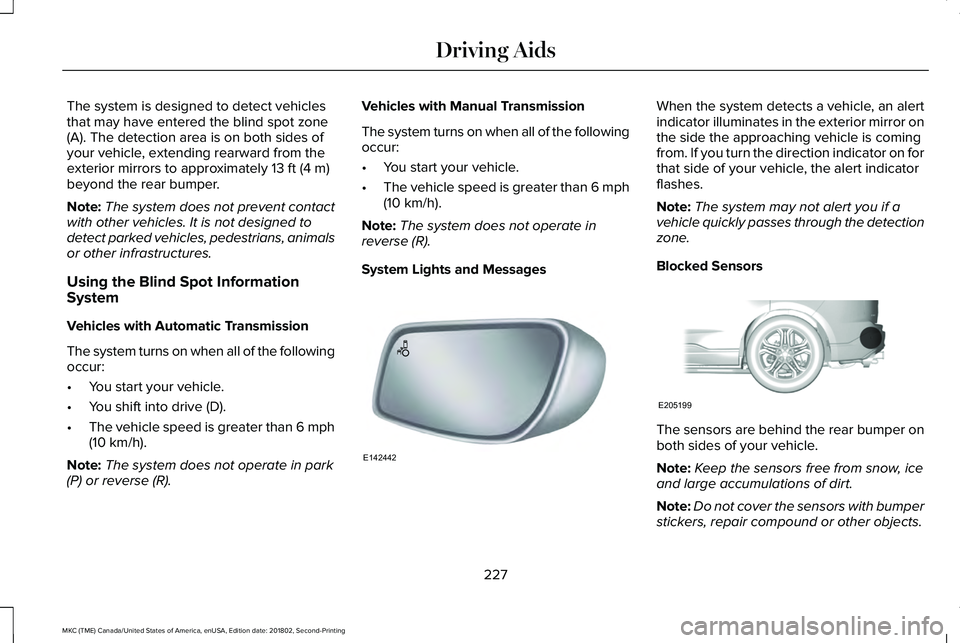
The system is designed to detect vehiclesthat may have entered the blind spot zone(A). The detection area is on both sides ofyour vehicle, extending rearward from theexterior mirrors to approximately 13 ft (4 m)beyond the rear bumper.
Note:The system does not prevent contactwith other vehicles. It is not designed todetect parked vehicles, pedestrians, animalsor other infrastructures.
Using the Blind Spot InformationSystem
Vehicles with Automatic Transmission
The system turns on when all of the followingoccur:
•You start your vehicle.
•You shift into drive (D).
•The vehicle speed is greater than 6 mph(10 km/h).
Note:The system does not operate in park(P) or reverse (R).
Vehicles with Manual Transmission
The system turns on when all of the followingoccur:
•You start your vehicle.
•The vehicle speed is greater than 6 mph(10 km/h).
Note:The system does not operate inreverse (R).
System Lights and Messages
When the system detects a vehicle, an alertindicator illuminates in the exterior mirror onthe side the approaching vehicle is comingfrom. If you turn the direction indicator on forthat side of your vehicle, the alert indicatorflashes.
Note:The system may not alert you if avehicle quickly passes through the detectionzone.
Blocked Sensors
The sensors are behind the rear bumper onboth sides of your vehicle.
Note:Keep the sensors free from snow, iceand large accumulations of dirt.
Note:Do not cover the sensors with bumperstickers, repair compound or other objects.
227
MKC (TME) Canada/United States of America, enUSA, Edition date: 201802, Second-Printing
Driving AidsE142442 E205199
Page 234 of 581
System Lights, Messages and AudibleAlerts
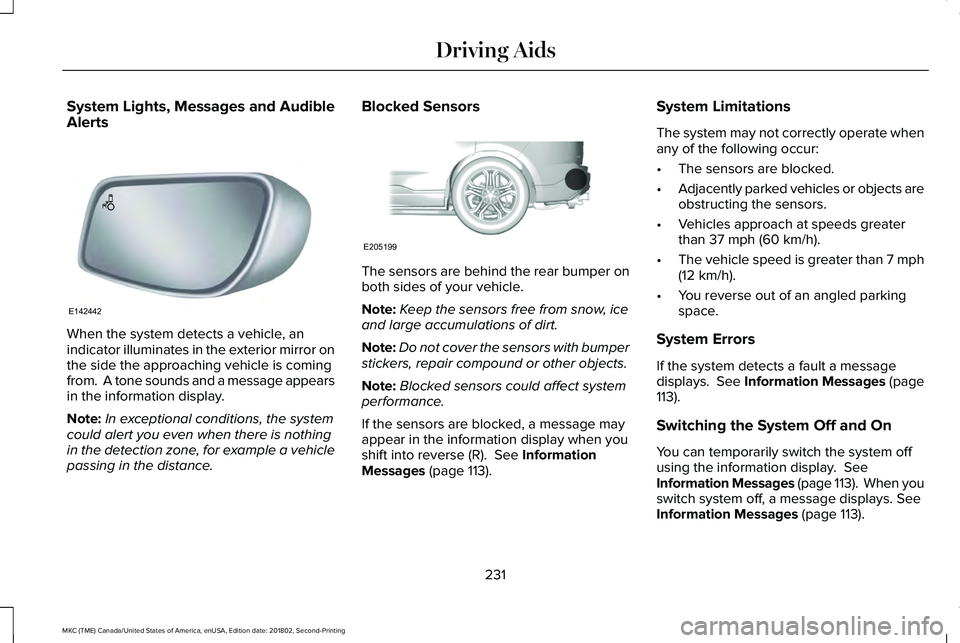
When the system detects a vehicle, anindicator illuminates in the exterior mirror onthe side the approaching vehicle is comingfrom. A tone sounds and a message appearsin the information display.
Note:In exceptional conditions, the systemcould alert you even when there is nothingin the detection zone, for example a vehiclepassing in the distance.
Blocked Sensors
The sensors are behind the rear bumper onboth sides of your vehicle.
Note:Keep the sensors free from snow, iceand large accumulations of dirt.
Note:Do not cover the sensors with bumperstickers, repair compound or other objects.
Note:Blocked sensors could affect systemperformance.
If the sensors are blocked, a message mayappear in the information display when youshift into reverse (R). See InformationMessages (page 113).
System Limitations
The system may not correctly operate whenany of the following occur:
•The sensors are blocked.
•Adjacently parked vehicles or objects areobstructing the sensors.
•Vehicles approach at speeds greaterthan 37 mph (60 km/h).
•The vehicle speed is greater than 7 mph(12 km/h).
•You reverse out of an angled parkingspace.
System Errors
If the system detects a fault a messagedisplays. See Information Messages (page113).
Switching the System Off and On
You can temporarily switch the system offusing the information display. SeeInformation Messages (page 113). When youswitch system off, a message displays. SeeInformation Messages (page 113).
231
MKC (TME) Canada/United States of America, enUSA, Edition date: 201802, Second-Printing
Driving AidsE142442 E205199