light LINCOLN MKT 2010 Owner's Manual
[x] Cancel search | Manufacturer: LINCOLN, Model Year: 2010, Model line: MKT, Model: LINCOLN MKT 2010Pages: 430, PDF Size: 3.32 MB
Page 75 of 430
MEDIA for Monitor B:In Dual Play mode, press MEDIA repeatedly to
select from the possible media sources: (Monitor A, Monitor B). The
selected media type will display on the screen. When Monitor B is
chosen, you can also use the auxiliary inputs and USB port on the
headrest system.
For further information, please refer toSingle play/Dual play.later in
this section.
Note:Each headrest monitor is labeled with an identifier (either A or B)
found in the upper right corner of the system.
16.MUTE:Press to mute the volume of the active media source.
(headphone and speakers, where applicable.) Press again to restore
volume.
17.EJECT:Press to eject a disc from the system. OPEN will display on
the screen.
18.Fast reverse/Previous:When a DVD is playing, press and hold for a
quick reverse within the DVD. Press and release for the previous
chapter. Press PLAY to resume normal playback speed and volume.
In CD/MP3 mode, press to access the previous track. When using a
flash/thumb drive, press to access the next track.
19.MENU:Press to access the DVD or CD disc menu for selections.
Press again to return to DVD play.
Note:For certain discs, you may need to press ENTER to return to DVD
play.
20.SUBTITLE(DVD dependent): Press to turn the subtitle feature ON
or OFF.
21.LANGUAGE(DVD dependent): Press to select the desired
language.
22.ENTER:Press to select the highlighted menu option.
23.ILLUMINATION: Press to illuminate the remote control and
backlight all of the buttons for night use.
Entertainment Systems
75
2010 MKT(mkt)
Owners Guide, 1st Printing
USA(fus)
Page 77 of 430
Additional infrared wireless headphones may be purchased for use with
the system. Also, wired headphones may be purchased and plugged in
where indicated on the left and right hand sides of the system. Refer to
Wired Headphonesfollowing.
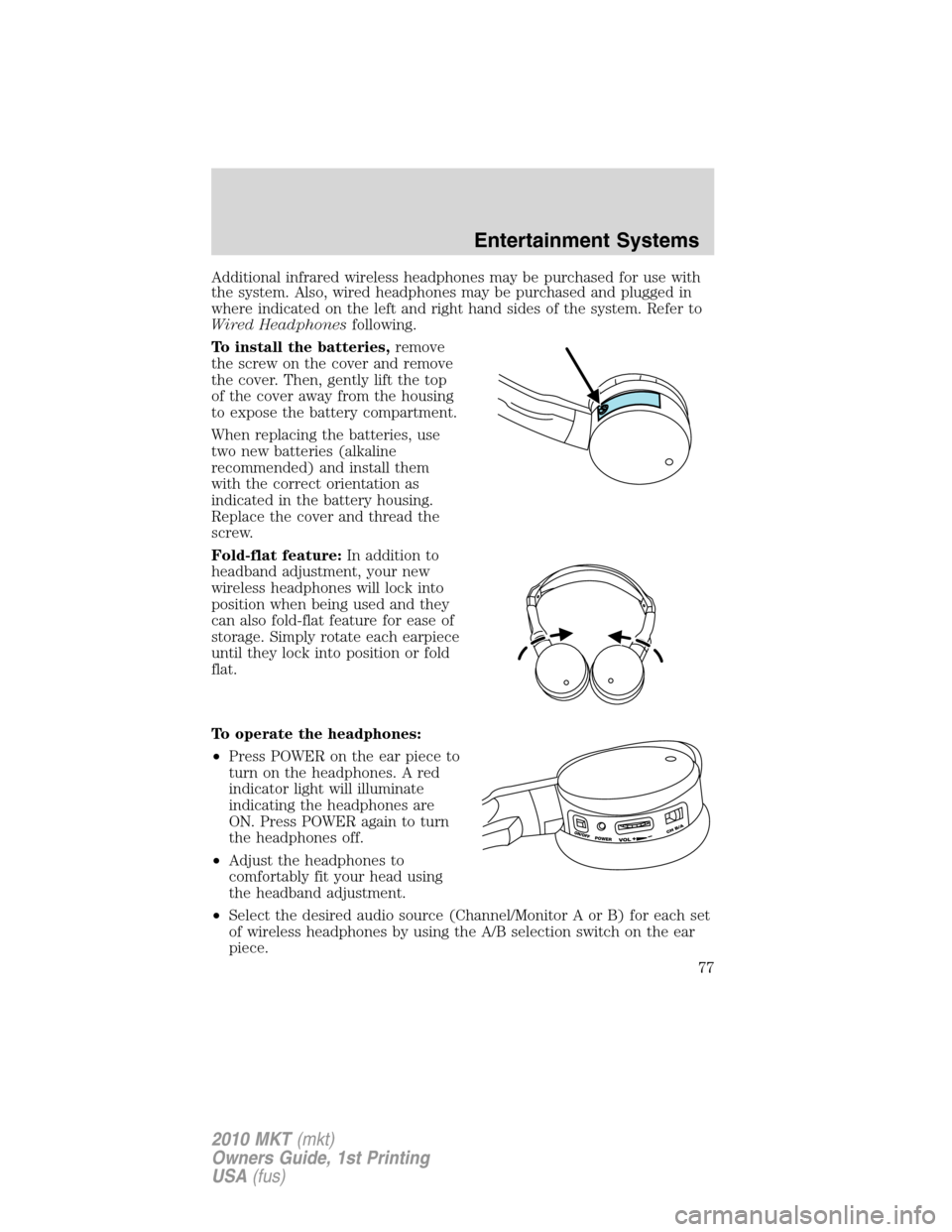
To install the batteries,remove
the screw on the cover and remove
the cover. Then, gently lift the top
of the cover away from the housing
to expose the battery compartment.
When replacing the batteries, use
two new batteries (alkaline
recommended) and install them
with the correct orientation as
indicated in the battery housing.
Replace the cover and thread the
screw.
Fold-flat feature:In addition to
headband adjustment, your new
wireless headphones will lock into
position when being used and they
can also fold-flat feature for ease of
storage. Simply rotate each earpiece
until they lock into position or fold
flat.
To operate the headphones:
•Press POWER on the ear piece to
turn on the headphones. A red
indicator light will illuminate
indicating the headphones are
ON. Press POWER again to turn
the headphones off.
•Adjust the headphones to
comfortably fit your head using
the headband adjustment.
•Select the desired audio source (Channel/Monitor A or B) for each set
of wireless headphones by using the A/B selection switch on the ear
piece.
Entertainment Systems
77
2010 MKT(mkt)
Owners Guide, 1st Printing
USA(fus)
Page 81 of 430
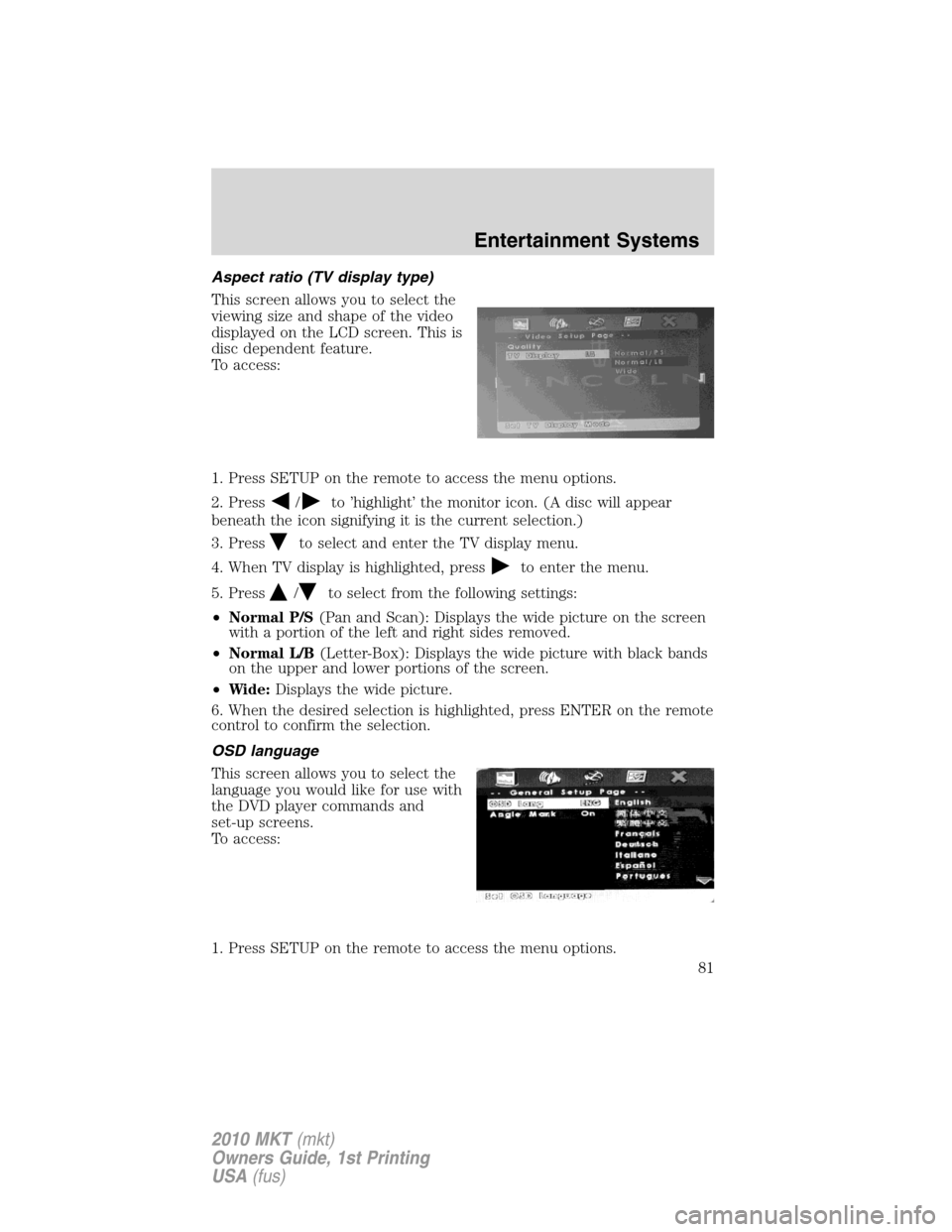
Aspect ratio (TV display type)
This screen allows you to select the
viewing size and shape of the video
displayed on the LCD screen. This is
disc dependent feature.
To access:
1. Press SETUP on the remote to access the menu options.
2. Press
/to ’highlight’ the monitor icon. (A disc will appear
beneath the icon signifying it is the current selection.)
3. Press
to select and enter the TV display menu.
4. When TV display is highlighted, press
to enter the menu.
5. Press
/to select from the following settings:
•Normal P/S(Pan and Scan): Displays the wide picture on the screen
with a portion of the left and right sides removed.
•Normal L/B(Letter-Box): Displays the wide picture with black bands
on the upper and lower portions of the screen.
•Wide:Displays the wide picture.
6. When the desired selection is highlighted, press ENTER on the remote
control to confirm the selection.
OSD language
This screen allows you to select the
language you would like for use with
the DVD player commands and
set-up screens.
To access:
1. Press SETUP on the remote to access the menu options.
Entertainment Systems
81
2010 MKT(mkt)
Owners Guide, 1st Printing
USA(fus)
Page 82 of 430
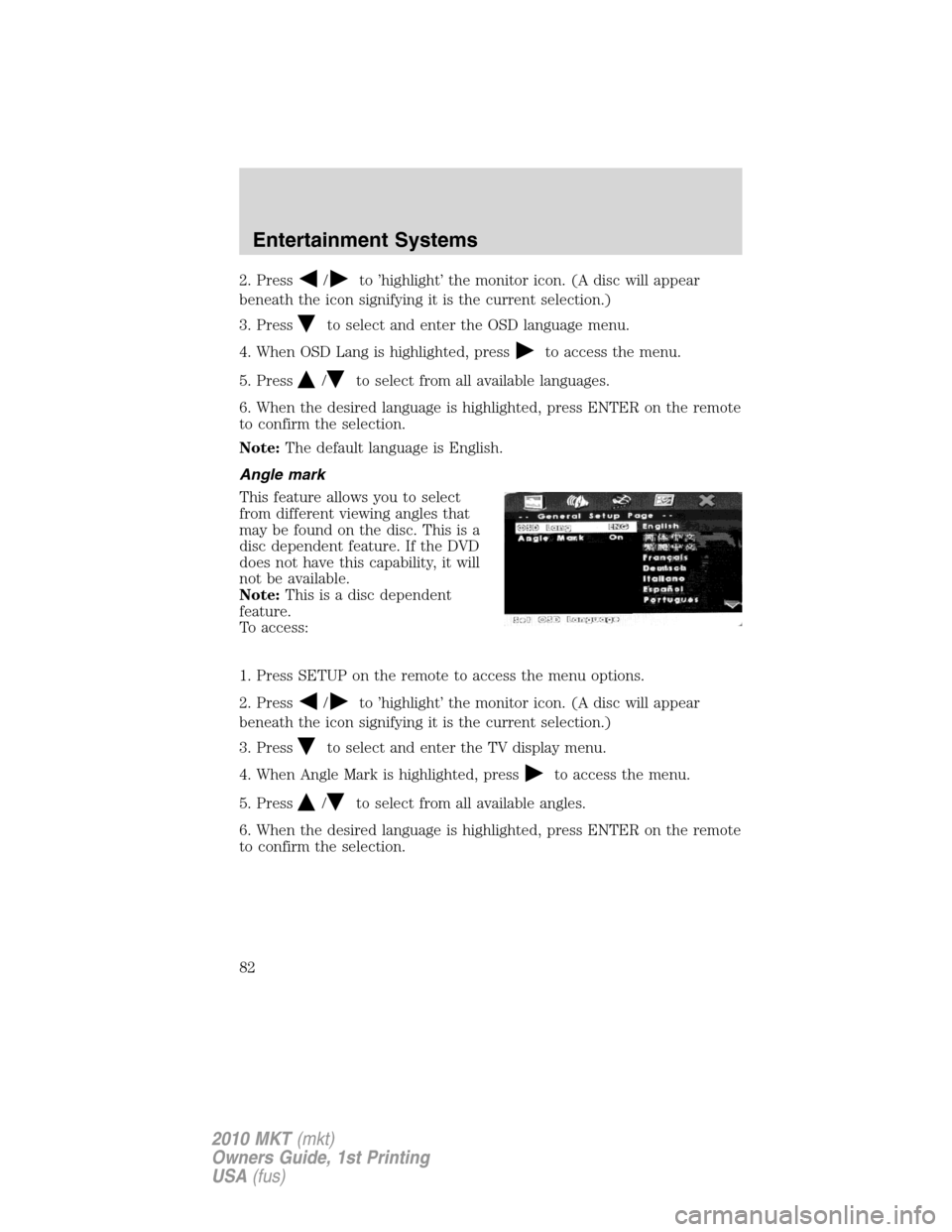
2. Press/to ’highlight’ the monitor icon. (A disc will appear
beneath the icon signifying it is the current selection.)
3. Press
to select and enter the OSD language menu.
4. When OSD Lang is highlighted, press
to access the menu.
5. Press
/to select from all available languages.
6. When the desired language is highlighted, press ENTER on the remote
to confirm the selection.
Note:The default language is English.
Angle mark
This feature allows you to select
from different viewing angles that
may be found on the disc. This is a
disc dependent feature. If the DVD
does not have this capability, it will
not be available.
Note:This is a disc dependent
feature.
To access:
1. Press SETUP on the remote to access the menu options.
2. Press
/to ’highlight’ the monitor icon. (A disc will appear
beneath the icon signifying it is the current selection.)
3. Press
to select and enter the TV display menu.
4. When Angle Mark is highlighted, press
to access the menu.
5. Press
/to select from all available angles.
6. When the desired language is highlighted, press ENTER on the remote
to confirm the selection.
Entertainment Systems
82
2010 MKT(mkt)
Owners Guide, 1st Printing
USA(fus)
Page 83 of 430
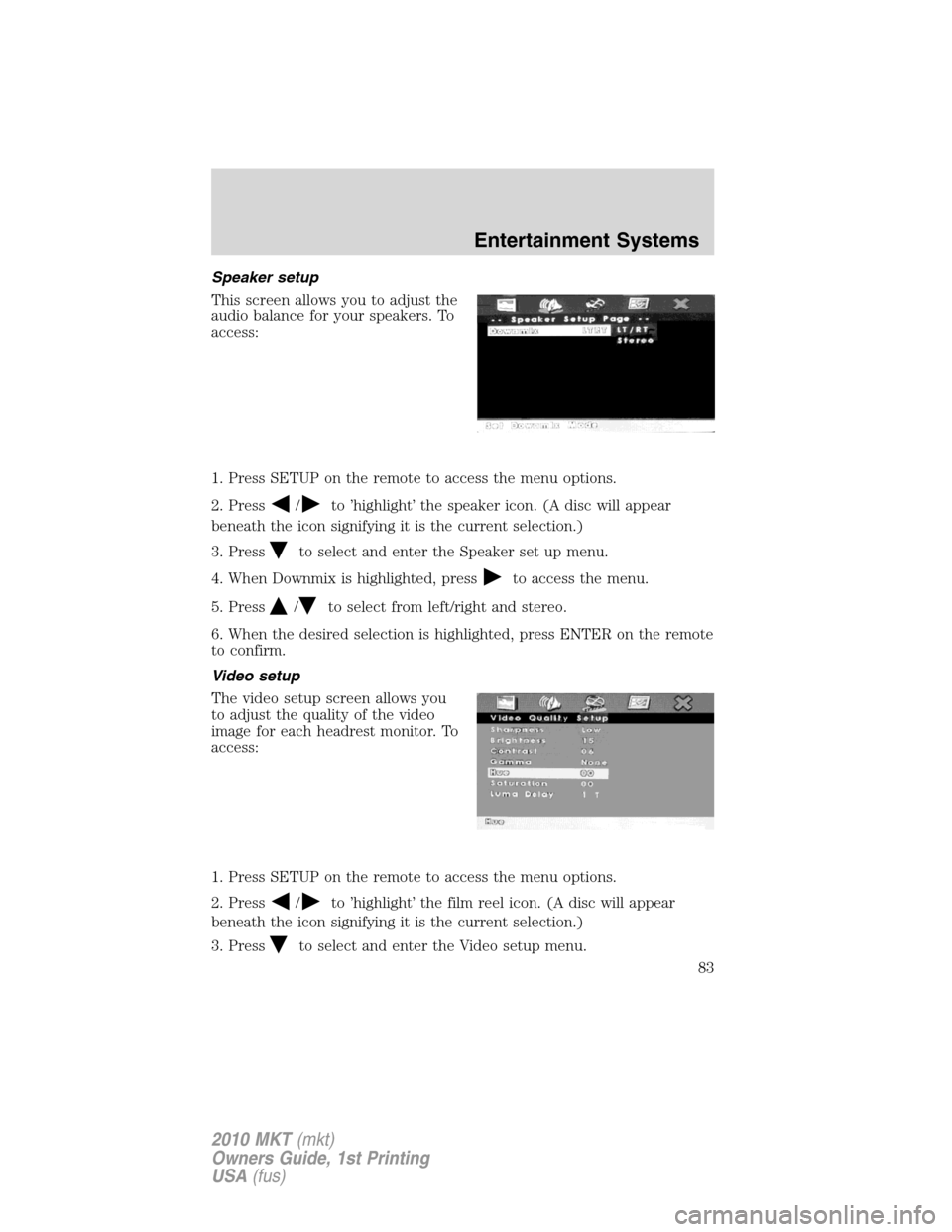
Speaker setup
This screen allows you to adjust the
audio balance for your speakers. To
access:
1. Press SETUP on the remote to access the menu options.
2. Press
/to ’highlight’ the speaker icon. (A disc will appear
beneath the icon signifying it is the current selection.)
3. Press
to select and enter the Speaker set up menu.
4. When Downmix is highlighted, press
to access the menu.
5. Press
/to select from left/right and stereo.
6. When the desired selection is highlighted, press ENTER on the remote
to confirm.
Video setup
The video setup screen allows you
to adjust the quality of the video
image for each headrest monitor. To
access:
1. Press SETUP on the remote to access the menu options.
2. Press
/to ’highlight’ the film reel icon. (A disc will appear
beneath the icon signifying it is the current selection.)
3. Press
to select and enter the Video setup menu.
Entertainment Systems
83
2010 MKT(mkt)
Owners Guide, 1st Printing
USA(fus)
Page 84 of 430
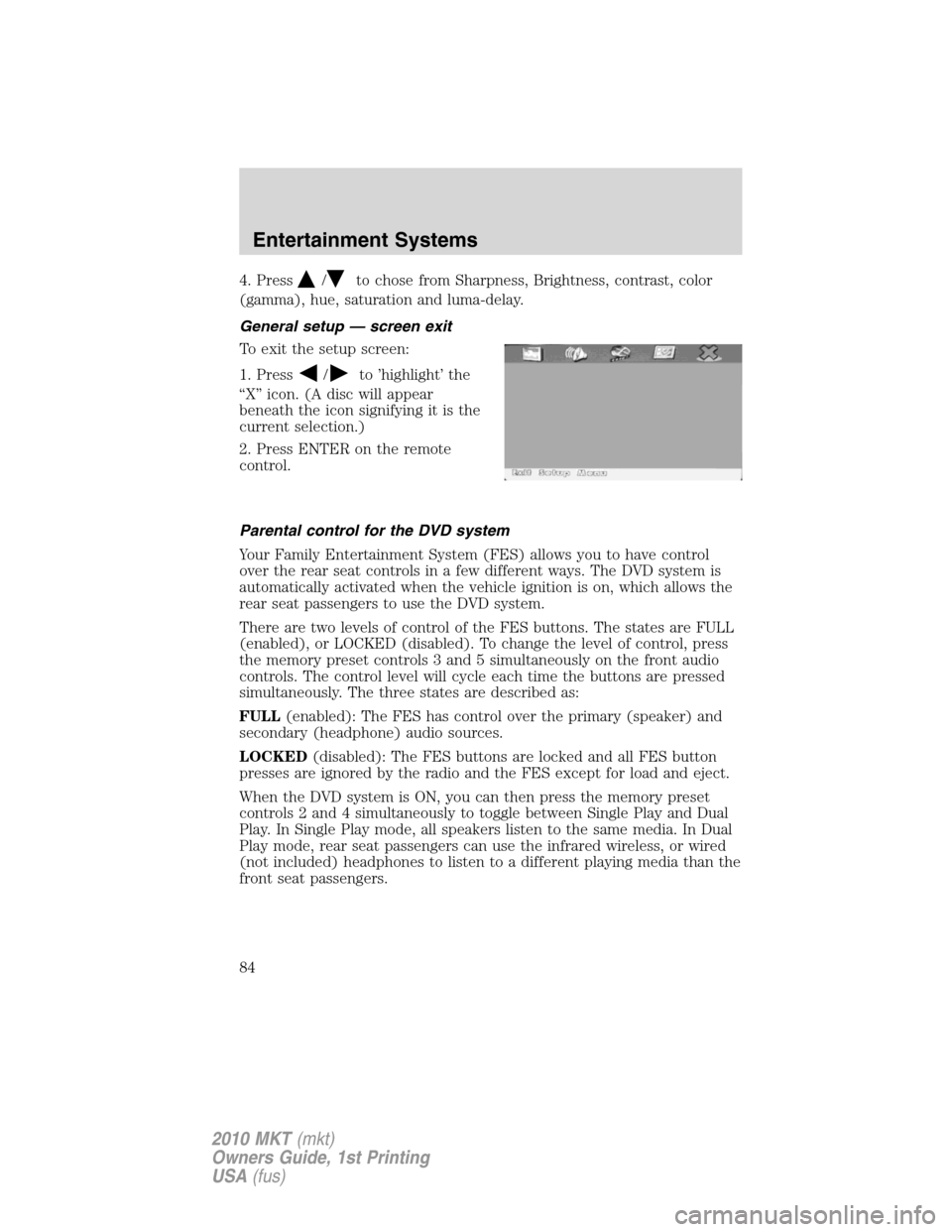
4. Press/to chose from Sharpness, Brightness, contrast, color
(gamma), hue, saturation and luma-delay.
General setup — screen exit
To exit the setup screen:
1. Press
/to ’highlight’ the
“X” icon. (A disc will appear
beneath the icon signifying it is the
current selection.)
2. Press ENTER on the remote
control.
Parental control for the DVD system
Your Family Entertainment System (FES) allows you to have control
over the rear seat controls in a few different ways. The DVD system is
automatically activated when the vehicle ignition is on, which allows the
rear seat passengers to use the DVD system.
There are two levels of control of the FES buttons. The states are FULL
(enabled), or LOCKED (disabled). To change the level of control, press
the memory preset controls 3 and 5 simultaneously on the front audio
controls. The control level will cycle each time the buttons are pressed
simultaneously. The three states are described as:
FULL(enabled): The FES has control over the primary (speaker) and
secondary (headphone) audio sources.
LOCKED(disabled): The FES buttons are locked and all FES button
presses are ignored by the radio and the FES except for load and eject.
When the DVD system is ON, you can then press the memory preset
controls 2 and 4 simultaneously to toggle between Single Play and Dual
Play. In Single Play mode, all speakers listen to the same media. In Dual
Play mode, rear seat passengers can use the infrared wireless, or wired
(not included) headphones to listen to a different playing media than the
front seat passengers.
Entertainment Systems
84
2010 MKT(mkt)
Owners Guide, 1st Printing
USA(fus)
Page 86 of 430
Read all of the safety and operating instructions before operating the
system and retain for future reference.
Do not attempt to service, repair or modify the Family Entertainment
System (FES). See your dealer.
Do not insert foreign objects into the DVD compartment.
WARNING:Do not leave children unattended in the vehicle and
do not let children operate the system while unsupervised. If
wired headphones or auxiliary systems are used, children may become
entangled in the cords and seriously injure themselves.
WARNING:The front glass on the liquid crystal display (LCD)
flip-down screen may break when hit with a hard surface. If the
glass breaks, do not touch the liquid crystalline material. In case of
contact with skin, wash immediately with soap and water.
WARNING:The driver should not attempt to operate any
function of the DVD system while the vehicle is in motion. Give
full attention to driving and to the road. Pull off the road in a safe
place before inserting or extracting DVDs from the system. A remote
control is included in the system to allow the rear seat occupants to
operate the FES functions without distracting the driver.
Do not expose the liquid crystal display (LCD) flip-down screen
to direct sunlight or intensive ultraviolet rays for extensive
periods of time. Ultraviolet rays deteriorate the liquid crystal.
Be sure to review User Manuals for video games and video game
equipment when used as auxiliary inputs for your Family Entertainment
System (FES).
Do not operate video games or video equipment if the power cords
and/or cables are broken, split or damaged. Carefully place cords and/or
cables where they will not be stepped on or interfere with the operation
of seats and/or compartments.
Disconnect video games and video equipment power cords and/or cables
when not in use.
Avoid touching auxiliary input jacks with your fingers. Do not blow on
them or allow them to get wet or dirty.
Do not clean any part of the DVD player with benzene, lacquer thinner,
acetone, or any other solvent.
Entertainment Systems
86
2010 MKT(mkt)
Owners Guide, 1st Printing
USA(fus)
Page 87 of 430
Federal Communication Commission (FCC) Compliance
Changes or modifications not approved by Ford Lincoln-Mercury could
void user’s authority to operate the equipment. This equipment has been
tested and found to comply with the limits for a Class B digital device,
pursuant to Part 15 of the FCC Rules. These limits are designed to
provide reasonable protection against harmful interference in a
residential installation. This equipment generates, uses and can radiate
radio frequency energy and, if not installed and used in accordance with
the instructions, may cause harmful interference and radio
communications.
However, there is no guarantee that interference will not occur in a
particular installation. If this equipment does cause harmful interference
to radio or television reception, which can be determined by turning the
equipment off and on, the user is encouraged to consult the dealer or an
experienced radio/TV technician for help.
Care and service of the DVD player
Environmental extremes
DVD players which are subjected to harsh environmental conditions may
be damaged or perform at less than maximum capability. To avoid these
outcomes, whenever possible avoid exposing your DVD player to:
•extremely hot or cold temperatures.
•direct sunlight.
•high humidity.
•a dusty environment.
•locations where strong magnetic fields are generated.
Temperature extremes
When the vehicle is parked under direct sunlight or in an extremely cold
place for a long period of time, wait until the cabin temperature of the
vehicle is at normal temperature before operating the system.
Humidity and moisture condensation
Moisture in the air will condense in the DVD player under extremely
humid conditions or when moving from a cold place to a warm one.
Moisture condensation may cause damage to the DVD and/or player. If
moisture condensation occurs, do not insert a CD or DVD into the
player. If one is already in the player, remove it. Turn the DVD player ON
to dry the moisture before inserting a DVD. This could take an hour or
more.
Entertainment Systems
87
2010 MKT(mkt)
Owners Guide, 1st Printing
USA(fus)
Page 93 of 430
•Remove any snow, ice or leaves from the air intake area at the base of
the windshield.
For maximum cooling performance (MAX A/C): In AUTO mode, press
AUTO control and set to desired temperature.
In manual override mode, select
or, A/C and recirculated
air
and set the temperature to 60°F (16°C). Set the fan to the
highest speed initially, then adjust to maintain passenger comfort.
To improve the A/C cool down, drive with the windows slightly open for
2–3 minutes after starting the vehicle or until the vehicle has “aired out.”
In extremely cold temperatures, to maximize overall heater performance
it is suggested to not operate the auxiliary system (if equipped) until the
engine temperature gauge crosses into the normal operating range.
To aid in side window defogging/demisting in cold weather:
1. Select
.
2. Press A/C.
3. Adjust the temperature control to maintain comfort.
4. Set the fan to the highest speed.
5. Direct the outer instrument panel vents toward the side windows.
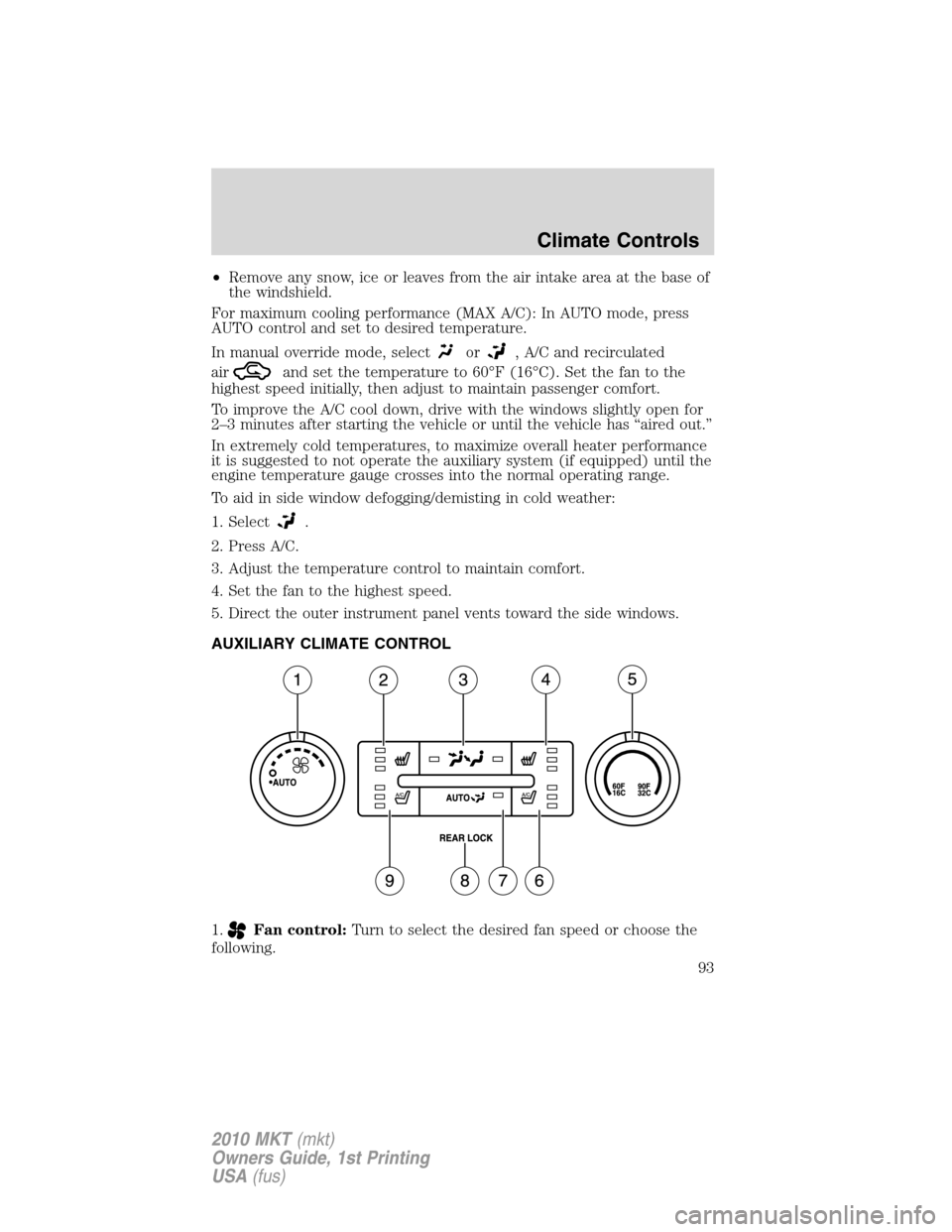
AUXILIARY CLIMATE CONTROL
1.
Fan control:Turn to select the desired fan speed or choose the
following.
Climate Controls
93
2010 MKT(mkt)
Owners Guide, 1st Printing
USA(fus)
Page 94 of 430
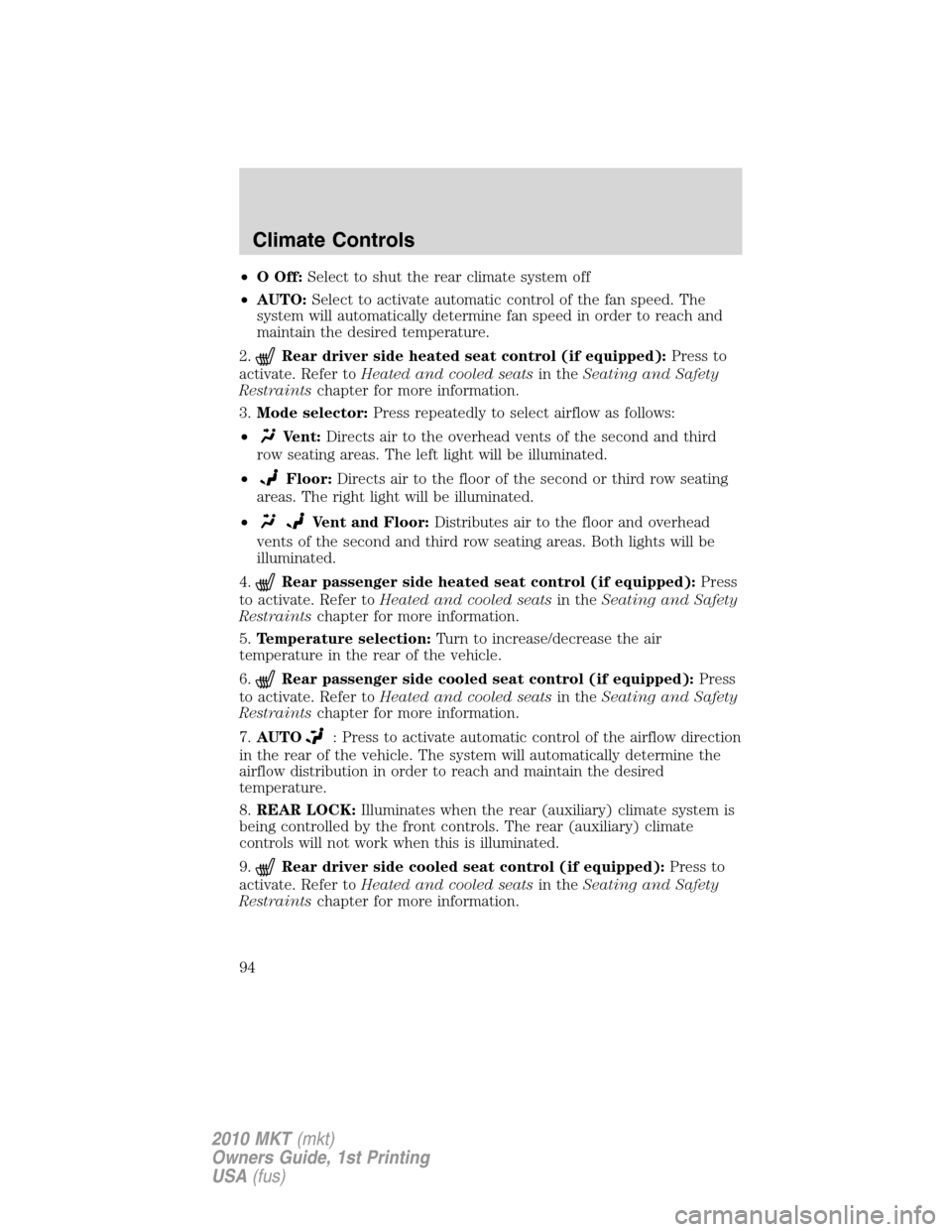
•OOff:Select to shut the rear climate system off
•AUTO:Select to activate automatic control of the fan speed. The
system will automatically determine fan speed in order to reach and
maintain the desired temperature.
2.
Rear driver side heated seat control (if equipped):Press to
activate. Refer toHeated and cooled seatsin theSeating and Safety
Restraintschapter for more information.
3.Mode selector:Press repeatedly to select airflow as follows:
•
Vent:Directs air to the overhead vents of the second and third
row seating areas. The left light will be illuminated.
•
Floor:Directs air to the floor of the second or third row seating
areas. The right light will be illuminated.
•
Vent and Floor:Distributes air to the floor and overhead
vents of the second and third row seating areas. Both lights will be
illuminated.
4.
Rear passenger side heated seat control (if equipped):Press
to activate. Refer toHeated and cooled seatsin theSeating and Safety
Restraintschapter for more information.
5.Temperature selection:Turn to increase/decrease the air
temperature in the rear of the vehicle.
6.
Rear passenger side cooled seat control (if equipped):Press
to activate. Refer toHeated and cooled seatsin theSeating and Safety
Restraintschapter for more information.
7.AUTO
: Press to activate automatic control of the airflow direction
in the rear of the vehicle. The system will automatically determine the
airflow distribution in order to reach and maintain the desired
temperature.
8.REAR LOCK:Illuminates when the rear (auxiliary) climate system is
being controlled by the front controls. The rear (auxiliary) climate
controls will not work when this is illuminated.
9.
Rear driver side cooled seat control (if equipped):Press to
activate. Refer toHeated and cooled seatsin theSeating and Safety
Restraintschapter for more information.
Climate Controls
94
2010 MKT(mkt)
Owners Guide, 1st Printing
USA(fus)