turn signal LINCOLN MKT 2015 Owner's Manual
[x] Cancel search | Manufacturer: LINCOLN, Model Year: 2015, Model line: MKT, Model: LINCOLN MKT 2015Pages: 500, PDF Size: 4.94 MB
Page 405 of 500
Options
Sound Settingsallows you to adjust settings for:
•Bass
•Midrange
•Treble
•Balance and Fade
•DSP (Digital Signal Processing)
•Occupancy Mode
•Speed Compensated Volume.
Note:Your vehicle may not have all these sound settings.
Compressionallows you to turn the compression feature on and off.
Browse
Touch this button to look through all available CD tracks.
CD Voice Commands
If you are listening to a CD, press the voice button on the
steering wheel control. When prompted, say any of the
commands in the following chart.
If you are not listening to a CD, press the voice button and, after the
tone, say “CD”, then any of the commands in the following chart.
“CD”
“Pause” “Repeat off”
“Play” “Repeat track”
“Play next track” “Shuffle”
“Play previous track” “Shuffle CD”
*
“Play track <1–512>” “Shuffle folder”*
“Repeat” “Shuffle off”
“Repeat folder”*“Help”
*This applies to WMA or MP3 files only.
404MyLincoln Touch™
2015 MKT(mkt)
Owners Guide gf, 1st Printing, October 2014
USA(fus)
Page 432 of 500
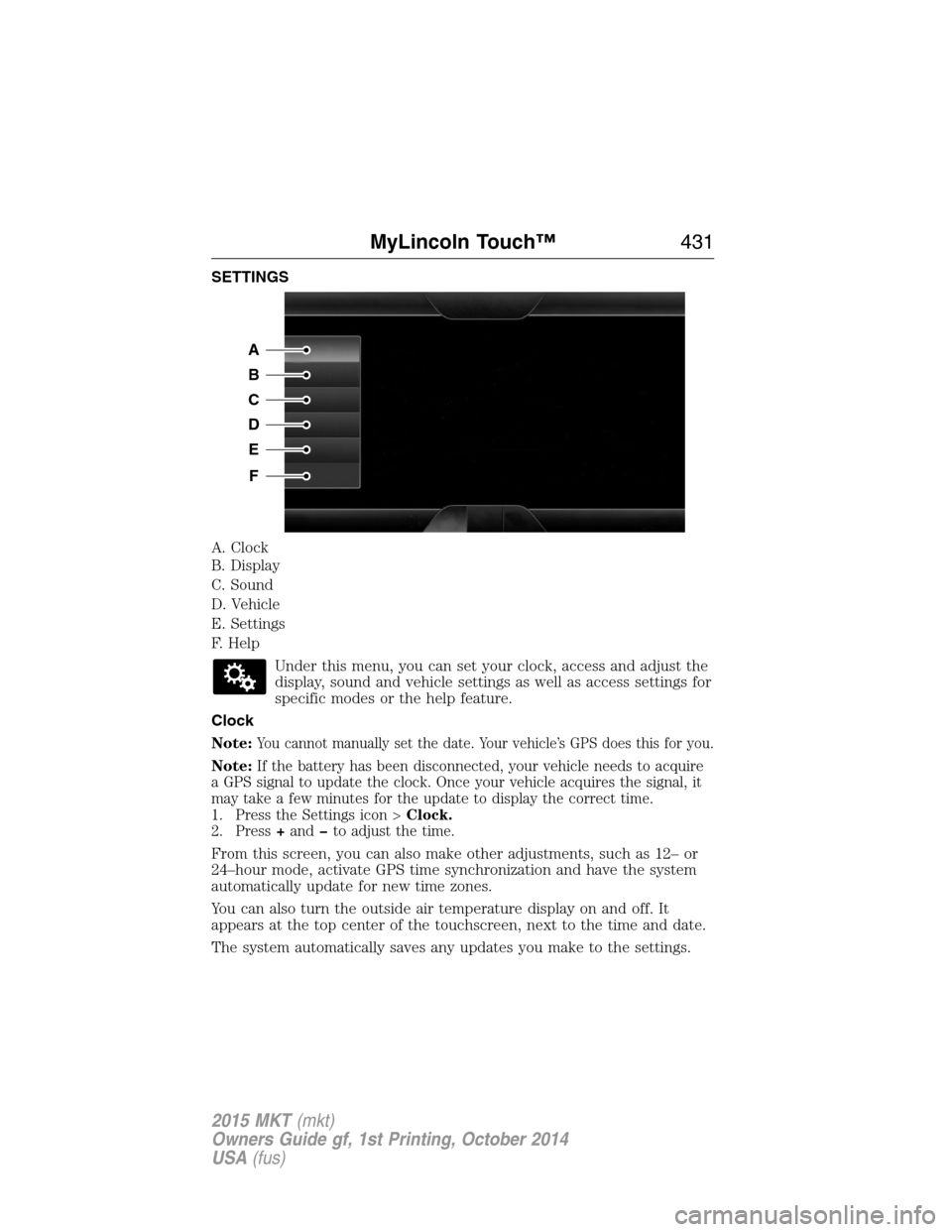
SETTINGS
A. Clock
B. Display
C. Sound
D. Vehicle
E. Settings
F. Help
Under this menu, you can set your clock, access and adjust the
display, sound and vehicle settings as well as access settings for
specific modes or the help feature.
Clock
Note:
You cannot manually set the date. Your vehicle’s GPS does this for you.
Note:If the battery has been disconnected, your vehicle needs to acquire
a GPS signal to update the clock. Once your vehicle acquires the signal, it
may take a few minutes for the update to display the correct time.
1. Press the Settings icon >Clock.
2. Press+andto adjust the time.
From this screen, you can also make other adjustments, such as 12– or
24–hour mode, activate GPS time synchronization and have the system
automatically update for new time zones.
You can also turn the outside air temperature display on and off. It
appears at the top center of the touchscreen, next to the time and date.
The system automatically saves any updates you make to the settings.
A
B
C
D
E
F
MyLincoln Touch™431
2015 MKT(mkt)
Owners Guide gf, 1st Printing, October 2014
USA(fus)
Page 441 of 500
Wireless & Internet
Your system has a Wi-Fi feature that creates a wireless network within
your vehicle, thereby allowing other devices (such as personal computers
or phones) in your vehicle to speak to each other, share files or play
games. Using this Wi-Fi feature, everyone in your vehicle can also gain
access the internet if you have a USB mobile broadband connection
inside your vehicle, your phone supports personal area networking and if
you park outside a wireless hotspot.
Press the Settings icon >Settings>Wireless & Internet,
then select from the following:
Wireless & Internet
Wi-Fi Settings Wi-Fi Network (Client) Modeturns the
Wi-Fi feature on and off in your vehicle. Make
sure you turn it on for connectivity purposes.
Choose a Wireless Networkallows you to
use a previously stored wireless network. You
can categorize by alphabetical listing, priority
and signal strength. You can also choose to
search for a network, connect to a network,
disconnect from a network, receive more
information, prioritize a network or delete a
network.
Gateway (Access Point) Modemakes
SYNC an access point for a phone or a
computer when turned on. This forms the
local area network within your vehicle for
things, such as game playing, file transfer and
internet browsing. Press?for more
information.
Gateway (Access Point) Settingsallows
you to view and change settings for using
SYNC as the internet gateway.
Gateway (Access Point) Device List
allows you to view recent connections to your
Wi-Fi system.
440MyLincoln Touch™
2015 MKT(mkt)
Owners Guide gf, 1st Printing, October 2014
USA(fus)
Page 455 of 500
Map Icons
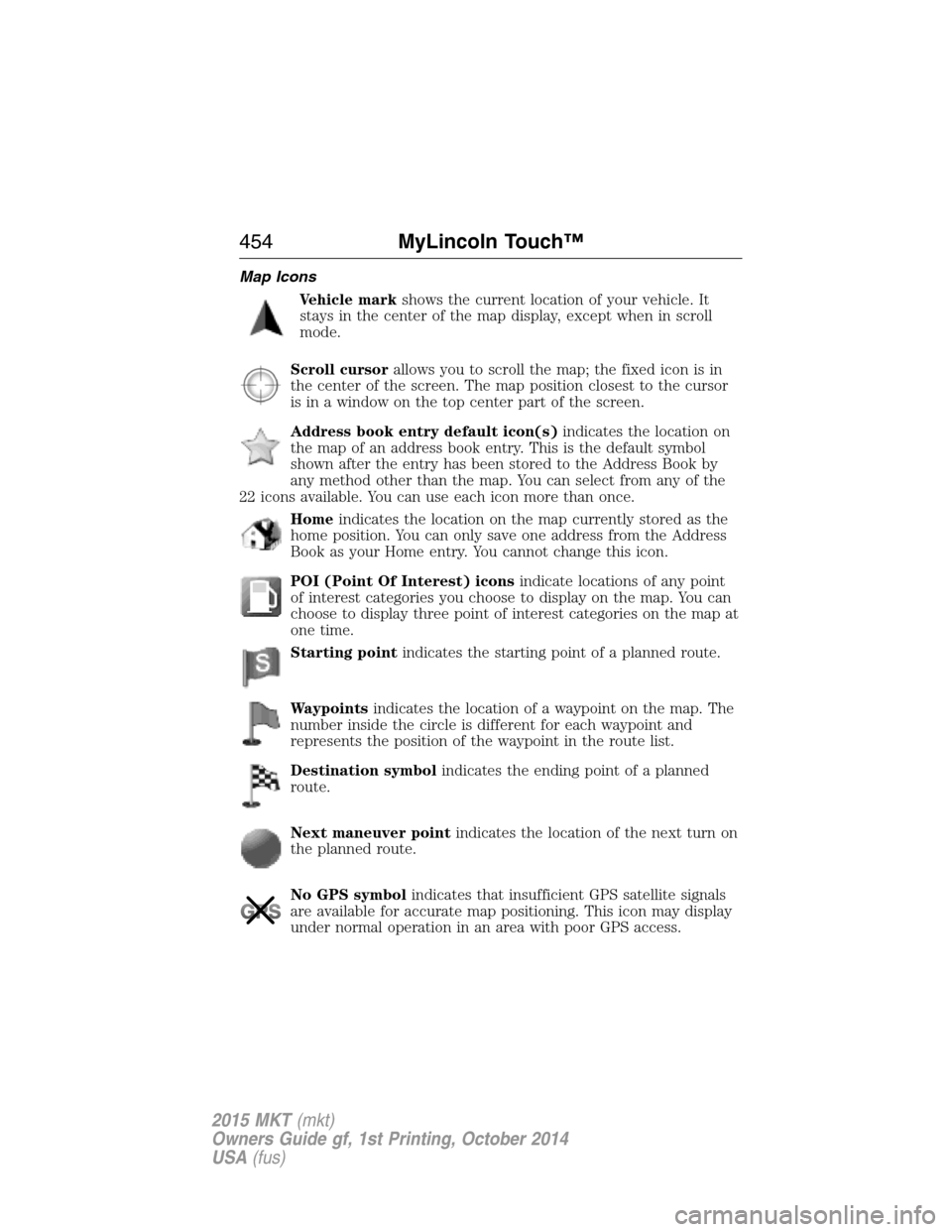
Vehicle markshows the current location of your vehicle. It
stays in the center of the map display, except when in scroll
mode.
Scroll cursorallows you to scroll the map; the fixed icon is in
the center of the screen. The map position closest to the cursor
is in a window on the top center part of the screen.
Address book entry default icon(s)indicates the location on
the map of an address book entry. This is the default symbol
shown after the entry has been stored to the Address Book by
any method other than the map. You can select from any of the
22 icons available. You can use each icon more than once.
Homeindicates the location on the map currently stored as the
home position. You can only save one address from the Address
Book as your Home entry. You cannot change this icon.
POI (Point Of Interest) iconsindicate locations of any point
of interest categories you choose to display on the map. You can
choose to display three point of interest categories on the map at
one time.
Starting pointindicates the starting point of a planned route.
Waypointsindicates the location of a waypoint on the map. The
number inside the circle is different for each waypoint and
represents the position of the waypoint in the route list.
Destination symbolindicates the ending point of a planned
route.
Next maneuver pointindicates the location of the next turn on
the planned route.
No GPS symbolindicates that insufficient GPS satellite signals
are available for accurate map positioning. This icon may display
under normal operation in an area with poor GPS access.
454MyLincoln Touch™
2015 MKT(mkt)
Owners Guide gf, 1st Printing, October 2014
USA(fus)
Page 465 of 500
General operation
Voice Command Control
Functions within the Windows Automotive-based system may be
accomplished using only voice commands. Using voice commands while
driving allows you to operate the system without removing your hands
from the wheel.
Prolonged Views of Screen
Do not access any function requiring a prolonged view of the screen while
you are driving. Pull over in a safe and legal manner before attempting to
access a function of the system requiring prolonged attention. Even
occasional short scans to the screen may be hazardous if your attention has
been diverted away from your driving task at a critical time.
Volume Setting
Do not raise the volume excessively. Keep the volume at a level where
you can still hear outside traffic and emergency signals while driving.
Driving while unable to hear these sounds could cause an accident.
Use of Speech Recognition Functions
Speech recognition software is inherently a statistical process which is
subject to errors. It is your responsibility to monitor any speech
recognition functions included in the system and address any errors.
Navigation Features
Any navigation features included in the system are intended to provide
turn by turn instructions to get you to a desired destination. Please make
certain all persons using this system carefully read and follow
instructions and safety information fully.
Distraction Hazard
Any navigation features may require manual (non-verbal) setup.
Attempting to perform such set-up or insert data while driving can
seriously distract your attention and could cause an accident or other
serious consequences. Stop the vehicle in a safe and legal manner before
attempting these operations.
Let Your Judgment Prevail
Any navigation features are provided only as an aid. Make your driving
decisions based on your observations of local conditions and existing
traffic regulations. Any such feature is not a substitute for your personal
judgment. Any route suggestions made by this system should never
replace any local traffic regulations or your personal judgment or
knowledge of safe driving practices.
464Appendices
2015 MKT(mkt)
Owners Guide gf, 1st Printing, October 2014
USA(fus)
Page 500 of 500
System settings .........................434
T
Temperature control
(see Climate control) .......132, 443
Text messaging .........................415
Third-row power fold seat .......157
Tilt steering wheel ......................86
Tires ...........................329–330, 350
alignment ................................343
care ..........................................329
changing ..........................350, 352
checking the pressure ............339
inflating ...................................337
label .........................................336
replacing ..................................341
rotating ....................................344
safety practices .......................343
sidewall information ...............332
snow tires and chains ............344
spare tire .................................350
terminology .............................331
tire grades ...............................330
treadwear ........................330, 339
Touchscreen features
(climate) ....................................443
Towing .......................252, 259–260
recreational towing .................260
Trailer Brake
Controller-Integrated ..............256
trailer towing ..........................252
wrecker ....................................259
Traction control ........................201
Traffic preferences ...................450
Trailer Brake
Controller-Integrated ................256
Trailer sway control ..................253Transaxle
fluid, refill capacities ..............361
lubricant specifications ..........361
Transmission
brake-shift interlock (BSI) ....190
fluid, checking and adding
(automatic) .....................301–302
Turn signal ................................100
U
USB port ............................377, 405
V
Vehicle health report ................429
Vehicle Identification Number
(VIN) ..........................................366
Vehicle loading ..........................244
Ventilating your vehicle ...........175
Voice recognition ......................386
W
Warning lights (see Lights) .....110
Washer fluid ......................306–307
Water, Driving through .............263
Windows
power .......................................102
rear wiper/washer .....................92
Windshield washer fluid and
wipers ..........................................91
checking and adding
fluid ..................................306–307
replacing wiper blades ...309–310
Wrecker towing .........................259
Index499
2015 MKT(mkt)
Owners Guide gf, 1st Printing, October 2014
USA(fus)