USB LINCOLN MKT 2017 Owners Manual
[x] Cancel search | Manufacturer: LINCOLN, Model Year: 2017, Model line: MKT, Model: LINCOLN MKT 2017Pages: 558, PDF Size: 4.59 MB
Page 8 of 558
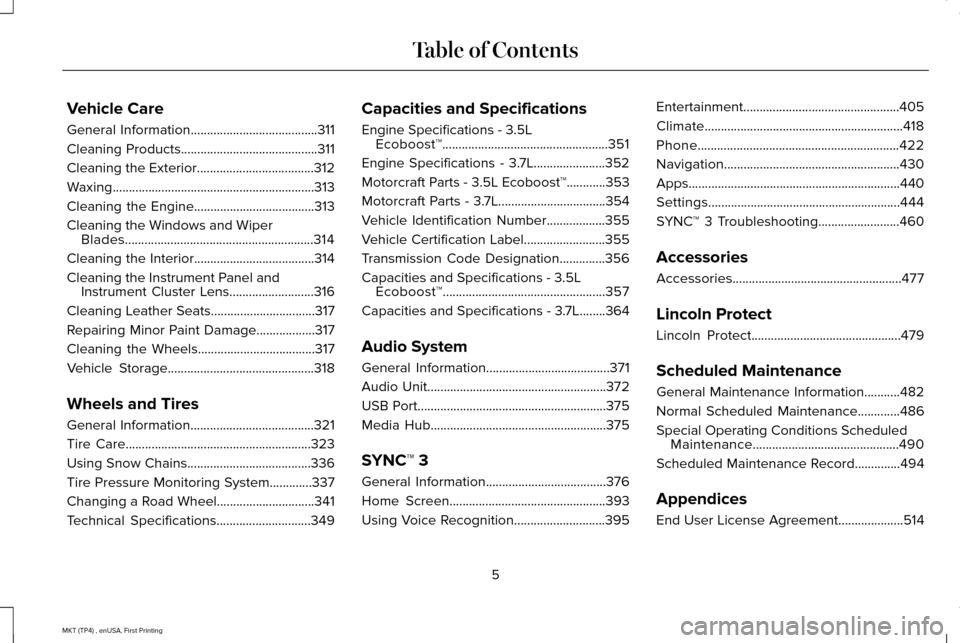
Vehicle Care
General Information.......................................311
Cleaning Products..........................................311
Cleaning the Exterior....................................312
Waxing..............................................................313
Cleaning the Engine
.....................................313
Cleaning the Windows and Wiper Blades..........................................................314
Cleaning the Interior.....................................314
Cleaning the Instrument Panel and Instrument Cluster Lens
..........................316
Cleaning Leather Seats................................317
Repairing Minor Paint Damage..................317
Cleaning the Wheels....................................317
Vehicle Storage
.............................................318
Wheels and Tires
General Information
......................................321
Tire Care
.........................................................323
Using Snow Chains
......................................336
Tire Pressure Monitoring System.............337
Changing a Road Wheel
..............................341
Technical Specifications.............................349 Capacities and Specifications
Engine Specifications - 3.5L
Ecoboost™...................................................351
Engine Specifications - 3.7L......................352
Motorcraft Parts - 3.5L Ecoboost™............353
Motorcraft Parts - 3.7L.................................354
Vehicle Identification Number
..................355
Vehicle Certification Label.........................355
Transmission Code Designation..............356
Capacities and Specifications - 3.5L Ecoboost™..................................................357
Capacities and Specifications - 3.7L........364
Audio System
General Information
......................................371
Audio Unit
.......................................................372
USB Port
..........................................................375
Media Hub
......................................................375
SYNC™ 3
General Information
.....................................376
Home Screen
................................................393
Using Voice Recognition
............................395 Entertainment................................................405
Climate.............................................................418
Phone
..............................................................422
Navigation......................................................430
Apps
.................................................................440
Settings...........................................................444
SYNC™ 3 Troubleshooting.........................460
Accessories
Accessories....................................................477
Lincoln Protect
Lincoln Protect..............................................479
Scheduled Maintenance
General Maintenance Information...........482
Normal Scheduled Maintenance.............486
Special Operating Conditions Scheduled Maintenance.............................................490
Scheduled Maintenance Record..............494
Appendices
End User License Agreement
....................514
5
MKT (TP4) , enUSA, First Printing Table of Contents
Page 63 of 558
GENERAL INFORMATION ON
RADIO FREQUENCIES
This device complies with Part 15 of the FCC
Rules and with Industry Canada
license-exempt RSS standard(s). Operation
is subject to the following two conditions: (1)
This device may not cause harmful
interference, and (2) This device must accept
any interference received, including
interference that may cause undesired
operation.
Note:
Changes or modifications not
expressively approved by the party
responsible for compliance could void the
user's authority to operate the equipment.
The term IC before the radio certification
number only signifies that Industry Canada
technical specifications were met. The typical operating range for your
transmitter is approximately 33 feet (10
meters). Vehicles with the remote start
feature will have a greater range. One of the
following could cause a decrease in
operating range:
•
weather conditions
• nearby radio towers
• structures around the vehicle
• other vehicles parked next to your
vehicle
Other short-distance radio transmitters, such
as amateur radios, medical equipment,
wireless headphones, remote controls and
alarm systems may operate on the same
frequency as your remote control. If other
transmitters are operating on those
frequencies, you may not be able to use your
remote control. Using your remote control
near some types of electronic equipment,
such as USB devices, computers or cell
phones can interfere with remote operation.
Operating your remote control near metal or
metallic-finished purses, bags or clothing can
interfere with remote operation. You can lock
and unlock the doors with the key. Note:
Make sure to lock your vehicle before
leaving it unattended.
Note: If you are in range, the remote control
will operate if you press any button
unintentionally.
Intelligent Access
The system uses a radio frequency signal to
communicate with your vehicle and authorize
your vehicle to unlock when one of the
following conditions are met:
• You touch the inside of any exterior door
handle within
3 ft (1 m) proximity of an
intelligent access key.
• You press the luggage compartment
button.
• You press a button on the transmitter.
If excessive radio frequency interference is
present in the area or if the transmitter
battery is low, you may need to mechanically
unlock your door. You can use the
mechanical key blade in your intelligent
access key to open the driver door in this
situation.
See Remote Control (page 61).
60
MKT (TP4) , enUSA, First Printing Keys and Remote Controls
Page 281 of 558
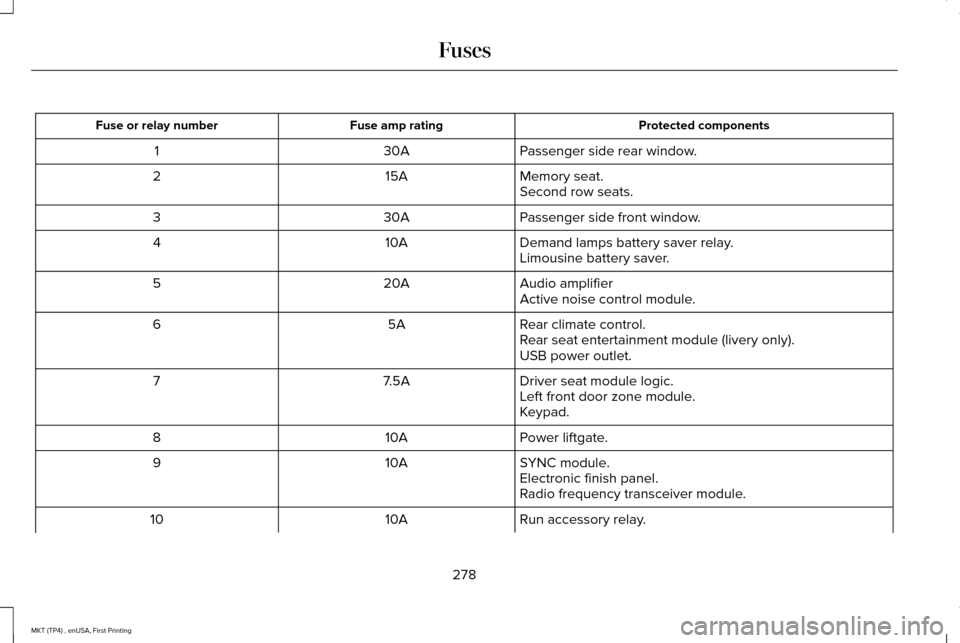
Protected components
Fuse amp rating
Fuse or relay number
Passenger side rear window.
30A
1
Memory seat.
15A
2
Second row seats.
Passenger side front window.
30A
3
Demand lamps battery saver relay.
10A
4
Limousine battery saver.
Audio amplifier
20A
5
Active noise control module.
Rear climate control.
5A
6
Rear seat entertainment module (livery only).
USB power outlet.
Driver seat module logic.
7.5A
7
Left front door zone module.
Keypad.
Power liftgate.
10A
8
SYNC module.
10A
9
Electronic finish panel.
Radio frequency transceiver module.
Run accessory relay.
10A
10
278
MKT (TP4) , enUSA, First Printing Fuses
Page 378 of 558
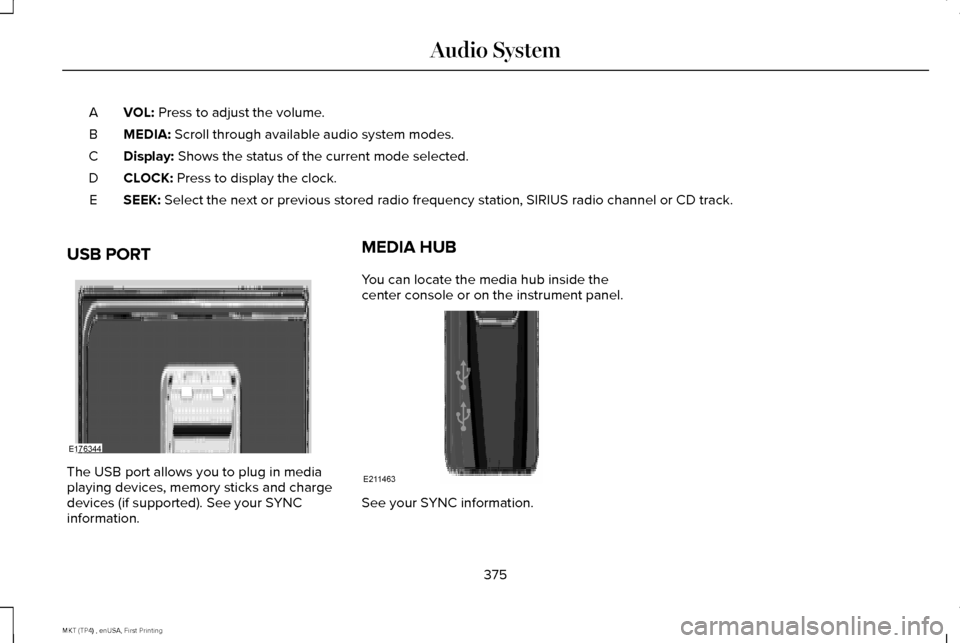
VOL: Press to adjust the volume.
A
MEDIA:
Scroll through available audio system modes.
B
Display:
Shows the status of the current mode selected.
C
CLOCK:
Press to display the clock.
D
SEEK:
Select the next or previous stored radio frequency station, SIRIUS radi\
o channel or CD track.
E
USB PORT The USB port allows you to plug in media
playing devices, memory sticks and charge
devices (if supported). See your SYNC
information. MEDIA HUB
You can locate the media hub inside the
center console or on the instrument panel.
See your SYNC information.
375
MKT (TP4) , enUSA, First Printing Audio SystemE176344 E211463
Page 384 of 558
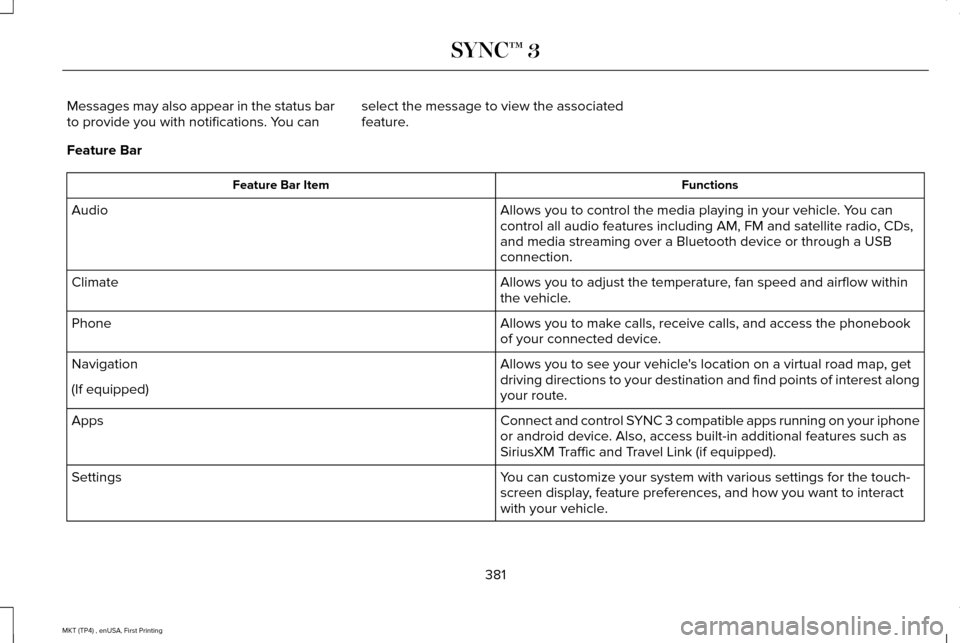
Messages may also appear in the status bar
to provide you with notifications. You can
select the message to view the associated
feature.
Feature Bar Functions
Feature Bar Item
Allows you to control the media playing in your vehicle. You can
control all audio features including AM, FM and satellite radio, CDs,
and media streaming over a Bluetooth device or through a USB
connection.
Audio
Allows you to adjust the temperature, fan speed and airflow within
the vehicle.
Climate
Allows you to make calls, receive calls, and access the phonebook
of your connected device.
Phone
Allows you to see your vehicle's location on a virtual road map, get
driving directions to your destination and find points of interest along\
your route.
Navigation
(If equipped)
Connect and control SYNC 3 compatible apps running on your iphone
or android device. Also, access built-in additional features such as
SiriusXM Traffic and Travel Link (if equipped).
Apps
You can customize your system with various settings for the touch-
screen display, feature preferences, and how you want to interact
with your vehicle.
Settings
381
MKT (TP4) , enUSA, First Printing SYNC™ 3
Page 388 of 558
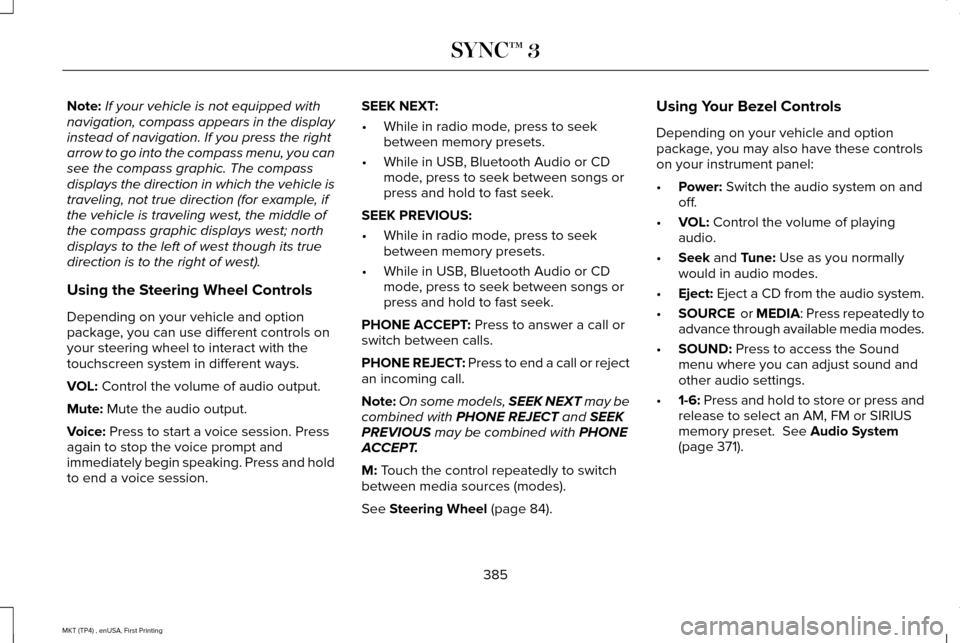
Note:
If your vehicle is not equipped with
navigation, compass appears in the display
instead of navigation. If you press the right
arrow to go into the compass menu, you can
see the compass graphic. The compass
displays the direction in which the vehicle is
traveling, not true direction (for example, if
the vehicle is traveling west, the middle of
the compass graphic displays west; north
displays to the left of west though its true
direction is to the right of west).
Using the Steering Wheel Controls
Depending on your vehicle and option
package, you can use different controls on
your steering wheel to interact with the
touchscreen system in different ways.
VOL: Control the volume of audio output.
Mute:
Mute the audio output.
Voice:
Press to start a voice session. Press
again to stop the voice prompt and
immediately begin speaking. Press and hold
to end a voice session. SEEK NEXT:
•
While in radio mode, press to seek
between memory presets.
• While in USB, Bluetooth Audio or CD
mode, press to seek between songs or
press and hold to fast seek.
SEEK PREVIOUS:
• While in radio mode, press to seek
between memory presets.
• While in USB, Bluetooth Audio or CD
mode, press to seek between songs or
press and hold to fast seek.
PHONE ACCEPT:
Press to answer a call or
switch between calls.
PHONE REJECT: Press to end a call or reject
an incoming call.
Note: On some models, SEEK NEXT may be
combined with
PHONE REJECT and SEEK
PREVIOUS may be combined with PHONE
ACCEPT.
M:
Touch the control repeatedly to switch
between media sources (modes).
See
Steering Wheel (page 84). Using Your Bezel Controls
Depending on your vehicle and option
package, you may also have these controls
on your instrument panel:
•
Power:
Switch the audio system on and
off.
• VOL:
Control the volume of playing
audio.
• Seek
and Tune: Use as you normally
would in audio modes.
• Eject:
Eject a CD from the audio system.
• SOURCE
or MEDIA: Press repeatedly to
advance through available media modes.
• SOUND:
Press to access the Sound
menu where you can adjust sound and
other audio settings.
• 1-6:
Press and hold to store or press and
release to select an AM, FM or SIRIUS
memory preset.
See Audio System
(page 371).
385
MKT (TP4) , enUSA, First Printing SYNC™ 3
Page 393 of 558
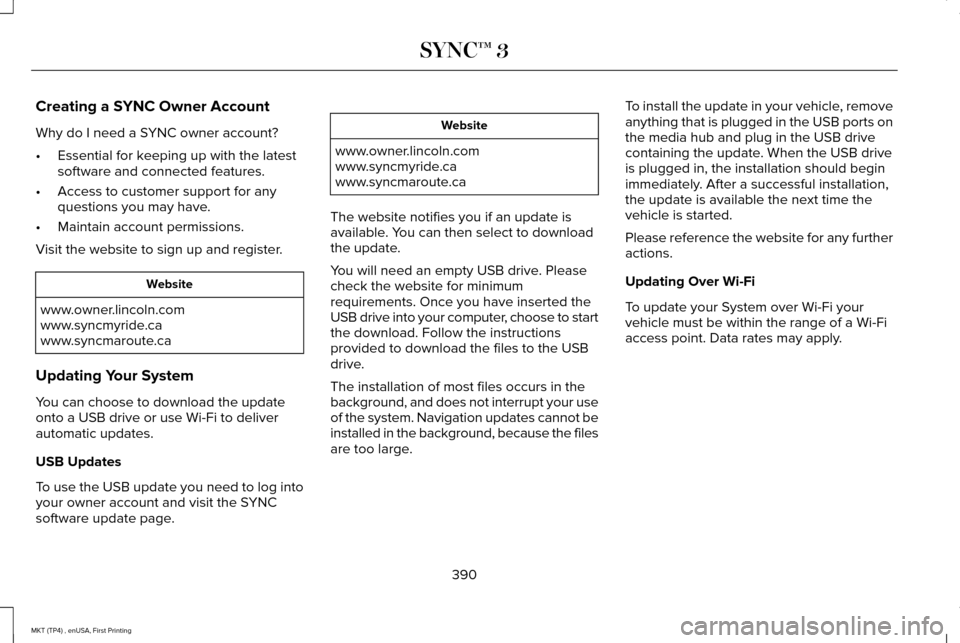
Creating a SYNC Owner Account
Why do I need a SYNC owner account?
•
Essential for keeping up with the latest
software and connected features.
• Access to customer support for any
questions you may have.
• Maintain account permissions.
Visit the website to sign up and register. Website
www.owner.lincoln.com
www.syncmyride.ca
www.syncmaroute.ca
Updating Your System
You can choose to download the update
onto a USB drive or use Wi-Fi to deliver
automatic updates.
USB Updates
To use the USB update you need to log into
your owner account and visit the SYNC
software update page. Website
www.owner.lincoln.com
www.syncmyride.ca
www.syncmaroute.ca
The website notifies you if an update is
available. You can then select to download
the update.
You will need an empty USB drive. Please
check the website for minimum
requirements. Once you have inserted the
USB drive into your computer, choose to start
the download. Follow the instructions
provided to download the files to the USB
drive.
The installation of most files occurs in the
background, and does not interrupt your use
of the system. Navigation updates cannot be
installed in the background, because the files
are too large. To install the update in your vehicle, remove
anything that is plugged in the USB ports on
the media hub and plug in the USB drive
containing the update. When the USB drive
is plugged in, the installation should begin
immediately. After a successful installation,
the update is available the next time the
vehicle is started.
Please reference the website for any further
actions.
Updating Over Wi-Fi
To update your System over Wi-Fi your
vehicle must be within the range of a Wi-Fi
access point. Data rates may apply.
390
MKT (TP4) , enUSA, First Printing SYNC™ 3
Page 400 of 558
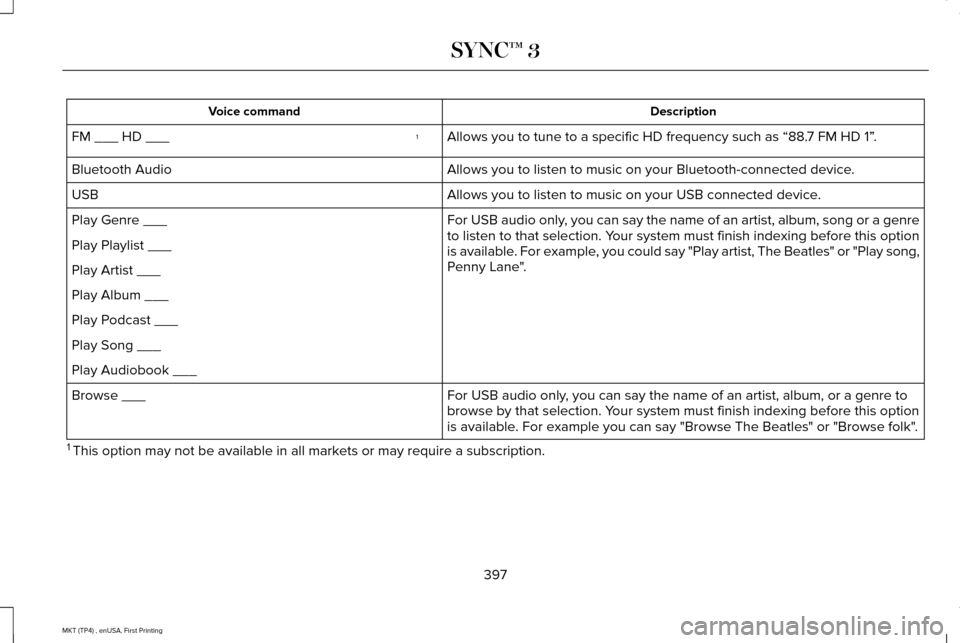
Description
Voice command
Allows you to tune to a specific HD frequency such as “88.7 FM HD 1” .
1
FM ___ HD ___
Allows you to listen to music on your Bluetooth-connected device.
Bluetooth Audio
Allows you to listen to music on your USB connected device.
USB
For USB audio only, you can say the name of an artist, album, song or a genre
to listen to that selection. Your system must finish indexing before this option
is available. For example, you could say "Play artist, The Beatles" or "Play song,
Penny Lane".
Play Genre ___
Play Playlist ___
Play Artist ___
Play Album ___
Play Podcast ___
Play Song ___
Play Audiobook ___
For USB audio only, you can say the name of an artist, album, or a genre to
browse by that selection. Your system must finish indexing before this option
is available. For example you can say "Browse The Beatles" or "Browse folk".
Browse ___
1 This option may not be available in all markets or may require a subscription.
397
MKT (TP4) , enUSA, First Printing SYNC™ 3
Page 409 of 558
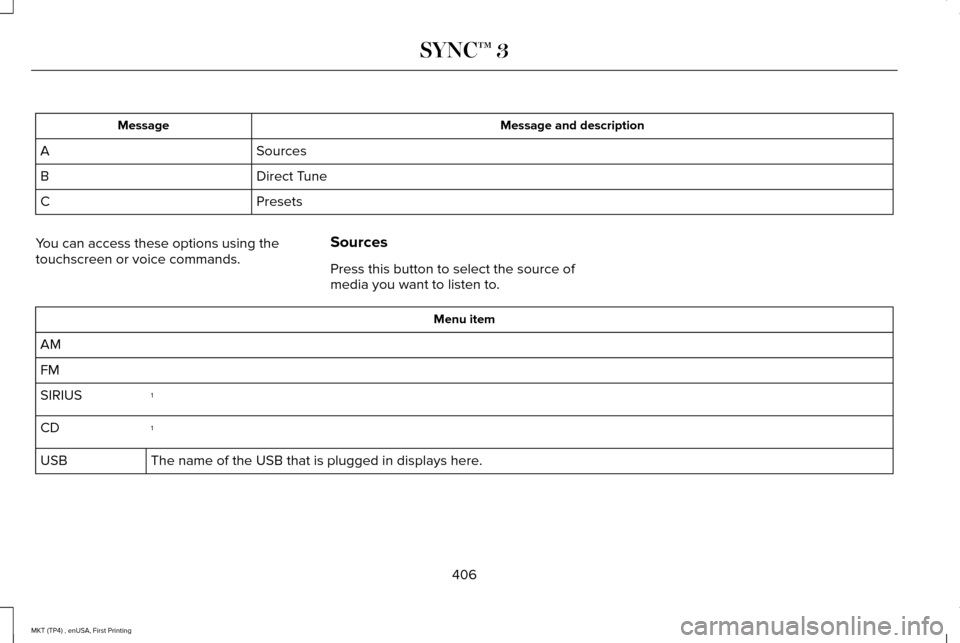
Message and description
Message
Sources
A
Direct Tune
B
Presets
C
You can access these options using the
touchscreen or voice commands. Sources
Press this button to select the source of
media you want to listen to. Menu item
AM
FM 1
SIRIUS
1
CD
The name of the USB that is plugged in displays here.
USB
406
MKT (TP4) , enUSA, First Printing SYNC™ 3
Page 419 of 558
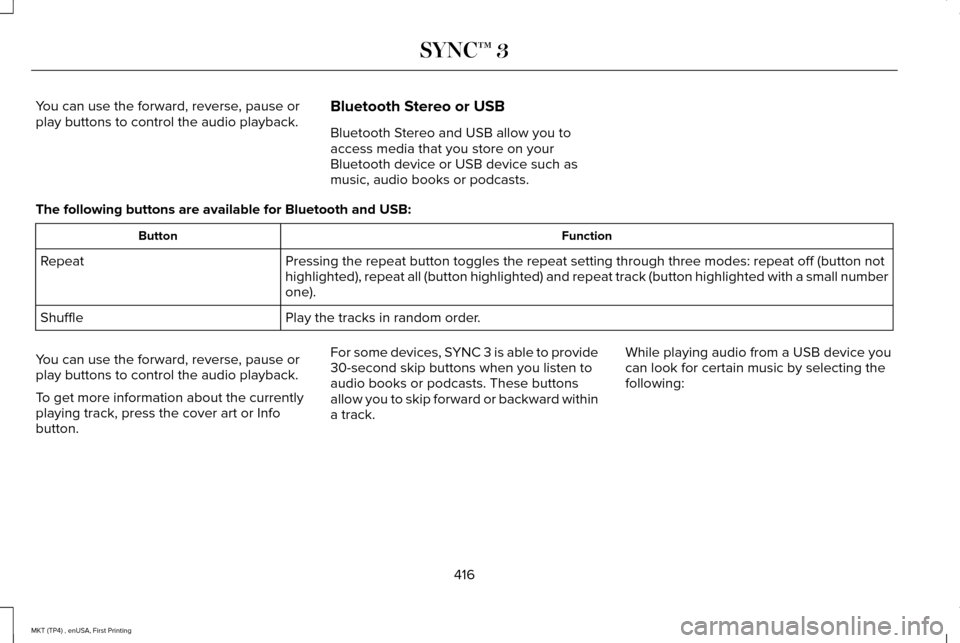
You can use the forward, reverse, pause or
play buttons to control the audio playback.
Bluetooth Stereo or USB
Bluetooth Stereo and USB allow you to
access media that you store on your
Bluetooth device or USB device such as
music, audio books or podcasts.
The following buttons are available for Bluetooth and USB: Function
Button
Pressing the repeat button toggles the repeat setting through three mode\
s: repeat off (button not
highlighted), repeat all (button highlighted) and repeat track (butt\
on highlighted with a small number
one).
Repeat
Play the tracks in random order.
Shuffle
You can use the forward, reverse, pause or
play buttons to control the audio playback.
To get more information about the currently
playing track, press the cover art or Info
button. For some devices, SYNC 3 is able to provide
30-second skip buttons when you listen to
audio books or podcasts. These buttons
allow you to skip forward or backward within
a track.
While playing audio from a USB device you
can look for certain music by selecting the
following:
416
MKT (TP4) , enUSA, First Printing SYNC™ 3