ac mode LINCOLN MKX 2016 Owners Manual
[x] Cancel search | Manufacturer: LINCOLN, Model Year: 2016, Model line: MKX, Model: LINCOLN MKX 2016Pages: 563, PDF Size: 4.96 MB
Page 474 of 563

Note: The passenger side temperature and the Dual indicator automatically turn on when the passenger is adjusting their t\
emperature
control.
Fan speed:
Touch + or - to increase or decrease the volume of air circulated in your vehicle.
C
Note:
When the system is controlling the fan speed automatically, all the fan speed indicators turn off.
Recirculated air:
Touch the button to switch between outside air and recirculated air. When you select recirculated air, the air
currently in the passenger compartment recirculates. This may reduce the\
time needed to cool the interior (when used with A/C)
and may reduce unwanted odors from entering your vehicle.
D
Note:
Recirculated air may turn off automatically (or be prevented from turnin\
g on) in all airflow modes except Max A/C to reduce
risk of fogging. Recirculated air may also turn on and off automatically in Panel or Panel and Floor airflow modes during hot weather
in order to improve cooling efficiency.
Max A/C:
Touch the button to maximize cooling. Recirculated air flows through the instrument panel vents, air conditioni\
ng
automatically turns on, and the fan automatically adjusts to the highest\
speed.
E
A/C:
Touch the button to switch air conditioning compressor on or off. Use air conditioning with recirculated air to improve cooling
performance and efficiency.
F
Note:
In certain conditions (such as when using Max Defrost), the air condi\
tioning compressor may continue to operate even after
you switch off the air conditioning with the A/C button.
Auto:
Touch the button to switch on automatic operation. Select the desired tem\
perature using the temperature control. The system
adjusts fan speed, air distribution, air conditioning operation, and sel\
ects outside air or recirculated air to heat or cool the vehicle
in order to maintain the desired temperature. You can also use the
Auto button to switch off dual zone operation by touching and
holding the button for more than two seconds.
G
Heated rear window:
Turns the heated rear window on and off. See Heated Windows and Mirrors (page 143).
H
471
MKX (CD9) Canada/United States of America, enUSA, ASO/OGC Review MyLincoln Touch™
Page 476 of 563
Voice commands
Climate On
Climate Off Adjust the temperature to between 15.0 - 30.0°C or 59 - 86°F.
Set temperature
NAVIGATION
Note: The navigation SD card must be in the
SD card slot to operate the navigation
system. If you need a replacement SD card,
see an authorized dealer.
Note: The SD card slot is spring-loaded. To
remove the SD card, just push the card in
and release it. Do not attempt to pull the
card out to remove it; this could cause
damage.
Your navigation system is comprised of two
main features, destination mode and map
mode. Destination Mode
To set a destination press the green corner
of your touchscreen, then the press: Menu Item
Dest.
Choose any of the following:
My Home
Favorites
Previous Destinations
Point of Interest
Emergency
Street Address Menu Item
Intersection
City Center
Map
Edit Route
Cancel Route
To set your destination, enter the necessary
information into the highlighted text fields (in
any order).
473
MKX (CD9) Canada/United States of America, enUSA, ASO/OGC Review MyLincoln Touch™
Page 484 of 563

Avoid Area
Second Level Messages, Actions and Descriptions
Menu Item
Choose areas which you want the system to avoid when calculating a route\
for you
Avoid Areas
Then select any of the following:
Once you make a selection, the system tries to avoid the area(s) if possible for a\
ll routes. Select
this button to program an entry, then choose a destination entry method. You can edit the name
or location of a destination or remove it from your selections.
Add
To remove an area from your selection, choose the listing on the screen. \
The screen will change,
then press delete and confirm the deletion.
Delete
Map Mode
Press the green bar in the upper right area
of the touchscreen to view map mode. Map
mode shows advanced viewing comprised
of both 2D city maps as well as 3D landmarks
(when available). 2D city maps show detailed outlines of
buildings, visible land use and land elements
and detailed railway infrastructure for the
most essential cities around the globe. These
maps also contain features, such as town
blocks, building footprints and railways.
3D landmarks appear as clear, visible objects
that are typically recognizable and have a
certain tourist value. The 3D landmarks
appear in 3D map mode only. Coverage
varies and improves with updated map
releases.
481
MKX (CD9) Canada/United States of America, enUSA, ASO/OGC Review MyLincoln Touch™
Page 485 of 563
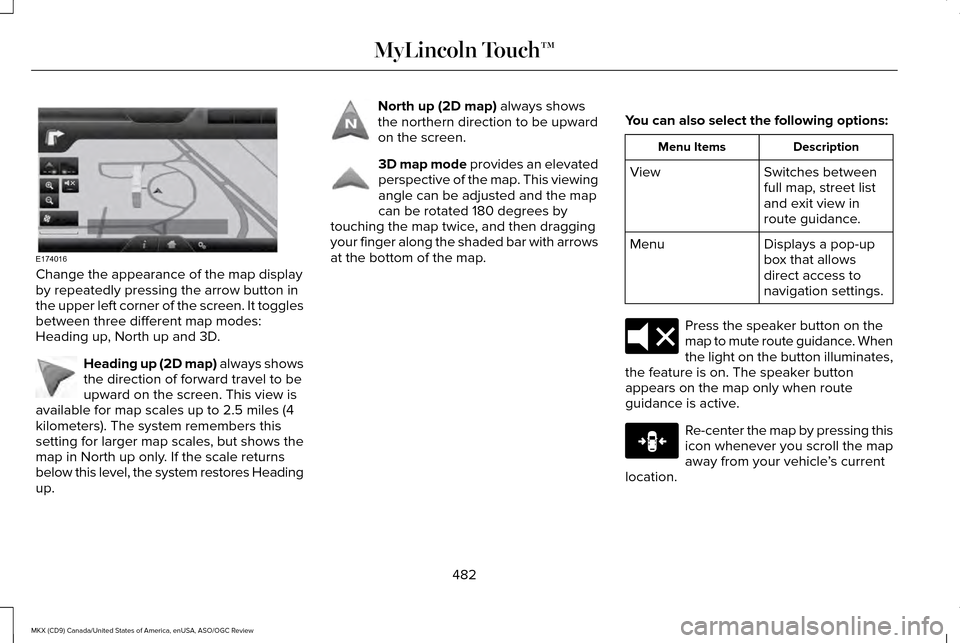
Change the appearance of the map display
by repeatedly pressing the arrow button in
the upper left corner of the screen. It toggles
between three different map modes:
Heading up, North up and 3D.
Heading up (2D map) always shows
the direction of forward travel to be
upward on the screen. This view is
available for map scales up to 2.5 miles (4
kilometers). The system remembers this
setting for larger map scales, but shows the
map in North up only. If the scale returns
below this level, the system restores Heading
up. North up (2D map) always shows
the northern direction to be upward
on the screen. 3D map mode
provides an elevated
perspective of the map. This viewing
angle can be adjusted and the map
can be rotated 180 degrees by
touching the map twice, and then dragging
your finger along the shaded bar with arrows
at the bottom of the map. You can also select the following options: Description
Menu Items
Switches between
full map, street list
and exit view in
route guidance.
View
Displays a pop-up
box that allows
direct access to
navigation settings.
Menu Press the speaker button on the
map to mute route guidance. When
the light on the button illuminates,
the feature is on. The speaker button
appears on the map only when route
guidance is active. Re-center the map by pressing this
icon whenever you scroll the map
away from your vehicle
’s current
location.
482
MKX (CD9) Canada/United States of America, enUSA, ASO/OGC Review MyLincoln Touch™E174016 E142642 E142643 E142644 E174017 E146188
Page 486 of 563
Auto Zoom
Press the green bar to access map mode,
then select the + or - zoom button to bring
up the zoom level and Auto buttons on the
touchscreen. When you press
Auto, Auto
Zoom turns on and Auto displays in the
bottom left corner of the screen in the map
scale. The map zoom level then synchronizes
with vehicle speed. The slower your vehicle
is traveling, the farther the map zooms in;
the faster your vehicle is traveling, the farther
the map zooms out. To switch off the feature,
just press the
+ or - button again.
In 3D mode, rotate the map view by swiping
your finger across the shaded bar with the
arrows.
The ETA box under the zoom buttons
appears when a route is active and displays
the distance and time to your destination. If
the button is pressed, a pop up appears with
the destination listed (and waypoint if
applicable) along with mileage and time to
destination. You may also select to have
either the estimated time to reach your
destination or your estimated arrival time. Map Icons Vehicle mark
shows the current
location of your vehicle. It stays in
the center of the map display,
except when in scroll mode. Scroll cursor
allows you to scroll the
map; the fixed icon is in the center
of the screen. The map position
closest to the cursor is in a window on the
top center part of the screen. Address book entry default icon(s)
indicates the location on the map of
an address book entry. This is the
default symbol shown after the entry has
been stored to the Address Book by any
method other than the map. You can select
from any of the 22 icons available. You can
use each icon more than once. Home
indicates the location on the
map currently stored as the home
position. You can only save one
address from the Address Book as
your Home entry. You cannot change this
icon. POI (Point Of Interest) icons indicate
locations of any point of interest
categories you choose to display on
the map. You can choose to display three
point of interest categories on the map at
one time. Starting point
indicates the starting
point of a planned route. Waypoint
indicates the location of a
waypoint on the map. The number
inside the circle is different for each
waypoint and represents the position
of the waypoint in the route list. Destination symbol
indicates the
ending point of a planned route. Next maneuver point
indicates the
location of the next turn on the
planned route.
483
MKX (CD9) Canada/United States of America, enUSA, ASO/OGC Review MyLincoln Touch™E142646 E142647 E142648 E142649 E142650 E142651 E142652 E142653 E142654
Page 487 of 563
No GPS symbol indicates that
insufficient GPS satellite signals are
available for accurate map positioning. This icon may display under
normal operation in an area with poor GPS
access.
Quick-touch Buttons
When in map mode, touch anywhere on the
map display to access the following options: Action and Description
Menu Item
Touch this button to select a scrolled location on the map as your destin\
ation. You may scroll the
map by pressing your index finger on the map display. When you reach the desired location, simply
let go and then touch this button.
Set as Dest
Touch this button to set the current location as a waypoint.
Set as Waypoint
Touch this button to save the current location to your favorites.
Save to Favorites
Touch this button to select icons to display on the map. You can select up to three icons to display
on the map at the same time. You can switch these features:
POI Icons
Off
On
When on an active route, select any of the following options:
View / Edit Route
View Route
Edit Destination/Waypoints
Edit Turn List
Detour
484
MKX (CD9) Canada/United States of America, enUSA, ASO/OGC Review MyLincoln Touch™E142655
Page 488 of 563
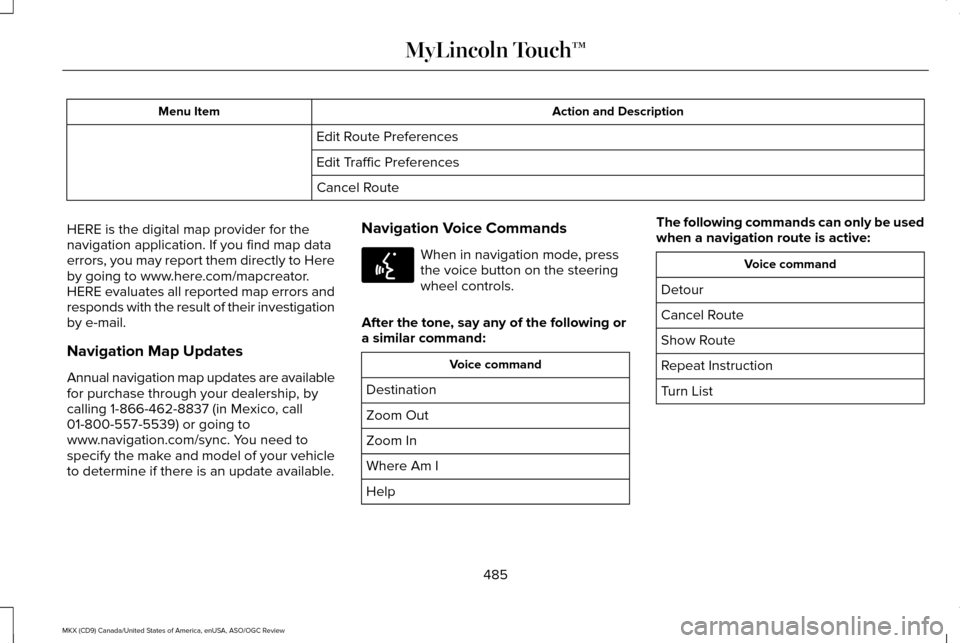
Action and Description
Menu Item
Edit Route Preferences
Edit Traffic Preferences
Cancel Route
HERE is the digital map provider for the
navigation application. If you find map data
errors, you may report them directly to Here
by going to www.here.com/mapcreator.
HERE evaluates all reported map errors and
responds with the result of their investigation
by e-mail.
Navigation Map Updates
Annual navigation map updates are available
for purchase through your dealership, by
calling 1-866-462-8837 (in Mexico, call
01-800-557-5539) or going to
www.navigation.com/sync. You need to
specify the make and model of your vehicle
to determine if there is an update available. Navigation Voice Commands When in navigation mode, press
the voice button on the steering
wheel controls.
After the tone, say any of the following or
a similar command: Voice command
Destination
Zoom Out
Zoom In
Where Am I
Help The following commands can only be used
when a navigation route is active: Voice command
Detour
Cancel Route
Show Route
Repeat Instruction
Turn List
485
MKX (CD9) Canada/United States of America, enUSA, ASO/OGC Review MyLincoln Touch™E142599
Page 507 of 563
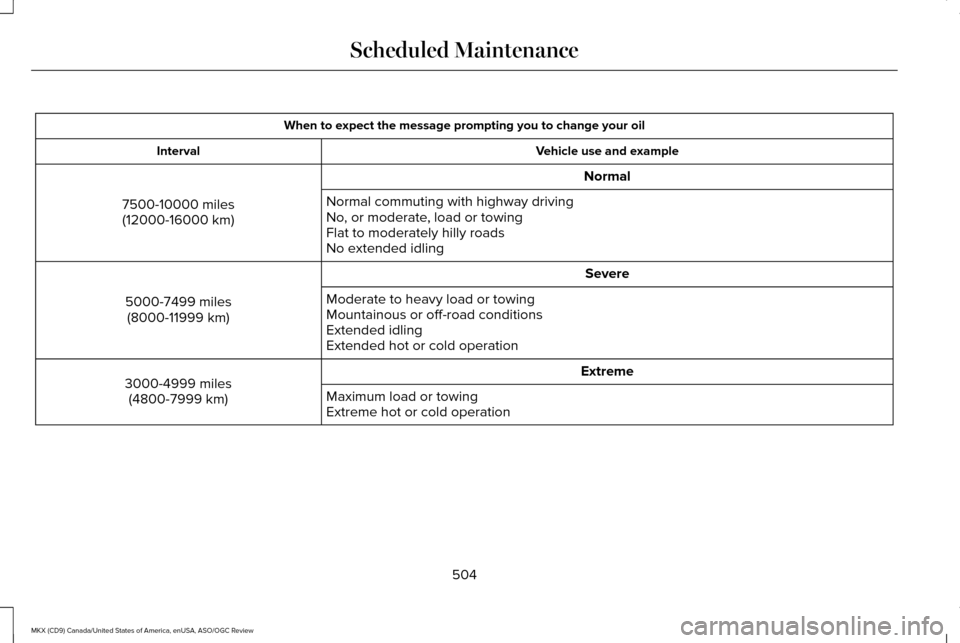
When to expect the message prompting you to change your oil
Vehicle use and example
Interval
Normal
7500-10000 miles (12000-16000 km) Normal commuting with highway driving
No, or moderate, load or towing
Flat to moderately hilly roads
No extended idling
Severe
5000-7499 miles (8000-11999 km) Moderate to heavy load or towing
Mountainous or off-road conditions
Extended idling
Extended hot or cold operation
Extreme
3000-4999 miles
(4800-7999 km) Maximum load or towing
Extreme hot or cold operation
504
MKX (CD9) Canada/United States of America, enUSA, ASO/OGC Review Scheduled Maintenance
Page 550 of 563
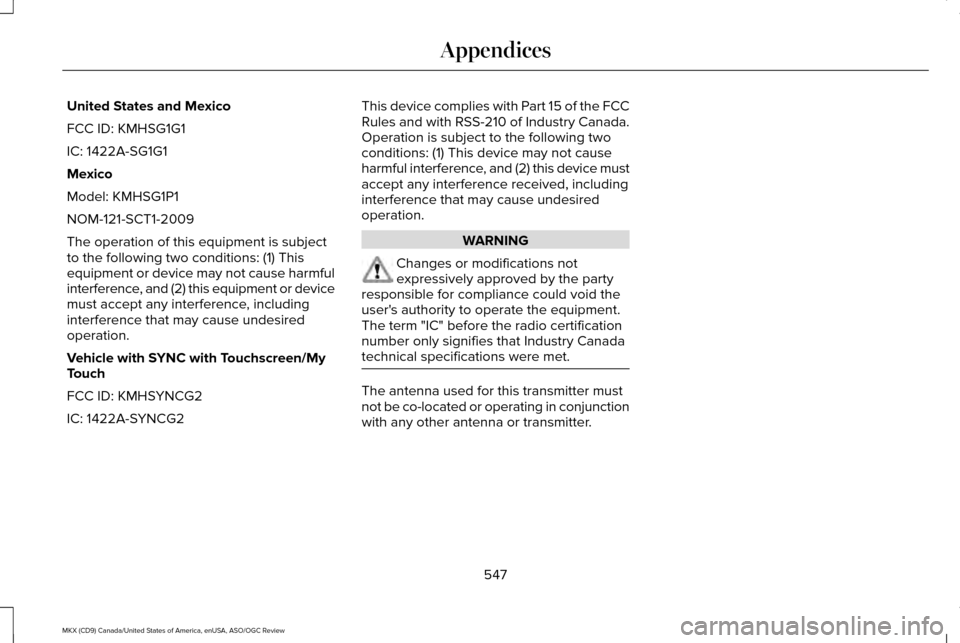
United States and Mexico
FCC ID: KMHSG1G1
IC: 1422A-SG1G1
Mexico
Model: KMHSG1P1
NOM-121-SCT1-2009
The operation of this equipment is subject
to the following two conditions: (1) This
equipment or device may not cause harmful
interference, and (2) this equipment or device
must accept any interference, including
interference that may cause undesired
operation.
Vehicle with SYNC with Touchscreen/My
Touch
FCC ID: KMHSYNCG2
IC: 1422A-SYNCG2
This device complies with Part 15 of the FCC
Rules and with RSS-210 of Industry Canada.
Operation is subject to the following two
conditions: (1) This device may not cause
harmful interference, and (2) this device must
accept any interference received, including
interference that may cause undesired
operation. WARNING
Changes or modifications not
expressively approved by the party
responsible for compliance could void the
user's authority to operate the equipment.
The term "IC" before the radio certification
number only signifies that Industry Canada
technical specifications were met. The antenna used for this transmitter must
not be co-located or operating in conjunction
with any other antenna or transmitter.
547
MKX (CD9) Canada/United States of America, enUSA, ASO/OGC Review Appendices
Page 555 of 563
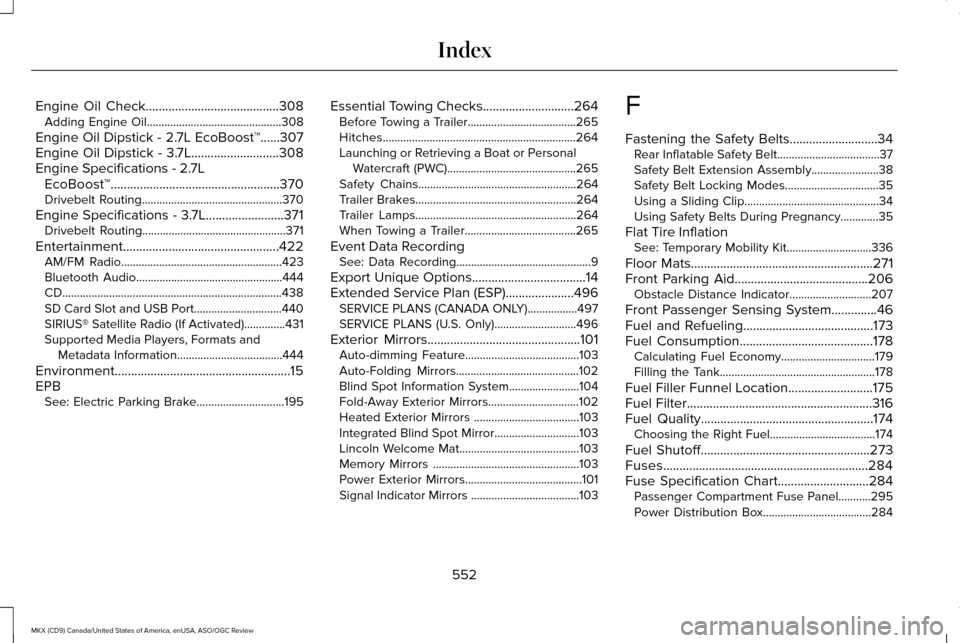
Engine Oil Check.........................................308
Adding Engine Oil..............................................308
Engine Oil Dipstick - 2.7L EcoBoost™......307
Engine Oil Dipstick - 3.7L...........................308
Engine Specifications - 2.7L EcoBoost™....................................................370
Drivebelt Routing................................................370
Engine Specifications - 3.7L
........................371
Drivebelt Routing.................................................371
Entertainment................................................422 AM/FM Radio.......................................................423
Bluetooth Audio..................................................444
CD........................................................................\
...438
SD Card Slot and USB Port..............................440
SIRIUS® Satellite Radio (If Activated)..............431
Supported Media Players, Formats and
Metadata Information....................................444
Environment......................................................15
EPB See: Electric Parking Brake..............................195 Essential Towing Checks
............................
264
Before Towing a Trailer.....................................265
Hitches..................................................................264
Launching or Retrieving a Boat or Personal
Watercraft (PWC)............................................265
Safety Chains......................................................264
Trailer Brakes.......................................................264
Trailer Lamps.......................................................264
When Towing a Trailer......................................265
Event Data Recording See: Data Recording..............................................9
Export Unique Options...................................14
Extended Service Plan (ESP)
.....................496
SERVICE PLANS (CANADA ONLY).................497
SERVICE PLANS (U.S. Only)............................496
Exterior Mirrors
...............................................101
Auto-dimming Feature.......................................103
Auto-Folding Mirrors..........................................102
Blind Spot Information System........................104
Fold-Away Exterior Mirrors...............................102
Heated Exterior Mirrors ....................................103
Integrated Blind Spot Mirror.............................103
Lincoln Welcome Mat.........................................103
Memory Mirrors ..................................................103
Power Exterior Mirrors........................................101
Signal Indicator Mirrors .....................................103 F
Fastening the Safety Belts...........................34
Rear Inflatable Safety Belt...................................37
Safety Belt Extension Assembly.......................38
Safety Belt Locking Modes................................35
Using a Sliding Clip..............................................34
Using Safety Belts During Pregnancy.............35
Flat Tire Inflation See: Temporary Mobility Kit.............................336
Floor Mats
........................................................271
Front Parking Aid.........................................206
Obstacle Distance Indicator............................207
Front Passenger Sensing System
..............46
Fuel and Refueling........................................173
Fuel Consumption.........................................178
Calculating Fuel Economy................................179
Filling the Tank.....................................................178
Fuel Filler Funnel Location..........................175
Fuel Filter.........................................................316
Fuel Quality
.....................................................174
Choosing the Right Fuel....................................174
Fuel Shutoff
....................................................273
Fuses...............................................................284
Fuse Specification Chart
............................284
Passenger Compartment Fuse Panel...........295
Power Distribution Box.....................................284
552
MKX (CD9) Canada/United States of America, enUSA, ASO/OGC Review Index